Account Self-Service
Users can manage their own accounts without admin intervention — updating profiles, resetting passwords, enrolling in MFA, and managing sessions.
Self-service account pages are under a flat /account/* namespace and are not prefixed with /orgs/{orgId}/. (The admin portal, by contrast, is under /orgs/{orgId}/portal/*.) The one exception is organization memberships, which are at /account/organizations (Your organizations in the account sidebar).
Self-Service Features
Every self-service page shares one sidebar, grouped the way that users think about their account. On phones and small windows the sidebar becomes a menu behind the ☰ button.
| Sidebar item | What it's for | URL |
|---|---|---|
| Overview | Account health (Protected / Add a backup / At risk) with the one next step to take, shortcuts to every area and where you're signed in | /dashboard |
| Personal info | Name, email, phone, birthday, language, time zone, address and links; read-only attributes managed by your organization | /account/profile |
| Sign-in & security | Password, two-step verification methods (passkeys, LumoAuth app, authenticator apps, phone numbers), recovery codes, your devices and trusted browsers, linked social accounts | /account/security |
| Privacy & data | Email and data-use preferences, data download, privacy requests, consent history, cookie preferences, restricting processing and deleting the account | /account/privacy |
| Authorized apps | Apps you've allowed to use your account, and what each one can do | /account/consents |
| Accounts agents can use | Third-party accounts you let your organization's AI agents use on your behalf | /account/connections |
| AI agents acting for you | Agents that hold delegated authority to act for you | /account/my-agents |
| Your organizations | The customer organizations that you belong to and your role in each | /account/organizations |
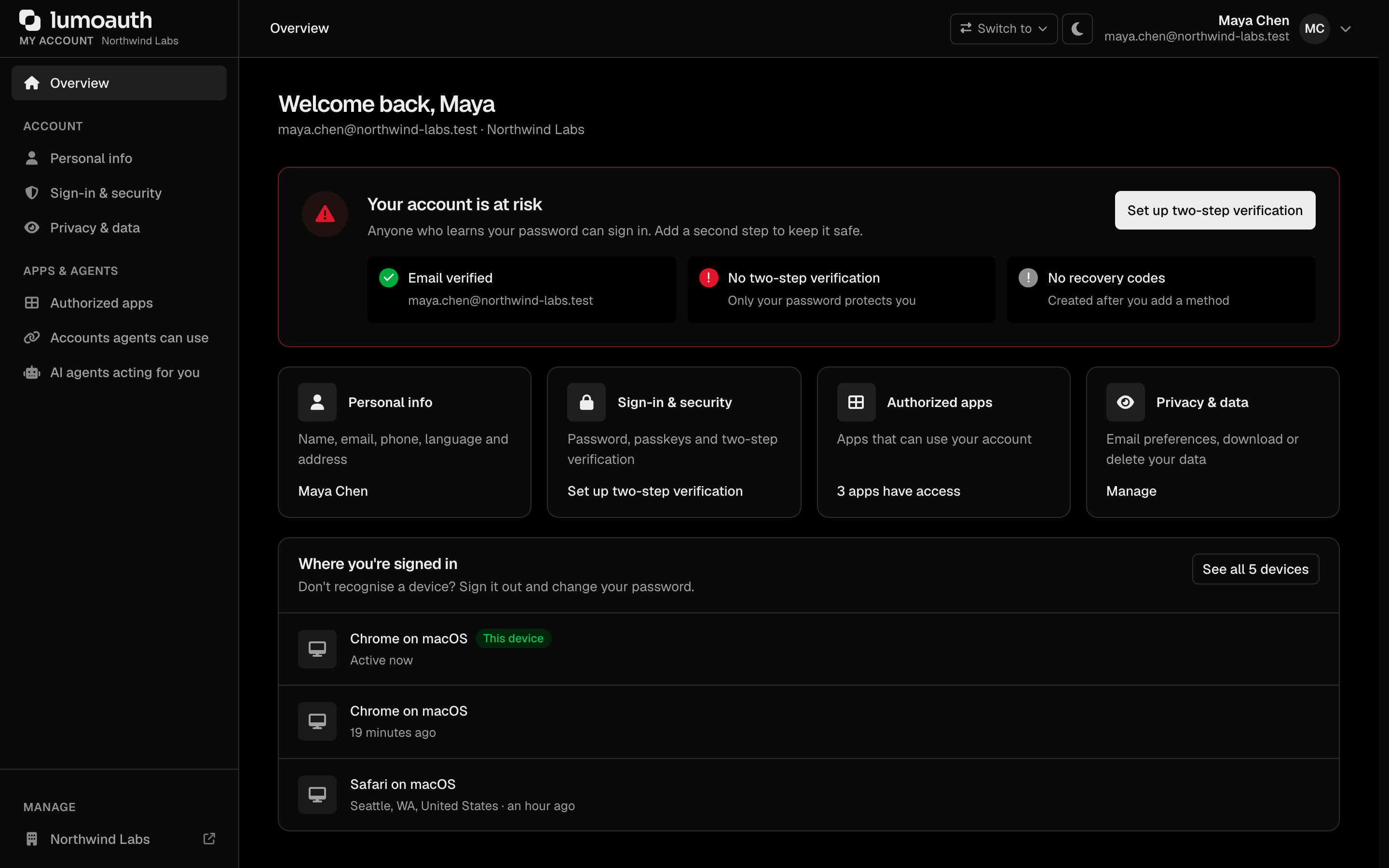
Pages reached from those sections: Your devices (/account/sessions, the full list of signed-in devices) and Password Reset (/account/forgot-password).
Two places list, by name, each organization portal that you administer and each customer organization portal that you belong to: the header's Switch to menu (present in every LumoAuth area) and the sidebar's Manage section. The sidebar brand also names the organization that your account belongs to.
Password change and every MFA action are handled from the single Sign-in & security page (/account/security); their underlying actions are listed in the sections below.
Personal info
/account/profile is one form with a save bar at the bottom of the window. Its sections are Basic info, Contact, Other emails & IDs, Language & region, Address, Links and From your organization. The save bar shows You have unsaved changes as soon as anything is edited, with Discard changes and Save changes. Leaving the page with unsaved changes asks for confirmation. Language, time zone and country are chosen from lists (time zone can be filled from the device with one click). Name fields beyond first and last name (middle name, username, gender) are under More name fields.

Changing your email has its own dialog (Change email, opened from the Contact section) because it is security-sensitive. It asks for the New email and the Current password, posts to POST /account/change-email and requires:
- the current password — or, for accounts without a password, a sign-in within the last 5 minutes;
- a fresh two-step verification when the user has a second step (they are sent to
/auth/step-upfirst, then back). Step-up is checked before the password, so a session without fresh MFA cannot test password guesses here.

Re-entering the current password (change email, change password, delete account, forced password change) is limited per user (5 per 15 minutes; "Too many attempts. Please wait a few minutes and try again."). Each wrong password counts toward the account lockout like a failed sign-in.
Saving does not change the address yet. LumoAuth e-mails a confirmation link to the new address and tells the old address that a change was requested. The change happens only when the user opens that link within one hour, while signed in to the same account; until then the current address keeps working. On confirmation the new address is marked verified, the old address gets a notification, and every other session is signed out (the one that confirmed stays signed in). The link is bound to the old address, so it stops working if the address changes in the meantime.
If the new address is already used by another account, no confirmation link is sent and the
page shows the same "check your inbox" message. The form therefore cannot be used to find out which
addresses have accounts. Events: user.email_change_requested, then user.email_changed.
Password Reset Flow
- User clicks Forgot password? on the login page (or goes to
/account/forgot-password) - User enters their email address and clicks Send reset link
- LumoAuth sends a password-reset link (time-limited)
- User clicks the link and sets a new password
- Other sessions and OAuth tokens are revoked, and the reset marks the email as verified
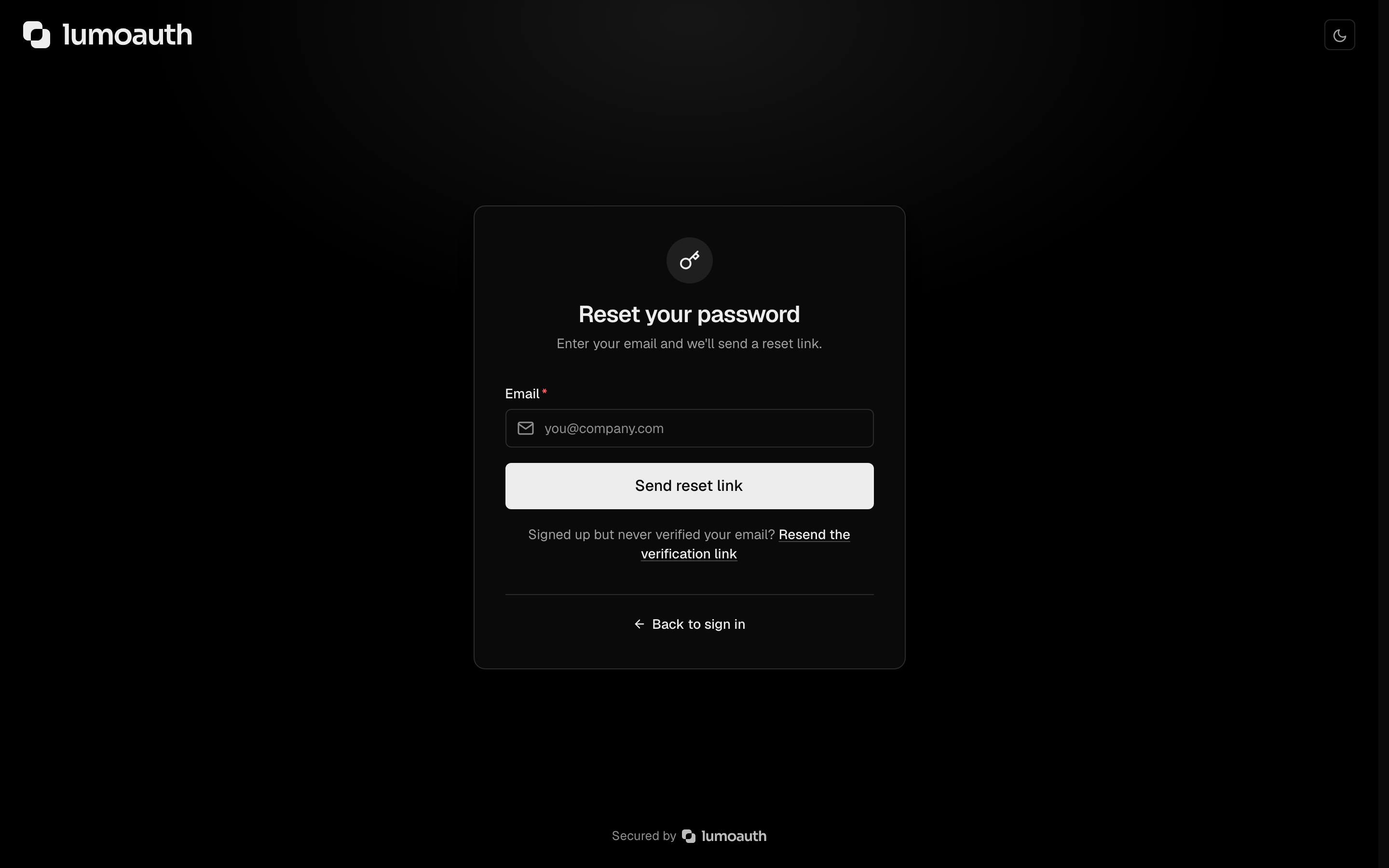
For an address whose self-service sign-up was never verified, the form sends the verification link instead of a reset link. Requests are limited per address (5 per hour) as well as per IP, and the page always gives the same neutral answer.
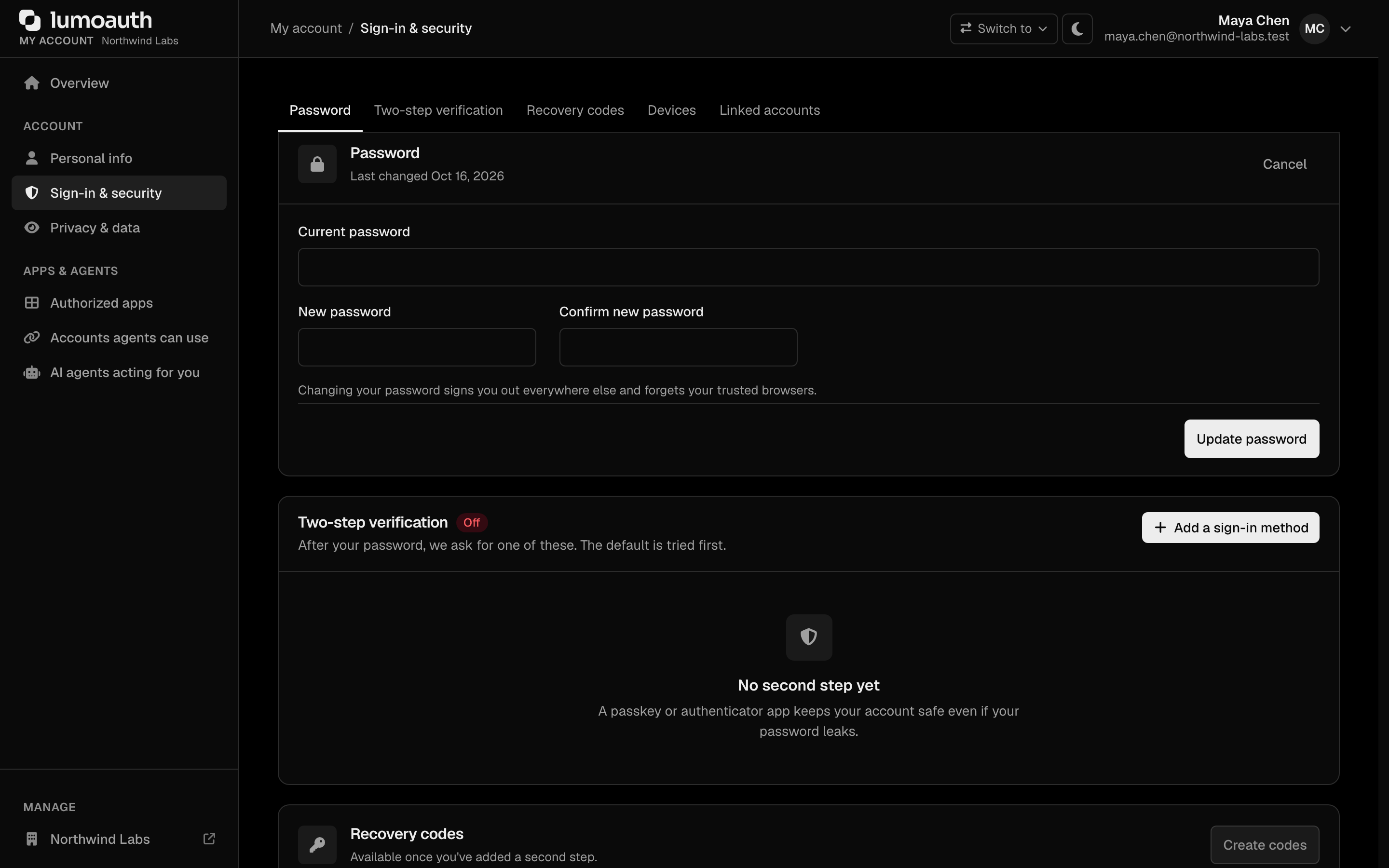
To change a password while signed in, use the Sign-in & security page (/account/security): click Change password, enter the current password and the new password twice, then click Update password. The form submits to POST /account/change-password. Users who have an MFA factor must have verified it within the last 10 minutes (the organization's step-up window); otherwise they are sent to /auth/step-up first.
Whenever the password of an existing account changes, LumoAuth e-mails the account owner a password-changed notice. The change can come from the user, a reset link, an administrator, SCIM or a CLI command. The notice includes a link to reset the password if they didn't make the change.
Password Requirements
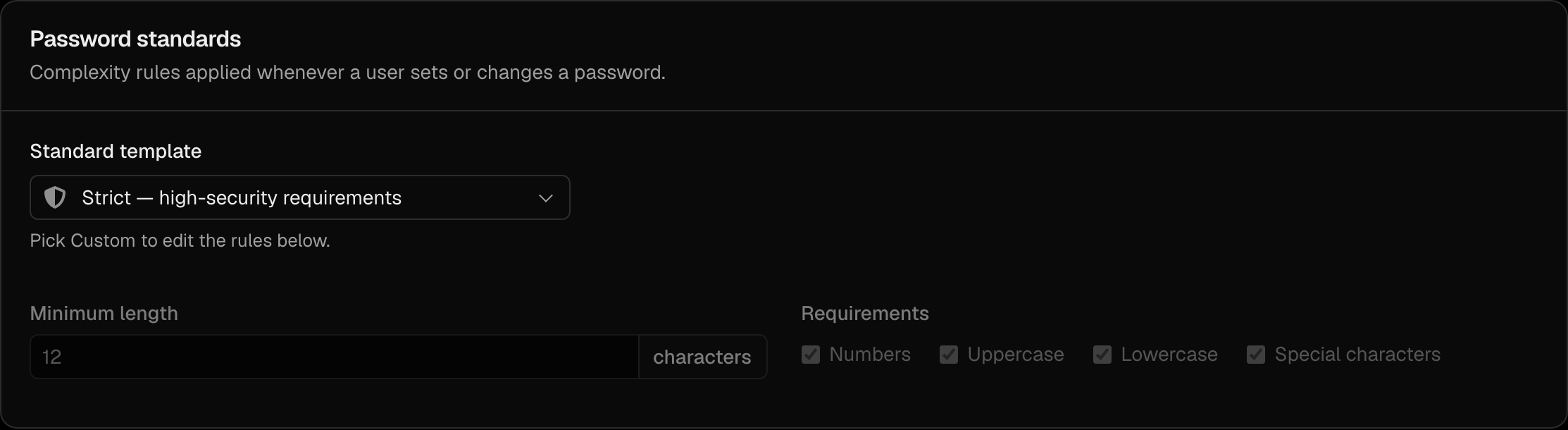
Password policy is configured per organization on the Sign-in settings page (/orgs/{orgId}/portal/settings/authentication), in the Password standards and Auth lifecycle sections:
| Setting | Description |
|---|---|
| Standard template | Fair, Moderate, Strict or Custom. Pick Custom to edit the rules below |
| Minimum length | Minimum number of characters |
| Requirements | Numbers, Uppercase, Lowercase and Special characters, each a separate option |
| Reject passwords found in known breaches | Check against known breached passwords (under Auth lifecycle) |
| Enforce periodic password resets | Users must choose a new password once the Password rotation interval has passed (under Auth lifecycle) |
Sign-in & security
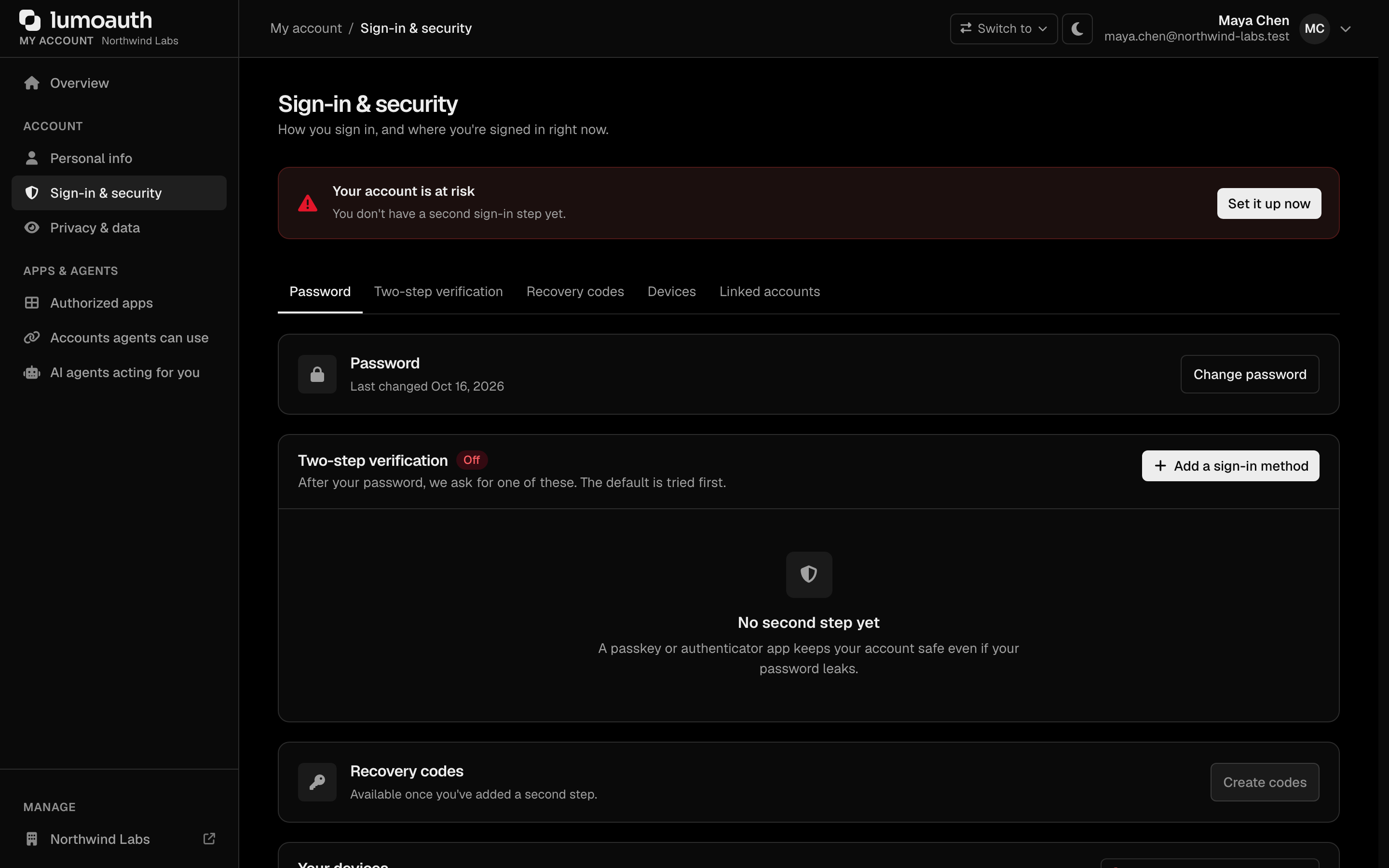
/account/security is the one place where users see and change how they sign in. A tab bar switches between its sections: Password, Two-step verification, Recovery codes, Devices and, when the organization offers social sign-in, Linked accounts. The Password section shows when the password was last changed; Change password opens the form. The Two-step verification section shows:
- A status summary at the top of the page — Your account is protected (at least two sign-in methods, counting a set of recovery codes as one), Add a backup method (one method) or Your account is at risk (none). During an enrollment grace period it also shows how many days are left.
- Every sign-in method with its type icon, display name, strength label (Strongest, Strong, Standard, Basic), the date when it was added and when and where it was last used. The default method carries a Default tag; a LumoAuth app device whose test push is still pending shows Waiting for test approval.
What users can do:
| Action | How | Protection |
|---|---|---|
| Add a sign-in method | Opens the same guided screens as enrollment (/auth/secure-account?mode=manage) and returns here | A recent sign-in for the first method; a fresh verification with an existing method for later ones |
| Rename | From the method's ⋯ menu; a dialog, 1–64 characters | — |
| Make default | From the ⋯ menu; the default method starts automatically at sign-in | — |
| Remove | Revokes the method and signs out trusted devices | Fresh verification with a different method where one exists. Blocked with "Your organization requires two-step verification. Add another method first." when it is the last method and MFA is required. |
| Create new codes | Replaces the recovery-code set; the new codes are shown once with Copy / Download / Print | Fresh verification |
| Sign out a device | Ends that session (from Your devices) | — |
| Forget / Forget all trusted browsers | The browser asks for two-step verification again next time | — |
| Sign out of all other devices | Ends every other session; this one stays signed in | — |
| Link / Unlink a social account | Link starts the provider's sign-in and attaches it to this account; Unlink removes it | Unlink is refused when it is the only way left to sign in (no password, no passkey, no other linked account) |
Other notes:
- To change a phone number, add the new number first, then remove the old one.
- When 2 or fewer recovery codes remain, the page asks the user to generate a new set.
- After an account recovery the page asks the user to remove any method they no longer have, add a new one and save new recovery codes.
- When a fresh verification is needed, the user is sent to
/auth/step-up, which starts their default method (or another one of their choice) and brings them back. - Users without any two-step method have nothing to step up with. For changing the password, removing a method, downloading their data and similar sensitive actions they must have signed in within the last 10 minutes. Otherwise they are asked to sign in again first.
The form actions behind the page (browser session and CSRF token required, the hidden token that proves the request came from a LumoAuth page; not org-scoped):
| Action | Endpoint |
|---|---|
| Rename a method | POST /account/security/authenticators/{ref}/rename |
| Make a method the default | POST /account/security/authenticators/{ref}/default |
| Remove a method | POST /account/security/authenticators/{ref}/remove |
| Generate new recovery codes | POST /account/security/recovery-codes |
| Forget a trusted device | POST /account/security/trusted-devices/{id}/revoke |
| Forget all trusted devices | POST /account/security/trusted-devices/revoke-all |
| Sign out a device | POST /account/sessions/{id}/revoke |
| Sign out of all other devices | POST /account/sessions/revoke-all |
| Unlink a social account | POST /account/security/linked-accounts/{id}/unlink |
{ref} is the authenticator reference, for example totp:12 or passkey:7. Custom UIs should use the MFA API (/orgs/{orgId}/api/v1/me/authenticators and related endpoints) instead, which offers the same operations with a user access token. The old /account/mfa/setup, /account/mfa/verify-setup and /account/mfa/disable actions no longer exist; /account/mfa/backup-codes redirects here.
See Multi-Factor Authentication for details.
Passkey Management
Passkeys are listed with the other sign-in methods on Sign-in & security:
- Navigate to
/account/security - Click Add a sign-in method, then Create a passkey
- Follow the browser/device prompt (fingerprint, face ID, screen lock or security key)
- The passkey is named after the device and browser (for example "Mac – Chrome"); rename it if you like
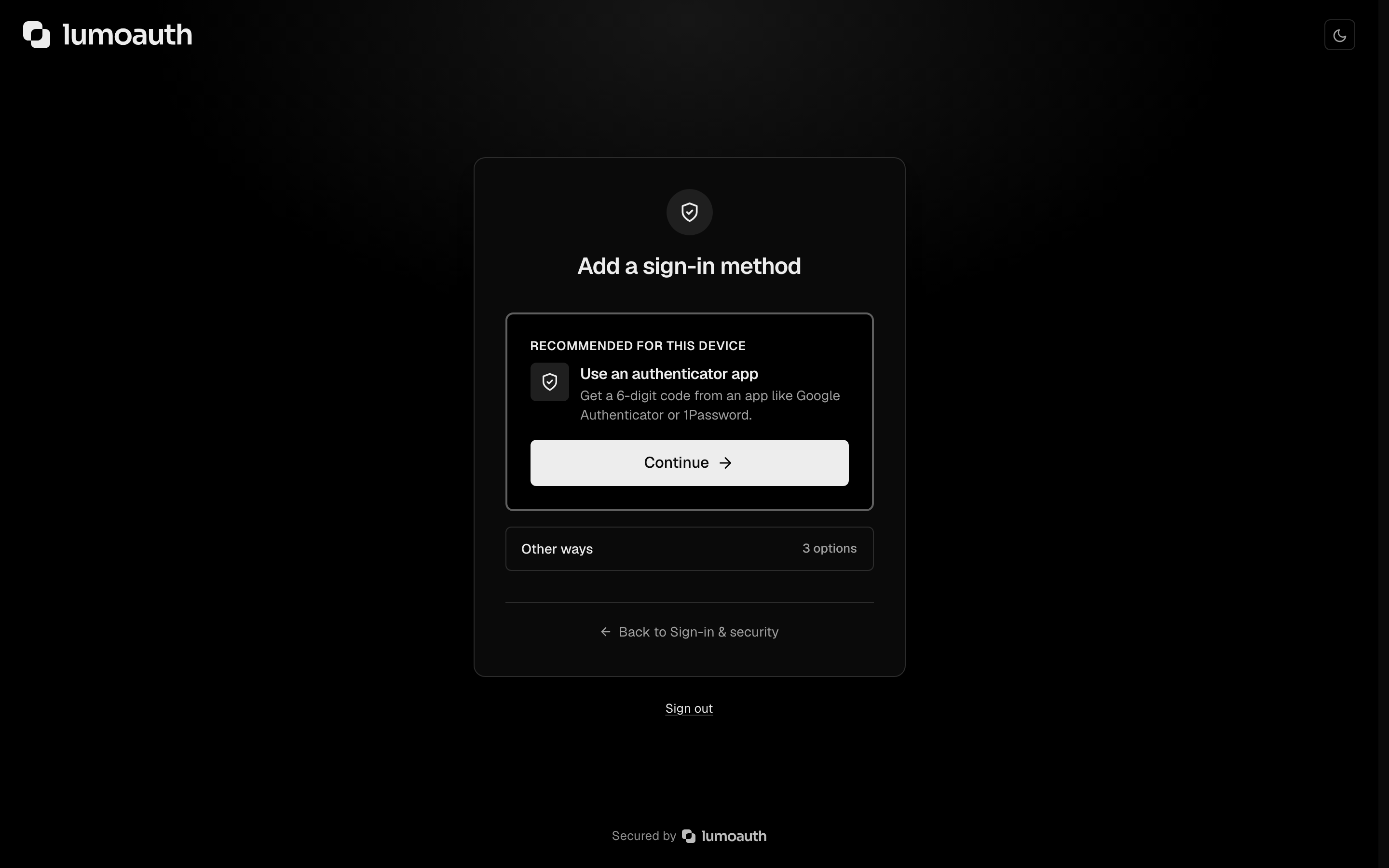
The screen recommends one method for the current device; the remaining methods that the organization allows are under Other ways.
Registration uses POST /account/security/passkey/options then POST /account/security/passkey/register; DELETE /account/security/passkey/{id} removes a passkey (with the same fresh-verification rule as Remove).
See Passkeys for details.
Session Management
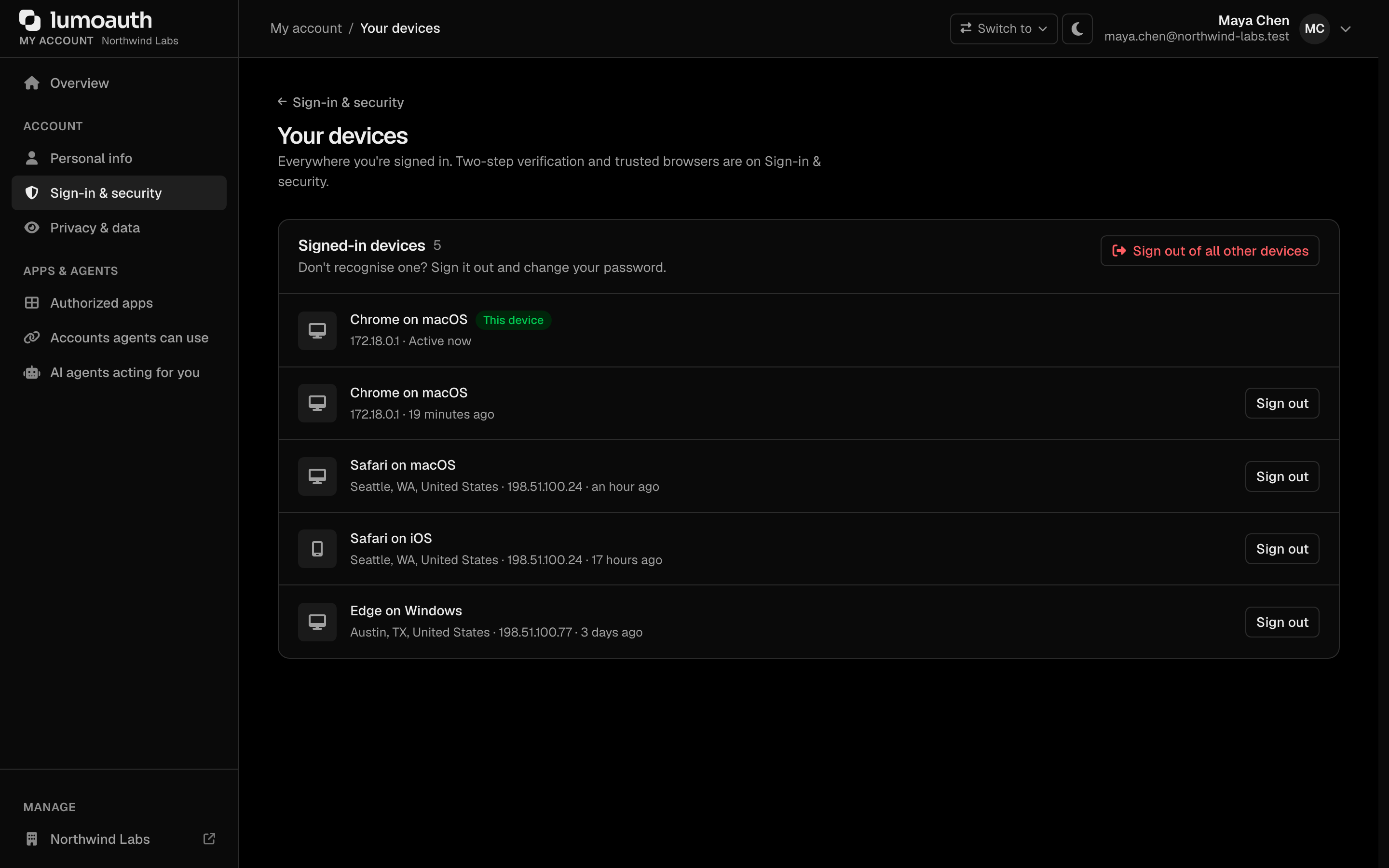
The Devices section of Sign-in & security lists where the user is signed in, with the current device first and marked This device, followed by any trusted browsers. Overview shows the three most recent. The full list is at /account/sessions (Your devices). Each entry shows:
- Browser and operating system (for example "Chrome on macOS")
- IP address and approximate location
- Last activity ("2 hours ago")
Click Sign out next to any device that you do not recognise, or Sign out of all other devices to end every other session at once (POST /account/sessions/revoke-all).
Organization Memberships
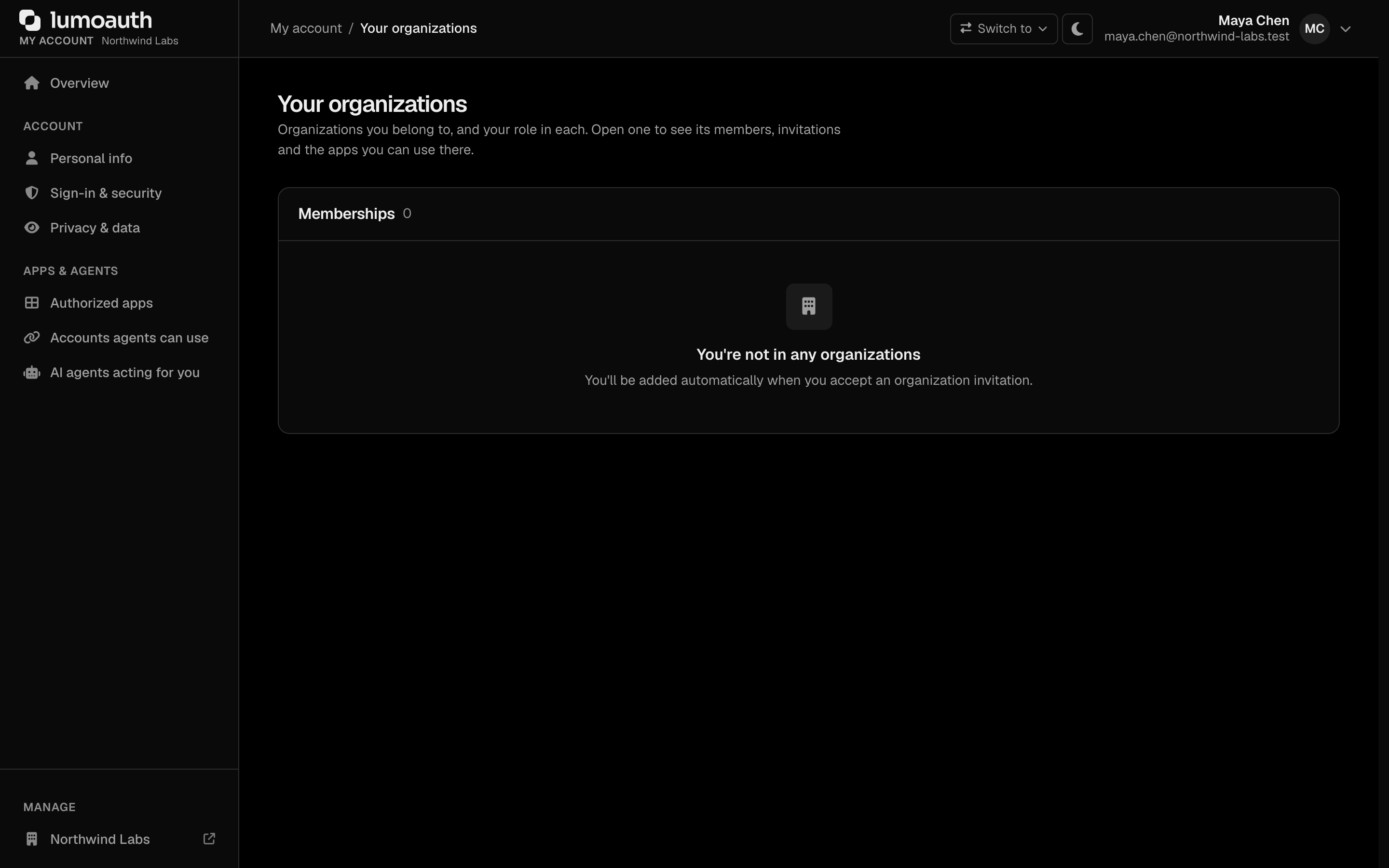
Users who belong to one or more customer organizations can review them at /account/organizations (Your organizations in the account sidebar; the old /orgs/{orgId}/account/organizations URL redirects there). The page (Your organizations) lists each organization that the user belongs to and their role in it.
Privacy & Data (GDPR)
Signed-in users have self-service privacy pages for exercising data-subject rights:
| Action | Where |
|---|---|
| Privacy & data: data-use preferences (Data use), links to everything below (Your data), Linked identities and Restrict or delete | /account/privacy |
| Authorized apps: see what each app can do, remove its access; removed and expired access is under Past access | /account/consents |
| Consent history | /account/consent-history |
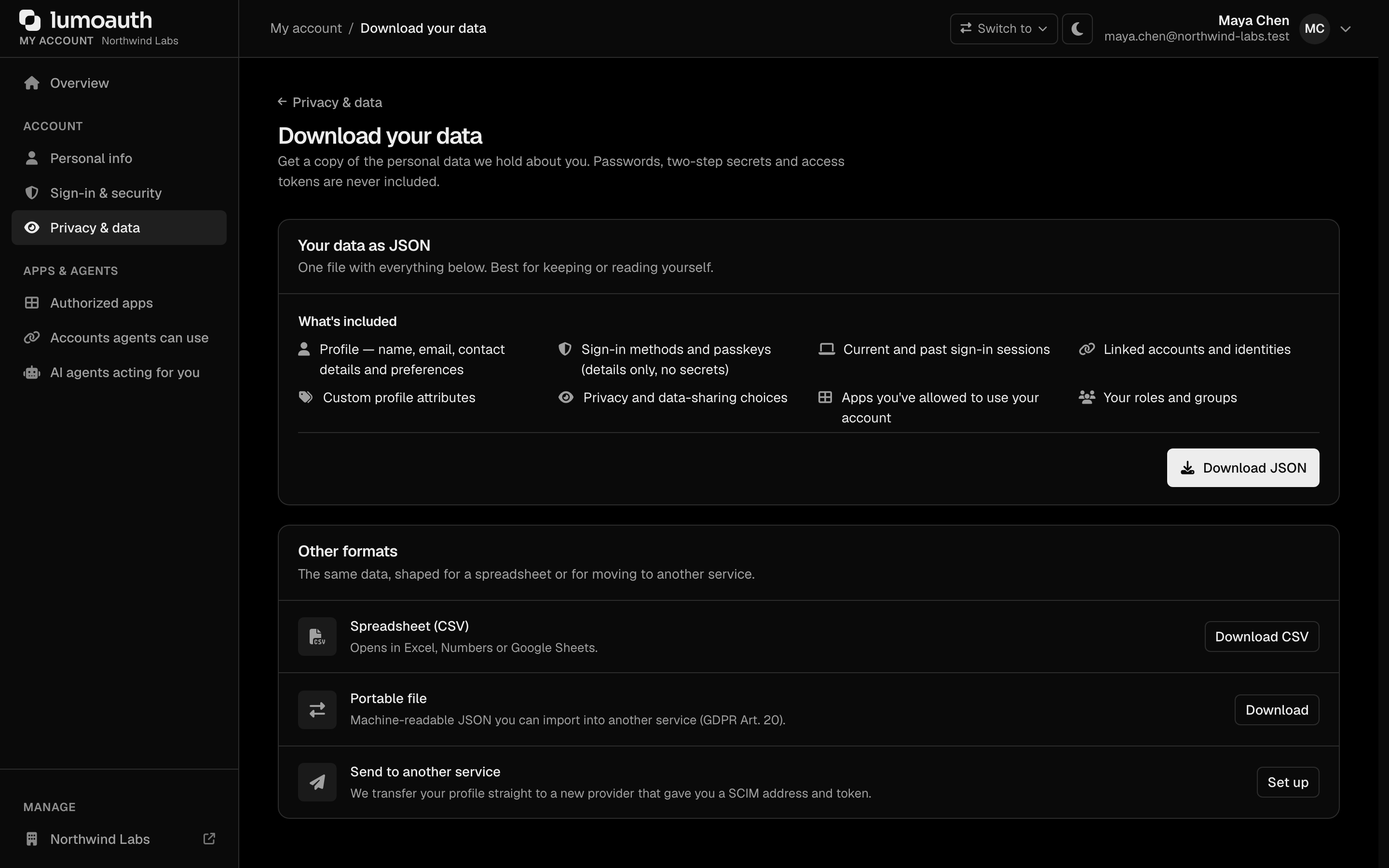
| Download your data as JSON or CSV (needs a fresh two-step verification, or a sign-in within the last 10 minutes for accounts without one) | /account/data-export |
| Data portability (machine-readable transfer): the Portable file download on the Download your data page, or Send to another service | POST /account/data-portability (a form action, not a page); /account/data-portability/transmit |
| Make a privacy request (data-subject request, DSR) | /account/dsr |
| Automated decisions: review a decision or ask for a person to review it | /account/automated-decisions |
| Cookie preferences | /account/consent/cookies |
| Restrict processing | The Restrict or delete section of /account/privacy (POST /account/restrict-processing, a form action, not a page) |
| Delete your account | The Restrict or delete section of /account/privacy, which leads to /account/delete-account |

Download your data offers the full JSON file, a spreadsheet (CSV), the portable file and the transfer to another service:
Make a privacy request lets the user choose the request (Get a copy of my data (Art. 15), Correct my data (Art. 16), Delete my data (Art. 17), Restrict processing (Art. 18), Move my data (Art. 20) or Object to processing (Art. 21)), add optional details and click Send request. Submitted requests and their progress are listed under Your requests.

Delete your account asks the account holder to confirm. Users with an MFA factor pass step-up first and then enter their password. Accounts without a password (social, SAML or passkey-only) confirm with step-up alone (a fresh second factor, or a sign-in within the last 10 minutes when they have none).
Restrict processing and Delete your account are offered directly only when the organization enables self-service restriction or deletion (GDPR settings → Self-service in the portal). Otherwise the section explains that the organization handles them as privacy requests. The buttons then read Request and Request deletion and link to /account/dsr with the request type already chosen. Opening /account/delete-account directly returns to Privacy & data with a notice.

See Compliance & GDPR for the full privacy program.
Push Authentication Enrollment
Users can enroll the LumoAuth app for push approval and manage it from Sign-in & security. The page uses:
- Start enrollment —
POST /account/push-auth/start-enrollment(returns the QR / activation code plus an opaqueenrollment_idthat the page uses below; the secret enrollment token itself never appears in a URL) - Check enrollment status (pending → awaiting the test push → active) —
GET /account/push-auth/enrollment-status/{enrollment_id} - Send the test notification again —
POST /account/push-auth/enrollment-test/{enrollment_id}/resend - Cancel a pending enrollment —
POST /account/push-auth/cancel-enrollment/{enrollment_id} - Remove an enrolled device —
POST /account/push-auth/remove-device/{id}
See Push Authentication for the end-to-end flow.
Related Guides
- User Management Overview - Managing users as an admin
- MFA - Multi-factor authentication details
- Passkeys - WebAuthn/FIDO2 setup
- Social Login - Social identity providers