User Invitations
Invite users to join your organization via email. Invitation-based onboarding ensures only authorized users can create accounts.
Sending Invitations
Via Portal
- Go to Users in the sidebar and click Invite users (the Invite users page,
/orgs/{orgId}/portal/users/invite) - Enter one or more Email addresses (one per line or comma-separated to invite several people at once)
- Optionally add a Personal message, which is included in the invitation email
- Optionally select Roles to pre-assign to every invited user
- Click Send invitations
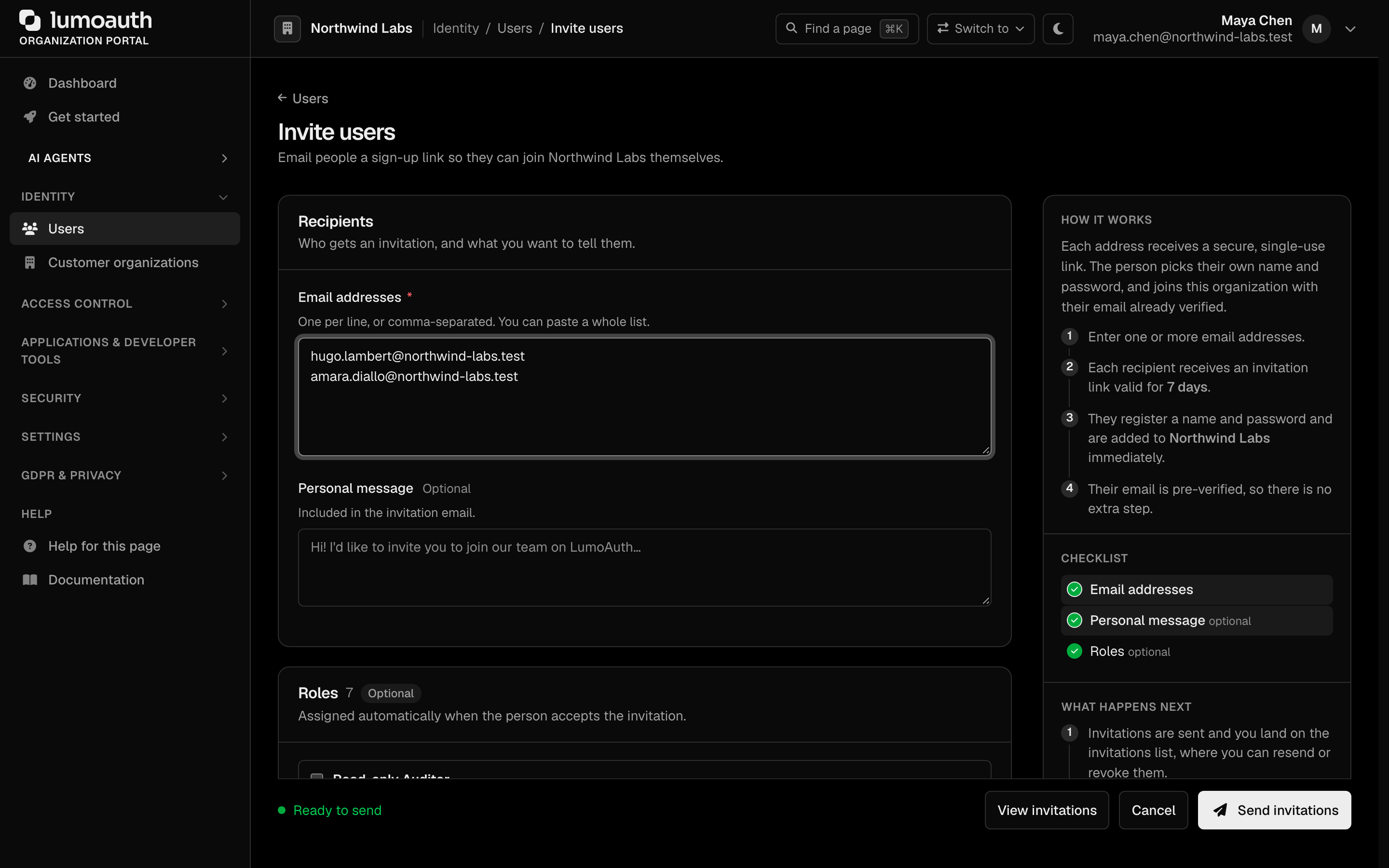
Each recipient receives an email with a link to complete registration, and you are taken to the Invitations list. There is no separate "bulk" page. Entering multiple addresses on the Invite users page sends one invitation per address. Sending a new invitation to an address that already has a pending one revokes the earlier invitation.
The invitation form pre-assigns roles only. Groups cannot be pre-assigned at invite time; add the user to groups after they accept.
Invitation Flow
The password that the invited user sets must meet the organization's password policy and breached-password check.
The invited address may be held only by a pending self-service sign-up (registered but never verified, never signed in). In that case the invitation can still be accepted: the pending sign-up is removed and the invited user's account takes its place. Someone who registers an address first cannot block an invitation to it.
Invitation Settings
| Setting | Description | Default |
|---|---|---|
| Expiration | How long the invitation link is valid | 7 days |
Requiring invitations (disabling self-registration)
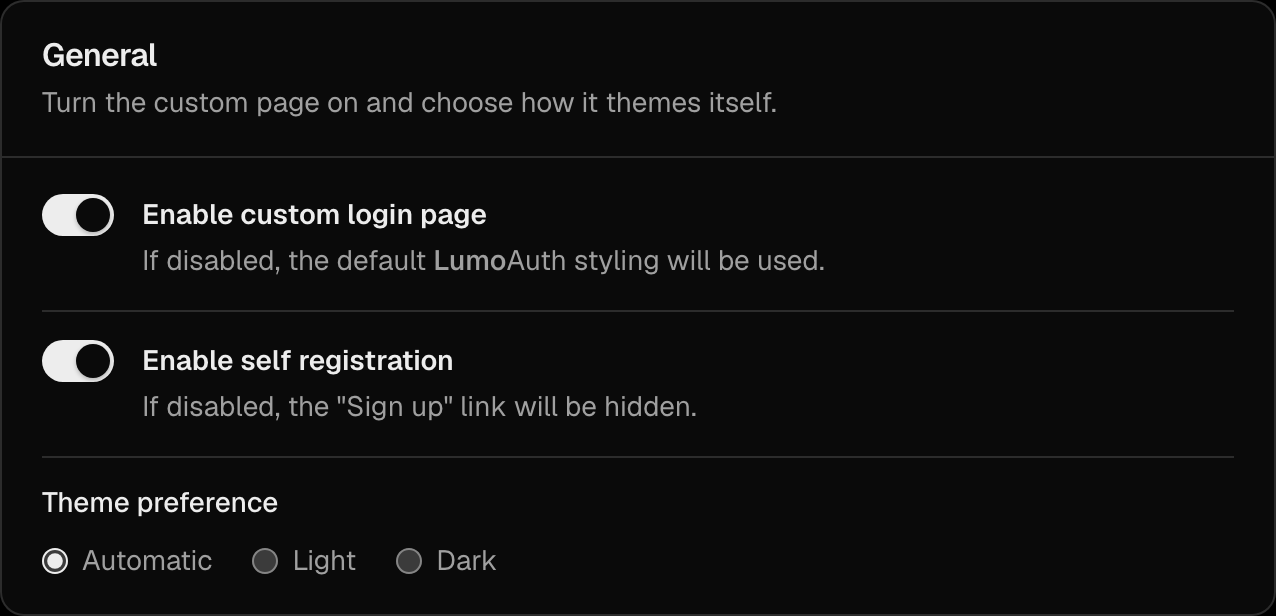
LumoAuth does not have a separate "invitation-only" mode. Instead, self-registration is controlled by a single Enable self registration toggle in the General section of the Login page settings (/orgs/{orgId}/portal/settings/login-page). Turn it off and save to make invitations the only way to create an account.
Managing Invitations
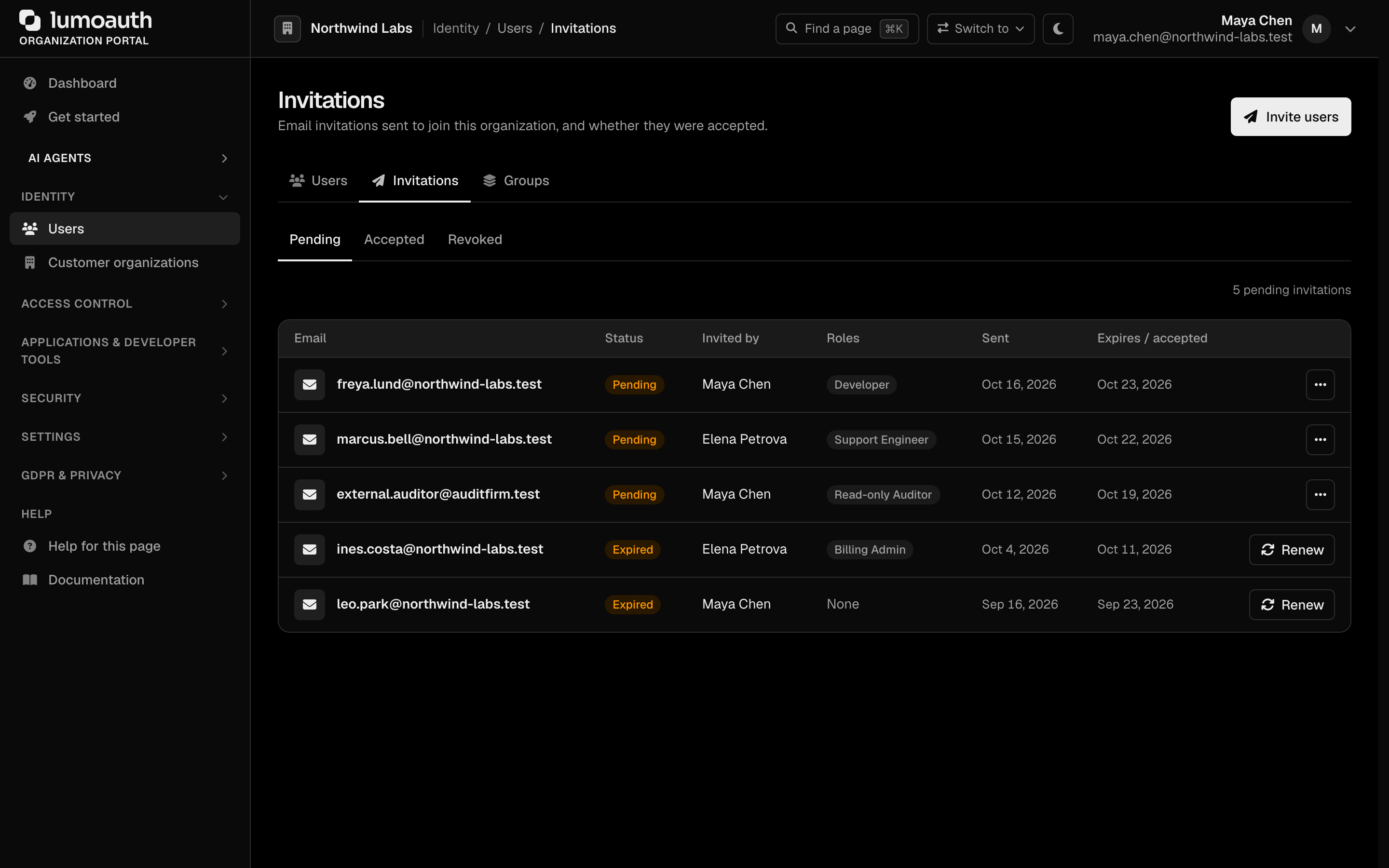
Invitations are listed on the Invitations page (/orgs/{orgId}/portal/users/invitations), reached with the Invitations button on the Users page or View invitations on the Invite users page. The Pending, Accepted and Revoked tabs filter the list.
| Action | Description |
|---|---|
| View pending | The Pending tab shows all outstanding invitations |
| Resend | Send the invitation email again |
| Revoke | Cancel a pending invitation |
Customizing Invitation Emails
Customize the User Invitation template on the Email templates page (/orgs/{orgId}/portal/settings/email-templates) by clicking Customise on its row:
- Subject line
- Body content
- Branding (logo, colors)
- Custom message from the admin
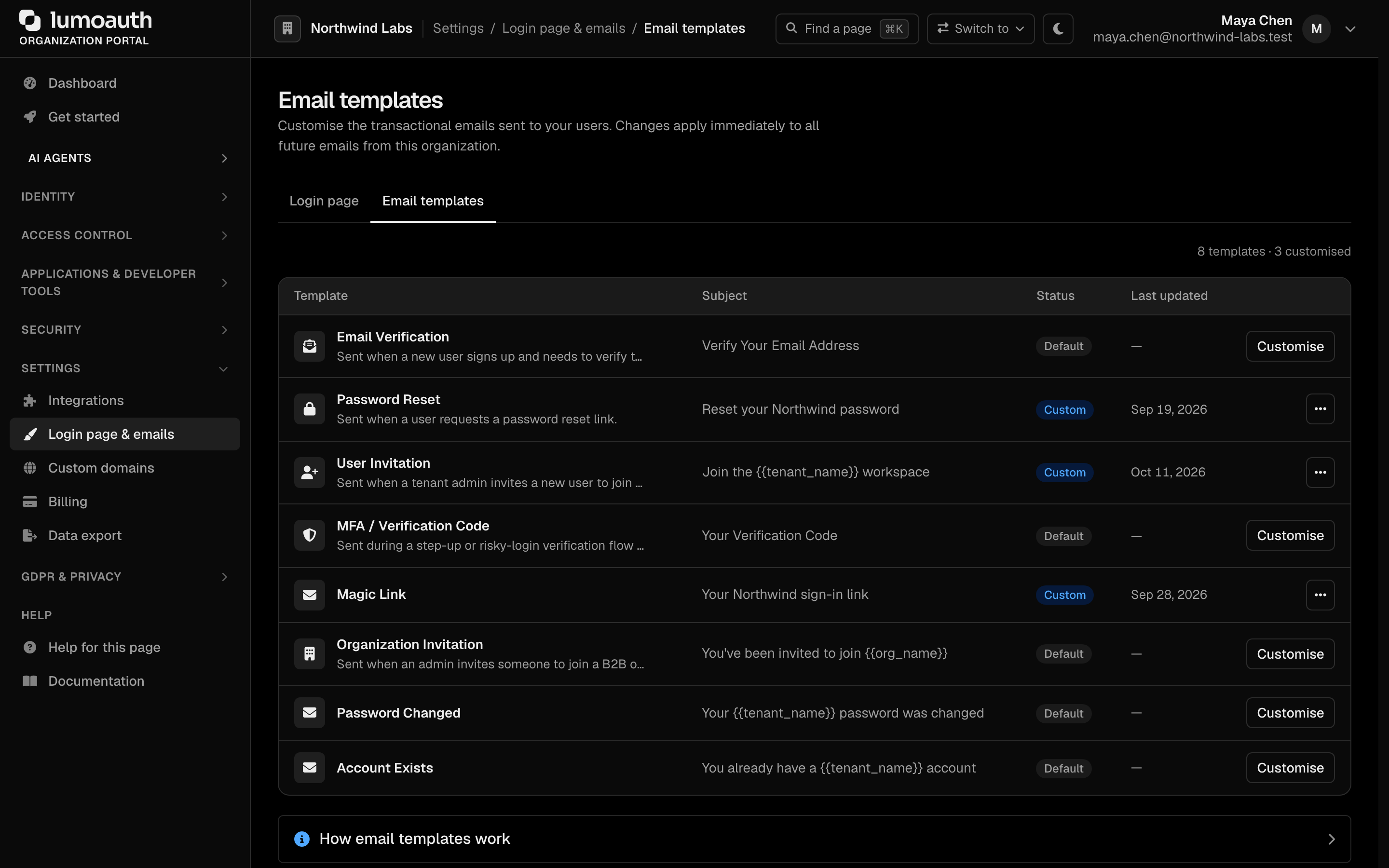
See Email Templates for details.
Related Guides
- User Management Overview - Full user lifecycle
- Account Self-Service - User-initiated actions
- Email Templates - Customize email content