Add authentication to your React app
This guide shows you how to add authentication, user management, and access control to a React application using the @lumoauth/react SDK.
Before you start
You need:
- A LumoAuth account with an organization (sign up)
- A registered OAuth application with a redirect URI (e.g.,
http://localhost:5173/auth/callback) - Node.js 18+
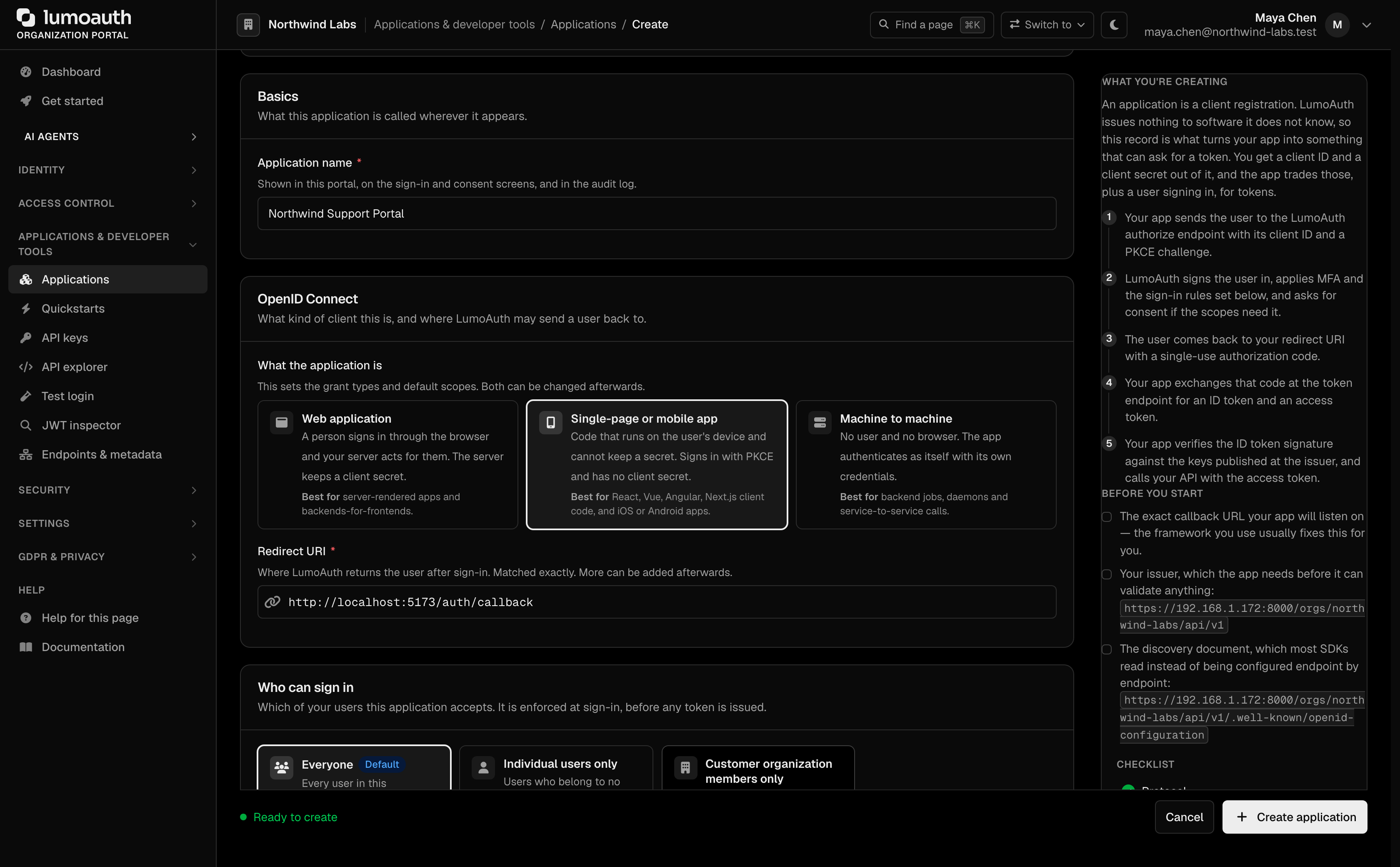
To register the application, open Applications in the portal sidebar and click New application. Enter an Application name, choose Single-page or mobile app, enter the Redirect URI, and click Create application.
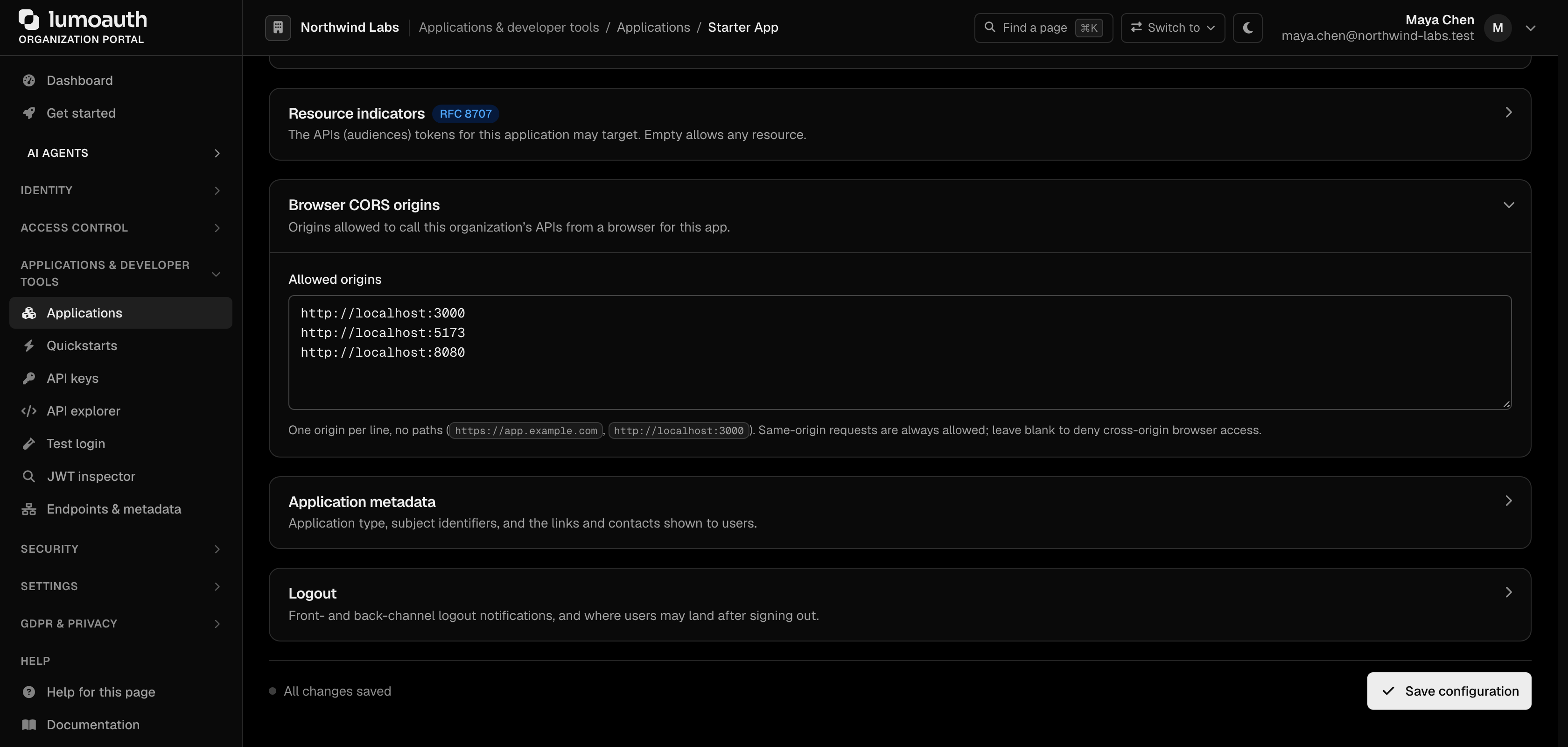
This app finishes sign-in in the browser, so also add its origin (for example http://localhost:5173). Enter it under Browser CORS origins on the application's Configuration tab and click Save configuration. Otherwise the token request is blocked by CORS right after sign-in.
From your organization portal, note your Organization ID and Client ID. The Quickstarts page (under Applications & developer tools) has a React tab that shows your organization ID and client ID pre-filled, ready to copy.
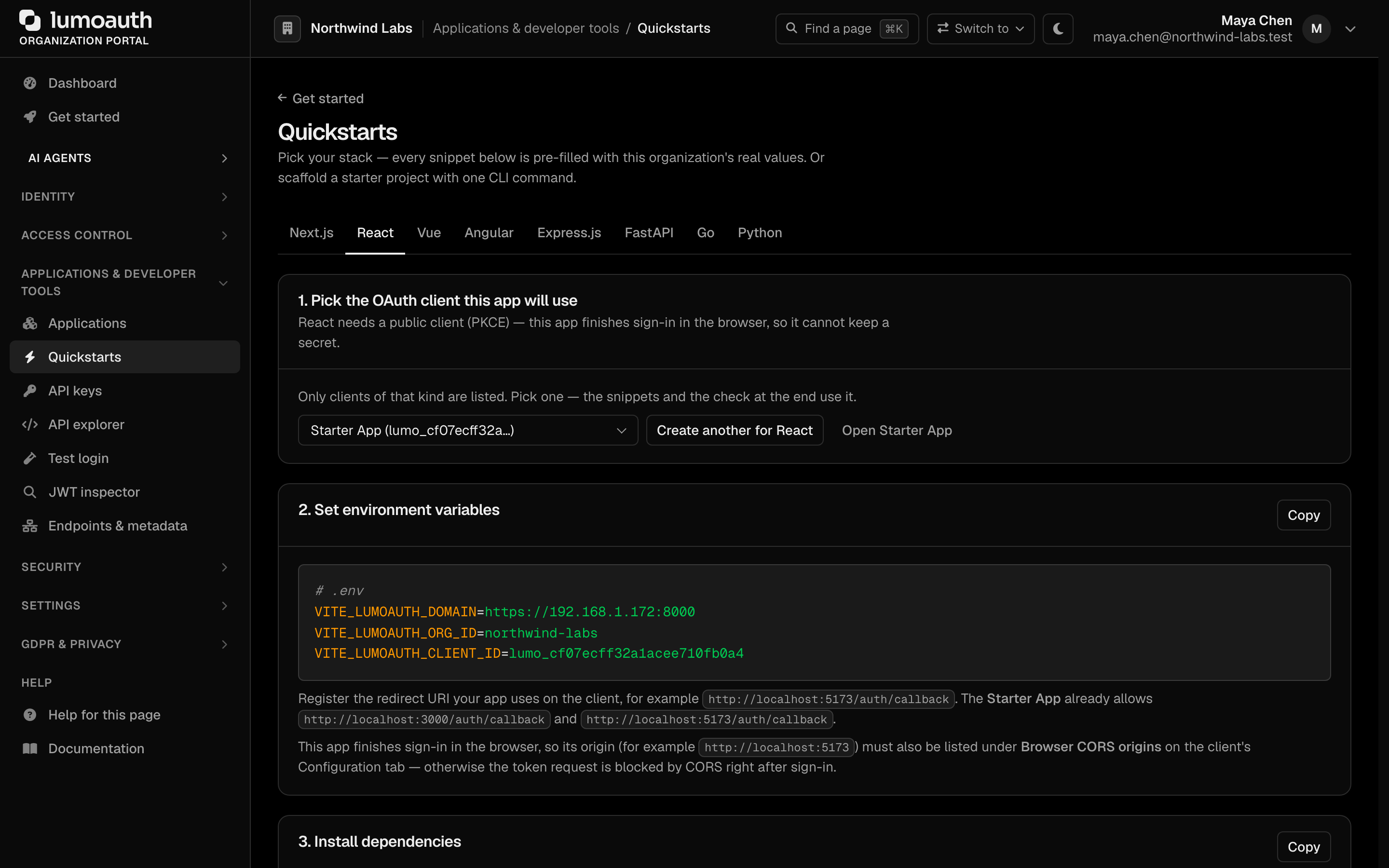
The tab's first step lists only OAuth clients of the kind that these snippets need. If none exists, Create one for this framework opens the create form with the right type already selected and brings you back. Its last step, Check it worked, shows the first sign-in that completes through the selected client.
Install the SDK
npm install @lumoauth/react
The routing example below uses React Router. If your app doesn't already have it, install it too:
npm install react-router
Set up the provider
Wrap your app with LumoAuthProvider. This makes authentication state available throughout your component tree.
import ReactDOM from 'react-dom/client';
import { LumoAuthProvider } from '@lumoauth/react';
import App from './App';

ReactDOM.createRoot(document.getElementById('root')!).render(
  <LumoAuthProvider
    domain="https://app.lumoauth.dev"
    orgId="acme-corp"
    clientId="your-client-id"
    redirectUri="http://localhost:5173/auth/callback"
    afterSignInUrl="/dashboard"
  >
    <App />
  </LumoAuthProvider>
);
Add sign-in and sign-up pages
The SDK provides pre-built components that handle the full authentication flow, including social login buttons when configured in your organization.
import { SignIn } from '@lumoauth/react';

export default function SignInPage() {
  return (
    <div style={{ display: 'flex', justifyContent: 'center', paddingTop: '4rem' }}>
      <SignIn afterSignInUrl="/dashboard" signUpUrl="/sign-up" />
    </div>
  );
}
import { SignUp } from '@lumoauth/react';

export default function SignUpPage() {
  return (
    <div style={{ display: 'flex', justifyContent: 'center', paddingTop: '4rem' }}>
      <SignUp afterSignUpUrl="/dashboard" signInUrl="/sign-in" />
    </div>
  );
}
Handle the OAuth callback
Mount AuthCallback on the route matching your redirect URI. It exchanges the authorization code for tokens and redirects the user.
import { AuthCallback } from '@lumoauth/react';

export default function CallbackPage() {
  return (
    <AuthCallback
      afterSignInUrl="/dashboard"
      loading={<p>Signing you in...</p>}
      error={(err) => <p>Something went wrong: {err}</p>}
    />
  );
}
Protect your routes
Use SignedIn and SignedOut to conditionally render content based on authentication status.
import { BrowserRouter, Routes, Route } from 'react-router';
import { SignedIn, SignedOut, RedirectToSignIn, UserButton } from '@lumoauth/react';
import SignInPage from './pages/SignInPage';
import SignUpPage from './pages/SignUpPage';
import CallbackPage from './pages/CallbackPage';
import Dashboard from './pages/Dashboard';

export default function App() {
  return (
    <BrowserRouter>
      <header style={{ display: 'flex', justifyContent: 'flex-end', padding: '1rem' }}>
        <SignedIn>
          <UserButton showName />
        </SignedIn>
      </header>

      <Routes>
        <Route path="/sign-in" element={<SignInPage />} />
        <Route path="/sign-up" element={<SignUpPage />} />
        <Route path="/auth/callback" element={<CallbackPage />} />
        <Route
          path="/dashboard"
          element={
            <>
              <SignedIn><Dashboard /></SignedIn>
              <SignedOut><RedirectToSignIn /></SignedOut>
            </>
          }
        />
      </Routes>
    </BrowserRouter>
  );
}
Use hooks for auth state
Access the current user, sign-out function, and tokens from any component.
import { useAuth, useUser } from '@lumoauth/react';

export default function Dashboard() {
  const { signOut, getToken } = useAuth();
  const user = useUser();

  const callApi = async () => {
    const token = await getToken();
    const res = await fetch('https://api.myapp.com/data', {
      headers: { Authorization: `Bearer ${token}` },
    });
    const data = await res.json();
    console.log(data);
  };

  return (
    <div>
      <h1>Welcome, {user?.displayName}</h1>
      <p>Email: {user?.email}</p>
      <button onClick={callApi}>Fetch Data</button>
      <button onClick={() => signOut()}>Sign Out</button>
    </div>
  );
}
Add access control
Use the Protect component or authorization hooks to protect features by permission, relationship, or policy.
import { Protect, usePermission } from '@lumoauth/react';

export function AdminPanel() {
  return (
    <Protect permission="admin.access" fallback={<p>You don't have access to this section.</p>}>
      <h2>Admin Panel</h2>
      <p>Only members with the <code>admin.access</code> permission can see this.</p>
    </Protect>
  );
}

export function EditButton() {
  const { allowed, isLoading } = usePermission('documents.edit');

  if (isLoading) return null;
  if (!allowed) return null;

  return <button>Edit Document</button>;
}
What's next?
- Configure social login in your organization to show social buttons on SignIn/SignUp
- Set up MFA for additional security
- Define roles and permissions to use with the Protect component
- SDKs & Libraries - Full SDK API reference