Multi-Factor Authentication (MFA)
MFA (multi-factor authentication) asks users for a second proof of identity after their first sign-in step. LumoAuth supports passkeys (sign-in with a device biometric or security key), push approval in the LumoAuth app, authenticator apps (TOTP, time-based one-time codes), text-message codes and email codes. Single-use recovery codes cover the case where a user loses their factors. Each factor has a strength tier. Your organization's MFA policy determines who must use MFA, which factors are allowed and how strong they must be.
The model is "recommend, don't enumerate": LumoAuth proposes one best factor for the user's device, starts the user's default factor automatically at sign-in, and keeps the alternatives one click away. For risk scoring of individual sign-ins, see Adaptive MFA.
Factors and strength tiers
Every enrolled factor is an authenticator with a type, a display name, a state and a tier. Tier 1 is strongest.
| Tier | Label | Factor type | What the user does | amr values |
|---|---|---|---|---|
| T1 | Strongest | passkey | Confirms with fingerprint, face, screen lock or security key. Phishing-resistant. | hwk, user |
| T2 | Strong | push | Taps the matching number in the LumoAuth app, unlocked with biometrics or passcode. | swk, user |
| T3 | Standard | totp | Types the 6-digit code from an authenticator app (Google Authenticator, 1Password, …). | otp |
| T4 | Basic | sms_otp | Types a 6-digit code received by text message. | sms |
| T4 | Basic | email_otp | Types a 6-digit code received by email. | otp |
| Recovery | Recovery | recovery_code | Types one of 10 single-use codes saved at enrollment. Recovery only. | otp |
Rules that follow from the tiers:
- Email codes do not count as a second factor unless the organization turns on
email_otp_counts_as_mfa. An inbox is often protected by the same password. - Recovery codes never satisfy a sign-in policy on their own. Using one starts account recovery.
- A passkey counts as both factors (passwordless sign-in) while
passwordless_passkeyis on, which is the default. - When several factors qualify, LumoAuth challenges the user's default factor. If the default is weaker than the required tier, it picks the strongest of the user's factors that meets the tier.
- A new factor becomes the default automatically when it is stronger than the current default (for example, adding a passkey to an account that used TOTP).
Authenticators are addressed by a reference of the form {type}:{id}, for example totp:12, passkey:7 or push:5. The MFA API uses these references as ids.
Requirement modes
The organization's MFA requirement (policy key requirement) determines who is asked to enroll and whether sign-in can finish without a factor.
| Mode | Users without a factor | Users with a factor |
|---|---|---|
Off (off) | Never prompted. | Not challenged at sign-in, even if they set one up. |
Optional (optional) | Shown Secure your account after sign-in, with Remind me later (re-prompted after remind_interval_days). | Challenged at sign-in unless the device is trusted or adaptive MFA grants a low-risk skip. Medium and high risk always challenge. |
Risk-based (recommended) (risk_based, default) | Not prompted at sign-in. They can add a factor any time from Sign-in & security. A risky sign-in follows the adaptive-auth setting Risky sign-ins by users without MFA (no_mfa_action: Allow, Prompt for MFA setup, Email verification or Block access). | Same as Optional. |
Required (required) | Must enroll. During the grace period they can choose Remind me later; after it, sign-in does not complete until a factor is enrolled. | Same as Optional. Cannot remove their last factor. |
The two modes differ only for users without a factor. Optional invites them to enroll after every sign-in (with a weekly Remind me later). Risk-based leaves them alone unless a sign-in is scored as risky; then no_mfa_action applies. Users with a factor are challenged the same way in both modes. Organizations that existed before the MFA policy and did not require MFA are mapped to Risk-based.
Grace period and "Remind me later"
- With Optional or Required, Remind me later hides the prompt for
remind_interval_days(default 7, range 1–90). Each deferral is recorded on the user and audited asmfa.enroll.deferred. - With Required, each user gets
grace_period_days(default 14, range 0–90) counted from the later of their account creation and the moment when the organization switched to Required. The screen shows the days left ("You have 5 days left to set it up"). With a grace period of 0, sign-in is blocked immediately for users without a factor. required_factor_count= 2 makes the backup step mandatory: users with one factor are sent back to Secure your account after sign-in until they add a second one.
How LumoAuth decides at sign-in
Password, magic-link, social, passkey and push sign-ins run the same decision after the first step succeeds:
- Recovery in progress. A user who recovered their account must enroll a new factor before anything else.
- Passkey sign-in. A passkey with user verification counts as both factors when
passwordless_passkeyis on and passkeys are allowed. - Push sign-in. A number-matched push approval from the LumoAuth app counts as MFA.
- High risk. A high or critical adaptive risk level revokes all of the user's trusted devices. If the user holds a passkey or push device, the challenge then requires one of those (tier 2 or stronger).
- Policy off, or no factor yet. No challenge; the enrollment rules above apply (and, for a risky sign-in,
no_mfa_action). - Trusted device. A valid trusted-device cookie skips the challenge, unless risk is medium or high.
- Adaptive low-risk skip. Adaptive MFA may skip the challenge for a low-risk sign-in, unless risk is medium or high.
- Otherwise the user is sent to the MFA challenge.
Secure your account (enrollment)
After sign-in, users who must or are invited to enroll (see Requirement modes) are sent to the Secure your account screen. The same screens open from Sign-in & security → Add a sign-in method:
/auth/secure-account
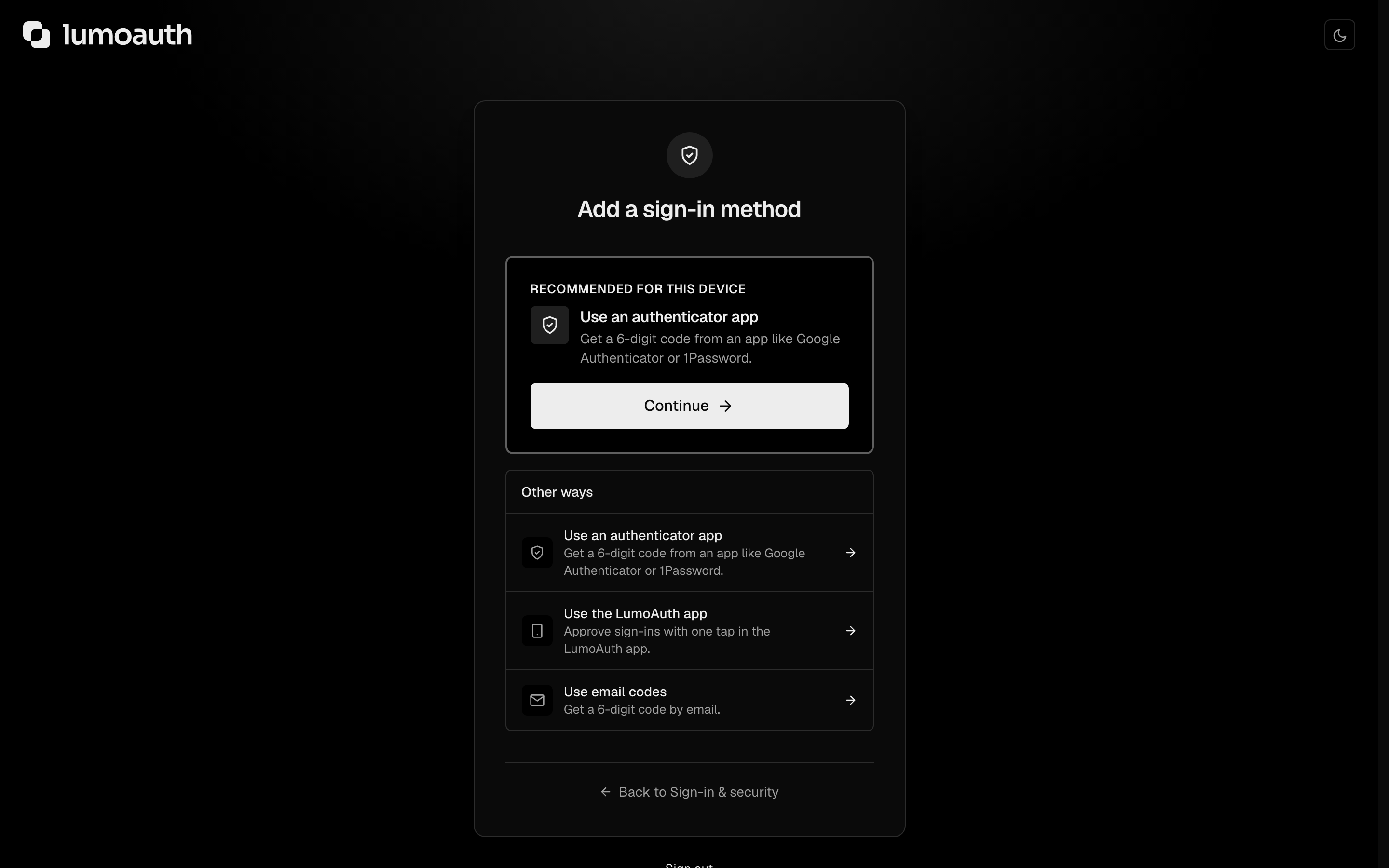
The screen shows one recommended factor as the primary action with a one-line benefit, and every other allowed factor under a collapsed Other ways list. Factors that the organization does not allow or cannot deliver (no SMS provider configured) are never shown.
Which factor is recommended
- Passkey, when the browser reports a platform authenticator (Touch ID, Face ID, Windows Hello, Android screen lock). If it does not, the page promotes the next option as Recommended for this device.
- LumoAuth app (push), when the user is on a phone or already has the LumoAuth app enrolled on another device.
- Authenticator app (TOTP).
- LumoAuth app (push) on desktop, when not already recommended.
- Text message, only after the options above.
- Email code, last, and only when the organization allows it.
The screens
| Step | Screen | Notes |
|---|---|---|
| 1 | Secure your account | Recommended factor + Other ways. A passkey is created right here through the OS prompt. Remind me later when the policy allows deferral. |
| 2 | Factor setup | One screen per factor, with verification on the same screen (not needed for passkeys). |
| 3 | Add a backup method | Offered once, recommending the next-best factor of a different type. Skip for now unless the organization requires two factors. |
| 4 | Save your recovery codes | Ten codes with Copy, Download (.txt) and Print. The user ticks I've saved these codes to continue; they never retype a code. Skipped if the user already holds a set. |
| 5 | Your account is protected | Summary, then the user continues to where they were going. |
A passkey user therefore sees: Secure your account → Add a backup method → recovery codes → done. An authenticator-app user sees one extra screen (the TOTP setup).
Setting up each factor
| Factor | Route | What happens |
|---|---|---|
| Passkey | (on /auth/secure-account) | Create a passkey opens the OS prompt. Cancelling returns to the same screen without an error, with Try again and the other ways still available. The passkey is named after the device and browser, for example "Mac – Chrome"; users can rename it later. See Passkeys. |
| LumoAuth app | /auth/secure-account/push | Desktop shows a QR code; phones get an Open the LumoAuth app button. The app then receives a test notification with a number that the user must tap; the page continues on its own once it is approved. See Push Authentication. |
| Authenticator app | /auth/secure-account/totp | QR code, Can't scan? (the key in groups of four) and, on phones, Open in authenticator app as the primary button. The user types the current code on the same screen. After three wrong codes the page shows a hint to check the phone's automatic date and time. |
| Text message | /auth/secure-account/sms | Country preset from the browser language; the number is validated before anything is sent. A 6-digit code arrives by text and is entered on the same screen. See SMS & email. |
| Email code | /auth/secure-account/email | Only when email codes are allowed. A 6-digit code is sent to the account's email address. |
A setup that is started but never verified expires after 15 minutes and is discarded. Adding a factor needs a recent sign-in (within 15 minutes) for a user's first factor, and a fresh verification with an existing factor for every later one (see Step-up).
The older enrollment URLs (/auth/mfa-enrollment, /auth/mfa-setup, /auth/mfa-enrollment/sms) redirect into this flow.
Signing in with a second factor
The challenge page is at:
/login/mfa-challenge
- Auto-start. The page starts the user's factor immediately: sends the push, sends the text or email, prepares the passkey prompt, or focuses the code field. The factor last used successfully on this browser is preferred over the default (remembered in the
lumo_mfa_lastcookie). - Try another way lists the user's other factors, strongest first, by display name (for example "Text •••• 4821"), plus Use a recovery code when the user has codes left.
- Push. The page shows a two-digit number; the user taps the same number in the LumoAuth app. The page updates on its own when the request is approved. Resend sends a new request with a new number, and Use a code from the app instead accepts the app's offline 6-digit code. Push requests for a second factor expire after 60 seconds.
- Trust this device for N days appears when the organization allows trusted devices (see Trusted devices).
- I have a temporary access code from my admin accepts a code issued by an administrator (see Admin-assisted recovery).
Limits
| Limit | Default |
|---|---|
| Wrong answers per challenge | 5, then the user must request a new code or try another way |
| Failed MFA attempts per account | 10 in 15 minutes locks MFA for 15 minutes ("Verification paused") and emails the user |
| Push requests per user | 3 in 5 minutes; after that another factor is required |
| Denied push requests | 2 denials in 10 minutes suspend push for the user for 30 minutes |
| Code submissions on the hosted challenge page and the challenge API | 10 per 15 minutes per user, one shared budget; Resend does not count. The API answers 429 rate_limited with Retry-After |
| Text-message code | 6 digits, valid 5 minutes, 5 attempts; a new code replaces the old one |
| Email code | 6 digits, valid 10 minutes, 5 attempts |
Error messages do not say whether a code was wrong or expired; they tell the user what to do next.
Upgrade nudge and security check-up
After a sign-in with an authenticator app, text or email code, users who hold no passkey or push device see a one-click offer to add a passkey at /auth/mfa-upgrade ("so you don't need codes next time"). The offer appears only if the organization allows passkeys. Dismissing it hides it for nudge_interval_days (default 30). Thirty days after a user's first enrollment, the same page asks them once to confirm that their sign-in methods and recovery codes are still available.
Tokens
Tokens issued after the challenge carry amr (the first-factor method plus the factor used plus mfa) and an acr value for the strongest tier used. Applications can require a tier with acr_values. See ACR and AMR.
Step-up for sensitive actions
Some actions need a fresh verification, within step_up_max_age_seconds (default 600, 10 minutes), even when the user is already signed in:
- adding a sign-in method when the user already has one,
- removing a sign-in method (with a different method where the user has one),
- generating new recovery codes,
- changing the password on Sign-in & security or the email address on Personal info (when the user has a factor; step-up comes before the current password is checked),
- deleting the account (users without a password, such as social, SAML or passkey-only accounts, confirm with step-up alone),
- issuing a temporary access code (the administrator's own verification),
- downloading a personal data export or data-portability file.
In the browser the user is sent to:
/auth/step-up?target=/account/security
The step-up page starts the user's default factor. If the default is weaker than the organization's minimum strength for sensitive actions (min_tier_step_up, default T3 — authenticator app or stronger), it starts their strongest factor instead. Try another way only lists factors that are strong enough. It returns to target once the verification succeeds. A session that already passed MFA within the window is not asked again, under two conditions. The factor used at that moment must have been at least that strong (a stronger factor used earlier in the session does not count), and the verification must belong to the signed-in user. A trusted device, an adaptive low-risk skip and a temporary access code satisfy the sign-in, never step-up.
Users without a second factor cannot step up. For these actions their session must have signed in within the last 10 minutes; otherwise they are asked to sign in again. API callers send the id of an approved step-up challenge (not a sign-in challenge) in the X-MFA-Challenge header instead. An application can ask for a stronger factor with min_tier, but never a weaker one than the policy. See MFA API → Step-up.
For a push step-up, an application can pass a description of the action (for example "Approve transfer of $500 to •••• 1122"); the LumoAuth app shows it on the approval screen.
Trusted devices
After passing the challenge, users can tick Trust this device for N days. The next sign-ins from that browser skip the challenge until the trust expires.
- N is the organization's
trusted_device_days(default 30, range 0–180). 0 turns the option off. - Trust is a signed,
HttpOnly,Secure,SameSite=Laxcookie namedlumo_td, bound to the user and backed by a server-side record that the user can revoke. - Trust is revoked automatically when the user changes their password, removes a sign-in method, recovers their account, or signs in at high risk.
- Medium or high risk always challenges, even on a trusted device, and sensitive actions always ask again.
Users see and revoke trusted devices under Sign-in & security (Forget, Forget all) or through the API.
Sign-in & security
Users manage their factors themselves at:
/account/security
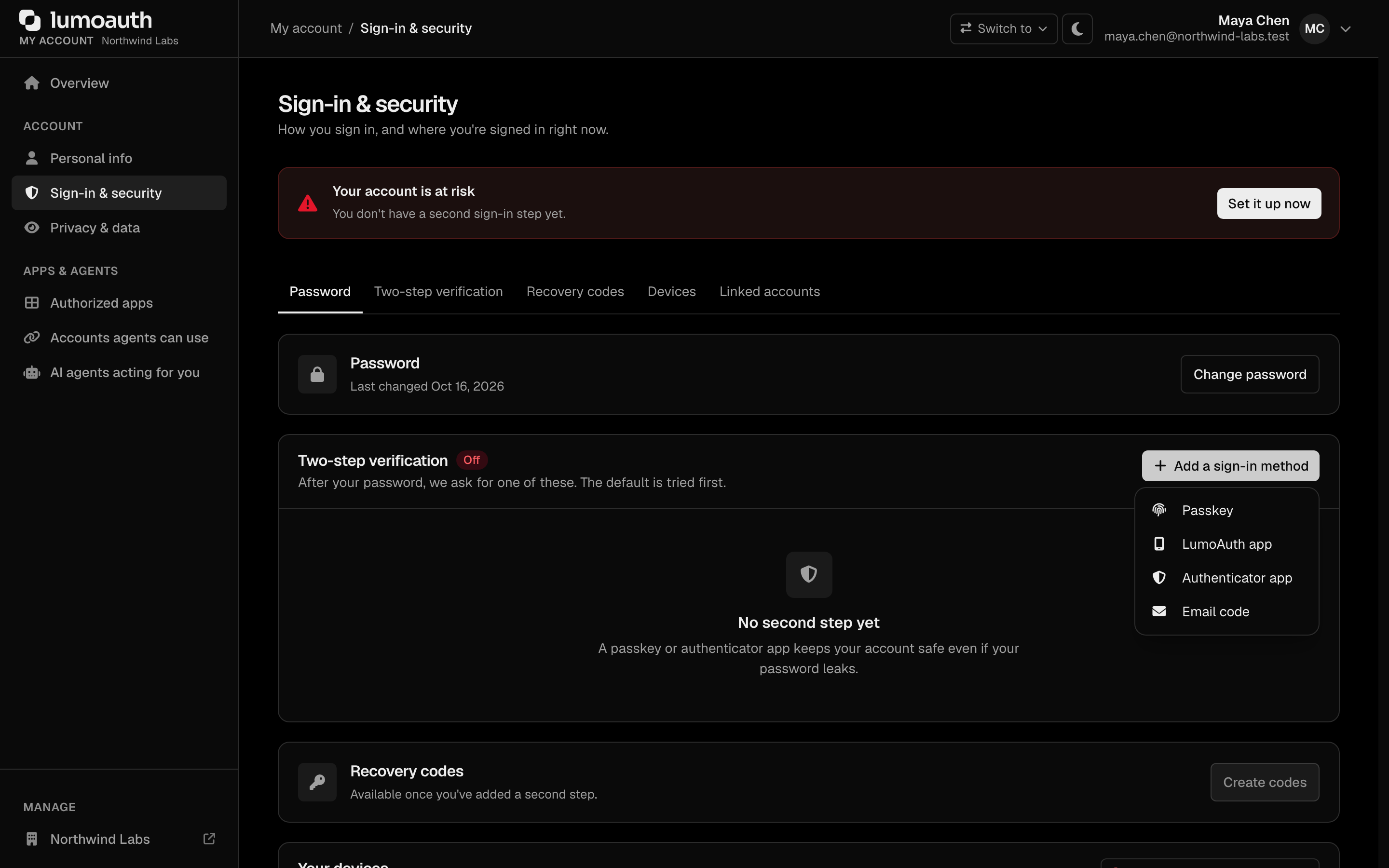
The page shows a status (Your account is protected, Add a backup method or Your account is at risk) and every sign-in method with its tier, when it was added and when it was last used. Users can add methods, rename them, choose the default and remove them. It also covers recovery codes, Trusted browsers and Sign out of all other devices. See Account self-service.
Recovery
When a user cannot use their usual factor, the options are tried in this order:
- Another enrolled factor — Try another way on the challenge page.
- A recovery code — Use a recovery code.
- Admin-assisted recovery — a temporary access code from an administrator.
Recovery codes
- 10 codes, each 10 characters from an alphabet without look-alikes (no
0,O,1,IorL), shown asXXXXX-XXXXX. - Each works once. Codes are compared case-insensitively and with or without the hyphen, and stored only as bcrypt hashes.
- Generating a new set invalidates the old one. When 2 or fewer remain, the account page asks the user to generate a new set.
- Codes issued before September 2026 (
XXXX-XXXX-XXXX-XXXX) keep working until the user generates a new set.
What happens after a recovery
Signing in with a recovery code or a temporary access code is treated as an account recovery. LumoAuth then:
- signs out every other session and revokes all trusted devices,
- emails the user that the account was recovered,
- restricts the session to setting up a new sign-in method and saving new recovery codes; normal access resumes after that,
- audits
mfa.recovery.started, andmfa.recovery.completedonce the new factor and recovery codes are in place.
Admin-assisted recovery
Administrators cannot switch MFA off for a user. Instead they issue a temporary access code:
- Open the user in the organization portal (
/orgs/{orgId}/portal/users), section Two-step verification. - In the form for issuing a temporary access code, enter a Reason (required, audited), choose Valid for (1 hour, 4 hours or 24 hours) and whether it is Single use, then Issue code.
- Confirm your own identity with MFA if asked.
- Give the code (12 characters) to the user over a channel that you trust. It is shown once.
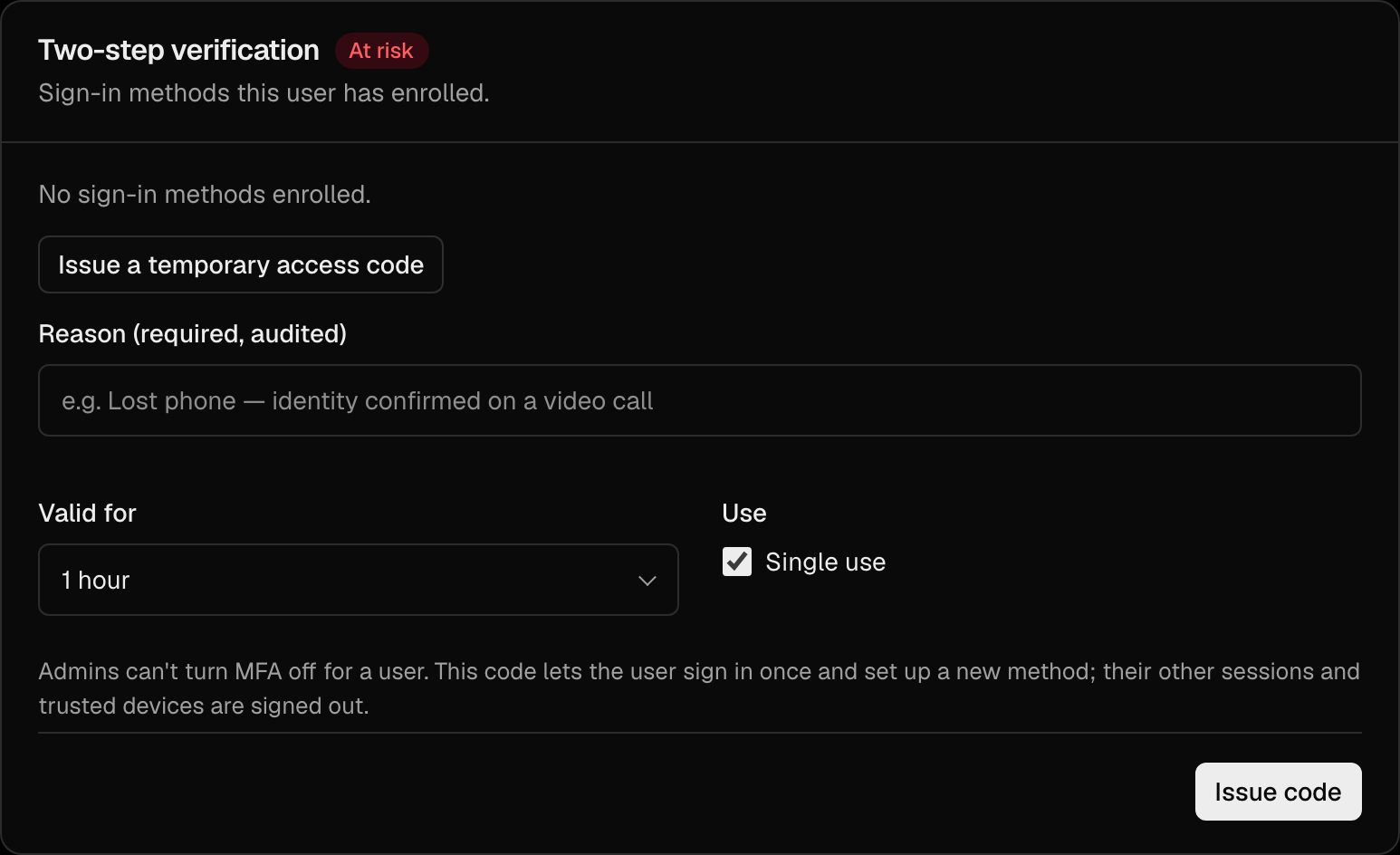
The user signs in with their password, picks I have a temporary access code from my admin on the challenge page and enters the code. The session can only enroll new factors. Only one live code exists per user; issuing another revokes the previous one. Issuing a code is audited as mfa.tap.issued and the user is emailed.
From the same section, an administrator can Remove a single lost authenticator (for example a stolen phone). The user is notified, their trusted devices are revoked, and the organization's policy still applies at their next sign-in.
The same actions are available in the Admin MFA API. The old POST /admin/users/{userId}/mfa/reset endpoint returns 410 Gone.
Configuring the MFA policy
Navigate to Security → Sign-in settings at:
/orgs/{orgId}/portal/settings/authentication
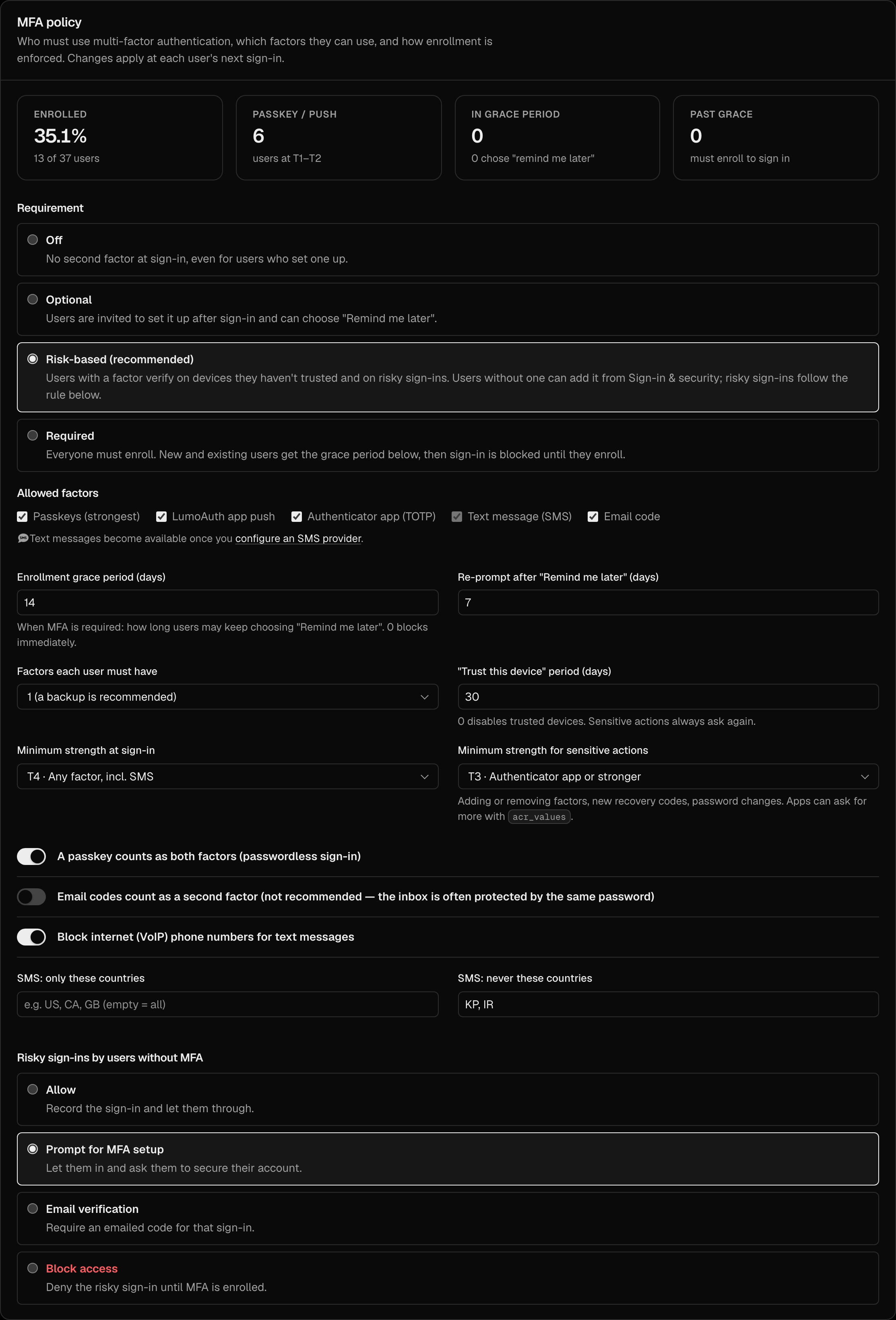
The MFA policy section shows enrollment coverage (enrolled users, users at T1–T2, users in and past the grace period, and how many chose "Remind me later") and the policy settings. Changes take effect at each user's next sign-in; existing sessions are not ended. Every change is audited as mfa.policy.changed.
The same policy is available as JSON through GET/PUT /orgs/{orgId}/api/v1/admin/policies/mfa (reference).
Requiring MFA for one application
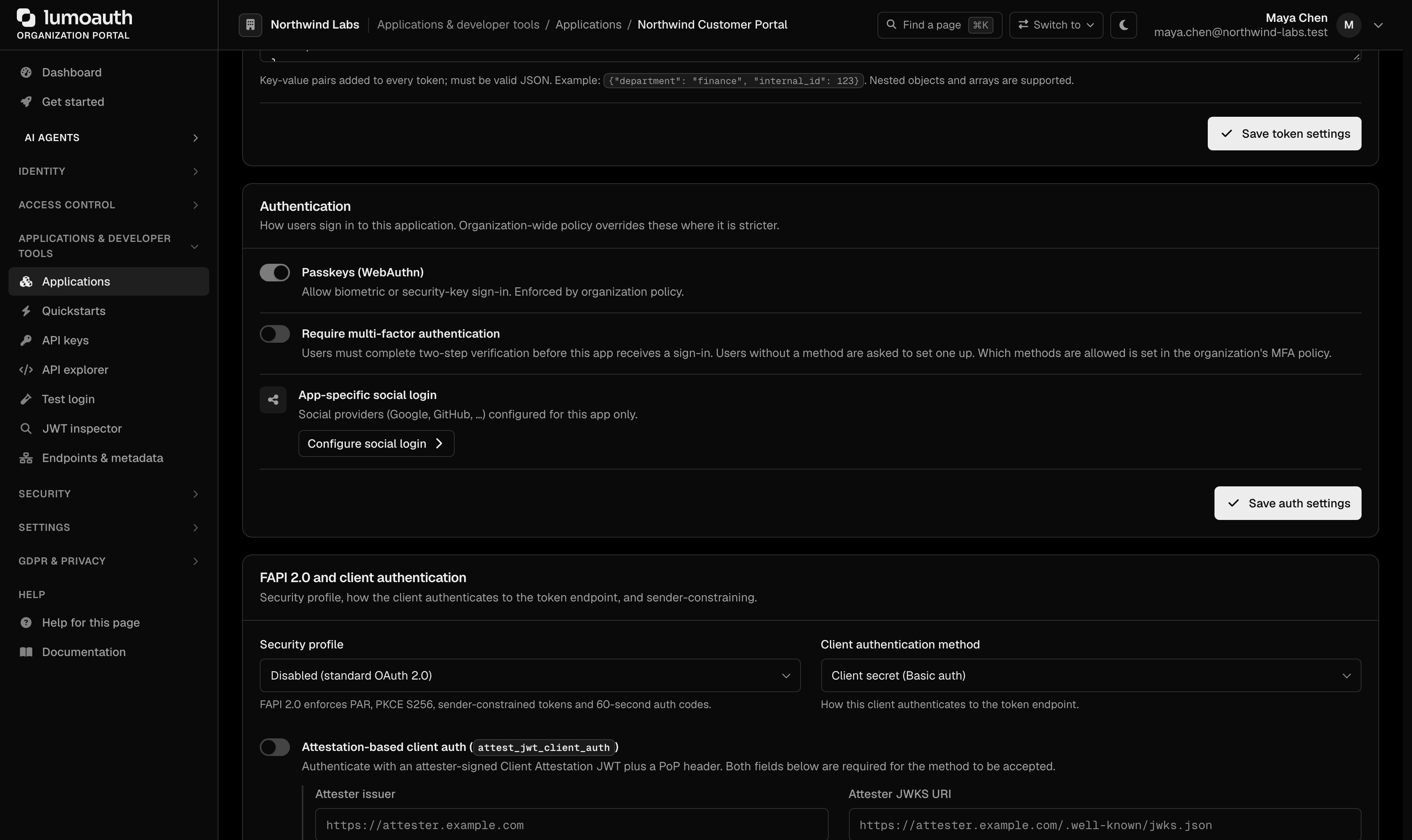
Applications → your app → Security → Authentication → Require multi-factor authentication (saved with Save auth settings) makes /authorize issue a code for that application only when the session passed a second factor for this user. A verified factor, a trusted device or an adaptive low-risk skip all count. Otherwise the user is sent to step-up, which offers enrollment when they have no factor yet, and then returns to /authorize. With prompt=none the application gets interaction_required instead. When the organization policy is Required the switch is on and locked. Which factors count is set by the organization's MFA policy.
The older per-application Enable MFA and Enterprise SSO switches were removed: they were never enforced. Factors and identity providers are organization settings.
Policy reference
| Key | Portal label | Values | Default |
|---|---|---|---|
requirement | Requirement | off, optional, risk_based, required | risk_based |
allowed_factors | Allowed factors | Any of passkey, push, totp, sms_otp, email_otp | passkey, push, totp, sms_otp |
min_tier_login | Minimum strength at sign-in | 1–4 (factors weaker than this do not count at sign-in) | 4 |
min_tier_step_up | Minimum strength for sensitive actions | 1–4 | 3 |
passwordless_passkey | A passkey counts as both factors | true / false | true |
required_factor_count | Factors each user must have | 1 or 2 | 1 |
grace_period_days | Enrollment grace period (days) | 0–90 | 14 |
remind_interval_days | Re-prompt after "Remind me later" (days) | 1–90 | 7 |
trusted_device_days | "Trust this device" period (days) | 0–180 (0 disables) | 30 |
email_otp_counts_as_mfa | Email codes count as a second factor | true / false | false |
sms_block_voip | Block internet (VoIP) phone numbers | true / false | false |
sms_country_allowlist | SMS: only these countries | ISO 3166 alpha-2 codes; empty = all | [] |
sms_country_denylist | SMS: never these countries | ISO 3166 alpha-2 codes | [] |
nudge_interval_days | (API only) | 1–365 | 30 |
step_up_max_age_seconds | (API only) | 60–3600 | 600 |
Values outside a range are clamped to it; unknown factor types are dropped, and an empty allowed_factors falls back to the default. Text messages can only be allowed once an SMS provider is configured; factors that the organization cannot deliver are removed from the effective list. Push is included in every plan. The read-only required_since key records when the requirement last switched to Required.
Organizations created before this policy existed used mfa_required and mfa_sms_enabled in their authentication settings. Until an MFA policy is saved, LumoAuth derives one from them (mfa_required: true → Required; mfa_sms_enabled: true → text messages allowed). Saving the policy writes mfa_policy and keeps mfa_required and mfa_sms_enabled in sync for older integrations. Writing mfa_required or mfa_sms_enabled through the API for authentication settings is translated into a policy change (mfa_required: true → Required, false → Risk-based; mfa_sms_enabled adds or removes sms_otp).
The same page keeps the adaptive-auth setting Risky sign-ins by users without MFA (no_mfa_action: Allow, Prompt for MFA setup, Email verification or Block access). It applies when adaptive MFA requires a challenge for a user who has no factor, and is how Risk-based handles users who have not enrolled.
Notifications
Users are emailed when:
- a sign-in method is added or removed (other enrolled phones also get a push),
- recovery codes are generated or used,
- MFA is locked after repeated failures,
- they report a push request with Deny – this wasn't me,
- an administrator issues them a temporary access code,
- their account is recovered.
Most of these emails include a This wasn't me link (valid 7 days) to /auth/not-me. Confirming it signs out every session and revokes all trusted devices; a user who has no sign-in method left must set one up at the next sign-in.
All MFA activity is written to the audit log and delivered to webhooks as mfa.* events. See Audit logs.
What MFA does not include
- Codes are delivered by text message or email only; there is no voice-call delivery, and the type of phone line comes from numbering-plan data rather than a live carrier lookup.
- There is no SMS-pumping detection beyond the rate limits, and one SMS provider per organization, so no failover between providers.
- Account recovery is through recovery codes or an administrator-issued temporary access code; there is no self-service recovery by email plus phone.
- A temporary access code is issued by one administrator; there is no two-administrator approval.
- Changing a phone number and viewing API credentials do not trigger step-up.
- There are no "new device sign-in" notification emails.
- The MFA policy is organization-wide: there are no per-group or per-application overrides (an application can only require MFA).
- Push approvals are handled by the LumoAuth app only; there is no way to approve pushes from your own app, and no account transfer between phones.
- MFA events reach a SIEM (security information and event management system) through the log sinks like every other audit event; there is no separate stream of MFA events.
Best practices
- Keep the default Risk-based requirement and turn on Adaptive MFA, or use Required with a grace period for workforce organizations.
- Leave passkeys and push allowed: they are the strongest factors and the fastest to use.
- Raise Minimum strength for sensitive actions to T2 or T1 if your users hold passkeys or the LumoAuth app.
- Keep email codes as a recovery aid, not a second factor.
- Point helpdesk staff at temporary access codes; there is no way to switch MFA off for a user.
- Watch coverage in the portal and the
mfa.push.reported_fraudandmfa.lockedevents.
Related Guides
- Adaptive MFA — risk scoring and how it interacts with trusted devices
- Passkeys & WebAuthn — the strongest factor, and passwordless sign-in
- Push Authentication — the LumoAuth app, number matching and "this wasn't me"
- MFA API — build your own enrollment and challenge UI
- SMS & email — SMS providers and code delivery
- Audit Logs — MFA events