Something went wrong: {err}
} /> ); } ``` --- ## Protect your routes Use `SignedIn` and `SignedOut` to conditionally render content based on authentication status. ```tsx title="src/App.tsx" import { BrowserRouter, Routes, Route } from 'react-router'; import { SignedIn, SignedOut, RedirectToSignIn, UserButton } from '@lumoauth/react'; import SignInPage from './pages/SignInPage'; import SignUpPage from './pages/SignUpPage'; import CallbackPage from './pages/CallbackPage'; import Dashboard from './pages/Dashboard'; export default function App() { return (Email: {user?.email}
Only members with the admin.access permission can see this.
Signing in…
``` --- ## Permission checks ```ts import { ref, onMounted } from 'vue'; import { useLumoAuth } from '../composables/useLumoAuth'; const client = useLumoAuth(); const canEdit = ref(false); onMounted(async () => { canEdit.value = await client.permissions.check('documents.edit'); }); ``` --- # Add authentication to your Angular app Source: https://docs.lumoauth.dev/quickstarts/angular This guide shows you how to add authentication and access control to an Angular application using @lumoauth/client as an Angular service. Prompt for your AI editor: ```text Set up LumoAuth authentication in an Angular application. Install the SDK: npm install @lumoauth/client Add to src/environments/environment.ts: export const environment = { production: false, lumoauthDomain: 'https://app.lumoauth.dev', lumoauthOrgId: 'YOUR_ORG_ID', lumoauthClientId: 'YOUR_CLIENT_ID', }; Create src/app/auth/lumoauth.service.ts: import { Injectable, signal } from '@angular/core'; import { LumoAuth, AuthModule } from '@lumoauth/client'; import type { ZanzibarCheckRequest, AbacCheckRequest } from '@lumoauth/client'; import { environment } from '../../environments/environment'; @Injectable({ providedIn: 'root' }) export class LumoAuthService { private readonly authModule: AuthModule; private readonly client: LumoAuth; readonly isSignedIn = signal(false); readonly isLoaded = signal(false); private readonly redirectUri = window.location.origin + '/auth/callback'; constructor() { this.authModule = new AuthModule({ baseUrl: environment.lumoauthDomain, orgId: environment.lumoauthOrgId, clientId: environment.lumoauthClientId, }); this.client = new LumoAuth({ baseUrl: environment.lumoauthDomain, orgId: environment.lumoauthOrgId, clientId: environment.lumoauthClientId, token: () => this.getAccessToken(), }); this.init(); } async signIn(): PromiseCompleting sign-in…
' }) export class CallbackComponent implements OnInit { constructor(private auth: LumoAuthService, private router: Router) {} async ngOnInit() { await this.auth.handleCallback(); this.router.navigate(['/dashboard']); } } Register the callback route in app.routes.ts: { path: 'auth/callback', component: CallbackComponent } Create an auth guard: import { inject } from '@angular/core'; import { CanActivateFn, Router } from '@angular/router'; import { LumoAuthService } from './auth/lumoauth.service'; export const authGuard: CanActivateFn = () => { const auth = inject(LumoAuthService); if (auth.isSignedIn()) return true; inject(Router).navigate(['/sign-in']); return false; }; Protect routes: { path: 'dashboard', component: DashboardComponent, canActivate: [authGuard] } Use permission checks in components: import { Component, signal, OnInit } from '@angular/core'; import { LumoAuthService } from '../auth/lumoauth.service'; @Component({ selector: 'app-admin', standalone: true, template: '@if (canAccess()) {Completing sign-in…
', }) export class CallbackComponent implements OnInit { constructor(private auth: LumoAuthService, private router: Router) {} async ngOnInit() { await this.auth.handleCallback(); this.router.navigate(['/dashboard']); } } ``` Register the route in `app.routes.ts`: ```ts { path: 'auth/callback', component: CallbackComponent } ``` --- ## Auth guard ```ts import { inject } from '@angular/core'; import { CanActivateFn, Router } from '@angular/router'; import { LumoAuthService } from './auth/lumoauth.service'; export const authGuard: CanActivateFn = () => { const auth = inject(LumoAuthService); if (auth.isSignedIn()) return true; inject(Router).navigate(['/sign-in']); return false; }; ``` Apply to routes: ```ts { path: 'dashboard', component: DashboardComponent, canActivate: [authGuard] } ``` --- ## Permission checks in components ```ts import { Component, signal, OnInit } from '@angular/core'; import { LumoAuthService } from '../auth/lumoauth.service'; @Component({ selector: 'app-admin', standalone: true, // Angular 17+ built-in control flow (@if) needs no imports. // Replace the" }` (e.g. `invalid_token`, `request_not_found`) with the
matching HTTP status code — there is no nested `details` object. Branch on the
HTTP status (or on the presence of `error`) to distinguish the two.
## Framework examples
The same patterns work in any HTTP-capable language. Pick your framework:
| Framework | Guide |
|-----------|-------|
| LangChain / LangGraph | [View example →](https://docs.lumoauth.dev/agents/jit-langgraph) |
| CrewAI | [View example →](https://docs.lumoauth.dev/agents/jit-crewai) |
| OpenAI Agents SDK | [View example →](https://docs.lumoauth.dev/agents/jit-openai-agents) |
| Agno | [View example →](https://docs.lumoauth.dev/agents/jit-agno) |
| Google ADK | [View example →](https://docs.lumoauth.dev/agents/jit-google-adk) |
## Common mistakes
- **`403 insufficient_permissions` when approving.** The signed-in user lacks `jit.approve` or belongs to another organization. Grant the permission through a role (see [Delegate approval](#delegate-approval-to-a-reviewer-role)); do not call the approve endpoint with an agent token; the reviewer must be a human user.
- **`400 invalid_request` saying the owner cannot approve.** You are reviewing a request from an agent that you created. Ask a second reviewer with `jit.approve`; there is no setting that relaxes this.
- **`401 invalid_token` on `/jit/approve` from an automation.** Approvals need a human: a browser session or a user access token with `jit:approve`. JIT, agent and delegated tokens are refused by design.
- **Request stays `pending` and nobody is notified.** No user other than the owner holds `jit.approve`, or the approval channel filters (minimum risk, agent ids) exclude the request. Check the approvals inbox at `/orgs/{orgId}/portal/approvals`.
- **A `payment` (or `user_data`, `credentials`, `admin_action`) request never auto-approves.** By design: critical types always need a human, and approval policies for them can't be created.
- **"The owner of an agent cannot create an auto-approval policy".** Ask another user with `jit.approve` to create it; the owner's organization-wide policies also skip the owner's own agents.
- **`401` with an `agk_` key that used to work.** The key was stored in plaintext by an old release; plaintext keys are no longer accepted. Rotate the agent's key; the new key is stored hashed.
- **`401` on a JIT call after it worked in the browser.** Agent credentials never create a session. Send the `agk_` key or agent token on every request, and only on agent, JIT and authz routes.
- **Approval arrived but the token endpoint rejects the exchange.** The request expired between approval and exchange, or the agent was suspended (which revokes approved-but-unissued requests, see [Kill switch](https://docs.lumoauth.dev/agents/governance#kill-switch-suspend--revoke--deactivate)). Create a new request.
## Related
- [Agent Registry](https://docs.lumoauth.dev/agents/registry) — register the agent first
- [Chain of Agency](https://docs.lumoauth.dev/agents/delegation) — on-behalf-of delegation using token exchange
- [Mobile approvals device API](https://docs.lumoauth.dev/agents/mobile-approvals) — the device-signed approver endpoints, versioned
## Standards used on this page
| Plain name | Standard |
|---|---|
| Rich authorization requests | RFC 9396 |
| Token exchange (delegation) | RFC 8693 |
| Shared Signals Framework (SSF) and Continuous Access Evaluation Profile (CAEP) | OpenID SSF 1.0 and OpenID CAEP 1.0 |
See the [standards reference](https://docs.lumoauth.dev/reference/standards) for what each one covers and how LumoAuth uses it.
---
# JIT Permissions — LangChain / LangGraph
Source: https://docs.lumoauth.dev/agents/jit-langgraph
Connect LumoAuth's Just-in-Time (JIT) permission system to a LangGraph agent. (With JIT, the agent asks for a narrow, short-lived permission at the moment that it needs it.) The agent's identity is its registered…
Connect LumoAuth's Just-in-Time (JIT) permission system to a LangGraph agent. (With JIT, the agent asks for a narrow, short-lived permission at the moment that it needs it.) The agent's identity is its registered `AGENT_CLIENT_ID`, and it authenticates via OAuth 2.0 client credentials. Using LangGraph's tool-calling loop, when a tool returns `Insufficient-Authorization-Details` the LLM can call `request_jit_access` to get a scoped token and retry the original tool.
**Info: Prerequisites**
Install the `lumoauth` package and set the environment variables
`LUMOAUTH_URL`, `LUMOAUTH_ORG_ID`, `AGENT_CLIENT_ID`, and
`AGENT_CLIENT_SECRET`. See [JIT Permissions](https://docs.lumoauth.dev/agents/jit) for an overview.
## Install
```bash
pip install lumoauth langgraph langchain-openai
```
## Example
```python
import os
import json
import base64
from typing import Dict, Annotated
from typing_extensions import TypedDict
from langchain_openai import ChatOpenAI
from langchain_core.tools import tool
from langchain_core.messages import ToolMessage
from langgraph.graph import StateGraph, START, END
from langgraph.graph.message import add_messages
from lumoauth import LumoAuthAgent, JITContext
# Authenticate the agent and create a JIT context
agent = LumoAuthAgent()
agent.authenticate()
jit = JITContext(agent)
jit.create_task(name="LangGraph document analysis")
class AgentState(TypedDict):
messages: Annotated[list, add_messages]
jit_tokens: Dict[str, str]
@tool
def fetch_protected_document(document_id: str, jit_token: str = None) -> str:
"""Fetch a sensitive document. If you lack permissions you will receive
the required authorization_details in the error response."""
import requests
url = f"https://api.acme-corp.com/v1/documents/{document_id}"
token = jit_token or agent.access_token
resp = requests.get(url, headers={"Authorization": f"Bearer {token}"})
if resp.status_code == 403:
header = resp.headers.get("Insufficient-Authorization-Details")
if header:
required = json.loads(base64.b64decode(header))
return json.dumps(
{"error": "Insufficient JIT permissions",
"required_authorization_details": required}
)
if resp.status_code == 200:
return resp.text
return f"Error: HTTP {resp.status_code}"
@tool
def request_jit_access(
required_authorization_details_json: str,
justification: str,
) -> str:
"""Request Just-In-Time access. Pass the exact
required_authorization_details JSON from the failing tool."""
authz = json.loads(required_authorization_details_json)
result = jit.request_permission(authz, justification=justification)
if result.get("status") == "approved":
token = jit.get_token(result["request_id"])
return json.dumps({"status": "success", "jit_token": token})
return f"Access request failed/denied: {result.get('status')}"
tools = [fetch_protected_document, request_jit_access]
llm = ChatOpenAI(model="gpt-4", temperature=0).bind_tools(tools)
def agent_node(state: AgentState):
return {"messages": [llm.invoke(state["messages"])]}
def execute_tools(state: AgentState):
last = state["messages"][-1]
responses, new_tokens = [], dict(state.get("jit_tokens", {}))
for tc in last.tool_calls:
args = dict(tc["args"])
if tc["name"] == "fetch_protected_document" and "latest" in new_tokens:
args["jit_token"] = new_tokens["latest"]
matched = next((t for t in tools if t.name == tc["name"]), None)
result = matched.invoke(args) if matched else "Unknown tool"
if tc["name"] == "request_jit_access":
try:
parsed = json.loads(result)
if parsed.get("status") == "success":
new_tokens["latest"] = parsed["jit_token"]
result = "Access granted. Please retry the previous tool call."
except json.JSONDecodeError:
pass
responses.append(ToolMessage(content=str(result), tool_call_id=tc["id"]))
return {"messages": responses, "jit_tokens": new_tokens}
def should_continue(state: AgentState):
return "tools" if state["messages"][-1].tool_calls else END
graph = StateGraph(AgentState)
graph.add_node("agent", agent_node)
graph.add_node("tools", execute_tools)
graph.add_edge(START, "agent")
graph.add_conditional_edges("agent", should_continue, ["tools", END])
graph.add_edge("tools", "agent")
app = graph.compile()
if __name__ == "__main__":
for event in app.stream(
{"messages": [("user", "Summarize the confidential report doc_9982")],
"jit_tokens": {}},
stream_mode="values",
):
event["messages"][-1].pretty_print()
# Cleanup - revokes all JIT tokens for this task
jit.complete_task()
```
## How it works
| Component | Role |
|-----------|------|
| `JITContext` | Manages the short-lived task, JIT requests, and cleanup |
| `fetch_protected_document` | Detects `Insufficient-Authorization-Details` (403) and returns the required permissions |
| `request_jit_access` | Calls `jit.request_permission(...)` and caches the resulting short-lived token |
| LangGraph tool loop | Lets the LLM self-correct: fetch → detect 403 → request JIT → retry |
| `jit.complete_task()` | Revokes all outstanding JIT tokens when the task is done |
## Next steps
- [JIT Permissions overview](https://docs.lumoauth.dev/agents/jit) — core concepts, API reference, and best practices
- [Agent Registry — LangChain](https://docs.lumoauth.dev/agents/registry-langchain) — set up agent authentication first
---
# JIT Permissions — CrewAI
Source: https://docs.lumoauth.dev/agents/jit-crewai
Connect LumoAuth's Just-in-Time (JIT) permission system to a CrewAI workflow, so that agents request scoped JIT access to protected resources during task execution. (With JIT, the agent asks for a narrow, short-lived…
Connect LumoAuth's Just-in-Time (JIT) permission system to a CrewAI workflow, so that agents request scoped JIT access to protected resources during task execution. (With JIT, the agent asks for a narrow, short-lived permission at the moment that it needs it.) The agent's identity is its registered `AGENT_CLIENT_ID`, and it authenticates via OAuth 2.0 client credentials. When a tool call returns 403 with `Insufficient-Authorization-Details`, the tool calls the JIT API to request a short-lived, scoped token and retries.
**Info: Prerequisites**
Install the `lumoauth` package and set the environment variables
`LUMOAUTH_URL`, `LUMOAUTH_ORG_ID`, `AGENT_CLIENT_ID`, and
`AGENT_CLIENT_SECRET`. See [JIT Permissions](https://docs.lumoauth.dev/agents/jit) for an overview.
## Install
```bash
pip install lumoauth crewai crewai-tools
```
## Example
```python
import json
import base64
import requests as req
from crewai import Agent, Task, Crew
from crewai.tools import tool
from lumoauth import LumoAuthAgent, JITContext
# 1. Authenticate and create JIT context
agent_auth = LumoAuthAgent()
agent_auth.authenticate()
jit = JITContext(agent_auth)
jit.create_task(name="CrewAI document analysis")
# 2. Tools with automatic JIT escalation
@tool
def fetch_sensitive_document(document_id: str) -> str:
"""Fetch a sensitive document from the protected API.
Returns an error with required permissions if access is denied."""
url = f"https://api.acme-corp.com/v1/documents/{document_id}"
resp = req.get(url, headers={"Authorization": f"Bearer {agent_auth.access_token}"})
if resp.status_code == 403:
header = resp.headers.get("Insufficient-Authorization-Details")
if header:
required = json.loads(base64.b64decode(header))
# Request JIT permission automatically
jit_result = jit.request_permission(
required,
justification=f"Need to read document {document_id} for user query",
)
if jit_result.get("status") == "approved":
jit_token = jit.get_token(jit_result["request_id"])
# Retry with JIT token
retry = req.get(url, headers={"Authorization": f"Bearer {jit_token}"})
if retry.status_code == 200:
return retry.text
return f"Retry failed: HTTP {retry.status_code}"
return f"JIT permission denied: {jit_result.get('status')}"
if resp.status_code == 200:
return resp.text
return f"Error: HTTP {resp.status_code}"
@tool
def write_analysis_report(content: str) -> str:
"""Write an analysis report to the protected API."""
url = "https://api.acme-corp.com/v1/reports"
resp = req.post(
url,
headers={"Authorization": f"Bearer {agent_auth.access_token}",
"Content-Type": "application/json"},
json={"content": content},
)
if resp.status_code in (200, 201):
return "Report created successfully."
# Self-correcting JIT escalation for write operations
if resp.status_code == 403:
header = resp.headers.get("Insufficient-Authorization-Details")
if header:
required = json.loads(base64.b64decode(header))
jit_result = jit.request_permission(
required,
justification="Writing analysis report for completed task",
)
if jit_result.get("status") == "approved":
jit_token = jit.get_token(jit_result["request_id"])
retry = req.post(
url,
headers={"Authorization": f"Bearer {jit_token}",
"Content-Type": "application/json"},
json={"content": content},
)
return "Report created successfully." if retry.status_code in (200, 201) \
else f"Retry failed: HTTP {retry.status_code}"
return f"Error: HTTP {resp.status_code}"
# 3. Set up CrewAI agents and tasks
analyst = Agent(
role="Senior Analyst",
goal="Retrieve and analyze confidential documents, then produce a report",
backstory="You are a senior analyst with access to protected company systems.",
tools=[fetch_sensitive_document, write_analysis_report],
verbose=True,
)
analysis_task = Task(
description=(
"Fetch document doc_9982, analyze its contents, "
"and write a concise analysis report."
),
expected_output="Confirmation that the analysis report was saved.",
agent=analyst,
)
crew = Crew(agents=[analyst], tasks=[analysis_task], verbose=True)
try:
result = crew.kickoff()
print(result)
finally:
# Always cleanup - revokes all JIT tokens for this task
jit.complete_task()
```
## How it works
| Component | Role |
|-----------|------|
| `JITContext` | Manages the short-lived task, JIT requests, and cleanup |
| `Insufficient-Authorization-Details` header | The resource server signals exactly what permission is needed |
| `jit.request_permission(...)` | Requests a short-lived, scoped JIT token from LumoAuth |
| `jit.complete_task()` | Called in `finally` to revoke all outstanding JIT tokens |
## Next steps
- [JIT Permissions overview](https://docs.lumoauth.dev/agents/jit) — core concepts, API reference, and best practices
- [Agent Registry — CrewAI](https://docs.lumoauth.dev/agents/registry-crewai) — set up agent authentication first
---
# JIT Permissions — OpenAI Agents SDK
Source: https://docs.lumoauth.dev/agents/jit-openai-agents
Connect LumoAuth's Just-in-Time (JIT) permission system to an OpenAI Agents SDK agent, so that tools can request and use JIT-scoped tokens when they hit a permission error. (With JIT, the agent asks for a narrow,…
Connect LumoAuth's Just-in-Time (JIT) permission system to an OpenAI Agents SDK agent, so that tools can request and use JIT-scoped tokens when they hit a permission error. (With JIT, the agent asks for a narrow, short-lived permission at the moment that it needs it.) The agent's identity is its registered `AGENT_CLIENT_ID`, and it authenticates via OAuth 2.0 client credentials. On a 403 with `Insufficient-Authorization-Details`, the tool calls the JIT API to request a short-lived scoped token and retries.
**Info: Prerequisites**
Install the `lumoauth` package and set the environment variables
`LUMOAUTH_URL`, `LUMOAUTH_ORG_ID`, `AGENT_CLIENT_ID`, and
`AGENT_CLIENT_SECRET`. See [JIT Permissions](https://docs.lumoauth.dev/agents/jit) for an overview.
## Install
```bash
pip install lumoauth openai-agents
```
## Example
```python
import asyncio
import json
import base64
import requests as req
from agents import Agent, Runner, function_tool
from lumoauth import LumoAuthAgent, JITContext
# 1. Authenticate and create JIT context
agent_auth = LumoAuthAgent()
agent_auth.authenticate()
jit = JITContext(agent_auth)
jit.create_task(name="OpenAI Agents document task")
# 2. Tools with automatic JIT escalation
@function_tool
def fetch_protected_document(document_id: str) -> str:
"""Fetch a sensitive document from the protected API.
Automatically requests JIT access if permissions are missing."""
url = f"https://api.acme-corp.com/v1/documents/{document_id}"
resp = req.get(url, headers={"Authorization": f"Bearer {agent_auth.access_token}"})
if resp.status_code == 403:
header = resp.headers.get("Insufficient-Authorization-Details")
if header:
required = json.loads(base64.b64decode(header))
jit_result = jit.request_permission(
required,
justification=f"Fetching document {document_id} for user query",
)
if jit_result.get("status") == "approved":
jit_token = jit.get_token(jit_result["request_id"])
retry = req.get(url, headers={"Authorization": f"Bearer {jit_token}"})
return retry.text if retry.status_code == 200 \
else f"Retry failed: HTTP {retry.status_code}"
return f"JIT permission denied: {jit_result.get('status')}"
return resp.text if resp.status_code == 200 else f"Error: HTTP {resp.status_code}"
@function_tool
def summarize_and_save(document_id: str, summary: str) -> str:
"""Save a summary for a document. Requests JIT write access if needed."""
url = f"https://api.acme-corp.com/v1/documents/{document_id}/summaries"
resp = req.post(
url,
headers={"Authorization": f"Bearer {agent_auth.access_token}",
"Content-Type": "application/json"},
json={"text": summary},
)
if resp.status_code in (200, 201):
return "Summary saved."
if resp.status_code == 403:
header = resp.headers.get("Insufficient-Authorization-Details")
if header:
required = json.loads(base64.b64decode(header))
jit_result = jit.request_permission(
required,
justification=f"Saving summary for document {document_id}",
)
if jit_result.get("status") == "approved":
jit_token = jit.get_token(jit_result["request_id"])
retry = req.post(
url,
headers={"Authorization": f"Bearer {jit_token}",
"Content-Type": "application/json"},
json={"text": summary},
)
return "Summary saved." if retry.status_code in (200, 201) \
else f"Retry failed: HTTP {retry.status_code}"
return f"Error: HTTP {resp.status_code}"
# 3. Create the OpenAI Agent
doc_agent = Agent(
name="Document Analyst",
instructions=(
"You are a helpful analyst. Fetch documents and produce concise summaries. "
"If a tool returns a permission error, retry after JIT access is granted."
),
tools=[fetch_protected_document, summarize_and_save],
)
# 4. Run the agent
async def main():
try:
result = await Runner.run(
doc_agent,
"Fetch document doc_9982, summarize it in two sentences, and save the summary.",
)
print(result.final_output)
finally:
# Always cleanup
jit.complete_task()
if __name__ == "__main__":
asyncio.run(main())
```
## How it works
| Component | Role |
|-----------|------|
| `JITContext` | Manages the short-lived task, JIT requests, and cleanup |
| `@function_tool` | Decorates Python functions as OpenAI SDK tools |
| `Insufficient-Authorization-Details` | The resource server signals the exact permission needed |
| `jit.request_permission(...)` | Requests a short-lived, scoped JIT token |
| `jit.complete_task()` | Revokes all outstanding JIT tokens (called in `finally`) |
## Next steps
- [JIT Permissions overview](https://docs.lumoauth.dev/agents/jit) — core concepts, API reference, and best practices
- [Agent Registry — OpenAI Agents SDK](https://docs.lumoauth.dev/agents/registry-openai-agents) — set up agent authentication first
---
# JIT Permissions — Agno
Source: https://docs.lumoauth.dev/agents/jit-agno
Connect LumoAuth's Just-in-Time (JIT) permission system to an Agno agent, so that tools automatically request a scoped JIT token when they hit a permission error. (With JIT, the agent asks for a narrow, short-lived…
Connect LumoAuth's Just-in-Time (JIT) permission system to an Agno agent, so that tools automatically request a scoped JIT token when they hit a permission error. (With JIT, the agent asks for a narrow, short-lived permission at the moment that it needs it.) The agent authenticates once via OAuth 2.0 client credentials (its identity is its registered `AGENT_CLIENT_ID`). When a resource responds with a 403 and an `Insufficient-Authorization-Details` header, the tool calls the JIT API to request a short-lived, narrowly-scoped token and retries.
**Info: Prerequisites**
Install the `lumoauth` package and set the environment variables
`LUMOAUTH_URL`, `LUMOAUTH_ORG_ID`, `AGENT_CLIENT_ID`, and
`AGENT_CLIENT_SECRET`. See [JIT Permissions](https://docs.lumoauth.dev/agents/jit) for an overview.
## Install
```bash
pip install lumoauth agno openai
```
## Example
```python
import json
import base64
import requests as req
from agno.agent import Agent
from agno.tools import tool
from agno.models.openai import OpenAIChat
from lumoauth import LumoAuthAgent, JITContext
# 1. Authenticate and create JIT context
agent_auth = LumoAuthAgent()
agent_auth.authenticate()
jit = JITContext(agent_auth)
jit.create_task(name="Agno document analysis task")
def _jit_get(url: str) -> str:
"""Helper: GET with automatic JIT escalation."""
resp = req.get(url, headers={"Authorization": f"Bearer {agent_auth.access_token}"})
if resp.status_code == 403:
header = resp.headers.get("Insufficient-Authorization-Details")
if header:
required = json.loads(base64.b64decode(header))
jit_result = jit.request_permission(
required,
justification=f"Accessing {url}",
)
if jit_result.get("status") == "approved":
jit_token = jit.get_token(jit_result["request_id"])
retry = req.get(url, headers={"Authorization": f"Bearer {jit_token}"})
return retry.text if retry.status_code == 200 \
else f"Retry error: HTTP {retry.status_code}"
return f"JIT denied: {jit_result.get('status')}"
return resp.text if resp.status_code == 200 else f"Error: HTTP {resp.status_code}"
# 2. Define tools
@tool
def fetch_document(document_id: str) -> str:
"""Fetch a sensitive document from the protected API.
Automatically requests JIT access if the initial request is denied."""
return _jit_get(f"https://api.acme-corp.com/v1/documents/{document_id}")
@tool
def fetch_financial_summary(report_id: str) -> str:
"""Fetch a financial summary from the protected reporting API.
Automatically requests JIT access if the initial request is denied."""
return _jit_get(f"https://api.acme-corp.com/v1/reports/{report_id}/summary")
# 3. Create and run the Agno agent
agno_agent = Agent(
name="Protected Data Analyst",
model=OpenAIChat(id="gpt-4"),
tools=[fetch_document, fetch_financial_summary],
instructions=[
"You are a senior analyst with access to protected APIs.",
"Fetch documents and financial summaries as requested.",
"If a tool indicates a permission error, the system will auto-escalate.",
],
markdown=True,
)
try:
agno_agent.print_response(
"Fetch document doc_9982 and the financial summary for report FY2024-Q4, "
"then provide a combined executive summary."
)
finally:
# Always cleanup - revokes all JIT tokens for this task
jit.complete_task()
```
## How it works
| Component | Role |
|-----------|------|
| `JITContext` | Manages the short-lived task, JIT requests, and cleanup |
| `_jit_get(...)` | Helper that handles the 403 → JIT request → retry pattern |
| `@tool` | Wraps functions as Agno-compatible tools |
| `jit.complete_task()` | Revokes all JIT tokens (called in `finally`) |
The agent's identity is the registered `AGENT_CLIENT_ID`. It gets a base access token through the client-credentials grant. When a tool hits a 403 with `Insufficient-Authorization-Details`, it calls `/jit/request` with the required `authorization_details`, exchanges the approved request for a JIT token, and retries.
## Next steps
- [JIT Permissions overview](https://docs.lumoauth.dev/agents/jit) — core concepts, API reference, and best practices
- [Agent Registry — Agno](https://docs.lumoauth.dev/agents/registry-agno) — set up agent authentication first
---
# JIT Permissions — Google ADK
Source: https://docs.lumoauth.dev/agents/jit-google-adk
Connect LumoAuth's Just-in-Time (JIT) permission system to a Google Agent Development Kit (ADK) agent, so that tools automatically request a scoped JIT token when they hit a permission error. (With JIT, the agent asks…
Connect LumoAuth's Just-in-Time (JIT) permission system to a Google Agent Development Kit (ADK) agent, so that tools automatically request a scoped JIT token when they hit a permission error. (With JIT, the agent asks for a narrow, short-lived permission at the moment that it needs it.) The agent's identity is its registered `AGENT_CLIENT_ID`, and it authenticates via OAuth 2.0 client credentials. When a resource returns 403 with `Insufficient-Authorization-Details`, the tool calls `/jit/request` for a short-lived scoped token and retries.
**Info: Prerequisites**
Install the `lumoauth` package and set the environment variables
`LUMOAUTH_URL`, `LUMOAUTH_ORG_ID`, `AGENT_CLIENT_ID`, and
`AGENT_CLIENT_SECRET`. See [JIT Permissions](https://docs.lumoauth.dev/agents/jit) for an overview.
## Install
```bash
pip install lumoauth google-adk
```
## Example
```python
import asyncio
import json
import base64
import requests as req
from google.adk.agents import Agent
from google.adk.tools import FunctionTool
from google.adk.runners import Runner
from google.adk.sessions import InMemorySessionService
from google.genai import types
from lumoauth import LumoAuthAgent, JITContext
# 1. Authenticate and create JIT context
agent_auth = LumoAuthAgent()
agent_auth.authenticate()
jit = JITContext(agent_auth)
jit.create_task(name="ADK document analysis task")
def _jit_request(url: str, method: str = "GET", payload: dict = None) -> dict:
"""Helper: make a request with automatic JIT escalation on 403."""
kwargs = {"headers": {"Authorization": f"Bearer {agent_auth.access_token}"}}
if payload:
kwargs["json"] = payload
kwargs["headers"]["Content-Type"] = "application/json"
resp = req.request(method, url, **kwargs)
if resp.status_code == 403:
header = resp.headers.get("Insufficient-Authorization-Details")
if header:
required = json.loads(base64.b64decode(header))
jit_result = jit.request_permission(
required,
justification=f"{method} {url}",
)
if jit_result.get("status") == "approved":
jit_token = jit.get_token(jit_result["request_id"])
kwargs["headers"]["Authorization"] = f"Bearer {jit_token}"
retry = req.request(method, url, **kwargs)
return {"result": retry.text} if retry.status_code in (200, 201) \
else {"error": f"Retry HTTP {retry.status_code}"}
return {"error": f"JIT denied: {jit_result.get('status')}"}
return {"result": resp.text} if resp.status_code in (200, 201) \
else {"error": f"HTTP {resp.status_code}"}
# 2. Define ADK tool functions
def fetch_document(document_id: str) -> dict:
"""Fetch a sensitive document from the protected API.
Automatically escalates permissions via JIT if the request is denied."""
return _jit_request(f"https://api.acme-corp.com/v1/documents/{document_id}")
def create_report(title: str, content: str) -> dict:
"""Create a report via the protected API.
Automatically escalates permissions via JIT if the request is denied."""
return _jit_request(
"https://api.acme-corp.com/v1/reports",
method="POST",
payload={"title": title, "content": content},
)
# 3. Build the ADK agent
analyst_agent = Agent(
name="protected_data_analyst",
model="gemini-2.0-flash",
description="Fetches protected documents and creates reports using JIT-scoped access.",
instruction=(
"You are a senior analyst. Fetch requested documents and create concise reports. "
"The tools will automatically handle permission escalation."
),
tools=[
FunctionTool(fetch_document),
FunctionTool(create_report),
],
)
# 4. Run the agent
async def main():
session_service = InMemorySessionService()
session = await session_service.create_session(
app_name="protected_data_analyst", user_id="analyst_user"
)
runner = Runner(
agent=analyst_agent,
app_name="protected_data_analyst",
session_service=session_service,
)
content = types.Content(
role="user",
parts=[types.Part.from_text(
"Fetch document doc_9982, summarize it, and create a report titled 'Q4 Analysis'."
)],
)
try:
async for event in runner.run_async(
user_id="analyst_user",
session_id=session.id,
new_message=content,
):
if event.is_final_response():
for part in event.content.parts:
print(part.text)
finally:
# Always cleanup - revokes all JIT tokens for this task
jit.complete_task()
if __name__ == "__main__":
asyncio.run(main())
```
## How it works
| Component | Role |
|-----------|------|
| `JITContext` | Manages the short-lived task, JIT requests, and cleanup |
| `_jit_request(...)` | Helper that handles the 403 → JIT request → retry pattern |
| `FunctionTool(...)` | Wraps plain Python functions as ADK tools |
| `jit.complete_task()` | Revokes all JIT tokens (called in `finally`) |
## Next steps
- [JIT Permissions overview](https://docs.lumoauth.dev/agents/jit) — core concepts, API reference, and best practices
- [Agent Registry — Google ADK](https://docs.lumoauth.dev/agents/registry-google-adk) — set up agent authentication first
---
# Push approval for agent actions
Source: https://docs.lumoauth.dev/agents/push-approval
Require a human tap on their phone before an AI agent does something irreversible.
Sometimes an agent is about to do something that it should not do silently: wire money, send a customer-facing email, delete data, deploy to production. **Push approval** lets the agent call a single SDK method and wait for a human to tap approve or deny on their phone before it proceeds.
This uses the same push pipeline that human MFA uses: each prompt is bound to the phone's own signing key (ECDSA P-256) and expires after 120 s. The user's phone is registered once; agents use that established trust path for action approvals.
## The demo
```bash
npm install @lumoauth/agent
```
```ts
import { LumoAgent } from '@lumoauth/agent';
// Reads LUMOAUTH_URL, LUMOAUTH_ORG_ID, AGENT_CLIENT_ID and AGENT_CLIENT_SECRET;
// the agent authenticates itself on first use.
const agent = new LumoAgent();
const approval = await agent.approvals.require({
taskId: `wire-${Date.now()}`,
reason: 'Wire $4,500 to vendor INV-7741',
impact: 'high',
onBehalfOf: 'ada@acme.com',
meta: { action: 'wire-transfer', amount: 4500, vendor: 'INV-7741' },
});
if (approval.status !== 'approved') {
throw new Error(`agent action denied: ${approval.status}`);
}
// approval.token is short-lived and bound to this specific task — use as
// the auth header for the actual side-effecting call.
```
Calling from your own backend instead of from the agent? `@lumoauth/backend` exposes the same `approvals.require()` on `LumoAuthBackend`.
What the user sees on their phone:
- **Agent name** at the top, not a generic "sign-in" prompt
- **Action description** (`reason`) in a card with severity-tinted border
- **Impact tier** badge — Low / Medium / High / Critical
- **Action metadata** — every key/value in `meta` rendered as a row
- **Approve / Deny** buttons that sign with the device's stored ECDSA key
## Python SDK
```bash
pip install lumoauth
```
```python
from lumoauth import LumoAuthAgent, require_approval
agent = LumoAuthAgent()
agent.authenticate()
result = require_approval(
agent,
task_id="wire-001",
reason="Wire $4,500 to vendor INV-7741",
impact="high",
on_behalf_of="ada@acme.com",
meta={"amount": 4500, "vendor": "INV-7741"},
)
if result.status != "approved":
raise RuntimeError(f"denied: {result.status} ({result.reason})")
```
## Impact levels
| Tier | When to use it | UI treatment on phone |
|---|---|---|
| `low` | Read-only enrichment, lookups | Green accent |
| `medium` | Reversible writes (draft an email, create a ticket) | Amber accent |
| `high` | Irreversible writes with bounded blast radius (send email, charge $X) | Orange accent |
| `critical` | Catastrophic if wrong (delete data, wire money over $threshold) | Red accent + extra friction |
The UI styling is hard-coded; you don't need to do anything beyond pick the right tier.
## Endpoints
- `POST /orgs/{orgId}/api/v1/agents/me/approvals` — create a request
- `GET /orgs/{orgId}/api/v1/agents/me/approvals/{token}/status` — poll
The SDK helpers handle the polling for you.
## Batch responses (approver device)
Approvers reviewing **JIT permission requests** from the mobile app can
respond to several at once. (JIT permissions are just-in-time permissions:
narrow, short-lived access that an agent asks for at the moment when it needs it.)
`POST /orgs/{orgId}/push-auth/jit/respond-batch`
takes up to 25 request ids and a single device signature over the sorted id
list (`jit-approve-batch:{id1,id2,...}:{challenge_nonce}:{iat}` /
`jit-deny-batch:...`). The signature uses a single-use server nonce from
`POST /push-auth/jit/challenge` and 300 s freshness — the same signature
rules as the single respond endpoint.
Results are per-id, so a batch can partially succeed. See
[JIT permissions](https://docs.lumoauth.dev/agents/jit) for the wire format.
The organization portal inbox has matching multi-select batch actions, a
pending badge that updates in real time, and auto-approve rules for recurring low-risk
requests. All of these reduce approval fatigue without weakening the
human approval step on high/critical actions.
## Security notes
- Approve/deny challenges are bound to a **server-generated nonce**
(`auth-request:{request_id}:{challenge_nonce}` /
`deny-request:{request_id}:{challenge_nonce}`). The nonce is fetched via
`/request-details`, is single-use, and is rotated on consumption, so a captured
signature cannot be replayed. Deny requires a signature too. The
device-signed JIT endpoints (`/jit/list`, `/jit/details`, `/jit/respond`,
`/jit/respond-batch`) use the same scheme since mobile contract 1.3: a
single-use nonce from `/jit/challenge` plus `iat`.
- Browser login completion is **bound to the initiating session**
(`session_nonce` issued at `/initiate`, verified at `/push-auth-login`,
plus initiating-IP matching). This closes the account-takeover path that
relies on a detached approval or on push bombing.
- Every push-auth endpoint is rate-limited, including device lifecycle (`update-token`, `unenroll`) and the
device-signed JIT endpoints.
## Required setup
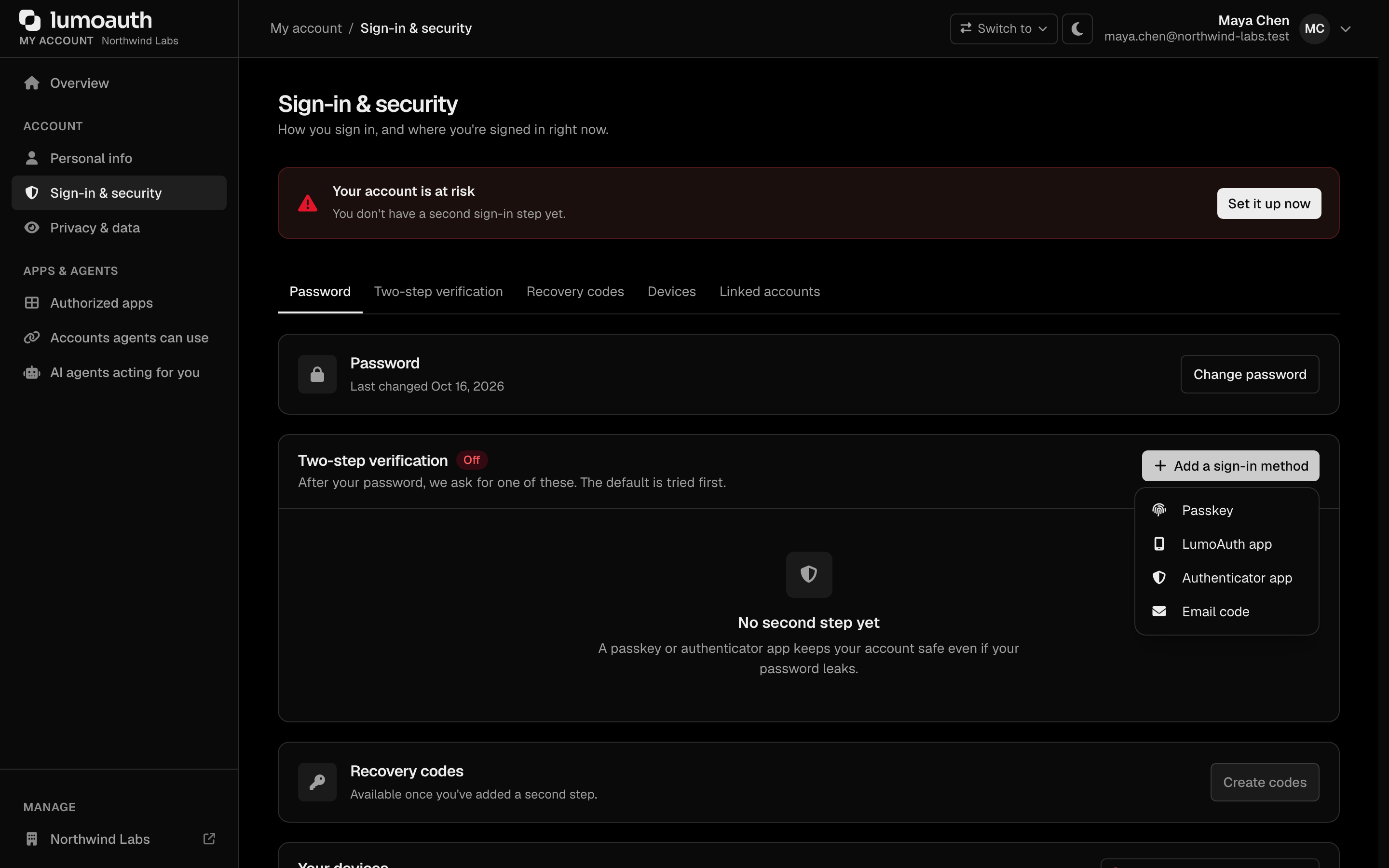
1. The user must have **enrolled the LumoAuth mobile app** on their phone: in **My account → Sign-in & security**, click **Add a sign-in method** and choose **LumoAuth app**. Without an enrolled device the API responds `428 Precondition Required` with `{ "error": "no_enrolled_device" }`.
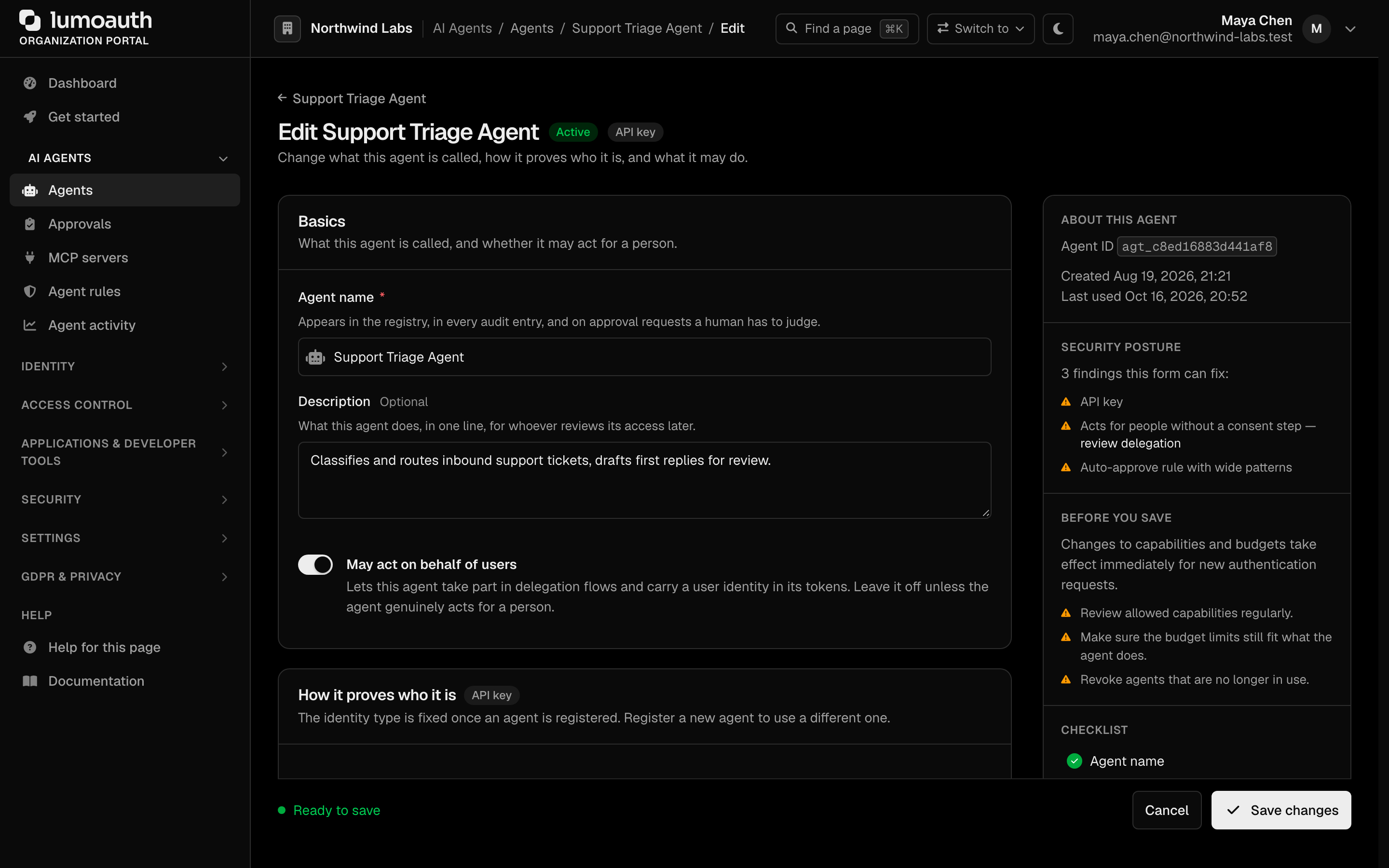
2. The agent must authenticate with its own identity and present an agent token. Any agent identity works: client credentials (as in the sample above), workload attestation (proving where it runs with a token from its cloud platform) or AAuth (the identity protocol for agents, with the agent's own signing key). The agent must also have **May act on behalf of users** turned on; otherwise the API responds `403 Forbidden` with `{ "error": "delegation_not_permitted" }`. Approvals are scoped to the calling agent.
3. Set `on_behalf_of` to the email or numeric `user_id` of the user who must approve.
## Rate limits
Per `(tenant, agent, user)` tuple: **10 approvals / 5 minutes** by default. Push bombing a single user via a rogue agent is therefore bounded by both a hard ceiling and the audit log.
## Unified approvals inbox
The organization portal has a single **approvals inbox**, **AI Agents → Approvals**
(`/orgs/{orgId}/portal/approvals`), that combines every "waiting on a human"
view into one newest-first list. It replaces the older JIT-only
`/orgs/{orgId}/portal/jit-approvals` view. Its status tabs are *Waiting*, *Approved*, *Denied* and *All permission requests*.
A second row filters by type: *Everything*, *Permission requests*, *User
consents* and *Action approvals*. Each one has a badge showing how many items are
waiting. The inbox combines three item types:
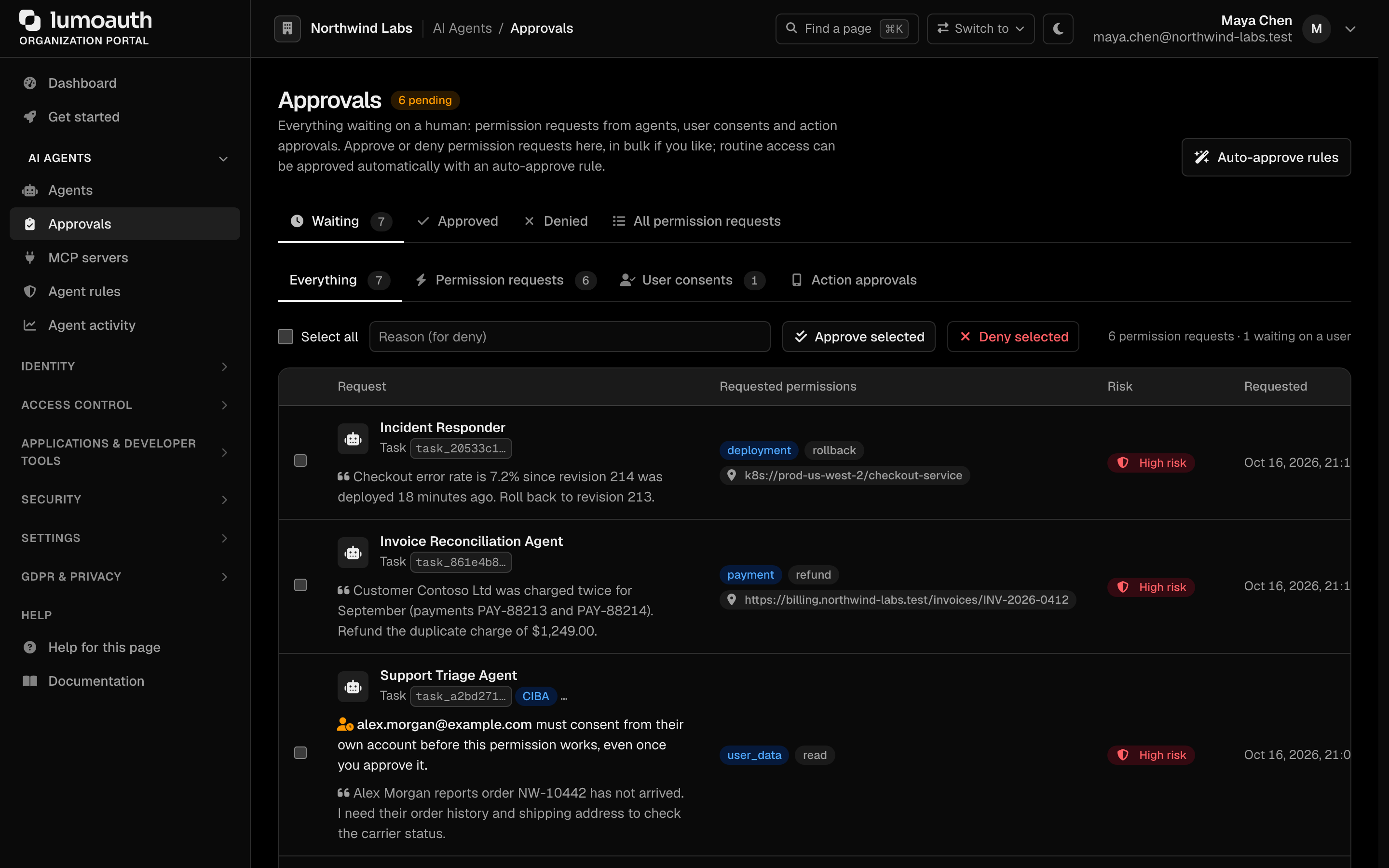
- **JIT permission requests** — always deep-link to the JIT approvals page
(filter **Permission requests**), where you approve or deny.
- **Push approvals** (requests for agent actions) — deep-link to the subject user's
review page **only when the viewer is the subject**, because that page authorizes the
subject only. For every other admin they are informational (answered
on-device).
- **AAuth user-consent requests** (a user approving what an AAuth agent may do on their behalf) — informational by design. The end user grants
consent from the agent redirect, so there is no portal action to take.
The inbox is a read model: it never changes state. Each actionable item links
into the native flow that owns the decision.
## See also
- [Create LumoAuth Agent quickstart](https://docs.lumoauth.dev/quickstarts/create-lumo-agent) — end-to-end demo
- [JIT permissions](https://docs.lumoauth.dev/agents/jit) — when you want a token, not just a yes/no
- [Async authorization (agent CIBA)](https://docs.lumoauth.dev/agents/async-authorization) — user-targeted authorization with a token, over the OAuth backchannel (CIBA: the agent asks a user to approve on their own device, without a redirect)
- [Mobile approvals device API](https://docs.lumoauth.dev/agents/mobile-approvals) — the versioned wire contract that the phone app implements (push payload schema, challenge-signature formats, rate limits)
---
# Async authorization (agent-initiated CIBA)
Source: https://docs.lumoauth.dev/agents/async-authorization
Let an AI agent request a user's authorization out-of-band and pick up a scoped token once the human approves — no browser, no shared session.
Sometimes an agent needs a **user's** authorization but the user is nowhere near the agent's execution context. For example, a batch job needs to act on Ada's mailbox at 3 AM, or a long-running workflow needs sign-off mid-run. **Agent-initiated CIBA** (Client-Initiated Backchannel Authentication, OpenID CIBA Core) lets the agent open an authorization request that targets a specific user. The agent then polls the standard OAuth token endpoint and receives a scoped token once the user (or an organization reviewer) approves.
Behind the scenes, every CIBA request from an agent uses the existing JIT (just-in-time permission) human-in-the-loop machinery:
- the request appears in the **portal approvals inbox** (**AI Agents → Approvals**, `/orgs/{orgId}/portal/approvals`) as a `CIBA`-tagged pending card that updates in real time;
- a **push prompt** is sent to the target user's enrolled LumoAuth mobile device (same ECDSA P-256 signed respond flow as [push approval](https://docs.lumoauth.dev/agents/push-approval));
- the decision — from either channel — resolves the CIBA request, and the token poll succeeds or fails accordingly;
- everything is audited: `ciba.agent_initiated`, `ciba.agent_approved` / `ciba.agent_denied`, each carrying the delegation context (`act.sub = agent_`).
The issued token is a **JIT token**: 60–900 s TTL, single-use grant, revocable, carrying the approved `authorization_details` and the `act` delegation claim. There is no refresh token — re-run the flow for new access.
## Prerequisites
- The agent must have `canActOnBehalfOfUsers` enabled: in the portal, open **AI Agents → Agents**, edit the agent and turn on **May act on behalf of users**.
- Organization policy setting: `authSettings.agent_ciba_enabled` (default `true`).
- Rate limit: 10 initiations per `(tenant, agent, target user)` per 5 minutes.
## 1. Initiate (bc-authorize)
Two ways to authenticate the initiation:
**Agent bearer** — the agent presents its own credential (an agent JWT from the `client_credentials` grant, or its `agk_` API key):
```http
POST /orgs/acme-corp/api/v1/oauth/bc-authorize HTTP/1.1
Authorization: Bearer agk_3f0c9a...
Content-Type: application/x-www-form-urlencoded
login_hint=ada%40acme.com
&binding_message=Send%20Q3%20report%20to%20board%20list
&authorization_details=%7B%22type%22%3A%22email_access%22%2C%22actions%22%3A%5B%22send%22%5D%2C%22identifier%22%3A%22board%40acme.com%22%7D
&requested_expiry=300
&requested_ttl=300
```
**Client credentials on behalf of an agent** — a CIBA-enabled OAuth client initiates and supplies the acting agent. Naming an agent is not a right to act as it. The **agent must authenticate the same request** with its own credential in the `Authorization` header (agent JWT or `agk_` key), and it must be the agent named by `agent_id`. Otherwise the server answers `403 unauthorized_client`. The client remains the polling principal.
```http
POST /orgs/acme-corp/api/v1/oauth/bc-authorize HTTP/1.1
Authorization: Bearer agk_3f0c9a...
Content-Type: application/x-www-form-urlencoded
client_id=workflow-svc&client_secret=...
&agent_id=agt_report_bot
&login_hint=ada%40acme.com
&binding_message=Send%20Q3%20report
&authorization_details=%7B%22type%22%3A%22email_access%22%2C%22actions%22%3A%5B%22send%22%5D%7D
```
Parameters:
| Parameter | Required | Notes |
|---|---|---|
| `login_hint` / `id_token_hint` | exactly one | identifies the target user (email/username, or a verified ID token) |
| `authorization_details` | yes | one rich authorization request object (or a JSON array containing exactly one); `type` is required |
| `binding_message` | recommended | sanitised (control, bidi-override and zero-width characters removed; max 255 chars) and shown as a clearly labelled **quoted** field under the server-built summary — never as the prompt headline. The headline that the user decides on is always ` wants to on on your behalf`, derived from `authorization_details`. The inbox shows it as the justification (`CIBA: …`). |
| `requested_expiry` | no | request lifetime in seconds (default 300, max 600) |
| `requested_ttl` | no | requested token TTL in seconds, clamped to 60–900 |
| `agent_id` | client-credential form only | the registered agent acting on the user's behalf; that agent must also authenticate the request (see above) |
Response (CIBA §7.3):
```json
{
"auth_req_id": "9d1c5f2e6b...",
"expires_in": 300,
"interval": 5
}
```
The `authorization_details` are validated with the **same rules as JIT requests**: an explicit PDP (ABAC) deny rejects the initiation with `access_denied`; risk is scored server-side and shown to the approver. Requests exceeding the agent's registered capabilities are flagged for the reviewer.
## 2. Approval
The target user gets a push prompt on their enrolled device (approve/deny is device-signed). Organization reviewers see the same request in the portal approvals inbox (**AI Agents → Approvals**, filter **Permission requests**) and can approve or deny it there (subject to `jit.approve` and the agent's user-access mode).
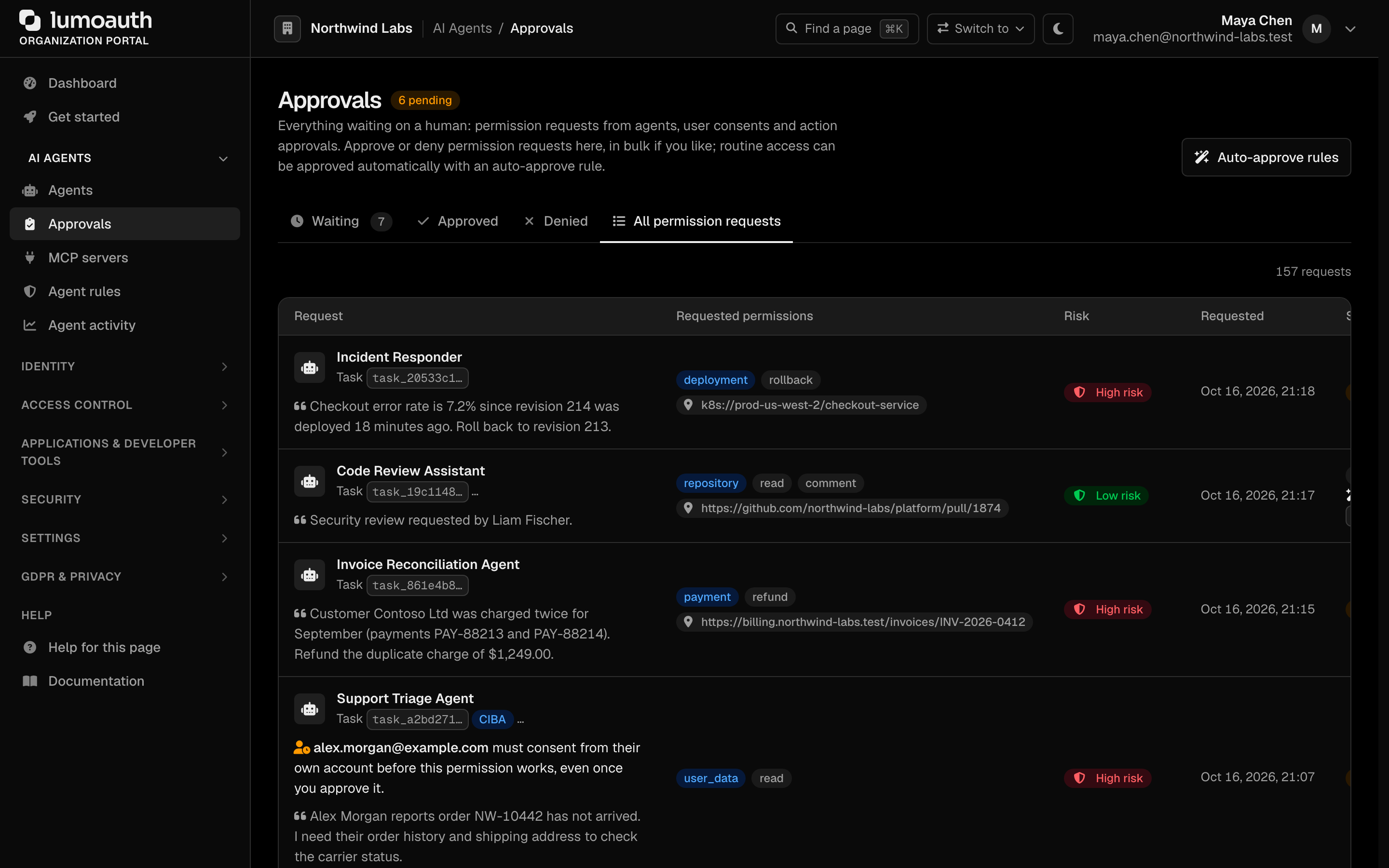
Approval-fatigue note: CIBA requests from agents are **never** auto-approved by [approval policies](https://docs.lumoauth.dev/agents/jit#approval-policies); a human always decides. The end user's approval of the push prompt is the consent step, so a CIBA task is recorded as a consented delegation (unlike an asserted `on_behalf_of` on the [JIT task API](https://docs.lumoauth.dev/agents/jit#create-task-ephemeral-persona)).
## 3. Poll the token endpoint
Standard CIBA poll mode. The polling principal must be the initiator — the agent authenticates with its `agt_`/`agk_` credentials, or the initiating client with its own:
```http
POST /orgs/acme-corp/api/v1/oauth/token HTTP/1.1
Content-Type: application/x-www-form-urlencoded
grant_type=urn%3Aopenid%3Aparams%3Agrant-type%3Aciba
&auth_req_id=9d1c5f2e6b...
&client_id=agk_3f0c9a...
```
While pending: `{"error": "authorization_pending"}`. Poll faster than `interval` and you get `slow_down`. Denied: `{"error": "access_denied"}`. Expired: `{"error": "expired_token"}`.
On approval:
```json
{
"access_token": "eyJhbGciOiJSUzI1NiIs...",
"token_type": "Bearer",
"expires_in": 300,
"authorization_details": [{
"type": "email_access",
"actions": ["send"],
"identifier": "board@acme.com"
}],
"jit_request_id": "jit_5f2e...",
"task_id": "task_ab12..."
}
```
Decoded access-token claims (JIT token):
```json
{
"iss": "https://app.lumoauth.dev/orgs/acme-corp",
"sub": "0195f3c2-...-user-uuid",
"jit": true,
"exp": 1767222900,
"permissions": {
"authorization_details": [{ "type": "email_access", "actions": ["send"] }],
"act": { "sub": "agent_agt_report_bot" },
"task_id": "task_ab12...",
"jit_request_id": "jit_5f2e..."
}
}
```
`sub` is the approving user; `act.sub` records the agent acting on their behalf (the delegation semantics of token exchange). The `auth_req_id` is single-use — a second poll after success returns `invalid_grant`.
## Audit events
| Event | When |
|---|---|
| `ciba.agent_initiated` | bc-authorize accepted (includes agent, target user, `authorization_details`, risk level) |
| `ciba.agent_approved` | request approved (either channel; includes the deciding actor + delegation context) |
| `ciba.agent_denied` | request denied |
| `jit.token_issued` | the token poll minted the JIT token |
## See also
- [JIT permissions](https://docs.lumoauth.dev/agents/jit) — the underlying HITL + token model
- [Push approval for agent actions](https://docs.lumoauth.dev/agents/push-approval) — yes/no approval without a token
- [Mobile approvals device API](https://docs.lumoauth.dev/agents/mobile-approvals) — the push payload and device-signed endpoints that the phone uses (CIBA prompts carry `origin: "ciba"`)
## Standards used on this page
| Plain name | Standard |
|---|---|
| Client-initiated backchannel authentication (CIBA) | OpenID CIBA Core 1.0 |
| Rich authorization requests | RFC 9396 |
| Token exchange (delegation) | RFC 8693 |
See the [standards reference](https://docs.lumoauth.dev/reference/standards) for what each one covers and how LumoAuth uses it.
---
# Agent Governance
Source: https://docs.lumoauth.dev/agents/governance
Every core agent gets a deterministic hygiene score from 0–100, computed from registry signals (no request context, no AI calls) and cached for about five minutes. It appears as a badge on the agent list, with a…
**Note: Three CAEP pages**
This page covers agent **risk, conditional access, and lifecycle**. To stream these events to receivers (CAEP / shared signals: security events such as "session revoked" passed between systems) see the [CAEP transmitter (Shared Signals)](https://docs.lumoauth.dev/agents/shared-signals). For the portal monitoring view see the [CAEP Dashboard](https://docs.lumoauth.dev/user-guide/ai-agents/caep).
Registered agents accumulate risk over time — stale credentials, missing
attestations, dormant identities. LumoAuth's governance layer for agents gives
every organization three tools on top of the [unified registry](https://docs.lumoauth.dev/agents/registry):
**risk scoring**, **conditional access policies**, and a **dormancy
lifecycle**.
## Do this first
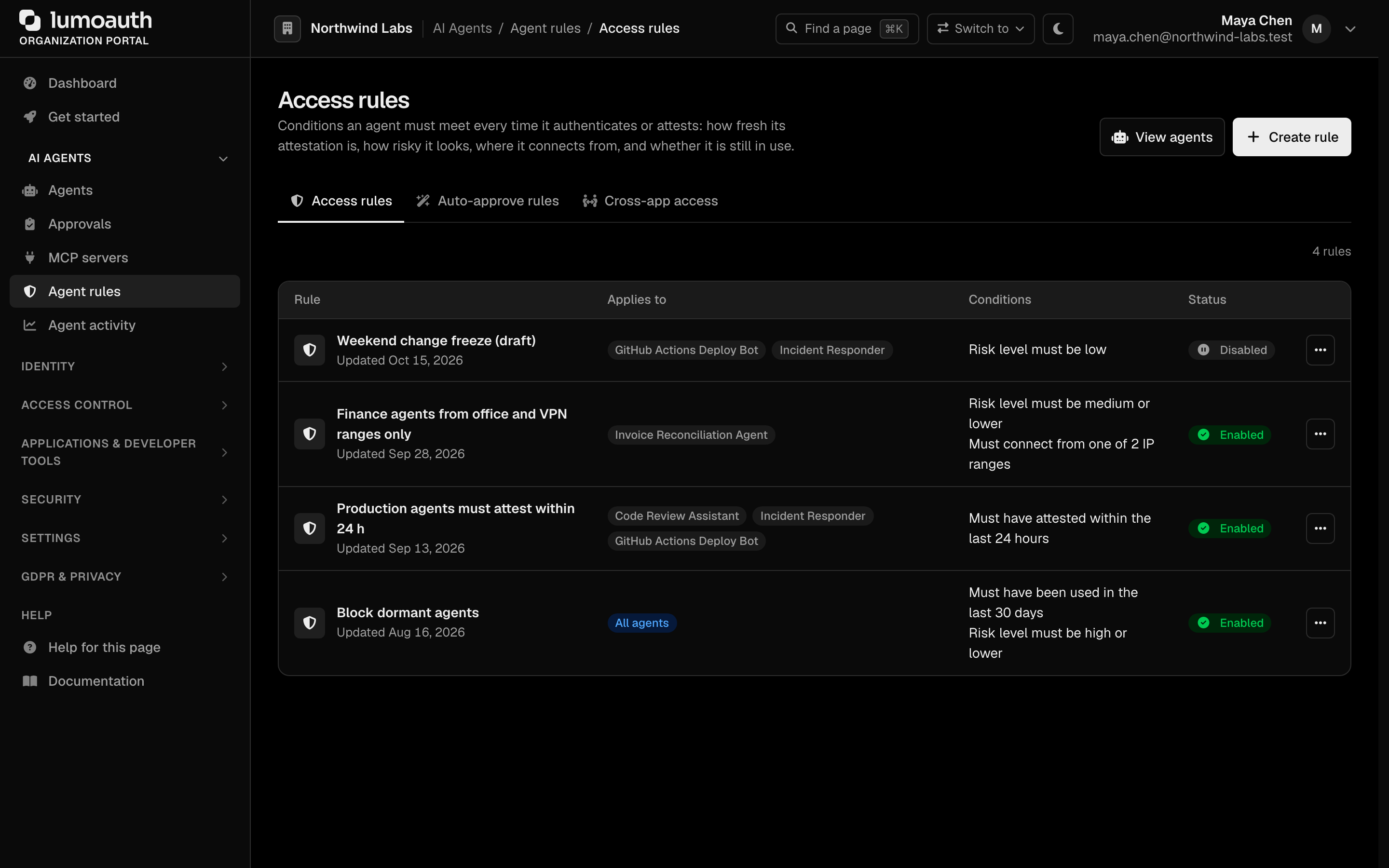
1. Open `/orgs/{orgId}/portal/agents/policies` (**AI Agents → Agent rules → Access rules**). Viewing needs `agents.view`; creating needs `agents.edit`.
2. Click **Create rule** in the page header (or **Create your first rule** in the empty state). The **Create access rule** dialog opens.
3. Name the rule, choose *All agents* or *Selected agents only*, and fill in at least one rule (attestation age, dormancy, maximum risk, allowed IP ranges).
4. Click **Create rule**. The rule is enabled immediately and applies to the next agent authentication.
5. Make sure a second person holds `jit.approve`. JIT requests from agents (just-in-time permissions: short-lived access that a human approves) can then be approved when they need a human (see [JIT review rules](#jit-review-rules)).
## Risk scoring
Every core agent gets a deterministic hygiene score from 0–100, computed from
registry signals (no request context, no AI calls) and cached for about five
minutes. It appears as a badge on the agent list, with a per-factor "why this
score" breakdown on the agent's detail page. In the Admin API it appears as
`riskLevel` (plus `riskScore` / `riskFactors` in detailed responses).
| Factor | Points | Trigger |
| --- | --- | --- |
| Stale credentials | +15 | API key / client secret not rotated in > 180 days (falls back to creation date for agents created before rotation tracking) |
| No recent attestation | +20 | Workload-identity agents with no successful attestation in the last 30 days (or ever) |
| Elevated denial rate | +20 | More than 10% of the agent's authorization decisions (capability checks + JIT requests) in the last 7 days were denials, with a minimum of 10 decisions |
| Dormancy | +15 / +25 | No usage for > 30 days (+15) or > 90 days (+25) |
| Budget exhausted | +10 | At least one budget window (calls / tokens / cost) is currently spent |
| Not active | +100 | Suspended, inactive or revoked agents are maximum risk by definition |
Scores are capped at 100 and grouped into buckets:
| Bucket | Score |
| --- | --- |
| `low` | 0–29 |
| `medium` | 30–59 |
| `high` | 60–100 |
**Note**
Agent risk is intentionally separate from the adaptive-authentication risk
engine used for user logins. The risk of a user login is contextual (geo-velocity,
device fingerprints); agent risk is a posture score over registry signals.
## Conditional access policies
Access policies are evaluated at the two points where an agent's identity is
accepted:
1. **Bearer-token authentication** — after an agent's access token is verified,
and
2. **Workload attestation** — after a cloud OIDC attestation token is verified,
before a LumoAuth access token is issued.
A denial returns HTTP **403** with a machine-readable reason and writes an
`agent.access_policy_denied` audit event:
```json
{
"error": "access_policy_denied",
"error_description": "The agent was denied by a conditional access policy.",
"reason": "risk_level_exceeded"
}
```
### Create a rule in the portal
Access rules are at `/orgs/{orgId}/portal/agents/policies` (**AI Agents →
Agent rules → Access rules**). The page lists existing rules with their conditions
written out in plain words ("Must have attested within the last 24 hours", "Must
have been used in the last 30 days", "Risk level must be medium or lower", "Must
connect from one of 2 IP ranges"). Each row also shows an *Enabled* / *Disabled*
status and an actions menu (**Edit…**, **Disable** / **Enable**, **Delete**). When at
least one rule exists, a notice at the top names every active agent that no enabled
rule applies to. A **Create a rule for them** shortcut opens the dialog with those
agents already selected.
Rules are created and edited from the same dialog:
1. Click **Create rule** in the page header (or **Create your first rule** in the
empty state), or **Edit…** in a rule's actions menu to open it with the fields filled in.
2. Enter a **Rule name** and choose the scope under **Applies to**: *All agents* or
*Selected agents only* (at least one agent is required).
3. Fill in any combination of the conditions below. Empty conditions are ignored, but
at least one is required; IP ranges are validated as IPs or CIDRs.
4. Watch **Preview impact**: as you type, the dialog runs the rule against the
organization's active agents. It shows which ones it would deny today and why
("would currently deny 1 of the 4 active agents it applies to: Dormant Bot (not used
in the last 30 days)"). IP ranges are left out of the preview because the portal has
no client IP to test. Nothing is stored by the preview (`POST …/agents/policies/preview`).
5. Click **Create rule** (or **Save changes**).

Each rule targets *all agents* or a selected list, and enforces any
combination of these conditions (empty conditions are ignored). The API and the
audit log keep the technical keys; the portal shows the plain-English form:
| Condition (form label) | Key | Type | Semantics (deny reason) |
| --- | --- | --- | --- |
| *Must have attested within (hours)* | `require_recent_attestation_hours` | int | Last successful workload attestation must be within N hours; agents that never attested are denied (`attestation_missing` / `attestation_stale`) |
| *Risk level must be at most* | `max_risk_level` | `low` \| `medium` \| `high` | The agent's computed risk bucket must not exceed the ceiling (`risk_level_exceeded`) |
| *Must connect from these IP ranges* (one CIDR or IP per line) | `allowed_ip_cidrs` | string[] | Client IP must match one CIDR/IP; requests whose IP cannot be determined are denied (`ip_not_allowed` / `ip_unknown`) |
| *Must have been used in the last (days)* | `deny_dormant_days` | int | The agent must have been used within N days (`agent_dormant`) |
Edits are audited as `agent.access_policy_updated` with the before/after values.
Evaluation semantics:
- **Fail-open with no policies** — organizations that never create a policy
get no change in behavior.
- **Deny-overrides** — the first failing rule of any applicable enabled
policy denies.
- **Fail-closed on errors** — if policies exist but evaluation itself fails,
the agent is denied with reason `policy_evaluation_error` rather than
silently allowed.
## Kill switch (suspend / revoke / deactivate)
Moving an agent to **any** non-active status (`suspended`, `revoked` or
`inactive`, via the portal or the Admin API) is a hard kill switch. It is not
just a flag that later requests happen to check. In the same unit of work as
the status change LumoAuth revokes everything that the agent currently holds:
| What | Effect |
| --- | --- |
| AAuth agent, auth and refresh tokens of the linked AAuth registration (AAuth is the protocol for agent identity, based on the agent's own signing key) | marked revoked; the AAuth registration itself is moved to `suspended` (or `revoked`) to match, so the AAuth token endpoint stops issuing |
| Pending / approved-but-unissued JIT requests | transitioned to `revoked` — a late human approval no longer mints a token |
| Issued JIT tokens and active JIT tasks | permissions revoked, the token `jti` is blacklisted immediately, tasks suspended |
| Token Vault grants (third-party credentials that LumoAuth holds for the agent) | every outbound grant of the agent is revoked: the encrypted refresh token is wiped and, when the provider exposes a revocation endpoint, it is called best-effort |
| Core OAuth access / refresh tokens issued to the agent principal | marked revoked |
| Stateless agent access tokens (client credentials, workload and on-behalf-of exchange, attestation, Admin API mint) | every live token's `jti` is deny-listed (`agent_jwts` in the audit counts), so LumoAuth's own API and introspection refuse the token before `exp` |
| Downstream receivers | a CAEP `session-revoked` event is emitted on every configured SSF (shared signals) stream |
The cascade is audited as `agent.credentials_revoked` with per-category
counts, and it is idempotent — re-running it on an already suspended agent is
a no-op. `agk_` API keys and agent JWTs are refused on every request to
LumoAuth by the active-status check, and introspection answers `active: false`
for a suspended agent from the same moment.
A resource server that verifies an agent JWT offline against the JWKS keeps
accepting it until `exp` unless it also checks with LumoAuth. Keep agent token
lifetimes short (one hour for grants, 15 minutes for attestation), introspect
tokens whose work matters, or subscribe to the CAEP event. The LumoAuth SDK
verifiers for MCP servers (see [Implementing an MCP server](https://docs.lumoauth.dev/mcp/server-implementation))
expose the token id so you can introspect on demand.
**Narrowing capabilities revokes tokens too.** When an agent loses a
capability, every live token it holds is revoked the same way, because a
token keeps the scope it was minted with. Adding capabilities revokes nothing.
**Reactivation never restores anything.** Moving a suspended or inactive
agent back to `active` only moves the AAuth registration back to match. Every
token, grant and approval revoked by the suspension stays revoked, and the agent
must obtain new ones. `revoked` is terminal on every surface: the portal
offers **Reactivate** only for suspended or inactive agents and rejects a
revoked one ("is revoked and cannot be reactivated"). Register a new agent
instead.
**Deleting an agent revokes first.** Deleting from the portal or the Admin API
runs the same cascade before the row is removed (AI gateway keys are revoked
synchronously). No issued credential therefore remains valid after the agent is gone.
The agent's fine-grained authorization tuples are removed in the same
transaction (`permission:…#grantee@agent:`, `mcp_tool:…#invoke@agent:`,
`mcp_server:…#invoke@agent:` and any `agent:` object). An agent later
re-registered under the same `agent_id` therefore inherits nothing. Portal
revoke and delete are audited as `aauth.agent_revoked` / `aauth.agent_deleted`.
The Admin API audits `agent.deleted` with the per-category revocation counts
(`zanzibar_tuples` included).
**Registry changes are audited.** Three events are written for every
create / update / delete: `agent.created` (capabilities, identity type,
delegation flag, creator), `agent.updated` (the changed fields with old → new
values — capabilities, status, *act on behalf of users*, workload binding,
API-key expiry, budget) and `agent.deleted`. This applies through the Admin
API, the register API and the portal's creation flow, alongside the existing credential events
(`agent.key_rotated`, `agent.credentials_rotated`, `agent.credentials_revoked`).
**Agent API keys are hashed.** The portal's edit page for an agent never shows the
stored key or its hash, and only hashed `agk_` keys are accepted.
## JIT review rules
Approving or denying a JIT permission request is a review decision, and the
same rules apply to both:
- the reviewer must hold `jit.approve` in the request's organization (deny
enforces this exactly like approve). `jit.approve` is a seeded system
permission that organization admins hold by default. To let other people
review, give them a role that grants only `jit.approve` (see
[Delegate approval to a reviewer role](https://docs.lumoauth.dev/agents/jit#delegate-approval-to-a-reviewer-role));
- the user that the agent acts on behalf of cannot review the request;
- the agent's **owner/creator cannot approve or deny their own agent's
requests** — a second approver with `jit.approve` is required (separation
of duties). There is no organization setting to relax this; the only
exemption is a short-lived sandbox / public-demo organization, which by
design has a single operator;
- a request whose approval window has lapsed (`expires_at` in the past)
cannot be approved even if it is still shown as `pending`.
- a reviewer outside the agent's **user access mode** (`org_only`,
`b2b_only`, `b2b_specific`) cannot decide its requests;
- requests for the critical resource types `payment`, `user_data`,
`credentials` and `admin_action` always go to a human: neither a low risk
score, the agent's capability allow-list nor an approval policy releases
them.
These rules apply on every channel: the portal inbox (single and batch),
the JIT API, the LumoAuth mobile app (which only lists requests that the reviewer
may decide) and approval hooks.
Refused reviews are audited as `jit.permission_approve_denied` /
`jit.permission_deny_denied` with the reviewer as actor, so an owner trying
to self-approve leaves a trace.
Webhook payloads for `jit.approval_required` carry organization-scoped
`approve_url` / `deny_url` values (`/orgs/{orgId}/api/v1/jit/approve/{id}`).
[Approval channels](https://docs.lumoauth.dev/integrations/approval-channels) (Slack, Teams,
ServiceNow, Jira) apply the same rules.
Auto-approve rules (approval policies) have their own separation of duties. A
rule cannot be created for a critical resource type, or by the owner of the agent
that it names. An organization-wide rule written by an agent's owner never
auto-approves that owner's agents (except in sandbox and demo organizations). In
the portal (**AI Agents → Agent rules → Auto-approve rules**) the agent is chosen
from a searchable picker of the organization's agents. **Any agent** is an explicit
choice that has to be confirmed with a checkbox. Action patterns show examples and
reject a bare `*` before the form is sent. Existing rules can be edited (the
7-day lifetime still counts from creation). A request that a rule approved shows
*Auto-approved by rule `aap_…`* in the Approvals inbox, linking to the rule. See
[Approval policies](https://docs.lumoauth.dev/agents/jit#approval-policies).
## Dormancy lifecycle
Unused agent credentials are a liability. A daily lifecycle job
moves agents with no activity (usage **or** successful attestation) in
N days from `active` to `inactive`. They then stop authenticating until an
admin reactivates them (**Reactivate** in the agent's actions menu on the
Agents page — `inactive → active` is an allowed transition).
*Activity* is the agent's `lastUsedAt`. It is written (at most once per five
minutes per agent) whenever the agent authenticates with its `agk_` key,
calls the Ask API, asks for an authorization for an MCP tool or fetches a Token
Vault token. The `deny_dormant_days` conditional-access rule reads the same
timestamp, so a busy agent is never denied as dormant.
- The threshold is 90 days.
- Freshly registered agents are never flagged — the creation date must also
pre-date the threshold.
- Every transition is audited as `agent.deactivated_dormant`.
- Organizations can opt out via the organization settings JSON:
```json
{
"agent_governance": {
"auto_deactivate_dormant": false
}
}
```
Deactivated agents appear as `inactive` (maximum risk) in the registry and
Admin API, so they are easy to review and either reactivate or revoke.
## Troubleshooting
- **Agents started failing with `access_policy_denied` right after creating a policy.** The policy applies to the next authentication; check `reason` (`attestation_stale`, `risk_level_exceeded`, `ip_not_allowed`, ...) and the `agent.access_policy_denied` audit event, which names the policy. Disable the policy from its actions menu (**Disable**) to recover.
- **`policy_evaluation_error`.** Policies exist but could not be evaluated (for example a malformed CIDR). Evaluation fails closed. Fix or disable the policy.
- **Nothing changed after creating a policy.** The policy is disabled, or it targets a list of agents that does not include the one that you are testing.
- **The Create rule button is missing.** You hold `agents.view` but not `agents.edit`.
- **Nobody can approve a JIT request.** The only `jit.approve` holder owns the agent. Grant `jit.approve` to a second reviewer.
---
# Shared Signals (SSF / CAEP)
Source: https://docs.lumoauth.dev/agents/shared-signals
LumoAuth is an OpenID Shared Signals Framework (SSF) 1.0 transmitter for security events about agents. (SSF is the standard for passing security events such as "session revoked" between systems; CAEP is its profile of…
**Note: Three CAEP pages**
This is the **CAEP transmitter** — the outbound SSF protocol and stream config. For the risk/lifecycle policies that _generate_ these events see [Agent Governance](https://docs.lumoauth.dev/agents/governance); for the portal monitoring view see the [CAEP Dashboard](https://docs.lumoauth.dev/user-guide/ai-agents/caep).
LumoAuth is an **OpenID Shared Signals Framework (SSF) 1.0 transmitter** for
security events about agents. (SSF is the standard for passing security events such as
"session revoked" between systems; CAEP is its profile of event types.) When something security-relevant happens to an AI agent,
LumoAuth pushes a signed **security event token (SET)**
carrying a **CAEP 1.0** event to every receiver that you configure. Examples:
the agent is revoked, continuous access evaluation suspends a JIT task session,
a just-in-time permission is withdrawn, or governance deactivates a dormant agent.
Delivery is **push only**: LumoAuth POSTs the SET to your endpoint
with `Content-Type: application/secevent+jwt`. Deliveries are asynchronous,
retried with exponential backoff, and every attempt is audited
(`ssf.set_delivered` / `ssf.set_delivery_failed`).
**Info: Standard**
[OpenID Shared Signals Framework (SSF) 1.0](https://openid.net/specs/openid-sharedsignals-framework-1_0.html) and the [CAEP 1.0 profile](https://openid.net/specs/openid-caep-1_0.html) solve one problem. A security decision made in one system (a revoked session, a device out of compliance) has to reach every other system now, not when a token happens to expire. Events travel as security event tokens. What you must do as a receiver: verify the SET signature against the transmitter `jwks_uri`, check `iss` and `aud`, and deduplicate on `jti`.
## Do this first
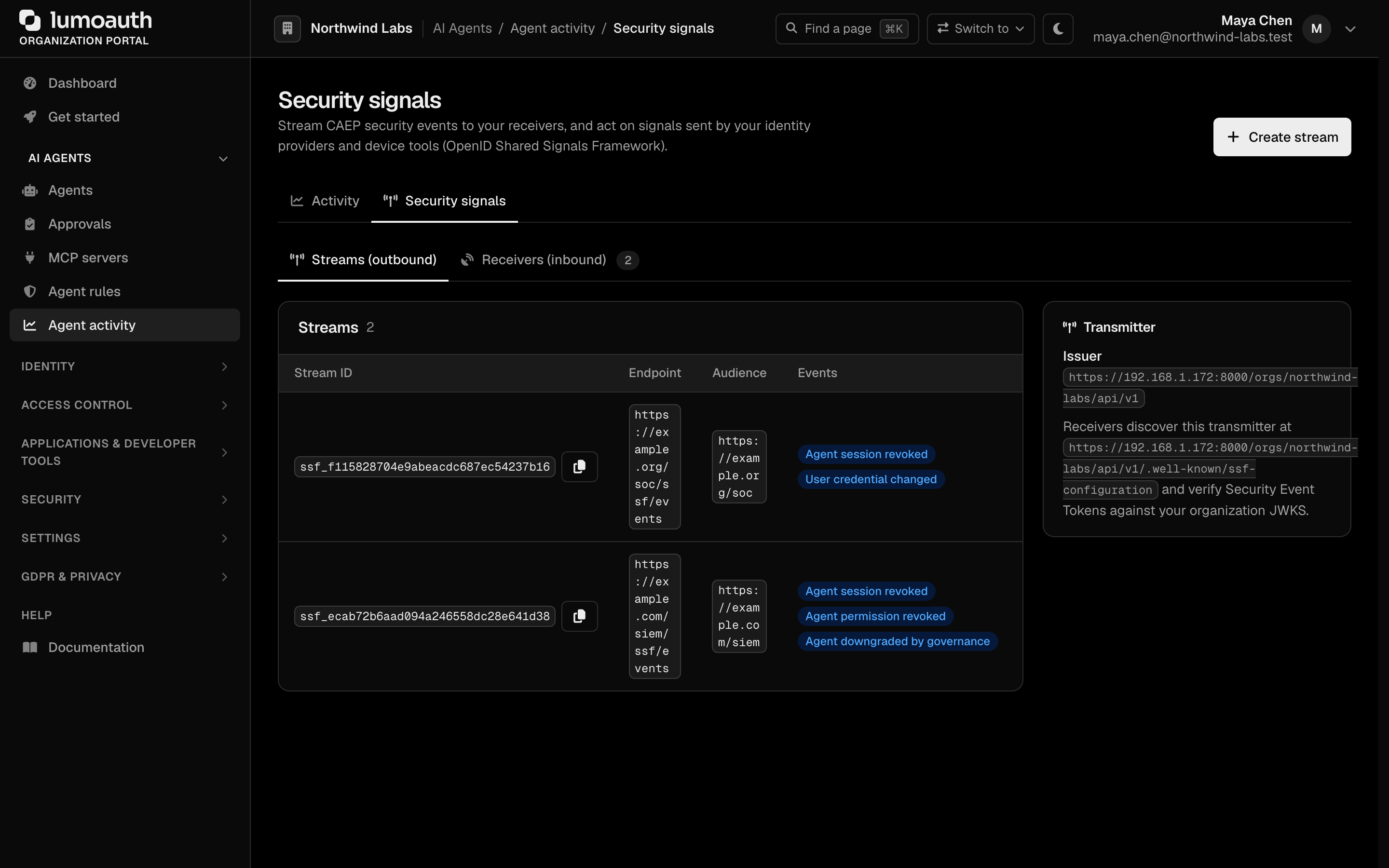
1. Open `/orgs/{orgId}/portal/agent-guard/security-signals` (**AI Agents → Agent activity → Security signals**). You need `agents.view` to see the page and `settings.manage` to create anything.
2. On the **Streams (outbound)** tab, click **Create stream** in the page header. A dialog opens.
3. Enter your receiver's HTTPS endpoint (**Delivery endpoint**), an **Audience**, an optional **Bearer token**, and tick the **Events** that you want. Click **Create stream**.
4. Click **Send verification** on the new stream and confirm your endpoint received the verification SET.
5. To *receive* signals from Okta, Entra or another transmitter instead, switch to the **Receivers (inbound)** tab and click **Add receiver** (see [Receiving signals](#receiving-signals)).
## Transmitter metadata
Receivers discover the transmitter via the org-scoped well-known document
(no authentication required):
```http
GET /orgs/{orgId}/api/v1/.well-known/ssf-configuration
```
```json
{
"spec_version": "1_0",
"issuer": "https://app.lumoauth.dev/orgs/acme/api/v1",
"jwks_uri": "https://app.lumoauth.dev/orgs/acme/api/v1/.well-known/jwks.json",
"delivery_methods_supported": ["urn:ietf:rfc:8935"],
"configuration_endpoint": "https://app.lumoauth.dev/orgs/acme/api/v1/ssf/stream",
"verification_endpoint": "https://app.lumoauth.dev/orgs/acme/api/v1/ssf/verify",
"authorization_schemes": [{ "spec_urn": "urn:ietf:rfc:6749" }],
"events_supported": [
"https://schemas.openid.net/secevent/caep/event-type/session-revoked",
"https://schemas.openid.net/secevent/caep/event-type/token-claims-change",
"https://schemas.openid.net/secevent/caep/event-type/assurance-level-change"
]
}
```
SETs are signed with the organization signing key; verify signatures against the
`jwks_uri`. The `issuer` is always the org-scoped issuer — custom domains are
not reflected in SSF SETs, so the value is stable across delivery contexts.
## Stream setup
Streams are managed with the same admin credentials as the rest of the
[Admin API](https://docs.lumoauth.dev/api-reference/authentication) (Bearer token or API key). They can also
be managed in the portal under **AI Agents → Agent activity → Security signals**
(`/orgs/{orgId}/portal/agent-guard/security-signals`, **Streams (outbound)** tab). In the
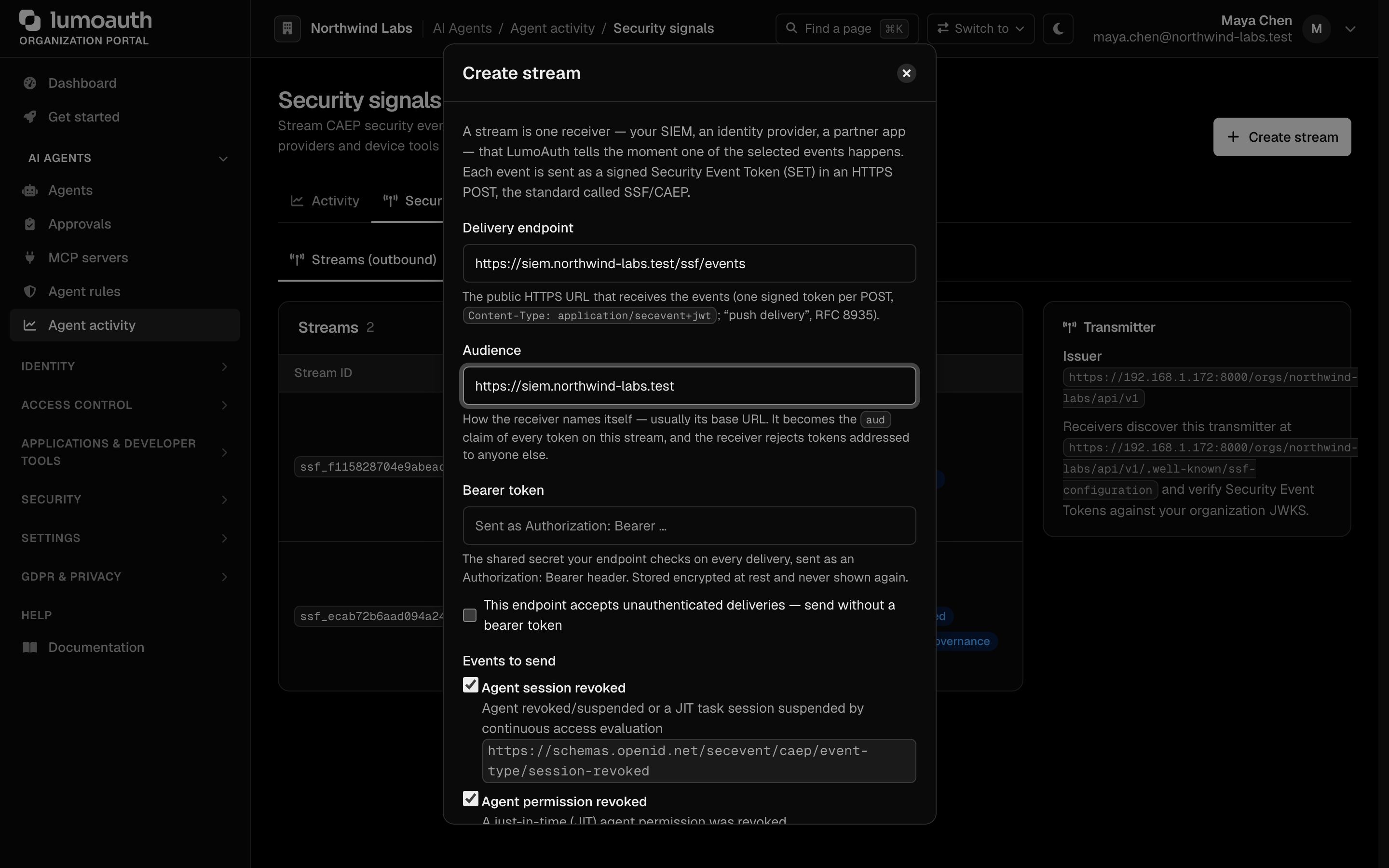
portal, **Create stream** in the page header opens a dialog with the same
fields as the API call below, explained in plain words. The fields are the **Delivery endpoint**
(the HTTPS URL that receives one signed token per POST — "push delivery"),
the **Audience** (how the receiver names itself; the `aud` claim), a
**Bearer token** and **Events to send**. Events are labelled checkboxes ("Agent
session revoked", "Agent permission revoked", "Agent downgraded by governance",
"User credential changed", "Device compliance changed") with the event-type URI
underneath. The three agent events are pre-selected for a new stream. The bearer
token is required unless you tick **This endpoint accepts unauthenticated
deliveries**; streams without one are flagged *No bearer* in the list. **Edit…** in a
stream's actions menu reopens the dialog with the stored values filled in. A blank bearer keeps the stored
one; the opt-out tick removes it. Creating, editing, pausing, verifying and deleting
streams requires the `settings.manage` permission.
**Info: Standard**
**Push delivery of security events** defines how a transmitter POSTs one SET per request with `Content-Type: application/secevent+jwt`. What you must do: answer `202 Accepted` once the SET is stored (not once it is processed) and return a `400` with an `err` code only for SETs that you will never accept, so that retries are not wasted.
### Create a stream
```http
POST /orgs/{orgId}/api/v1/ssf/stream
Content-Type: application/json
{
"delivery": {
"method": "urn:ietf:rfc:8935",
"endpoint_url": "https://receiver.example.com/events",
"authorization_token": "receiver-shared-bearer-token"
},
"audience": "https://receiver.example.com",
"events_requested": [
"https://schemas.openid.net/secevent/caep/event-type/session-revoked",
"https://schemas.openid.net/secevent/caep/event-type/token-claims-change"
]
}
```
- `endpoint_url` must be a public HTTPS URL (private/internal addresses are
rejected — deliveries are SSRF-guarded and DNS-pinned).
- `authorization_token` is optional; when set it is stored **encrypted at
rest** and sent as `Authorization: Bearer …` on every delivery. It is
write-only — it is never returned by the API.
- `audience` becomes the `aud` claim of every SET on the stream.
- `events_delivered` in the response is the intersection of
`events_requested` and `events_supported`.
The `201` response returns the stream configuration including the generated
`stream_id` (`ssf_…`).
### Read / delete
```http
GET /orgs/{orgId}/api/v1/ssf/stream # all streams
GET /orgs/{orgId}/api/v1/ssf/stream?stream_id=ssf_… # one stream
DELETE /orgs/{orgId}/api/v1/ssf/stream?stream_id=ssf_…
```
Multiple streams (one per receiver) are supported. Pause/resume is available
in the portal (**Pause** / **Enable** in the stream's actions); paused streams receive nothing.
### Verify delivery
Trigger an SSF **Verification Event** to prove end-to-end delivery:
```http
POST /orgs/{orgId}/api/v1/ssf/verify
Content-Type: application/json
{ "stream_id": "ssf_…", "state": "any-opaque-echo-value" }
```
The receiver gets a SET with event type
`https://schemas.openid.net/secevent/ssf/event-type/verification` whose
payload echoes `state`.
## Event catalog
| Event type URI | When fired | `sub_id` format | Payload example |
|---|---|---|---|
| `…/caep/event-type/session-revoked` | An agent is **suspended or revoked** (admin API / portal status transition) | `iss_sub` — `iss` = organization issuer, `sub` = agent id (`agent_…`) | `{"event_timestamp": 1751328000, "initiating_entity": "admin", "reason_admin": {"en": "Agent \"billing-bot\" transitioned to status \"revoked\""}}` |
| `…/caep/event-type/session-revoked` | Continuous access evaluation **suspends a JIT task session** (risk threshold / anomalous request frequency) | `opaque` — the CAEP session id (`caep_…`) | `{"event_timestamp": 1751328000, "initiating_entity": "policy", "reason_admin": {"en": "JIT task session suspended by continuous access evaluation"}, "task_id": "task_…", "agent_id": "agent_…", "evaluation_events": ["risk_threshold_exceeded"]}` |
| `…/caep/event-type/token-claims-change` | A single **JIT permission is revoked** | `opaque` — the JIT token id (`jti`) | `{"event_timestamp": 1751328000, "initiating_entity": "policy", "reason_admin": {"en": "JIT permission revoked: budget exceeded"}, "claims": {"authorization_details": "revoked"}, "task_id": "task_…", "agent_id": "agent_…"}` |
| `…/caep/event-type/assurance-level-change` | Governance **deactivates a dormant agent** | `iss_sub` — `iss` = organization issuer, `sub` = agent id | `{"event_timestamp": 1751328000, "namespace": "https://lumoauth.dev/assurance/agent", "previous_level": "active", "current_level": "dormant-deactivated", "change_direction": "decrease", "initiating_entity": "system", "reason_admin": {"en": "Agent deactivated after 90 days without activity (…)"}}` |
| `…/ssf/event-type/verification` | On request (`/ssf/verify` or the portal button) | `opaque` — the stream id (`ssf_…`) | `{"state": "any-opaque-echo-value"}` |
Subject identifiers follow the standard subject-identifier formats for security events. Agent-scoped events use `iss_sub`
because agents are principals of the organization issuer. JIT/task/stream handles
use `opaque` because they are transmitter-scoped identifiers with no issuer
semantics of their own. The assurance levels in `assurance-level-change` are
vendor-defined (`active` / `dormant-deactivated`) under the
`https://lumoauth.dev/assurance/agent` namespace.
## Receiver quickstart
1. Expose an HTTPS endpoint that accepts
`POST` with `Content-Type: application/secevent+jwt` and responds
`202 Accepted`. Anything other than 2xx is retried with backoff.
2. Create a stream (above) pointing at it, subscribing to the events that you
need.
3. Send a verification event and check you received it.
4. Validate each SET: signature against `jwks_uri`, `iss` equals the
transmitter `issuer`, `aud` equals your configured audience, header
`typ` is `secevent+jwt`, and deduplicate on `jti` (redeliveries reuse
the same `jti`).
A delivered verification SET decodes to:
```json
// header
{ "alg": "RS256", "kid": "…", "typ": "secevent+jwt" }
// payload
{
"iss": "https://app.lumoauth.dev/orgs/acme/api/v1",
"jti": "set_9f2c1a…",
"iat": 1751328000,
"aud": "https://receiver.example.com",
"sub_id": { "format": "opaque", "id": "ssf_4b1d…" },
"events": {
"https://schemas.openid.net/secevent/ssf/event-type/verification": {
"state": "any-opaque-echo-value"
}
}
}
```
Minimal Node.js receiver:
```js
import express from 'express';
import { createRemoteJWKSet, jwtVerify } from 'jose';
const JWKS = createRemoteJWKSet(
new URL('https://app.lumoauth.dev/orgs/acme/api/v1/.well-known/jwks.json'),
);
const app = express();
app.post('/events', express.text({ type: 'application/secevent+jwt' }), async (req, res) => {
try {
const { payload, protectedHeader } = await jwtVerify(req.body, JWKS, {
issuer: 'https://app.lumoauth.dev/orgs/acme/api/v1',
audience: 'https://receiver.example.com',
typ: 'secevent+jwt',
});
for (const [eventType, eventPayload] of Object.entries(payload.events)) {
console.log('security event', eventType, payload.sub_id, eventPayload);
}
res.status(202).end();
} catch (e) {
res.status(400).json({ err: 'invalid_request', description: String(e) });
}
});
app.listen(8443);
```
## Receiving signals
LumoAuth is also an SSF **receiver**: your identity provider, EDR or MDM can
tell it that a user's session must end, a credential was compromised, an
account was disabled, or a device fell out of compliance. LumoAuth acts
on it within the same request.
### Add a receiver in the portal
Inbound streams are on the **Receivers (inbound)** tab of **AI Agents → Agent activity → Security signals** (`/orgs/{orgId}/portal/agent-guard/security-signals?tab=receivers`).
Creating one requires `settings.manage`.
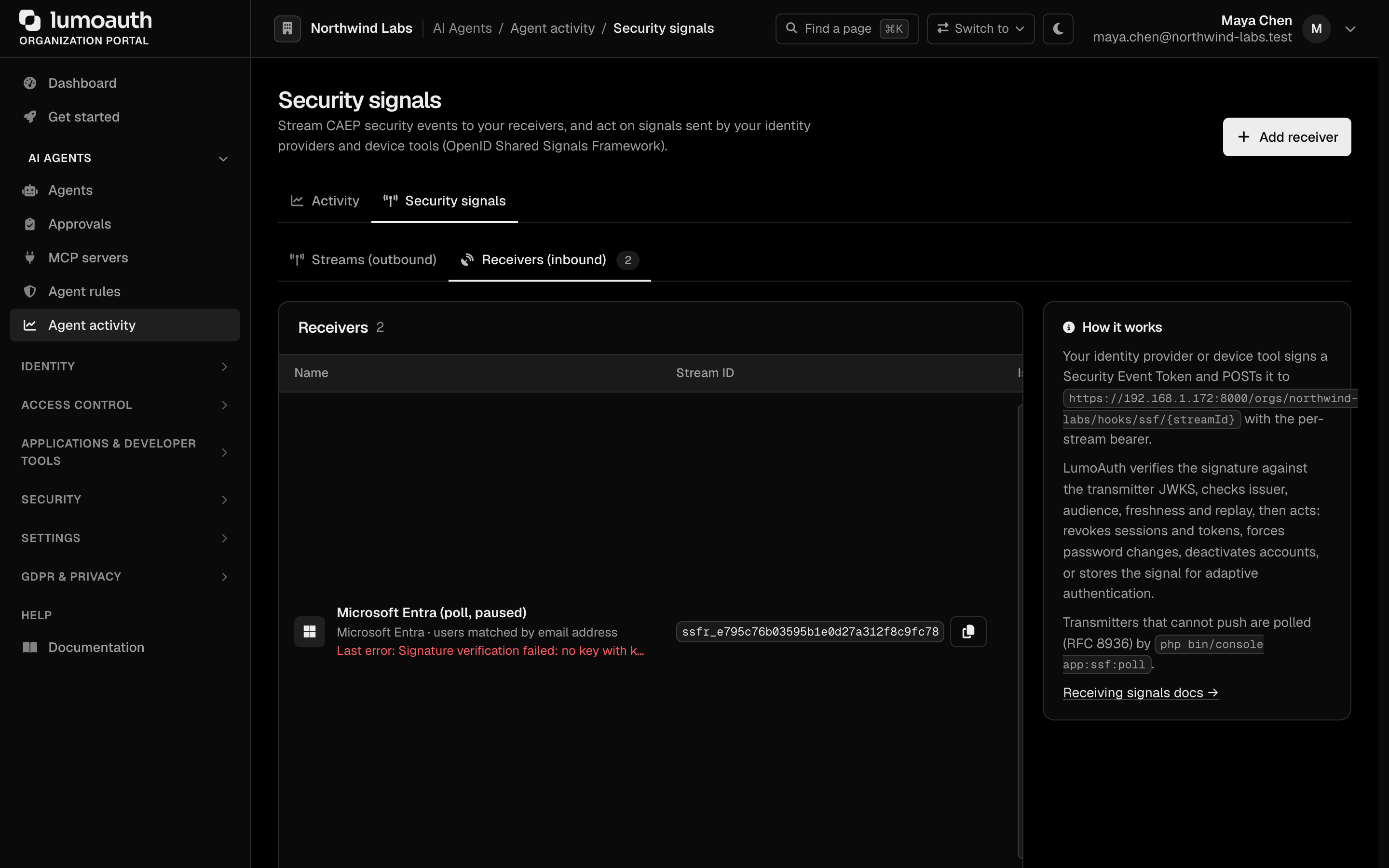
1. Click **Add receiver** in the page header (or **Add a receiver** in the empty state). A dialog opens.
2. Pick the **Transmitter** preset. The dialog shows the vendor's docs link and asks only for what the preset cannot derive (for example the Okta org subdomain or the Entra directory id). The issuer and JWKS URL fields appear for free-form presets.
3. Check the **Audience** (how the transmitter must address us — the `aud` claim that it puts in every event). Then choose **How events name the user**: by email address, by provider subject, by provider subject strictly, or by phone number (the technical `email` / `sub` / `iss_sub` / `phone` subject mappings). Then choose the **Delivery** method: *Push — the transmitter sends each event to LumoAuth the moment it happens* or *Poll — LumoAuth asks the transmitter for new events on a schedule* (shows the poll URL and bearer fields).
4. Tick the **Events to act on** and click **Create receiver**.
5. Copy the push endpoint and the per-stream bearer shown once, and paste them into the transmitter's console.
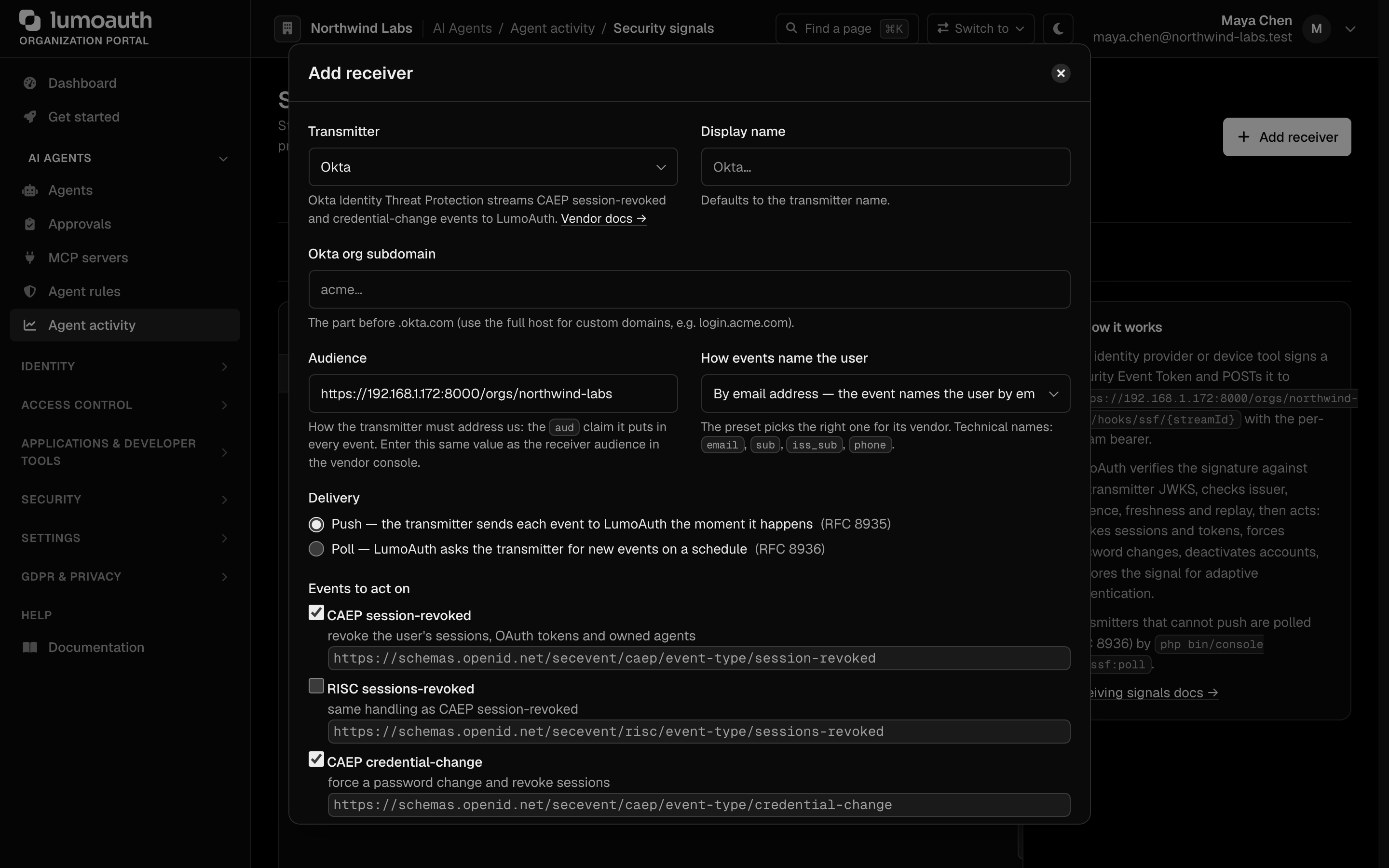
Deep links open the dialog pre-filled: `?tab=receivers&preset=okta` opens the
Okta form directly. Preset keys: `okta`, `entra`, `google_risc`,
`duo`, `ping`, `jamf`, `crowdstrike`, `generic`. The *Inbound signals & device
posture* tiles on the Integrations page use these links.
### Supported transmitters
| Preset | Issuer / JWKS | Notes |
|---|---|---|
| Okta (Identity Threat Protection) | `https://{org}.okta.com` · `/oauth2/v1/keys` | Enter the org subdomain or custom login host |
| Microsoft Entra ID | `https://login.microsoftonline.com/{tenant}/v2.0` · `/discovery/v2.0/keys` | Enter the directory (tenant) id |
| Google RISC (Cross-Account Protection) | `https://accounts.google.com` · `https://www.googleapis.com/oauth2/v3/certs` | Subject mapping `iss_sub` (Google `sub` ↔ linked identity) |
| Cisco Duo, Ping Identity, Jamf, CrowdStrike | free-form | Copy issuer and JWKS URL from the vendor console |
| Generic | free-form | Any SSF 1.0 transmitter |
### Delivery
**Info: Standard**
**Push delivery** and **poll delivery** are the two SSF delivery methods. Push is for transmitters that can reach you; poll is for those that cannot, and the receiver acknowledges each SET by `jti` so the transmitter can drop it. What you must do: pick the method that the transmitter supports and, for poll, schedule `app:ssf:poll`.
- **Push** — the transmitter POSTs each SET to
`https://app.lumoauth.dev/orgs/{org}/hooks/ssf/{streamId}` with
`Content-Type: application/secevent+jwt` and
`Authorization: Bearer `. The bearer is generated when
the stream is created and shown **once** (only its SHA-256 is stored).
Rotate it from the portal (**Rotate bearer** in the receiver's actions). The endpoint answers `202` on accept, `400`
`{"err": "invalid_request" | "invalid_key" | "access_denied", "description": "…"}`
on failure, `401 authentication_failed` for a bad bearer and `429` when
the per-stream rate limit (600 per minute) is exceeded.
- **Poll** — for transmitters that cannot push, enter their poll
URL (+ bearer). LumoAuth polls it every minute, requesting up to 100 SETs (`returnImmediately: true`). It processes them
and acknowledges (`ack`) or reports per-SET errors (`setErrs`).
### Verification
Every SET is checked in this order before anything is touched:
- compact JWS shape and `typ: secevent+jwt`;
- `alg` in RS256/RS384/RS512/ES256/ES384 (no HMAC, no `none`);
- signature against the transmitter JWKS (fetched over public HTTPS with SSRF guards, cached 15 min);
- `iss` equals the stream issuer;
- `aud` contains the stream audience (defaults to `https://app.lumoauth.dev/orgs/{org}`);
- `iat` within ±10 minutes;
- `jti` present and not seen before on this stream (a replay is acknowledged with `202` but not re-processed).
### Subject mapping
The stream's *subject mapping* says how the `sub_id` subject identifier (or a RISC
`subject`) is matched to a LumoAuth user of the organization:
| Mapping | Matches |
|---|---|
| `email` | `sub_id.email` against the user's email |
| `sub` | `sub_id.sub` against the user's external id or a linked identity (`UserIdentity`) |
| `iss_sub` | like `sub`, and `sub_id.iss` must equal the stream issuer |
| `phone` | `sub_id.phone_number` against the user's phone number |
**Agent subjects.** A subject that does not resolve to a user is tried as an
**agent** of the organization. The subject can be an `iss_sub` subject (whose `iss` is the stream
issuer), an `opaque` subject or a bare `sub`. It must carry either the public agent
id (`agt_…`) or the identifier of an AAuth registration linked to a core
agent. Revocation-class events aimed at an agent — CAEP `session-revoked`,
`credential-change`, RISC `sessions-revoked`, `credential-compromise`,
`account-disabled` — **suspend the agent** through the kill switch (see
[Agent governance](https://docs.lumoauth.dev/agents/governance)). The other event types are recorded
only. Reactivation stays a human decision.
A subject that resolves to neither is stored as *ignored* — nothing happens.
### What each event does
| Event type | Action |
|---|---|
| CAEP `session-revoked`, RISC `sessions-revoked` | Revoke every user session and OAuth access/refresh token (including stateless JWT access tokens: every token issued before the event is rejected by LumoAuth from then on); **suspend every agent that the user owns** (kill switch, see [Agent lifecycle](https://docs.lumoauth.dev/agents/governance)); re-emit CAEP `session-revoked` on your outbound streams |
| CAEP `credential-change`, RISC `credential-compromise` | Set *must change password*, revoke sessions and tokens (JWT access tokens issued before the event included); re-emit CAEP `credential-change` |
| RISC `account-disabled` | Deactivate the user, revoke everything |
| RISC `account-enabled` | Reactivate the user — only if the account was disabled by an SSF signal (an admin-disabled account stays disabled) |
| CAEP `device-compliance-change` | Stored as an inbound risk signal and re-emitted as CAEP `device-compliance-change` on your outbound streams; no revocation |
| CAEP `assurance-level-change`, RISC `account-purged`, `identifier-changed` | Stored as an inbound risk signal (`InboundSignalStore::latestForUser()`) that adaptive authentication can consult; no immediate action |
| SSF `verification` | Marks the stream *Verified* |
Every event is audit-logged (`ssf.receiver.*`) and listed under **Recent
events** on the Receivers (inbound) tab for 30 days.
**Replay protection.** A SET is processed once per stream: a repeated `jti`
is acknowledged with `202` but ignored, as the standard for push delivery requires. The check is backed by
a unique constraint on `(stream, jti)`, so two concurrent deliveries of the
same SET cannot both be processed. The second one is acknowledged as a
duplicate.
## Troubleshooting
- **No Create stream / Add receiver button.** You hold `agents.view` but not `settings.manage`.
- **"The delivery endpoint must be a public HTTPS URL".** Outbound streams reject private, loopback and reserved addresses (SSRF guard). Use a public hostname; tunnels such as ngrok work for testing.
- **Verification SET never arrives.** Check the `ssf.set_delivery_failed` audit event for the HTTP status that your endpoint returned; anything other than 2xx is retried with backoff.
- **Inbound SET answered `400 invalid_key`.** The signature could not be verified against the transmitter's JWKS (wrong JWKS URL, or the `kid` is not in it). Other `400` responses name the failing claim in `description`; a common cause is an issuer mismatch, for example an Okta custom login host entered as the org subdomain.
- **Inbound SET answered `202` but nothing happened.** The subject did not resolve to a user under the stream's subject mapping; the event is stored as *ignored* in **Recent events**.
## Implemented subset & notes
- **Delivery (transmitter)**: push only. As a *receiver* LumoAuth
supports both push and poll — see *Receiving signals*.
- **Stream management**: create / read / delete plus verification. Stream
*update*, per-stream *status* endpoint and the *add/remove subject*
endpoints of the SSF Stream Management API are not implemented. Streams
are cheap to recreate, and all subjects of the organization are implicitly in
scope of every stream.
- **Events**: the CAEP event types above plus `credential-change` and
`device-compliance-change` (emitted when an inbound signal forces a
password change or reports a compliance change). Events are only emitted when
at least one enabled stream subscribes to the type (checked with a ~60s
cache).
- **Auth for management**: standard LumoAuth admin credentials rather than
an SSF-specific scheme.
## Standards used on this page
| Plain name | Standard |
|---|---|
| Shared Signals Framework (SSF) and Continuous Access Evaluation Profile (CAEP) | OpenID SSF 1.0 and OpenID CAEP 1.0 |
| Security event tokens | RFC 8417 |
| Push delivery of security events | RFC 8935 |
| Subject identifiers for security events | RFC 9493 |
| Poll delivery of security events | RFC 8936 |
See the [standards reference](https://docs.lumoauth.dev/reference/standards) for what each one covers and how LumoAuth uses it.
---
# Tracing and trace correlation
Source: https://docs.lumoauth.dev/agents/tracing
Agent frameworks emit traces — LangGraph runs, CrewAI crews, tool calls, model calls. LumoAuth emits audit events. Without a shared id those are two separate records of the same incident.
Agent frameworks emit traces — LangGraph runs, CrewAI crews, tool calls, model
calls. LumoAuth emits audit events. Without a shared id those are two separate
records of the same incident.
LumoAuth accepts the **W3C Trace Context** `traceparent` header on agent-facing
API calls. It stores the 32-hex **trace id** on every audit log written during that
request, and turns it into an **Open trace** link into Langfuse, LangSmith or
Arize.
## Sending a traceparent
Send the standard header on any agent-facing API call:
```
traceparent: 00-0af7651916cd43dd8448eb211c80319c-b7ad6b7169203331-01
^ ^ ^ ^
| trace-id (kept) parent span id flags
version
```
The header is read on these path prefixes:
- `/orgs/{orgId}/api/v1/aauth/…` — authentication of AAuth agents (AAuth is the identity protocol for agents, based on signed requests) and token exchange
- `/orgs/{orgId}/api/v1/jit/…` — JIT (just-in-time) permission requests and decisions
- `/orgs/{orgId}/api/v1/mcp/…` — MCP (Model Context Protocol, for tool servers) authorization
- `/orgs/{orgId}/api/v1/agents/…` — agent APIs (Ask API, attestation, …)
- `/api/v1/authz/…` — authorization checks
Most OpenTelemetry SDKs add the header for you once the outbound HTTP client is
instrumented. Manually, in Python:
```python
from opentelemetry import trace
span = trace.get_current_span().get_span_context()
headers = {
"traceparent": f"00-{span.trace_id:032x}-{span.span_id:016x}-01",
"Authorization": f"Bearer {agent_token}",
}
requests.post(f"{LUMOAUTH_URL}/orgs/{ORG}/api/v1/jit/request", json=payload, headers=headers)
```
**Note: Only the trace id is kept**
The parent span id and the trace flags are discarded. The trace id is validated
(32 lower-case hex, not all zeroes, version `ff` rejected) and treated as an
opaque correlation key. It is never inserted into a query or a shell
command, and every path segment of a generated link is URL-encoded.
## Where the trace id shows up
| Surface | What you see |
| --- | --- |
| **Audit logs** (Security → Audit logs) | A trace column; **Open trace** when a backend is connected, otherwise the first 8 hex characters |
| **Audit log detail / export** | `trace_id` field on the JSON payload |
| **Agent page → Activity** (AI Agents → Agents → *agent*) | **Open trace** next to each event that carries one |
Audit rows without a `traceparent` have no trace id; nothing else
changes.
## Connecting a tracing backend
Organization portal → **Settings → Integrations → Agent ecosystem**
(`/orgs/{orgId}/portal/integrations/agent-ecosystem`), then pick a backend under
**Trace correlation**, fill in the form and click **Add connection**.
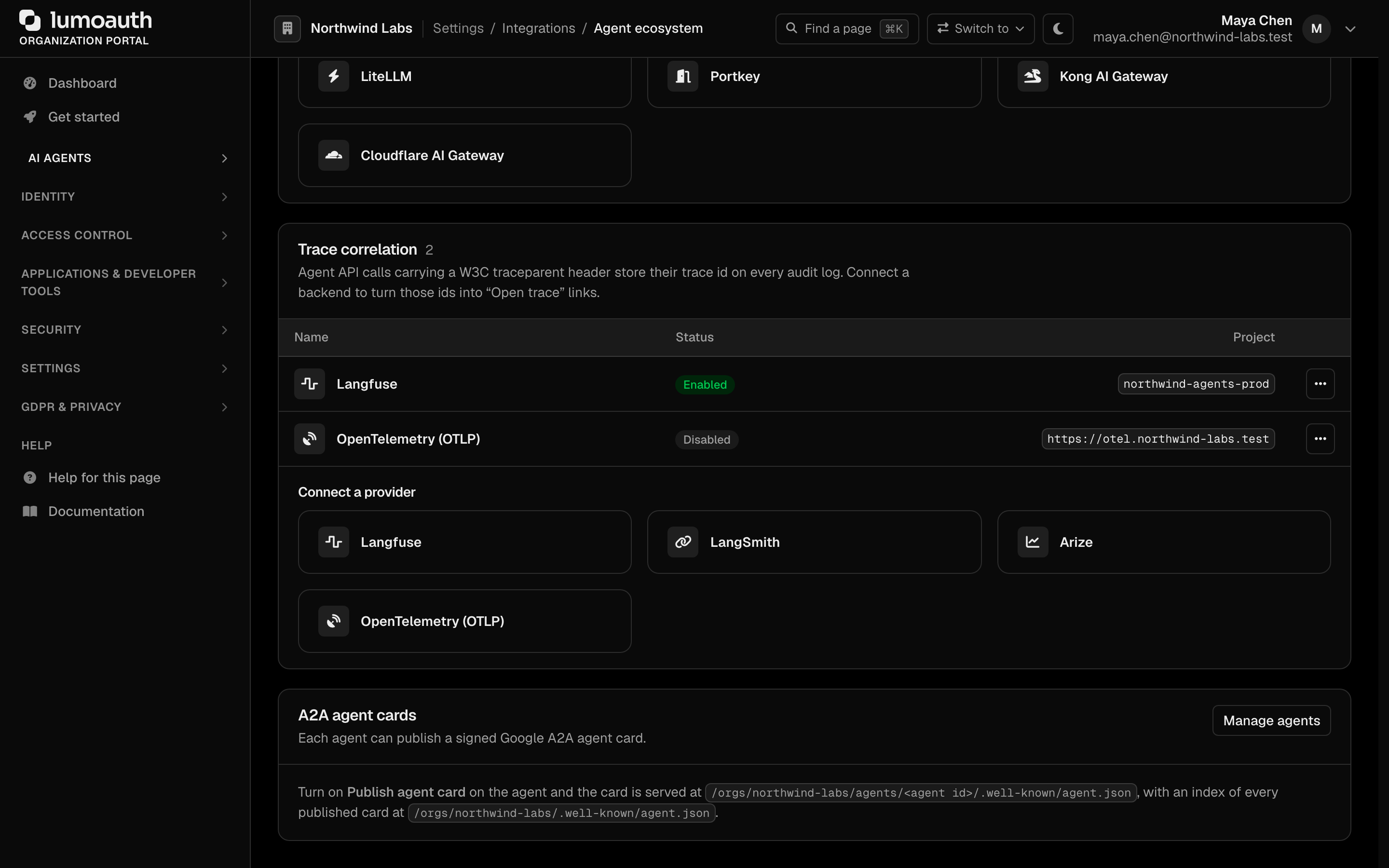
| Backend | Configuration | Link shape |
| --- | --- | --- |
| **Langfuse** | Project id, base URL (self-hosted supported) | `{base}/project/{project}/traces/{traceId}` |
| **LangSmith** | Organization id, project id, base URL | `{base}/o/{org}/projects/p/{project}/r/{traceId}` |
| **Arize** | Organization, space/project, base URL | `{base}/organizations/{org}/spaces/{project}/traces/{traceId}` |
| **OpenTelemetry (OTLP)** | Collector URL (informational) | none — a collector has no UI |
An optional API key can be stored (encrypted) for future enrichment; deep links
themselves need no credentials. The first **enabled** backend is used for links,
so connect the one that your team actually opens.
After saving, press **Test connection** on the connection's form to see a sample link built from your
configuration before you rely on it. A base URL that is not `https://` falls
back to the vendor's cloud URL rather than producing a broken link.
Choose **OpenTelemetry (OTLP)** when you run your own
collector. Trace ids are still captured on audit logs and agent activity, which
is all that you need to join LumoAuth events to spans in your own backend.
## Exporting traces alongside logs
Trace ids travel with audit events into your SIEM. If you send logs over
OTLP or to a generic OCSF endpoint (see
[SIEM & log export](https://docs.lumoauth.dev/integrations/siem-log-export)), the `trace_id` field is
part of the exported record, so the same join works in your own tooling.
## Audit events
| Event | When |
| --- | --- |
| `agent_ecosystem.trace.created` / `.updated` / `.deleted` | Configuration changes |
| `agent_ecosystem.trace.enabled` / `.disabled` | Toggle |
| `agent_ecosystem.trace.tested` | Sample-link check |
## Related
- [Agent Governance](https://docs.lumoauth.dev/agents/governance) — the audit trail that the trace ids attach to
- [AI gateways](https://docs.lumoauth.dev/agents/ai-gateways) — per-agent keys at your LLM proxy
---
# AI Agents and MCP
Source: https://docs.lumoauth.dev/user-guide/ai-agents/overview
Portal guide to registering, operating, and monitoring AI agents and their MCP connections.
**Info: Building agents, or configuring them?**
This is the **portal user guide** — registering, operating, and monitoring agents from the UI. Building agents or calling the APIs directly? See the developer/protocol landing, [AI Access Control](https://docs.lumoauth.dev/agents).
LumoAuth treats AI agents as first-class identities: each agent is a registered OAuth client with its own credentials, scopes, budget, and audit trail. This page covers how to register and operate agents, how agents authenticate, and how they connect to **Model Context Protocol (MCP)** servers. MCP is a protocol for LLM hosts (Claude, ChatGPT, Cursor) to discover and call external tools. Agents can also prove who they are with **AAuth**, LumoAuth's agent protocol in which every request carries a signature made with the agent's own key.
## Do this first
1. Register an agent under **AI Agents → Agents** (`/orgs/{orgId}/portal/agents`) and copy its credential (an API key or client secret is shown once, on the page after you register).
2. Give at least one person who is *not* the agent's owner the `jit.approve` permission, so requests that need a human can be approved (see [Approving agent requests](#approving-agent-requests)).
3. Optionally add an access policy (**AI Agents → Agent rules → Access rules**) and a security-signals stream (**AI Agents → Agent activity → Security signals**). Both are created from a dialog behind a button in the page header.
The portal section is **AI Agents** in the sidebar. Its pages are *Agents* (with AAuth credentials, AAuth resources and Connections as tabs), *Approvals*, *MCP servers*, *Agent rules* (Access rules, Auto-approve rules, Cross-app access) and *Agent activity* (Activity, Security signals).
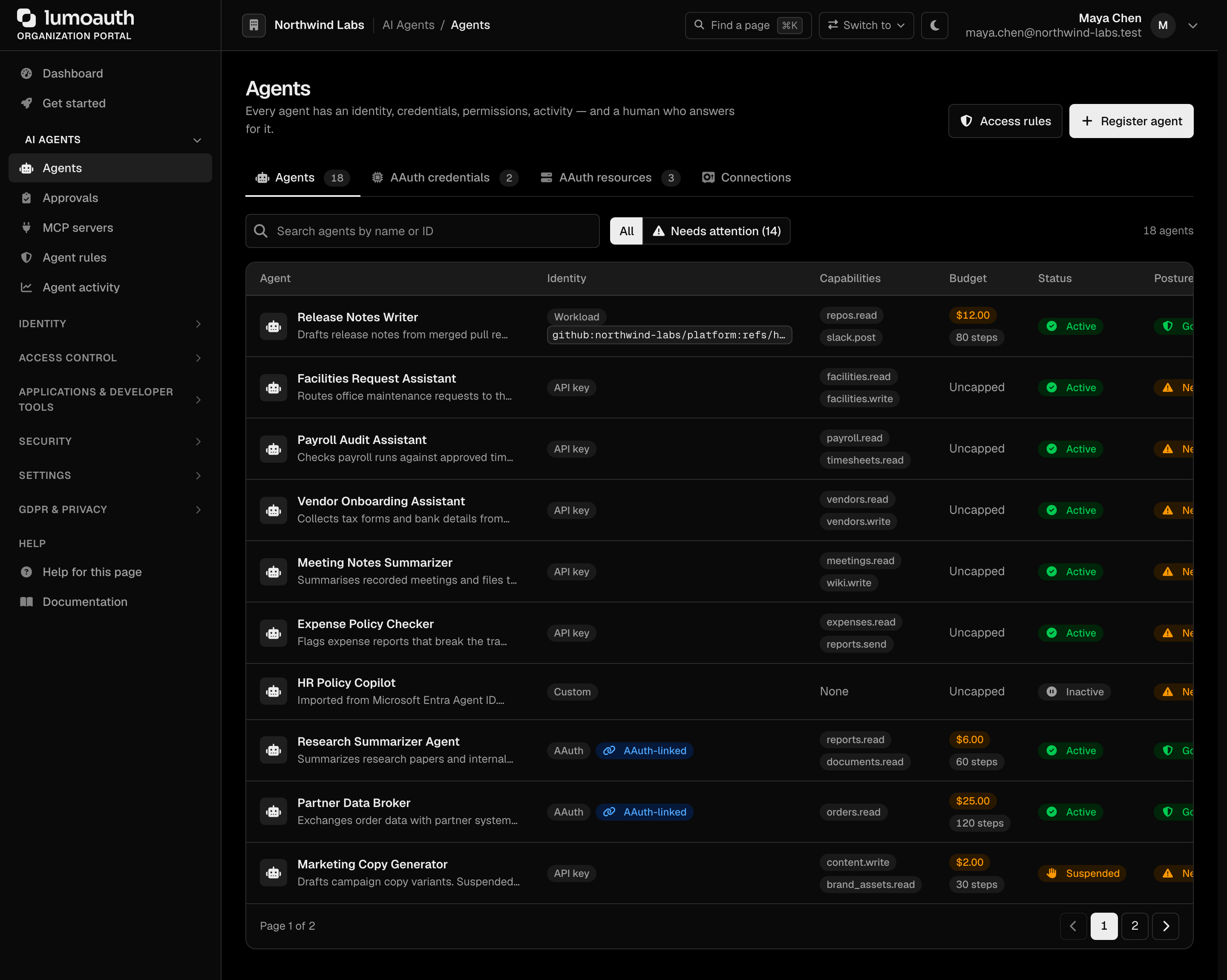
---
## Why AI agent identity?
As AI agents become part of enterprise workflows, they need:
- **Authentication** — verify which agent is making a request.
- **Authorization** — control what each agent can access.
- **Audit trail** — track agent actions for compliance.
- **Scoped access** — limit agents to specific resources and operations.
- **Revocation** — disable agent access immediately.
LumoAuth treats AI agents as first-class identities, similar to users and service accounts.
---
## Managing AI agents
### Portal
Navigate to **AI Agents → Agents** (`/orgs/{orgId}/portal/agents`). The page has four tabs: *Agents*, *AAuth credentials*, *AAuth resources* and *Connections*.
- **Register agent** (page header) — the three-step registration wizard (see below).
- **Agent list** — every registered agent with its identity type, capabilities, budget, status, **security posture** and risk. The **Needs attention** filter shows only agents with an open posture finding.
- **Agent detail** (`/orgs/{orgId}/portal/agents/{agentId}`) — click an agent's name to open its page. Its sections are *Overview* (the security-posture card, then the identity card), *Next steps* (copy-paste snippets), *Test*, *Credentials*, *Access*, *Connections*, *AI gateway keys* and *Activity*. **Edit agent** in its header opens the edit form. The older `/agent/{agentId}/observability` URL redirects here.
#### Security posture
Every agent gets a deterministic configuration checklist, computed from what is stored about it. Nothing is sampled or scored by behaviour; that is the separate *risk* badge. Each line says why it matters and links to the page that fixes it:
| Check | Needs attention when |
|-------|----------------------|
| Identity type | *API key* or *Custom* (nothing attests the agent); *Client secret* is informational |
| Workload binding | A workload agent has no binding (critical), accepts a platform-generic audience, accepts any GitHub/GitLab ref, or binds a whole Azure directory |
| Attestation | Never attested (informational) or last attested more than 30 days ago |
| Credentials | API key has no expiry, expires within 14 days, or has expired (critical); a shared secret is older than 180 days |
| Capabilities | None (the agent is rejected everywhere), a bare `*` (critical) or a `resource.*` wildcard |
| Budget | No daily limit, step cap or timeout |
| Acting for people | *May act on behalf of users* is on but no user-in-the-loop consent is configured |
| Access rule | No enabled access rule applies to the agent |
| Auto-approve rules | A rule for this agent uses a wide pattern such as `*` or `read*` |
| Agent card | Published card lists skills (informational) |
| Status | Suspended or inactive |
Each row has an actions menu (**⋯**):
- **Edit** — change the agent's name, capabilities (same picker as registration), the expiry of its API key, budget, metadata and who may use it. The identity type is fixed once an agent is registered. Every portal edit is audited as `agent.updated` with the changed fields.
- **Revoke** — permanently disable an agent and revoke every credential that it holds (JIT, token vault, AAuth and OAuth tokens, AI gateway keys). Revocation is final: a revoked agent can't be reactivated, so register a new one.
- **Reactivate** — shown for a suspended or inactive (for example dormant) agent; brings it back. Credentials revoked by the suspension stay revoked.
- **Delete** — revokes the agent's credentials first, then removes it.
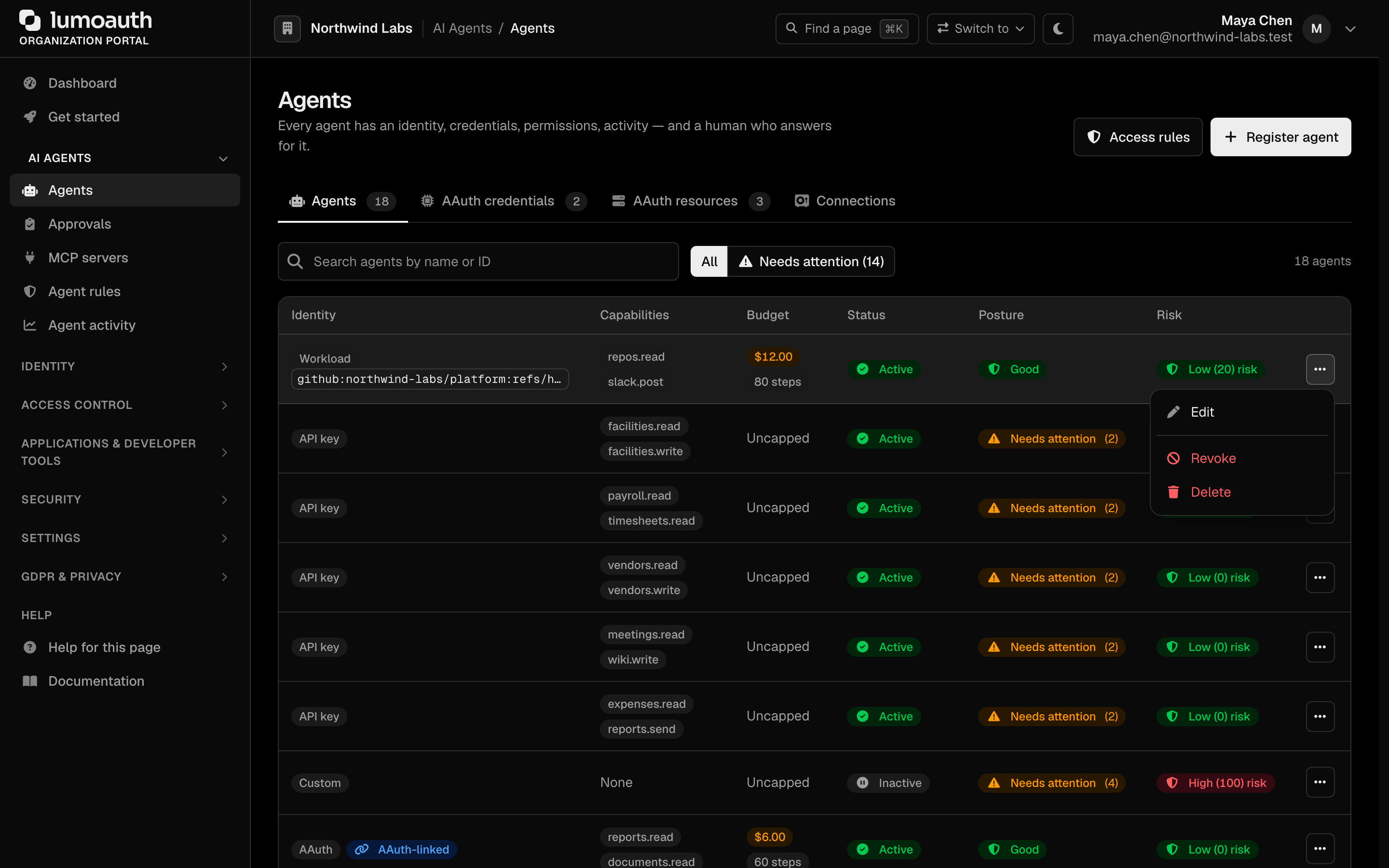
The edit page of an agent never shows its API key or its stored hash; the key is shown once, at creation. See [Kill switch](https://docs.lumoauth.dev/agents/governance#kill-switch-suspend--revoke--deactivate).
### Registering an agent
1. Go to **AI Agents → Agents** (`/orgs/{orgId}/portal/agents`).
2. Click **Register agent**.
3. Configure:
The wizard has three steps. Without JavaScript it is one long form whose **Next** buttons validate the steps so far on the server; typed values are always kept.
**Step 1 — Who is this agent**
| Field | Description |
|-------|-------------|
| **Agent name** | Display name for the agent; appears in the registry, in audit entries and on approval requests |
| **Description** | What the agent does (optional) |
| **Owner** | You — recorded as the agent's creator, the human who answers for it |
| **Framework** | Optional; tailors the snippets shown after registration |
| **Metadata** | Optional version, environment and team |
**Step 2 — How it proves its identity.** The identity cards are ordered strongest first, and the recommended one is pre-selected. The cards are *Workload identity* (recommended — the cloud or CI platform confirms the agent's identity, no secret exists), *AAuth* (the agent signs each request with its own key), *Client certificate*, *Client ID and secret*, *API key* (prototype only) and *Custom*. The type cannot be changed later. Choosing *Workload identity* reveals the provider cards (GitHub Actions, AWS, Google Cloud, Kubernetes, Azure, SPIFFE, the CI/CD providers and any OIDC issuer). It also reveals the binding fields for the chosen provider, including the agent-specific audience to configure on the platform. Choosing *API key* reveals **Key expires after** — 180 days by default; *Never* is an explicit choice.
**Step 3 — What it may do**
| Field | Description |
|-------|-------------|
| **Allowed capabilities** | A picker of LumoAuth permissions grouped by resource. Each resource has a `resource.*` wildcard row (flagged — it covers actions that do not exist yet), and there is a **Custom capabilities** box for your own `resource.action` names. Entries are saved in a standard form (`Invoices:Read` becomes `invoices.read`); the box previews the standard form as you type. Permissions that you do not hold yourself are disabled, with the reason inline: you cannot grant an agent more than you hold |
| **Acting for people** | *May act on behalf of users*, and for AAuth agents the user-in-the-loop, delegation and token-exchange switches |
| **Budget and limits** | Daily hard limit, max steps and timeout |
| **Review** | A summary of what will be registered |
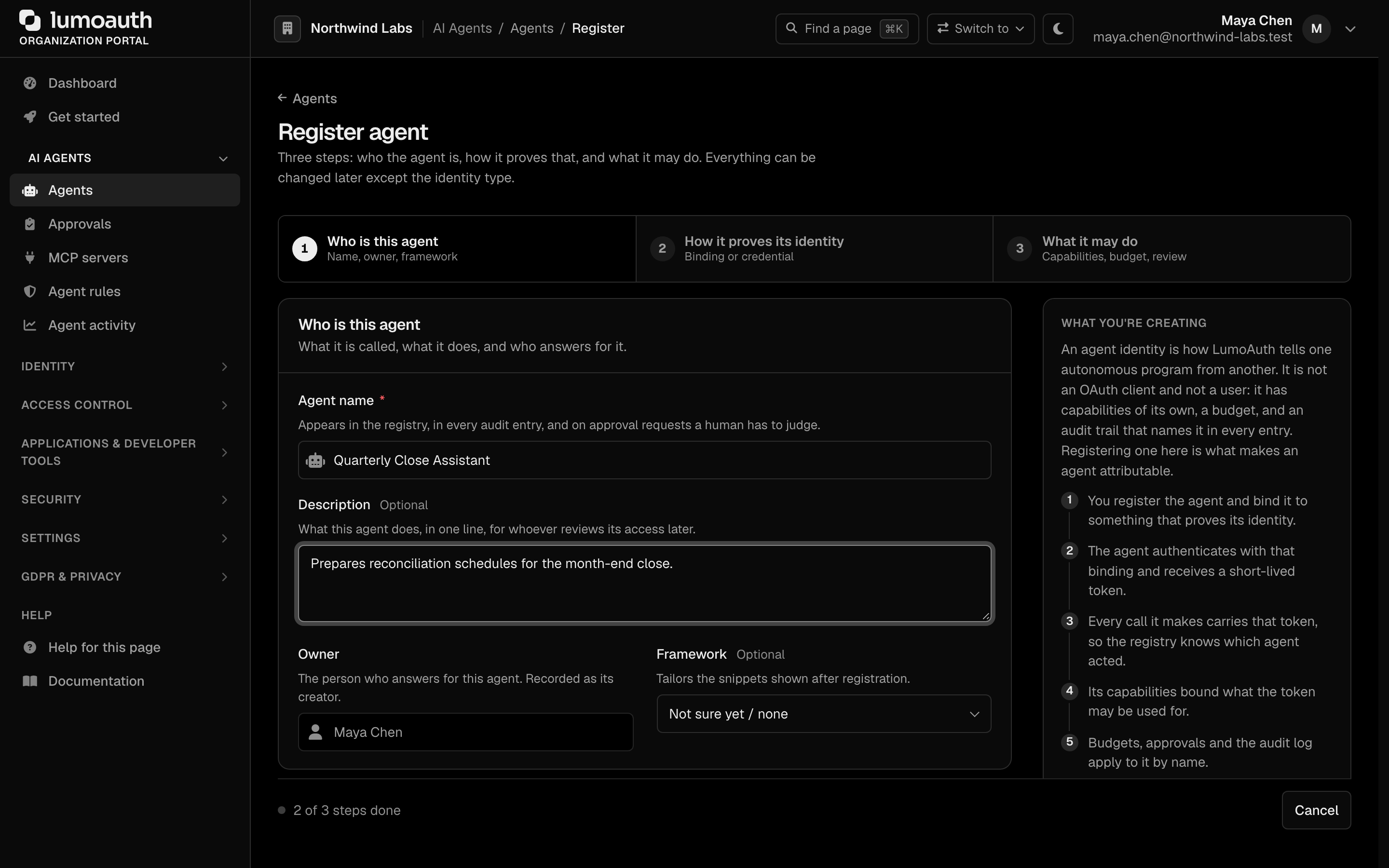
4. Click **Register agent**. What you receive depends on the identity type:
- **API key** — the key is shown once on the next page, with its expiry and a ready-to-run call that already uses it.
- **Client ID and secret** — the client ID and the client secret are shown once on the next page.
- **Workload identity**, **AAuth**, **Client certificate**, **Custom** — no secret is generated, and you are taken to the agent's page. Its *Next steps* section has the attestation call for the exact audience that the binding requires. For GitHub Actions or GitLab CI, it also has the workflow YAML (`permissions: id-token: write`) that obtains a token for it.
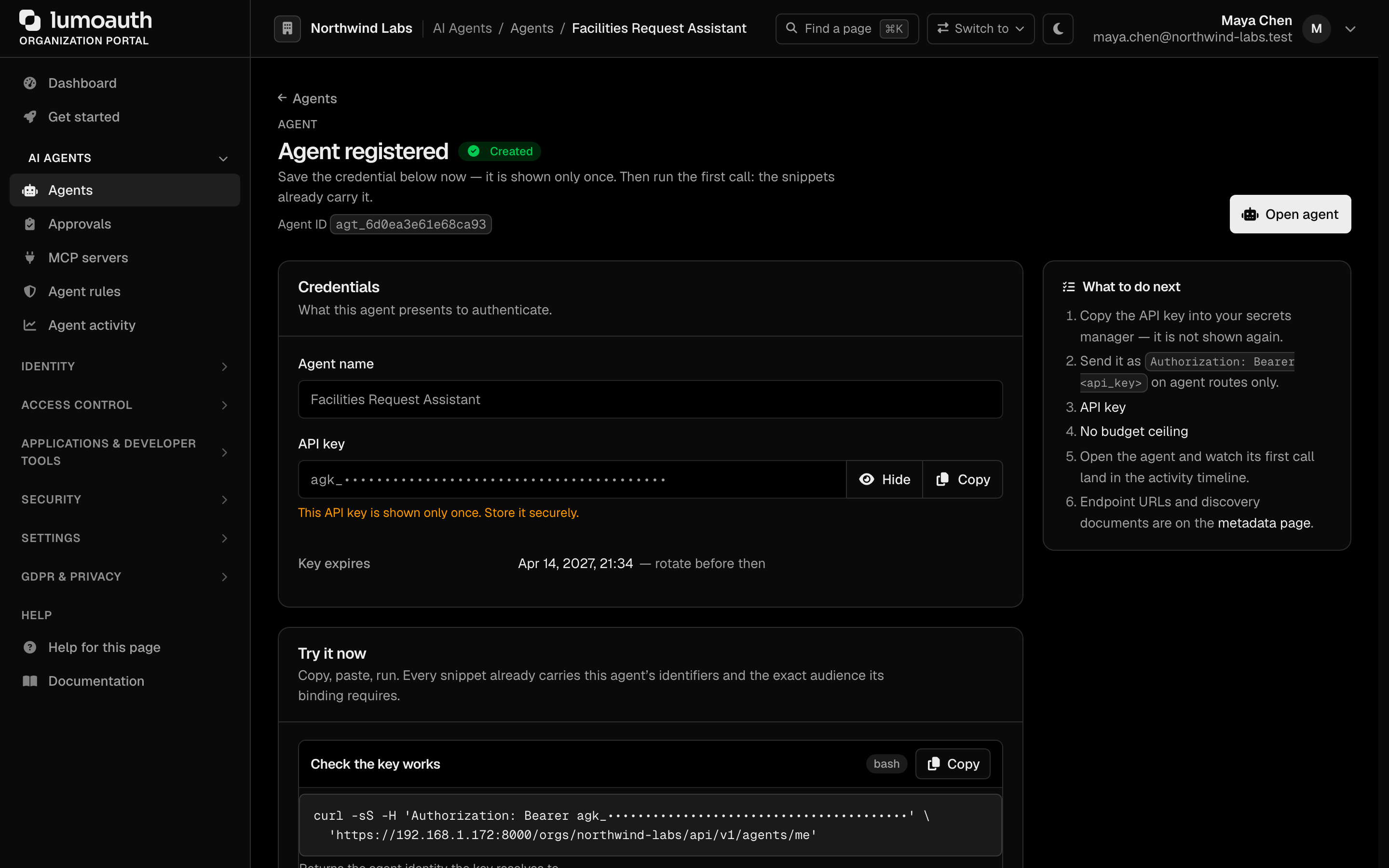
### Agent authentication
Agents registered with the *Client ID and secret* identity type authenticate using the OAuth 2.0 client-credentials flow:
```bash
curl -X POST https://your-domain.com/orgs/{orgId}/api/v1/oauth/token \
-d grant_type=client_credentials \
-d client_id=AGENT_CLIENT_ID \
-d client_secret=AGENT_CLIENT_SECRET \
-d scope="agent:read agent:execute"
```
Agent credentials (the `agk_` API key and the agents' access tokens) are **stateless**. No session cookie is ever set, the credential is sent on every call, and it is accepted only on agent, JIT and authorization-check routes. It is rejected on the portal, account and admin pages. See [Agent API keys](https://docs.lumoauth.dev/api-reference/authentication#agent-api-keys).
The returned access token contains agent-specific claims:
```json
{
"sub": "agent-uuid",
"client_id": "agent-client-id",
"agent_name": "data-processor",
"scope": "agent:read agent:execute",
"organization": "acme-corp",
"iat": 1706400000,
"exp": 1706403600
}
```
---
## Workload identity
LumoAuth can accept the platform's own identity token for agents running on Kubernetes, AWS EKS, GCP, Azure, GitHub Actions or SPIFFE. That token can be a K8s ServiceAccount JWT, an EKS IRSA projected token, a GCP metadata-server token, or an Azure Managed Identity token. LumoAuth exchanges it for a LumoAuth access token via **token exchange** (swap one token for another, recording the subject). No static client secret required. See [Workload Identity Federation](https://docs.lumoauth.dev/agents/workload-federation).
If an attestation is rejected, the response is a generic `attestation_rejected` message; the exact cause is in the audit log (`agent.attestation.rejected`), never in the response. See [Agent attestation](https://docs.lumoauth.dev/agents/attestation#errors).
---
## Approving agent requests
When an agent asks for a permission that needs a human (a high-risk [JIT request](https://docs.lumoauth.dev/agents/jit)), the request appears in **AI Agents → Approvals** (`/orgs/{orgId}/portal/approvals`). It also appears in push and mobile notifications and in any configured [approval channel](https://docs.lumoauth.dev/integrations/approval-channels).
Who can approve:
| Rule | Detail |
|------|--------|
| Holds `jit.approve` | A seeded system permission. Organization admins have it; give other reviewers a role that grants just `jit.approve` (it is the *Agent approvals* row in the *AI agents* group of the role editor). |
| Not the agent's owner | The person who created the agent can never approve or deny its requests. A second reviewer is required. |
| Not the requesting user | The user on whose behalf the agent acts cannot approve their own request. |
| Before expiry | Expired requests cannot be approved, even if still listed. |

The inbox shows everything waiting on a human; filter it by *Permission requests*, *User consents* or *Action approvals*. JIT requests are approved or denied in place, one at a time or in bulk; the other kinds show who has to act. A request that the agent made on a user's behalf without that user's prior consent carries a **Needs the user's consent** badge and names who must consent. Approving it is the reviewer's part of the decision; the user's consent is theirs. Decided requests say who decided; one that an auto-approve rule let through reads *Auto-approved by rule `aap_…`*, linking to the rule. The deny dialog has a **Message to the agent** field — the only text that the agent ever receives. The older `/orgs/{orgId}/portal/jit-approvals` URL serves the same page.
If the **Approve** button reports that you are not allowed, one of these rules applied. See [Who can approve](https://docs.lumoauth.dev/agents/jit#who-can-approve).
---
## Agent access rules (conditional access)
**AI Agents → Agent rules → Access rules** (`/orgs/{orgId}/portal/agents/policies`) applies conditions to agent authentication after the credential is verified. With no enabled policy nothing changes; with policies, the first failing rule denies (`403 access_policy_denied`), and an evaluation error denies too.
1. Click **Create rule** in the page header (or in the empty state), or **Edit…** on an existing rule.
2. In the dialog, enter a **Rule name** and choose *All agents* or *Selected agents only*.
3. Fill in at least one condition: *Must have attested within (hours)*, *Must have been used in the last (days)*, *Risk level must be at most*, *Must connect from these IP ranges* (one CIDR or IP per line).
4. Check **Preview impact** — it lists the active agents that this rule would deny today, and why — then click **Create rule** (or **Save changes**).

Rules are listed with their conditions in plain words. When active agents are not covered by any enabled rule, a notice names them with a **Create a rule for them** shortcut. Each row has an actions menu with **Edit…**, **Disable** / **Enable** and **Delete**. Viewing needs `agents.view`; creating, editing, enabling or disabling and deleting need `agents.edit`. Details: [Agent governance](https://docs.lumoauth.dev/agents/governance#conditional-access-policies).
---
## Security signals (SSF / CAEP)
**AI Agents → Agent activity → Security signals** (`/orgs/{orgId}/portal/agent-guard/security-signals`) has two tabs:
- **Streams (outbound)**: where LumoAuth *sends* security events about agents (an agent revoked, a JIT task suspended). Click **Create stream** and enter the receiver's HTTPS endpoint, audience and bearer token (required unless you tick that the endpoint accepts unauthenticated deliveries). Tick the events (labelled checkboxes with the agent events pre-selected). Then click **Send verification** on the stream to send a test event. **Edit…** changes a stream in place.
- **Receivers (inbound)**: where LumoAuth *receives* events from Okta, Microsoft Entra, Google, Duo, Ping, Jamf, CrowdStrike or any SSF transmitter. Click **Add receiver**, pick the transmitter preset, click **Create receiver**, and copy the push URL and one-time bearer into the vendor console. A deep link such as `?tab=receivers&preset=okta` opens the dialog pre-filled.

Both buttons need `settings.manage`. Details: [Shared signals](https://docs.lumoauth.dev/agents/shared-signals) and the [Agent activity dashboard](https://docs.lumoauth.dev/user-guide/ai-agents/caep).
---
## Model Context Protocol (MCP)
LumoAuth is the OAuth 2.1 authorization server for MCP servers: agents obtain a token from LumoAuth and present it to the MCP server, which validates it against LumoAuth.
### What is MCP?
MCP lets LLM hosts discover and invoke external tools in a standardized way. MCP servers expose tools; MCP clients call them. LumoAuth authorizes those tool calls.
### Configuring MCP servers
MCP servers have their own portal page, **AI Agents → MCP servers** (`/orgs/{orgId}/portal/mcp-servers`).
1. Go to **AI Agents → MCP servers** (`/orgs/{orgId}/portal/mcp-servers`).
2. Click **Register MCP server**.
3. Configure:
| Field | Description |
|-------|-------------|
| **Server name** | Display name for the MCP server, shown in the portal and on consent screens |
| **Resource URI** | The standard `https://` identifier of the server; it becomes the audience of every token issued for it |
| **MCP endpoint URL** | Where the server accepts connections, if that differs from the resource URI (optional) |
| **Transport** | *Streamable HTTP (recommended)*, *HTTP + Server-Sent Events (older clients)* or *stdio (local process, no OAuth)* |
| **Authorization mode** | *OAuth 2.1 protected* (recommended) or *Public* |
| **Scopes** | What operations are permitted (optional; each scope has a description) |
| **Token lifetime (seconds)** | How long tokens issued for this server are valid |
The form is a three-step wizard (**Describe the server**, **Who may connect and how**, **Review & connect**).
4. Click **Register MCP server**.
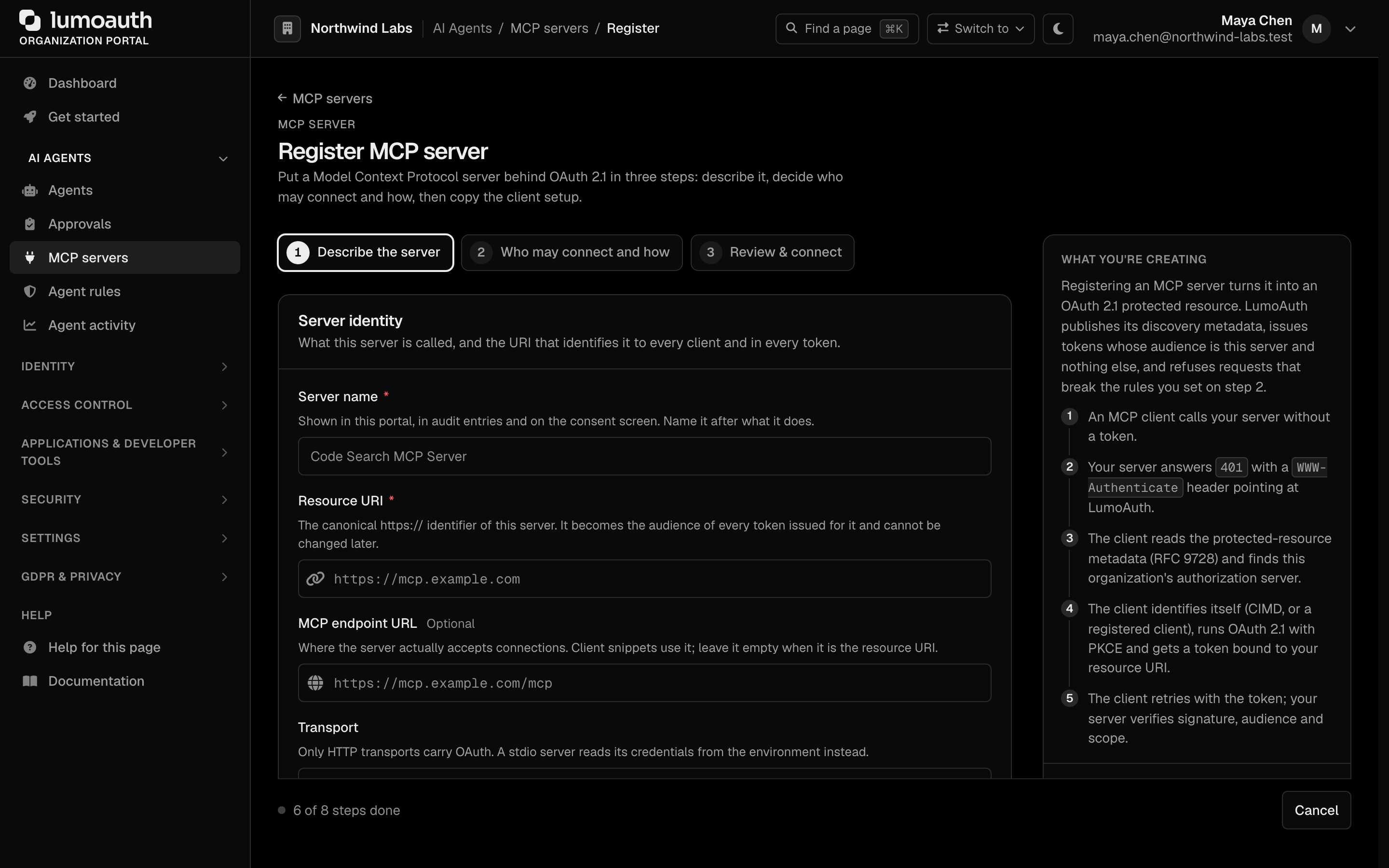
### MCP authentication flow
```mermaid
flowchart LR
Agent["AI Agent"] -->|"authenticate"| LumoAuth["LumoAuth"]
LumoAuth -->|"issues token"| Agent
Agent -->|"presents token"| MCP["MCP Server"]
MCP -->|"validates token"| LumoAuth
```
1. Agent authenticates with LumoAuth.
2. LumoAuth issues a token scoped for the organization and audience-bound to the MCP server (`aud` claim set to the server's Resource URI).
3. Agent presents the token to the MCP server.
4. MCP server validates the token (JWT signature + `aud` check, or via introspection).
---
## Agent permissions
Agents can be assigned:
- **Roles** — the same RBAC roles used for users.
- **Scopes** — OAuth scopes limiting API access.
- **ABAC policies** — attribute-based conditions (e.g., time restrictions, IP ranges).
- **Zanzibar relations** — fine-grained per-object access.
### Principle of least privilege
Grant agents only the minimum permissions that they need:
```mermaid
graph TD
Agent["Agent: data-processor"]
Agent --> S1["✅ Scope: data:read\n(can read data)"]
Agent --> S2["✅ Scope: data:transform\n(can process data)"]
Agent --> S3["❌ data:delete\n(cannot delete data)"]
style S3 fill:#ffebee,stroke:#f44336
style S1 fill:#e8f5e9,stroke:#4caf50
style S2 fill:#e8f5e9,stroke:#4caf50
```
---
## Audit trail
All agent actions are logged in the [audit log](https://docs.lumoauth.dev/user-guide/compliance/audit-logs):
| Event | Description |
|-------|-------------|
| `agent.created` | Agent registered |
| `agent.authenticated` | Agent obtained a token |
| `agent.action` | Agent performed an action |
| `agent.revoked` | Agent access revoked |
| `aauth.agent_revoked` / `aauth.agent_deleted` | Agent revoked / deleted from the portal |
| `mcp.connection` | Agent connected to MCP server |
---
## Use cases
| Scenario | Description |
|----------|-------------|
| **Data processing** | Agent accesses databases and APIs to process data |
| **Customer support** | AI assistant accesses user information to help customers |
| **Code review** | Agent accesses repositories and review tools |
| **Monitoring** | Agent checks system health and triggers alerts |
| **Content generation** | Agent accesses CMS and publishes content |
---
## Related
- [Agent governance](https://docs.lumoauth.dev/agents/governance) — risk scoring, access policies, dormancy lifecycle
- [Shared signals](https://docs.lumoauth.dev/agents/shared-signals) — SSF/CAEP streams and receivers
- [Applications](https://docs.lumoauth.dev/user-guide/applications/overview) — register OAuth clients for agents
- [OAuth 2.0 client credentials](https://docs.lumoauth.dev/user-guide/applications/oauth2-oidc) — M2M authentication
- [Access control](https://docs.lumoauth.dev/user-guide/access-control/overview) — agent permissions
- [Audit logs](https://docs.lumoauth.dev/user-guide/compliance/audit-logs) — tracking of agent activity
## Standards used on this page
| Plain name | Standard |
|---|---|
| Token exchange (delegation) | RFC 8693 |
See the [standards reference](https://docs.lumoauth.dev/reference/standards) for what each one covers and how LumoAuth uses it.
---
# Agent activity (CAEP dashboard)
Source: https://docs.lumoauth.dev/user-guide/ai-agents/caep
The Agent activity page (the CAEP dashboard) is a fleet-wide view of the task activity of AI agents and of just-in-time permission requests in your organization. Use it to monitor whether agents are operating within…
**Note: Three CAEP pages**
This is the portal **monitoring dashboard**. For the outbound protocol that streams these events, see the [CAEP transmitter (Shared Signals)](https://docs.lumoauth.dev/agents/shared-signals). For the policies that generate them, see [Agent Governance](https://docs.lumoauth.dev/agents/governance).
The **Agent activity** page (the CAEP dashboard) is a fleet-wide view of the task activity of AI agents and of just-in-time permission requests in your organization. Use it to monitor whether agents are operating within expected parameters and to spot elevated-risk activity.
---
## What is CAEP?
**CAEP (Continuous Access Evaluation Profile)** is a standard for identity providers to push real-time session-event signals (session revoked, credential change, risk level change) to relying parties. The relying parties can then invalidate sessions immediately, rather than waiting for a token to expire. In LumoAuth, the Agent activity page applies this model to AI agents. You can see how agents progress through their tasks, how many JIT permission requests they raise, and whether any are blocked or denied.
**Info: Standard**
CAEP is a profile of the [OpenID Shared Signals Framework (SSF)](https://openid.net/specs/openid-sharedsignals-framework-1_0.html). SSF carries events as signed security event tokens, either pushed to the receiver's URL or polled by the receiver on its own schedule. To act on these events outside LumoAuth, create a stream on the Security signals page and verify each token's signature, `iss`, `aud` and `jti` in your receiver.
---
## Accessing the dashboard
In the organization portal, open **AI Agents → Agent activity** (`/orgs/{orgId}/portal/caep-dashboard`).
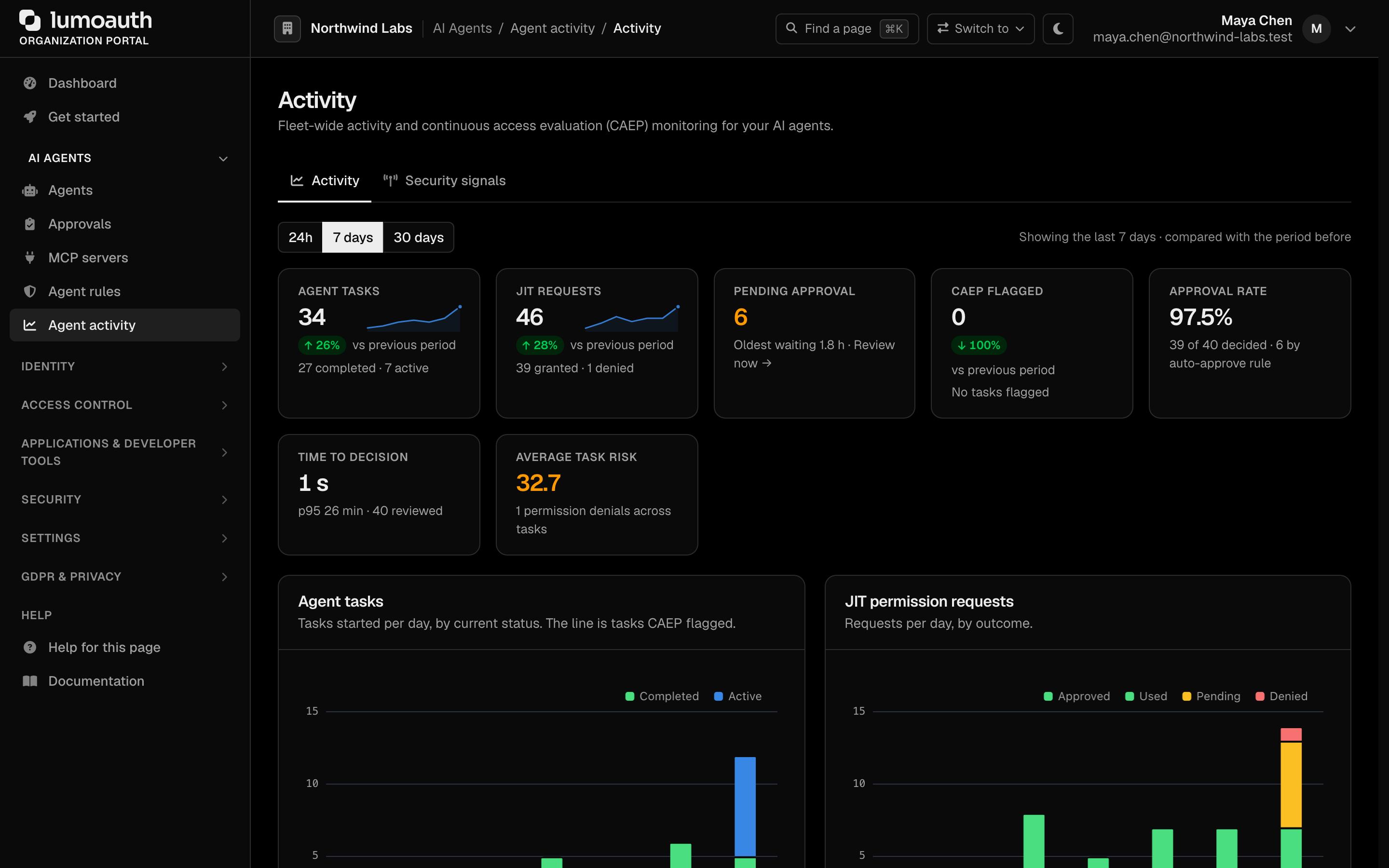
---
## Dashboard panels
Use the selector at the top of the page to set the time range: the last **24h** (hourly buckets), **7 days**, or **30 days**. Every tile, chart and table follows the selected range, and each tile compares the period with the one of the same length before it. Every chart has a **View as table** link with the same numbers. When there was no agent activity in the period, the page says so once instead of showing empty charts.
### Summary tiles
| Tile | Meaning |
|------|---------|
| **Agent tasks** | Tasks agents started in the period, with how many completed and are still active |
| **JIT requests** | Just-in-time permission requests raised in the period, with how many were granted and denied |
| **Pending approval** | Requests waiting for a human right now, and how long the oldest has waited. When there are any, the tile links to the Approvals inbox |
| **CAEP flagged** | Tasks flagged by continuous access evaluation |
| **Approval rate** | Share of the decided requests (approved, used or denied) that were granted, and how many were approved automatically by an approval policy |
| **Time to decision** | Median time from a request to its human or policy decision, with the 95th percentile |
| **Average task risk** | Mean accumulated risk score of the tasks (0–100: 20 medium, 40 high, 60 critical) |
### Task activity
**Agent tasks** charts tasks started per day by their current status, with a line for the tasks that CAEP flagged. **Task risk** groups the same tasks into risk bands and shows the average, the permission requests and denials that they accumulated, and the average task duration. **Task types** shows what kinds of work agents started (when there is more than one type, otherwise **Task outcomes** shows the status split).
| Status | Meaning |
|--------|---------|
| **Active** | Agent is executing the task |
| **Completed** | Task finished |
| **Suspended** | Task was suspended, for example by continuous access evaluation |
| **Terminated** | Task was ended before completing |
**Busiest agents** ranks agents by tasks and JIT outcomes (approved, denied, pending). **High-risk agents** lists agents whose average task risk is 20 or higher, with how many of their tasks were flagged. **When agents are active** is a weekday-by-hour heatmap of tasks and requests.
### JIT request activity
**JIT permission requests** charts requests per day grouped by outcome:
| Status | Meaning |
|--------|---------|
| **Approved** | The request was granted |
| **Used** | The granted permission was exercised |
| **Denied** | A human approver rejected the request |
| **Pending** | Awaiting human review |
| **Expired** | Nobody decided before the request expired |
| **Revoked** | A granted permission was withdrawn |
**Request risk** shows the risk level assigned to each request when it was made. **Time to decision** charts the median and 95th-percentile wait for a decision per day, with the slowest decision, the number approved by policy, and the average TTL requested versus granted. **Permission types requested** shows which rich-authorization-request detail types (`authorization_details` types) the agents request, and how often each was denied. **Actions requested** counts the actions across all requests. **Recent CAEP events** lists the tasks that continuous access evaluation flagged (or, when none were flagged, the denied, revoked and high-risk requests).
A high ratio of denied requests may indicate that agents are attempting actions outside their configured scope, or that approval workflows need tuning.
---
## Interpreting the data
| Observation | What to check |
|-------------|--------------|
| Many suspended or terminated tasks | Open the agent's page (see [Individual agent monitoring](#individual-agent-monitoring)) and review its **Activity** tab |
| Many JIT denials | Review agent capability and permission configuration |
| Spike in pending JIT | Check whether approvers are receiving notifications |
| No task activity | Confirm the agent is active and correctly calling the LumoAuth SDK |
---
## Streaming these events to other systems
The dashboard shows what happened. The **Security signals** page sends it onward and receives signals from other systems. Open **AI Agents → Agent activity → Security signals** (`/orgs/{orgId}/portal/agent-guard/security-signals`); you need `settings.manage` to create anything.
1. **Streams (outbound)** tab: click **Create stream** in the page header. In the dialog, enter the receiver's public HTTPS endpoint, an audience, an optional bearer token and the event types (`session-revoked`, `token-claims-change`, `assurance-level-change`, ...). Click **Create stream**, then **Send verification** to send a test event.
2. **Receivers (inbound)** tab: click **Add receiver** and pick the transmitter preset. The presets are Okta, Microsoft Entra, Google RISC, Duo, Ping, Jamf, CrowdStrike and Generic. Choose subject mapping and delivery, and click **Create receiver**. Copy the push URL and the bearer shown once into the vendor console. `?tab=receivers&preset=okta` opens the dialog pre-filled.

Protocol details, event payloads and a sample receiver are in [Shared signals](https://docs.lumoauth.dev/agents/shared-signals).
---
## Individual agent monitoring
For a deeper view of a specific agent's behaviour, open **AI Agents → Agents** and click the agent's name. This opens the agent's page:
```
/orgs/{orgId}/portal/agents/{agentId}
```
(The older `/orgs/{orgId}/portal/agent/{agentId}/observability` URL redirects here.) The page has the sections *Overview*, *Next steps*, *Test*, *Credentials*, *Access*, *Connections*, *AI gateway keys* and *Activity* (the links under the header jump to each). **Activity** shows the execution timeline of tasks, JIT requests, and audit events, with a filter for the time range (1h, 24h, 7 days, 30 days).
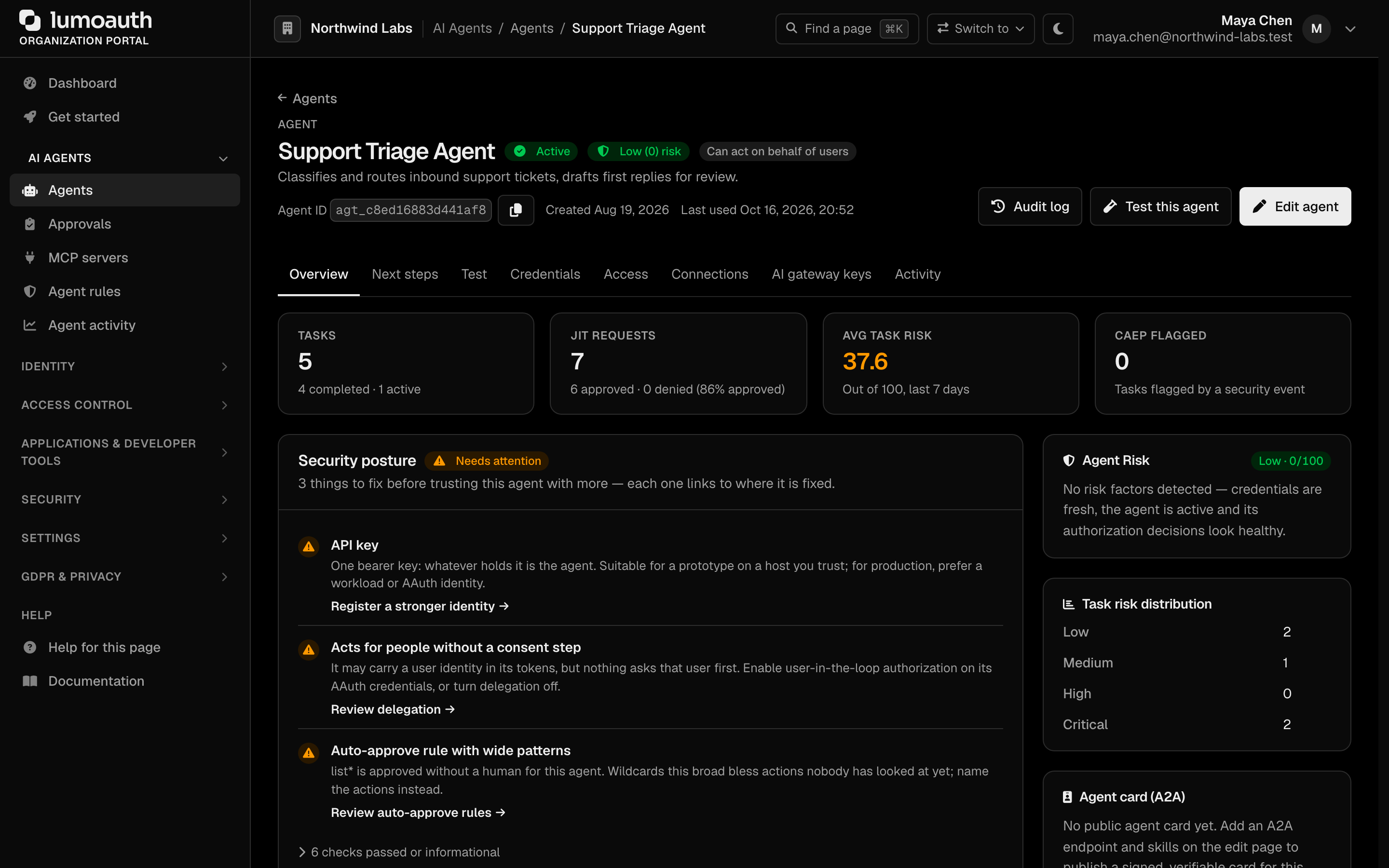
---
## Related
- [JIT Permissions](https://docs.lumoauth.dev/agents/jit) — configure workflows for just-in-time permissions; [who can approve](https://docs.lumoauth.dev/agents/jit#who-can-approve) requires `jit.approve`
- [Shared signals](https://docs.lumoauth.dev/agents/shared-signals) — the SSF/CAEP transmitter and receiver
- [AI Agent Registry](https://docs.lumoauth.dev/agents/registry) — register and manage agents
- [Audit logs](https://docs.lumoauth.dev/user-guide/compliance/audit-logs) — detailed event trail
## Standards used on this page
| Plain name | Standard |
|---|---|
| Shared Signals Framework (SSF) and Continuous Access Evaluation Profile (CAEP) | OpenID SSF 1.0 and OpenID CAEP 1.0 |
| Security event tokens | RFC 8417 |
| Push delivery of security events | RFC 8935 |
| Poll delivery of security events | RFC 8936 |
| Rich authorization requests | RFC 9396 |
See the [standards reference](https://docs.lumoauth.dev/reference/standards) for what each one covers and how LumoAuth uses it.
---
# AAuth 1.0 Specification
Source: https://docs.lumoauth.dev/agents/aauth-spec
AAuth is an authorization protocol for autonomous agents. It is the identity protocol for agents: an agent proves who it is by signing each request with its own private key instead of sending a shared secret. Every…
**Version:** 1.0
**Status:** Living specification — describes the AAuth protocol exactly as implemented by LumoAuth. AAuth is an emerging protocol; this page is updated in lock-step with the implementation.
## Abstract
AAuth is an authorization protocol for autonomous agents. It is the identity protocol for agents: an agent proves who it is by signing each request with its own private key instead of sending a shared secret. Every party (agent, resource, and authorization server) has a cryptographic identity. Every token is a proof-of-possession JWT bound to a public key. Every protocol request is a **signed HTTP request** carrying an HTTP message signature. This document is the normative reference for the token formats, the request types of the agent token endpoint, the HTTP-signature profile, the discovery documents, delegation semantics, and error codes. For a narrative introduction and worked example, see the [AAuth Protocol overview](https://docs.lumoauth.dev/agents/aauth).
## 1. Roles and identifiers
| Role | Identifier |
| --- | --- |
| **Authorization server (issuer)** | `{APP_URL}/orgs/{orgId}/api/v1` — the LumoAuth base URL scoped to the organization. All AAuth endpoints are relative to this base. |
| **Agent** | An HTTPS URL (the *agent identifier*). An agent server may issue *agent tokens* to per-session **delegates**. |
| **Resource** | A URI (the *resource identifier*) for a protected service. |
| **User** | Optional human principal who consents to agent access. |
Agents and resources are registered per organization. Every JWT that LumoAuth mints for the AAuth protocol is signed with the **organization's signing key**. That covers the issuer's auth tokens, the agent tokens minted for hosted agents via `/aauth/agent/issue`, and the resource tokens minted via `/aauth/resource/token`. The signing key is the same DB/KMS-backed, rotatable `TenantSigningKey` that the core OAuth/OIDC path uses; it is managed with `app:tenant-key:manage`. The JOSE `kid` is that key's real identifier; the three token types are kept distinct from each other by their `typ` header. When an organization has no signing key yet, the shared global key (`kid: lumo-rs256-key`) is used, exactly as the core path does.
Earlier releases signed with per-node RSA-2048 files under `var/jwt/aauth/**` using the static kids `aauth-issuer-{tenantId}`, `aauth-agent-{agentId}` and `aauth-resource-{resourceId}`. Those keys are **verification-only** now. While a legacy `public.pem` still exists on disk, its JWK is published in the corresponding JWKS, and tokens carrying the legacy `kid` keep verifying until they expire. No new legacy key material is ever generated. Agents and resources may additionally register their own JWKS (inline or by `jwks_uri`) for HTTP-message-signature keys.
## 2. Token types
AAuth defines three JWT token types, distinguished by the JOSE `typ` header:
| Token | `typ` header | Issued by | Signed with (JWS `alg`) | Lifetime |
| --- | --- | --- | --- | --- |
| Agent token | `agent+jwt` | Agent server (LumoAuth-hosted key via `/aauth/agent/issue`) | Organization signing key (`alg` per key, `RS256` by default; `kid` = the key's id). Legacy `kid: aauth-agent-{id}` verified while the legacy key exists. | Per-agent `agentTokenLifetime` (default **3600 s**) |
| Resource token | `resource+jwt` | Resource (LumoAuth-hosted key via `/aauth/resource/token`) | Organization signing key. Legacy `kid: aauth-resource-{id}` verified while the legacy key exists. | Per-resource `resourceTokenLifetime` (default **300 s**) |
| Auth token | `auth+jwt` | Authorization server | Organization signing key (falls back to `kid: lumo-rs256-key`). Legacy `kid: aauth-issuer-{tenantId}` verified while the legacy key exists. | Per-agent `authTokenLifetime` (default **3600 s**; 3600 s fallback for unregistered agents) |
When **verifying** any AAuth JWT, LumoAuth accepts only asymmetric JWS algorithms: `RS256/RS384/RS512`, `PS256/PS384/PS512`, `ES256/ES384/ES512`, `EdDSA`. It additionally checks that the algorithm is compatible with the resolved JWK's `kty` (RSA → RS*/PS*, EC → ES*, OKP → EdDSA) and matches the JWK's own `alg` if one is declared. `HS*` and `none` are always rejected. The JOSE header MUST carry a non-empty `kid` and `alg`, and `typ` MUST exactly equal the expected type.
### 2.1 Agent token (`agent+jwt`)
Binds a delegate's signing key to the agent server's identity.
| Claim | Required | Meaning |
| --- | --- | --- |
| `iss` | yes | Agent identifier (the agent server). |
| `sub` | yes | Delegate identifier (`delegate_sub`). |
| `exp` | yes | Expiry (`iat` + agent token lifetime). Rejected if in the past. |
| `iat` | yes (minted) | Issued-at. |
| `jti` | yes (minted) | 32-hex-char random id; used for per-token revocation. |
| `cnf` | yes | Key confirmation. As minted: `cnf.jwk` = the delegate's full public JWK. On validation, either `cnf.jwk` (full key) or `cnf.jkt` (key thumbprint — must then equal the thumbprint of the JWT's own signing key) is accepted. |
| `aud` | optional | Recipient(s). Minted as a string when one audience is given, an array otherwise. If present and the validator supplies a recipient identifier, that recipient MUST be in the audience. |
Validation resolves the verification key from the agent's registered JWKS: the inline JWKS merged with the LumoAuth-generated agent JWKS, scoped to the organization when an organization context is available. Failing that, it fetches `{iss}/.well-known/aauth-agent` and its `jwks_uri`. A token is rejected if its `jti` has been revoked or if the issuing agent's registration is not active.
### 2.2 Resource token (`resource+jwt`)
Issued by a resource to bind an agent's access request to the resource's identity.
| Claim | Required | Meaning |
| --- | --- | --- |
| `iss` | yes | Resource identifier. |
| `aud` | yes | Authorization server issuer URL. Must exactly equal the validating auth server's identifier. |
| `agent` | yes | Agent identifier that the token was created for. Must match the presenting agent. |
| `agent_jkt` | yes | SHA-256 key thumbprint of the agent's public key. Must match the presenting agent's key thumbprint (key binding). |
| `exp` / `iat` | yes | Expiry / issued-at. |
| `scope` | one of | Space-delimited requested scopes. Set when the request specifies scopes. |
| `auth_request_url` | one of | Set instead of `scope` when the resource supplies an `https://` authorization-request URL. |
Verification keys are resolved from the resource's registered JWKS (inline + generated), with fallback to `{iss}/.well-known/aauth-resource` → `jwks_uri`.
### 2.3 Auth token (`auth+jwt`)
The access token that an agent presents to a resource. Proof-of-possession is mandatory: the resource MUST verify that the agent's request signature was produced by the key in `cnf`.
| Claim | Required | Meaning |
| --- | --- | --- |
| `iss` | yes | Issuer URL (`{APP_URL}/orgs/{slug}/api/v1`). Validators may pin a trusted issuer; mismatch is rejected. |
| `aud` | yes | Resource identifier. Must exactly equal the validating resource's identifier. |
| `exp` / `iat` | yes | Expiry / issued-at. |
| `jti` | yes | Random 32-hex-char id; checked against the revocation store at validation time. |
| `cnf` | yes | `cnf.jwk` = the agent's full public JWK. Unlike agent tokens, only the `jwk` form is accepted on validation. |
| `agent` | conditional | Agent identifier. Minted only when `aud` differs from the agent identifier; validators fall back to `aud` when absent. |
| `agent_delegate` | optional | Delegate identifier (`sub` from the agent token), when the request came from a delegate. |
| `scope` | optional | Space-delimited **resource** scopes. Identity scopes (`openid`, `profile`, `email`, `phone`, `address`) are excluded from this claim. |
| `sub` | optional | User identifier. Present only when a user is bound and `openid` was granted. Depending on the resource's `defaultAuthLevel`, this is the real user id (`identified`, or `authorized` with a consent record) or a pairwise opaque subject (`pseudonymous`, or `authorized` without consent evidence — identity fails closed). |
| `name`, `given_name`, `family_name` | optional | Included with `profile` scope (identified level only), when set on the user. |
| `email`, `email_verified` | optional | Included with `email` scope (identified level only). |
| `act` | optional | Actor chain for exchanged tokens (see [Section 6](#6-delegation-and-actor-chains)). |
The pairwise subject is `base64url( SHA-256("aauth-pairwise|{tenantId}|{resourceIdentifier}|{userId}") )` — stable per (organization, resource, user), and it cannot be correlated across resources.
### 2.4 Opaque tokens
These are not JWTs; they are 32-byte URL-safe random strings, stored server-side as SHA-256 hashes.
| Token | Lifetime | Semantics |
| --- | --- | --- |
| Refresh token | **30 days** | Bound to (organization, agent identifier, delegate). **Not rotated** on use — proof-of-possession makes rotation unnecessary. Redeemable only in the issuing organization. |
| Request token | **600 s** | Represents a pending user-authorization request; single-use (consumed at consent or denial). |
| Authorization code | **60 s** | Issued on user approval; single-use with an atomic redemption guard; bound to the exact `redirect_uri`, the requesting agent, the consenting user's organization, and the issuing organization. |
## 3. Agent token endpoint and request types
**POST** `{issuer}/aauth/agent/token`. Every request MUST carry:
1. An **`Agent-Auth`** header of the form `agent_token=` (alternatively `Authorization: AAuth agent_token=`), and
2. A valid **HTTP message signature** (see [Section 4](#4-http-message-signature-profile)) whose signing key matches the agent token's `cnf` key (`jkt` equality) — otherwise the request is rejected with a 401 challenge.
The JSON body selects the operation with `request_type`:
### 3.1 `request_type=auth` — direct authorization
Required body field: `resource_token`. The resource token is validated (audience = this issuer, `agent` and `agent_jkt` must match the presenting agent). The agent MUST be registered and active in the organization (`unauthorized_agent` otherwise).
- **User interaction required** when the agent has user authorization enabled AND at least one of the following holds:
- an identity scope (`openid`, `profile`, `email`, `phone`, `address`) is requested;
- a requested scope is outside the agent's pre-authorized `allowedScopes`;
- the agent has no pre-authorized scope list.
The body MUST then include a `redirect_uri` exactly matching a registered one. Response: `200` with `request_type`, `request_token`, `authorization_uri` (the organization's consent page), and `expires_in` (600).
- **No user interaction**: an auth token is issued directly (machine-to-machine, no user claims). With no user in the loop, the registration's pre-authorized `allowedScopes` is the **only** policy check, and it applies whether or not user authorization is enabled for the agent. Every scope that the resource token requests MUST be pre-authorized; otherwise the request fails with `invalid_scope`. An agent without a pre-authorized scope list can be granted no scopes at all: a request carrying any scope is rejected, and a scope-less request yields a token without a `scope` claim. Response: `200` with `request_type`, `auth_token`, `expires_in`, `token_type: "auth+jwt"`, plus `refresh_token` when refresh tokens are enabled for the agent. The refresh token records the resource and the scopes actually granted.
### 3.2 `request_type=code` — authorization-code redemption
Required body fields: `code`, `redirect_uri`. The agent MUST still be registered and active in the organization (`unauthorized_agent` otherwise; a deleted registration cannot redeem codes). The code is redeemed atomically (single use) and scoped to the route organization. It is rejected (`invalid_grant`) if any of the following holds:
- it is expired or already used;
- it was issued to a different agent;
- it was issued to a different **delegate** (`agent_delegate` recorded at request time must equal the presenting agent token's `sub`);
- it was requested with a different **agent key** (the key thumbprint of the `cnf` key recorded when the request token was created must equal the redeeming agent token's `cnf` thumbprint);
- it is bound to a different organization;
- it is presented with a different `redirect_uri`;
- the consenting user no longer exists in the organization.
The client-facing `error_description` is the same generic sentence for every one of these cases; the specific reason is audited. On success the auth token carries the user's identity per the granted scopes, plus a `refresh_token` unless refresh tokens are disabled for the agent.
### 3.3 `request_type=exchange` — multi-hop token exchange
Required body fields: `auth_token` (the upstream auth token) and `resource_token` (issued by the downstream resource to the acting agent). The acting agent MUST be registered, active, and have token exchange enabled. The upstream auth token MUST have been issued by **this** organization's issuer and be addressed (`aud`) to the acting agent. A new auth token is issued for the downstream resource with an `act` actor chain (see Section 6). Scopes only ever **narrow** along the chain: the granted scopes are the intersection of the downstream resource token's `scope` and what the upstream token carries — identity scopes included. An upstream token conveys `openid` only if it has a `sub`, `email` only if it bears `email`, and `profile` only if it bears `name`/`given_name`/`family_name` (likewise `phone` → `phone_number`, `address` → `address`). An identity scope that the upstream token does not carry is dropped, and a request where nothing survives is `invalid_scope`. The response matches 3.1 (no refresh token).
### 3.4 `request_type=refresh`
Required body fields: `refresh_token` and `resource_token` (a fresh one for the target resource). Rejected (`unauthorized_agent`) if the agent is no longer registered/active or refresh tokens are disabled for it. The refresh token must belong to the route organization and be bound to the same agent identifier (and same delegate, when a delegate is presenting). **The refresh token is a grant for exactly one resource**: the presented resource token's issuer (`iss`) MUST equal the resource that the refresh token was issued for, otherwise `invalid_grant`. A grant obtained for resource A can never be redeemed at resource B. Scopes never widen: scopes requested via the resource token MUST be a subset of the refresh token's stored scopes (`invalid_scope` otherwise). If none are requested, the stored scopes are granted. A refresh token stored **without** scopes can only ever yield a token without a `scope` claim (requesting any scope is `invalid_scope`). If the grant is user-bound, the user must still belong to the organization and must not be blocked, deactivated or deleted. The refresh token must also have been issued after the user last signed out everywhere or changed or reset their password (`invalid_grant` otherwise). The refresh token is **not** rotated. The response matches 3.1 (no new refresh token).
### 3.5 Related endpoints
| Endpoint | Purpose |
| --- | --- |
| **POST** `{issuer}/aauth/agent/issue` | The agent server mints an `agent+jwt` for a delegate (`delegate_sub`, `delegate_public_key` JWK, optional `audience`). Authenticated by an HTTP message signature with the `jwks_uri` Signature-Key scheme against the agent's registered JWKS; requires the agent to be active with delegation enabled. |
| **GET** `{issuer}/aauth/agent/auth?request_token=…` | Redirects the user's browser to the consent page (`/orgs/{orgId}/portal/aauth/authorize`). Only a member of the organization can view or submit the consent page; a signed-in user of another organization gets `403`. Approval redirects back to `redirect_uri` with `?code=…`; denial with `?error=access_denied`. Granted scopes are limited to the requested set; posting any scope outside it is rejected. |
| **POST** `{issuer}/aauth/resource/token` | Resource creates a `resource+jwt`. Body: `resource`/`resource_identifier`, `agent`, `agent_jkt` (required); `scope` or `auth_request_url`, `auth_server` (optional; defaults to this issuer). Scopes are validated against the resource's registered supported scopes. Authenticated by the resource's own HTTP message signature. |
| **POST** `{issuer}/aauth/resource/token/verify` | Resource-authenticated introspection of a resource token. Returns `{active, resource, scope, auth_request_url}` or `{active: false, error}`. |
| **POST** `{issuer}/aauth/auth/token/verify` | Resource-authenticated introspection of an auth token. Returns `{active, agent, agent_delegate, resource, sub, scope, cnf_jkt, act, pop_required: true}`. `pop_required` is always `true`: the resource MUST still verify the agent's request signature against `cnf_jkt`. |
| **POST** `{issuer}/aauth/token/revoke` | Agent-authenticated revocation. Body: `token` (a refresh-token value, or an auth token's `jti`) and `token_type` (`refresh_token` or `auth_token`, default `auth_token`). Only the agent that the token was issued to can revoke it. The lookup is bound to the agent identifier in the verified agent token, so another agent of the same organization cannot revoke it by `jti`. Always returns `200 {"revoked": true}` without revealing whether the token existed or was revoked. |
All of these endpoints are protected by the IP rate limit of the unauthenticated tier (60 requests / 60 s per endpoint); exceeding it returns `429 rate_limit_exceeded`.
### 3.6 Platform token exchange — `POST {issuer}/aauth/agent/platform-token`
Bridges an AAuth identity to the **core platform** so that an agent that adopted AAuth can call the APIs that identify the agent from a core-agent OAuth access token (`sub=agent_`, `is_agent=true`). Those APIs are JIT permissions (just-in-time, short-lived permissions), the token vault (LumoAuth-held third-party credentials), and the authorization PDP (policy decision point). The request is shaped as a **token exchange**.
Like every other agent-authenticated endpoint, this call MUST carry an **HTTP message signature** ([Section 4](#4-http-message-signature-profile)) produced by the key bound in the subject agent token's `cnf`. The bearer `agent+jwt` alone is never sufficient, so a captured agent token cannot be replayed here to obtain a token that has lost the proof-of-possession property. The covered components MUST include `content-digest` and `content-type` (in addition to the base set). `created` must be within 60 s, `Content-Digest` must match the body, and the `nonce` is single-use per `(authority, signer thumbprint)`; a replayed request is rejected with `401`. The body accepts JSON or form encoding:
| Field | Required | Value |
| --- | --- | --- |
| `grant_type` | yes | MUST be `urn:ietf:params:oauth:grant-type:token-exchange`. |
| `subject_token` | yes | A valid AAuth agent token (`agent+jwt`). Verified (signature, `exp`, `typ`, revocation) scoped to the organization. |
| `subject_token_type` | optional | If present, MUST be `urn:lumoauth:params:oauth:token-type:aauth-token`. |
| `scope` | optional | Space-delimited scopes; **narrows** (never widens) the agent's capabilities. Omitted or empty → the agent's full capability set. |
The AAuth registration is resolved to its linked core agent (created on first use so the "one agent, one identity record" invariant holds — see [Agent Registry](https://docs.lumoauth.dev/agents/registry)), which MUST be active. Conditional [access policies](https://docs.lumoauth.dev/agents/governance) also apply to the exchange: a valid AAuth token is necessary but not sufficient.
On success, **`200`** returns the short-lived core-agent access token that the platform already accepts:
```json
{
"access_token": "eyJhbGciOiJSUzI1NiIs…",
"issued_token_type": "urn:ietf:params:oauth:token-type:access_token",
"token_type": "DPoP",
"expires_in": 300,
"scope": "read:documents tool:search_web",
"agent_id": "agt_ab12cd34",
"cnf_jkt": "0ZcOCORZNYy-DWpqq30jZyJGHTN0d2HglBV3uiguA4I"
}
```
**Key binding.** The platform token is sender-constrained to the agent's signing key: its `cnf.jkt` claim is the key thumbprint of the `cnf` key of the subject agent token (echoed as `cnf_jkt`, `token_type: "DPoP"`). The platform's `AccessTokenAuthenticator` then rejects it unless the request also carries a **sender-constrained token proof (DPoP)** signed by that same key. This applies to every accepted key type: Ed25519 (EdDSA proof), EC P-256 (ES256) and RSA (RS256/PS256). The lifetime is capped at **300 s**; the agent re-exchanges as needed.
**Rate limit.** The endpoint is limited to 30 requests / 60 s per client IP (checked before any cryptographic work) and 30 requests / 60 s per verified agent; exceeding either returns `429 rate_limit_exceeded`.
Errors follow the OAuth-style body:
- `unsupported_grant_type` / `invalid_request` (400).
- `invalid_scope` (400): a requested `scope` that none of the agent's capabilities covers. The request is refused rather than widened to every capability. Requested scopes are compared in normalized capability form, so `read:documents` matches the stored `read.documents`.
- `invalid_grant` (401): the AAuth token is invalid, expired or revoked; the request signature is missing, invalid or replayed; or the agent is not registered/active in the organization.
- `access_policy_denied` (403).
- `rate_limit_exceeded` (429).
Signature failures are audited as `aauth.signature_verification_failed`; a successful exchange as `aauth.platform_token.issued`.
## 4. HTTP Message Signature profile
AAuth profiles the HTTP message signatures standard (signed HTTP requests) as follows. Signatures travel in the standard `Signature` and `Signature-Input` headers; key material is conveyed either by the `Agent-Auth` agent token (`cnf` key) or by a `Signature-Key` header.
### 4.1 Covered components
The covered-components list MUST NOT be empty and MUST include:
- `@method`, `@authority`, `@path`, and `signature-key` — always;
- `@query` — **if and only if** the request target has a query string (covering it without one, or omitting it with one, is rejected);
- per endpoint, additionally:
- agent token endpoint / token revocation: `content-digest`, `content-type`, `authorization`;
- `/aauth/agent/issue`: `content-digest`;
- resource-authenticated endpoints: `content-digest`, `content-type`, plus any admin-configured per-resource additional components (these become mandatory).
When the request has no `Signature-Key` header (the `Agent-Auth` flows), the `signature-key` component value is the empty string.
Component canonicalization:
- `@method` is uppercased;
- `@authority` is the lowercased host, followed by `:port` **only when the port is not the scheme's default** (HTTP message signatures §2.2.3: `https://auth.example.com:443/…` → `auth.example.com`, `http://localhost:8080/…` → `localhost:8080`);
- `@path` is the request path;
- `@query` is `?` + the raw query string;
- `signature-key` is the raw `Signature-Key` header value;
- all other components are (lowercased-name) header values, with multi-valued headers joined by `", "`.
### 4.2 Signature base
The signature base is built exactly as the HTTP message signatures standard specifies: one line per covered component in declared order —
```
"":
```
— followed by the parameters line. That line is the `Signature-Input` inner list **exactly as the signer sent it**: the covered components in declared order, then every parameter in the signer's order, with Integers bare and Strings quoted (structured-field serialization), e.g.
```
"@signature-params": ("@method" "@authority" "@path" "signature-key");created=;nonce=""
```
Verifiers rebuild this line from the received header, so the signature covers **all** accepted parameters (`created`, `expires`, `nonce`, `alg`, `keyid`, `tag`) in whatever order the signer chose. There is no server-imposed parameter order, and no parameter is silently excluded from the base. Whitespace around `;`/`=` is removed.
The `Signature` header value is `label=::` where the byte sequence may be encoded as **base64url** (`A-Za-z0-9_-`, this profile's historical form) or as standard **base64** (`A-Za-z0-9+/=`, the structured-field Byte Sequence form). A value that mixes both alphabets is rejected. Only the signature bound to the label declared in `Signature-Input` is accepted; a missing labelled entry fails closed.
### 4.3 Signature parameters
Only these `Signature-Input` parameters are accepted: `created`, `expires`, `nonce`, `alg`, `keyid`, `tag`. Any other parameter, a repeated parameter, a wrongly-typed value (`created="…"` quoted, `nonce=abc` unquoted) or a covered component carrying component parameters (`"@query-param";name="x"`) is rejected outright.
- **`created`** — REQUIRED (a structured-field Integer, bare digits). The signature is rejected if `|now − created|` exceeds **60 seconds**.
- **`nonce`** — REQUIRED. Decoded (base64url) entropy MUST be at least **12 bytes (96 bits)**. Each nonce is single-use per `(authority, keyId)`; replays are detected via a database unique constraint (so concurrent replays are also rejected), and nonce records are retained for 120 seconds. The `keyId` scope is: the signer's JWK thumbprint (agent flows), `{agentIdentifier}#{kid}` (`/agent/issue`), or the resource identifier (resource flows).
- **`expires`** — OPTIONAL (Integer). When present it is binding: the signature is rejected once `expires` is in the past, or if `expires < created`.
- **`keyid`, `tag`** — accepted (Strings) and covered by the signature base; not otherwise interpreted (the key is always resolved from the agent token's `cnf` or the `Signature-Key` header, never from `keyid`).
- **`alg`** — optional; see 4.4. Enforced the same way on every endpoint (agent token, revocation, platform-token bridge, `/agent/issue`, resource endpoints).
Body-bearing requests MUST also carry a **`Content-Digest`** header (the request body digest, `sha-256` or `sha-512`), and every digest present must match the actual body bytes.
### 4.4 Algorithms
Signature verification is dispatched by the resolved key's type (`kty`/`crv`); there is one allowlist, and every entry in it has a verifier:
| Key (`kty`/`crv`) | Algorithm | Registered algorithm name | Signature wire form |
| --- | --- | --- | --- |
| `OKP` / `Ed25519` | Ed25519 (libsodium detached verify) | `ed25519` | 64-byte Ed25519 signature |
| `EC` / `P-256` | ECDSA over P-256 with SHA-256 (HTTP message signatures §3.3.4) | `ecdsa-p256-sha256` | raw `r ‖ s`, 64 bytes (each 32-byte big-endian, zero-padded) — **not** ASN.1 DER |
| `RSA` | RSASSA-PSS with SHA-512, MGF1-SHA512, 64-byte salt (HTTP message signatures §3.3.1) | `rsa-pss-sha512` | PKCS#1 PSS signature (key size) |
All three (`ed25519`, `ecdsa-p256-sha256`, `rsa-pss-sha512`) are published in the issuer metadata's `agent_signing_algs_supported`. The names are the IANA *HTTP Signature Algorithms* registry identifiers established by the HTTP message signatures standard. The metadata uses the registry identifiers, not JOSE names; do not confuse them with the JWS `alg` values in `token_signing_algs_supported`.
The `alg` parameter in `Signature-Input` is optional. If present, it is lowercased and checked against the same allowlist (any other value is rejected at parse time). It MUST match the algorithm derived from the resolved key's type; declaring `ed25519` for an RSA key, for example, is rejected before any cryptographic work. Signers MAY omit `alg` and rely on key-type dispatch; the outcome is identical.
For keys registered for `/agent/issue` signatures (and any JWK used to verify a request signature), the JWK's declared `alg` (if any) must be one of `EdDSA`, `ES256`, `PS256/384/512`, `RS256/384/512`. `OKP` keys must use `crv: Ed25519`, and `EC` keys must use `crv: P-256`. `oct` keys and other curves are rejected.
### 4.5 `Signature-Key` header
A structured-field dictionary with a single member: `label=;param="value";…`. The label MUST match the labels used in `Signature-Input` and `Signature`. Supported schemes:
| Scheme | Required parameters | Semantics |
| --- | --- | --- |
| `hwk` | `kty`, `x` (plus `crv`, `y`, `n`, `e` as applicable) | Inline public key ("header web key") — pseudonymous signer. |
| `jwks_uri` | `id`, `kid` | Identified signer: `id` is the party identifier, `kid` selects a key from its JWKS. Optional `well-known` parameter (default `aauth-agent`). Required scheme for `/agent/issue`. |
| `jwt` | `jwt` | The key is bound inside a presented JWT (agent or auth token). |
| `x509` | `x5u`, `x5t` | X.509 certificate reference. |
### 4.6 `Agent-Auth` header and challenge
Requests carry `Agent-Auth: agent_token=` (or `Authorization: AAuth agent_token=…`). Authentication failures return **401** with body `{"error": "authentication_required", "error_description": …, "auth_server": …}` and challenge headers:
```
Agent-Auth: auth_server=, error=""
WWW-Authenticate: AAuth auth_server=, error=""
```
The `Agent-Auth` / `WWW-Authenticate: AAuth …` challenge that the auth server returns on a `401` carries a deliberately **generic** `error` (one of: `Missing or invalid Agent-Auth header`, `Request signature verification failed`, `Signature nonce already used`, `Invalid agent token`, `Signature key does not match agent token binding`). The response never reveals whether an agent identifier is registered, which `kid` was unknown, whether a registration is inactive or has delegation disabled, or why a token failed. That detail is written only to the audit trail (`aauth.signature_verification_failed`) and the application log. `/agent/issue` applies the same rule: the registration's state (active, delegation enabled) is only enforced **after** the request signature has verified against its key. So an unauthenticated caller cannot probe registration state.
Resources signal AAuth support to agents with an `Agent-Auth` **response** header starting with `httpsig`, optionally followed by `identity=?1`, `auth-token`, `resource_token="…"`, `auth_server="…"`, `user_interaction="…"`, and `algs=("ed25519" …)` (values restricted to the algorithm allowlist and a strict character set).
## 5. Discovery documents
All discovery documents are scoped to the organization under `{APP_URL}/orgs/{orgId}/api/v1` and served with `Cache-Control: public, max-age=3600`.
### 5.1 Issuer metadata — `GET …/.well-known/aauth-issuer`
| Field | Value |
| --- | --- |
| `issuer` | `{APP_URL}/orgs/{orgId}/api/v1` |
| `aauth_version` | `"1.0"` — the protocol version that this document describes |
| `jwks_uri` | `{issuer}/aauth/jwks.json` — the organization's signing keys (active key plus keys still inside the grace period after rotation), the global fallback key when the organization has none, and the legacy `aauth-issuer-{tenantId}` key while its on-disk public key exists |
| `agent_token_endpoint` | `{issuer}/aauth/agent/token` |
| `agent_auth_endpoint` | `{issuer}/aauth/agent/auth` |
| `agent_signing_algs_supported` | `["ed25519", "ecdsa-p256-sha256", "rsa-pss-sha512"]` — ids from the HTTP Signature Algorithms registry that are accepted for signatures on agent requests (see 4.4) |
| `token_signing_algs_supported` | JWS algorithms of the keys published at `jwks_uri`, restricted to what AAuth token validation can verify: `RS256/384/512`, `PS256/384/512`, `ES256/384/512` (P-256/P-384/P-521), `EdDSA` (Ed25519). For example, `["RS256"]` for an organization whose signing key is RS256, or `["ES256"]` for an EC key. This is a distinct registry from the HTTP-signature ids above. |
| `request_types_supported` | `["auth", "code", "exchange", "refresh"]` |
| `scopes_supported` | Identity scopes (`openid`, `profile`, `email`, `phone`, `address`) plus the organization's registered OAuth scopes |
### 5.2 Agent metadata — `GET …/.well-known/aauth-agent`
An **array** of metadata objects for every active registered agent. Each object contains `agent` (identifier) and `jwks_uri`; agents with user authorization enabled additionally publish `redirect_uris`, `name`, and — when set — `logo_uri`, `policy_uri`, `tos_uri`, `homepage`. A single agent's document is available at `…/aauth/agents/{agentId}/metadata`, its LumoAuth-hosted JWKS at `…/aauth/agents/{agentId}/jwks.json`.
### 5.3 Resource metadata — `GET …/.well-known/aauth-resource`
An **array** of metadata objects for every active registered resource: `resource` (identifier), `jwks_uri`, `resource_token_endpoint`, plus `supported_scopes`, `scope_descriptions`, and `additional_signature_components` when configured. Single-resource document: `…/aauth/resources/{resourceId}/metadata`; JWKS: `…/aauth/resources/{resourceId}/jwks.json`.
### 5.4 Remote key resolution
When a **resource** or **auth-server** token issuer is not registered locally, LumoAuth resolves keys by fetching `{identifier}/.well-known/{aauth-resource|aauth-issuer}` and then the `jwks_uri` that it names. Fetches are SSRF-guarded (public addresses only, DNS-pinned, redirects refused, bounded timeouts). A successfully resolved key set is cached for 300 seconds per organization; failures are never cached. **Agent** tokens are only ever accepted from agents registered in the organization that the request addresses, so an unregistered agent `iss` is rejected without any network fetch (no `.well-known/aauth-agent` lookup).
## 6. Delegation and actor chains
**Agent → delegate.** An agent server delegates by requesting an agent token (`/agent/issue`) for a delegate: `iss` is the agent, `sub` is the delegate, and `cnf.jwk` binds the delegate's own key. Auth tokens obtained by a delegate carry `agent_delegate = sub`. Refresh tokens are bound to the (agent, delegate) pair.
**Agent → agent (token exchange).** `request_type=exchange` builds an `act` claim from the **upstream** auth token:
```json
{
"act": {
"agent": "",
"agent_delegate": "",
"sub": "",
"act": { "…nested upstream act chain…" }
}
}
```
`agent` is always present (falling back to the upstream token's `aud` when it has no `agent` claim). `agent_delegate` and `sub` are copied when present. An upstream `act` is nested, so the full chain of actors is preserved hop by hop. The user identity (`sub`) is carried into the new token's identity claims when the upstream token was user-bound.
**Maximum depth.** An actor chain may carry at most **5** hops (`AAuthTokenService::MAX_ACT_DEPTH`). An exchange whose result would nest deeper (that is, whose upstream token already carries 5 actors) is rejected with `400 invalid_request` before the resource token is even validated.
**Scope narrowing.** Scopes only ever narrow along a chain:
- **Consent:** the user can grant at most the scopes in the authorization request; a consent submission naming any scope outside the requested set is rejected (not silently trimmed).
- **Refresh:** scopes requested at refresh time must be a subset of the refresh grant, else `invalid_scope`.
- **Exchange:** the new token's scopes are the **intersection** of the downstream resource token's scopes (validated against the resource's registered `supported_scopes` at issuance) and the upstream (subject) token's `scope` claim. A delegated token can never carry a resource scope that its subject token did not carry. If scopes were requested but none remain after the intersection, the exchange fails with `400 invalid_scope`. Identity scopes are not resource scopes and pass through to the identity-claim logic. A resource token without `scope` yields a token without a `scope` claim.
- **Issuance:** identity scopes never appear in the auth token's `scope` claim; they only control identity claims, subject to the resource's `defaultAuthLevel` (with fail-closed pairwise `sub` when consent evidence is required but absent).
## 7. Error codes
Errors are OAuth-style JSON bodies: `{"error": "", "error_description": ""}`.
| Code | HTTP | Returned when |
| --- | --- | --- |
| `invalid_request` | 400 | Malformed JSON body, missing/unknown `request_type`, missing required fields (`resource_token`, `code`, `redirect_uri`, `refresh_token`, `delegate_sub`, `agent`, `agent_jkt`, `token`, …), or a token exchange whose actor chain would exceed 5 hops. |
| `invalid_grant` | 400 | Invalid/expired/reused authorization code; code issued to a different agent, delegate, agent key or organization; invalid or expired refresh token; refresh presented with a resource token for a different resource than the grant; user no longer valid in the organization (blocked, deactivated, deleted, or tokens revoked after the refresh token was issued); failed token exchange. The description is generic; the reason is audited. |
| `invalid_scope` | 400 | Direct (`auth`) issuance requests a scope outside the agent's pre-authorized scopes; refresh scopes exceed the stored grant; a resource-token scope is not among the resource's supported scopes; an exchange requests scopes none of which the subject token carries; the platform-token bridge is asked for a `scope` outside the agent's capabilities. |
| `invalid_token` | 400 | Upstream auth token invalid during `request_type=exchange`. |
| `invalid_resource_token` | 400 | Resource token failed validation (`auth`/`refresh`). |
| `invalid_redirect_uri` | 400 | `redirect_uri` not registered for the agent. |
| `unauthorized_agent` | 400 | Agent not registered/active (including a deleted registration, for every request type), or the required feature (token exchange, refresh tokens) is disabled for it. |
| `authentication_required` | 401 | `Agent-Auth` challenge: missing/invalid agent credential or HTTP-message-signature failure at the agent token endpoint (see 4.6). |
| `unauthorized` | 401 | Resource authentication failed at the resource endpoints. |
| `forbidden` | 403 | An authenticated resource asked to verify a token that belongs to a different resource. |
| `rate_limit_exceeded` | 429 | Per-IP rate limit for the endpoint exceeded (the platform-token bridge additionally limits per verified agent). |
| `access_denied` | — | Delivered as `?error=access_denied&error_description=…` on the redirect back when the user denies consent. |
The verify endpoints (`/resource/token/verify`, `/auth/token/verify`) report an invalid token as `200 {"active": false, "error": ""}` rather than an error code.
**Audit events.** Every rejection at the agent token endpoint after the request signature verified is recorded as `aauth.agent_token_rejected`. That covers `unauthorized_agent`, `invalid_grant`, `invalid_scope`, `invalid_resource_token`, `invalid_redirect_uri`, `invalid_token`, and an agent token that fails validation or does not match the signing key. The event has status `failure`, `errorCode` = the OAuth error, and metadata `request_type`, `agent`, `agent_delegate`, `resource` and the detailed `reason`, never tokens or keys. HTTP-message-signature failures on any endpoint are `aauth.signature_verification_failed`; a platform-token `scope` outside the capabilities is `aauth.platform_token.rejected`.
## Related
- [AAuth Protocol overview](https://docs.lumoauth.dev/agents/aauth) — narrative introduction and worked example
- [AAuth Quickstart](https://docs.lumoauth.dev/agents/aauth-quickstart) — minimal working setup
- [Chain of Agency](https://docs.lumoauth.dev/agents/delegation) — delegation and token-exchange patterns
**Normative references.** The wire formats above are defined by the standards in the table below; the plain names used in this specification map to them as follows.
## Standards used on this page
| Plain name | Standard |
|---|---|
| Signed HTTP requests (HTTP message signatures) | RFC 9421 |
| JSON Web Token (JWT) | RFC 7519 |
| JSON Web Key (JWK) and key sets (JWKS) | RFC 7517 |
| Key thumbprint | RFC 7638 |
| Token exchange (delegation) | RFC 8693 |
| Sender-constrained tokens (DPoP) | RFC 9449 |
| Structured HTTP header fields | RFC 8941 |
| Request body digest | RFC 9530 |
See the [standards reference](https://docs.lumoauth.dev/reference/standards) for what each one covers and how LumoAuth uses it.
---
# Mobile approvals device API
Source: https://docs.lumoauth.dev/agents/mobile-approvals
Versioned contract for the LumoAuth mobile authenticator — push payload schema, device-signed endpoints, challenge formats, freshness windows, rate limits, and error codes.
This page is the **versioned wire contract** between LumoAuth and the mobile
authenticator app (or any custom app implementing the same protocol). It covers
device enrollment, the schema of the FCM push payload, and every device-signed
endpoint under `/orgs/{orgId}/push-auth/*`. That includes the JIT agent-approval
endpoints that power, on a phone, [push approval](https://docs.lumoauth.dev/agents/push-approval),
[JIT permissions](https://docs.lumoauth.dev/agents/jit) and
[async authorization (agent CIBA)](https://docs.lumoauth.dev/agents/async-authorization). (JIT
permissions are just-in-time: short-lived access that an agent asks for and a
human approves. In agent CIBA, the agent asks a user to approve on their own
device.)
**Current contract version: 1.4** (October 2026). Version 1.0 is everything that
existed before the fields and endpoints marked *1.1*, *1.2*, *1.3* and *1.4* below.
**Note: Compatibility policy — additive only**
Contract revisions only **add** keys. Existing keys are never renamed, removed,
or changed in type within a major version. Clients MUST ignore unknown keys in
push payloads and JSON responses. New keys are marked with the version that
introduced them ("since").
**Caution: 1.2 requires number matching**
Version 1.2 is additive on the wire, but the server now **requires** the new
`number` field to approve any sign-in, step-up or enrollment-test request
(see [`/respond`](#post-respond)). A 1.0/1.1 client can still deny
requests and handle agent approvals, but its sign-in approvals are refused with
`400 number_match_required`. Release a 1.2 client before users need to approve
sign-ins. Enrollment also changed: a new device stays pending until it approves
a test push.
## Device signing contract
Every authenticated device call proves possession of the device's enrolled key:
- Key: **ECDSA P-256** (enrolled as a JWK with `kty=EC`, `crv=P-256`).
- The device signs the **UTF-8 bytes of the challenge string** with
ECDSA-P256-SHA256 as a single operation (the crypto library performs the
SHA-256 internally — do **not** pre-hash).
- Signature encoding: **base64url(R || S)** — exactly 64 raw bytes (two
32-byte big-endian integers). DER signatures are rejected.
- **Low-S required**: `s` MUST be ≤ n/2 (P-256 group order). Non-canonical
signatures are rejected (malleability guard).
- Most challenges embed a client-supplied unix timestamp `iat`, sent alongside
the signature in the request body and validated against a freshness window
(see [Freshness windows](#freshness-windows)). Login approve/deny challenges
instead embed a **server-issued, single-use `challenge_nonce`**; the JIT
challenges (1.3) embed **both** — a nonce from `/jit/challenge` and `iat`.
## Enrollment flow (recap)
Direct enrollment is not supported (`POST /enroll` returns `410 Gone`).
Enrollment is always anchored to an authenticated user session:
1. The user starts enrollment from **Secure your account** or from **Sign-in &
security** in their account (**Add a sign-in method → LumoAuth app**), or
through an admin flow.

The server creates an enrollment session
with an `enrollment_token` and a short **activation code** for manual entry.
Both are single-use and expire after **10 minutes**.
2. The app obtains the `enrollment_token` — by scanning the QR code, by opening
the deep link, or by `POST /resolve-activation-code` with
`{"activation_code": "..."}`, which returns the `enrollment_token`, user
email, organization name/slug and expiry.
3. The app generates a P-256 key pair in the device keystore and calls
`POST /complete-enrollment`:
```json
{
"enrollment_token": "enr_...",
"public_key": "{\"kty\":\"EC\",\"crv\":\"P-256\",\"x\":\"...\",\"y\":\"...\"}",
"fcm_token": "fcm-registration-token",
"device_name": "Ada's iPhone",
"platform": "ios",
"iat": 1767222900,
"enrollment_signature": "base64url(R||S)"
}
```
The `enrollment_signature` is proof-of-possession over the challenge
`enroll:{enrollment_token}:{iat}`, signed with the key being enrolled.
Success returns `201` with the durable device identity:
```json
{
"account_id": "42",
"device_id": "3f0c9a...",
"enrolled": true,
"email": "ada@acme.com",
"tenant_name": "Acme Corporation",
"activation_pending": true,
"totp": {
"secret": "JBSWY3DPEHPK3PXPJBSWY3DPEHPK3PXP",
"algorithm": "SHA1",
"digits": 6,
"period": 30,
"issuer": "Acme Corporation",
"account": "ada@acme.com"
}
}
```
| Field | Type | Since | Description |
|---|---|---|---|
| `activation_pending` | bool | 1.2 | `true`: the device is **pending** until the user approves the test push sent during enrollment. A pending device can only answer its own `enroll_test` request. |
| `totp` | object | 1.2 | Offline code seed. The app stores it and shows 6-digit codes that the user can type into **Use a code from the app instead** when the phone is offline. Returned once; only the encrypted seed is kept server-side. |
Right after enrollment the server sends a **test push** (`purpose:
"enroll_test"`, number-matched like a sign-in). The web page that started the
enrollment shows the number and continues automatically once the app approves
it. On a denial or expiry the user can send the test again. The device becomes
`active` only after the test is approved.
`account_id` is the identifier that the device presents on every subsequent call.
Enrollment tokens are single-use (atomically claimed — a concurrent second
completion gets `410`). A user can hold at most **5 active devices**; other
enrolled devices receive an informational `device_roster_change` push when a
device is added or removed. FCM registration tokens are stored encrypted at
rest.
### QR code and deep link
The QR code contains this JSON (no user email, for privacy):
```json
{"action":"enroll","server":"https://app.lumoauth.dev","tenant":"acme-corp","token":"","tenant_name":"Acme Corporation"}
```
On a phone the page offers **Open the LumoAuth app** instead, a deep link
carrying the same JSON, base64url-encoded without padding:
```
lumoauth://enroll?d=
```
**Caution: 1.3 changes the JIT challenge format**
Version 1.3 adds no new response shapes, but every device-signed **`/jit/*`**
call now needs a **server-issued, single-use `challenge_nonce`** obtained from
[`POST /jit/challenge`](#post-jitchallenge) and embedded in the signed
challenge (`:{challenge_nonce}:{iat}`). A 1.2 client's JIT calls are
refused with `400` (no nonce) — release a 1.3 client before approvers need to
review agent requests from the phone. Sign-in approvals are unchanged.
## Push payload schema
Pushes are delivered as FCM messages with a `data` map. **All data values are
strings** (FCM requirement) — the `agent` field is a JSON object serialized as
a string. Payloads carry **no end-user PII** (no emails, IPs, or locations);
the app fetches those from the device-signed detail endpoints after proving
key possession.
### `type: "jit_approval_request"` — JIT / CIBA approval prompt
Sent to every enrolled device of users holding `jit.approve` in the
organization (the delegation target's own devices are excluded — self-approval
is disallowed).
| Field | Type | Since | Nullable | Description |
|---|---|---|---|---|
| `type` | string | 1.0 | no | Always `jit_approval_request` |
| `request_id` | string | 1.0 | no | JIT request id (`jit_...`) — use with the `/jit/*` endpoints |
| `account_id` | string | 1.0 | no | The receiving device's account id |
| `tenant_name` | string | 1.0 | no | Organization display name |
| `agent_name` | string | 1.0 | no | Requesting agent's display name |
| `risk_level` | string | 1.0 | no | Request risk: `low` \| `medium` \| `high` \| `critical` |
| `expires_at` | string (ISO 8601) | 1.0 | no | When the approval window closes |
| `timestamp` | string (ISO 8601) | 1.0 | no | When the request was created |
| `origin` | string | 1.1 | no | `jit` \| `ciba` — whether the request came from the JIT API or an agent CIBA initiation |
| `summary` | string | 1.1 | dropped under size pressure | Human-readable server-built line: `" wants to on "`, ≤ 200 chars |
| `requested_ttl` | string (int) | 1.1 | no | Requested token TTL in seconds |
| `agent` | string (JSON object) | 1.1 | dropped under size pressure | `{"agent_id": "agt_...", "name": "...", "risk_level": "low\|medium\|high"}` — `risk_level` here is the agent's **governance posture**, not the per-request risk |
Deliberately **not** in the push payload (fetch via `/jit/details`):
`on_behalf_of`, `risk_factors`, `authorization_details`, `justification`.
### `type: "auth_request"` — sign-in / step-up / agent-approval prompt
| Field | Type | Since | Nullable | Description |
|---|---|---|---|---|
| `type` | string | 1.0 | no | Always `auth_request` |
| `request_id` | string | 1.0 | no | Request token — use with `/request-details` and `/respond`. Treat it as opaque: since 1.4, [`/pending`](#post-pending) returns a different token for the same request, and both work. |
| `account_id` | string | 1.0 | no | The receiving device's account id |
| `tenant_name` | string | 1.0 | no | Organization display name |
| `timestamp` | string (ISO 8601) | 1.0 | no | Creation time |
| `expires_at` | string (ISO 8601) | 1.0 | no | Expiry: 60 s for `mfa`, `step_up` and `enroll_test`; 120 s for passwordless `login`; up to 600 s for agent CIBA prompts |
| `purpose` | string | 1.2 | no | `login` (passwordless sign-in), `mfa` (second factor), `step_up` (sensitive action), `enroll_test` (test push during enrollment) or `agent` (agent approval). Lets the app pick the right screen before fetching details. The match number is **not** in the payload. |
| `origin` | string | 1.1 | only on agent prompts | `ciba` \| `jit`. Absent on plain login prompts |
| `summary` | string | 1.1 | only on agent prompts | Action description / binding message (≤ 200 chars) |
| `risk_level` | string | 1.1 | only on agent prompts | Action impact tier: `low` \| `medium` \| `high` \| `critical` |
| `agent` | string (JSON object) | 1.1 | only on agent prompts | Same shape as above |
### `type: "device_roster_change"` — informational
`account_id`, `message`, `timestamp` (all 1.0). No response expected.
### Payload size guarantee
FCM caps messages at 4096 bytes. The server enforces a **3072-byte budget on
the JSON-encoded `data` map**: when exceeded, `summary` is truncated (with an
ellipsis) first, then `agent` is dropped, then `summary` is dropped. Identifier
fields (`request_id`, `account_id`, …) are never truncated, so a client can
always fetch full details.
## Device endpoints
All endpoints are `POST` with a JSON body under `/orgs/{orgId}/push-auth`
(where `{orgId}` is the organization slug), except `GET /discover`. Responses
are JSON; errors are `{"error": ""}` with the status codes listed in
[Error codes](#error-codes).
### GET `/discover`
Public. Returns `{"tenant_name", "tenant_slug", "push_auth_enabled"}` — used
by the app to validate a scanned org before enrollment.
### POST `/resolve-activation-code`
Public, heavily rate-limited. Body `{"activation_code": "ABCD1234"}` →
`{"enrollment_token", "email", "tenant_name", "tenant_slug", "expires_at"}`.
Invalid or expired codes return `400`; repeated failures expire the pending
enrollment session.
### POST `/complete-enrollment`
See [Enrollment flow](#enrollment-flow-recap).
Challenge: **`enroll:{enrollment_token}:{iat}`** (signed with the key being
enrolled).
### POST `/pending`
*Since 1.4.* Lists the requests waiting for this device, so the app can show
one when it is opened without tapping the notification. Call it when the app
comes to the foreground. Body: `account_id`, `iat`, `signature`. Challenge:
**`pending-requests:{account_id}:{iat}`** — 60 s freshness window. A device
that is still waiting for the test push sent during enrollment can call it too.
```json
{
"requests": [
{
"type": "auth_request", "request_id": "3f9a….c41d…", "account_id": "42",
"tenant_name": "Acme Corporation", "timestamp": "…", "expires_at": "…",
"purpose": "mfa"
}
],
"count": 1
}
```
Each entry has the same fields as the [`auth_request` push
payload](#type-auth_request--sign-in--step-up--agent-approval-prompt), newest
first, at most 10. Its `request_id` is a token issued for this device. It works
with `/request-details` and `/respond` exactly like the token from the push,
and the token from the push keeps working. To recognise a request that you are
already showing, compare references, not tokens. A push token's reference is
its lowercase hex SHA-256. A `/pending` token's reference is the part before
the `.`.
### POST `/request-details`
Fetch full request details (email, IP, location, user agent, number
choices) after a push. Body: `request_id`, `account_id`, `iat`, `signature`.
Challenge: **`request-details:{request_id}:{account_id}:{iat}`** — 60 s
freshness window. The response includes the **`challenge_nonce`** required to
respond:
```json
{
"request_id": "…", "account_id": "42", "tenant_name": "Acme Corporation",
"email": "ada@acme.com", "ip_address": "203.0.113.7", "location": "Berlin, DE",
"user_agent": "Mozilla/5.0 …", "timestamp": "…", "expires_at": "…",
"status": "pending", "challenge_nonce": "9f2c…",
"purpose": "mfa",
"number_match_required": true,
"number_choices": [17, 42, 88],
"app_name": null,
"browser": "Chrome",
"os": "macOS",
"created_at": "2026-09-24T10:00:00+00:00",
"action_description": null,
"require_biometric": true
}
```
| Field | Type | Since | Nullable | Description |
|---|---|---|---|---|
| `purpose` | string | 1.2 | no | Same values as the push payload `purpose` |
| `number_match_required` | bool | 1.2 | no | `true` for every non-agent request |
| `number_choices` | array of int | 1.2 | no (empty when not required) | Three distinct two-digit numbers, one of them correct, in random order. Show them as the picker; the user taps the one on the sign-in screen. |
| `app_name` | string | 1.2 | yes | The application that the user is signing in to, when known |
| `browser`, `os` | string | 1.2 | yes | Parsed from the initiating user agent, e.g. `Chrome` / `macOS` |
| `created_at` | string (ISO 8601) | 1.2 | no | Request creation time |
| `action_description` | string | 1.2 | yes | For step-up: the action being approved, e.g. "Approve transfer of $500 to •••• 1122". Show it prominently. |
| `require_biometric` | bool | 1.2 | no | `true` for sign-in, step-up and enrollment prompts: unlock with biometrics or device passcode before signing |
### POST `/respond`
Approve or deny a sign-in / step-up / enrollment-test / agent-approval
prompt. Body: `request_id`, `account_id`, `action` (`approve` | `deny`),
`signature`, and:
| Field | Type | Since | Description |
|---|---|---|---|
| `number` | int | 1.2 | The number that the user picked. **Required to approve** when `number_match_required` is `true`. |
| `report_fraud` | bool | 1.2 | With `action: "deny"`: the user chose **Deny – this wasn't me**. Ignored for agent approvals. |
Challenge:
- approve, number-matched: **`auth-request:{request_id}:{challenge_nonce}:{number}`**
- approve, agent approval (no number): **`auth-request:{request_id}:{challenge_nonce}`**
- deny (with or without `report_fraud`): **`deny-request:{request_id}:{challenge_nonce}`**
The `challenge_nonce` is server-issued (via `/request-details`), single-use,
and consumed on success — a captured signature cannot be replayed. Denying
requires a signature too.
Responses:
| Case | Status | Body |
|---|---|---|
| Approved | `200` | `{"status": "approved"}` |
| Denied | `200` | `{"status": "denied"}` |
| Approved with the wrong number | `200` | `{"status": "denied", "reason": "number_mismatch"}` — the request is denied and counts as a denial |
| Approve without `number` when required | `400` | `{"error": "number_match_required", "message": "Update the app to approve sign-in requests."}` |
A denial with `report_fraud: true` is audited as `mfa.push.reported_fraud`,
flags the account and emails the user. Every denial of a non-agent request
counts toward the per-user push suspension (2 denials in 10 minutes suspend
push for 30 minutes). When the prompt is an agent-approval (Ask-to-Approve /
CIBA), the decision also resolves the linked agent request.
### POST `/initiate`
Public. Starts a passwordless push sign-in for `{"email": "..."}` (used by the
hosted login page). Response:
```json
{"request_sent": true, "expires_in": 120, "session_nonce": "…", "number_match": 42}
```
`number_match` (since 1.2) is the number that the sign-in page must display. The
response shape is identical for unknown emails, users without a device, and
users over their per-user push budget or with push suspended (a random number,
no push sent). It therefore reveals nothing about the account.
### POST `/update-token`
Rotate the FCM registration token. Body: `account_id`, `fcm_token`, `iat`,
`signature`. Challenge:
**`token-update:{account_id}:{iat}:{sha256_hex(fcm_token)}`** — the token
digest is bound into the signature so a replayed signature cannot install an
attacker-chosen FCM token. Response `{"updated": true}`.
### POST `/unenroll`
Revoke this device. Body: `account_id`, `iat`, `signature`. Challenge:
**`unenroll:{account_id}:{iat}`**. Response `{"unenrolled": true}`.
### POST `/jit/challenge`
*Since 1.3.* Mint a single-use server nonce for the next device-signed `/jit/*`
call. Body: `account_id`. No signature is needed (the nonce is useless without
the device key); issuance shares the per-account JIT rate limit.
```json
{ "challenge_nonce": "9f1c0e5a7b3d4c2e8a1f6b9d0c3e5a7f", "expires_in": 300 }
```
The nonce is bound to the device, expires after **300 s**, and is **consumed
by the first successfully verified signature**. Fetch a fresh one before
every `/jit/list`, `/jit/details`, `/jit/respond` and `/jit/respond-batch`
call. A reused, expired or foreign nonce fails with `403` and
`"code": "challenge_nonce_invalid"`; a missing or malformed one with `400` and
`"code": "challenge_nonce_missing"`. Clients should branch on `code`, not on the
message text, and retry **once** with a fresh nonce on `challenge_nonce_invalid`.
Because every signed JIT call now costs two requests (challenge + call), the
default for the per-account JIT device limiter is 60 per minute.
### POST `/jit/list`
List the pending JIT approval requests that the signer may review. The device's bound
user must hold the **`jit.approve`** permission; requests where the signer is
the delegation target (`on_behalf_of` = signer) are excluded. Body:
`account_id`, `challenge_nonce`, `iat`, `signature`. Challenge:
**`jit-list:{challenge_nonce}:{iat}`**.
```json
{
"pending_requests": [
{
"request_id": "jit_9a41…",
"agent_id": "agt_billing_bot",
"agent_name": "Billing Bot",
"task_id": "task_ab12…",
"risk_level": "high",
"on_behalf_of": "ada@acme.com",
"requested_ttl": 300,
"created_at": "2026-07-01T14:00:00+00:00",
"expires_at": "2026-07-01T14:05:00+00:00",
"status": "pending",
"origin": "jit",
"summary": "Billing Bot wants to read and transfer on payment_initiation acct_42",
"on_behalf_of_name": "Ada Lovelace",
"agent": { "agent_id": "agt_billing_bot", "name": "Billing Bot", "risk_level": "low" },
"delegation_consent_required": false
}
],
"count": 1
}
```
| Field | Type | Since | Nullable |
|---|---|---|---|
| `request_id`, `agent_id`, `agent_name`, `task_id`, `risk_level`, `status` | string | 1.0 | no |
| `on_behalf_of` | string (email) | 1.0 | yes |
| `requested_ttl` | int | 1.0 | no |
| `created_at`, `expires_at` | string (ISO 8601) | 1.0 | no |
| `origin` | string (`jit` \| `ciba`) | 1.1 | no |
| `summary` | string | 1.1 | no |
| `on_behalf_of_name` | string (display name) | 1.1 | yes |
| `agent` | object `{agent_id, name, risk_level}` | 1.1 | no |
| `delegation_consent_required` | bool — the agent asserted `on_behalf_of` without a delegation token; the named user's consent (or a reviewer override) is what is pending | 1.3 | no |
### POST `/jit/details`
Full detail for one request. Body: `jit_request_id`, `account_id`,
`challenge_nonce`, `iat`, `signature`. Challenge:
**`jit-details:{jit_request_id}:{challenge_nonce}:{iat}`**.
Returns every `/jit/list` field **plus**:
| Field | Type | Since | Nullable |
|---|---|---|---|
| `authorization_details` | object (rich authorization request) | 1.0 | no |
| `justification` | string | 1.0 | yes |
| `risk_assessment` | object | 1.0 | yes |
| `context` | object | 1.0 | yes |
| `client_ip`, `user_agent` | string | 1.0 | yes |
| `risk_factors` | array of strings | 1.1 | no (may be empty) |
`risk_factors` is the flat factor list from the risk engine (e.g.
`critical_resource_type`, `high_risk_action:transfer`, `delegation_context`,
`agent_posture:high`) so clients don't have to parse the `risk_assessment`
blob.
### POST `/jit/respond`
Approve or deny one JIT request. Body: `jit_request_id`, `action`
(`approve` | `deny`), optional `notes` (≤ 500 chars; internal, never shown to
the agent), `account_id`, `challenge_nonce`, `iat`, `signature`. Challenge:
- approve: **`jit-approve:{jit_request_id}:{challenge_nonce}:{iat}`**
- deny: **`jit-deny:{jit_request_id}:{challenge_nonce}:{iat}`**
Response: `{"status": "approved"|"denied", "request_id": "jit_…"}`. A request
that was resolved concurrently returns `410`; a self-approval or permission
failure returns `409`/`403`.
### POST `/jit/respond-batch`
One signature covers up to **25** requests. Body: `jit_request_ids` (array),
`action`, optional `notes`, `account_id`, `challenge_nonce`, `iat`,
`signature`. Challenge — ids **sorted lexicographically and comma-joined**:
- approve: **`jit-approve-batch:{id1,id2,...}:{challenge_nonce}:{iat}`**
- deny: **`jit-deny-batch:{id1,id2,...}:{challenge_nonce}:{iat}`**
Per-id results with partial success (see [JIT permissions](https://docs.lumoauth.dev/agents/jit#batch-approve--deny-mobile-device-api)
for the full request/response example):
```json
{ "action": "approve", "results": { "jit_a…": {"status": "approved"}, "jit_b…": {"status": "error", "error": "not_pending"} }, "succeeded": 1, "failed": 1 }
```
Per-id `error` values: `not_found`, `not_pending`, `conflict`, `forbidden`.
## Freshness windows
| Challenge family | Window | Anchor |
|---|---|---|
| `request-details:…`, `pending-requests:…` | **60 s** (`abs(now - iat)`) | client `iat` |
| `enroll:…`, `token-update:…`, `unenroll:…` | **300 s** | client `iat` |
| `jit-list:…`, `jit-details:…`, `jit-approve/deny:…`, `jit-*-batch:…` | **300 s** (`abs(now - iat)`) **and** a server `challenge_nonce` (300 s, **single-use**) | client `iat` + server nonce |
| `auth-request:…` / `deny-request:…` | until request expiry (60 s for second factor, step-up and enrollment test; 120 s for passwordless login) | server `challenge_nonce`, **single-use** |
## Rate limits
The limits, fixed per deployment:
| Endpoint(s) | Key | Default |
|---|---|---|
| `/initiate` | organization + email | 5 / 10 min |
| `/resolve-activation-code` | IP + code | 5 / hour |
| `/complete-enrollment` | IP + token | 3 / 15 min |
| `/status` | IP | 30 / 60 s |
| `/request-details` | IP + account | 10 / 60 s |
| `/pending` | IP + account | 10 / 60 s |
| `/respond` (and `/jit/respond` per request, `/jit/respond-batch` per device) | request id / device | 10 / 5 min |
| `/update-token`, `/unenroll` | IP + account | 10 / 10 min |
| `/jit/challenge`, `/jit/list`, `/jit/details`, `/jit/respond*` (shared device limiter) | account | 60 / 60 s |
Exceeding a limit returns `429` with `{"error": "Too many requests…"}`.
Independently of these endpoint limits, LumoAuth limits **pushes per user**
for passwordless sign-in, second-factor and step-up requests: at most **3 per 5 minutes**. Also,
**2 denials within 10 minutes** suspend push for that user for **30 minutes**.
While limited or suspended no push is sent; the sign-in page asks the user to
use another factor.
## Error codes
| Status | Meaning on this surface |
|---|---|
| `400` | Malformed JSON, missing required fields (including a missing or malformed `challenge_nonce` on `/jit/*`), invalid `action`/`platform`, stale `iat` on lifecycle endpoints; `number_match_required` when approving without `number` |
| `401` | Stale `iat` or failed signature on read endpoints (`/pending`, `/request-details`, `/jit/*` context), failed enrollment proof-of-possession |
| `403` | Failed signature on mutating endpoints, missing `jit.approve` permission, consumed / expired / foreign challenge nonce (login and `/jit/*`) |
| `404` | Unknown org, request, or device (also returned for cross-device access attempts — deliberately indistinguishable, and for a pending device answering anything but its enrollment test) |
| `409` | Device limit reached; JIT decision conflict (e.g. self-approval) |
| `410` | Deprecated `/enroll`; request/enrollment no longer pending |
| `429` | Rate limit exceeded |
Error bodies are `{"error": ""}` — match on status
codes, not message text. The one exception is `number_match_required`, a
stable machine code (with a `message`) so old clients can prompt users to
update.
## See also
- [Push approval for agent actions](https://docs.lumoauth.dev/agents/push-approval) — the agent-side API that creates these prompts
- [JIT permissions](https://docs.lumoauth.dev/agents/jit) — the HITL + token model behind `/jit/*`
- [Async authorization (agent CIBA)](https://docs.lumoauth.dev/agents/async-authorization) — CIBA-origin prompts
**Normative references.** This contract relies on the standards below; the table maps the plain names used above to the specifications.
## Standards used on this page
| Plain name | Standard |
|---|---|
| Rich authorization requests | RFC 9396 |
See the [standards reference](https://docs.lumoauth.dev/reference/standards) for what each one covers and how LumoAuth uses it.
---
# MCP Server Authorization
Source: https://docs.lumoauth.dev/mcp
LumoAuth's role is to authorize those tool calls: register MCP servers as protected resources, configure scopes, and let LumoAuth serve as the OAuth 2.0 authorization server while AI applications act as OAuth clients.
**Model Context Protocol (MCP)** is the protocol that AI applications (Claude, ChatGPT, Cursor and similar hosts) use to discover and call external tools. MCP servers expose tools; MCP clients invoke them. When an MCP server exposes sensitive resources, it needs authorization to ensure only permitted clients and users can access it.
LumoAuth's role is to authorize those tool calls: register MCP servers as protected resources, configure scopes, and let LumoAuth serve as the OAuth 2.0 authorization server while AI applications act as OAuth clients.
**Note: Specifications implemented**
This implementation follows the **MCP Authorization specification, revision 2026-07-28**. That includes OAuth 2.1, protected resource metadata (the discovery document that an MCP server publishes so clients can find its authorization server), and resource indicators (the `resource` parameter that pins a token to one server). It also includes the authorization-server discovery document, the issuer identifier in the authorization response (`iss`), and [Client ID Metadata Documents](https://docs.lumoauth.dev/mcp/client-id-metadata-documents) (a client identifies itself with a URL to a metadata file instead of registering first), the spec's preferred client registration mechanism. It also covers these accepted spec enhancements:
- SEP-835: default scopes in the 401 challenge.
- SEP-837: `application_type` validation in dynamic client registration.
- SEP-2350: incremental scope consent on step-up.
- SEP-2351: the standard well-known URI suffix.
- SEP-2352: client credentials bound to the issuer that registered them.
- SEP-2468: the `iss` parameter on every authorization response, errors included.
Revision 2026-07-28 deprecates dynamic client registration and the HTTP + SSE transport. LumoAuth still supports both for older clients and labels them as deprecated.
## Architecture
```mermaid
graph LR
MC["MCP Client
AI Application"] -->|1. Unauthenticated Request| MS["MCP Server
Resource Server"]
MS -->|2. 401 + WWW-Authenticate| MC
MC -->|3. Discover Auth Server| LA["LumoAuth
Authorization Server"]
LA -->|4. OAuth 2.1 Flow| MC
MC -->|5. Bearer Token| MS
MS -->|6. Validate Token| LA
style LA fill:#6366f1,stroke:#4f46e5,color:#fff
style MS fill:#0891b2,stroke:#0e7490,color:#fff
style MC fill:#059669,stroke:#047857,color:#fff
```
## Key concepts
### Roles
| Role | Description | In LumoAuth |
| --- | --- | --- |
| **Authorization Server** | Issues access tokens and handles user authentication | LumoAuth serves this role |
| **Resource Server (MCP Server)** | Hosts tools, resources, and prompts; validates Bearer tokens | Your registered MCP server |
| **Client (MCP Client)** | AI application that connects to MCP servers on behalf of users | Registered as an OAuth client in LumoAuth |
### Standards implemented
| Standard | Purpose |
| --- | --- |
| [OAuth 2.1](https://datatracker.ietf.org/doc/html/draft-ietf-oauth-v2-1-13) | Core authorization framework with security best practices |
| Protected resource metadata | How MCP clients discover the authorization server for an MCP server |
| Resource indicators | Binding tokens to a specific MCP server audience |
| Discovery document | Discovering LumoAuth's endpoints |
| Dynamic client registration | MCP clients can register themselves through the API. Deprecated in MCP 2026-07-28 and kept for older clients |
| Issuer identifier in the response | The `iss` parameter on the redirect back, which prevents mix-up attacks |
| Client ID metadata documents | URL-based client identity, [preferred by MCP 2026-07-28](https://docs.lumoauth.dev/mcp/client-id-metadata-documents) |
The exact specifications are listed in [Standards used on this page](#standards-used-on-this-page).
## Quickstart
To secure an MCP server with LumoAuth:
1. **Register your MCP server** in the Organization Portal under **AI Agents → MCP servers** (click **Register MCP server**).
2. **Configure your MCP server** to return `401 Unauthorized` with a `WWW-Authenticate` header pointing to LumoAuth's Protected Resource Metadata.
3. **Validate tokens** using LumoAuth's [token introspection endpoint](https://docs.lumoauth.dev/oauth/introspect), verifying that the `aud` claim matches your server's Resource URI.
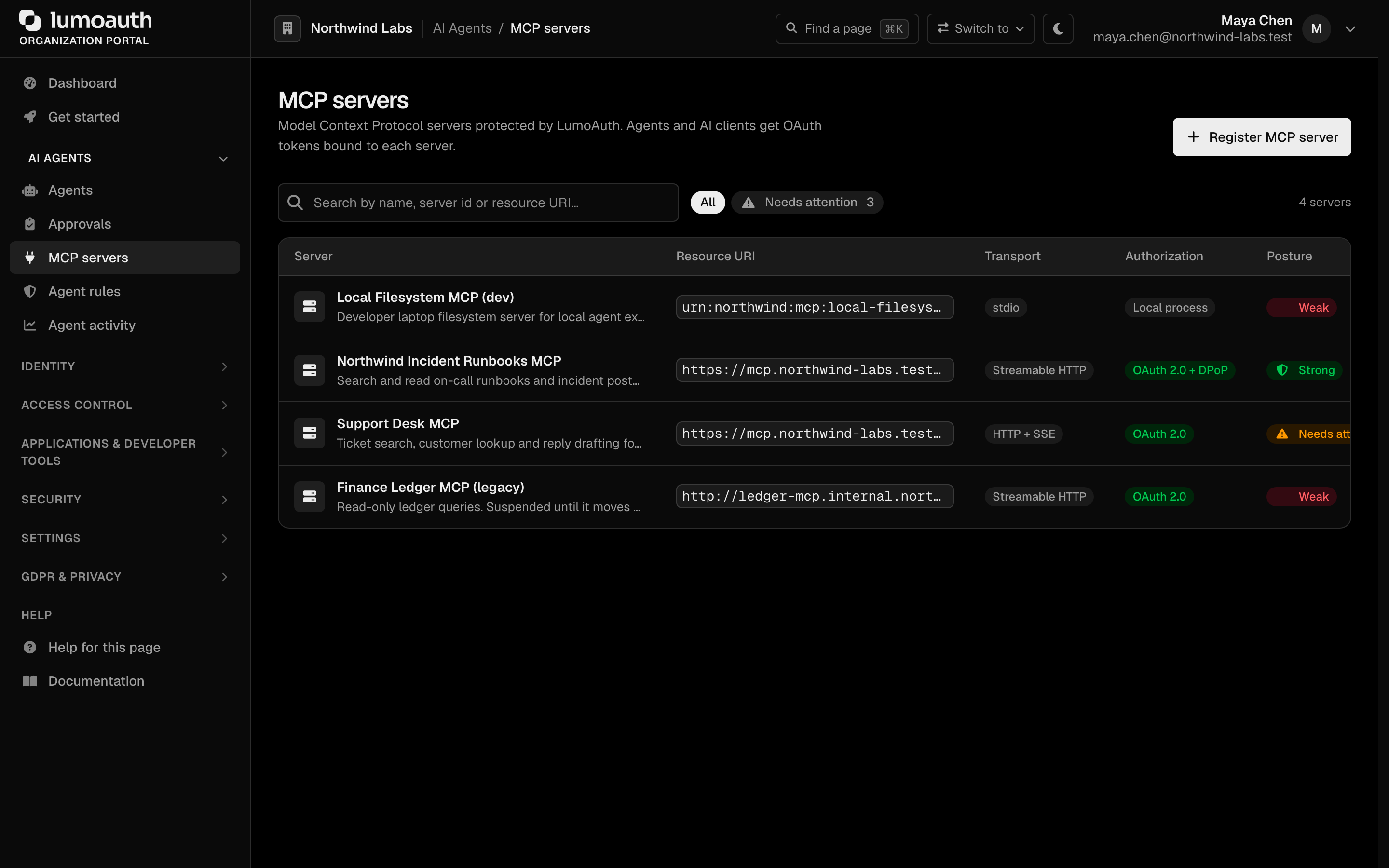
## API endpoints
**GET** `/orgs/{orgId}/api/v1/.well-known/oauth-protected-resource/mcp/{serverId}` — protected resource metadata for a specific MCP server. [View details →](https://docs.lumoauth.dev/mcp/resource-metadata)
**GET** `/orgs/{orgId}/api/v1/.well-known/oauth-protected-resource` — root-level Protected Resource Metadata for the organization's MCP servers. [View details →](https://docs.lumoauth.dev/mcp/resource-metadata)
**GET** `/orgs/{orgId}/api/v1/mcp/servers` — list all active MCP servers for an organization. The caller needs the `settings.manage` permission; an API key additionally needs the `mcp:read` scope. [View details →](https://docs.lumoauth.dev/mcp/registration)
**GET** `/orgs/{orgId}/api/v1/mcp/servers/{serverId}` — details of a specific MCP server including discovery URLs. [View details →](https://docs.lumoauth.dev/mcp/registration)
**GET** / **POST** `/orgs/{orgId}/api/v1/mcp/{serverId}/challenge` — test the 401 challenge flow. Returns the `WWW-Authenticate` header for unauthenticated requests. [View details →](https://docs.lumoauth.dev/mcp/authorization-flow)
**POST** `/orgs/{orgId}/api/v1/mcp/servers/{serverId}/tools/authorize` — per-tool check for your MCP server. The server signs in with its own client credentials and never forwards the caller's token. [View details →](https://docs.lumoauth.dev/mcp/server-implementation#6-per-tool-authorization-fine-grained-allowdeny)
## Related
- [MCP Authorization Flow](https://docs.lumoauth.dev/mcp/authorization-flow) — step-by-step OAuth 2.1 flow
- [Protected Resource Metadata](https://docs.lumoauth.dev/mcp/resource-metadata) — details of the discovery document
- [MCP Server Registration](https://docs.lumoauth.dev/mcp/registration) — register your MCP server
- [Client ID Metadata Documents](https://docs.lumoauth.dev/mcp/client-id-metadata-documents) — URL-based client registration
## Standards used on this page
| Plain name | Standard |
|---|---|
| Protected resource metadata | RFC 9728 |
| Resource indicators | RFC 8707 |
| Discovery document | RFC 8414 |
| Issuer identifier in the response | RFC 9207 |
| Client ID metadata documents | OAuth Client ID Metadata Document (draft) |
| Dynamic client registration | RFC 7591 |
| Model Context Protocol (MCP) authorization | MCP Authorization specification |
See the [standards reference](https://docs.lumoauth.dev/reference/standards) for what each one covers and how LumoAuth uses it.
---
# MCP Server Registration
Source: https://docs.lumoauth.dev/mcp/registration
When you register an MCP (Model Context Protocol, the protocol that AI applications use to call external tools) server in LumoAuth, it becomes an OAuth 2.0 protected resource. It gets its own discovery endpoints,…
When you register an MCP (Model Context Protocol, the protocol that AI applications use to call external tools) server in LumoAuth, it becomes an OAuth 2.0 protected resource. It gets its own discovery endpoints, supported scopes, and a Resource URI that becomes the `aud` claim on issued tokens. See the [MCP authorization overview](https://docs.lumoauth.dev/mcp/) for how the pieces fit together.
## Registration via Organization Portal
Register an MCP server through the Organization Portal. Registration and editing use the same three-step wizard, so a rule that holds when you register holds when you change the server later.
1. Navigate to **AI Agents → MCP servers** in the Organization Portal.
2. Click **Register MCP server**.

3. **Step 1 — Describe the server.** Fill in the **Server name** and the **Resource URI**. The Resource URI is the canonical `https://` URI of your MCP server, which clients send as the `resource` indicator; it is validated as you type and cannot be changed after registration. Optionally add the **MCP endpoint URL** (where the server actually listens; the client snippets use it), pick the **Transport** and write a **Description**.
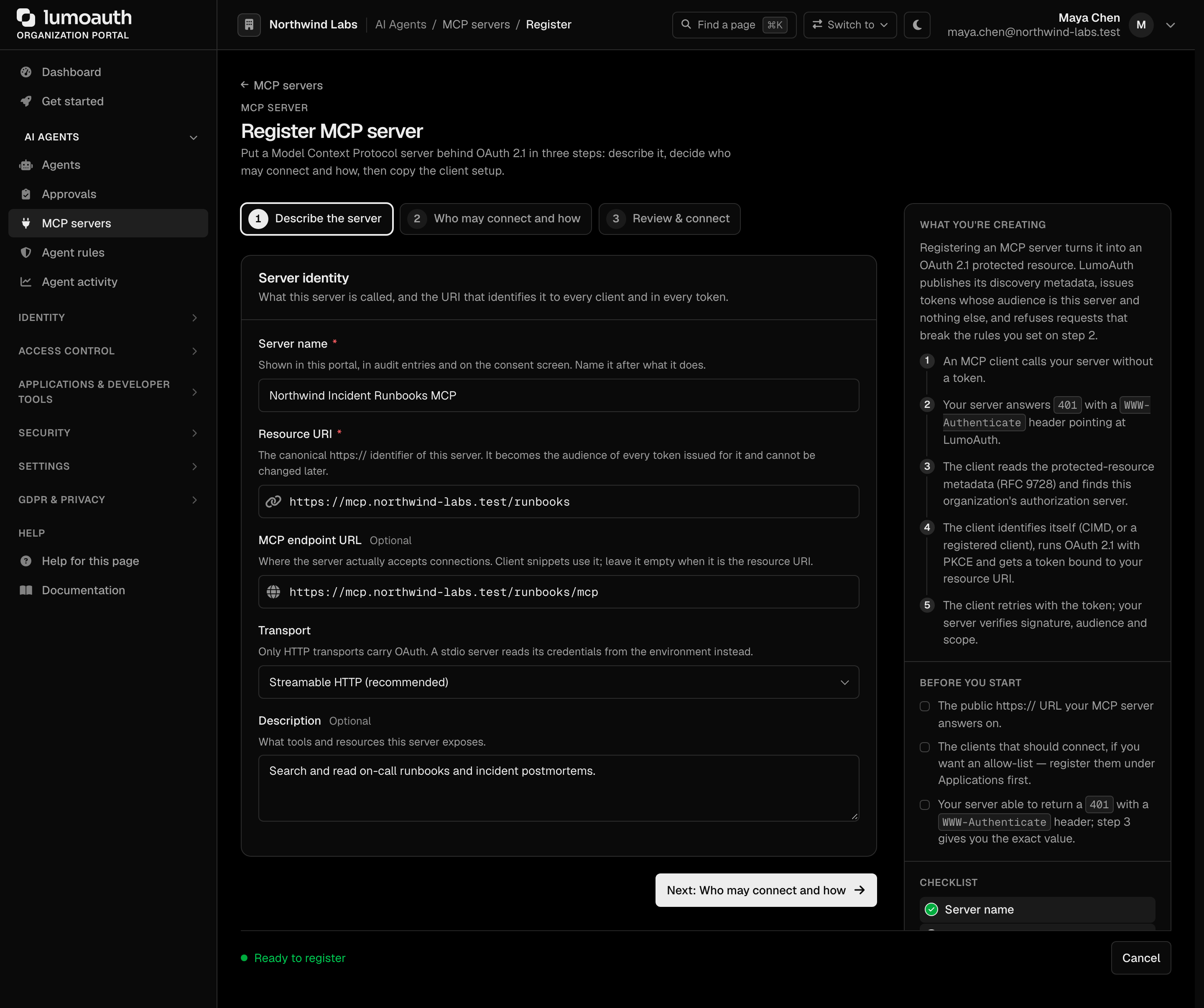
4. **Step 2 — Who may connect and how.**
- **Authorization mode** — **OAuth 2.1 protected** (recommended) or **Public**. Public checks no token at all, so the wizard asks you to confirm it explicitly before it accepts the form.
- **Allowed clients** — pick the organization's OAuth clients from a searchable list, or choose **Any client in this organization**. The wizard warns that the latter includes clients registered later through dynamic client registration (DCR, a client registering itself through the API) or Client ID Metadata Documents (CIMD, a client identifying itself with the URL of a metadata file). Ids that are not clients of this organization are refused.
- **Token protections** — **Require PKCE** (on), **Require the `resource` parameter** (on) and **Require DPoP sender-constrained tokens** (on for new servers). Each switch says exactly when LumoAuth enforces it; see [Security settings](#security-settings). Agents built on the LumoAuth JS, Python and Go SDKs send DPoP proofs when you give them a key (see [DPoP for agents](https://docs.lumoauth.dev/oauth/token#dpop-for-agents)); ChatGPT connectors do not, so leave the switch off for a server ChatGPT must reach.
- **Scope vocabulary** — rows of scope + description. **Use defaults** seeds `mcp:read` and `mcp:write`, and fills **Basic scopes** with `mcp:read` when that field is empty. Clients then start with `mcp:read` and step up to `mcp:write` when a tool needs it. There is no wildcard default: the [MCP security best practices](https://modelcontextprotocol.io/specification/2025-11-25/basic/security_best_practices#scope-minimization) list wildcard scopes such as `files:*` as a common mistake.
- **Token lifetime** — defaults to 3600 seconds; a warning appears above the field when you go higher.
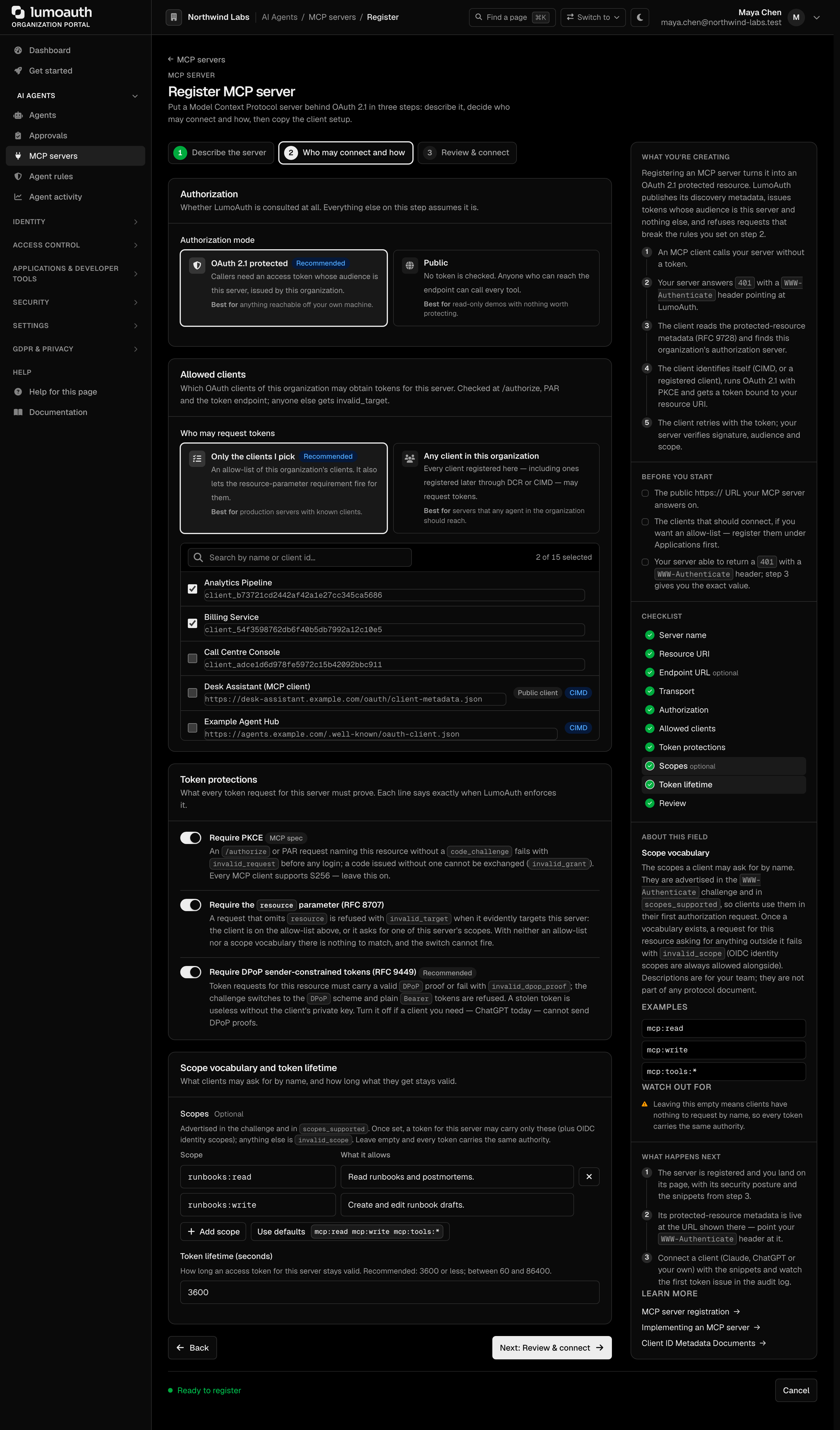
5. **Step 3 — Review & connect.** This step shows a summary of what will be saved, the server's **security posture** after saving, and copy-paste snippets. The snippets already use your organization's real URLs and the reserved server id: the Protected Resource Metadata document (the discovery file that clients fetch to find the authorization server), the `401` challenge, and client setup for Claude (CIMD first, DCR as the legacy variant), ChatGPT, a generic `mcp.json` client and a manual `curl` walk-through. Click **Register MCP server**.
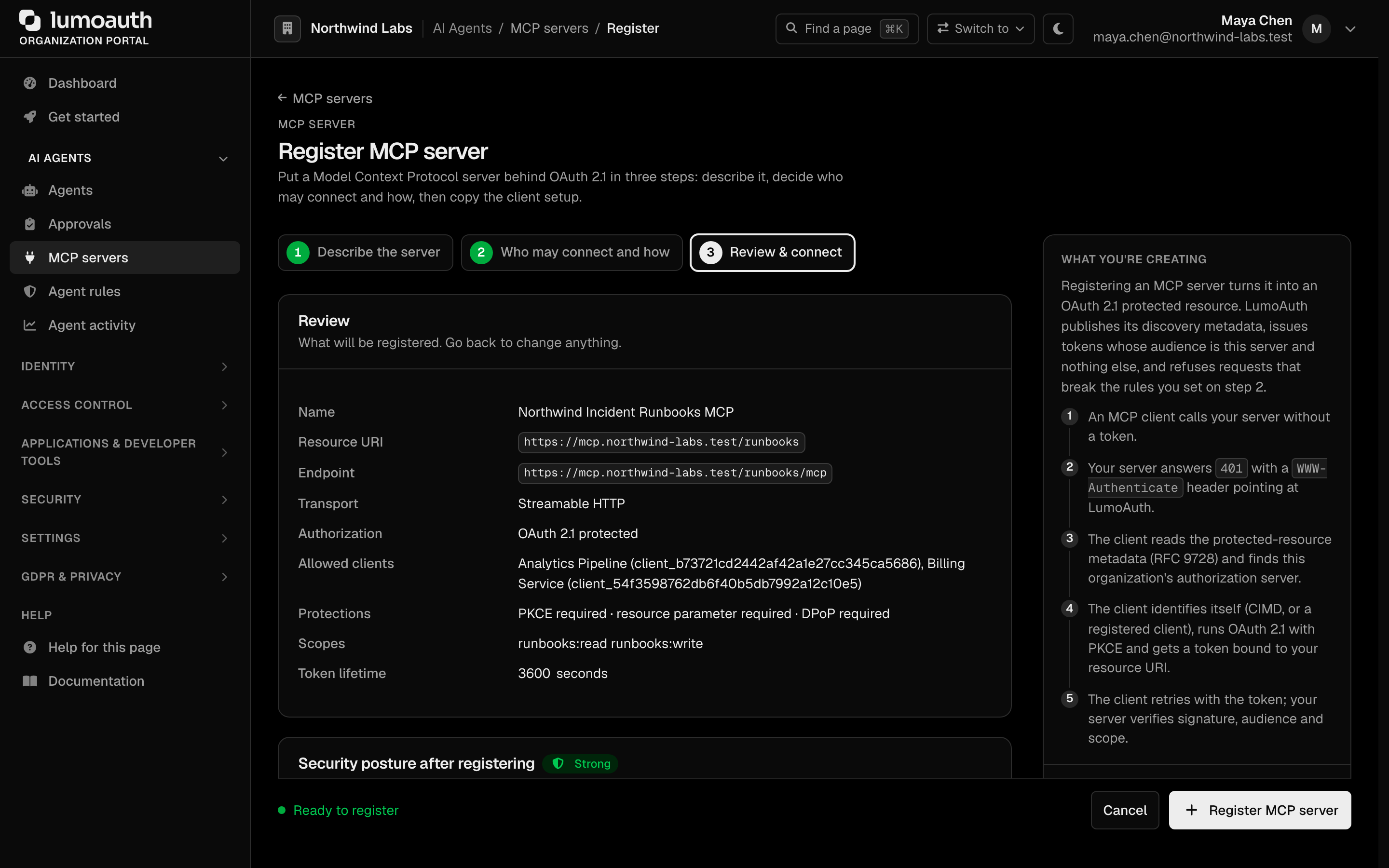
The wizard keeps `?step=` in the URL. On a validation error it re-opens on the failing step, with everything that you typed still in place. It also works without JavaScript: the three steps then render in order on one page.
After registering you land on the server's detail page. It shows the **security posture** card, the settings that you chose, and **Discovery and client setup** with the same snippets as step 3. Use **Edit** on this page to change the server later; each failing posture check links straight to the wizard step that fixes it.
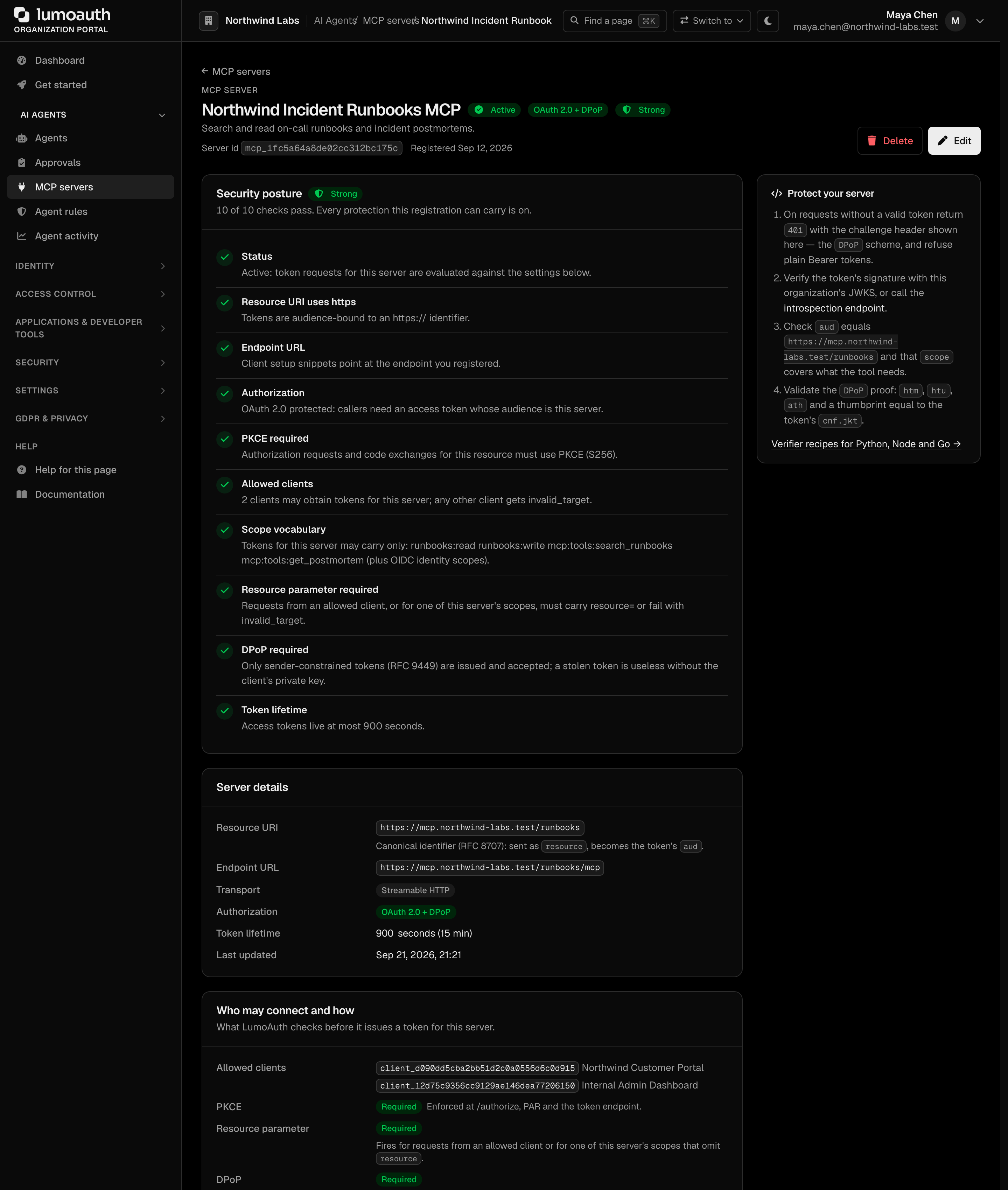
### Security posture
Every server carries a posture computed from its own settings — on the detail page, as a column on the list (with a **Needs attention** filter) and as `posture` in the admin API. The checks: status active, resource URI `https://`, endpoint URL set, OAuth protected (not Public), PKCE required, allowed clients set, scope vocabulary defined, resource-parameter requirement *effective* (on **and** able to fire — see below), DPoP required, token lifetime ≤ 3600 s. Any failing check makes the server **Weak**; warnings only make it **Needs attention**; everything passing is **Strong**. Checks that do not apply (the OAuth settings of a `stdio` or Public server) are shown as not applicable and do not count.
## Server configuration
### Required fields
| Field | Description | Example |
| --- | --- | --- |
| `name` | Human-readable server name | `Code Search MCP Server` |
| `resource_uri` | Canonical URI of the server. Used as the `resource` parameter in OAuth requests and for token audience binding. | `https://mcp.example.com` |
### Optional fields
| Field | Default | Description |
| --- | --- | --- |
| `endpoint_url` | *null* | The URL where the MCP server accepts connections |
| `transport` | `http_streamable` | Transport type: `http_streamable`, `http_sse`, or `stdio`. `http_sse` is deprecated in MCP 2026-07-28: the portal labels it, the API returns `transport_deprecated: true`, and the posture check warns. Move such servers to Streamable HTTP. |
| `auth_mode` | `oauth` | `oauth` for protected servers, `none` for public |
| `scopes_supported` | `[]` | Space-separated OAuth scopes this server supports. When non-empty this is the server's **scope vocabulary**: requests for this server's resource may only ask for these scopes (plus the standard OIDC identity scopes); anything else fails with `invalid_scope`. Also merged into `scopes_supported` of the organization's authorization-server metadata. Some names are refused (`422` in the API): `*`, `all`, `full-access`, `offline_access`, and LumoAuth's own `admin` and `scim` scopes. |
| `basic_scopes` | `[]` | The few scopes that every client needs to start, taken from `scopes_supported`. They are the only scopes in the `401` challenge and in the protected resource metadata, so clients ask for the rest only when a tool needs them (step-up). Wildcards such as `files:*` are not allowed here. Empty means that every scope is advertised. The posture check shows a warning in that case. |
| `token_lifetime` | `3600` | Access token lifetime in seconds (60–86400). A value outside that range is refused (`422`). The posture check warns above 3600. |
| `tool_authorizer_client_ids` | `[]` | The MCP server's own OAuth clients. Only these clients may ask the [per-tool authorization endpoint](https://docs.lumoauth.dev/mcp/server-implementation#6-per-tool-authorization-fine-grained-allowdeny) about this server's tools. |
| `allowed_client_ids` | `[]` | Restrict access to specific OAuth client ids of this organization. Empty = all organization clients. The portal offers a picker; the admin API returns `422` for an id that is not a client of the organization. |
| `scope_descriptions` | `{}` | Admin-written text per scope (`{"mcp:read": "…"}`), shown in the portal only — not part of any protocol document. |
| `require_pkce` | `true` | Reject authorization requests (`/authorize`, PAR) and token issuance for this server's resource when the flow does not use PKCE. |
| `require_resource_param` | `true` | The `resource` parameter is required whenever a request evidently targets this server: the client is listed in `allowed_client_ids`, **or** the request asks for a scope from this server's `scopes_supported` vocabulary. Checked at `/authorize`, PAR and the token endpoint (`invalid_target`, naming the expected `resource`). With neither an allow-list nor a vocabulary the switch has nothing to match and never fires — the posture check says so. |
| `require_dpop` | `false` (API) / on in the portal wizard for new servers | Only [DPoP](https://docs.lumoauth.dev/oauth/token#dpop-sender-constrained-tokens) sender-constrained access tokens (tied to the client's key so a stolen copy cannot be replayed) are issued for and accepted by this server. Token requests for the resource without a valid `DPoP` proof fail with `invalid_dpop_proof`; the challenge uses the `DPoP` scheme with `algs`, plain `Bearer` tokens are refused, and the Protected Resource Metadata announces `dpop_bound_access_tokens_required`. Servers registered before this setting existed have it off. |
| `include_scope_in_challenge` | `true` | *Deprecated (SEP-835):* the challenge always carries a `scope` when the server has scopes. It names the basic scopes, or every scope when no basic scopes are set. |
| `bearer_methods_supported` | `["header"]` | Accepted Bearer-token transports, advertised in Protected Resource Metadata. |
## Resource URI requirements
The Resource URI is the canonical identifier of your MCP server. It is the value that a client sends as the `resource` indicator to ask for a token bound to this specific server. The portal and the admin API apply the same rules:
- It must use `https://`. Plain `http://` is accepted only for `localhost`, `127.0.0.1` and `[::1]` during local development.
- It must not contain whitespace, a fragment (`#`), or a user name and password.
- It must be your MCP server's own address. An address on a LumoAuth host, or on a custom domain that points at LumoAuth, is refused, because a token for it would also work on the LumoAuth API.
- It must be unique in the organization. `https://mcp.example.com/` and `https://MCP.example.com` count as the same URI.
The Resource URI is used as:
- The `resource` parameter in authorization and token requests.
- The audience (`aud`) claim in JWT access tokens.
- The `resource` field in Protected Resource Metadata.
**Tip: Valid Resource URIs**
Resource URIs must be valid HTTPS URLs that uniquely identify your MCP server.
Example: `https://api.example.com/mcp/weather-service`
## List MCP servers
Returns all active MCP servers for the organization. The caller must hold the `settings.manage` permission in the organization (`GET /mcp/servers/{serverId}` too); an API key additionally needs the `mcp:read` scope. Other callers get `403`.
```bash
curl -X GET https://app.lumoauth.dev/orgs/acme-corp/api/v1/mcp/servers \
-H "Authorization: Bearer "
```
```json
{
"servers": [
{
"id": 1,
"server_id": "mcp_a1b2c3d4e5f6a1b2c3d4e5f6",
"name": "Code Search MCP Server",
"description": "Provides code search and analysis tools",
"resource_uri": "https://mcp.example.com",
"endpoint_url": "https://mcp.example.com/mcp",
"transport": "http_streamable",
"auth_mode": "oauth",
"status": "active",
"scopes_supported": ["mcp:read", "mcp:write"],
"require_pkce": true,
"require_resource_param": true,
"require_dpop": true,
"token_lifetime": 3600,
"created_at": "2026-02-10T12:00:00+00:00"
}
],
"data": [ ...the same list... ],
"pagination": { ... }
}
```
The list is returned twice: under `servers` (the historical key) and under `data` with a `pagination` object (the envelope that every LumoAuth list endpoint uses).
### Get MCP server details
**GET** `/orgs/{orgId}/api/v1/mcp/servers/{serverId}`
Returns detailed information about a specific MCP server, including discovery URLs and example headers.
```json
{
"id": 1,
"server_id": "mcp_a1b2c3d4e5f6a1b2c3d4e5f6",
"name": "Code Search MCP Server",
"resource_uri": "https://mcp.example.com",
"transport": "http_streamable",
"auth_mode": "oauth",
"status": "active",
"scopes_supported": ["mcp:read", "mcp:write"],
"allowed_client_ids": [],
"bearer_methods_supported": ["header"],
"require_pkce": true,
"require_resource_param": true,
"require_dpop": true,
"token_lifetime": 3600,
"discovery": {
"authorization_server_metadata": "https://app.lumoauth.dev/orgs/acme-corp/api/v1/.well-known/oauth-authorization-server",
"protected_resource_metadata": "https://app.lumoauth.dev/orgs/acme-corp/api/v1/.well-known/oauth-protected-resource/mcp/mcp_a1b2c3d4",
"www_authenticate_example": "Bearer resource_metadata=\"https://...\", scope=\"mcp:read mcp:write\""
}
}
```
## Registration via the Admin API
The portal UI is backed by an admin REST API. Use it to create and delete MCP servers from your own code (requires an admin access token or an API key with the appropriate scope):
| Method | Path | Purpose |
| --- | --- | --- |
| `GET` | `/orgs/{orgId}/api/v1/admin/mcp/servers` | List all MCP servers (including inactive). |
| `POST` | `/orgs/{orgId}/api/v1/admin/mcp/servers` | Create an MCP server. |
| `GET` | `/orgs/{orgId}/api/v1/admin/mcp/servers/{serverId}` | Get a server's full configuration. |
| `DELETE` | `/orgs/{orgId}/api/v1/admin/mcp/servers/{serverId}` | Delete a server. |
```bash
curl -X POST https://app.lumoauth.dev/orgs/acme-corp/api/v1/admin/mcp/servers \
-H "Authorization: Bearer " \
-H "Content-Type: application/json" \
-d '{
"name": "Code Search MCP Server",
"resource_uri": "https://mcp.example.com",
"endpoint_url": "https://mcp.example.com/mcp",
"scopes_supported": ["mcp:read", "mcp:write"],
"allowed_client_ids": ["client_abc123"],
"require_dpop": true,
"token_lifetime": 3600
}'
```
The response (and every admin `GET`) includes `allowed_client_ids`, `tool_authorizer_client_ids`, `basic_scopes`, `require_pkce`, `require_resource_param`, `require_dpop`, `token_lifetime`, `transport_deprecated`, `scope_descriptions` and a `posture` object (`level`, `label`, `passes`, `applicable`, `checks[]`) — the same checklist that the portal shows. An entry of `allowed_client_ids` that is not a client of the organization is a `422 validation_error` naming the id; nothing is stored.
**Note: Read-only vs. admin API — and the list envelope differs**
`/api/v1/mcp/servers` (used in the examples above) is the **read-only**
list/detail API that any Bearer-token holder can call. Create and delete live under
`/api/v1/admin/mcp/servers` and require admin privileges.
The two list endpoints return **different envelopes** — check which one you're
calling before parsing:
- Protocol endpoint `GET /api/v1/mcp/servers` → **`{ "servers": [...], "data": [...], "pagination": {...} }`** (active servers only; `servers` and `data` hold the same list).
- Admin endpoint `GET /api/v1/admin/mcp/servers` → **`{ "data": [...] }`** (includes inactive servers).
## Inspect servers from the CLI
The `lumo` CLI exposes the same data without writing curl:
```bash
lumo mcp servers # list registered MCP servers
lumo mcp discovery # fetch the RFC 9728 discovery document for a server
```
Both honor `--org-id`, `--base-url`, and `--output table|json|yaml`. Use `--insecure` against a self-signed local server.
## Security settings
### PKCE requirement
Per the MCP Authorization specification, MCP clients MUST implement PKCE with the `S256` code challenge method. LumoAuth enforces this in two places:
- **Authorization endpoint and PAR** — public clients (all `token_endpoint_auth_method: "none"` clients) and clients flagged *PKCE required* must send `code_challenge`; a non-`S256` method is always rejected. In addition, when the request's `resource` names a registered MCP server with `require_pkce` on (the default), a missing `code_challenge` is refused there with `invalid_request`. The user is therefore never sent through login and consent for a request that the token endpoint would reject.
- **Token endpoint** — when a token request names a registered MCP server's Resource URI and that server has `require_pkce` on, the authorization code being exchanged must have been issued with a code challenge. Otherwise the request fails with `invalid_grant`. Refresh-token and other non-code grants are not re-checked.
### Resource parameter
MCP clients MUST include the `resource` parameter (the resource indicator) in both authorization and token requests, set to the server's Resource URI. This binds the access token to the specific MCP server (`aud` claim), preventing token misuse across different services.
A request whose `resource` matches an active server's Resource URI is checked against that server's policy at `/authorize`, PAR **and** the token endpoint. The policy covers `allowed_client_ids` (`invalid_target` if the client is not allowed), `require_pkce` (see above), the scope vocabulary (`invalid_scope`, see below) and `token_lifetime` (applied to the issued token). Resources that match no registered server are not affected by MCP policy.
When `require_resource_param` is on, a request that **omits** `resource` is refused with `invalid_target` whenever it evidently targets the server, that is when either
- the client is listed in the server's `allowed_client_ids`, or
- the request asks for any scope from the server's `scopes_supported` vocabulary (a client that took the scopes from the server's 401 challenge or Protected Resource Metadata but dropped the resource indicator).
The error description names the expected value (`send resource=https://…`). A server with neither an allow-list nor a vocabulary cannot be matched without a `resource` and therefore never triggers this check.
Three more rules keep a token bound to the one server that the user approved:
- **One MCP server per token.** A request whose `resource` names a registered MCP server may carry no other resource. A second value fails with `invalid_target`, so the client asks for one token per server. Otherwise each server could replay the token at the others.
- **No new target at the token endpoint.** When the authorization request carried no `resource`, a token request may not add one that names a registered MCP server (`invalid_target`). The user never saw that server on the consent screen. Send `resource` in the authorization request instead. This also applies to refresh tokens.
- **Consent per server.** Approving a client for one MCP server does not approve it for another, even when both servers use the same scope names. The consent screen names the server and shows where the browser goes back to.
### Scope vocabulary (`scopes_supported`)
When a server defines `scopes_supported`, it is the authoritative list of scopes that a token for that resource may carry. Requests bound to the server (by `resource`) that ask for a scope outside the vocabulary fail with `invalid_scope`. This applies at `/authorize`, PAR and every token grant (authorization code, refresh, client credentials, token exchange, CIBA, device, ID-JAG redemption). The standard OIDC identity scopes (`openid profile email phone address offline_access`) describe the user at the authorization server, not the resource, and are always allowed alongside. Servers without a vocabulary impose no restriction (fail-closed only when a vocabulary exists).
The vocabularies of all active MCP servers are merged, without duplicates, into `scopes_supported` of the organization's OAuth authorization-server metadata and OpenID discovery document. Clients can therefore see the resource scopes that they may request.
### DPoP requirement (`require_dpop`)
[DPoP](https://docs.lumoauth.dev/oauth/token#dpop-sender-constrained-tokens) binds an access token to a key that the client holds. Every use of the token needs a fresh proof signed with that key, so a token copied from a log or a proxy is useless on its own. With `require_dpop` on for a server:
- **Token endpoint** — every grant whose `resource` names the server must mint a key-bound token: either the request carries a valid `DPoP` proof header, or the refresh token being redeemed is already key-bound. This applies to authorization code, client credentials, refresh, CIBA, device, token exchange and ID-JAG. Otherwise the request fails with `invalid_dpop_proof` naming the resource. A `client_credentials` request with a `DPoP` proof now mints a bound token (`token_type: "DPoP"`, `cnf.jkt` in the JWT), which it did not before.
- **Challenge endpoint** — the `WWW-Authenticate` header uses the `DPoP` scheme and lists the accepted proof algorithms in `algs`. A token presented with the `Bearer` scheme, or a token without a `cnf.jkt` binding, is refused with `DPoP error="invalid_token"`. Step-up (`insufficient_scope`) keeps the `DPoP` scheme.
- **Protected Resource Metadata** — `dpop_bound_access_tokens_required: true` and `dpop_signing_alg_values_supported` are added so clients have this information before their first request.
Not every client supports DPoP yet. ChatGPT's connectors do not send DPoP proofs today, so leave the requirement off for a server that ChatGPT must reach; the wizard's ChatGPT snippet says so when DPoP is on.
### Client restrictions
By default, all OAuth clients within an organization can request tokens for any MCP server. You can restrict access by setting **Allowed clients** — only listed clients will be permitted to obtain tokens for the server (`invalid_target` otherwise, at `/authorize`, PAR and the token endpoint). The portal offers a searchable picker of the organization's clients; the admin API validates each id and refuses one that is not a client of the organization. Being on the list also makes the resource-parameter requirement enforceable for that client.
### Redirect URIs of MCP clients
MCP clients register themselves through [dynamic client registration](https://docs.lumoauth.dev/oauth/register) or identify themselves with a [Client ID Metadata Document](https://docs.lumoauth.dev/mcp/client-id-metadata-documents). In both cases LumoAuth validates every `redirect_uri` (and `post_logout_redirect_uri`) before storing it:
| URI | Dynamically registered client | CIMD client |
| --- | --- | --- |
| `https://…` with a host | Accepted for `application_type: web` (the default); rejected for `native` | Accepted |
| `http://localhost`, `http://127.0.0.1`, `http://[::1]` (any port, any path) | Accepted for `application_type: native`; rejected for `web` | Accepted, subject to the organization's loopback policy (`warn` or `block`) |
| `http://` on any other host | Rejected (`invalid_redirect_uri`) | Rejected |
| Custom scheme such as `com.example.app:/callback` | Accepted for `application_type: native`; rejected for `web` | Rejected |
| `javascript:`, `data:`, `vbscript:`, `blob:`, `file:`, `about:` | Never accepted, on any write path | Never accepted |
| URI with a fragment, whitespace, quotes or control characters | Rejected | Rejected |
A desktop or CLI MCP client that listens on loopback must therefore register with `application_type: "native"`.
**Info: Standard**
The OAuth for native apps best practice solves the problem of a desktop or CLI client that has no stable HTTPS callback. Such a client may listen on the loopback interface and receive the code over plain `http`, because the traffic never leaves the machine. What you must do: register `http://127.0.0.1` or `http://localhost` (the port may vary at runtime), use PKCE, and never register plain `http` on a real hostname.
A registration whose `redirect_uris` contain a forbidden URI fails with `invalid_redirect_uri`; the other URIs are not stored either.
## Related
- [MCP Authorization Flow](https://docs.lumoauth.dev/mcp/authorization-flow) — end-to-end OAuth 2.1 flow
- [Protected Resource Metadata](https://docs.lumoauth.dev/mcp/resource-metadata) — discovery document details
- [Client ID Metadata Documents](https://docs.lumoauth.dev/mcp/client-id-metadata-documents) — URL-based client identity for MCP clients
## Standards used on this page
| Plain name | Standard |
|---|---|
| Model Context Protocol (MCP) authorization | MCP Authorization specification |
| Resource indicators | RFC 8707 |
| Dynamic client registration | RFC 7591 |
| Client ID metadata documents | OAuth Client ID Metadata Document (draft) |
| Sender-constrained tokens (DPoP) | RFC 9449 |
| Protected resource metadata | RFC 9728 |
| Proof Key for Code Exchange (PKCE) | RFC 7636 |
| OAuth for native apps | RFC 8252 |
See the [standards reference](https://docs.lumoauth.dev/reference/standards) for what each one covers and how LumoAuth uses it.
---
# Implementing an MCP Server with LumoAuth
Source: https://docs.lumoauth.dev/mcp/server-implementation
How to verify LumoAuth bearer tokens in your MCP server using protected resource metadata.
You're building an MCP (Model Context Protocol, the protocol that AI applications use to call external tools) server, and you want LumoAuth-issued tokens to authorize tool calls. This is the verifier-side recipe — the inverse of [the agent-side quickstart](https://docs.lumoauth.dev/quickstarts/ai-agent-mcp-5min).
## What you're implementing
When an agent calls your MCP server with `Authorization: Bearer `, you need to:
1. **Validate the token** is well-formed and not expired.
2. **Verify the signature** using LumoAuth's JWKS (the list of public keys used to verify tokens).
3. **Confirm the audience** is your MCP server's `resource_uri` (the resource indicator that the client asked for).
4. **Check the scope** that the operation needs. Scope values compare exactly, as OAuth defines them (RFC 6749 §3.3). LumoAuth adds one rule: a granted scope that ends in `:*`, such as `invoices:*`, also covers the scopes under that prefix (`invoices:read`, `invoices:refund:partial`). `invoices.*` is an ordinary scope name, not a wildcard. Prefer narrow scopes to wildcards: the [MCP security best practices](https://modelcontextprotocol.io/specification/2025-11-25/basic/security_best_practices#scope-minimization) list wildcard and omnibus scopes as a common mistake, and recommend a few basic scopes plus a step-up challenge when a tool needs more.
5. **Reject** a missing or invalid token with `401` and `WWW-Authenticate: Bearer resource_metadata=""` (the protected-resource-metadata challenge). Reject a valid token that lacks a scope with `403` and `error="insufficient_scope"`, naming every scope that the operation needs.
6. **If the server requires DPoP** (`require_dpop` in its registration), accept only the `DPoP` authorization scheme, validate the `DPoP` proof header against the token's `cnf.jkt`, and challenge with `WWW-Authenticate: DPoP algs="…", resource_metadata="…"`. DPoP ties a token to the client's key so a stolen copy cannot be replayed. See [DPoP-only servers](#dpop-only-servers).
7. **Learn of a revocation before `exp`.** When an agent is suspended or loses a capability, LumoAuth deny-lists every token it holds, but a server that only checks the signature cannot see that list. Keep token lifetimes short, introspect a token before an action that matters (`POST {issuer}/oauth/introspect` with your server's own client credentials; a suspended agent's token answers `active: false`), or subscribe your server to the CAEP `session-revoked` event.
The LumoAuth SDKs do steps 1 to 6 for you, with the DPoP check included:
- JavaScript: `createAccessTokenVerifier({ issuer, resource })` from `@lumoauth/agent`, then `verifier.verifyRequest({ method, url, headers })`.
- Python: `verify_access_token(token, issuer=..., resource=...)` from `lumoauth.verify`, or the FastAPI dependency `require_access_token(issuer=..., resource=..., scopes=[...])` from `lumoauth.fastapi`.
- Go: `lumoauth.VerifyAccessToken(ctx, token, lumoauth.AccessTokenVerifyOptions{Issuer: ..., Resource: ...})`, or the `net/http` middleware `lumoauth.RequireAccessToken(opts)`.
Each one fetches the JWKS from the discovery document, checks `typ`, `iss`, `aud`, `exp`, `nbf`, refuses portal test tokens, and verifies the `DPoP` proof against `cnf.jkt` when the token is bound. The hand-written examples below show what they do.
LumoAuth publishes everything that you need to do this at a single discovery URL. The server's page in the Organization Portal (**AI Agents → MCP servers → your server → Discovery and client setup**) shows the exact `401` header and client snippets for your registration. They are the same ones that the registration wizard shows on its **Review & connect** step.
---
## 1. Get your MCP server's discovery URL
After [registering your MCP server](https://docs.lumoauth.dev/mcp/registration), the response includes a `server_id`. Your discovery URL is:
```
https://app.lumoauth.dev/orgs/{org_slug}/api/v1/.well-known/oauth-protected-resource/mcp/{server_id}
```
Fetch it once on startup; the response can be cached (`Cache-Control: max-age` says for how long).
```bash
curl https://app.lumoauth.dev/orgs/acme/api/v1/.well-known/oauth-protected-resource/mcp/mcp_01HF...
```
Returns (the protected resource metadata document):
```json
{
"resource": "https://invoices.example.com/mcp",
"authorization_servers": [
"https://app.lumoauth.dev/orgs/acme/api/v1"
],
"scopes_supported": ["invoices.read", "invoices.refund"],
"bearer_methods_supported": ["header"],
"dpop_bound_access_tokens_required": true,
"dpop_signing_alg_values_supported": ["ES256", "ES384", "ES512", "RS256", "RS384", "RS512", "PS256", "PS384", "PS512", "EdDSA"],
"resource_signing_alg_values_supported": ["RS256", "EdDSA"],
"resource_documentation": "https://docs.example.com/invoices-mcp"
}
```
The two `dpop_*` members appear only when the server was registered with **Require DPoP**; they tell clients up front that a plain bearer token will not be accepted.
`authorization_servers[0]` is your organization's **issuer**, `https://app.lumoauth.dev/orgs/acme/api/v1`. To find the JWKS, fetch the metadata at the issuer's RFC 8414 location, `https://app.lumoauth.dev/.well-known/oauth-authorization-server/orgs/acme/api/v1` (the well-known segment goes between the host and the issuer's path; the OpenID Connect form at `{issuer}/.well-known/openid-configuration` works too). Check that its `issuer` field equals the value that you started from, and read its `jwks_uri` field. Never build the JWKS path yourself. The token-verification samples below do these steps for you, and they check each token's `iss` against the same issuer.
---
## 2. Verify tokens (Python)
```python
import os
import time
from functools import lru_cache
from urllib.parse import urlsplit
import httpx
import jwt
from jwt import PyJWKClient
DISCOVERY_URL = os.environ["MCP_DISCOVERY_URL"]
RESOURCE_URI = os.environ["MCP_RESOURCE_URI"]
class InsufficientScope(Exception):
"""The token is valid but lacks a scope: answer 403, not 401."""
@lru_cache(maxsize=1)
def _discovery() -> dict:
return httpx.get(DISCOVERY_URL, timeout=10).raise_for_status().json()
@lru_cache(maxsize=1)
def _issuer_metadata() -> dict:
# authorization_servers[0] is the issuer (RFC 9728). RFC 8414 puts its
# metadata between the host and the issuer's path, and the document must
# name the same issuer.
issuer = _discovery()["authorization_servers"][0]
parts = urlsplit(issuer)
metadata_url = (
f"{parts.scheme}://{parts.netloc}"
f"/.well-known/oauth-authorization-server{parts.path.rstrip('/')}"
)
metadata = httpx.get(metadata_url, timeout=10).raise_for_status().json()
if metadata.get("issuer") != issuer:
raise RuntimeError(f"metadata names issuer {metadata.get('issuer')!r}, not {issuer!r}")
return metadata
@lru_cache(maxsize=1)
def _jwks_client() -> PyJWKClient:
# Read jwks_uri from the metadata; never build the JWKS path yourself.
return PyJWKClient(_issuer_metadata()["jwks_uri"])
def verify_mcp_token(bearer: str, required_scope: str) -> dict:
"""Verify a LumoAuth-issued MCP bearer. Returns claims dict on success.
Raises jwt.PyJWTError on any verification failure — caller should
return 401 with a WWW-Authenticate header.
"""
signing_key = _jwks_client().get_signing_key_from_jwt(bearer)
claims = jwt.decode(
bearer,
signing_key.key,
algorithms=["RS256", "EdDSA"],
# RFC 8707 audience binding: token must be for *this* resource
audience=RESOURCE_URI,
issuer=_issuer_metadata()["issuer"],
options={"require": ["exp", "iat", "aud", "iss", "scope"]},
)
granted = set(claims.get("scope", "").split())
if not _covered(required_scope, granted):
raise InsufficientScope(required_scope)
return claims
def _covered(required: str, granted: set[str]) -> bool:
# Scopes compare exactly. LumoAuth's one wildcard rule: a granted scope
# ending in ":*" covers the scopes under that prefix ("invoices:*" covers
# "invoices:read"). "invoices.*" is an ordinary scope.
if required in granted:
return True
return any(
g.endswith(":*") and g != ":*" and required.startswith(g[:-1]) and len(required) > len(g) - 1
for g in granted
)
```
Use it in your MCP request handler:
```python
from fastapi import Depends, FastAPI, Header, HTTPException, Response
app = FastAPI()
def require_mcp(scope: str):
def dep(authorization: str | None = Header(None)) -> dict:
if not authorization or not authorization.lower().startswith("bearer "):
raise HTTPException(401,
detail="missing_bearer",
headers={"WWW-Authenticate":
f'Bearer resource_metadata="{DISCOVERY_URL}"'})
try:
return verify_mcp_token(authorization[7:], scope)
except InsufficientScope:
raise HTTPException(403,
detail="insufficient_scope",
headers={"WWW-Authenticate":
f'Bearer error="insufficient_scope", scope="{scope}", '
f'resource_metadata="{DISCOVERY_URL}"'})
except jwt.PyJWTError as e:
raise HTTPException(401,
detail=str(e),
headers={"WWW-Authenticate":
f'Bearer error="invalid_token", '
f'resource_metadata="{DISCOVERY_URL}"'})
return dep
@app.post("/mcp/list_invoices")
def list_invoices(claims=Depends(require_mcp("invoices.read"))):
# claims["sub"] is the agent's identifier; log it.
return {"invoices": [...]}
```
---
## 3. Verify tokens (Node.js)
```js
import jwksClient from "jwks-rsa";
import jwt from "jsonwebtoken";
const DISCOVERY_URL = process.env.MCP_DISCOVERY_URL;
const RESOURCE_URI = process.env.MCP_RESOURCE_URI;
let _discovery;
async function discovery() {
if (!_discovery) {
const res = await fetch(DISCOVERY_URL);
if (!res.ok) throw new Error(`discovery HTTP ${res.status}`);
_discovery = await res.json();
}
return _discovery;
}
let _issuerMetadata;
async function issuerMetadata() {
if (!_issuerMetadata) {
const prm = await discovery();
// authorization_servers[0] is the issuer (RFC 9728). RFC 8414 puts its
// metadata between the host and the issuer's path, and the document must
// name the same issuer.
const issuer = prm.authorization_servers[0];
const { origin, pathname } = new URL(issuer);
const asRes = await fetch(`${origin}/.well-known/oauth-authorization-server${pathname.replace(/\/$/, "")}`);
if (!asRes.ok) throw new Error(`AS metadata HTTP ${asRes.status}`);
const asMeta = await asRes.json();
if (asMeta.issuer !== issuer) throw new Error(`metadata names issuer ${asMeta.issuer}, not ${issuer}`);
_issuerMetadata = asMeta;
}
return _issuerMetadata;
}
let _jwks;
async function jwks() {
if (!_jwks) {
// Read jwks_uri from the metadata; never build the JWKS path yourself.
_jwks = jwksClient({
jwksUri: (await issuerMetadata()).jwks_uri,
cache: true,
cacheMaxAge: 600_000,
});
}
return _jwks;
}
export async function verifyMcpToken(bearer, requiredScope) {
const decoded = jwt.decode(bearer, { complete: true });
if (!decoded?.header?.kid) throw new Error("missing_kid");
const client = await jwks();
const key = await new Promise((resolve, reject) =>
client.getSigningKey(decoded.header.kid, (err, k) => err ? reject(err) : resolve(k))
);
const claims = jwt.verify(bearer, key.getPublicKey(), {
algorithms: ["RS256", "EdDSA"],
audience: RESOURCE_URI,
issuer: (await issuerMetadata()).issuer,
});
const granted = (claims.scope || "").split(" ");
// Scopes compare exactly. LumoAuth's one wildcard rule: a granted scope
// ending in ":*" covers the scopes under that prefix ("invoices:*" covers
// "invoices:read"). "invoices.*" is an ordinary scope.
const covered = granted.some((g) => g === requiredScope
|| (g.endsWith(":*") && g !== ":*" && requiredScope.startsWith(g.slice(0, -1)) && requiredScope.length > g.length - 1));
if (!covered) {
const err = new Error("insufficient_scope");
err.insufficientScope = true;
throw err;
}
return claims;
}
// Express middleware
export function requireMcp(scope) {
return async (req, res, next) => {
const auth = req.headers.authorization;
if (!auth?.toLowerCase().startsWith("bearer ")) {
return res.status(401)
.set("WWW-Authenticate", `Bearer resource_metadata="${DISCOVERY_URL}"`)
.json({ error: "missing_bearer" });
}
try {
req.mcpClaims = await verifyMcpToken(auth.slice(7), scope);
next();
} catch (err) {
if (err.insufficientScope) {
return res.status(403)
.set("WWW-Authenticate",
`Bearer error="insufficient_scope", scope="${scope}", resource_metadata="${DISCOVERY_URL}"`)
.json({ error: "insufficient_scope" });
}
res.status(401)
.set("WWW-Authenticate",
`Bearer error="invalid_token", resource_metadata="${DISCOVERY_URL}"`)
.json({ error: err.message });
}
};
}
```
---
## 4. Verify tokens (Go)
```go
package mcp
import (
"context"
"fmt"
"net/http"
"net/url"
"strings"
"github.com/coreos/go-oidc/v3/oidc"
)
type Verifier struct {
audience string
discovery *DiscoveryDoc
keySet oidc.KeySet
}
func NewVerifier(ctx context.Context, discoveryURL, audience string) (*Verifier, error) {
disc, err := fetchDiscovery(ctx, discoveryURL)
if err != nil {
return nil, err
}
// AuthorizationServers[0] is the issuer (RFC 9728). RFC 8414 puts its
// metadata between the host and the issuer's path, and the document must
// name the same issuer.
issuer := disc.AuthorizationServers[0]
u, err := url.Parse(issuer)
if err != nil {
return nil, err
}
metadataURL := u.Scheme + "://" + u.Host + "/.well-known/oauth-authorization-server" + strings.TrimSuffix(u.Path, "/")
asMeta, err := fetchAuthServerMetadata(ctx, metadataURL)
if err != nil {
return nil, err
}
if asMeta.Issuer != issuer {
return nil, fmt.Errorf("metadata names issuer %q, not %q", asMeta.Issuer, issuer)
}
// Read jwks_uri from the metadata; never build the JWKS path yourself.
keySet := oidc.NewRemoteKeySet(ctx, asMeta.JWKSURI)
return &Verifier{audience: audience, discovery: disc, keySet: keySet}, nil
}
func (v *Verifier) Middleware(scope string, next http.Handler) http.Handler {
return http.HandlerFunc(func(w http.ResponseWriter, r *http.Request) {
bearer := strings.TrimPrefix(r.Header.Get("Authorization"), "Bearer ")
if bearer == "" {
w.Header().Set("WWW-Authenticate",
fmt.Sprintf(`Bearer resource_metadata="%s"`, v.discovery.URL))
http.Error(w, "missing_bearer", http.StatusUnauthorized)
return
}
// Use github.com/golang-jwt/jwt for full audience + scope checks.
// ...
next.ServeHTTP(w, r)
})
}
```
---
## 5. The 401 challenge response
When the token is missing, expired or invalid, return `401 Unauthorized` with a `WWW-Authenticate` header that carries the **protected resource metadata URL**. A valid token that lacks a scope gets `403 Forbidden` with `error="insufficient_scope"` instead, as shown in the samples above. Include the discovery URL so MCP clients can auto-discover where to mint a valid token:
```http
HTTP/1.1 401 Unauthorized
WWW-Authenticate: Bearer error="invalid_token",
resource_metadata="https://app.lumoauth.dev/orgs/acme/api/v1/.well-known/oauth-protected-resource/mcp/mcp_01HF..."
Content-Type: application/json
{"error": "invalid_token", "error_description": "audience mismatch"}
```
Compliant MCP clients (including the LumoAuth Python SDK) parse `resource_metadata`, fetch the discovery doc, and re-mint a token automatically.
### DPoP-only servers
When the server is registered with **Require DPoP** (`require_dpop`), LumoAuth only issues sender-constrained tokens for it and your verifier should accept nothing else:
- Accept the `Authorization: DPoP ` scheme and refuse `Bearer`.
- Require a `DPoP` request header and validate it as a proof JWT. Check `typ: dpop+jwt`, a `jwk` header, `htm` equal to the request method, `htu` equal to the request URL without query or fragment, a fresh `iat`, an unused `jti`, and `ath` equal to `base64url(sha256(access_token))`.
- Compute the key thumbprint of the proof's `jwk` and require it to equal the token's `cnf.jkt` claim.
- Challenge with the `DPoP` scheme:
```http
HTTP/1.1 401 Unauthorized
WWW-Authenticate: DPoP error="invalid_token",
algs="ES256 ES384 ES512 RS256 RS384 RS512 PS256 PS384 PS512 EdDSA",
resource_metadata="https://app.lumoauth.dev/orgs/acme/api/v1/.well-known/oauth-protected-resource/mcp/mcp_01HF..."
```
LumoAuth's own challenge endpoint (`/orgs/{orgId}/api/v1/mcp/{serverId}/challenge`) behaves exactly this way for a DPoP-only server, so you can diff your implementation against it with `curl -i`.
---
## 6. Per-tool authorization (fine-grained allow/deny)
The 401 challenge above enforces access at the **server** boundary: a valid, audience-bound token is enough to reach the MCP server. To control access to individual **tools** (for example `send_payment_reminder` versus `list_invoices`), ask LumoAuth before you run the tool.
Your server asks **as itself**. It must never forward the token that it received from the MCP client, because the MCP specification forbids token passthrough. LumoAuth also refuses such a token: its audience is your MCP server, not LumoAuth.
**Set up once:**
1. Register an OAuth client for the MCP server itself, with the `client_credentials` grant and the `mcp:authorize` scope.
2. On the MCP server's page, add that client under **Per-tool authorization** (`tool_authorizer_client_ids` in the admin API).
**On each tool call:**
1. Get a token for the server's own client from the token endpoint with `grant_type=client_credentials` and `scope=mcp:authorize`. Cache it until it expires. Do not send a `resource` parameter.
2. Take the caller from the token that you already verified. The `sub` claim is a user id, or `agent_` for an agent.
3. Ask LumoAuth:
```bash
curl -X POST https://app.lumoauth.dev/orgs/acme/api/v1/mcp/servers/mcp_01HF.../tools/authorize \
-H "Authorization: Bearer $SERVER_CLIENT_TOKEN" \
-H "Content-Type: application/json" \
-d '{ "subject": { "type": "agent", "id": "agent_agt_01HF..." }, "tool": "send_payment_reminder" }'
```
Every LumoAuth SDK wraps this call as `mcp.authorizeTool`. In Python, for example:
```python
from lumoauth import LumoAuth
# The SDK client in your MCP server uses the server's OWN token:
# client credentials of its tool-authorizer client, scope mcp:authorize.
lumo = LumoAuth(org_id="acme", token_provider=get_server_client_token)
decision = lumo.mcp.authorize_tool("mcp_01HF...", "agent", claims["sub"], "send_payment_reminder")
if not decision.allowed:
... # refuse the tool call
```
See [MCP helpers in every SDK](https://docs.lumoauth.dev/developer/sdks#mcp-helpers-in-every-sdk) for the other languages. To try a setup from the terminal, run `lumo mcp check-tool --subject agent: --client-id `.
For a user, send `"type": "user"` and the user id from `sub`. The answer is `200` when the call is allowed and `403` when it is denied:
```json
{
"allowed": true,
"subject": { "type": "agent", "id": "agt_01HF..." },
"resource": { "type": "mcp_tool", "id": "mcp_01HF.../send_payment_reminder" }
}
```
The decision comes from a Zanzibar `invoke` relation on `mcp_tool:/`, or from a server-wide grant on `mcp_server:`. Grants use the server's registered id, and the server id and tool name together must fit 99 characters. Because it is a Zanzibar check, it needs the `zanzibar` feature (Fine-grained authorization add-on, Pro and Business). With billing enforced and without the add-on, every tool is denied.
Other answers:
| Status | Meaning |
|---|---|
| `400` | `subject` or `tool` is missing or malformed. |
| `401` | The token is not a client-credentials token of this organization, or it is bound to another resource. |
| `403` `insufficient_scope` | The token lacks `mcp:authorize`. |
| `403` `forbidden` | The client is not one of this server's tool authorizers. |
| `404` | The organization or the MCP server does not exist or is not active. |
An unknown or foreign subject gets an ordinary deny, never an error. Every decision is recorded as the `mcp.tool.authorization` audit event.
An agent can also check itself before it calls a tool, with its own credential: `POST /orgs/{orgId}/api/v1/agents/me/mcp/authorize` and `{ "server_id": "", "tool": "…" }`. That endpoint is for the agent, not for your MCP server. A `server_id` that is not an active registered server gets `404 unknown_server`.
This is an optional layer on top of token verification. Skip it if server-level scopes are fine-grained enough for your tools.
---
## Other duties of an MCP server (revision 2026-07-28)
- **Check the `Origin` header.** The Streamable HTTP transport requires servers to refuse a request with an invalid `Origin` (`403`). This stops DNS rebinding attacks against servers that run on a developer's machine.
- **Never treat a handle as proof of identity.** Revision 2026-07-28 has no protocol sessions. A server that keeps state across calls gives the client a handle, such as a cart id, and receives it back as a tool argument. Make handles random, store them under the user id from the verified token, and refuse a handle that another user presents.
- **Never forward the client's token.** If the server calls another API, it gets its own token for that API. The same applies to calls to LumoAuth (see [section 6](#6-per-tool-authorization-fine-grained-allowdeny)).
---
## 7. Test it from the CLI
The `lumo mcp test` command closes the loop without writing your own client:
```bash
lumo mcp test mcp_01HF... agt_01HF... --method tools/list
```
It mints a short-lived agent token for the server's Resource URI and calls your MCP server with it. It prints the response code, and the discovery URL when your verifier rejects the token. The request uses the stateless shape of MCP revision 2026-07-28: the `MCP-Protocol-Version` and `Mcp-Method` headers, and the protocol version and client capabilities in `_meta`. There is no `initialize` handshake. A server that requires DPoP cannot be tested this way, because the admin token API cannot bind a token to a key.
The same token is available from the admin API: `POST /orgs/{orgId}/api/v1/admin/agents/{agentId}/token` with `{"resource": ""}`. Such a token is refused by the LumoAuth API itself.
---
## Common pitfalls
| Symptom | Cause | Fix |
|---|---|---|
| Tokens always reject with `audience mismatch` | Resource URI in token != `RESOURCE_URI` you're verifying | Token's `aud` claim equals the MCP server's `resource_uri`; pass that exact string to your verifier. LumoAuth itself compares resource URIs in normalised form (scheme and host case-insensitive, one trailing slash ignored, default port dropped). As a result, `https://mcp.example.com/` and `https://mcp.example.com` select the same registered server at token issuance and on the challenge endpoint. Do the same in your verifier |
| Tokens reject with `kid not found in JWKS` | LumoAuth rotated the signing key, your JWKS cache is stale | Set a short `cacheMaxAge` (e.g. 10 min) on the JWKS client |
| Tokens accept with no scope check | You forgot to enforce `scope` after audience verification | Always check `claims.scope` contains the required scope |
| A valid-looking token is refused with `invalid_dpop_proof` at the token endpoint | The server requires DPoP and the client sent no (or an invalid) `DPoP` proof | Send a `DPoP` proof on the token request, or turn **Require DPoP** off for that server while the client catches up |
| Your server accepts `Authorization: Bearer` for a DPoP-only registration | The verifier does not check the scheme or `cnf.jkt` | Refuse `Bearer`, require the `DPoP` header and compare its thumbprint with `cnf.jkt` |
| The per-tool check answers `401` | The server forwarded the token that it received from the client | Get a token for the server's own client (`client_credentials`, scope `mcp:authorize`) and send that instead |
| `lumo mcp test` returns 200 but real agents 401 | Real agents call from outside your network and TLS chain isn't trusted | Use a real CA cert (Let's Encrypt) — agents won't accept self-signed |
---
## Standards used on this page
| Plain name | Standard |
|---|---|
| Model Context Protocol (MCP) authorization | MCP Authorization specification |
| Protected resource metadata | RFC 9728 |
| JSON Web Key (JWK) and key sets (JWKS) | RFC 7517 |
| Resource indicators | RFC 8707 |
| Sender-constrained tokens (DPoP) | RFC 9449 |
| Discovery document | RFC 8414 |
| Key thumbprint | RFC 7638 |
See the [standards reference](https://docs.lumoauth.dev/reference/standards) for what each one covers and how LumoAuth uses it.
---
# Protected Resource Metadata
Source: https://docs.lumoauth.dev/mcp/resource-metadata
Per the MCP spec, MCP servers MUST implement at least one of the following discovery mechanisms. LumoAuth supports both.
**Model Context Protocol (MCP)** is the protocol that AI applications (Claude, ChatGPT, Cursor and similar hosts) use to discover and call external tools. When an MCP client calls an MCP server without a token, it must be able to find the authorization server. **Protected resource metadata** is a JSON discovery document that names the authorization server(s) and supported scopes for a given resource. LumoAuth serves one such document per registered MCP server.
## Discovery mechanisms
Per the MCP spec, MCP servers MUST implement at least one of the following discovery mechanisms. LumoAuth supports both.
### 1. Well-known URI (recommended)
LumoAuth serves Protected Resource Metadata at well-known URIs for each registered MCP server:
**GET** `/orgs/{orgId}/api/v1/.well-known/oauth-protected-resource/mcp/{serverId}` — path-specific metadata for a specific MCP server.
**GET** `/orgs/{orgId}/api/v1/.well-known/oauth-protected-resource` — root-level metadata endpoint. For an organization with one protected server it returns that server's document; with several it returns `{"resources": [...]}`, one entry per server with `resource`, `resource_metadata_url` and `authorization_servers`. It answers `404` when the organization has no protected (OAuth-mode) MCP server.
**GET** `/.well-known/oauth-protected-resource/orgs/{orgId}/api/v1/mcp/{serverId}` — the standardized well-known **suffix** form (SEP-2351, the path-insertion rule of the protected resource metadata standard). Spec-compliant clients that derive the metadata URL from a LumoAuth-hosted resource URI insert the well-known segment at the path root; both forms return the same document.
**Note: External resource URIs**
The suffix form only applies to resource URIs hosted on the LumoAuth domain. If your MCP server's Resource URI is on your own host (e.g. `https://mcp.example.com`), the well-known protected resource metadata document for that URI must be served from *your* host. Typically you redirect or proxy to the LumoAuth metadata URL, or point clients at it via the `WWW-Authenticate` `resource_metadata` parameter.
### 2. WWW-Authenticate header
When your MCP server returns a `401 Unauthorized` response, it should include a `WWW-Authenticate` header with the `resource_metadata` URL:
```bash
HTTP/1.1 401 Unauthorized
WWW-Authenticate: Bearer resource_metadata="https://app.lumoauth.dev/orgs/acme-corp/api/v1/.well-known/oauth-protected-resource/mcp/mcp_abc123",
scope="mcp:read mcp:write"
```
MCP clients MUST parse this header and use the `resource_metadata` URL to discover the authorization server. If the `scope` parameter is present, clients SHOULD use those scopes in the initial authorization request.
## Metadata document structure
The Protected Resource Metadata document follows the standard protected-resource-metadata schema:
```json
{
"resource": "https://mcp.example.com",
"authorization_servers": [
"https://app.lumoauth.dev/orgs/acme-corp/api/v1"
],
"bearer_methods_supported": ["header"],
"scopes_supported": ["mcp:read", "mcp:write", "mcp:admin"]
}
```
### Fields
| Field | Required | Description |
| --- | --- | --- |
| `resource` | Yes | The canonical URI of the MCP server (its Resource URI, the value that clients send as the `resource` indicator) |
| `authorization_servers` | Yes | The issuer of your LumoAuth organization, for example `https://app.lumoauth.dev/orgs/acme-corp/api/v1`. Clients derive the metadata location from it (RFC 8414: `https://app.lumoauth.dev/.well-known/oauth-authorization-server/orgs/acme-corp/api/v1`) and check that the document names the same issuer. |
| `bearer_methods_supported` | No | Methods supported for Bearer token transmission. Per MCP spec, only `header` (Authorization request header) is MUST-supported. |
| `scopes_supported` | No | OAuth scopes supported by this resource. Represents the minimal set for basic functionality. Present only when the server declares scopes. |
| `dpop_bound_access_tokens_required`, `dpop_signing_alg_values_supported` | No | Present only when the server was registered with **Require DPoP**; see [Sender-constrained (DPoP) tokens](#sender-constrained-dpop-tokens). |
## Client discovery flow
MCP clients MUST support both discovery mechanisms and follow this priority order:
1. **Check WWW-Authenticate header**: if the 401 response includes `resource_metadata`, use that URL directly.
2. **Try path-specific well-known URI**: `/.well-known/oauth-protected-resource/{path}`.
3. **Try root well-known URI**: `/.well-known/oauth-protected-resource`.
```mermaid
sequenceDiagram
participant C as MCP Client
participant M as MCP Server
participant L as LumoAuth
C->>M: MCP request (no token)
M-->>C: 401 Unauthorized + WWW-Authenticate header
alt resource_metadata in header
C->>L: GET resource_metadata URL
L-->>C: Protected Resource Metadata JSON
else No header
C->>L: GET /.well-known/oauth-protected-resource/mcp/{serverId}
L-->>C: Protected Resource Metadata JSON
end
Note over C: Read the issuer from authorization_servers
C->>L: GET /.well-known/oauth-authorization-server/orgs/{orgId}/api/v1 (RFC 8414)
L-->>C: Authorization server metadata (endpoints, capabilities)
Note over C: Proceed with OAuth 2.1 authorization flow
```
## Testing discovery
You can test the discovery flow using the challenge endpoint:
```bash
# 1. Send unauthenticated request to trigger 401 challenge
curl -v https://app.lumoauth.dev/orgs/acme-corp/api/v1/mcp/mcp_abc123/challenge
# Look for: WWW-Authenticate: Bearer resource_metadata="...", scope="..."
# 1b. A bearer that is NOT a valid access token for this server gets the same
# challenge with error="invalid_token"; only a token issued by this
# organization whose `aud` (the resource indicator) names this MCP server
# returns 200 {"status": "authenticated", ...}.
curl -v -H 'Authorization: Bearer not-a-real-token' \
https://app.lumoauth.dev/orgs/acme-corp/api/v1/mcp/mcp_abc123/challenge
# 2. Fetch the Protected Resource Metadata
curl https://app.lumoauth.dev/orgs/acme-corp/api/v1/.well-known/oauth-protected-resource/mcp/mcp_abc123
# 3. Fetch the Authorization Server Metadata at the RFC 8414 location of the
# issuer in authorization_servers
curl https://app.lumoauth.dev/.well-known/oauth-authorization-server/orgs/acme-corp/api/v1
```
## Scope handling
### Scope selection strategy
Per the MCP spec, clients SHOULD follow this priority order for scope selection:
1. **Use `scope` from WWW-Authenticate header** if provided in the 401 response.
2. **Use `scopes_supported` from Protected Resource Metadata** if the header scope is absent.
3. **Omit scope parameter** if `scopes_supported` is also undefined.
The `scopes_supported` field should represent the minimal set of scopes necessary for basic MCP server functionality. Additional scopes can be requested later, through step-up authorization, when the server returns a `403 Forbidden` with `error="insufficient_scope"`.
LumoAuth fills `scopes_supported` and the challenge's `scope` from the server's **basic scopes** when you set them, and from the whole scope list otherwise. `offline_access` never appears in either place, because refresh tokens are not a requirement of the resource. Set basic scopes in the registration wizard, or with `basic_scopes` in the admin API. See [Optional fields](https://docs.lumoauth.dev/mcp/registration#optional-fields).
### Step-up authorization (insufficient scope)
When a client's token lacks required scopes for a specific operation, the MCP server SHOULD respond with:
```bash
HTTP/1.1 403 Forbidden
WWW-Authenticate: Bearer error="insufficient_scope",
scope="mcp:admin",
resource_metadata="https://app.lumoauth.dev/orgs/acme-corp/api/v1/.well-known/oauth-protected-resource/mcp/mcp_abc123",
error_description="Additional scope required"
```
MCP clients SHOULD respond by initiating a step-up authorization flow with the expanded scope set.
LumoAuth's challenge endpoint (`/orgs/{orgId}/api/v1/mcp/{serverId}/challenge`) implements the standard bearer-token challenge. A token that is valid for the server but lacks scopes gets `403` with `error="insufficient_scope"` and `scope` listing only the **missing** scopes (SEP-2350 incremental consent). The required set is the request's `scope` parameter when given (the operation being attempted, e.g. `?scope=mcp:read mcp:admin`), otherwise the server's basic scopes. Without basic scopes, any valid token for the server passes, so a client may hold a smaller set of scopes than the server lists. A granted scope that ends in `:*` covers the scopes under it: `files:*` satisfies `files:read`. Every other scope compares exactly, so `files.*` is not a wildcard. Each step-up challenge is audited as `mcp.challenge_issued` with `reason: insufficient_scope`.
### Sender-constrained (DPoP) tokens
A DPoP-bound access token (`cnf.jkt`) is tied to the client's key, so a stolen copy cannot be replayed. The challenge endpoint accepts such a token only together with a `DPoP` proof header for the request (`htm`/`htu`, `ath` of the token) signed by the bound key. The token may be presented with either the `DPoP` or `Bearer` scheme. A bound token without a valid, matching proof is treated as `invalid_token`; it is never downgraded to a plain bearer. This matches what LumoAuth's own APIs enforce and what your MCP server must do with such tokens.
### Scope vocabulary
A server's `scopes_supported` is also enforced at issuance: tokens for the server's Resource URI can only carry those scopes (plus the OIDC identity scopes). See [Scope vocabulary](https://docs.lumoauth.dev/mcp/registration#scope-vocabulary-scopes_supported). Protected Resource Metadata and challenge endpoints answer `404` for organizations that are not active.
## Related
- [MCP Authorization Flow](https://docs.lumoauth.dev/mcp/authorization-flow) — end-to-end OAuth 2.1 flow
- [MCP Server Registration](https://docs.lumoauth.dev/mcp/registration) — register a server and configure scopes
## Standards used on this page
| Plain name | Standard |
|---|---|
| Protected resource metadata | RFC 9728 |
| Model Context Protocol (MCP) authorization | MCP Authorization specification |
| Resource indicators | RFC 8707 |
| Bearer tokens | RFC 6750 |
| Sender-constrained tokens (DPoP) | RFC 9449 |
See the [standards reference](https://docs.lumoauth.dev/reference/standards) for what each one covers and how LumoAuth uses it.
---
# MCP Authorization Flow
Source: https://docs.lumoauth.dev/mcp/authorization-flow
End-to-end walk-through of the OAuth 2.1 authorization flow for MCP (Model Context Protocol, the protocol that AI applications use to call external tools) servers. It runs from the unauthenticated request that triggers…
End-to-end walk-through of the OAuth 2.1 authorization flow for MCP (Model Context Protocol, the protocol that AI applications use to call external tools) servers. It runs from the unauthenticated request that triggers discovery, through client registration and user authorization, to the Bearer token that the MCP client sends with every call. LumoAuth's role here is the OAuth 2.1 authorization server (see the [MCP authorization overview](https://docs.lumoauth.dev/mcp/) for roles and standards).
## Complete flow diagram
```mermaid
sequenceDiagram
participant B as User-Agent (Browser)
participant C as MCP Client
participant M as MCP Server (Resource Server)
participant L as LumoAuth (Authorization Server)
C->>M: MCP request without token
M->>C: HTTP 401 + WWW-Authenticate header
Note over C: Extract resource_metadata URL
C->>L: GET Protected Resource Metadata
L->>C: Return metadata (authorization_servers, scopes)
Note over C: Parse metadata, extract AS URL
C->>L: GET Authorization Server Metadata
L-->>C: AS metadata (endpoints, capabilities)
alt Client ID Metadata Document (preferred)
Note over C: client_id = https URL of the client's metadata document
L->>C: Fetches and validates the document at authorization time
else Pre-registered Client
Note over C: Use existing client_id
else Dynamic Client Registration (legacy)
C->>L: POST /connect/register
L->>C: Client credentials
end
Note over C: Generate PKCE parameters (S256)
Note over C: Include resource parameter
C->>B: Open browser with authorization URL
B->>L: Authorization request + code_challenge + resource
Note over L: Authenticate user
L->>B: Redirect to callback with auth code
B->>C: Authorization code callback
C->>L: Token request + code_verifier + resource
L->>C: Access token (+ refresh token)
C->>M: MCP request with Bearer token
M-->>C: MCP response
Note over C,M: MCP communication continues
```
## Step-by-step implementation
### Step 1: Trigger the authorization challenge
When an MCP client tries to connect to a protected MCP server without a token, the server returns `401 Unauthorized` with a `WWW-Authenticate` header that contains the Protected Resource Metadata URL:
```bash
# MCP client sends request without authentication
curl -v https://mcp.example.com/mcp
# Server responds:
# HTTP/1.1 401 Unauthorized
# WWW-Authenticate: Bearer resource_metadata="https://app.lumoauth.dev/orgs/acme-corp/api/v1/.well-known/oauth-protected-resource/mcp/mcp_abc123",
# scope="mcp:read mcp:write"
```
### Step 2: Discover the authorization server
The MCP client fetches the Protected Resource Metadata (the discovery document that LumoAuth publishes for each registered MCP server) to find which authorization server to use:
```bash
curl https://app.lumoauth.dev/orgs/acme-corp/api/v1/.well-known/oauth-protected-resource/mcp/mcp_abc123
```
```json
{
"resource": "https://mcp.example.com",
"authorization_servers": [
"https://app.lumoauth.dev/orgs/acme-corp/api/v1"
],
"bearer_methods_supported": ["header"],
"scopes_supported": ["mcp:read", "mcp:write"]
}
```
Then fetch the Authorization Server Metadata. The client builds its address from the issuer in `authorization_servers` as RFC 8414 describes: it inserts `/.well-known/oauth-authorization-server` between the host and the issuer's path.
```bash
curl https://app.lumoauth.dev/.well-known/oauth-authorization-server/orgs/acme-corp/api/v1
```
LumoAuth also answers at the other locations that MCP clients try, which carry the OpenID Connect form of the metadata: `https://app.lumoauth.dev/.well-known/openid-configuration/orgs/acme-corp/api/v1` and `{issuer}/.well-known/openid-configuration` (OpenID Connect Discovery). On a verified custom domain the issuer is the bare domain, so the document lives at `https://auth.acme.com/.well-known/oauth-authorization-server`.
```json
{
"issuer": "https://app.lumoauth.dev/orgs/acme-corp/api/v1",
"authorization_endpoint": "https://app.lumoauth.dev/orgs/acme-corp/api/v1/oauth/authorize",
"token_endpoint": "https://app.lumoauth.dev/orgs/acme-corp/api/v1/oauth/token",
"introspection_endpoint": "https://app.lumoauth.dev/orgs/acme-corp/api/v1/oauth/introspect",
"registration_endpoint": "https://app.lumoauth.dev/orgs/acme-corp/api/v1/connect/register",
"jwks_uri": "https://app.lumoauth.dev/orgs/acme-corp/api/v1/.well-known/jwks.json",
"code_challenge_methods_supported": ["S256"],
"grant_types_supported": [
"authorization_code",
"refresh_token",
"client_credentials",
"urn:openid:params:grant-type:ciba",
"urn:ietf:params:oauth:grant-type:device_code"
]
// Abbreviated. The live document also returns revocation_endpoint,
// device_authorization_endpoint, pushed_authorization_request_endpoint,
// scopes_supported, response_types_supported, token_endpoint_auth_methods_supported, etc.
}
```
**Tip: Find the JWKS through this document**
`authorization_servers[0]` in the Protected Resource Metadata above is the organization's **issuer**, not the address of a document. Fetch the metadata from the issuer, check that its `issuer` field equals the value that you started from, and read the JWKS location from its `jwks_uri` field. Do not build a JWKS path yourself.
### Step 3: Client identification
LumoAuth supports three ways for a client to identify itself. Clients SHOULD try them in this order (the MCP authorization specification, revision 2026-07-28, recommends Client ID Metadata Documents and deprecates dynamic client registration):
| Priority | Method | When to use |
| --- | --- | --- |
| 1 | **[Client ID Metadata Documents](https://docs.lumoauth.dev/mcp/client-id-metadata-documents)** (CIMD; the client identifies itself with the URL of a metadata file that it publishes) | The AS advertises `client_id_metadata_document_supported: true` (on by default on every plan) — use your metadata-document URL as the `client_id`; no registration call. The default for Claude and the method that the MCP specification recommends. |
| 2 | **Pre-registered client** | The client already has a `client_id` for this authorization server (registered under **Applications**, or handed to the client by the administrator). |
| 3 | **Dynamic client registration** (the client registers itself through the API) — no longer the specification's preferred method | The AS provides `registration_endpoint`. Still supported for clients that have not moved to CIMD (ChatGPT's connectors use it). |
The server's page in the Organization Portal shows ready-made setup snippets for Claude (CIMD, with the DCR variant as legacy), ChatGPT, a generic `mcp.json` client and a manual `curl` flow. Each snippet uses your organization's real endpoints.
The DCR request, for clients that still need it:
```bash
curl -X POST https://app.lumoauth.dev/orgs/acme-corp/api/v1/connect/register \
-H "Content-Type: application/json" \
-H "Authorization: Bearer " \
-d '{
"client_name": "My MCP Client",
"application_type": "native",
"redirect_uris": ["http://127.0.0.1:3000/callback"],
"grant_types": ["authorization_code", "refresh_token"],
"response_types": ["code"],
"token_endpoint_auth_method": "none"
}'
```
**Note: application_type (SEP-837)**
Loopback (`http://127.0.0.1:*`) or custom-scheme redirect URIs require `application_type: "native"`. The default `web` application type only accepts `https` redirect URIs.
**Warning: Initial Access Token required by default**
By default, dynamic registration requires an **Initial Access Token** (IAT): an anonymous `POST /connect/register` with no `Authorization` header returns an error. Pass the IAT as `Authorization: Bearer ` (shown above), or have an admin issue API-key credentials with the `admin:clients:register` scope. An organization can opt into anonymous DCR by setting `require_initial_access_token` to `false` in its authentication settings (`PATCH /orgs/{orgId}/api/v1/admin/settings/auth`).
**Note: Public client authentication**
`token_endpoint_auth_method: "none"` creates a public client that doesn't require a client secret. The `client_id` returned in the registration response **must still be sent** in every token request. Public clients use PKCE for security instead of a shared secret.
### Step 4: Authorization request
The MCP client starts the OAuth 2.1 authorization-code flow with PKCE and a `resource` parameter. PKCE is a one-time secret that protects the sign-in code; the `resource` parameter is the resource indicator that pins the token to one MCP server:
```bash
# Generate PKCE parameters
CODE_VERIFIER=$(openssl rand -base64 32 | tr -d '=/+' | head -c 43)
CODE_CHALLENGE=$(echo -n "$CODE_VERIFIER" | openssl dgst -sha256 -binary | openssl base64 -A | tr '+/' '-_' | tr -d '=')
# Build authorization URL
AUTH_URL="https://app.lumoauth.dev/orgs/acme-corp/api/v1/oauth/authorize?\
response_type=code&\
client_id=CLIENT_ID&\
redirect_uri=http://127.0.0.1:3000/callback&\
scope=mcp:read mcp:write&\
resource=https://mcp.example.com&\
code_challenge=$CODE_CHALLENGE&\
code_challenge_method=S256&\
state=RANDOM_STATE"
# Open in browser for user authentication
echo "Open in browser: $AUTH_URL"
```
**Warning: Required parameters**
Send the `resource` parameter set to the exact Resource URI configured during
server registration, and repeat it on the token request. The authorization
endpoint only checks that `resource` is a well-formed URI allowed for your
client. Matching it against registered MCP servers happens when the code is
exchanged at the token endpoint; that is also where the request is rejected with
`invalid_target` when your client is not on that server's allow-list.
### Step 5: Token request
Exchange the authorization code for an access token. If the MCP server was registered with **Require DPoP** (DPoP ties a token to the client's key so a stolen copy cannot be replayed), this request must also carry a `DPoP` proof header; without it the token endpoint answers `invalid_dpop_proof`. The response is then `token_type: "DPoP"` with the key thumbprint in the token's `cnf.jkt`:
```bash
curl -X POST https://app.lumoauth.dev/orgs/acme-corp/api/v1/oauth/token \
-H "Content-Type: application/x-www-form-urlencoded" \
-d "grant_type=authorization_code" \
-d "code=AUTHORIZATION_CODE" \
-d "redirect_uri=http://127.0.0.1:3000/callback" \
-d "client_id=CLIENT_ID" \
-d "code_verifier=$CODE_VERIFIER" \
-d "resource=https://mcp.example.com"
```
```json
{
"access_token": "eyJhbGciOiJSUzI1NiIs...",
"token_type": "Bearer",
"expires_in": 3600,
"refresh_token": "dGhpcyBpcyBhIHJlZnJlc2ggdG9rZW4...",
"scope": "mcp:read mcp:write"
}
```
### Step 6: Access the MCP server
Include the access token in the `Authorization` header for all MCP requests:
```bash
curl -X POST https://mcp.example.com/mcp \
-H "Authorization: Bearer eyJhbGciOiJSUzI1NiIs..." \
-H "Content-Type: application/json" \
-d '{
"jsonrpc": "2.0",
"id": 1,
"method": "tools/list"
}'
```
**Note: Token in every request**
Per the MCP spec, authorization MUST be included in **every HTTP request** from client to server. Revision 2026-07-28 has no protocol sessions, so each request stands on its own. Tokens MUST NOT be included in the URI query string.
## Token validation
Your MCP server MUST validate access tokens before processing requests. LumoAuth supports two validation methods:
### Option A: Token introspection
```bash
curl -X POST https://app.lumoauth.dev/orgs/acme-corp/api/v1/oauth/introspect \
-H "Content-Type: application/x-www-form-urlencoded" \
-u "CLIENT_ID:CLIENT_SECRET" \
-d "token=eyJhbGciOiJSUzI1NiIs..."
```
```json
{
"active": true,
"scope": "mcp:read mcp:write",
"client_id": "client_abc123",
"token_type": "Bearer",
"exp": 1739190000,
"aud": "https://mcp.example.com",
"sub": "user-uuid"
}
```
### Option B: JWT verification
For JWT access tokens (LumoAuth's default; they follow the standard JWT access token profile, which fixes the claim set of a JWT-formatted access token), validate locally using the organization's public keys:
1. Fetch the JWKS (the list of public keys used to verify tokens) from LumoAuth's `jwks_uri`
2. Verify the JWT signature
3. Check `exp` (expiration), `iss` (issuer), and `aud` (audience)
4. Verify `aud` matches your server's Resource URI
**Warning: Audience validation is critical**
MCP servers MUST validate that the `aud` claim matches their Resource URI. Without this check, tokens issued for other services could be replayed against your MCP server, enabling the [confused deputy problem](https://modelcontextprotocol.io/docs/2026-07-28/tutorials/security/security_best_practices#token-passthrough).
## Error handling
| Status | When | Header |
| --- | --- | --- |
| `401 Unauthorized` | No token, expired token, or invalid token | `WWW-Authenticate: Bearer resource_metadata="..."` |
| `403 Forbidden` | Token valid but insufficient scopes | `WWW-Authenticate: Bearer error="insufficient_scope", scope="...", resource_metadata="..."` |
### Common Token Request Errors
| Error | Description | Solution |
| --- | --- | --- |
| `invalid_request` | Missing required parameter: client_id | Always include `client_id` in token requests, even for public clients with `token_endpoint_auth_method: "none"` |
| `invalid_grant` | Invalid or expired authorization code | Authorization codes are single-use and expire after 5 minutes. Ensure you exchange them immediately. |
| `invalid_grant` | PKCE validation failed | Verify your `code_verifier` matches the `code_challenge` sent in the authorization request |
| `invalid_client` | Client authentication failed | For confidential clients, verify your client_secret is correct. For public clients, ensure client_id is included. |
| `invalid_target` | Invalid or unauthorized resource | The `resource` parameter must match a registered MCP server Resource URI, and your client must be on that server's allow-list (if it has one) |
| `invalid_dpop_proof` | The MCP server requires DPoP and the request carried no valid `DPoP` proof | Send a DPoP proof JWT in the `DPoP` header, or ask the administrator to turn **Require DPoP** off for that server |
## Security Considerations
- **PKCE Required**: MCP clients MUST use PKCE with `S256`. Public clients and clients flagged *PKCE required* are rejected at the authorization endpoint if `code_challenge` is missing; public clients include every dynamically registered or CIMD client with `token_endpoint_auth_method: "none"`. Any `code_challenge_method` other than `S256` is always rejected there. The MCP server's own `require_pkce` policy is enforced twice. Up front, an `/authorize` or PAR request naming the server's resource without a `code_challenge` fails with `invalid_request` before any login or consent. Then, when the code is exchanged at the token endpoint, the exchange fails with `invalid_grant` if the code was issued without a code challenge.
- **Resource Binding**: Tokens are bound to the MCP server's Resource URI via the `resource` parameter and `aud` claim. With `require_resource_param` on, omitting `resource` is refused (`invalid_target`) when the client is allow-listed for the server or requests a scope from the server's `scopes_supported` vocabulary. A token names one MCP server only, and the token endpoint never adds a server that the authorization request did not name. See [Resource parameter](https://docs.lumoauth.dev/mcp/registration#resource-parameter).
- **Consent per server**: the consent screen names the MCP server and the host that the browser returns to. Approval for one server does not carry over to another server with the same scope names.
- **Tokens for an MCP server stay there**: a token whose audience is an MCP server is refused by the LumoAuth API, whether it belongs to a user or an agent.
- **Scope Vocabulary**: when the server defines `scopes_supported`, requests for its resource may only ask for those scopes (plus OIDC identity scopes); anything else is `invalid_scope`. See [Scope vocabulary](https://docs.lumoauth.dev/mcp/registration#scope-vocabulary-scopes_supported).
- **Step-up (`insufficient_scope`)**: the challenge endpoint answers a valid token that lacks the required scopes with `403` and `WWW-Authenticate: Bearer error="insufficient_scope", scope=""` (the standard bearer-token challenge). The client then re-authorizes for exactly the missing scopes. See [Step-up authorization](https://docs.lumoauth.dev/mcp/resource-metadata#step-up-authorization-insufficient-scope).
- **No Token Passthrough**: MCP servers MUST NOT forward client tokens to upstream APIs, and that includes LumoAuth. Each service-to-service call requires its own token. Token introspection is the exception: sending a token to the authorization server that issued it, to ask whether it is valid, is allowed.
- **DPoP (per server)**: a server registered with `require_dpop` only gets sender-constrained tokens. Every grant for its resource must present a valid `DPoP` proof (or redeem a key-bound refresh token) or fails with `invalid_dpop_proof`. Its challenge uses the `DPoP` scheme with `algs` and rejects plain `Bearer` tokens, and its Protected Resource Metadata carries `dpop_bound_access_tokens_required`. See [DPoP requirement](https://docs.lumoauth.dev/mcp/registration#dpop-requirement-require_dpop).
- **Short-lived Tokens**: LumoAuth issues short-lived access tokens (configurable per MCP server; the portal recommends 3600 s or less and the server's posture check warns above it). Use refresh tokens for long-lived sessions.
- **HTTPS Only**: All authorization server endpoints use HTTPS. Resource URIs should use HTTPS in production.
**Tip: Per-tool authorization**
The flow above authorizes access at the **server** boundary. To control access to individual **tools**, your MCP server calls `POST /orgs/{orgId}/api/v1/mcp/servers/{serverId}/tools/authorize` with its own client credentials. See [Per-tool authorization](https://docs.lumoauth.dev/mcp/server-implementation#6-per-tool-authorization-fine-grained-allowdeny).
## Standards used on this page
| Plain name | Standard |
|---|---|
| Model Context Protocol (MCP) authorization | MCP Authorization specification |
| Protected resource metadata | RFC 9728 |
| Discovery document | RFC 8414 |
| Client ID metadata documents | OAuth Client ID Metadata Document (draft) |
| Dynamic client registration | RFC 7591 |
| Proof Key for Code Exchange (PKCE) | RFC 7636 |
| Resource indicators | RFC 8707 |
| Sender-constrained tokens (DPoP) | RFC 9449 |
| Token introspection | RFC 7662 |
| JWT access token profile | RFC 9068 |
| Bearer tokens | RFC 6750 |
See the [standards reference](https://docs.lumoauth.dev/reference/standards) for what each one covers and how LumoAuth uses it.
---
# Client ID Metadata Documents (CIMD)
Source: https://docs.lumoauth.dev/mcp/client-id-metadata-documents
LumoAuth implements draft-ietf-oauth-client-id-metadata-document-02 on the authorization-server side; the client.dev server guide is a good high-level companion.
**Client ID Metadata Documents** let an OAuth client identify itself with an **HTTPS URL** instead of a pre-registered `client_id`. The URL points at a JSON metadata document that the client publishes about itself; LumoAuth fetches and validates the document at authorization time. The MCP authorization specification (2026-07-28) adopts CIMD as the **preferred client registration mechanism** (MCP is the Model Context Protocol, the protocol that AI applications use to call external tools). MCP clients such as Claude therefore no longer need dynamic client registration (registering themselves through the API) or manual setup before starting an OAuth flow. Revision 2026-07-28 also deprecates dynamic client registration.
LumoAuth implements [draft-ietf-oauth-client-id-metadata-document-02](https://www.ietf.org/archive/id/draft-ietf-oauth-client-id-metadata-document-02.txt) on the authorization-server side; the [client.dev server guide](https://client.dev/servers) is a good high-level companion.
**Tip: On by default, on every plan**
CIMD is **enabled by default** for every organization and included in every plan (Developer, Pro, Business), with no extra charge. Discovery advertises `client_id_metadata_document_supported: true`. Organization admins can switch it off under **Security → Sign-in settings → Platform security → Client ID metadata documents (CIMD)**. Your plan's usage limits (monthly active users, machine-to-machine tokens, MCP servers) apply exactly as for registered clients; see [Plans and limits](#plans-and-limits).
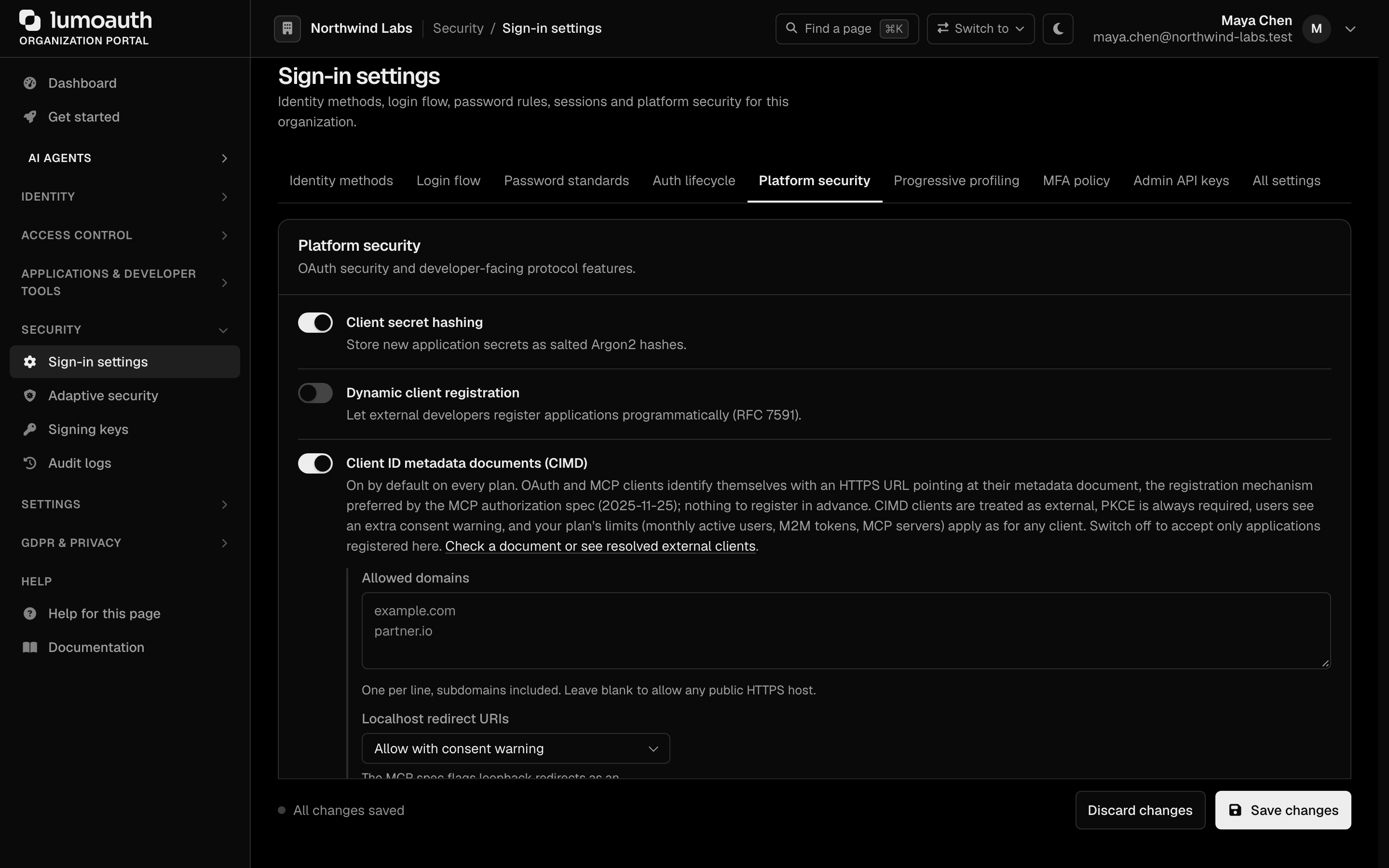
## For client developers: the 2-minute version
1. Publish a JSON file at a stable `https://` URL **with a path**, for example `https://client.example.com/oauth/metadata.json`. Its `client_id` member must be that exact URL. The [sample](https://docs.lumoauth.dev/mcp/cimd-sample) has a complete file and a runnable client.
2. Serve it with `Content-Type: application/json` (or `application/…+json`), status `200`, no redirects. Add `Cache-Control: max-age=…` to control how long LumoAuth caches it (60 s to 1 hour).
3. Use that URL as `client_id` in the authorization request, with PKCE (`S256`). That is all: no registration call, no secret.
4. Something wrong? The authorization error page and the token endpoint's `invalid_client` show you the exact reason (`client_id_mismatch`, `invalid_redirect_uri`, …). An organization admin can also run the document through **Applications → External clients (CIMD) → Check a metadata document** or the [check endpoint](#check-a-document-before-you-use-it). Fixed documents are picked up on the very next request; failures are never cached.
### Example metadata document
```json title="https://client.example.com/oauth/metadata.json"
{
"client_id": "https://client.example.com/oauth/metadata.json",
"client_name": "Example MCP Client",
"client_uri": "https://client.example.com",
"logo_uri": "https://client.example.com/logo.png",
"redirect_uris": ["https://client.example.com/callback", "http://127.0.0.1/callback"],
"grant_types": ["authorization_code", "refresh_token"],
"token_endpoint_auth_method": "none",
"scope": "openid profile email mcp:read"
}
```
### Authorization request
```text
GET https://app.lumoauth.dev/orgs/acme-corp/api/v1/oauth/authorize
?response_type=code
&client_id=https%3A%2F%2Fclient.example.com%2Foauth%2Fmetadata.json
&redirect_uri=https%3A%2F%2Fclient.example.com%2Fcallback
&scope=openid%20profile%20mcp%3Aread
&code_challenge=&code_challenge_method=S256
&state=
```
## How it works
1. A client starts an authorization request with `client_id=https://client.example.com/oauth/metadata.json` (any https URL with a path).
2. LumoAuth checks the organization's trust policy (switch, plan, domain allow-list, URL shape, SSRF rules) and fetches the URL. The fetch requires https, a public host, DNS pinned for the request, no redirects, a 64 KB size cap and a JSON content type.
3. The document's `client_id` member MUST byte-equal the URL itself, otherwise the client is rejected (`client_id_mismatch`).
4. The client metadata (`client_name`, `redirect_uris`, `logo_uri`, `token_endpoint_auth_method`, `grant_types`, `scope`) is applied and the flow continues as with any registered client. Each organization keeps its own copy of the client, so the same metadata-document URL works in any number of organizations. Tokens issued in one organization are unknown (`active: false`) to another.
5. A valid document is cached honoring its `Cache-Control: max-age` (default 300 s, clamped between 60 s and 1 hour). Error responses and invalid documents are **never cached** (draft §5.2); instead each URL gets at most 10 fetch attempts per minute (`fetch_rate_limited` beyond that).
### Consent screen
CIMD-resolved clients are always labelled on the consent screen as an **external client** together with the host they identify as (draft §8.5). The consent screen also shows the host of the redirect URI for every client, as the MCP specification requires. When the redirect target is the loopback interface, the user additionally sees a warning that they are about to be redirected to an application on their own machine.
## Validation rules
| Rule | Detail |
| --- | --- |
| `client_id` match | The document's `client_id` member must exactly equal the fetched URL. |
| URL shape | Absolute `https://` URL with a path (not just `/`), no query, no fragment, no userinfo, no `.`/`..` path segments, publicly resolvable host, at most 191 characters. |
| Response | Status `200`, `Content-Type: application/json` or `application/*+json`, at most 64 KB, no redirects. |
| `redirect_uris` | **Required** for authorization-code clients. Each URI must be `https`, or `http` strictly on the loopback interface (`localhost`, `127.0.0.1`, `[::1]`) as the OAuth for native apps best practice allows. No fragments. Custom schemes (`myapp://…`) and `javascript:`, `data:` or other non-web schemes are rejected; a single bad URI rejects the whole document (`invalid_redirect_uri`). |
| `token_endpoint_auth_method` | `none` (default, public client) or `private_key_jwt` with `jwks` or an https `jwks_uri` in the document. Shared-secret methods are impossible for a self-published client (draft §4.1). |
| `grant_types` | `authorization_code` and `refresh_token` only, whatever the auth method. A metadata document identifies a client; it does not make the organization trust it, so grants that need no user consent (`client_credentials`) are never available to a CIMD client. Register the application in the organization for machine-to-machine tokens. The client receives refresh tokens only if `refresh_token` is listed. |
| `client_name` | **Required** (`missing_client_name` otherwise). Control characters, `<`, `>`, backticks and `${` are stripped and the name is cut to 100 characters; a name that is empty after that falls back to the URL's host. |
| `logo_uri`, `client_uri` | Kept only when they are well-formed `https` URLs; otherwise dropped. |
| PKCE | Always required (`S256`) for CIMD clients, regardless of auth method. |
| `scope` | Only identity scopes are taken from the document: `openid`, `profile`, `email`, `phone`, `address` and `mcp:read`, plus the scopes that your active MCP servers advertise (never LumoAuth management scopes). Anything else that the document asks for (`admin`, `admin:*`, `scim`, `offline_access`, `*:write`, …) is dropped silently. See [Allowing more scopes](#allowing-more-scopes). |
**Info: Standard**
The OAuth for native apps best practice allows a native client to receive the authorization code on a loopback `http` listener, because that traffic never leaves the machine. What you must do: publish `http://127.0.0.1/callback` or `http://localhost/callback` in `redirect_uris` (any port matches at runtime) and use PKCE. Everything else must be `https`.
## Check a document before you use it
Two tools show a document exactly as the authorization server processes it, without registering anything and even while CIMD is switched off for the organization (the result then says `enabled: false`).
**Portal.** **Applications → External clients (CIMD)** lists every metadata-document client that has connected to the organization, with its status and a **Block** or **Unblock** button (see [Block one client](#block-one-client)). It also has a **Check a metadata document** form: paste the URL, optionally tick *Ignore the cached copy*, and read the verdict, the effective client (redirect URIs, grant types, scopes after policy, loopback warnings) and the document as fetched.
**Admin API.** Needs `clients.view` and the `admin:clients:read` key scope.
```bash title="Check a metadata document"
curl -X POST https://app.lumoauth.dev/orgs/acme-corp/api/v1/admin/clients/cimd/check \
-H "Authorization: ApiKey lmk_..." \
-H "Content-Type: application/json" \
-d '{ "client_id": "https://client.example.com/oauth/metadata.json", "refresh": true }'
```
```json title="Response (rejected)"
{
"data": {
"ok": false,
"client_id": "https://client.example.com/oauth/metadata.json",
"enabled": true,
"reason": "client_id_mismatch",
"message": "The \"client_id\" member of the document must be byte-for-byte equal to the URL it was fetched from (watch trailing slashes, \"www.\" and the port).",
"warnings": [],
"document": null,
"effective": null,
"shadow_client": null
}
}
```
```json title="Response (accepted)"
{
"data": {
"ok": true,
"client_id": "https://client.example.com/oauth/metadata.json",
"enabled": true,
"reason": null,
"message": null,
"warnings": [],
"document": { "client_id": "https://client.example.com/oauth/metadata.json", "client_name": "Example MCP Client", "...": "..." },
"effective": {
"client_name": "Example MCP Client",
"application_type": "native",
"token_endpoint_auth_method": "none",
"public_client": true,
"pkce_required": true,
"redirect_uris": ["https://client.example.com/callback", "http://127.0.0.1/callback"],
"dropped_redirect_uris": [],
"grant_types": ["authorization_code", "refresh_token"],
"scopes": ["openid", "profile", "email", "mcp:read"],
"dropped_scopes": [],
"logo_uri": "https://client.example.com/logo.png",
"client_uri": "https://client.example.com",
"has_loopback_redirect": true
},
"shadow_client": null
}
}
```
`refresh: true` discards the cached copy first, so you can verify a change immediately even inside the cache window.
For a client that the organization has blocked, both tools still show the document and the effective client, but the verdict is `ok: false` with the reason `client_disabled`.
## Why was my document rejected? {#why-was-my-document-rejected}
Every rejection carries a stable `reason`. The authorization error page shows it under *Technical details*, the token endpoint puts it in `error_description`, the check tools return it as `reason`, and the `oauth.cimd_fetch_failed` audit event records it.
| `reason` | What to fix |
| --- | --- |
| `invalid_client_id_url` | The `client_id` is not an absolute `https://` URL with a path; or it has a query, fragment, userinfo or `.`/`..` segment. |
| `cimd_disabled_for_tenant` | The organization switched CIMD off. Ask its admin to enable it, or register the client. |
| `cimd_not_in_plan` | Not expected on hosted plans (every plan includes CIMD); only possible with a custom contract that removes it. |
| `client_id_too_long` | More than 191 characters. Publish at a shorter URL. |
| `unsafe_url` | The host is loopback, private, link-local or does not resolve. Use a public https host (for local development, see the [sample](https://docs.lumoauth.dev/mcp/cimd-sample#local-development)). |
| `domain_not_allowed` | The organization restricts CIMD to an allow-list of domains. |
| `fetch_rate_limited` | More than 10 fetch attempts for this URL in the last minute. Fix the document, wait a moment, retry. |
| `fetch_failed` | Connection, TLS or timeout error (10 s per request). Redirects are not followed, so a URL shortener or `www.` redirect fails here. |
| `http_status_NNN` | The URL answered something other than `200`. |
| `invalid_content_type` | Serve `application/json` (or `application/*+json`). |
| `document_too_large` | Larger than 64 KB. |
| `invalid_json` | The body is not a JSON object. |
| `client_id_mismatch` | The `client_id` member is not byte-for-byte the fetched URL (trailing slash, `www.`, port, case). |
| `missing_client_name` | The document has no `client_name`, or it is empty. The MCP specification requires `client_id`, `client_name` and `redirect_uris`. |
| `unsupported_token_endpoint_auth_method` | Only `none` or `private_key_jwt`. |
| `private_key_jwt_requires_jwks` | Publish `jwks` or an https `jwks_uri`. |
| `invalid_grant_types` | `grant_types` must be an array of strings. |
| `missing_redirect_uris` | Authorization-code clients need a non-empty `redirect_uris`. |
| `invalid_redirect_uri` | Every redirect URI must be `https`, or `http` on loopback only; no fragments or custom schemes. A client that needs `myapp://` must use [Dynamic Client Registration](https://docs.lumoauth.dev/oauth/register) instead. |
| `client_id_collision` | A registered application in the organization already owns this `client_id`. |
| `client_disabled` | An organization admin [blocked this client](#block-one-client). The document is fine; ask the organization to unblock the client. |
Other common surprises:
- **A scope in the document never appears on the consent screen.** It is not an identity scope and not in `cimd_allowed_scopes`, so it was dropped; the check tools list it under `dropped_scopes`.
- **Loopback redirect refused although the document is valid.** The organization's loopback policy is `block`; loopback URIs are dropped (`dropped_redirect_uris`) and the authorize request fails as unregistered.
- **No `refresh_token` in the token response.** The document's `grant_types` does not list `refresh_token`.
- **A change is not picked up.** A *valid* document is cached per its `Cache-Control: max-age` (60 s to 1 hour). Lower the max-age while iterating, or run a check with `refresh: true`.
## Trust policy (organization admins)
Because CIMD clients are self-declared, each organization controls a trust policy. All of it is under **Security → Sign-in settings → Platform security** and in the `settings/auth` Admin API.
| Setting | Key | Default | Description |
| --- | --- | --- | --- |
| **Client ID metadata documents (CIMD)** | `cimd_enabled` | `true` | Master switch; also controls the discovery advertisement. Off means only applications registered in the organization can sign users in. |
| **Allowed domains** | `cimd_allowed_domains` | *(empty: any public https host)* | Restrict `client_id` URLs to a domain allow-list (subdomains included). The draft's §8.9 pattern for "treat `*.example.com` as a known operator". |
| **Localhost redirect URIs** | `cimd_localhost_redirect_policy` | `warn` | `warn` shows an extra consent warning when the redirect target is loopback; `block` rejects loopback redirect URIs entirely. The MCP spec identifies loopback redirects as an impersonation risk, because local malware can impersonate a legitimate client. |
| Extra scopes | `cimd_allowed_scopes` | `[]` | Scopes beyond the identity set that CIMD clients may request (Admin API only). |
```bash title="Switch CIMD off for an organization"
curl -X PATCH https://app.lumoauth.dev/orgs/acme-corp/api/v1/admin/settings/auth \
-H "Authorization: ApiKey lmk_..." \
-H "Content-Type: application/json" \
-d '{ "cimd_enabled": false }'
```
### Allowing more scopes
A metadata document is hosted by whoever controls the `client_id` URL, so it cannot grant its own client privileged scopes. To let CIMD clients request a scope beyond the identity set, add it to the organization allow-list `cimd_allowed_scopes`:
```bash title="Allow CIMD clients to request mcp:write"
curl -X PATCH https://app.lumoauth.dev/orgs/acme-corp/api/v1/admin/settings/auth \
-H "Authorization: ApiKey lmk_..." \
-H "Content-Type: application/json" \
-d '{ "cimd_allowed_scopes": ["mcp:write"] }'
```
The call needs `admin:settings:write` and the `settings.manage` permission. Allow-list only what an unknown, self-declared client may safely hold; the user still sees and approves every scope on the consent screen.
### Block one client {#block-one-client}
To stop one metadata-document client while CIMD stays on for every other client, block it. In the portal, open **Applications → External clients (CIMD)** and choose **Block** on the client's row. You need the `clients.edit` permission. Blocking does three things:
- The client cannot start a sign-in or refresh a token in the organization. The authorization error page says **Application blocked**, and the token endpoint answers `invalid_client` with the reason `client_disabled`.
- LumoAuth stops fetching the client's metadata document, so a change to the document cannot undo the block.
- Every token that the client holds in the organization is revoked: refresh tokens, opaque access tokens and JWT access tokens. Introspection answers `active: false` for them, and UserInfo and LumoAuth's own APIs refuse them.
**Unblock** lets the client sign users in again. Tokens revoked by the block stay revoked, so each user goes through the client's sign-in once more.
With the Admin API, look up the client's numeric `id` with `GET /orgs/{orgId}/api/v1/admin/clients?search=client.example.com` (the `client_id` is a URL, which cannot go in a path segment). Then disable the client and revoke its tokens. Disabling needs `admin:clients:write`, revoking needs `admin:sessions:write`, and both need the `clients.edit` permission.
```bash title="Block a metadata-document client with the Admin API"
curl -X POST https://app.lumoauth.dev/orgs/acme-corp/api/v1/admin/clients/42/disable \
-H "Authorization: ApiKey lmk_..."
curl -X POST https://app.lumoauth.dev/orgs/acme-corp/api/v1/admin/clients/42/tokens/revoke \
-H "Authorization: ApiKey lmk_..."
```
`POST …/clients/42/enable` unblocks the client.
**Note**
A resource server that checks JWT access tokens offline cannot see a revocation, so it accepts a revoked token until the token expires. When a block must take effect at once, introspect the token, or keep access-token lifetimes short (for an MCP server, its token lifetime setting).
## Plans and limits
CIMD itself is free on every plan (catalog feature `cimd`), and there is no cap on how many distinct metadata-document clients may connect. The organization's plan limits apply to what those clients do, exactly as they do for registered clients:
| Limit | How CIMD traffic counts |
| --- | --- |
| Monthly active users (`mau`) | A user who signs in through a CIMD client is an active user that month. On the Developer plan the MAU hard cap applies. |
| Machine-to-machine tokens (`m2m_tokens`) | `client_credentials` tokens issued to `private_key_jwt` CIMD clients are M2M tokens. |
| MCP servers (`mcp_servers`) | Unchanged: the limit is on servers that you register, not on clients that connect to them. |
| Active agents (`active_agents`) | Unchanged: a CIMD client is an OAuth client, not an agent, unless it also uses an agent identity. |
See the [pricing matrix](https://docs.lumoauth.dev/pricing-matrix) for the numbers per plan.
## Token requests
- **Public clients** (`token_endpoint_auth_method: none`) authenticate token requests with `client_id` + PKCE `code_verifier` only.
- **`private_key_jwt` clients** send a JWT client assertion (`iss`/`sub` = the metadata-document URL) signed with a key from the document's `jwks`/`jwks_uri`. LumoAuth requires this authentication for every token request of such a client (draft §8.2).
```bash
curl -X POST https://app.lumoauth.dev/orgs/acme-corp/api/v1/oauth/token \
-d grant_type=authorization_code \
-d code= \
-d redirect_uri=https://client.example.com/callback \
-d client_id=https://client.example.com/oauth/metadata.json \
-d code_verifier=
```
A rejected document answers `401`:
```json
{
"error": "invalid_client",
"error_description": "Client ID Metadata Document rejected (invalid_redirect_uri): Every redirect URI must be an https:// URL, or http:// strictly on the loopback interface (localhost, 127.0.0.1, [::1]); no fragments, no custom schemes."
}
```
## Auditing
| Event | When |
| --- | --- |
| `oauth.cimd_client_resolved` | A metadata document was fetched and validated (once per cache window). |
| `oauth.cimd_fetch_failed` | Resolution failed; includes the `reason` above for probing/SSRF visibility. |
| `oauth.cimd_document_checked` | An admin ran a document through the portal check tool. |
| `oauth.cimd_client_blocked` | An admin blocked the client in the portal. The metadata counts the revoked tokens: `revoked_refresh`, `revoked_opaque_access`, `revoked_jwt_access`. |
| `oauth.cimd_client_unblocked` | An admin unblocked the client in the portal. |
## Limitations
- `client_id` URLs are limited to 191 characters.
- Redirects from the metadata URL are not followed; URL shorteners cannot be Client Identifier URLs.
- Changes to a client's keys (`jwks`/`jwks_uri`) do not revoke tokens already issued (draft §8.4.1 leaves this to the server); revoke them from the client's page if you need to.
- The metadata document's `logo_uri` is linked, not prefetched and cached (draft §8.8).
## Related
- [CIMD sample: publish a document and sign in](https://docs.lumoauth.dev/mcp/cimd-sample), a runnable client
- [MCP Authorization Flow](https://docs.lumoauth.dev/mcp/authorization-flow), the end-to-end OAuth 2.1 flow
- [MCP Server Registration](https://docs.lumoauth.dev/mcp/registration), register your MCP server
- [Dynamic Client Registration](https://docs.lumoauth.dev/oauth/register), the alternative for clients that register themselves
## Standards used on this page
| Plain name | Standard |
|---|---|
| Client ID metadata documents | [OAuth Client ID Metadata Document, draft 02](https://www.ietf.org/archive/id/draft-ietf-oauth-client-id-metadata-document-02.txt) |
| Model Context Protocol (MCP) authorization | MCP Authorization specification |
| Dynamic client registration | RFC 7591 |
| OAuth for native apps | RFC 8252 |
| Proof Key for Code Exchange (PKCE) | RFC 7636 |
| JWT client authentication (`private_key_jwt`) | RFC 7523 |
See the [standards reference](https://docs.lumoauth.dev/reference/standards) for what each one covers and how LumoAuth uses it.
---
# CIMD sample: publish a document and sign in
Source: https://docs.lumoauth.dev/mcp/cimd-sample
A complete, dependency-free client that identifies itself to LumoAuth with a Client ID Metadata Document URL and runs an OAuth 2.1 + PKCE sign-in. Copy the metadata document, run the script, done.
This sample shows the whole developer experience of [Client ID Metadata Documents](https://docs.lumoauth.dev/mcp/client-id-metadata-documents) end to end, in one file with no dependencies. It **serves** a metadata document at the URL that is its `client_id`, **discovers** LumoAuth, runs an **authorization-code + PKCE** sign-in with a loopback callback, and calls `userinfo` with the token. Nothing is registered in LumoAuth beforehand; CIMD is on by default in every organization and on every plan.
Files:
- [`metadata.json`](https://docs.lumoauth.dev/samples/cimd/metadata.json), a minimal Client ID Metadata Document to copy
- [`cimd-client.mjs`](https://docs.lumoauth.dev/samples/cimd/cimd-client.mjs), the runnable client (Node 20+, standard library only)
## 1. The metadata document
A Client ID Metadata Document is a plain JSON file using the [RFC 7591 client metadata](https://docs.lumoauth.dev/oauth/register) vocabulary. Three things matter:
- `client_id` **is the URL at which the file is served**, byte for byte.
- It must be reachable over **public https**, answer `200` with `Content-Type: application/json`, and not redirect.
- `redirect_uris` lists where the code may be sent: `https://…` URLs, or `http://127.0.0.1/…` / `http://localhost/…` for a loopback listener (any port matches at runtime).
```json title="https://client.example.com/oauth/metadata.json"
{
"client_id": "https://client.example.com/oauth/metadata.json",
"client_name": "CIMD sample client",
"client_uri": "https://client.example.com",
"redirect_uris": [
"https://client.example.com/callback",
"http://127.0.0.1/callback"
],
"grant_types": ["authorization_code", "refresh_token"],
"response_types": ["code"],
"token_endpoint_auth_method": "none",
"scope": "openid profile email mcp:read"
}
```
Serve it from anything that can host a static file: your app, an object-storage bucket, GitHub Pages. Add `Cache-Control: max-age=60` while iterating (LumoAuth honours 60 s to 1 hour) and raise it once the document is stable.
**Note: What the organization decides**
The document *requests*; the organization's policy *determines* what is granted. Identity scopes (`openid profile email phone address`) and `mcp:read` are always granted on request, the scopes of the organization's MCP servers too. Anything else is dropped unless the admin allow-lists it. Loopback redirects are allowed with a consent warning unless the admin blocks them. Run the document through the [check tool](https://docs.lumoauth.dev/mcp/client-id-metadata-documents#check-a-document-before-you-use-it) to see the effective client.
## 2. The client
```bash
LUMO_ISSUER=https://app.lumoauth.dev/orgs/acme-corp/api/v1 \
CLIENT_ID=https://client.example.com/oauth/metadata.json \
node cimd-client.mjs
```
| Variable | Meaning | Default |
|---|---|---|
| `LUMO_ISSUER` | The organization's issuer: `https://app.lumoauth.dev/orgs//api/v1` (or your custom domain) | required |
| `CLIENT_ID` | The public https URL of the metadata document; this process serves it | required |
| `PORT` | Port the metadata document is served on locally | `8787` |
| `CALLBACK_PORT` | Loopback port for the authorization callback | `8788` |
| `SCOPE` | Scopes to request | `openid profile email mcp:read` |
What the script does, in order:
```javascript title="cimd-client.mjs (excerpt)"
// 1. Serve the metadata document at the client_id's path.
const metadata = {
client_id: CLIENT_ID,
client_name: 'CIMD sample client',
redirect_uris: ['http://127.0.0.1/callback'],
grant_types: ['authorization_code', 'refresh_token'],
token_endpoint_auth_method: 'none',
scope: SCOPE,
};
http.createServer((req, res) => {
if (req.method === 'GET' && req.url === new URL(CLIENT_ID).pathname) {
res.writeHead(200, { 'content-type': 'application/json', 'cache-control': 'public, max-age=60' });
res.end(JSON.stringify(metadata));
return;
}
res.writeHead(404).end();
}).listen(PORT);
// 2. Discover the authorization server; bail out early if CIMD is off there.
const as = await (await fetch(`${ISSUER}/.well-known/oauth-authorization-server`)).json();
if (as.client_id_metadata_document_supported !== true) throw new Error('CIMD is switched off for this organization');
// 3. PKCE, then send the user to /authorize with client_id = the document URL.
const verifier = b64url(randomBytes(32));
const challenge = b64url(createHash('sha256').update(verifier).digest());
const authorize = new URL(as.authorization_endpoint);
authorize.search = new URLSearchParams({
response_type: 'code', client_id: CLIENT_ID, redirect_uri: REDIRECT_URI,
scope: SCOPE, state, code_challenge: challenge, code_challenge_method: 'S256',
}).toString();
// 4. Receive the code on 127.0.0.1:/callback, exchange it: no secret, just PKCE.
const tokens = await (await fetch(as.token_endpoint, {
method: 'POST',
headers: { 'content-type': 'application/x-www-form-urlencoded' },
body: new URLSearchParams({ grant_type: 'authorization_code', code, redirect_uri: REDIRECT_URI, client_id: CLIENT_ID, code_verifier: verifier }),
})).json();
```
The full file is [`cimd-client.mjs`](https://docs.lumoauth.dev/samples/cimd/cimd-client.mjs). A successful run prints the authorization URL to open, then the token summary and the `userinfo` claims:
```text
metadata document on :8787/oauth/metadata.json (public URL: https://client.example.com/oauth/metadata.json)
Open this URL in a browser to sign in:
https://app.lumoauth.dev/orgs/acme-corp/api/v1/oauth/authorize?response_type=code&client_id=https%3A%2F%2Fclient.example.com%2Foauth%2Fmetadata.json&...
access_token (first 32 chars): eyJhbGciOiJSUzI1NiIsInR5cCI6ImF0…
scope: openid profile email mcp:read | expires_in: 3600 | refresh_token: yes
userinfo: { sub: '01HF…', email: 'user@acme.example', name: 'A. User' }
```
On the consent screen the user sees the client labelled as **External client · client.example.com**, and, because the redirect goes to `127.0.0.1`, the localhost warning.
## 3. When something is wrong
Every rejection names its reason, so you rarely need to guess:
- The **browser** is sent to an error page titled *Client metadata document rejected* with the reason under *Technical details*, for example `client_id_mismatch` with the explanation that the `client_id` member must equal the fetched URL.
- The **token endpoint** answers `401 invalid_client` and the script prints it:
```json
{ "error": "invalid_client", "error_description": "Client ID Metadata Document rejected (invalid_redirect_uri): Every redirect URI must be an https:// URL, or http:// strictly on the loopback interface (localhost, 127.0.0.1, [::1]); no fragments, no custom schemes." }
```
- An organization admin can run the URL through **Applications → External clients (CIMD) → Check a metadata document** or `POST /admin/clients/cimd/check` and see the effective client, including which scopes or redirect URIs were dropped.
Failures are never cached: fix the document and retry. The [reason table](https://docs.lumoauth.dev/mcp/client-id-metadata-documents#why-was-my-document-rejected) lists every code.
## Local development {#local-development}
LumoAuth only fetches documents from **public https** hosts (SSRF protection, draft §8.6), so `https://localhost/…` or a private IP is rejected with `unsafe_url`. Options while developing:
1. **Host the document somewhere public, run the client locally.** The document is static; put it on GitHub Pages, an S3/R2 bucket, or your staging site, and point `CLIENT_ID` at it. The sample's loopback redirect (`http://127.0.0.1/callback`) keeps the rest local.
2. **Expose the sample's port** with any HTTPS tunnel (Cloudflare Tunnel, ngrok, Tailscale Funnel) and use the tunnel URL plus a path as `CLIENT_ID`. Tunnel hostnames change; so does the client identity (draft §8.3), so users re-consent after each new hostname.
3. **Use a sandbox organization** (`lumo dev start` on Business, or any organization that you administer) and leave the trust policy at its defaults.
## Going confidential: `private_key_jwt`
A client that can keep a private key should authenticate at the token endpoint. Publish the public key in the document and switch the method:
```json
{
"client_id": "https://client.example.com/oauth/metadata.json",
"client_name": "CIMD sample client (confidential)",
"redirect_uris": ["https://client.example.com/callback"],
"grant_types": ["authorization_code", "refresh_token"],
"token_endpoint_auth_method": "private_key_jwt",
"jwks_uri": "https://client.example.com/oauth/jwks.json"
}
```
Then every token request carries a client assertion (RFC 7523) with `iss` and `sub` equal to the document URL and `aud` the token endpoint, signed with a key from `jwks_uri`. The [token endpoint reference](https://docs.lumoauth.dev/oauth/token) shows the assertion format.
A confidential CIMD client still acts only for a user who consented on the authorization page. `client_credentials` is not available to CIMD clients, whatever the document lists: anyone can publish a document, so it cannot stand in for the organization's own registration. For machine-to-machine tokens, register the application in the organization.
## Related
- [Client ID Metadata Documents](https://docs.lumoauth.dev/mcp/client-id-metadata-documents), rules, policy, plans and the reason table
- [MCP Authorization Flow](https://docs.lumoauth.dev/mcp/authorization-flow), where CIMD fits in the full MCP flow
- [AI Agent + MCP in 5 minutes](https://docs.lumoauth.dev/quickstarts/ai-agent-mcp-5min), the server side
## Standards used on this page
| Plain name | Standard |
|---|---|
| Client ID metadata documents | [OAuth Client ID Metadata Document, draft 02](https://www.ietf.org/archive/id/draft-ietf-oauth-client-id-metadata-document-02.txt) |
| Proof Key for Code Exchange (PKCE) | RFC 7636 |
| OAuth for native apps (loopback redirect) | RFC 8252 |
| JWT client authentication | RFC 7523 |
| OAuth 2.0 Authorization Server Metadata | RFC 8414 |
See the [standards reference](https://docs.lumoauth.dev/reference/standards) for what each one covers and how LumoAuth uses it.
---
# Authentication Overview
Source: https://docs.lumoauth.dev/user-guide/authentication/overview
LumoAuth supports several authentication methods that you can combine per organization. They are email and password, passwordless magic links, social login, MFA (multi-factor authentication), adaptive (risk-based) MFA,…
LumoAuth supports several authentication methods that you can combine per organization. They are email and password, passwordless magic links, social login, MFA (multi-factor authentication), adaptive (risk-based) MFA, passkeys (WebAuthn/FIDO2, the browser and authenticator standards behind passkeys), push notifications, enterprise SSO (SAML, OIDC federation, LDAP), and device authorization for input-constrained devices. Use this page to pick the right method for your users and to understand how all authentication flows fit into the OAuth 2.0 login pipeline.
---
## Supported Authentication Methods
| Method | Description | Best For |
|--------|-------------|----------|
| [Email & Password](https://docs.lumoauth.dev/user-guide/authentication/email-password) | Credential-based login | Most applications |
| [Magic Link & Email-First](https://docs.lumoauth.dev/user-guide/authentication/magic-link) | Passwordless sign-in via emailed link; optional email-first UI | Consumer apps, low-friction login |
| [Social Login](https://docs.lumoauth.dev/user-guide/authentication/social-login) | OAuth/OIDC login via Google, GitHub, Microsoft, etc. | Consumer apps |
| [Multi-Factor Authentication](https://docs.lumoauth.dev/user-guide/authentication/mfa) | Second factor by strength tier: passkey, push, authenticator app, text or email code; recovery codes | Security-sensitive apps |
| [Adaptive MFA](https://docs.lumoauth.dev/user-guide/authentication/adaptive-mfa) | Risk-based, context-aware MFA | Reducing friction while keeping security high |
| [Passkeys & WebAuthn](https://docs.lumoauth.dev/user-guide/authentication/passkeys) | FIDO2 passwordless authentication | Phishing-resistant login |
| [Push Authentication](https://docs.lumoauth.dev/user-guide/authentication/push-auth) | Approval by push notification on the phone | High-assurance, passwordless |
| [Enterprise SSO](https://docs.lumoauth.dev/user-guide/authentication/enterprise-sso) | SAML 2.0, OIDC federation, LDAP/Active Directory | B2B and enterprise apps |
| [Device Authorization](https://docs.lumoauth.dev/user-guide/authentication/device-flow) | Sign in on another device for input-constrained devices | CLI tools, IoT, smart TVs |
---
## How Authentication Works in LumoAuth
### The Login Flow
1. **User initiates login.** Your application redirects the user to LumoAuth's authorization endpoint.
2. **LumoAuth presents the login page.** Based on organization configuration, it shows email/password, social buttons, passkeys, magic link, etc.
3. **User authenticates.** Enters credentials, clicks a social button, or uses a passkey.
4. **MFA challenge (if configured).** A second factor is prompted based on policy or risk score.
5. **Consent (if needed).** For third-party apps, the user approves the requested scopes.
6. **Redirect back.** LumoAuth redirects to your app with an authorization code.
7. **Token exchange.** Your app exchanges the code for access, ID, and refresh tokens.
### Organization-Specific URLs
All authentication flows use organization-specific URLs:
```
Authorization: /orgs/{orgId}/api/v1/oauth/authorize
Token: /orgs/{orgId}/api/v1/oauth/token
User Info: /orgs/{orgId}/api/v1/oauth/userinfo
OIDC Discovery: /orgs/{orgId}/api/v1/.well-known/openid-configuration
```
Each organization can independently configure:
- Which authentication methods are enabled
- Social login providers and their credentials
- MFA policies and enforcement
- Adaptive authentication risk thresholds
- Password policies and complexity requirements
- Email verification requirements
---
## Authentication Configuration
Configure authentication for an organization under **Security → Sign-in settings**:
```
/orgs/{orgId}/portal/settings/authentication
```
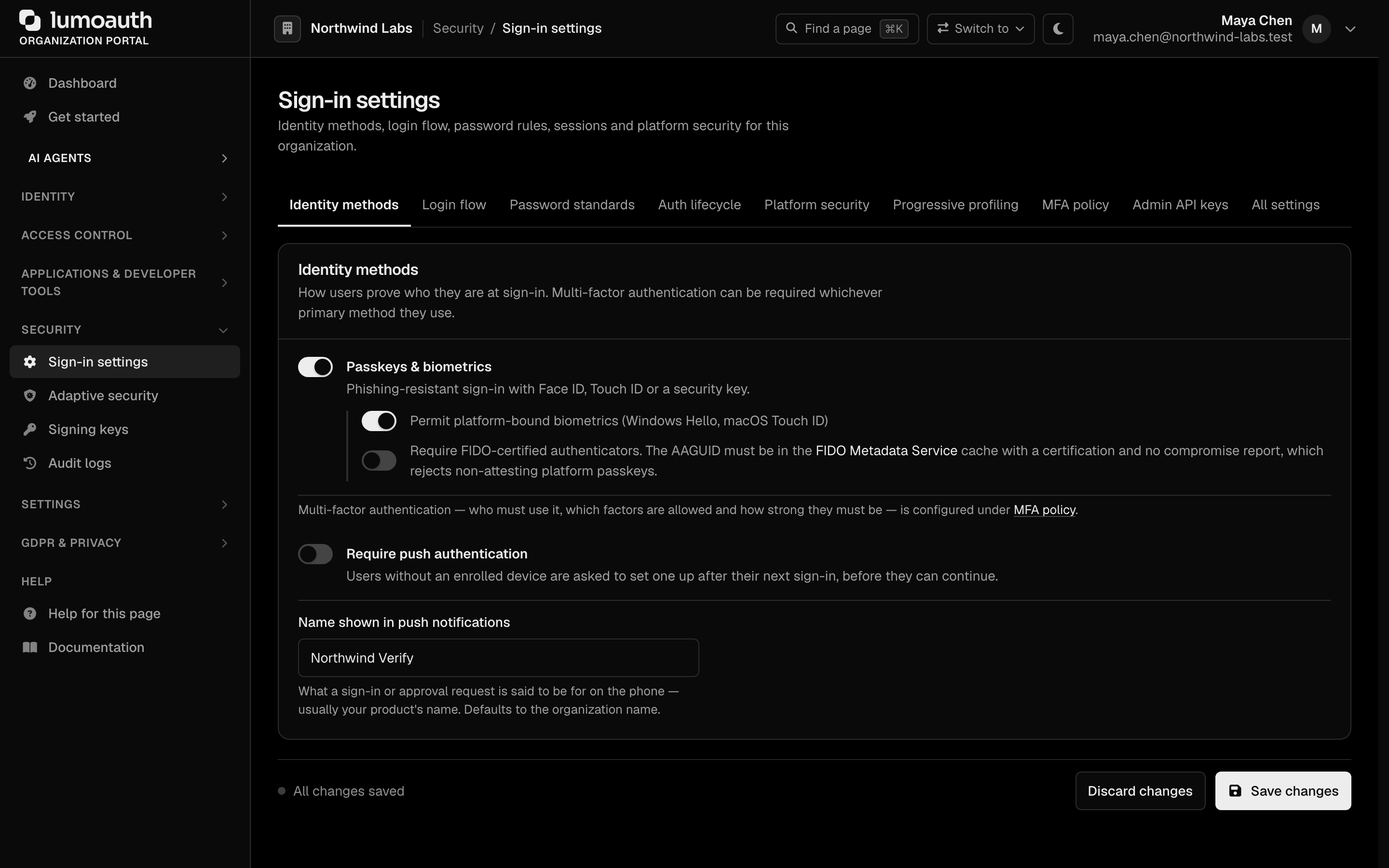
### Available Settings
The page is split into sections; the ones that control sign-in are:
| Section | Settings |
|---------|-------------|
| **Identity methods** | **Passkeys & biometrics** (passwordless sign-in with passkeys, and enrollment) and **Require push authentication** |
| **Login flow** | **Email-first login** and **Magic link login** |
| **Password standards** | A standard template (Fair, Moderate, Strict or Custom), minimum length and character requirements |
| **Auth lifecycle** | **Session timeout**, **Password rotation interval**, **Enforce periodic password resets** and **Reject passwords found in known breaches** (with **Minimum breach count** and **Also check at sign-in**) |
| **MFA policy** | Who must use MFA, the allowed factors, and what happens on a risky sign-in by a user without MFA (allow / prompt for MFA setup / email verification / block) |
Risk-based adaptive authentication is configured on its own page, **Security → Adaptive security** (`/orgs/{orgId}/portal/settings/adaptive-auth`) — see [Adaptive MFA](https://docs.lumoauth.dev/user-guide/authentication/adaptive-mfa).
---
## Choosing the Right Authentication Method
### For Consumer Applications (B2C)
Start with **Email/Password** or **Magic Link**, plus **Social Login** for low-friction signup. Add **Adaptive MFA** to protect high-risk logins without adding friction for normal users.
### For Business Applications (B2B)
Use **Enterprise SSO** (SAML 2.0 or OIDC) so employees can log in with their corporate identity provider. Layer on **MFA** enforcement for compliance.
### For Machine-to-Machine
Use the **Client Credentials** grant type — no user interaction needed. See [OAuth Clients](https://docs.lumoauth.dev/oauth/clients) and [Applications Overview](https://docs.lumoauth.dev/user-guide/applications/overview).
### For CLI Tools and IoT
Use the **Device Authorization Flow** — display a code on the device, user authenticates on their phone or computer.
---
## Security Features Across All Methods
Regardless of which authentication method you choose, LumoAuth provides:
- **Brute-force protection** — rate limiting on login attempts.
- **CSRF protection** — all forms include CSRF tokens.
- **Secure password hashing** — a strong adaptive hash (Argon2id or bcrypt), selected automatically by Symfony's password hasher.
- **Login attempt logging** — every attempt is recorded in the audit log.
- **Session management** — track and revoke active sessions.
- **Email verification** — prevent account takeover via unverified emails.
---
## Next Steps
Choose an authentication method to learn more:
- [Email & Password](https://docs.lumoauth.dev/user-guide/authentication/email-password)
- [Magic Link & Email-First](https://docs.lumoauth.dev/user-guide/authentication/magic-link)
- [Social Login](https://docs.lumoauth.dev/user-guide/authentication/social-login)
- [Multi-Factor Authentication](https://docs.lumoauth.dev/user-guide/authentication/mfa)
- [Adaptive MFA](https://docs.lumoauth.dev/user-guide/authentication/adaptive-mfa)
- [Passkeys & WebAuthn](https://docs.lumoauth.dev/user-guide/authentication/passkeys)
- [Push Authentication](https://docs.lumoauth.dev/user-guide/authentication/push-auth)
- [Enterprise SSO](https://docs.lumoauth.dev/user-guide/authentication/enterprise-sso)
- [Device Authorization Flow](https://docs.lumoauth.dev/user-guide/authentication/device-flow)
## Standards used on this page
| Plain name | Standard |
|---|---|
| Device authorization (sign in on another device) | RFC 8628 |
See the [standards reference](https://docs.lumoauth.dev/reference/standards) for what each one covers and how LumoAuth uses it.
---
# Identity Federation
Source: https://docs.lumoauth.dev/federation
What LumoAuth can federate with — enterprise OIDC and SAML identity providers, social logins, LDAP, and workload identity — and where each is documented.
Federation content is split across several guides to match the two audiences that it
serves:
- **Human users from an external IdP (identity provider: Okta, Microsoft Entra ID, ADFS, Google Workspace, OneLogin, Ping, JumpCloud, Duo):** [Enterprise SSO](https://docs.lumoauth.dev/user-guide/authentication/enterprise-sso) and the [SAML 2.0 API](https://docs.lumoauth.dev/saml)
- **AI agents and workloads running in cloud infrastructure (K8s, AWS, GCP):** [Workload Federation](https://docs.lumoauth.dev/agents/workload-federation)
- **Token exchange (swapping one token for another) between identity domains:** [Chain of Agency](https://docs.lumoauth.dev/agents/delegation)
The rest of this page is a directory of everything that an organization can federate
with today.
## Enterprise SSO connectors (OIDC)
Add these from **Organization portal → Settings → Integrations → Enterprise
SSO (OIDC) → Add a provider** (the vendor tiles; the last tile is the generic
form for any other OpenID Connect provider). Each connector asks only for the vendor-specific fields that it
needs, derives the issuer from them, and fetches
`{issuer}/.well-known/openid-configuration` to fill in the authorization,
token, userinfo, JWKS and end-session endpoints. The discovery fetch is
SSRF-checked and IP-pinned; you can override any endpoint by hand.
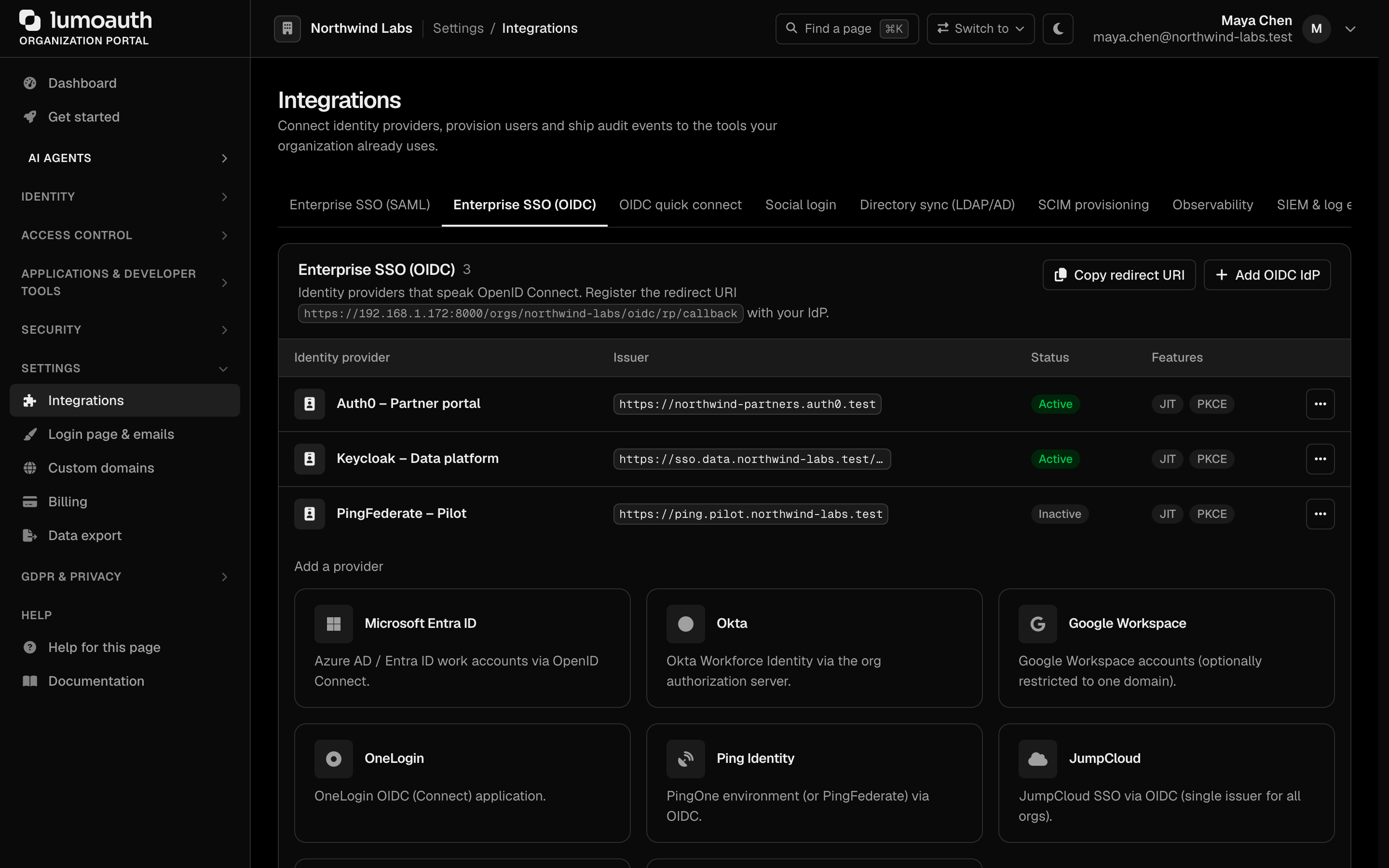
| Connector | Vendor fields | Issuer |
|---|---|---|
| **Microsoft Entra ID** | Directory (tenant) ID | `https://login.microsoftonline.com/{tenant}/v2.0` |
| **Okta** | Okta domain (optionally `…/oauth2/default`) | `https://{domain}` |
| **Google Workspace** | Workspace domain (optional, restricts the `hd` claim) | `https://accounts.google.com` |
| **OneLogin** | OneLogin subdomain | `https://{subdomain}.onelogin.com/oidc/2` |
| **Ping Identity** | PingOne environment ID + auth domain (`auth.pingone.com`, `.eu`, `.ca`, `.asia` or a custom domain) | `https://{auth domain}/{env id}/as` |
| **JumpCloud** | — (single issuer for all orgs) | `https://oauth.id.jumpcloud.com` |
| **Cisco Duo SSO** | Duo SSO subdomain (the `sso-xxxxxxxx` part) | `https://sso-{id}.sso.duosecurity.com/oidc/{client_id}` |
Each connector page shows the redirect URI to paste into the vendor console
plus the vendor's own setup steps. Saving creates a real configuration for an
OIDC IdP, so the connection appears in the OIDC table and users can sign
in with it immediately. The generic **Add OIDC IdP** form is still there for
providers without a preset.
## SAML 2.0
LumoAuth is both a SAML Service Provider (SP: it accepts sign-ins from your customers' identity providers) and a SAML Identity Provider (IdP: it signs users into SAML applications). See
[SAML SP](https://docs.lumoauth.dev/saml/sp) and [SAML IdP](https://docs.lumoauth.dev/saml/idp). As an SP, LumoAuth requires
inbound single-logout messages to be signed by the IdP, and binds each user to the
IdP that issued their NameID. It links or provisions accounts only for each
IdP's **Allowed email domains** (see [How SAML users are matched](https://docs.lumoauth.dev/user-guide/authentication/enterprise-sso#how-saml-users-are-matched)).
## Social logins
Configure these under **Settings → Integrations → Social login** (click
**Add provider**). Each provider needs an
OAuth client that you create at the vendor, the redirect URI that LumoAuth shows you, and
(optionally) a scope override — sensible defaults are filled in per provider.
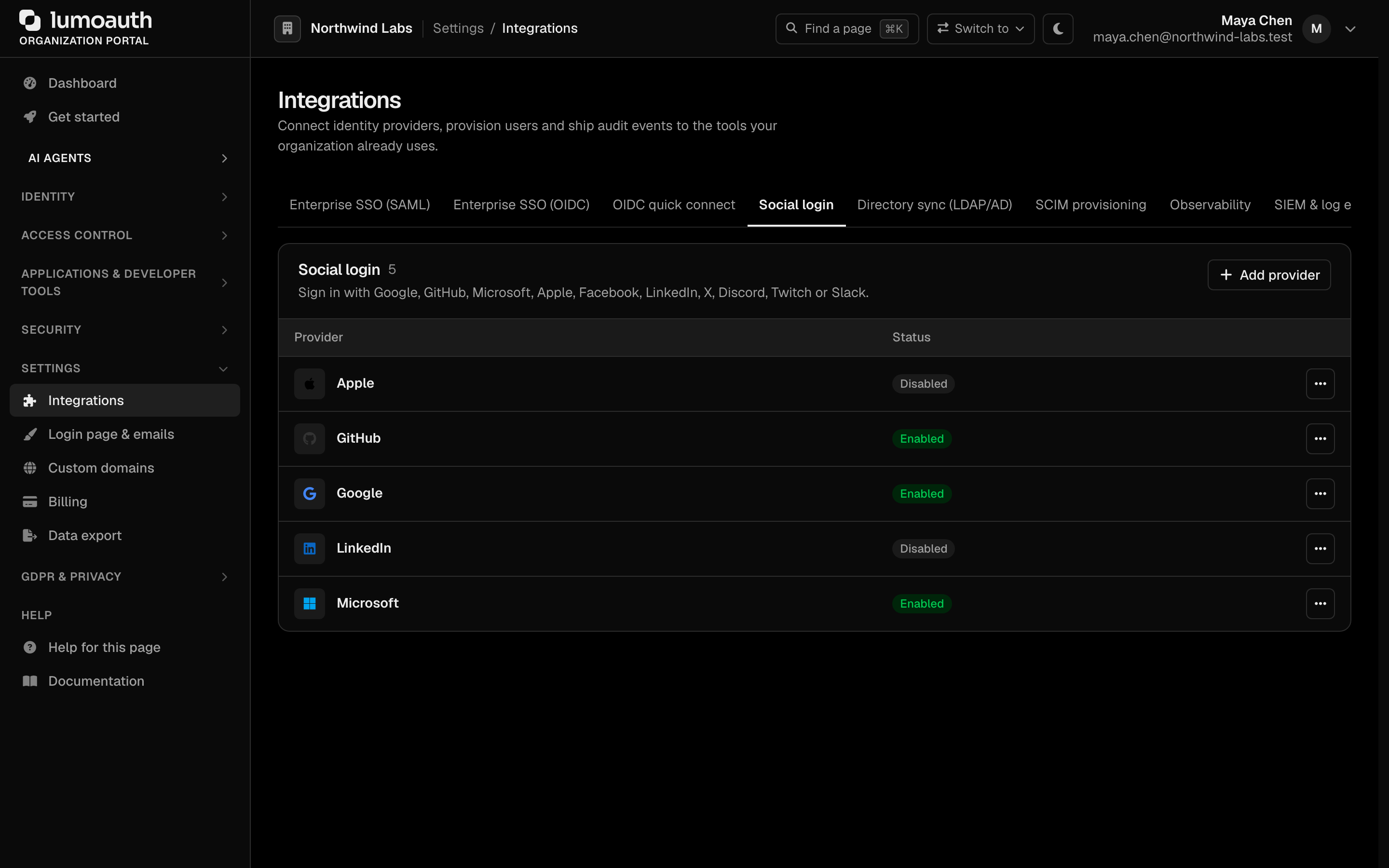
| Provider | Default scopes | Identity source | E-mail |
|---|---|---|---|
| **Google** | `openid profile email` | Verified ID token | Yes, verification asserted |
| **Microsoft** | `openid profile email User.Read` | Verified ID token | Yes |
| **Apple** | `name email` | Verified ID token | Yes, verification asserted |
| **Facebook** | `email public_profile` | Graph `/me` | Yes, verification not asserted |
| **LinkedIn** | `r_liteprofile r_emailaddress` | `/v2/me` + `/v2/emailAddress` | Yes, verification not asserted |
| **GitHub** | `read:user user:email` | `/user` + `/user/emails` | Primary verified address only |
| **X** (formerly Twitter) | `users.read tweet.read` | `/2/users/me` | **No** — see below |
| **Discord** | `identify email` | `/users/@me` | Yes; `verified` is honoured |
| **Twitch** | `user:read:email` | Helix `/helix/users` | Yes, verification not asserted |
| **Slack** | `openid profile email` | Verified ID token (Sign in with Slack) | Yes, verification asserted |
Notes:
- **X requires PKCE.** LumoAuth generates an S256 code challenge for X
automatically and authenticates the token request with HTTP Basic, as X
requires. No configuration is needed.
- **X never returns an e-mail address.** LumoAuth provisions users by e-mail,
and linking a provider requires its e-mail to match the signed-in account's.
So X can currently neither create nor be linked to an account.
- **Twitch** is called through the Helix API, which needs the app client id
alongside the access token; LumoAuth sends it for you.
- **Slack** is a real OIDC provider: the ID token is signature-verified against
Slack's JWKS and preferred over the userinfo endpoint.
- Providers that do not assert e-mail verification are treated as unverified.
LumoAuth does not auto-link them onto a pre-existing account, and a new
account that they create stays inactive until the user verifies the address from
the e-mailed link. Verifying from another browser drops the social link. See
[Unverified provider emails](https://docs.lumoauth.dev/user-guide/authentication/social-login#unverified-provider-emails).
- Linking a provider (by the signed-in account owner) requires the provider's
e-mail to match the account's e-mail. The callback URL is always generated by
LumoAuth; provider error text is logged, never shown to users.
- A social sign-in runs the same account checks as a password sign-in
(deleted, blocked, inactive and locked users are refused) and creates a
regular, revocable session. Default roles granted on first sign-in can never
be administrator roles; see [Social Login](https://docs.lumoauth.dev/user-guide/authentication/social-login#default-roles).
## Directory sync
- **LDAP / Active Directory** — direct bind authentication with attribute
mapping and JIT provisioning. The directory must be reachable at a public
address, its TLS certificate is always verified, and empty passwords are
never sent to the directory; see [Enterprise SSO](https://docs.lumoauth.dev/user-guide/authentication/enterprise-sso#connection-rules).
Accounts are linked by directory and DN; an e-mail match only adopts an
account that nothing else owns (see [How LDAP users are matched](https://docs.lumoauth.dev/user-guide/authentication/enterprise-sso#how-ldap-users-are-matched)).
- **Inbound SCIM 2.0** (System for Cross-domain Identity Management, the
standard for syncing users and groups between systems) — an upstream IdP
provisions users and groups into LumoAuth; see [SCIM](https://docs.lumoauth.dev/scim).
- **Outbound SCIM 2.0** — LumoAuth provisions downstream apps, with
[vendor presets](https://docs.lumoauth.dev/integrations/scim-presets) for Okta, Entra, OneLogin,
JumpCloud, Google Workspace, Salesforce, GitHub, Slack, Zoom and Atlassian.
- **HRIS sync** — the HR system is the source of truth for joiners, movers and
leavers; see [HRIS sync](https://docs.lumoauth.dev/integrations/hris-sync).
## Workload and agent identity
- [Workload Federation](https://docs.lumoauth.dev/agents/workload-federation) — Kubernetes, AWS, GCP, Azure, GitHub OIDC and SPIFFE.
- [Chain of Agency](https://docs.lumoauth.dev/agents/delegation) — token exchange between identity domains.
## Standards used on this page
| Plain name | Standard |
|---|---|
| Token exchange (delegation) | RFC 8693 |
| SAML 2.0 | OASIS SAML 2.0 |
| SCIM 2.0 (user and group provisioning) | RFC 7642, RFC 7643 and RFC 7644 |
| LDAP authentication | RFC 4513 |
See the [standards reference](https://docs.lumoauth.dev/reference/standards) for what each one covers and how LumoAuth uses it.
---
# Email & Password Authentication
Source: https://docs.lumoauth.dev/user-guide/authentication/email-password
Email and password is the most common authentication method: users register with an email address and password, then log in with those credentials. LumoAuth stores passwords using a strong adaptive hash (Argon2id or…
Email and password is the most common authentication method: users register with an email address and password, then log in with those credentials. LumoAuth stores passwords using a strong adaptive hash (Argon2id or bcrypt, selected automatically by Symfony's password hasher). It enforces a password policy that you configure, can require email verification, and integrates with MFA (multi-factor authentication) and adaptive risk scoring.
---
## How It Works
1. **Registration** — user provides email, name, and password.
2. **Email verification** — LumoAuth sends a verification email with a unique link.
3. **Login** — user enters email and password.
4. **MFA (if configured)** — second factor challenge.
5. **Session created** — user receives tokens and a session cookie.
---
## Configuration
Navigate to **Security → Sign-in settings** at:
```
/orgs/{orgId}/portal/settings/authentication
```

### Registration
Users self-register at the organization's `/orgs/{orgId}/register` page (see [User Registration Flow](#user-registration-flow) below). If you prefer accounts to be created only by admins or through invitations, do not show the registration link in your application; create users via the portal instead.
### Email Verification
Self-registered accounts must verify their email address before they can log in; the Sign-in settings page has no switch for this. For a self-service sign-up:
- A verification email is sent immediately after registration.
- Users cannot log in until they click the verification link.
- Verification links are valid for 24 hours.
- Users can request a new verification email, signed in or not (see [Resending the verification email](#resending-the-verification-email)).
- A self-service sign-up that is never verified is deleted **48 hours** after it was created (by `app:cleanup-expired-tokens`), which frees the address again.
### Password Policy
Configure password requirements in the **Password standards** section. Choose a **Standard template** (**Fair**, **Moderate**, **Strict** or **Custom**); the individual rules can only be edited after picking **Custom**:
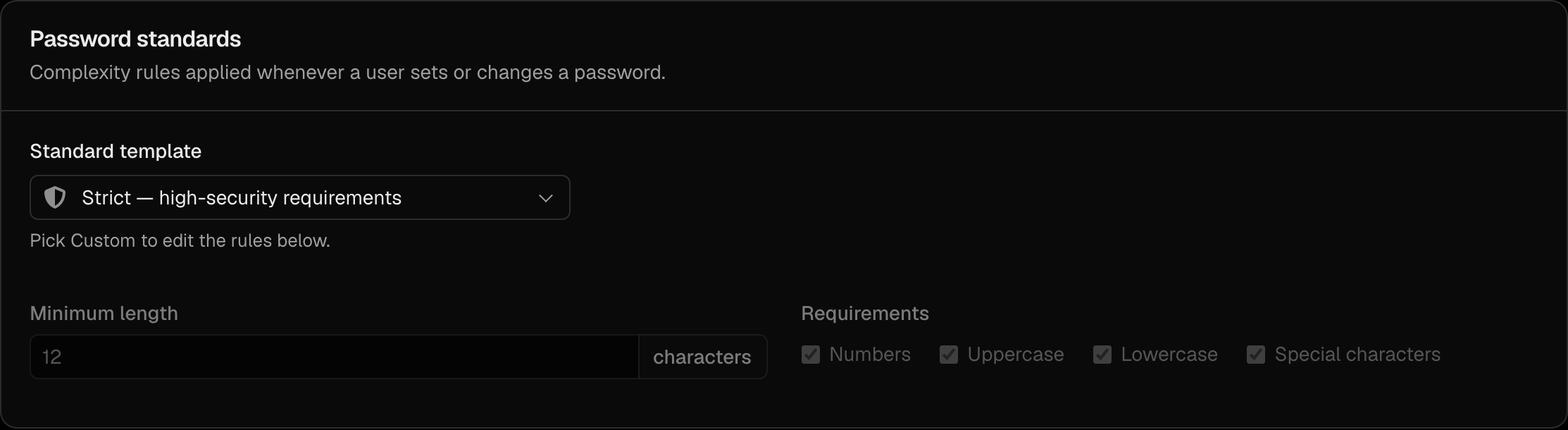
| Setting | Description | Recommended |
|---------|-------------|-------------|
| **Minimum length** | Minimum number of characters | 12+ |
| **Uppercase** | At least one uppercase letter | Yes |
| **Lowercase** | At least one lowercase letter (new; the **Strict** template turns it on) | Yes |
| **Numbers** | At least one digit | Yes |
| **Special characters** | At least one symbol | Optional |
Passwords are hashed with a strong adaptive algorithm (Argon2id or bcrypt) before storage — plaintext passwords are never written to disk.
The organization's policy and the breached-password check apply to every way of setting a password. That includes self-registration, reset, change, and an admin setting a password in the portal (creating a user needs a password; an empty one is refused). It also includes `POST /admin/users` with a `password` (a user created without one signs in without a password or sets one from a link), SCIM (automatic user provisioning), and accepting an invitation to a customer organization (the inviting organization's policy applies).
---
## User Registration Flow
### Self-Registration
Users can register at the organization's registration page, which the **Create one** link on the login page opens:
```
/orgs/{orgId}/register
```
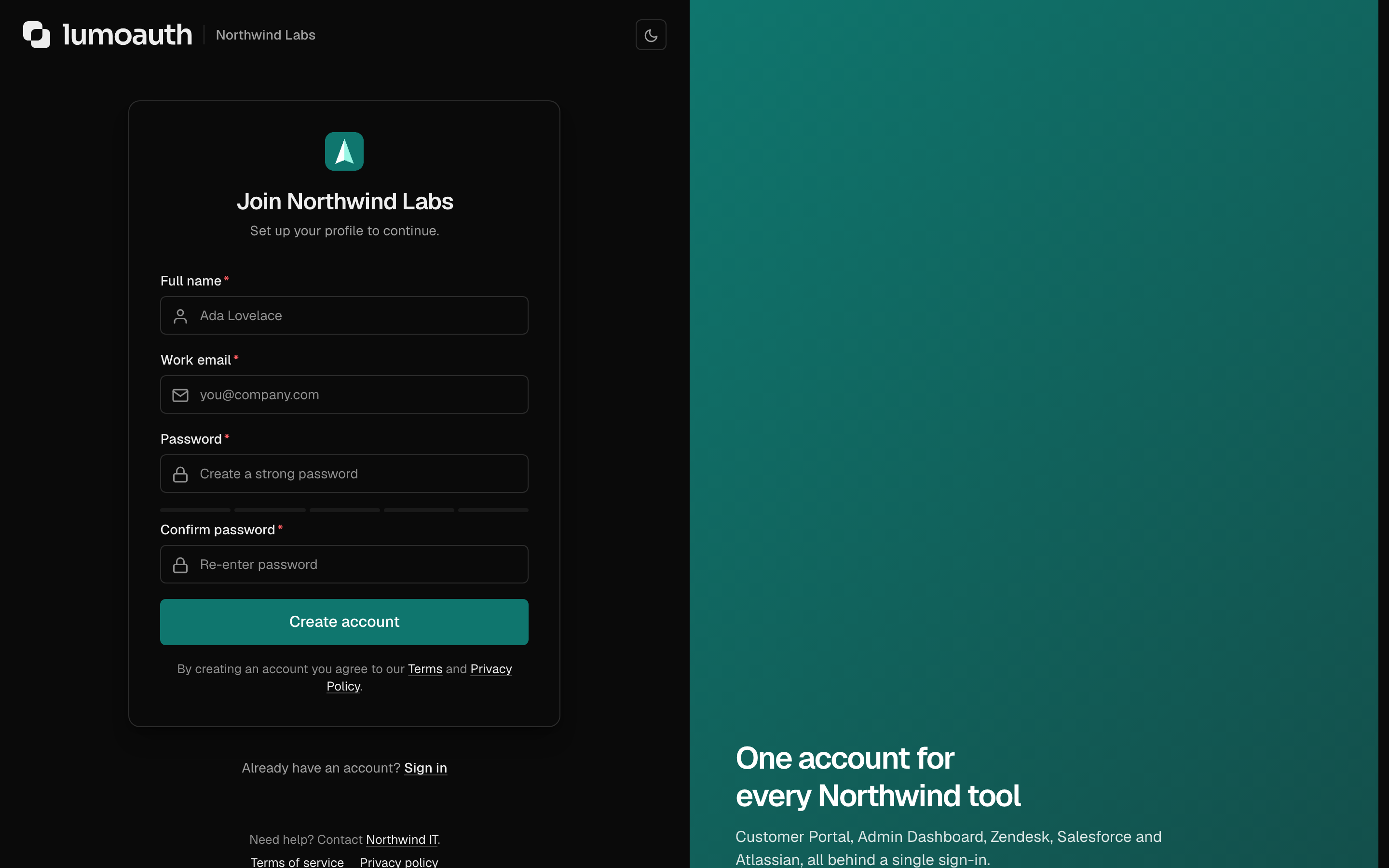
The registration form collects:
- Full name
- Work email
- Password, entered twice (validated against the password policy)
After registration:
1. A link to verify the email address is sent. The account stays inactive until then.
2. The user sees "Thanks! Check your email to finish setting up your account."
3. Clicking the verification link activates the account.
The response is the same whether or not the address already has an account in this organization, so the form cannot be used to find out who is registered:
- **Address with an existing account in this organization:** no account is created. The owner receives an **Account already exists** email with a sign-in link and a password-reset link.
- **Address with an unverified sign-up waiting:** the verification link is sent again.
Both emails are limited to 3 per address per hour. Addresses are compared case-insensitively.
Accounts are unique **per organization**. An address that already has an account in another organization can still sign up here or accept this organization's invitation. It then gets a separate account with its own password and factors. The public **Create an organization** sign-up (`/register`) is the one exception: an address can create only one organization. A second attempt is answered like a repeat sign-up (the owner is told by email) and creates nothing. Being invited into further organizations always works.
An invitation can claim an address that is only held by an unverified self-service sign-up. The pending sign-up is removed when the invitation is accepted, so nobody can block an invite by registering the address first.
### Resending the verification email
| Where | Who | Behaviour |
|-------|-----|-----------|
| `/verify-email/resend` | Anyone (not signed in) | Enter the address; a new link is sent if it has a sign-up waiting for verification. Always answers "If that address has an account waiting for verification, we've sent a new verification link." Limited to 3 per address and 20 per IP per hour. |
| `/resend-verification` | The signed-in user | Opens a confirm page; the `POST` (with CSRF token) sends the link. |
| `/account/forgot-password` | Anyone | For an address whose sign-up is still unverified, the verification link is sent instead of a reset link. |
### Admin-Created Users
Admins can create users directly at:
```
/orgs/{orgId}/portal/users/create
```
Open **Users** and click **Create user**:
For an admin-created user you:
- Set the first password (required).
- Choose whether the account is **Active**, so the user can sign in as soon as it is created.
- Can assign roles immediately.
### Invited Users
Invite users via email at:
```
/orgs/{orgId}/portal/users/invite
```
Open **Users** and click **Invite users**:
Invitation flow:
1. Admin enters email addresses, an optional personal message, and selects roles.
2. **Send invitations** emails each address a unique, single-use registration link, valid for 7 days.
3. Invited users complete registration (setting their name and password). Their email is already verified.
4. Pre-assigned roles are automatically applied.
---
## Login Flow
The organization's login page is presented at:
```
/orgs/{orgId}/login
```
Or within an OAuth flow:
```
/orgs/{orgId}/api/v1/oauth/authorize?...
```
With **Email-first login** on, the page asks for the email first and shows the password field on the next step:
When the user has more than one way to sign in (for example a passkey or the LumoAuth app), the next step first offers a choice of methods. Social sign-in buttons appear below them if the organization has enabled any. Choosing **Use password** shows the password field:
### Login Process
1. User enters their email, then their password (both on one form when **Email-first login** is off).
2. LumoAuth checks the credentials against the stored password hash.
3. If MFA is enabled → redirect to the MFA challenge.
4. If adaptive auth is enabled → a risk score is calculated:
- Low risk → login succeeds.
- Medium risk → MFA challenge is triggered.
- High risk → login is blocked.
5. On success → authorization code or session is issued.
### Hosted login page for OAuth applications
Inside an OAuth flow the sign-in page is one of two:
| Page | When | Where credentials go |
|------|------|----------------------|
| Organization login page | Default | `/orgs/{orgId}/login`, then back to `/authorize` |
| Application's branded login page | **Applications → your app → Branding → Login page → Enable custom login page** is on | `POST /orgs/{orgId}/api/v1/oauth/login/submit` |
Both pages share one set of protections:
| Protection | Behaviour |
|------------|-----------|
| CSRF token | Every submit carries a token (`oauth_login` on the branded page). A missing or stale token sends the user back to the form. |
| Client eligibility | The branded page only accepts credentials for an **active** application of this organization that has the custom login page enabled. |
| Rate limiting | Attempts are counted per client IP **and** per e-mail address (5 per 15 minutes). The per-address budget is reserved atomically before the password is checked, so parallel guesses cannot all slip under it. |
| Account lockout | 5 consecutive failures lock the account for 15 minutes. A correct password during the lock still fails and still counts. The lock is scoped to the organization whose sign-in page was used. Accounts are unique per organization, so failures spent against one organization's page never lock the same e-mail address out anywhere else. Another organization, the generic sign-in page and the LumoAuth operator console are unaffected. |
| Uniform failure | Wrong password, unknown e-mail and a locked account all show the same "Invalid credentials" message, so the page cannot be used to discover accounts. Once the attempt budget for the address is spent, the page answers with an **Account Temporarily Locked** notice instead; wait 15 minutes. |
| LumoAuth operators | A LumoAuth operator cannot sign in through your organization's login page unless `allow_root_admin_login` has been enabled for it at your request. Such sign-ins are audited as critical events. |
Applications that render their own sign-in form can post JSON to `POST /orgs/{orgId}/api/v1/oauth/login/json` and receive a machine-readable status (`complete`, `mfa_required` with a `challenge_url`, `invalid_credentials`, `blocked`, `inactive`, `rate_limited`). It establishes the same browser session and never returns tokens; the application then continues to `/authorize`. The full contract is on the [Authorization endpoint](https://docs.lumoauth.dev/oauth/authorize#hosted-login-page) page.
### Failed Login Handling
- Failed attempts are logged in the audit trail with the channel (`form`, `hosted_form`, `json`) and the reason, which is never shown to the user.
- After 5 consecutive failed attempts the account is locked for 15 minutes; the lock clears itself.
- Rate limiting per IP and per e-mail address slows brute-force attacks.
- Unknown e-mail addresses are handled exactly like wrong passwords (same message, same timing) so the form cannot be used to enumerate users.
- A lockout is audited as `account.locked` and raises a high security alert to your [alert channels](https://docs.lumoauth.dev/integrations/alerting).
### Signing out
The hosted "Sign out" links carry a CSRF token; a bare request to `/logout` is refused with `403`. Applications should sign users out through the OpenID Connect `end_session_endpoint` instead, see [Logout](https://docs.lumoauth.dev/oauth/logout).
---
## Password Reset
Users can reset their password with the **Forgot password?** link on the login page, or directly at:
```
/account/forgot-password
```
When the link comes from an organization's login page (`/orgs/{orgId}/login`) or from the reset email, it carries `?orgId={orgId}`. The reset pages then show the organization's name in the header and title. **Back to sign in** and the post-reset redirect return to that organization's login page rather than the generic `/login`. The same applies to the email-verification link.
### Reset Flow
1. User enters their email address.
2. LumoAuth sends the password-reset email, which carries a secure, time-limited token. The page always answers "If an account exists with this email, you will receive password reset instructions."
3. User clicks the link and sets a new password (checked against the password policy).
4. The user's other sessions and OAuth tokens are revoked, and the owner gets a password-changed notice.
Completing a reset proves the user controls the mailbox, so it also marks the email as verified. If the account was created through a social provider that did not verify the address, LumoAuth removes the social link, MFA factors, passkeys and push devices added before that point (audited as `account.pre_verification_bindings_dropped`).
### Security Measures
- Reset links are valid for 15 minutes.
- Tokens are single-use.
- The reset link contains a cryptographically random token.
- Requests are limited per IP and email, and per email address alone (5 per hour), so rotating IPs cannot flood one inbox. A throttled request gets the same neutral answer.
### Re-entering the current password
Some forms ask for the current password inside a signed-in session: change password, change email, delete account and forced password change. They are limited per user to 5 per 15 minutes. The budget is spent before the password is compared, so once it is used up even the right password is refused until the window ends. Wrong passwords count toward the [account lockout](#failed-login-handling) exactly like failed sign-ins, and a locked account cannot use these forms. On change password, change email and delete account, users who hold an MFA factor pass step-up first, so a session without fresh MFA cannot test password guesses at all.
---
## Email Templates
Customize the emails sent during authentication under **Settings → Login page & emails → Email templates**:
```
/orgs/{orgId}/portal/settings/email-templates
```
Available templates:
| Template | Sent When |
|----------|-----------|
| **Email Verification** | Account needs email verification |
| **Password Reset** | User requests a password reset |
| **User Invitation** | An admin invites a user to the organization |
| **MFA Code** (`mfa_code`) | A one-time code is delivered by email (MFA, multi-factor authentication, step-up or a risky sign-in) |
| **Magic Link** | A passwordless sign-in link is requested |
| **Organization Invitation** (`org_invitation`) | A user is invited to join a customer organization |
| **Password Changed** | A user's password was changed |
| **Account Exists** (`account_exists`) | Someone tries to register with an address that already has an account |
---
## Related Guides
- [Multi-Factor Authentication](https://docs.lumoauth.dev/user-guide/authentication/mfa) — add a second factor to email/password login
- [Adaptive MFA](https://docs.lumoauth.dev/user-guide/authentication/adaptive-mfa) — risk-based MFA enforcement
- [Social Login](https://docs.lumoauth.dev/user-guide/authentication/social-login) — add social login buttons alongside email/password
- [Magic Link & Email-First](https://docs.lumoauth.dev/user-guide/authentication/magic-link) — passwordless alternative
---
# Login Troubleshooting
Source: https://docs.lumoauth.dev/user-guide/authentication/troubleshooting
Fixes for the most common sign-in and OAuth errors, from "Invalid credentials" to redirecturi and state mismatches.
## Signing in to LumoAuth
| Symptom | Likely cause | Fix |
|---|---|---|
| "Invalid credentials" right after signing up | The email address has not been verified yet. For security, the message is the same as for a wrong password. | Open the verification email, or use **Resend the verification email** under the login error. |
| "Invalid credentials" for an existing user | Wrong password, blocked or deactivated account, or an account locked after repeated failures. | Use **Forgot password**. Once the attempt budget is spent you may see an **Account Temporarily Locked** page instead; wait 15 minutes. An admin can check **Security → Audit logs** and filter by the user. |
| Asked to verify your email on sign-in | LumoAuth treated the sign-in as unusual (new device or location). | Enter the 10-character code from the email. Letters are not case-sensitive. |
| The verification code never arrives | Mail delivery or the spam folder. | Wait a minute, check spam, then choose **Resend**. Codes expire after 10 minutes. |
| The magic link opens a confirmation page | By design. It stops mail scanners from using up the link. | Click **Sign in** on that page. |
| Nothing happens after entering your email | JavaScript is blocked. | Enable JavaScript, or use the plain sign-in form shown when scripts are off. |
## OAuth and OIDC errors in your application
| Error | Meaning | Fix |
|---|---|---|
| `redirect_uri` mismatch or "invalid redirect URI" | The URI in the request is not an exact, character-for-character match with one registered on the application. | Add the exact URI (scheme, host, port, path, trailing slash) on the application's configuration page. See [Redirect URI rules](https://docs.lumoauth.dev/oauth/authorize#redirect-uri-rules). |
| `invalid_client` | Wrong client ID or secret, the client is disabled, or it belongs to a different organization. | Check the credentials and the organization ID in the URL. Regenerate the secret if it was lost. |
| `invalid_grant` | The authorization code was used twice or expired, the PKCE verifier does not match, or a refresh token was revoked. | Start the sign-in again. Use each code once, immediately. |
| `access_denied` | The user declined consent, or a policy blocked the request. | Ask the user to retry, or check the application's access policy. |
| `state` mismatch in your app | The `state` that your app stored does not match the one returned. | Generate a fresh `state` per sign-in and keep it in the user's session, not a global variable. |
| `403` on the Admin API with a user token | The token carries `openid profile email` only. | Use an [API key](https://docs.lumoauth.dev/user-guide/applications/api-keys) with the scopes that you need. |
## Still stuck?
1. Open **Test login** (under **Applications & developer tools**) in the portal and click **Start test login** to run a clean sign-in against your organization.
2. Decode your token in the **JWT inspector** and compare the issuer with the one on **Endpoints & metadata**.
3. Check **Security → Audit logs** for the failed attempt, and see [Error codes](https://docs.lumoauth.dev/api-reference/errors).
---
# Magic Link & Email-First Login
Source: https://docs.lumoauth.dev/user-guide/authentication/magic-link
Magic link is a passwordless sign-in method: the user enters their email address, LumoAuth emails a single-use link, and opening the link and confirming signs them in. LumoAuth also supports an email-first login…
Magic link is a passwordless sign-in method: the user enters their email address, LumoAuth emails a single-use link, and opening the link and confirming signs them in. LumoAuth also supports an **email-first** login pattern, where the user enters their email as the first step and the next step (password, magic link, push) is shown. The next step depends only on the organization's settings, never on whether the address has an account.
Use magic link when you want a low-friction passwordless flow (common in consumer apps). Use email-first when you want a single email field before the other sign-in options.
---
## Magic Link Authentication
### How It Works
1. User enters their email on the login page.
2. LumoAuth emails a secure, time-limited link to that address.
3. The user opens the link. It shows a **Continue signing in** page; opening the link alone signs nobody in.
4. The user confirms with **Sign in**. The confirm is a `POST` with a CSRF token. It uses the token, signs the user in and redirects to your app.
5. The link is invalidated after first use.
The confirm step exists because mail scanners and link previewers fetch links in incoming mail. A plain `GET` no longer uses up the single-use token.
The email is never required to be registered: the server always responds with "check your inbox" regardless of whether the address exists, which prevents user enumeration.
---
### Enabling Magic Link
Configure magic links under **Security → Sign-in settings**, in the **Login flow** section:
```
/orgs/{orgId}/portal/settings/authentication
```
| Setting | Description |
|---------|-------------|
| **Magic link login** | Allow users to request a sign-in link instead of entering a password. Turning it on reveals the two options below. |
| **Hide password login and show the magic link form only** | Disable password login entirely — users must always use a magic link |
| **Link expiry** | How long the link is valid, in seconds: 60 to 86400, default 900 (15 minutes) |
Click **Save changes** to apply. Turning **Magic link login** off also stops links that were already sent. Both the confirm page and the confirm `POST` check the setting again, and the user is sent back to the sign-in page.
:::info Magic link only mode
When **Hide password login and show the magic link form only** is enabled, the password field is hidden on the login page. This is mutually exclusive with password authentication — you cannot enable both at the same time for the same organization.
---
### Login Page Behaviour
When magic link is enabled, the login page shows an **Email me a magic link instead** button alongside the password field. In magic-link-only mode it shows an **Email me a magic link** button instead of the password field. After the user submits their email:
- They are redirected to a **"Check your inbox"** confirmation page.
- The page shows the email address that was used and a hint to check spam.
- A **try again** link takes them back to the login page to start over.
---
### Security Considerations
| Concern | Mitigation |
|---------|-----------|
| Link interception | Links are single-use and expire after a period that you set |
| User enumeration | The server always responds with success, whether or not the email is registered |
| Replay attacks | Tokens are invalidated immediately after first use |
| Mail scanners / link previews | Opening the link only shows a confirm page; the token is used by the `POST` from that page |
| Magic links turned off | Links already in inboxes stop working as soon as the setting is off |
| Phishing | Links contain a cryptographically random token — no credentials are transmitted |
| Email delivery delay | You can set the token expiry to allow for delayed delivery |
---
## Email-First Login Flow
The email-first flow presents a single email input as the first step. After the user submits their email, the page shows the sign-in options that the **organization** offers. These are password, magic link, push (when anyone in the organization has an enrolled device), and **Sign in with a passkey** (when passkeys are on). Every address gets the same next step. An unknown address fails at the password step exactly like a wrong password, so the flow does not reveal which addresses have accounts or which factors they use.
### Enabling Email-First
Turn on **Email-first login** in the **Login flow** section of **Security → Sign-in settings** (shown above), then **Save changes**:
```
/orgs/{orgId}/portal/settings/authentication
```
When enabled, the login page shows only an email field initially. The next step is shown after the email is submitted. When off, email and password appear together.

---
## Email Templates
Customize the magic link email under **Settings → Login page & emails → Email templates** (click **Customise** on the **Magic Link** row):
```
/orgs/{orgId}/portal/settings/email-templates
```

The **Magic Link** email template supports the following variables:
| Variable | Description |
|----------|-------------|
| `{{magic_url}}` | The sign-in link (required) |
| `{{user_name}}` | The recipient's display name |
| `{{tenant_name}}` | Your organization's display name |
| `{{expires_in}}` | Human-readable expiry (e.g. "15 minutes") |
---
## Server Endpoints
These endpoints are called by LumoAuth's login page. You can also call them directly when building a custom login UI using the SDK.
### Request a Magic Link
```http
POST /orgs/{orgId}/magic-link
Content-Type: application/x-www-form-urlencoded
email=user%40example.com&_target_path=%2Fdashboard
```
| Parameter | Required | Description |
|-----------|----------|-------------|
| `email` | Yes | The user's email address |
| `_target_path` | No | Path to redirect to after login (e.g. `/dashboard`) |
**Response:** an HTML confirmation page is returned. The server always responds with HTTP 200 regardless of whether the email is registered.
---
### Email-first options
Used by email-first flows to determine what to show after the user submits their email.
```http
POST /orgs/{orgId}/check-email
Content-Type: application/x-www-form-urlencoded
email=user%40example.com
```
**Response:** the same for every address in the organization.
```json
{
"exists": true,
"has_push_device": true,
"has_passkey": false,
"magic_link_enabled": true,
"passkey_enabled": true,
"password_enabled": true,
"masked_email": ""
}
```
| Field | Type | Description |
|-------|------|-------------|
| `exists` | `boolean` | Always `true`. Kept for older clients; it says nothing about the address |
| `has_push_device` | `boolean` | Anyone in the organization has an enrolled push device (push initiation answers every address the same way) |
| `has_passkey` | `boolean` | Always `false`; show **Sign in with a passkey** when `passkey_enabled` is `true` |
| `magic_link_enabled` / `passkey_enabled` | `boolean` | Organization settings |
| `masked_email` | `string` | Always empty; show the address that the user typed |
When `has_push_device` is `true` the response also carries `push_initiate_url`, `push_status_url` and `push_login_url`. The endpoint is rate-limited per IP and per target address (`429`) and protected by a CAPTCHA with the `login` placement (`403` with `captcha_error`).
---
## SDK Integration
### TypeScript / JavaScript
Use the `AuthModule` from `@lumoauth/client` to send magic links and implement email-first flows in custom UIs:
```typescript
import { AuthModule } from '@lumoauth/client';
const auth = new AuthModule({
baseUrl: 'https://app.lumoauth.dev',
orgId: 'acme-corp',
clientId: 'your-client-id',
});
// Send a magic link
await auth.requestMagicLink({ email: 'user@example.com' });
// Optional: redirect the user to a specific page after clicking the link
await auth.requestMagicLink({
email: 'user@example.com',
redirectUri: 'https://myapp.com/dashboard',
});
// Email-first: `exists` is always true (the answer never depends on the
// address), so always continue to the password / magic-link step.
await auth.checkEmailExists('user@example.com');
```
### React SDK
The `@lumoauth/react` SDK provides purpose-built hooks for both flows:
#### `useMagicLink()`
Manages loading/sent/error state for the magic link form:
```tsx
import { useMagicLink } from '@lumoauth/react';
function MagicLinkForm() {
const [email, setEmail] = useState('');
const { sendMagicLink, isLoading, isSent, error, reset } = useMagicLink();
if (isSent) {
return (
Check your inbox — we sent a sign-in link to {email}.
);
}
return (
);
}
```
#### `useEmailFirst()`
Implements the email-first check step. The server answers `exists: true` for every address, so `onNewUser` is only reached if the request fails; send new users to sign-up from a separate link rather than from this check.
```tsx
import { useEmailFirst } from '@lumoauth/react';
function EmailStep({
onKnownUser,
onNewUser,
}: {
onKnownUser: (email: string) => void;
onNewUser: (email: string) => void;
}) {
const [email, setEmail] = useState('');
const { checkEmail, isLoading } = useEmailFirst();
async function handleSubmit(e: React.FormEvent) {
e.preventDefault();
const exists = await checkEmail(email);
if (exists) {
onKnownUser(email);
} else {
onNewUser(email);
}
}
return (
);
}
```
---
## Related Guides
- [Email & Password Authentication](https://docs.lumoauth.dev/user-guide/authentication/email-password) — traditional credential-based login
- [Social Login](https://docs.lumoauth.dev/user-guide/authentication/social-login) — OAuth-based login via external providers
- [Multi-Factor Authentication](https://docs.lumoauth.dev/user-guide/authentication/mfa) — add a second factor to any login method
- [SDKs & Libraries](https://docs.lumoauth.dev/developer/sdks) — TypeScript, React, and Python SDK reference
---
# Social Login
Source: https://docs.lumoauth.dev/user-guide/authentication/social-login
Social login lets users sign in with an existing account from an external identity provider such as Google, GitHub, or Microsoft. LumoAuth handles the OAuth / OpenID Connect (OIDC) handshake with the provider, creates…
Social login lets users sign in with an existing account from an external identity provider such as Google, GitHub, or Microsoft. LumoAuth handles the OAuth / OpenID Connect (OIDC) handshake with the provider, creates or links a local user account, and then issues its own tokens to your application. This reduces registration friction and improves conversion.
---
## Supported Providers
| Provider | Protocol | Data Returned |
|----------|----------|----------|
| **Google** | OAuth 2.0 / OIDC | Email, profile, avatar |
| **GitHub** | OAuth 2.0 | Email, profile, organization membership |
| **Microsoft** | OAuth 2.0 / OIDC | Email, profile, Azure AD integration |
| **Facebook** | OAuth 2.0 | Email, profile, friends list |
| **Apple** | OAuth 2.0 / OIDC | Email (private relay), name |
| **LinkedIn** | OAuth 2.0 | Email, profile, professional info |
The **Provider type** list in the portal also offers **X**, **Discord**, **Twitch** and **Slack**. The list shows each provider's key capitalised, so GitHub appears as **Github** and LinkedIn as **Linkedin**. Any other OpenID Connect provider is added as an OIDC identity provider under **Enterprise SSO (OIDC)**, see [Enterprise SSO](https://docs.lumoauth.dev/user-guide/authentication/enterprise-sso#openid-connect-oidc-federation). Google and Microsoft providers have an **Additional configuration** section (**Hosted domain** for Google, **Tenant ID** for Microsoft). The Google hosted domain is enforced, not just hinted. The verified ID token's `hd` claim must equal it, and the account's e-mail must be in that domain. Otherwise the sign-in is refused and no account is provisioned.
---
## How It Works
1. **User clicks a social login button** on your login page.
2. **Redirect to provider.** LumoAuth redirects to the provider's authorization page.
3. **User authenticates** at the provider.
4. **Provider callback.** The provider redirects back to LumoAuth with an authorization code.
5. **Account linking.** LumoAuth creates or links a local user account.
6. **Token issuance.** LumoAuth issues its own OAuth tokens to your application.
### Account Linking Behavior
When a user authenticates via social login:
- **New user, provider verified the email:** a LumoAuth account is created and signed in (JIT provisioning).
- **New user, provider did not verify the email** (`email_verified` missing or false): the account is created **inactive** and the user is sent a verification link ("Almost there — we sent a link to your email address. Verify it, then sign in again."). Until the link is used the account cannot sign in, and it is deleted after 48 hours if never verified. See [Unverified provider emails](#unverified-provider-emails).
- **Existing user (same email):** linked only when the provider verified the email, the existing account's email is verified, and the account has no local password, other provider or other sign-in source. Otherwise the sign-in is refused with "An account with this email already exists. Please sign in with your original method to link this provider."
- **Multiple social accounts:** a user can link multiple social providers to one account from the **Sign in with other accounts** section of **Sign-in & security** in their account.
### Unverified provider emails
Some providers (or a custom OIDC provider) may return an address that the user has not proven they own. Such an address is only a claim, so LumoAuth does not let it become a working account until the mailbox owner verifies it:
- Opening the verification link **in the same browser** that started the social sign-up keeps the social link; the user then signs in with the provider again.
- Opening it **in another browser** verifies the email but drops the social link, because the person who signed in at the provider may not own the mailbox.
- Verifying the email or completing a password reset on such an account removes everything attached while the email was unproven. That includes the social link, MFA (multi-factor authentication) factors, passkeys and push devices, plus sessions and OAuth tokens. This is audited as `account.pre_verification_bindings_dropped`.
Sign-in with Google, Microsoft or GitHub on LumoAuth's own `/login` and `/register` pages follows the same rule. For providers that return a verified ID token, the ID-token claims take precedence: the userinfo response can only fill in profile fields that the ID token lacks, never `sub`, `iss`, `aud`, `email` or `email_verified`.
---
## Configuration
### Organization-Level Social Login
Social login providers are managed from the **Integrations** page (**Settings → Integrations**):
```
/orgs/{orgId}/portal/integrations
```
(The older `/orgs/{orgId}/portal/social-login` path now redirects here.) In the **Social login** section, click **Add provider** to register a new provider.
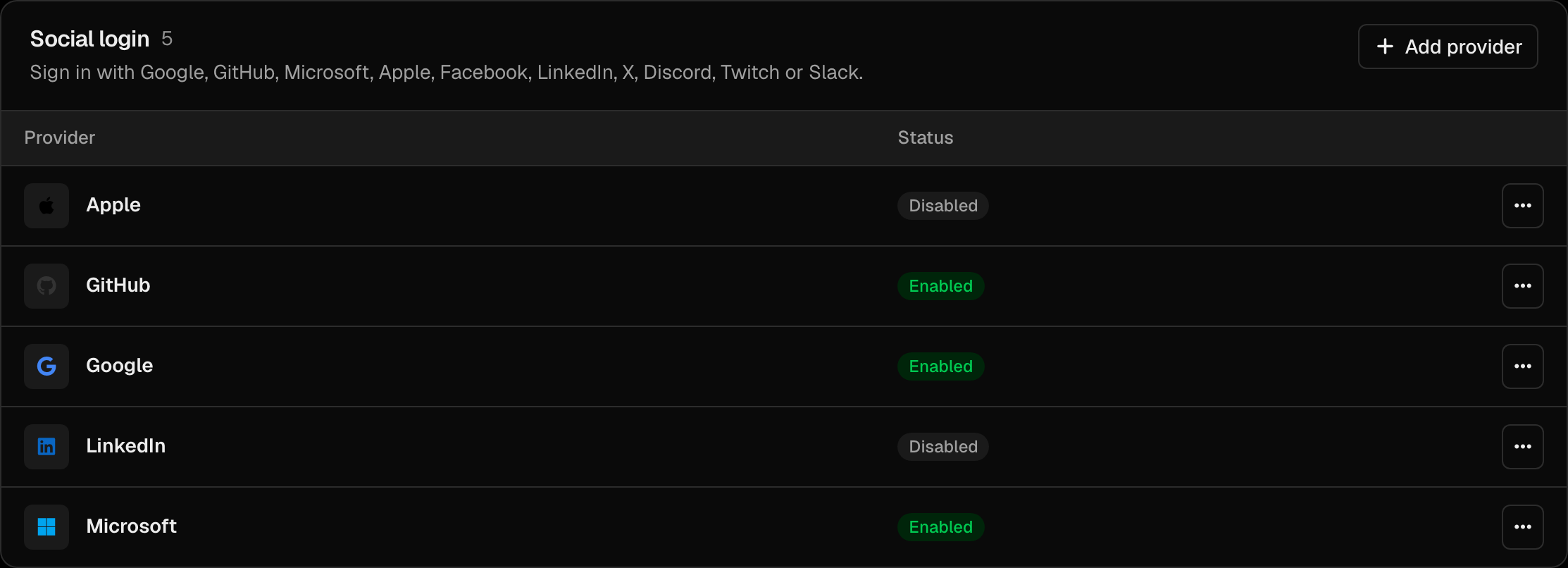
On the **Add social login provider** form, pick the **Provider type** (each provider can be added once per organization). You will need:
1. **Client ID** — from the provider's developer console.
2. **Client secret** — from the provider's developer console.
3. **Requested scopes** — what data to request (email, profile, etc.). Filled in with the provider's defaults when you pick one.
The form also has an optional **Display name** for the "Sign in with…" button, an **Enable immediately** switch, **Default roles** and **Enable for OAuth apps**.
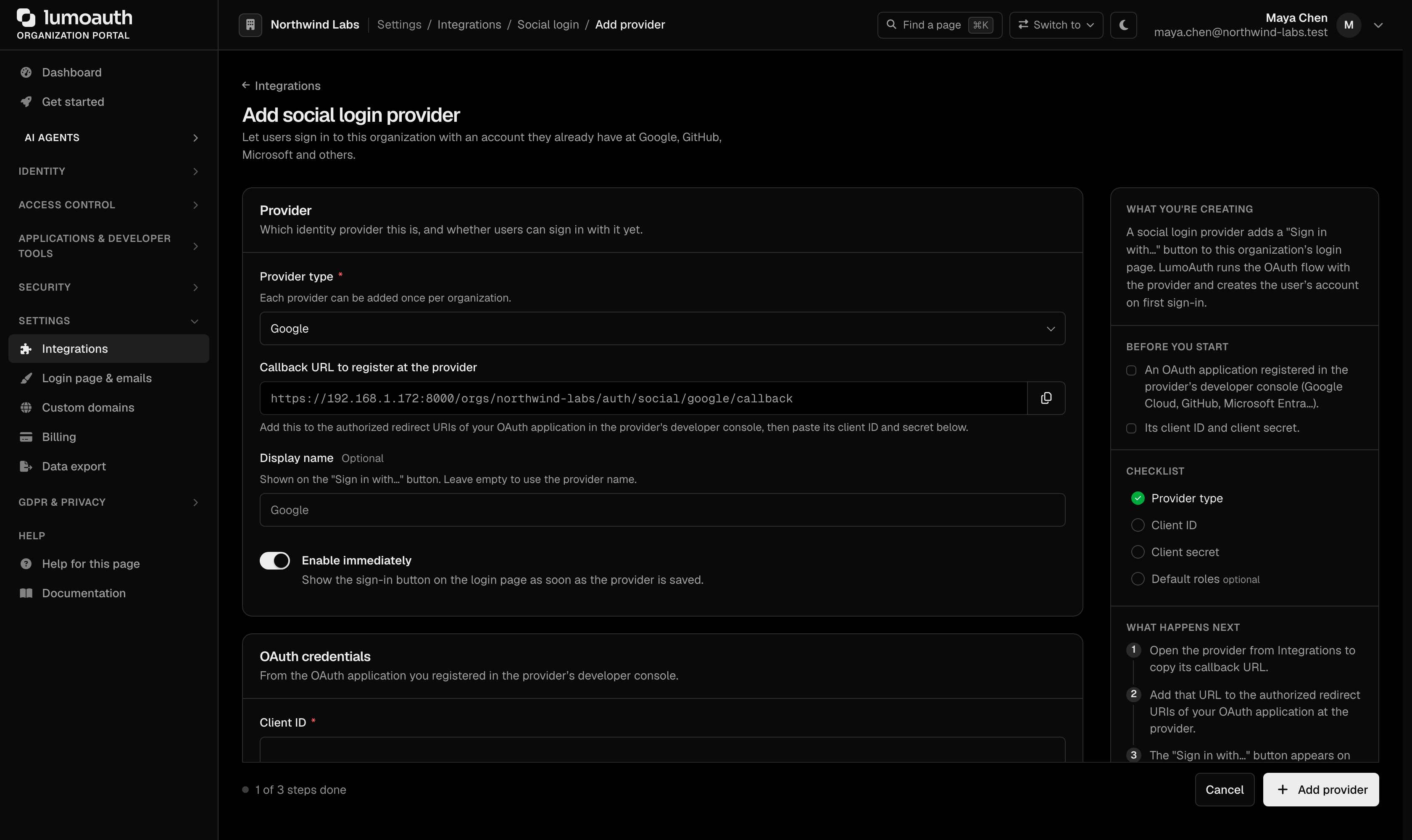
The **callback URL** (the redirect URI that you register with the provider) is generated by LumoAuth from the organization's route. It is shown on the provider form once a provider type is selected. It cannot be changed; the Admin API ignores a `callbackUrl` in the request body.
### Per-Application Social Login
You can also configure social login on a per-application basis at:
```
/orgs/{orgId}/portal/applications/oidc/{clientId}/social-login
```
To get there, open the application under **Applications**, go to the **Security** tab and click **Configure social login** in the **Authentication** section. This lets different OAuth clients within the same organization show different social login buttons.
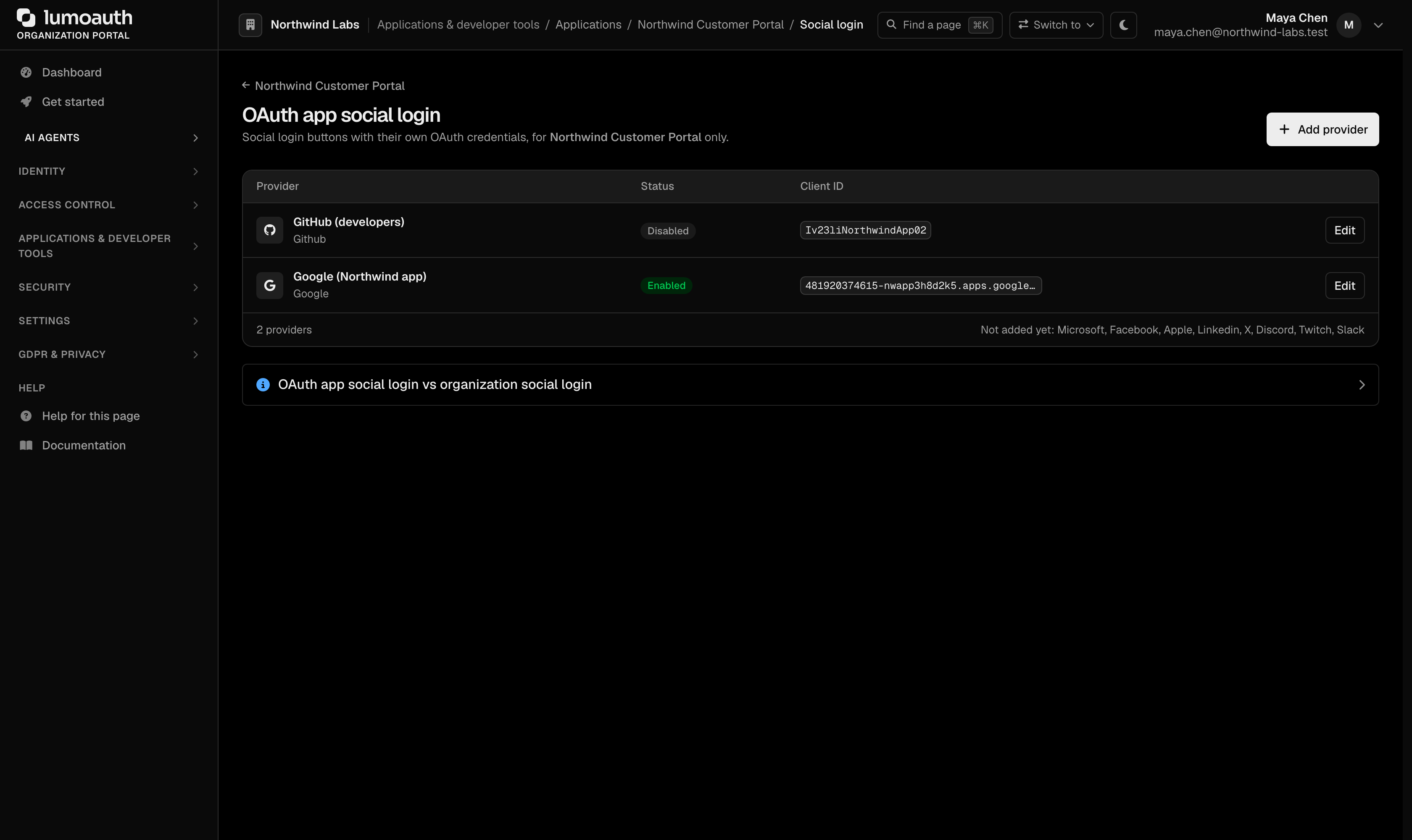
---
## Setting Up Google Login
### 1. Create Google OAuth Credentials
1. Go to the [Google Cloud Console](https://console.cloud.google.com).
2. Create a new project or select an existing one.
3. Navigate to **APIs & Services → Credentials**.
4. Click **Create Credentials → OAuth client ID**.
5. Select **Web application**.
6. Add the authorized redirect URI:
```
https://your-domain.com/orgs/{orgId}/auth/social/google/callback
```
7. Copy the **Client ID** and **Client Secret**.
### 2. Configure in LumoAuth
1. Go to `/orgs/{orgId}/portal/integrations`.
2. In the **Social login** section, click **Add provider** and choose **Google** as the **Provider type**.
3. Enter the Client ID and Client secret.
4. Leave **Enable immediately** on and click **Add provider**.
---
## Setting Up GitHub Login
### 1. Create GitHub OAuth App
1. Go to [GitHub Developer Settings](https://github.com/settings/developers).
2. Click **New OAuth App**.
3. Set the authorization callback URL:
```
https://your-domain.com/orgs/{orgId}/auth/social/github/callback
```
4. Copy the **Client ID** and **Client Secret**.
### 2. Configure in LumoAuth
1. Go to `/orgs/{orgId}/portal/integrations`.
2. In the **Social login** section, click **Add provider** and choose **Github** as the **Provider type**.
3. Enter the credentials and click **Add provider**.
---
## Setting Up Microsoft Login
### 1. Register in Azure AD
1. Go to the [Azure Portal](https://portal.azure.com) → **App registrations**.
2. Click **New registration**.
3. Add the redirect URI:
```
https://your-domain.com/orgs/{orgId}/auth/social/microsoft/callback
```
4. Under **Certificates & secrets**, create a new client secret.
5. Note the **Application (client) ID** and **Client Secret**.
### 2. Configure in LumoAuth
1. Go to `/orgs/{orgId}/portal/integrations`.
2. In the **Social login** section, click **Add provider** and choose **Microsoft** as the **Provider type**.
3. Enter the credentials and click **Add provider**.
---
## Social Login URLs
Each social provider has organization-specific authentication URLs:
```
Initiate: /orgs/{orgId}/auth/social/{provider}
Callback: /orgs/{orgId}/auth/social/{provider}/callback
Link: /orgs/{orgId}/auth/social/{provider}/link (link a provider to the signed-in user; the provider email must match the account's email)
Unlink: /orgs/{orgId}/auth/social/{provider}/unlink (POST)
```
Where `{provider}` is: `google`, `github`, `microsoft`, `facebook`, `apple`, `linkedin`, `x`, `discord`, `twitch`, `slack`.
---
## User Experience
When social login is enabled, the login page displays:
1. **Social login buttons** — one button per enabled provider.
2. **Email/password form** — standard credential login (if enabled).
3. **Separator** — visual "or" divider between social and credential login.
Users who sign up via social login can later:
- Set a password (for email/password login as well).
- Link additional social accounts.
- Remove linked social accounts (from the settings page of their account).
---
## Account Settings
Users can manage their linked social accounts on the **Sign-in & security** page of their account. The **Sign in with other accounts** section has **Link** / **Unlink** buttons; it is shown when the user has a linked account or the organization has a provider that they can link. The page is at:
```
/account/security
```
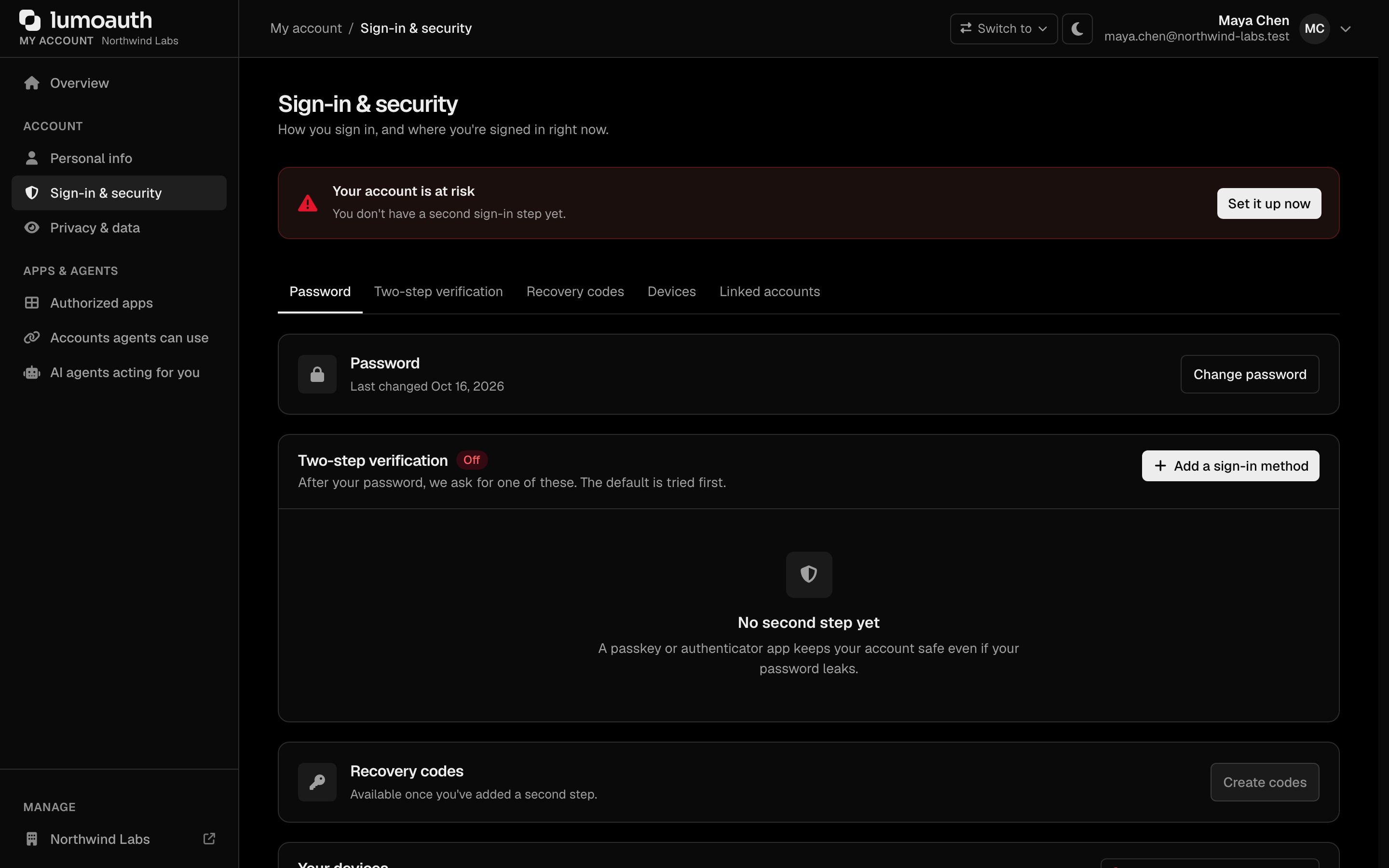
From here they can:
- View all linked social accounts.
- Link new social providers.
- Unlink social providers (if they have another login method).
---
## Just-In-Time (JIT) Provisioning
When a user authenticates via social login for the first time, LumoAuth automatically:
1. Creates a new user account in the organization.
2. Populates the user profile with data from the social provider.
3. Links the social account to the new user.
4. Assigns the provider's **default roles**, if any are configured.
If a user with the same email already exists, the social account is linked to the existing user instead of creating a duplicate.
### Default roles
Each provider can carry a list of roles. Every account that the provider provisions receives those roles. Set them on the provider form (portal) or with `defaultRoles` in the [Social Providers API](https://docs.lumoauth.dev/api-reference/social-providers). Because anyone who can sign in through the provider gets these roles, they follow the [no privilege gain](https://docs.lumoauth.dev/user-guide/access-control/roles-permissions#no-privilege-gain) rule:
- A **system role** or a role that **confers administrator authority** is refused. That means a role holding permissions such as `users.create`, `roles.edit`, `idps.create`, `settings.manage`, `jit.approve` (full list in the roles guide). The portal shows *Role "X" is a system or administrative role and cannot be used as a social-login default role*; the API returns `400`.
- The administrator saving the form must **hold every permission in the role**. Otherwise: *Cannot use role "X" as a default role: it contains permissions you do not hold*.
- A rejected request leaves the provider's existing default roles untouched.
- At sign-in time LumoAuth checks again and skips any privileged role that somehow ended up in the list, logging a warning.
To give a social sign-up administrative rights, provision the account first and then assign the role in the portal.
### Sign-in checks and sessions
A social sign-in goes through the same account checks as a password sign-in. A soft-deleted, blocked, inactive or temporarily locked user cannot get in through Google or GitHub either, and sees the same generic error. If the account has MFA enabled, the second factor is still required.
Each social sign-in creates a regular session that appears at `/account/sessions` and in the session list of the Admin API. Idle and absolute timeouts, *revoke all sessions* and administrator revocation apply to it exactly as to any other session. See [Sessions](https://docs.lumoauth.dev/user-guide/user-management/sessions).
---
## Security Considerations
- **State parameter.** LumoAuth uses the OAuth `state` parameter to prevent CSRF attacks.
- **PKCE.** When supported by the provider, PKCE is used for additional security.
- **Token storage.** Social provider tokens are encrypted in the database.
- **Scope minimization.** Only request the minimum scopes needed.
- **Linking checks first.** The link flow resolves the provider identity without creating any account. It is refused when that identity already belongs to another user. It is also refused when the provider returns an email that differs from the signed-in account's email ("This social account uses a different email address than yours, so it cannot be linked."). Providers that return no email at all, such as X, can be linked by a signed-in user.
- **No provider text on the page.** An `error` / `error_description` returned by the provider is logged, not shown; users see a generic sign-in error.
---
## Troubleshooting
- **"Role ... cannot be used as a social-login default role" when saving a provider.** The role is a system role or grants an administrative permission. Pick a role limited to application permissions, or assign the administrator role to the user afterwards.
- **"it contains permissions you do not hold".** You can only hand out what you have. Ask an administrator with the full permission set to save the provider, or trim the role.
- **A deactivated user could sign in with Google before, and now cannot.** Expected: social sign-in now runs the standard pre-authentication checks. Reactivate the user if this is unintended.
- **"Almost there — we sent a link to your email address".** The provider did not verify the address. The user opens the link (ideally in the same browser), then signs in with the provider again. Links can be re-sent from `/verify-email/resend`.
- **Linking a provider fails with "different email address".** When the provider returns an email, it must match the signed-in account's email. Change one of them, or sign in with the provider as a separate user.
- **Social sessions were missing from the sessions page.** They are listed now; sessions created before this change do not have a record and simply expire.
---
## Related Guides
- [Authentication Overview](https://docs.lumoauth.dev/user-guide/authentication/overview) — all authentication methods
- [Enterprise SSO](https://docs.lumoauth.dev/user-guide/authentication/enterprise-sso) — SAML and OIDC for corporate IdPs
- [Multi-Factor Authentication](https://docs.lumoauth.dev/user-guide/authentication/mfa) — add MFA on top of social login
- [Roles & Permissions](https://docs.lumoauth.dev/user-guide/access-control/roles-permissions) — the no-privilege-gain rule behind default roles
---
# Multi-Factor Authentication (MFA)
Source: https://docs.lumoauth.dev/user-guide/authentication/mfa
MFA (multi-factor authentication) asks users for a second proof of identity after their first sign-in step. LumoAuth supports passkeys (sign-in with a device biometric or security key), push approval in the LumoAuth…
MFA (multi-factor authentication) asks users for a second proof of identity after their first sign-in step. LumoAuth supports **passkeys** (sign-in with a device biometric or security key), **push approval in the LumoAuth app**, **authenticator apps (TOTP, time-based one-time codes)**, **text-message codes** and **email codes**. Single-use **recovery codes** cover the case where a user loses their factors. Each factor has a strength tier. Your organization's MFA policy determines who must use MFA, which factors are allowed and how strong they must be.
The model is "recommend, don't enumerate": LumoAuth proposes one best factor for the user's device, starts the user's default factor automatically at sign-in, and keeps the alternatives one click away. For risk scoring of individual sign-ins, see [Adaptive MFA](https://docs.lumoauth.dev/user-guide/authentication/adaptive-mfa).
---
## Factors and strength tiers
Every enrolled factor is an **authenticator** with a type, a display name, a state and a tier. Tier 1 is strongest.
| Tier | Label | Factor type | What the user does | `amr` values |
|---|---|---|---|---|
| **T1** | Strongest | `passkey` | Confirms with fingerprint, face, screen lock or security key. Phishing-resistant. | `hwk`, `user` |
| **T2** | Strong | `push` | Taps the matching number in the LumoAuth app, unlocked with biometrics or passcode. | `swk`, `user` |
| **T3** | Standard | `totp` | Types the 6-digit code from an authenticator app (Google Authenticator, 1Password, …). | `otp` |
| **T4** | Basic | `sms_otp` | Types a 6-digit code received by text message. | `sms` |
| **T4** | Basic | `email_otp` | Types a 6-digit code received by email. | `otp` |
| Recovery | Recovery | `recovery_code` | Types one of 10 single-use codes saved at enrollment. Recovery only. | `otp` |
Rules that follow from the tiers:
- **Email codes do not count as a second factor** unless the organization turns on `email_otp_counts_as_mfa`. An inbox is often protected by the same password.
- **Recovery codes never satisfy a sign-in policy on their own.** Using one starts [account recovery](#recovery).
- **A passkey counts as both factors** (passwordless sign-in) while `passwordless_passkey` is on, which is the default.
- When several factors qualify, LumoAuth challenges the user's **default** factor. If the default is weaker than the required tier, it picks the strongest of the user's factors that meets the tier.
- A new factor becomes the default automatically when it is stronger than the current default (for example, adding a passkey to an account that used TOTP).
Authenticators are addressed by a reference of the form `{type}:{id}`, for example `totp:12`, `passkey:7` or `push:5`. The [MFA API](https://docs.lumoauth.dev/api-reference/mfa) uses these references as ids.
---
## Requirement modes
The organization's **MFA requirement** (policy key `requirement`) determines who is asked to enroll and whether sign-in can finish without a factor.
| Mode | Users without a factor | Users with a factor |
|---|---|---|
| **Off** (`off`) | Never prompted. | Not challenged at sign-in, even if they set one up. |
| **Optional** (`optional`) | Shown **Secure your account** after sign-in, with **Remind me later** (re-prompted after `remind_interval_days`). | Challenged at sign-in unless the device is trusted or adaptive MFA grants a low-risk skip. Medium and high risk always challenge. |
| **Risk-based (recommended)** (`risk_based`, default) | Not prompted at sign-in. They can add a factor any time from **Sign-in & security**. A risky sign-in follows the adaptive-auth setting **Risky sign-ins by users without MFA** (`no_mfa_action`: **Allow**, **Prompt for MFA setup**, **Email verification** or **Block access**). | Same as **Optional**. |
| **Required** (`required`) | Must enroll. During the grace period they can choose **Remind me later**; after it, sign-in does not complete until a factor is enrolled. | Same as **Optional**. Cannot remove their last factor. |
:::note Optional vs. risk-based
The two modes differ only for users **without** a factor. **Optional** invites them to enroll after every sign-in (with a weekly **Remind me later**). **Risk-based** leaves them alone unless a sign-in is scored as risky; then `no_mfa_action` applies. Users **with** a factor are challenged the same way in both modes. Organizations that existed before the MFA policy and did not require MFA are mapped to **Risk-based**.
### Grace period and "Remind me later"
- With **Optional** or **Required**, **Remind me later** hides the prompt for `remind_interval_days` (default **7**, range 1–90). Each deferral is recorded on the user and audited as `mfa.enroll.deferred`.
- With **Required**, each user gets `grace_period_days` (default **14**, range 0–90) counted from the later of their account creation and the moment when the organization switched to **Required**. The screen shows the days left ("You have **5 days** left to set it up"). With a grace period of 0, sign-in is blocked immediately for users without a factor.
- `required_factor_count` = **2** makes the backup step mandatory: users with one factor are sent back to **Secure your account** after sign-in until they add a second one.
### How LumoAuth decides at sign-in
Password, magic-link, social, passkey and push sign-ins run the same decision after the first step succeeds:
1. **Recovery in progress.** A user who recovered their account must enroll a new factor before anything else.
2. **Passkey sign-in.** A passkey with user verification counts as both factors when `passwordless_passkey` is on and passkeys are allowed.
3. **Push sign-in.** A number-matched push approval from the LumoAuth app counts as MFA.
4. **High risk.** A high or critical [adaptive risk](https://docs.lumoauth.dev/user-guide/authentication/adaptive-mfa) level revokes all of the user's trusted devices. If the user holds a passkey or push device, the challenge then requires one of those (tier 2 or stronger).
5. **Policy off, or no factor yet.** No challenge; the enrollment rules above apply (and, for a risky sign-in, `no_mfa_action`).
6. **Trusted device.** A valid trusted-device cookie skips the challenge, unless risk is medium or high.
7. **Adaptive low-risk skip.** Adaptive MFA may skip the challenge for a low-risk sign-in, unless risk is medium or high.
8. Otherwise the user is sent to the **MFA challenge**.
---
## Secure your account (enrollment)
After sign-in, users who must or are invited to enroll (see [Requirement modes](#requirement-modes)) are sent to the **Secure your account** screen. The same screens open from **Sign-in & security → Add a sign-in method**:
```
/auth/secure-account
```
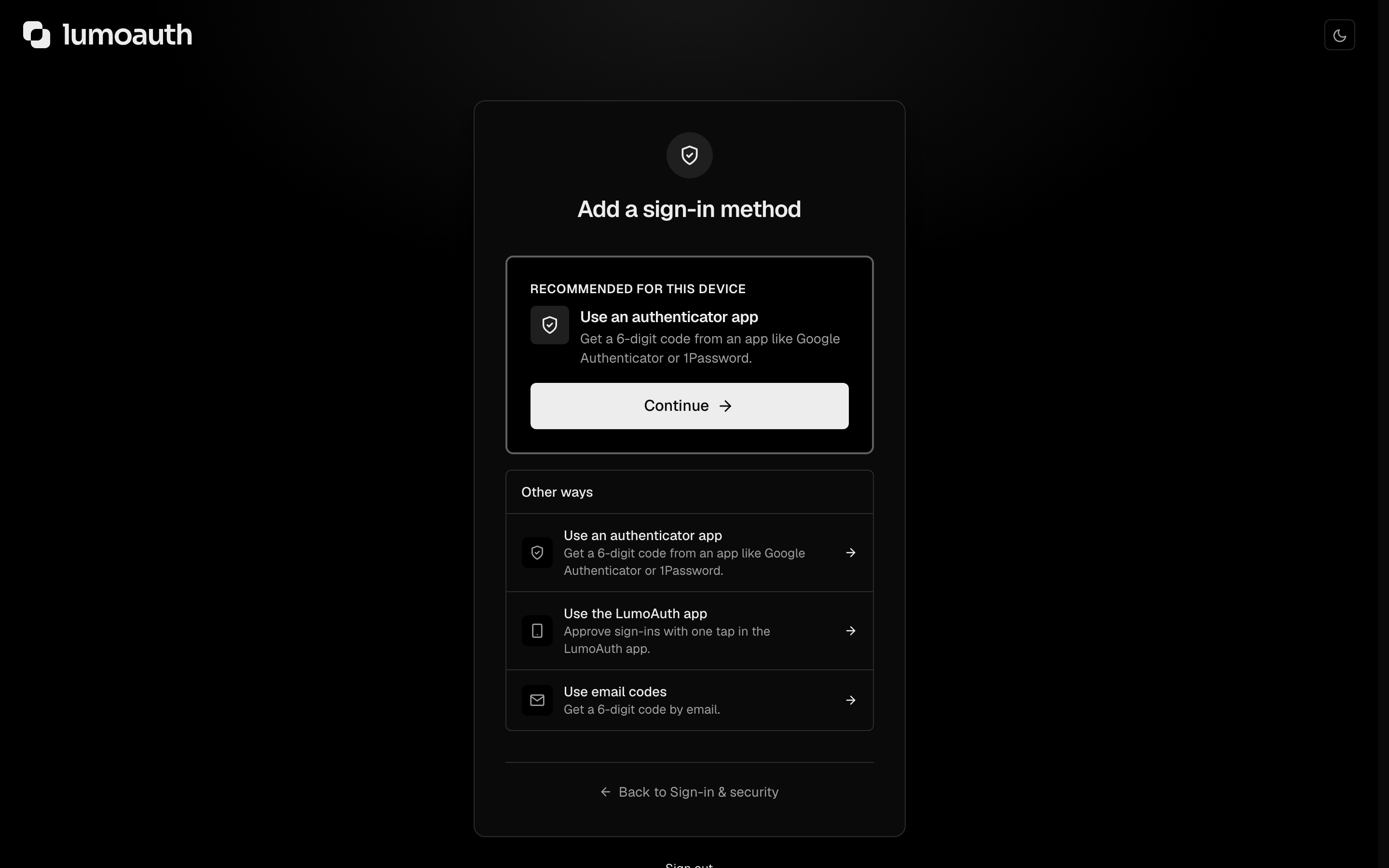
The screen shows **one recommended factor** as the primary action with a one-line benefit, and every other allowed factor under a collapsed **Other ways** list. Factors that the organization does not allow or cannot deliver (no SMS provider configured) are never shown.
### Which factor is recommended
1. **Passkey**, when the browser reports a platform authenticator (Touch ID, Face ID, Windows Hello, Android screen lock). If it does not, the page promotes the next option as **Recommended for this device**.
2. **LumoAuth app (push)**, when the user is on a phone or already has the LumoAuth app enrolled on another device.
3. **Authenticator app (TOTP)**.
4. **LumoAuth app (push)** on desktop, when not already recommended.
5. **Text message**, only after the options above.
6. **Email code**, last, and only when the organization allows it.
### The screens
| Step | Screen | Notes |
|---|---|---|
| 1 | **Secure your account** | Recommended factor + **Other ways**. A passkey is created right here through the OS prompt. **Remind me later** when the policy allows deferral. |
| 2 | Factor setup | One screen per factor, with verification on the same screen (not needed for passkeys). |
| 3 | **Add a backup method** | Offered once, recommending the next-best factor of a different type. **Skip for now** unless the organization requires two factors. |
| 4 | **Save your recovery codes** | Ten codes with **Copy**, **Download** (`.txt`) and **Print**. The user ticks **I've saved these codes** to continue; they never retype a code. Skipped if the user already holds a set. |
| 5 | **Your account is protected** | Summary, then the user continues to where they were going. |
A passkey user therefore sees: Secure your account → Add a backup method → recovery codes → done. An authenticator-app user sees one extra screen (the TOTP setup).
### Setting up each factor
| Factor | Route | What happens |
|---|---|---|
| Passkey | (on `/auth/secure-account`) | **Create a passkey** opens the OS prompt. Cancelling returns to the same screen without an error, with **Try again** and the other ways still available. The passkey is named after the device and browser, for example "Mac – Chrome"; users can rename it later. See [Passkeys](https://docs.lumoauth.dev/user-guide/authentication/passkeys). |
| LumoAuth app | `/auth/secure-account/push` | Desktop shows a QR code; phones get an **Open the LumoAuth app** button. The app then receives a **test notification** with a number that the user must tap; the page continues on its own once it is approved. See [Push Authentication](https://docs.lumoauth.dev/user-guide/authentication/push-auth). |
| Authenticator app | `/auth/secure-account/totp` | QR code, **Can't scan?** (the key in groups of four) and, on phones, **Open in authenticator app** as the primary button. The user types the current code on the same screen. After three wrong codes the page shows a hint to check the phone's automatic date and time. |
| Text message | `/auth/secure-account/sms` | Country preset from the browser language; the number is validated before anything is sent. A 6-digit code arrives by text and is entered on the same screen. See [SMS & email](https://docs.lumoauth.dev/integrations/sms-and-email). |
| Email code | `/auth/secure-account/email` | Only when email codes are allowed. A 6-digit code is sent to the account's email address. |
A setup that is started but never verified expires after **15 minutes** and is discarded. Adding a factor needs a recent sign-in (within 15 minutes) for a user's first factor, and a fresh verification with an existing factor for every later one (see [Step-up](#step-up-for-sensitive-actions)).
The older enrollment URLs (`/auth/mfa-enrollment`, `/auth/mfa-setup`, `/auth/mfa-enrollment/sms`) redirect into this flow.
---
## Signing in with a second factor
The challenge page is at:
```
/login/mfa-challenge
```
- **Auto-start.** The page starts the user's factor immediately: sends the push, sends the text or email, prepares the passkey prompt, or focuses the code field. The factor last used successfully on this browser is preferred over the default (remembered in the `lumo_mfa_last` cookie).
- **Try another way** lists the user's other factors, strongest first, by display name (for example "Text •••• 4821"), plus **Use a recovery code** when the user has codes left.
- **Push.** The page shows a two-digit number; the user taps the same number in the LumoAuth app. The page updates on its own when the request is approved. **Resend** sends a new request with a new number, and **Use a code from the app instead** accepts the app's offline 6-digit code. Push requests for a second factor expire after **60 seconds**.
- **Trust this device for N days** appears when the organization allows trusted devices (see [Trusted devices](#trusted-devices)).
- **I have a temporary access code from my admin** accepts a code issued by an administrator (see [Admin-assisted recovery](#admin-assisted-recovery)).
### Limits
| Limit | Default |
|---|---|
| Wrong answers per challenge | 5, then the user must request a new code or try another way |
| Failed MFA attempts per account | 10 in 15 minutes locks MFA for **15 minutes** ("Verification paused") and emails the user |
| Push requests per user | 3 in 5 minutes; after that another factor is required |
| Denied push requests | 2 denials in 10 minutes suspend push for the user for **30 minutes** |
| Code submissions on the hosted challenge page and the [challenge API](https://docs.lumoauth.dev/api-reference/mfa#challenges) | 10 per 15 minutes per user, one shared budget; **Resend** does not count. The API answers `429 rate_limited` with `Retry-After` |
| Text-message code | 6 digits, valid 5 minutes, 5 attempts; a new code replaces the old one |
| Email code | 6 digits, valid 10 minutes, 5 attempts |
Error messages do not say whether a code was wrong or expired; they tell the user what to do next.
### Upgrade nudge and security check-up
After a sign-in with an authenticator app, text or email code, users who hold no passkey or push device see a one-click offer to add a passkey at `/auth/mfa-upgrade` ("so you don't need codes next time"). The offer appears only if the organization allows passkeys. Dismissing it hides it for `nudge_interval_days` (default **30**). Thirty days after a user's first enrollment, the same page asks them once to confirm that their sign-in methods and recovery codes are still available.
### Tokens
Tokens issued after the challenge carry `amr` (the first-factor method plus the factor used plus `mfa`) and an `acr` value for the strongest tier used. Applications can require a tier with `acr_values`. See [ACR and AMR](https://docs.lumoauth.dev/oauth/authorize#authentication-context-acr-and-amr).
---
## Step-up for sensitive actions
Some actions need a **fresh** verification, within `step_up_max_age_seconds` (default **600**, 10 minutes), even when the user is already signed in:
- adding a sign-in method when the user already has one,
- removing a sign-in method (with a **different** method where the user has one),
- generating new recovery codes,
- changing the password on **Sign-in & security** or the email address on **Personal info** (when the user has a factor; step-up comes before the current password is checked),
- deleting the account (users without a password, such as social, SAML or passkey-only accounts, confirm with step-up alone),
- issuing a temporary access code (the administrator's own verification),
- downloading a personal data export or data-portability file.
In the browser the user is sent to:
```
/auth/step-up?target=/account/security
```
The step-up page starts the user's default factor. If the default is weaker than the organization's **minimum strength for sensitive actions** (`min_tier_step_up`, default T3 — authenticator app or stronger), it starts their strongest factor instead. **Try another way** only lists factors that are strong enough. It returns to `target` once the verification succeeds. A session that already passed MFA within the window is not asked again, under two conditions. **The factor used at that moment** must have been at least that strong (a stronger factor used earlier in the session does not count), and the verification must belong to the signed-in user. A trusted device, an adaptive low-risk skip and a temporary access code satisfy the sign-in, never step-up.
**Users without a second factor** cannot step up. For these actions their session must have signed in within the last 10 minutes; otherwise they are asked to sign in again. API callers send the id of an approved **step-up** challenge (not a sign-in challenge) in the `X-MFA-Challenge` header instead. An application can ask for a stronger factor with `min_tier`, but never a weaker one than the policy. See [MFA API → Step-up](https://docs.lumoauth.dev/api-reference/mfa#step-up-for-api-callers).
For a push step-up, an application can pass a description of the action (for example "Approve transfer of $500 to •••• 1122"); the LumoAuth app shows it on the approval screen.
---
## Trusted devices
After passing the challenge, users can tick **Trust this device for N days**. The next sign-ins from that browser skip the challenge until the trust expires.
- N is the organization's `trusted_device_days` (default **30**, range 0–180). **0** turns the option off.
- Trust is a signed, `HttpOnly`, `Secure`, `SameSite=Lax` cookie named `lumo_td`, bound to the user and backed by a server-side record that the user can revoke.
- Trust is revoked automatically when the user changes their password, removes a sign-in method, recovers their account, or signs in at **high** risk.
- Medium or high risk always challenges, even on a trusted device, and sensitive actions always ask again.
Users see and revoke trusted devices under **Sign-in & security** (**Forget**, **Forget all**) or through the [API](https://docs.lumoauth.dev/api-reference/mfa#trusted-devices).
---
## Sign-in & security
Users manage their factors themselves at:
```
/account/security
```
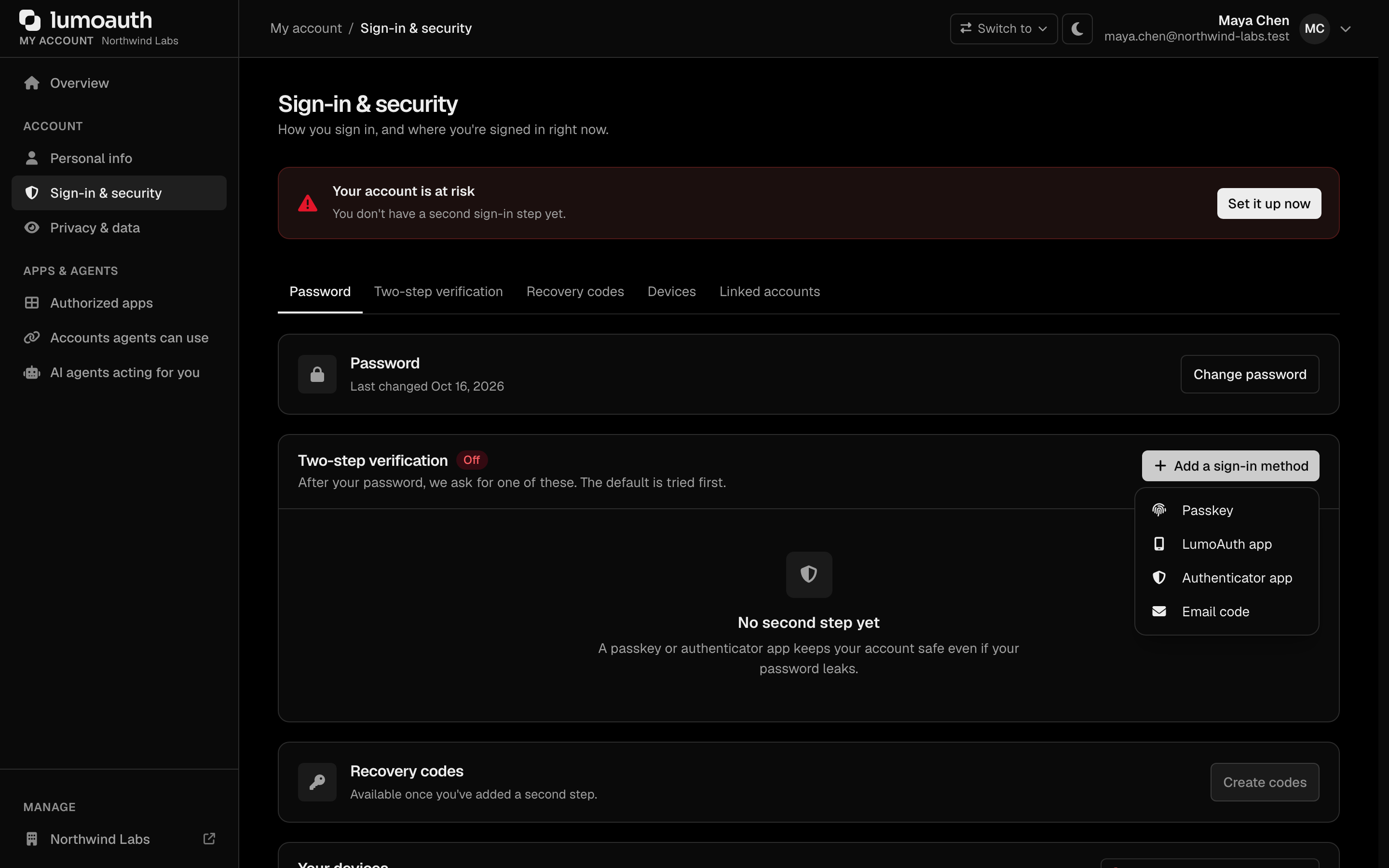
The page shows a status (**Your account is protected**, **Add a backup method** or **Your account is at risk**) and every sign-in method with its tier, when it was added and when it was last used. Users can add methods, rename them, choose the default and remove them. It also covers recovery codes, **Trusted browsers** and **Sign out of all other devices**. See [Account self-service](https://docs.lumoauth.dev/user-guide/user-management/account-self-service#sign-in--security).
---
## Recovery
When a user cannot use their usual factor, the options are tried in this order:
1. **Another enrolled factor** — **Try another way** on the challenge page.
2. **A recovery code** — **Use a recovery code**.
3. **Admin-assisted recovery** — a temporary access code from an administrator.
### Recovery codes
- 10 codes, each 10 characters from an alphabet without look-alikes (no `0`, `O`, `1`, `I` or `L`), shown as `XXXXX-XXXXX`.
- Each works once. Codes are compared case-insensitively and with or without the hyphen, and stored only as bcrypt hashes.
- Generating a new set invalidates the old one. When 2 or fewer remain, the account page asks the user to generate a new set.
- Codes issued before September 2026 (`XXXX-XXXX-XXXX-XXXX`) keep working until the user generates a new set.
### What happens after a recovery
Signing in with a recovery code or a temporary access code is treated as an account recovery. LumoAuth then:
- signs out every other session and revokes all trusted devices,
- emails the user that the account was recovered,
- restricts the session to setting up a new sign-in method and saving **new** recovery codes; normal access resumes after that,
- audits `mfa.recovery.started`, and `mfa.recovery.completed` once the new factor and recovery codes are in place.
### Admin-assisted recovery
Administrators **cannot switch MFA off** for a user. Instead they issue a **temporary access code**:
1. Open the user in the organization portal (`/orgs/{orgId}/portal/users`), section **Two-step verification**.
2. In the form for issuing a temporary access code, enter a **Reason** (required, audited), choose **Valid for** (**1 hour**, **4 hours** or **24 hours**) and whether it is **Single use**, then **Issue code**.
3. Confirm your own identity with MFA if asked.
4. Give the code (12 characters) to the user over a channel that you trust. It is shown once.
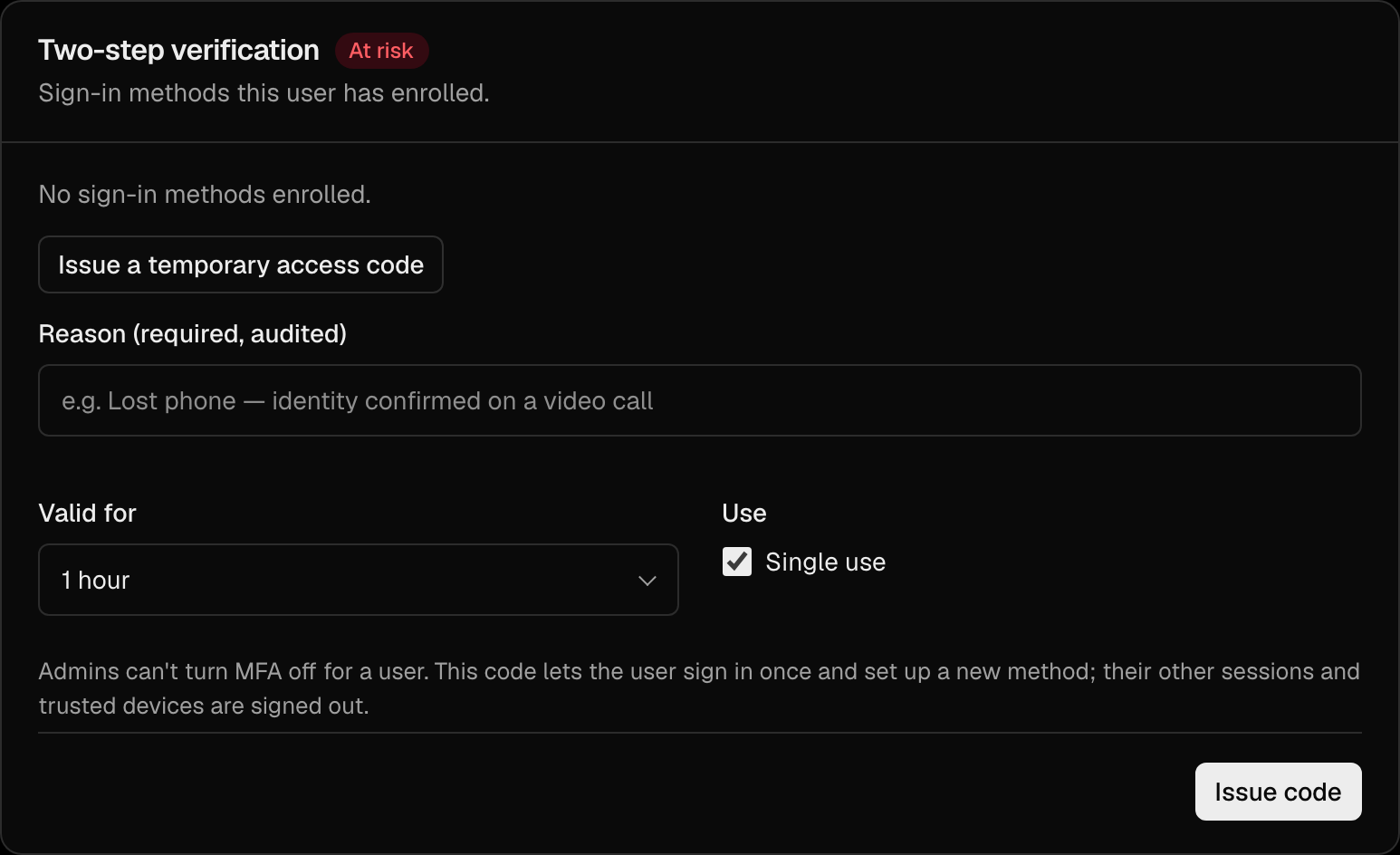
The user signs in with their password, picks **I have a temporary access code from my admin** on the challenge page and enters the code. The session can only enroll new factors. Only one live code exists per user; issuing another revokes the previous one. Issuing a code is audited as `mfa.tap.issued` and the user is emailed.
From the same section, an administrator can **Remove** a single lost authenticator (for example a stolen phone). The user is notified, their trusted devices are revoked, and the organization's policy still applies at their next sign-in.
The same actions are available in the [Admin MFA API](https://docs.lumoauth.dev/api-reference/mfa#admin-endpoints). The old `POST /admin/users/{userId}/mfa/reset` endpoint returns `410 Gone`.
---
## Configuring the MFA policy
Navigate to **Security → Sign-in settings** at:
```
/orgs/{orgId}/portal/settings/authentication
```
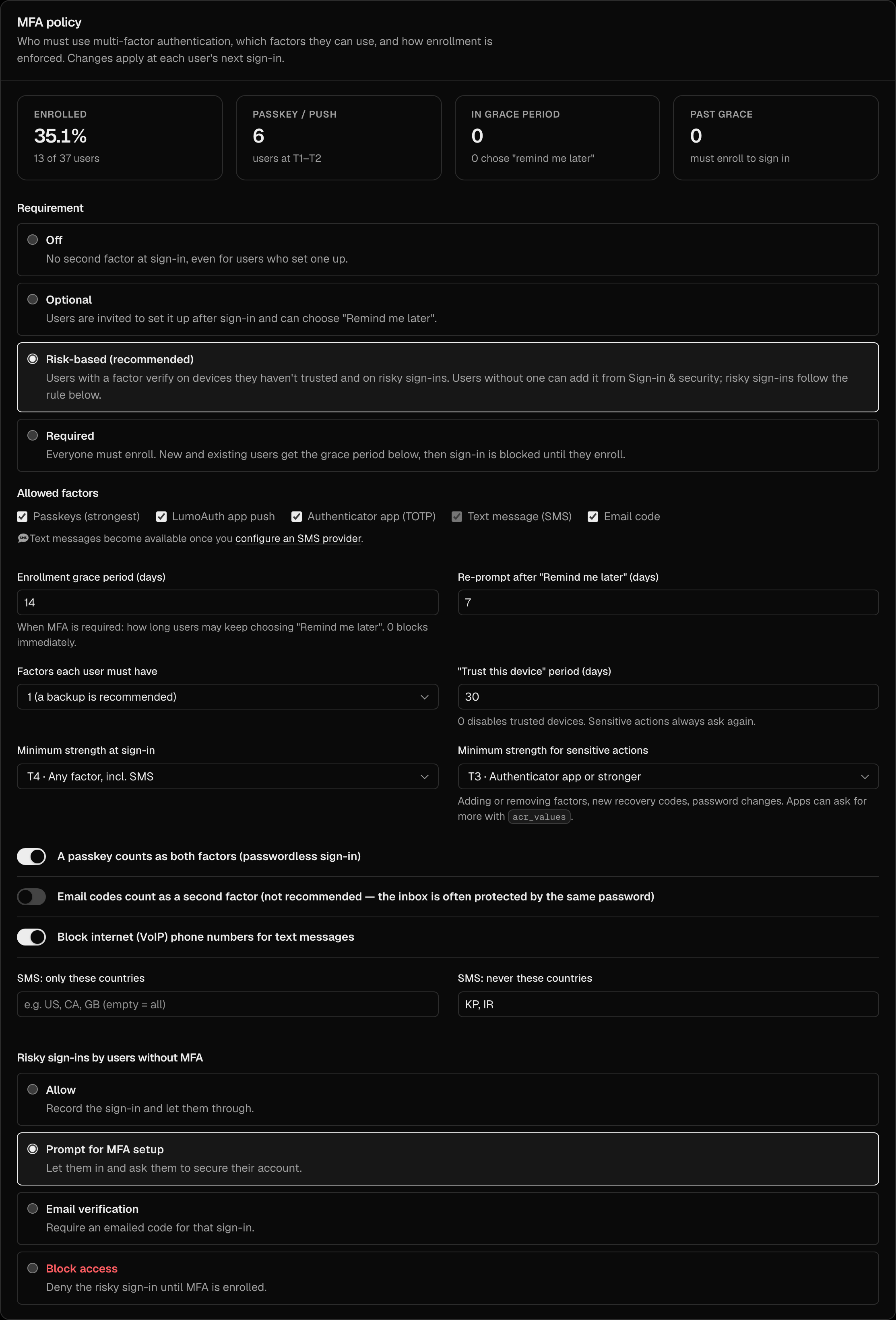
The **MFA policy** section shows enrollment coverage (enrolled users, users at T1–T2, users in and past the grace period, and how many chose "Remind me later") and the policy settings. Changes take effect at each user's next sign-in; existing sessions are not ended. Every change is audited as `mfa.policy.changed`.
The same policy is available as JSON through `GET`/`PUT /orgs/{orgId}/api/v1/admin/policies/mfa` ([reference](https://docs.lumoauth.dev/api-reference/mfa#mfa-policy)).
### Requiring MFA for one application
**Applications → your app → Security → Authentication → Require multi-factor authentication** (saved with **Save auth settings**) makes `/authorize` issue a code for that application only when the session passed a second factor for this user. A verified factor, a trusted device or an adaptive low-risk skip all count. Otherwise the user is sent to step-up, which offers enrollment when they have no factor yet, and then returns to `/authorize`. With `prompt=none` the application gets `interaction_required` instead. When the organization policy is **Required** the switch is on and locked. Which factors count is set by the organization's MFA policy.
The older per-application **Enable MFA** and **Enterprise SSO** switches were removed: they were never enforced. Factors and identity providers are organization settings.
### Policy reference
| Key | Portal label | Values | Default |
|---|---|---|---|
| `requirement` | Requirement | `off`, `optional`, `risk_based`, `required` | `risk_based` |
| `allowed_factors` | Allowed factors | Any of `passkey`, `push`, `totp`, `sms_otp`, `email_otp` | `passkey`, `push`, `totp`, `sms_otp` |
| `min_tier_login` | Minimum strength at sign-in | 1–4 (factors weaker than this do not count at sign-in) | 4 |
| `min_tier_step_up` | Minimum strength for sensitive actions | 1–4 | 3 |
| `passwordless_passkey` | A passkey counts as both factors | `true` / `false` | `true` |
| `required_factor_count` | Factors each user must have | 1 or 2 | 1 |
| `grace_period_days` | Enrollment grace period (days) | 0–90 | 14 |
| `remind_interval_days` | Re-prompt after "Remind me later" (days) | 1–90 | 7 |
| `trusted_device_days` | "Trust this device" period (days) | 0–180 (0 disables) | 30 |
| `email_otp_counts_as_mfa` | Email codes count as a second factor | `true` / `false` | `false` |
| `sms_block_voip` | Block internet (VoIP) phone numbers | `true` / `false` | `false` |
| `sms_country_allowlist` | SMS: only these countries | ISO 3166 alpha-2 codes; empty = all | `[]` |
| `sms_country_denylist` | SMS: never these countries | ISO 3166 alpha-2 codes | `[]` |
| `nudge_interval_days` | (API only) | 1–365 | 30 |
| `step_up_max_age_seconds` | (API only) | 60–3600 | 600 |
Values outside a range are clamped to it; unknown factor types are dropped, and an empty `allowed_factors` falls back to the default. Text messages can only be allowed once an [SMS provider](https://docs.lumoauth.dev/integrations/sms-and-email) is configured; factors that the organization cannot deliver are removed from the effective list. Push is included in every plan. The read-only `required_since` key records when the requirement last switched to **Required**.
:::note Legacy keys
Organizations created before this policy existed used `mfa_required` and `mfa_sms_enabled` in their authentication settings. Until an MFA policy is saved, LumoAuth derives one from them (`mfa_required: true` → **Required**; `mfa_sms_enabled: true` → text messages allowed). Saving the policy writes `mfa_policy` and keeps `mfa_required` and `mfa_sms_enabled` in sync for older integrations. Writing `mfa_required` or `mfa_sms_enabled` through the API for authentication settings is translated into a policy change (`mfa_required: true` → **Required**, `false` → **Risk-based**; `mfa_sms_enabled` adds or removes `sms_otp`).
The same page keeps the adaptive-auth setting **Risky sign-ins by users without MFA** (`no_mfa_action`: **Allow**, **Prompt for MFA setup**, **Email verification** or **Block access**). It applies when [adaptive MFA](https://docs.lumoauth.dev/user-guide/authentication/adaptive-mfa) requires a challenge for a user who has no factor, and is how **Risk-based** handles users who have not enrolled.
---
## Notifications
Users are emailed when:
- a sign-in method is added or removed (other enrolled phones also get a push),
- recovery codes are generated or used,
- MFA is locked after repeated failures,
- they report a push request with **Deny – this wasn't me**,
- an administrator issues them a temporary access code,
- their account is recovered.
Most of these emails include a **This wasn't me** link (valid 7 days) to `/auth/not-me`. Confirming it signs out every session and revokes all trusted devices; a user who has no sign-in method left must set one up at the next sign-in.
All MFA activity is written to the audit log and delivered to webhooks as `mfa.*` events. See [Audit logs](https://docs.lumoauth.dev/user-guide/compliance/audit-logs#mfa-events).
---
## What MFA does not include
- Codes are delivered by text message or email only; there is no voice-call delivery, and the type of phone line comes from numbering-plan data rather than a live carrier lookup.
- There is no SMS-pumping detection beyond the rate limits, and one SMS provider per organization, so no failover between providers.
- Account recovery is through recovery codes or an administrator-issued temporary access code; there is no self-service recovery by email plus phone.
- A temporary access code is issued by one administrator; there is no two-administrator approval.
- Changing a phone number and viewing API credentials do not trigger step-up.
- There are no "new device sign-in" notification emails.
- The MFA policy is organization-wide: there are no per-group or per-application overrides (an application can only [require MFA](#requiring-mfa-for-one-application)).
- Push approvals are handled by the LumoAuth app only; there is no way to approve pushes from your own app, and no account transfer between phones.
- MFA events reach a SIEM (security information and event management system) through the [log sinks](https://docs.lumoauth.dev/integrations/siem-log-export) like every other audit event; there is no separate stream of MFA events.
---
## Best practices
1. Keep the default **Risk-based** requirement and turn on [Adaptive MFA](https://docs.lumoauth.dev/user-guide/authentication/adaptive-mfa), or use **Required** with a grace period for workforce organizations.
2. Leave passkeys and push allowed: they are the strongest factors and the fastest to use.
3. Raise **Minimum strength for sensitive actions** to T2 or T1 if your users hold passkeys or the LumoAuth app.
4. Keep email codes as a recovery aid, not a second factor.
5. Point helpdesk staff at temporary access codes; there is no way to switch MFA off for a user.
6. Watch coverage in the portal and the `mfa.push.reported_fraud` and `mfa.locked` events.
---
## Related Guides
- [Adaptive MFA](https://docs.lumoauth.dev/user-guide/authentication/adaptive-mfa) — risk scoring and how it interacts with trusted devices
- [Passkeys & WebAuthn](https://docs.lumoauth.dev/user-guide/authentication/passkeys) — the strongest factor, and passwordless sign-in
- [Push Authentication](https://docs.lumoauth.dev/user-guide/authentication/push-auth) — the LumoAuth app, number matching and "this wasn't me"
- [MFA API](https://docs.lumoauth.dev/api-reference/mfa) — build your own enrollment and challenge UI
- [SMS & email](https://docs.lumoauth.dev/integrations/sms-and-email) — SMS providers and code delivery
- [Audit Logs](https://docs.lumoauth.dev/user-guide/compliance/audit-logs) — MFA events
---
# Adaptive MFA
Source: https://docs.lumoauth.dev/user-guide/authentication/adaptive-mfa
Adaptive MFA (multi-factor authentication) evaluates signals about each login attempt and triggers MFA only when the computed risk score is elevated. The signals are device fingerprint, IP reputation, new country,…
Adaptive MFA (multi-factor authentication) evaluates signals about each login attempt and triggers MFA only when the computed risk score is elevated. The signals are device fingerprint, IP reputation, new country, geo-velocity, ASN/network anomaly, login velocity, recent failures, and user-behavior analytics. Trusted users log in without friction, suspicious activity gets a challenge, and high-risk activity is blocked entirely.
---
## How Adaptive MFA Works
### Risk Assessment Engine
Each login attempt is evaluated by LumoAuth's risk engine, which produces a **risk score from 0 to 100**. The score is mapped to a level using the organization's thresholds, and each level has an action (defaults shown):
| Risk Score (default thresholds) | Level | Default action | Configurable? |
|------------|-------|--------|--------|
| **0–49** | Low | Permit (MFA can be skipped when Adaptive MFA is on) | — |
| **50–79** | Medium | MFA challenge | always `mfa` |
| **80–94** | High | MFA challenge (`high_risk_action`) | `mfa`, `block`, `allow` |
| **95–100** | Critical | **Login refused** (`critical_risk_action`) | `block`, `mfa`, `allow` |
The medium and high thresholds are set on the **Adaptive security** page. The critical threshold and the two action settings are not shown there; they keep their stored values unless you change them through the Admin API.
The `block` action is evaluated **before** the login completes — no session,
remember-me cookie, or token is ever created for a refused attempt. By default
only the *critical* band blocks, so for organizations that relied on the
previous "high = MFA" behaviour nothing changes unless they opt in to
`high_risk_action: block`.
Blocking is enforced for the organization's login form, the global `/login` form,
passkey (WebAuthn, the browser standard behind passkeys) sign-in and inbound SAML federation. Some logins are established
automatically after a redirect from an upstream identity provider (social login,
inbound OIDC, OAuth re-authentication). These cannot be refused once the upstream
provider has already authenticated the user. For those flows a `block` outcome
is downgraded to a mandatory MFA challenge, and the audit entry carries
`decision: block_unenforced`.
### Risk Signals
The risk engine analyzes multiple signals, each of which can be enabled or disabled per organization (see [Choose Which Risk Signals Are Active](#choose-which-risk-signals-are-active)):
| Signal | What It Detects | Example |
|--------|----------------|---------|
| **Device Fingerprinting** | User is logging in from an unrecognized device or changed browser/OS fingerprint | First login from a new laptop |
| **IP Reputation** | Known malicious, proxy, VPN, or Tor exit node IPs | Login from a known VPN |
| **New Country** | Login from a country that the user has not used before | User normally in the US, now in Japan |
| **Geo-Velocity** | Impossible travel detection | Paris login 10 minutes after a Sydney login |
| **ASN Anomaly** | Login from an unexpected network/ASN | Sudden switch to a hosting-provider ASN |
| **Login Velocity** | Unusually frequent login attempts | A burst of logins in a short window |
| **Failed-Login Detection** | Recent failed login attempts | Multiple wrong passwords before a successful login |
| **User Behavior Analytics (UBA)** | Deviation from normal user behavior | Unusual navigation patterns or access requests |
### Decision Flow
```mermaid
flowchart TD
Login["Login Attempt"]
Login --> Collect["Collect Risk Signals\n(device, IP, geo, behavior, etc.)"]
Collect --> Score["Calculate Risk Score (0-100)"]
Score --> D{"Risk Level?"}
D -->|"< medium (50)"| Allow["✅ Allow\n(no MFA)"]
D -->|"medium / high (50–94)"| MFA["🔐 MFA Challenge"]
D -->|"critical (95+)"| Block["🚫 Refuse login\n(before session is created)"]
style Allow fill:#e8f5e9,stroke:#4caf50
style MFA fill:#fff3e0,stroke:#ff9800
style Block fill:#ffebee,stroke:#f44336
```
---
## Configuration
### Enable Adaptive MFA
Navigate to **Security → Adaptive security** at:
```
/orgs/{orgId}/portal/settings/adaptive-auth
```
In the **Security engine** section, turn on **Enable the adaptive security engine**, then click **Save changes**. While the engine is disabled, the page title carries an **Engine off** badge.
One action is set separately: what happens on a risky sign-in by a user who has no second factor (**Risky sign-ins by users without MFA**). You set it in the **MFA policy** section of **Security → Sign-in settings** (`/orgs/{orgId}/portal/settings/authentication`).
### Settings
The page is divided into **Security engine**, **Risk thresholds**, **Adaptive MFA**, **Detection signals**, **Network guard**, **AI risk assessment** and **Trusted IP ranges**.
| Setting | Field | Description | Default |
|---------|-------|-------------|---------|
| **Enable the adaptive security engine** | `enabled` | Turn on risk-based authentication (the page shows an **Engine active** / **Engine off** badge) | Off |
| **Medium risk, MFA challenge** | `medium_risk_threshold` | Score at/above which an MFA challenge is triggered | 50 |
| **High risk, block and force MFA** | `high_risk_threshold` | Score at/above which `high_risk_action` applies | 80 |
| Critical risk threshold | `critical_risk_threshold` | Score at/above which `critical_risk_action` applies. Not shown on the portal page; saving the page keeps the stored value. | 95 |
| High risk action | `high_risk_action` | `mfa` (challenge), `block` (refuse login) or `allow`. Not shown on the portal page. | `mfa` |
| Critical risk action | `critical_risk_action` | `block` (refuse login), `mfa` or `allow`. Not shown on the portal page. | `block` |
| **Risky sign-ins by users without MFA** | `no_mfa_action` (Sign-in settings → MFA policy) | What to do when an MFA challenge is required but the user has no second factor: `allow`, `prompt`, `email`, or `block` (refuse login) | `allow` |
| **Skip MFA on trusted sign-ins** | `adaptive_mfa_enabled` | Let users who already have MFA skip the second factor on sign-ins scored as low risk | Off |
| **MFA skip threshold** | `adaptive_mfa_threshold` | Sessions scored below this skip the prompt. MFA is always enforced at or above the medium-risk threshold. | 30 |
| **Trusted IP ranges** | `trusted_ip_ranges` | IPs/CIDRs that are always treated as low risk | None |
| **Block datacenter and VPN ranges** / **Block Tor exit nodes** (Network guard) | `block_vpn`, `block_tor` | Hard-block logins from a Tor exit node (`block_tor`) or a VPN, proxy or hosting/datacenter IP (`block_vpn`). The block is applied **before** any scoring and regardless of the risk thresholds. Only flags reported by an [IP-intelligence provider](https://docs.lumoauth.dev/integrations/risk-and-bot-protection) (your own or the managed Fraud Shield feed) count, never an IP-prefix guess. Without a provider, these toggles cannot be relied on. Trusted IP ranges are exempt. | Tor: On; datacenter/VPN: Off |
### Choose Which Risk Signals Are Active
You do not assign numeric weights; instead you enable or disable individual risk signals. LumoAuth's risk engine (AI-assisted via `RiskAssessmentService`) scores each login over the **enabled** signals. Toggle these in the **Detection signals** section of the Adaptive security page:
| Signal | Portal label | Field |
|--------|--------------|-------|
| Geo-velocity / impossible travel | **Impossible travel** | `enable_geo_velocity` |
| New country | **New country** | `enable_new_country` |
| Device fingerprinting | **Device fingerprinting** | `enable_device_fingerprinting` |
| IP reputation | **IP reputation** | `enable_ip_reputation` |
| ASN anomaly | **ISP / ASN anomaly** | `enable_asn_anomaly` |
| User behavior analytics (UBA) | **Login time patterns** | `enable_uba` |
| Login velocity | **Login velocity** | `enable_login_velocity` |
| Failed-login detection | **Failed login detection** | `enable_failed_login_detection` |
For example, if your users frequently travel, disable `enable_new_country` and rely more on `enable_device_fingerprinting` and `enable_ip_reputation`. Tune the **Medium** and **High** thresholds to control how aggressively challenges and blocks are applied.
### AI Risk Data Sharing
In the **AI risk assessment** section, when AI-assisted scoring is enabled (**Send login metadata to the AI provider**, `ai_risk_enabled`), you control exactly what context is shared with the model. The options are precise geolocation (**Share precise geolocation**, `ai_risk_share_precise_geo`), raw IP (**Share raw IP address**, `ai_risk_share_raw_ip`), raw email (**Share raw email address**, `ai_risk_share_raw_email`), and user-agent (**Share user agent**, `ai_risk_share_user_agent`). The user-agent switch is on by default; the others are off. Enable only what your privacy policy permits.
---
## Risk Events and Fraud Detection
### Event Types
LumoAuth generates security events for each adaptive authentication decision:
| Event | Description |
|-------|-------------|
| `adaptive_auth.decision` | One entry per evaluated login with `decision` (`permit`, `challenge`, `block`, `block_unenforced`), `risk_score`, `risk_level`, the contributing `signals` and, for refusals, the `reason` |
| `adaptive_auth.error` | Risk scoring failed (the login proceeded without a risk decision — fail open) |
| `adaptive_auth.block` / `adaptive_auth.challenge` | A sign-in was refused / challenged (alongside the `decision` row) |
| `adaptive_auth.ai_assessment` | The AI risk assessment ran for a sign-in |
| `adaptive_auth.ai_quota_exceeded` / `adaptive_auth.ai_risk_assessment_disabled_by_tenant` | The AI assessment was skipped because the quota was spent or the organization switched it off |
Individual signals (impossible travel, new device, VPN, failed-attempt bursts) are not separate events; they appear in the `signals` list of the `adaptive_auth.decision` row.
### Viewing Risk Events
All adaptive auth events appear in the audit log (**Security → Audit logs**):
```
/orgs/{orgId}/portal/audit-logs
```

Filter by event type to see:
- Risk scores for recent logins.
- Which signals triggered elevated risk.
- Blocked login attempts.
- MFA challenge outcomes.
---
## User-Facing Behavior
### Low-Risk Login
The user experiences a normal login flow — they enter credentials and are immediately authenticated. No MFA prompt is shown.
### Medium-Risk Login (MFA Challenge)
After entering credentials, the user is redirected to the MFA challenge:
1. The MFA challenge page is displayed and the user's default factor starts automatically (push, passkey, authenticator app, text or email code).
2. The user completes it, or picks **Try another way**.
3. On successful verification, login proceeds.
4. A **trusted device does not skip this challenge**: at medium risk the user is always challenged, even when the browser has a valid "Trust this device" cookie. The user may tick **Trust this device** again.
### High-Risk Login (not refused)
1. All of the user's trusted devices are revoked before the challenge, so every browser asks again on its next sign-in.
2. If the user holds a passkey or a push device enrolled with the LumoAuth app, the challenge requires one of them (tier 2 or stronger). Authenticator-app, text and email codes are not offered. Users without such a factor are challenged with the factors that they have.
3. On success, login proceeds.
---
## Adaptive MFA and Trusted Devices
Adaptive risk and the MFA policy's [trusted devices](https://docs.lumoauth.dev/user-guide/authentication/mfa#trusted-devices) are evaluated together after the first sign-in step:
| Risk level | Trusted device cookie | Result |
|---|---|---|
| Low | Valid | Challenge skipped (trusted device) |
| Low | None or invalid | Challenge skipped if `adaptive_mfa_enabled` is on and the score is below `adaptive_mfa_threshold`; otherwise challenged |
| Medium | Any | Challenged — trust is ignored |
| High / Critical (not refused) | Any | All trusted devices revoked; challenged, with passkey or push required when the user has one |
| High / Critical (`block` action) | Any | Login refused before a session is created |
Trust is also revoked when the user changes their password, removes a factor or recovers their account. Sensitive actions ([step-up](https://docs.lumoauth.dev/user-guide/authentication/mfa#step-up-for-sensitive-actions)) always require a fresh verification, whatever the risk level.
Users without any factor are never challenged; for them, the **Risky sign-ins by users without MFA** setting above determines what happens on a risky sign-in.
### Blocked Login (Critical Risk, or High Risk with `block`)
1. The login is refused before any session is created; the credentials are not
accepted even though they were correct.
2. A deliberately generic message is shown on the login page — it does not reveal
which signal (IP, device, location) caused the refusal.
3. The refusal is written to the audit trail as `adaptive_auth.decision` with
`decision: block` (a Tor/VPN network block also writes `security.ip_blocked`
with the blocking reason).
It is also recorded as an automated decision under GDPR Art. 22,
so the user can contest it from **Account → Automated decisions**.
Every block decision raises a **high** [security alert](https://docs.lumoauth.dev/integrations/alerting);
challenge and allow decisions do not.
4. The user can try again from a known device or network, or contact an
administrator, who can add a trusted IP range or lower the enforcement level.
---
## Impossible Travel Detection
LumoAuth detects when a user's login locations indicate physically impossible travel.
**Example:** User logs in from New York at 2:00 PM, then from London at 2:30 PM. Since it is impossible to travel 3,400 miles in 30 minutes, this triggers a high-risk alert.
### How It Works
1. Each login records the user's approximate location (from the IP address).
2. The system calculates the distance between consecutive logins.
3. Given the time difference, it determines if the implied travel speed is realistic.
4. If the implied speed is unrealistic, the signal is added to the risk score.
### Thresholds
The thresholds are fixed and cannot be changed: an implied speed above **1,000 km/h** over more than 100 km adds **+80** (impossible travel); above **500 km/h** adds **+40** (very fast travel). The comparison is always against the user's previous sign-in attempt. The elapsed time is floored at six minutes, so two quick sign-ins from nearby places do not trigger it. Switch the signal on or off under **Detection signals** on the Adaptive security page.
---
## Trusted IP Ranges
You can define IP ranges that are always considered low-risk. This is useful for:
- Office IP ranges.
- VPN exit nodes used by your organization.
- Known network ranges of your customers.
Logins from trusted IPs bypass adaptive risk scoring (other security measures like rate limiting still apply).
Add them in the **Trusted IP ranges** section of the Adaptive security page: enter an address or CIDR range, click **Add**, then **Save changes**.
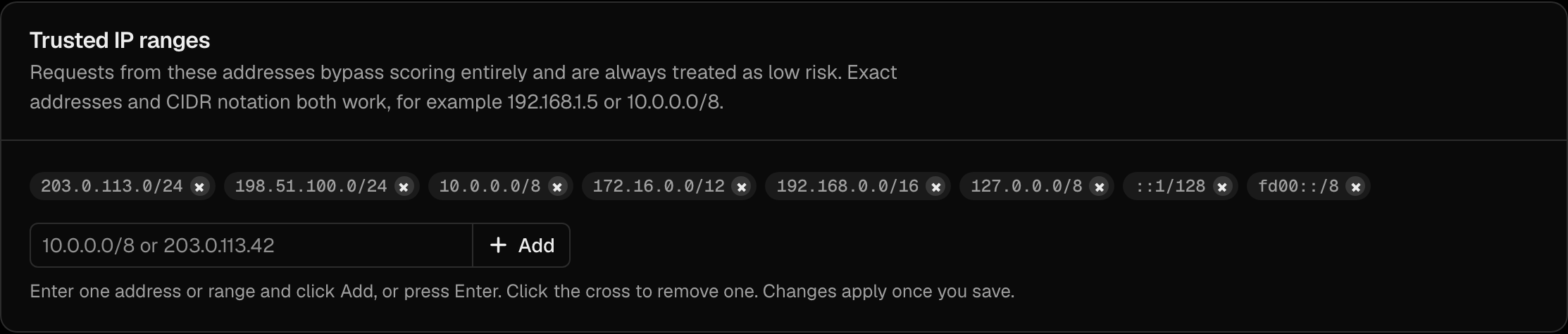
---
## Integration with Webhooks
Adaptive auth events can be sent to external systems via webhooks:
```json
{
"event": "adaptive_auth.decision",
"decision": "block",
"timestamp": "2026-03-18T10:30:00Z",
"user_id": "usr_abc123",
"risk_score": 85,
"signals": {
"new_device": true,
"impossible_travel": true,
"ip_reputation": "suspicious"
},
"action_taken": "blocked",
"ip_address": "203.0.113.42",
"location": {
"country": "Unknown",
"city": "Unknown"
}
}
```
Configure webhooks in the **Webhooks** section of **Settings → Integrations** (**Add webhook**):
```
/orgs/{orgId}/portal/integrations
```
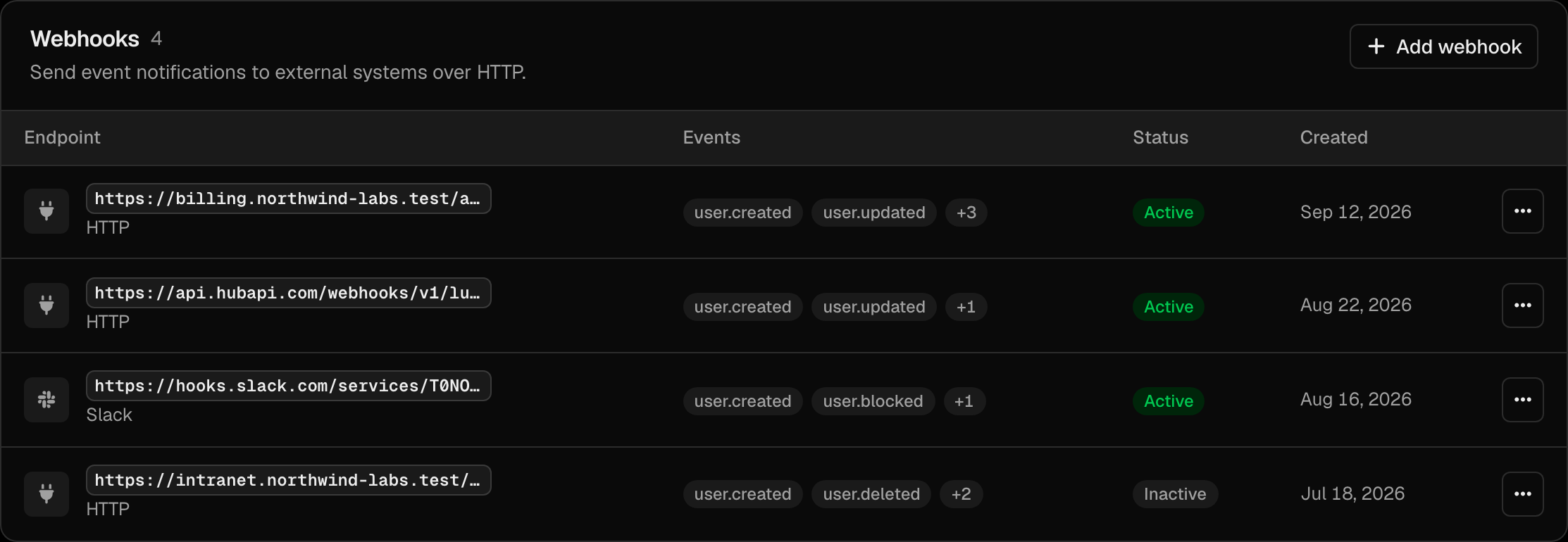
---
## Best Practices
1. Start with medium thresholds and adjust based on your user base.
2. Keep **Trust this device** enabled in the [MFA policy](https://docs.lumoauth.dev/user-guide/authentication/mfa#trusted-devices) to reduce prompts for returning users; they are still challenged at elevated risk.
3. Monitor audit logs regularly to tune your thresholds and which signals are enabled.
4. Set up webhook alerts for high-risk events.
5. Combine with the MFA policy — keep the requirement at **Risk-based** and let users enroll passkeys or the LumoAuth app, which high-risk sign-ins require.
6. Test with real users before enforcing: enable the engine with the high-risk action left at MFA, read the `adaptive_auth.decision` rows in the audit log, and only then opt in to `high_risk_action: block`.
7. Whitelist office IPs if your users have stable network environments.
---
## Adaptive MFA vs. Always-On MFA
| Aspect | Always-On MFA | Adaptive MFA |
|--------|---------------|-------------|
| **User Experience** | MFA every login | MFA only when risk is elevated |
| **Security** | Consistent protection | Dynamic, context-aware protection |
| **Friction** | High | Low for normal logins |
| **Coverage** | Same for all logins | Stronger for suspicious logins |
| **Best For** | High-security environments | Consumer apps, B2B SaaS |
---
## Related Guides
- [Multi-Factor Authentication](https://docs.lumoauth.dev/user-guide/authentication/mfa) — MFA methods and enrollment
- [Audit Logs](https://docs.lumoauth.dev/user-guide/compliance/audit-logs) — view adaptive auth events
- [Webhooks](https://docs.lumoauth.dev/user-guide/integrations/webhooks) — get notified about risk events
- [Security Overview](https://docs.lumoauth.dev/user-guide/security/overview) — overall security architecture
---
# Passkeys & WebAuthn
Source: https://docs.lumoauth.dev/user-guide/authentication/passkeys
Passkeys provide passwordless authentication using the FIDO2/WebAuthn standard (WebAuthn is the browser API behind passkeys; FIDO2 covers the authenticators that hold them). The user authenticates with a biometric…
Passkeys provide passwordless authentication using the FIDO2/WebAuthn standard (WebAuthn is the browser API behind passkeys; FIDO2 covers the authenticators that hold them). The user authenticates with a biometric (fingerprint, face) or hardware security key, and your server never handles a shared secret. The private key never leaves the device; LumoAuth stores only the public key and verifies a signed challenge at login.
---
## What Are Passkeys?
Passkeys are cryptographic credentials stored on the user's device. They use public-key cryptography — the private key never leaves the device, and the public key is stored in LumoAuth. Authentication happens via a challenge-response, which makes passkeys:
- **Phishing-resistant** — bound to the specific origin (domain).
- **Free of shared secrets** — nothing reusable to steal from the server.
- **Biometric-backed** — require fingerprint, face, or PIN to use.
- **Cross-device** — can sync across devices via platform credential managers.
---
## Supported Credential Types
| Type | Examples | Use Case |
|------|---------|----------|
| **Platform Authenticators** | Touch ID, Face ID, Windows Hello | Built into the device |
| **Roaming Authenticators** | YubiKey, Titan Security Key | USB/NFC hardware keys |
| **Synced Passkeys** | iCloud Keychain, Google Password Manager, 1Password | Cross-device passkeys |
---
## How It Works
### Registration (Enrollment)
1. The user starts from **Secure your account** after sign-in, or from **Sign-in & security → Add a sign-in method**. On **Secure your account**, a passkey is the recommended first factor whenever the browser reports Touch ID, Face ID, Windows Hello or an Android screen lock.
2. They click **Create a passkey**.
3. The browser prompts for biometric verification, a screen lock or a security key.
4. A new public-private key pair is generated on the device; the private key never leaves it.
5. LumoAuth verifies the attestation and stores the public key.
6. The passkey is named after the device and browser, for example "Mac – Chrome" or "iPhone – Safari". Users can rename it later.
Passkeys are created as **discoverable credentials** (`residentKey: required`), and the request lists the user's existing passkeys in `excludeCredentials` so the same authenticator is not registered twice.
### Authentication
1. User enters their email (or clicks **Sign in with a passkey**).
2. LumoAuth sends a cryptographic challenge to the browser.
3. Browser prompts for biometric verification or PIN.
4. The private key on the device signs the challenge and marks it *user verified*.
5. LumoAuth verifies the signature with the stored public key and rejects the assertion if the user was not verified.
6. Login is complete — no password needed.
### User verification is required
A passkey is a complete sign-in on its own, so LumoAuth asks for **user verification** (UV) on every registration and every sign-in. UV means the authenticator confirmed *who* is present (biometric or PIN), not just *that* something was present (a touch, called user presence or UP). Concretely:
- Registration uses `userVerification: "required"`, so a credential can only be created with a PIN or biometric. A security key without a PIN prompts the user to set one.
- Sign-in uses `userVerification: "required"`, and the server checks the UV flag in the signed assertion. An assertion produced by a bare touch is rejected.
- Clients cannot downgrade this; the request options are generated server-side.
- The user lookup for a passkey is scoped to the organization whose login page or custom domain the ceremony runs on. A credential registered in one organization therefore cannot sign in to another.
What users see: Touch ID, Face ID, Windows Hello, Android biometrics or their password-manager prompt as usual; on a hardware key, a PIN prompt followed by a touch.
**Info: Standard**
**WebAuthn Level 2 (W3C) / FIDO2.** The `userVerification` option distinguishes *user presence* (UP: someone touched the authenticator) from *user verification* (UV: the authenticator checked a PIN or biometric). When a passkey replaces the password, only UV proves that the account owner is the one signing in. The relying party must therefore request `required` and check the UV flag in the assertion's authenticator data. [WebAuthn: user verification](https://www.w3.org/TR/webauthn-2/#user-verification)
---
## Configuration
### Enable Passkeys
Navigate to **Security → Sign-in settings** at:
```
/orgs/{orgId}/portal/settings/authentication
```
In the **Identity methods** section, turn on **Passkeys & biometrics** and click **Save changes**. Two sub-options appear below the switch: **Permit platform-bound biometrics (Windows Hello, macOS Touch ID)** and **Require FIDO-certified authenticators**.
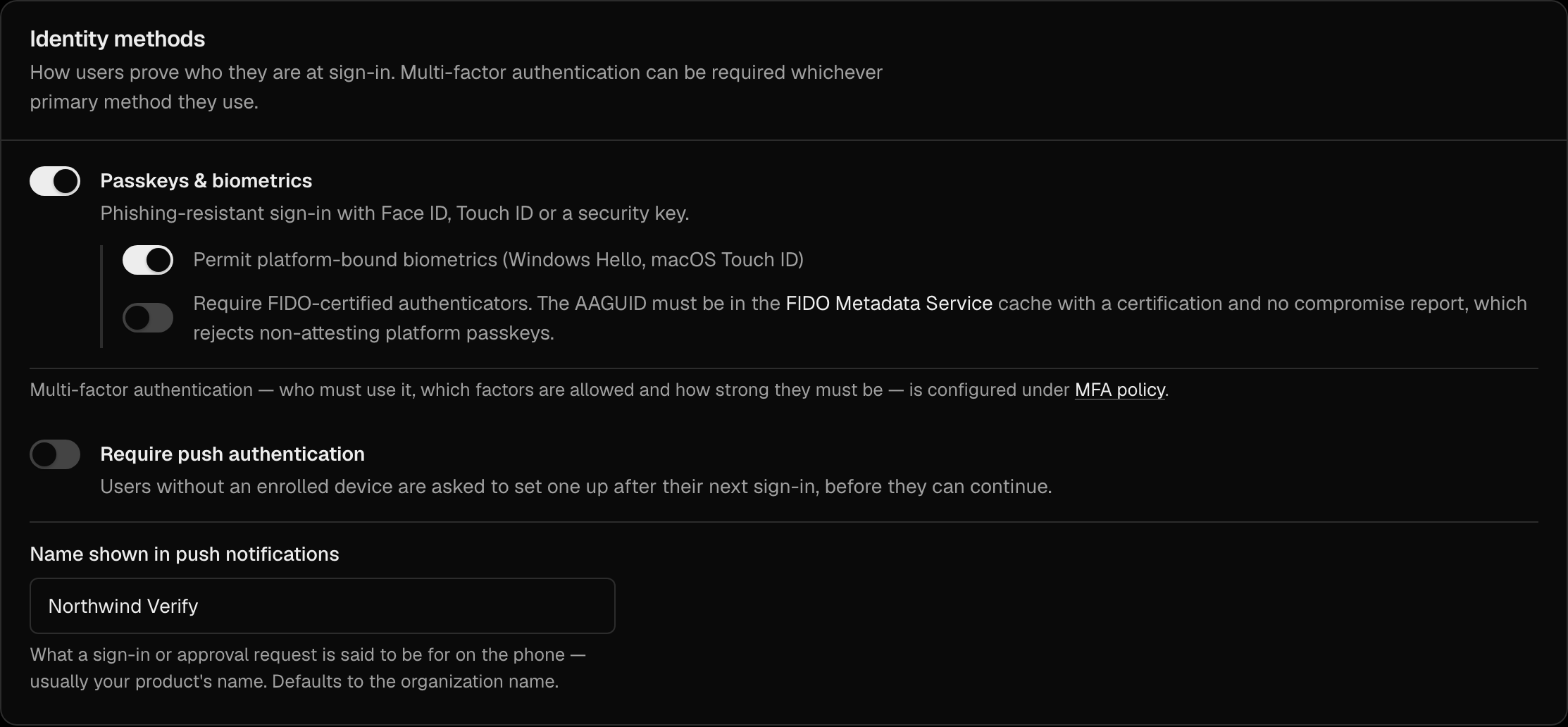
### Settings
| Setting | Description |
|---------|-------------|
| **Passkeys & biometrics** (`passkey_enabled`) | Users can register passkeys in account settings and sign in with them. When it is **Off**, passkey sign-in is refused at the WebAuthn endpoints ("Passkey sign-in is not enabled for your organization. Sign in another way."), not just hidden on the login page. The account page also rejects new passkeys (`403 passkeys_disabled`) unless the [MFA policy](https://docs.lumoauth.dev/user-guide/authentication/mfa) (multi-factor authentication) allows passkeys as a factor. |
| **Require FIDO-certified authenticators** | An authenticator may register only if its AAGUID appears in the [FIDO Metadata Service](https://docs.lumoauth.dev/integrations/fido-mds) cache with a certification and no compromise report. Applies to every registration path: the account page and the [MFA API](https://docs.lumoauth.dev/api-reference/mfa) (`400` with "This authenticator is not FIDO certified…"). |
Passkeys used as a **second factor** are governed by the MFA policy's allowed factors, not by **Passkeys & biometrics**. Turning passkey sign-in off therefore does not lock out users who verify with a passkey as their second step.
User verification is not a setting: it is always required, for every organization.
---
## WebAuthn Routes
LumoAuth exposes two distinct sets of WebAuthn endpoints — one for **logging in** with an existing passkey, and one for **enrolling** a passkey from account settings. Both follow the WebAuthn specification and are driven by the portal's `navigator.credentials` calls; you normally do not call them directly.
**Login (passwordless sign-in):**
```
POST /login/webauthn/options → Generate authentication options (challenge)
POST /login/webauthn/result → Verify the signed assertion and sign the user in
```
**Account enrollment (add/remove a passkey):**
```
POST /account/security/passkey/options → Generate registration options
POST /account/security/passkey/register → Complete registration
DELETE /account/security/passkey/{id} → Remove an enrolled passkey
```
There is also a passkey login endpoint for the OAuth flow, used during the authorization flow:
```
GET /orgs/{orgId}/api/v1/oauth/passkey-login
```
---
## User Experience
### Enrolling a Passkey
From **Secure your account** (`/auth/secure-account`) or the account's security page (`/account/security` → **Add a sign-in method**):

1. Click **Create a passkey** (from **Add a sign-in method**, choose **Passkey**).
2. Complete the biometric, screen-lock or security-key prompt.
3. The passkey appears in **Sign-in & security** with its default name, the **Strongest** tier label and the date it was added.
If the user cancels the OS prompt, the screen stays where it was, without an error, and shows **Try again** next to the other ways to secure the account. A user who already holds a sign-in method must confirm it is them before adding a passkey (see [step-up](https://docs.lumoauth.dev/user-guide/authentication/mfa#step-up-for-sensitive-actions)).
### Logging In with a Passkey
On the login page:
1. Click **Sign in with a passkey** (or start typing an email).
2. The browser shows available passkeys.
3. Select a passkey and verify with biometrics.
4. Login proceeds — no password or MFA needed.
### Managing Passkeys
Users manage passkeys under **Sign-in & security** (`/account/security`), together with their other sign-in methods:

- See each passkey with its name, when it was added and when it was last used.
- **Rename** a passkey or **Make default**.
- **Remove…** a passkey. This needs a fresh verification with a *different* sign-in method when the user has one. It is refused when it is the user's last method and the organization requires MFA.
- Add another passkey.
---
## Passkeys and the MFA policy
Passkeys are the strongest factor (tier 1, "Strongest") in the [MFA policy](https://docs.lumoauth.dev/user-guide/authentication/mfa#factors-and-strength-tiers) and the first recommendation during enrollment.
- **Passwordless (default).** With the policy key `passwordless_passkey` on (portal: *A passkey counts as both factors*), signing in with a passkey that performed user verification satisfies both factors: no password and no second prompt. Tokens carry `amr: ["hwk", "user", "mfa"]` and `acr: urn:lumoauth:acr:mfa:phr`.
- **Passwordless off.** A passkey sign-in counts as the first step only, and the user is asked for a second factor like any other sign-in.
- **As a second factor.** After a password, the MFA challenge can use a passkey: the browser shows its passkey prompt and the user confirms with biometrics. Assertions are restricted to the user's own passkeys.
- **Step-up.** Applications can demand a phishing-resistant sign-in with `acr_values=urn:lumoauth:acr:mfa:phr` (or `phr`); see [ACR and AMR](https://docs.lumoauth.dev/oauth/authorize#authentication-context-acr-and-amr).
If the organization removes `passkey` from `allowed_factors`, passkeys are not offered for enrollment and do not count at sign-in.
---
## Security Benefits
| Feature | Passwords | Passkeys |
|---------|-----------|----------|
| Phishing risk | High — can be entered on fake sites | None — bound to origin |
| Server breach | Hashed passwords can be cracked | Only public keys stored |
| Replay attacks | Possible | Impossible — challenge-response |
| User effort | Remember complex passwords | Touch fingerprint sensor |
| Cross-site | Same password often reused | Unique per site |
---
## Browser Support
Passkeys are supported in:
- **Chrome** 108+ (Windows, macOS, Android)
- **Safari** 16+ (macOS, iOS)
- **Firefox** 122+ (Windows, macOS, Linux)
- **Edge** 108+ (Windows, macOS)
For older browsers, passkey options will not appear and users can fall back to password + MFA authentication.
---
## Troubleshooting
- **"Sign-in failed" right after a successful touch on a security key.** The key has no PIN, so it could not perform user verification. Set a PIN on the key (in the browser's or OS security-key settings) and try again; registration of a new key will ask for one automatically.
- **Registration prompt asks to create a PIN.** Expected on keys without one; user verification is mandatory.
- **A passkey works on one organization's login page but not another's.** Passkeys are tied to the organization in which they were registered. Register a separate passkey per organization.
- **Older automation or custom clients that sent `userVerification: "discouraged"`.** The server ignores client preferences; update the client to allow the UV prompt.
---
## Related Guides
- [Authentication Overview](https://docs.lumoauth.dev/user-guide/authentication/overview) — all authentication methods
- [Multi-Factor Authentication](https://docs.lumoauth.dev/user-guide/authentication/mfa) — factor tiers, policy and recovery
- [Email & Password](https://docs.lumoauth.dev/user-guide/authentication/email-password) — traditional fallback
## Standards used on this page
| Plain name | Standard |
|---|---|
| Passkeys (WebAuthn and FIDO2) | W3C Web Authentication and FIDO Alliance CTAP |
See the [standards reference](https://docs.lumoauth.dev/reference/standards) for what each one covers and how LumoAuth uses it.
---
# Push Authentication
Source: https://docs.lumoauth.dev/user-guide/authentication/push-auth
Push authentication lets users approve sign-ins from the LumoAuth app on their phone instead of typing a code. LumoAuth sends a notification, and the app shows who is signing in and from where. The user taps the number…
Push authentication lets users approve sign-ins from the LumoAuth app on their phone instead of typing a code. LumoAuth sends a notification, and the app shows who is signing in and from where. The user taps the **number shown on the sign-in screen** and confirms with biometrics or their passcode. A denial rejects the sign-in and records an audit event.
Push is a **tier 2 ("Strong")** factor in the [MFA policy](https://docs.lumoauth.dev/user-guide/authentication/mfa#factors-and-strength-tiers) (multi-factor authentication). It works as:
- a **second factor** after a password (the MFA challenge),
- a **step-up** factor for sensitive actions, where the app can show what is being approved,
- a **passwordless** sign-in (email → push).
---
## Prerequisites
- The user has the LumoAuth app on their phone and has enrolled it for their account.
- `push` is in the MFA policy's allowed factors (it is by default). Push is included in every plan, the free Developer plan included.
---
## Number matching
Every sign-in, step-up and enrollment-test push is **number-matched**. This is mandatory and cannot be turned off.
1. The sign-in page shows a two-digit number (10–99).
2. The app shows three numbers; the user taps the one that matches the screen.
3. The app signs the chosen number with the device key. A wrong number counts as a **denial**.
Number matching stops "MFA fatigue" attacks. An attacker who triggers pushes cannot get them approved by a user who taps without looking, because the user never sees the attacker's screen.
:::caution Update the app
Approvals without a number are refused with `number_match_required`, so app versions released before September 2026 can no longer approve sign-in requests. Ask users to update the LumoAuth app. Agent approvals (Ask-to-Approve / CIBA) have no sign-in screen and are not number-matched.
---
## How It Works
```mermaid
sequenceDiagram
participant Browser
participant LumoAuth
participant App as LumoAuth app
Browser->>LumoAuth: Sign in (password, or email for passwordless)
LumoAuth->>App: Push notification
LumoAuth-->>Browser: Show number, e.g. 42
App->>LumoAuth: Fetch request details (signed)
App->>LumoAuth: Approve with number 42 (biometric + signature)
LumoAuth-->>Browser: Sign-in continues
```
The approval screen in the app shows:
- the organization name and, when known, the application name,
- the approximate location, browser and operating system of the sign-in, and the time,
- for step-up, the action being approved when the application provides one (for example "Approve transfer of $500 to •••• 1122"),
- the number choices.
Approving requires the phone's biometrics or passcode. As a second factor or step-up, a push expires after **60 seconds**. The sign-in page offers **Resend** (a new push with a new number) and **Use a code from the app instead**, which accepts the 6-digit offline code that the app generates for the account. Passwordless push sign-in requests expire after 120 seconds.
### "Deny – this wasn't me"
If the user did not start the sign-in, they tap **Deny – this wasn't me**. LumoAuth:
- denies the request,
- audits `mfa.push.denied` and `mfa.push.reported_fraud` (with the initiating IP, location and user agent) and delivers them to webhooks,
- marks the account and emails the user that the attempt was blocked and that someone may know their password.
A plain **Deny** only denies the request and audits `mfa.push.denied`.
### Limits
| Limit | Default |
|---|---|
| Push requests per user (passwordless sign-in, second factor and step-up) | 3 per 5 minutes; after that the user must use another factor |
| Denied requests | 2 denials within 10 minutes suspend push for the user for **30 minutes** ("Push sign-in is paused on your account") |
| Passwordless push sign-in requests | Also rate-limited per email address and per client IP. Over the per-user budget or while push is suspended, the sign-in page is shown unchanged, but no push is sent. |
| Lifting a suspension | Adding a phone again from the user's signed-in Security page lifts the suspension and the spent budget as soon as the new phone approves its test notification (audited as `mfa.push.limits_reset`). |
---
## Enrolling a Device
Users enroll the app from **Secure your account** (`/auth/secure-account`) or from **Sign-in & security → Add a sign-in method** (`/account/security`). On **Secure your account**, push is recommended on phones and for users who already use the app elsewhere.

1. **Continue** on the LumoAuth app screen (`/auth/secure-account/push`).
2. On a computer, scan the **QR code** with the app. On a phone, tap **Open the LumoAuth app** (a `lumoauth://enroll?d=…` link carrying the same data as the QR code). Users can also type the **activation code** shown under the QR code.
3. The app registers a device key with LumoAuth and receives an **offline code seed**, so it can show 6-digit codes without a network connection.
4. LumoAuth immediately sends a **test notification**. The page shows a number; the user taps it in the app and approves.
5. The page continues on its own once the test is approved. If the test is denied or expires, **Send the test notification again**.
The device only becomes usable after the test push is approved. The enrollment QR code, deep link and activation code are single-use and expire after **10 minutes**. A user can have at most **5** active devices; other enrolled phones get a notification when a device is added.
Adding a device is a credential-changing action. A user's first sign-in method can be added within 15 minutes of signing in; later ones need a fresh verification with an existing method. Otherwise `POST /account/push-auth/start-enrollment` returns `403` with `"code": "reauthentication_required"` and a `reauth_url`. The request also needs the CSRF token for the `push_auth_start_enrollment` token id (`_token` field or `X-CSRF-Token` header), so it can only be started from the LumoAuth page itself.
### Admin-Initiated Enrollment
Organization admins can send a user an activation code by email:
1. Go to **Users** (`/orgs/{orgId}/portal/users`).
2. Open the user.
3. In the **Push authentication** section, click **Send activation code**.

---
## Managing Enrolled Devices
Devices appear as sign-in methods under **Sign-in & security** (`/account/security`):

| Action | Description |
|--------|-------------|
| **View** | Device name, **Strong** tier label, date added, last used time and place. A device still waiting for its test push shows **Waiting for test approval**. |
| **Rename** / **Make default** | Change the display name, or make push the factor started automatically at sign-in. |
| **Remove…** | Revoke the device. Needs a fresh verification with a different sign-in method where one exists; refused when it is the last method and MFA is required. Removing a device also revokes the user's trusted devices. |
To move to a new phone, enroll the new phone first, then remove the old one.
---
## Enforcing Push Authentication
You can require an enrolled device for everyone:
1. Go to **Security → Sign-in settings** (`/orgs/{orgId}/portal/settings/authentication`).
2. In the **Identity methods** section, enable **Require push authentication** and click **Save changes**.

3. Users without an active device are sent to the **Push authentication required** page (`/push-auth/enrollment-required`) after sign-in and cannot continue until they finish. The switch is available on every plan.
The same section has **Name shown in push notifications**: what a sign-in or approval request is said to be for on the phone, for example your product's name. Left empty, notifications use the organization name.
Once enrolled, push becomes the user's default factor unless they already have a passkey, so the MFA challenge sends a push. For a general "everyone must use MFA" rule, prefer setting the [MFA policy](https://docs.lumoauth.dev/user-guide/authentication/mfa#requirement-modes) requirement to **Required**, which lets users choose any allowed factor.
---
## Security Considerations
| Concern | Mitigation |
|---------|-----------|
| Push fatigue / accidental approval | Mandatory number matching; 3 pushes per 5 minutes; push suspended after 2 denials; **Deny – this wasn't me** alerts the user and the organization |
| Device compromise | Approvals need the device key and the phone's biometrics or passcode; users and admins can remove a device |
| Hijacked browser session used to enroll a rogue device | Enrollment needs a recent sign-in or fresh MFA plus a CSRF token, and ends with a test push that the user must approve |
| Anonymous login requests cancelling pending approvals | Starting a push login for an email address only replaces that user's earlier pending *login* pushes. Agent and CIBA approval requests are never touched by an anonymous caller. |
| Offline phone | **Use a code from the app instead** accepts the app's offline code; the user can also **Try another way** |
| Lost device | The user signs in with another factor or a recovery code and removes the device; an administrator can remove it or issue a [temporary access code](https://docs.lumoauth.dev/user-guide/authentication/mfa#admin-assisted-recovery) |
---
## Admin: Lost Device
Administrators cannot switch MFA off for a user. When a user loses their phone:
1. Go to `/orgs/{orgId}/portal/users` and open the user.
2. In **Two-step verification**, **Remove** the lost device. The user is notified.
3. If the user has no other way to sign in, issue a temporary access code (**Reason**, **Valid for**, **Single use**, then **Issue code**). They can then sign in once and enroll a new device.

See [Admin-assisted recovery](https://docs.lumoauth.dev/user-guide/authentication/mfa#admin-assisted-recovery).
---
## Related
- [Multi-Factor Authentication](https://docs.lumoauth.dev/user-guide/authentication/mfa)
- [Mobile approvals device API](https://docs.lumoauth.dev/agents/mobile-approvals) — the wire protocol that the app uses
- [Passkeys & WebAuthn](https://docs.lumoauth.dev/user-guide/authentication/passkeys)
- [Sign-in settings](https://docs.lumoauth.dev/user-guide/multi-tenancy/tenant-setup)
---
# Enterprise SSO
Source: https://docs.lumoauth.dev/user-guide/authentication/enterprise-sso
Enterprise SSO (single sign-on) lets employees log in to LumoAuth with their existing corporate identity provider. LumoAuth supports three protocols: SAML 2.0 (as both Service Provider and Identity Provider), OpenID…
Enterprise SSO (single sign-on) lets employees log in to LumoAuth with their existing corporate identity provider. LumoAuth supports three protocols: SAML 2.0 (as both Service Provider and Identity Provider), OpenID Connect (OIDC) federation, and direct LDAP / Active Directory authentication (LDAP is the directory protocol that corporate networks use). All three integrate with LumoAuth's Just-in-Time (JIT) provisioning so user accounts are created automatically on first login.
---
## Supported Protocols
**Settings → Integrations** is where you configure Enterprise SSO, social login, LDAP, SCIM (automatic user provisioning) and webhooks:
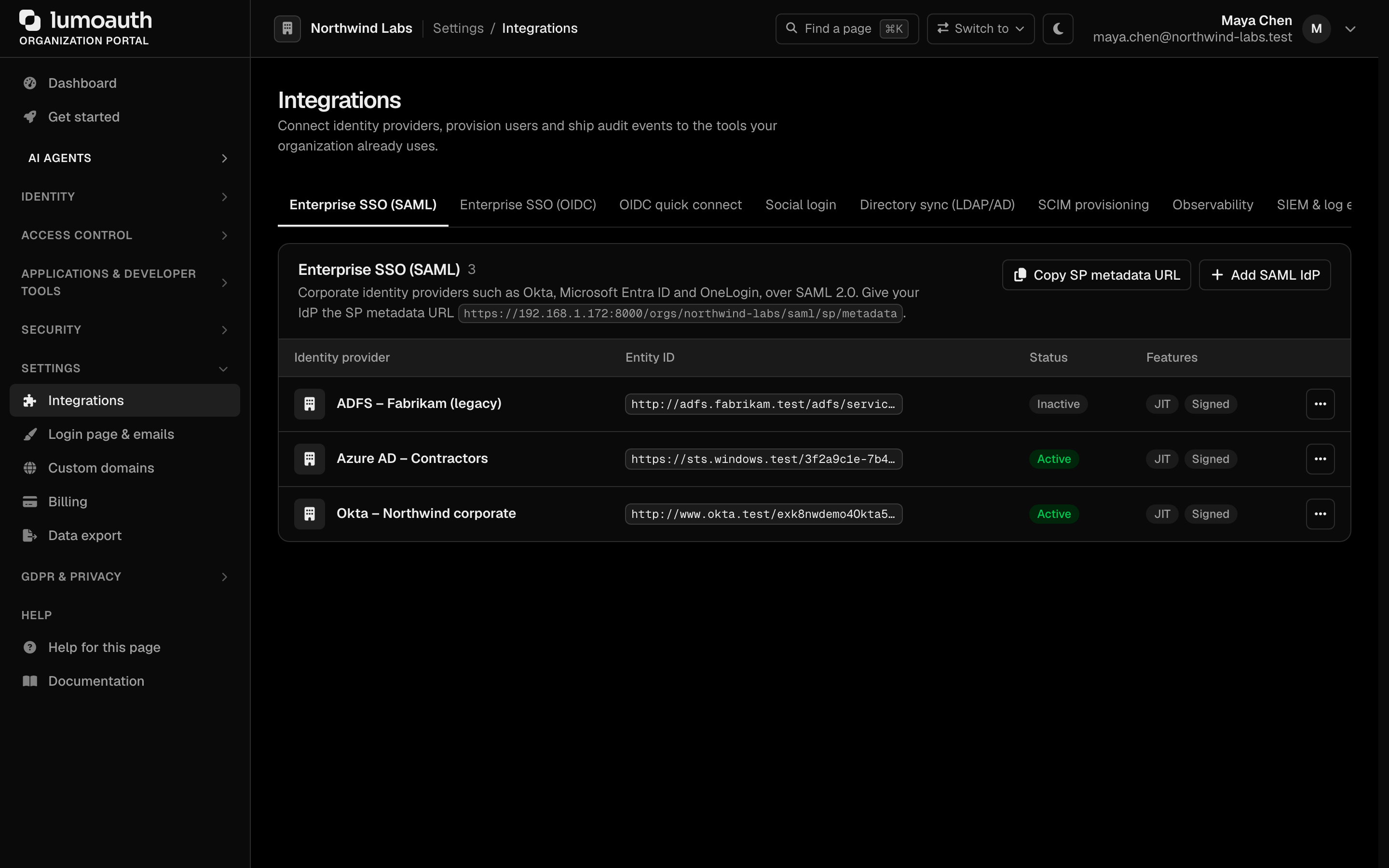
| Protocol | Use Case | LumoAuth Role |
|----------|----------|--------------|
| **SAML 2.0** | Enterprise SSO with Okta, Azure AD, PingFederate, etc. | Service Provider (SP) and Identity Provider (IdP) |
| **OpenID Connect** | SSO with external OIDC providers | Relying Party (RP) |
| **LDAP / Active Directory** | Direct directory authentication | LDAP client with JIT provisioning |
---
## SAML 2.0
### LumoAuth as Service Provider (SP)
When LumoAuth acts as a SAML SP, it delegates authentication to an external SAML IdP (like Okta or Azure AD).
**Flow:**
1. User starts single sign-on at `/orgs/{orgId}/saml/sp/login` (your application links or redirects there).
2. LumoAuth generates a SAML AuthnRequest and redirects to the IdP.
3. User authenticates at the IdP.
4. IdP sends a SAML Assertion back to LumoAuth.
5. LumoAuth validates the assertion and creates or links the user account.
6. User is logged in.
### Configuration
Configure connections to SAML IdPs in the **Enterprise SSO (SAML)** section of **Settings → Integrations**. The section lists your identity providers, shows the metadata URL of the service provider, and has the **Copy SP metadata URL** and **Add SAML IdP** buttons. (The old `/saml-idps` list URL now redirects here.)
Click **Add SAML IdP**. Paste the IdP's metadata URL under **Import from IdP metadata** and click **Fetch from metadata URL** to fill the form in, or enter the values by hand:
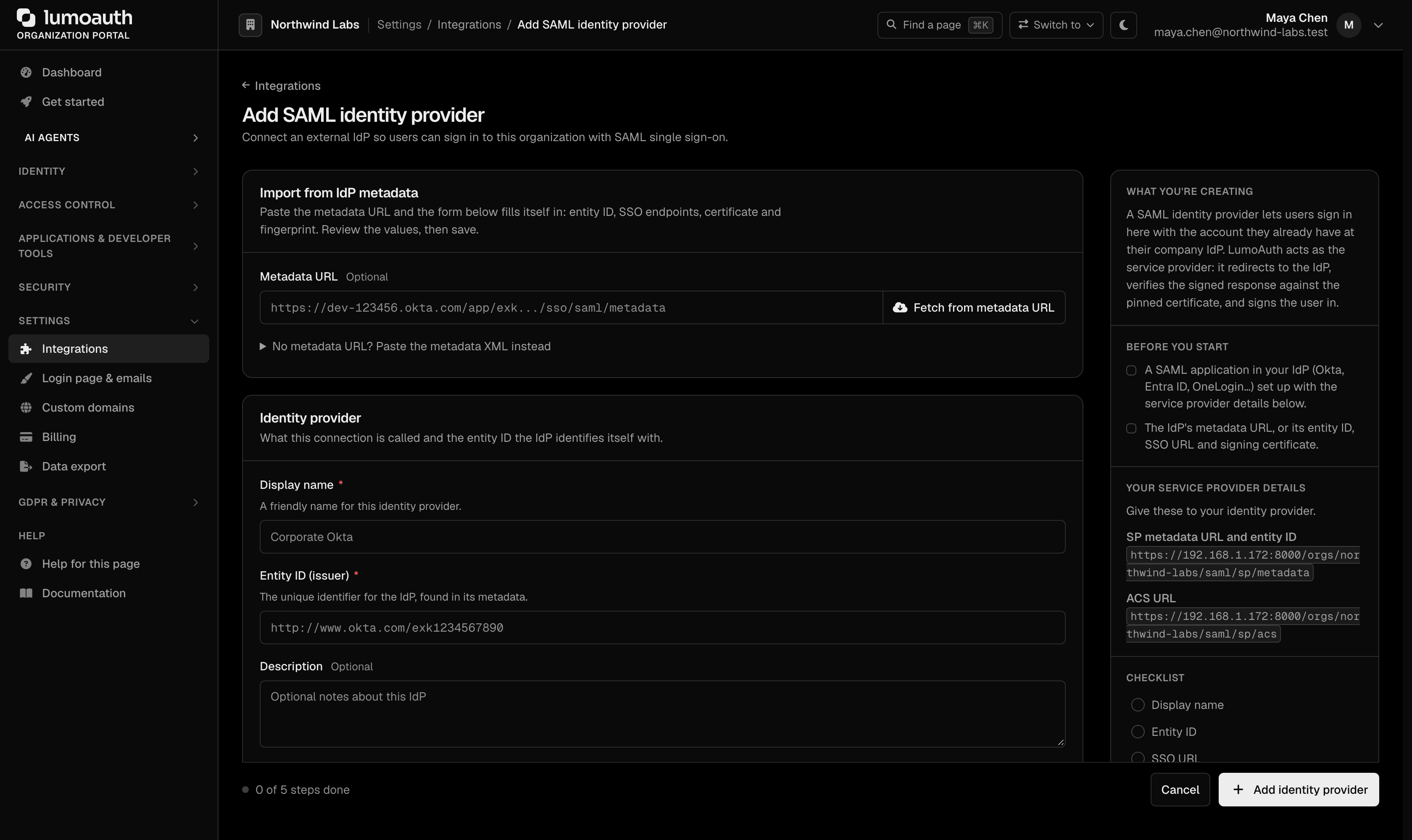
**Required Settings:**
| Setting | Description |
|---------|-------------|
| **Display name** | A friendly name for this identity provider |
| **Entity ID (issuer)** | The identity provider's entity ID |
| **SSO URL** | Single Sign-On URL for SAML requests |
| **SLO URL** | Single Logout URL (optional) |
| **X.509 certificate (PEM)** | The IdP's signing certificate, for signature verification |
| **Certificate fingerprint (SHA-256)** | Must match the certificate; filled automatically when importing from metadata |
| **NameID format** | Format for the user identifier (email address, persistent, transient, unspecified) |
| **Allowed email domains** | Optional, comma-separated (`acme.com, acme.co.uk`). Only addresses in these domains and their sub-domains can be provisioned or linked through this IdP. **Required to link existing accounts when the organization has more than one SAML IdP.** |
### How SAML users are matched
A SAML user is bound to the IdP that issued their NameID, stored as `saml:{idpConfigId}:{nameId}` (NameIDs too long for the column become `saml:{idpConfigId}:sha256:{hex}`). A NameID is only unique within its IdP, so one IdP can no longer assert another IdP's NameID and get into that user's account.
On sign-in LumoAuth looks for, in order:
1. The account bound to this IdP and NameID.
2. An existing account with the asserted email, only when the IdP asserts `email_verified` **and** is authoritative for the email's domain. The IdP is authoritative when the domain is in its **Allowed email domains**. With that list empty, LumoAuth falls back to the host of the entity ID (an IdP at `https://idp.acme.com` covers `@acme.com`). This fallback applies only when this is the organization's **only** SAML IdP and no other IdP lists the domain. Accounts that already have a local password, a social provider or a different SAML IdP are never taken over.
3. A new account (just-in-time provisioning), only for domains the IdP is authoritative for; otherwise refused and audited as `saml_jit_domain_mismatch`.
#### Accounts created before per-IdP binding
Older SAML accounts stored the bare NameID. On upgrade (migration `Version20260928300001`):
- **Organizations with one SAML IdP** are migrated automatically. Any bare-NameID row left over is upgraded on the user's next sign-in (`saml_legacy_binding_upgraded`).
- **Organizations with several SAML IdPs** keep the bare-NameID rows, because LumoAuth cannot tell which IdP issued them. Those users' sign-ins are refused with "Account already exists but is not linked to this identity provider; please ask your administrator to relink it." and audited as `saml_legacy_binding_ambiguous` (with `idp_config_id` and `user_id`).
Set **Allowed email domains** on every IdP first, so LumoAuth can suggest which IdP each legacy user belongs to, then relink them in one of three ways. Relinking keeps the user's NameID and binds it to the IdP that you choose.
- **Portal:** open **Integrations → SAML IdP → Edit** for the IdP that issues the users' NameIDs. The **Legacy users** panel is shown only when the organization has more than one SAML IdP and legacy users exist. It lists each user with the IdP whose allowed email domains claim their address; users that only this IdP claims are pre-selected. Choose **Preview relink to …** (the button names the IdP) to see what would change (a dry run), then **Relink N users**.
- **Admin API:** `GET /orgs/{orgId}/api/v1/admin/identities/legacy-saml` returns the report (`suggested_idp_id` per user). `POST` the same path with `{"idp_id": 7, "all_matching_domains": true, "dry_run": true}` (or `"user_ids": [...]`) to preview, then again with `"dry_run": false`. See [Federated identities](https://docs.lumoauth.dev/api-reference/users#federated-identities).
- **CLI:** `lumo identities legacy-saml`, then `lumo identities legacy-saml --idp 7 --relink --dry-run` and `--relink --yes`. See [`lumo identities`](https://docs.lumoauth.dev/cli/identities).
Each relinked user is signed out everywhere, emailed, and audited as `identity.link.created`; the run as a whole is audited as `identity.link.bulk_relinked`. Two kinds of entries are skipped: users holding permissions that you lack, and NameIDs already linked to someone else at that IdP.
#### Linking a SAML identity to an existing account
You can link a single account to an IdP, for example for a user who signed up with a password before SSO was set up, or whose NameID changed. Open the user in **Users**, go to **Federated identities** and choose **Link SAML identity**. Pick the **Identity provider** and enter the **NameID** that the IdP asserts for the user. The link buttons appear in this section once the organization has a SAML IdP (or an LDAP directory) configured.
The same is available as `POST /orgs/{orgId}/api/v1/admin/users/{userId}/identities` and `lumo users identities link --saml-idp --name-id `. The link is refused when another user already holds that NameID at the IdP, or when the account is linked to LDAP or a social provider (unlink that first). See [Relinking federated identities](#relinking-federated-identities).
**LumoAuth SP Metadata:**
Your SAML IdP needs LumoAuth's SP metadata, available at:
```
/orgs/{orgId}/saml/sp/metadata
```
Or configure manually in your IdP:
- **SP Entity ID:** `https://your-domain.com/orgs/{orgId}/saml/sp/metadata`
- **ACS URL:** `https://your-domain.com/orgs/{orgId}/saml/sp/acs`
- **SLO URL:** `https://your-domain.com/orgs/{orgId}/saml/sp/slo`
Single logout messages must be **signed by the IdP**. LumoAuth always requires a signature on `LogoutRequest` and `LogoutResponse` messages at the SLO endpoint, independent of the *Require signed responses* setting. This way nobody who only knows a user's NameID can end their session. Enable "sign logout messages" (Okta: *Sign SAML logout requests*; Entra: certificate-based signing) on the IdP side, or do not configure SLO at all. Details in [SAML SP](https://docs.lumoauth.dev/saml/sp#single-logout-slo).
### LumoAuth as Identity Provider (IdP)
LumoAuth can also act as a SAML IdP, letting external applications authenticate users stored in LumoAuth.
SAML SP (client) applications are listed alongside your other apps on the Applications page:
```
/orgs/{orgId}/portal/applications
```
To register a new SAML SP (client), click **New application** and choose **SAML 2.0** as the protocol, or open the full SAML form directly at:
```
/orgs/{orgId}/portal/applications/saml/create
```
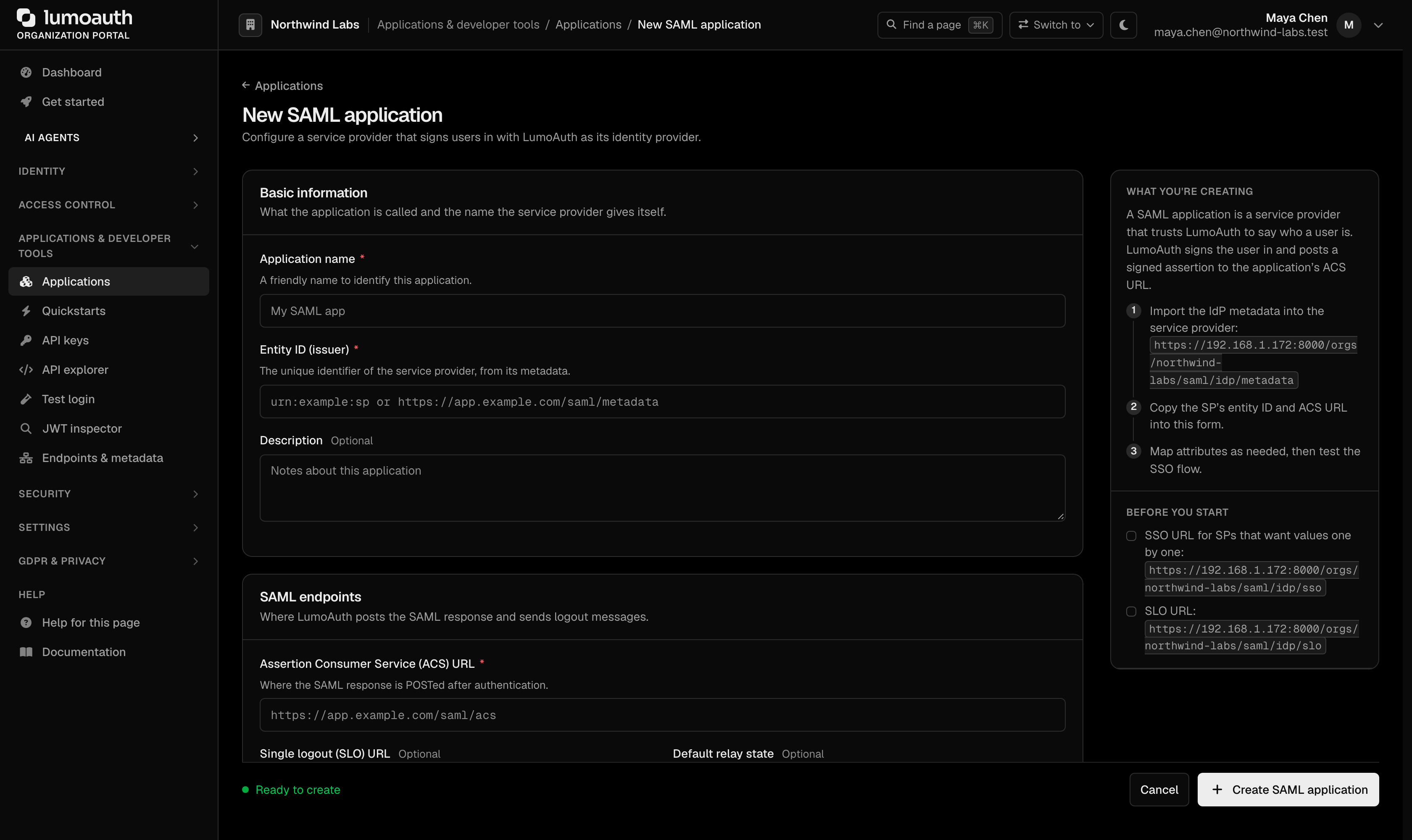
LumoAuth's IdP metadata for these clients is published at `/orgs/{orgId}/saml/idp/metadata`, with the SSO endpoint at `/orgs/{orgId}/saml/idp/sso` and single logout at `/orgs/{orgId}/saml/idp/slo`.
For each SAML client:
- **Entity ID (issuer)** — the service provider's entity ID.
- **Assertion Consumer Service (ACS) URL** — where to send the SAML assertion.
- **NameID format** and **NameID source** — how to identify the user.
- **Attribute Statements** — which user attributes to include.
---
## OpenID Connect (OIDC) Federation
### Connect External OIDC Providers
LumoAuth can act as an OIDC Relying Party (RP), delegating authentication to external OIDC identity providers.
Configure in the **Enterprise SSO (OIDC)** section of **Settings → Integrations** (**Add OIDC IdP**, or one of the vendor presets under **OIDC quick connect**).
Register the redirect URI shown there (`/orgs/{orgId}/oidc/rp/callback`) with your identity provider.
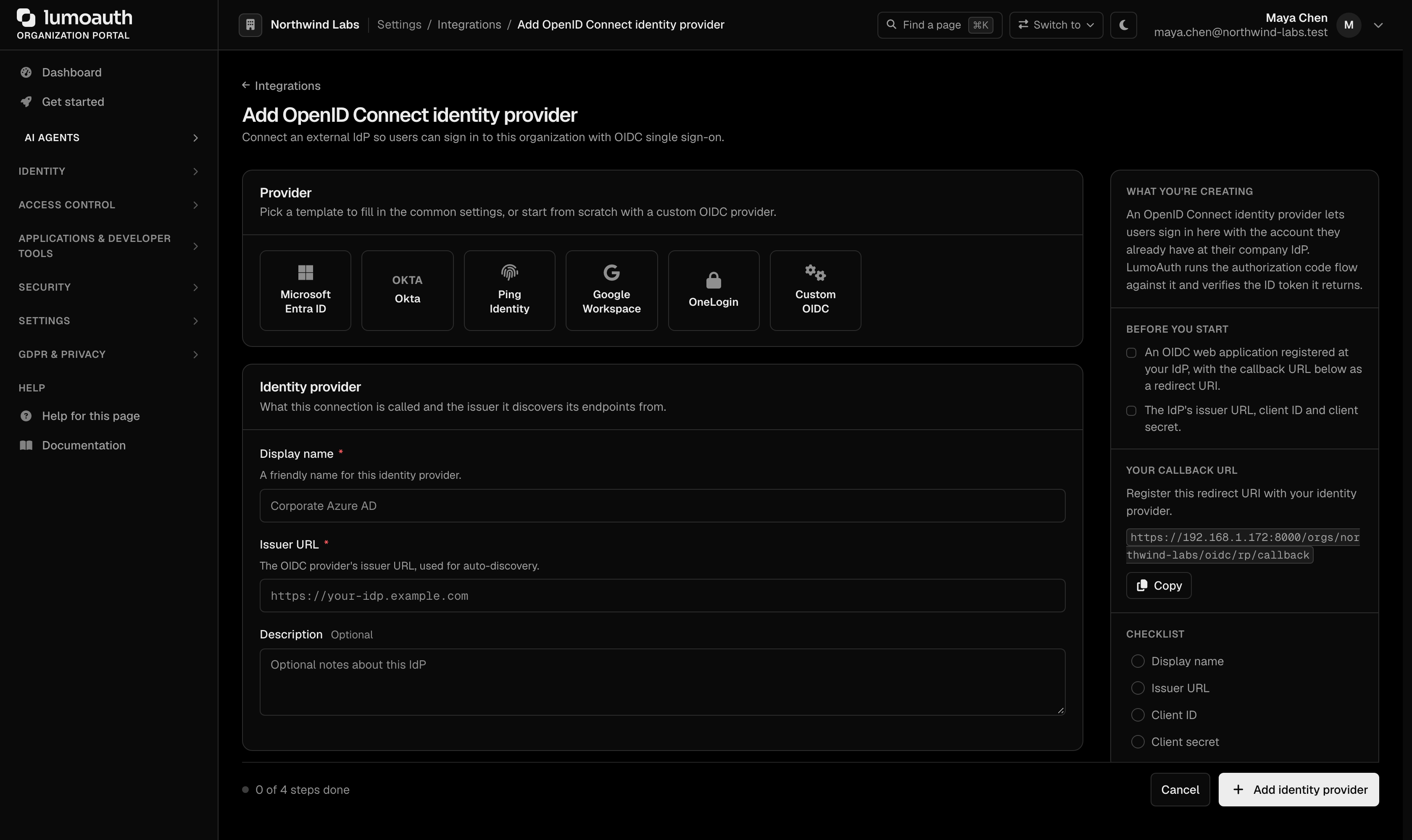
**Required Settings:**
| Setting | Description |
|---------|-------------|
| **Display name** | A friendly name for this identity provider |
| **Issuer URL** | The OIDC provider's issuer (e.g., `https://accounts.google.com`) |
| **Client ID** | OAuth client ID from the external provider |
| **Client secret** | OAuth client secret |
| **Scopes** | Scopes to request (e.g., `openid profile email`) |
| **Endpoints** (optional) | Leave blank to auto-discover from the issuer's `.well-known/openid-configuration` |
**OIDC Discovery:** if the provider supports OIDC Discovery, you only need to enter the issuer URL; LumoAuth configures the rest automatically.
---
## LDAP / Active Directory
### Direct LDAP Authentication
Connect LumoAuth directly to an LDAP or Active Directory server to authenticate users against the corporate directory.
Configure in the **Directory sync (LDAP/AD)** section of **Settings → Integrations** (**Add LDAP/AD directory**):
```
/orgs/{orgId}/portal/integrations
```
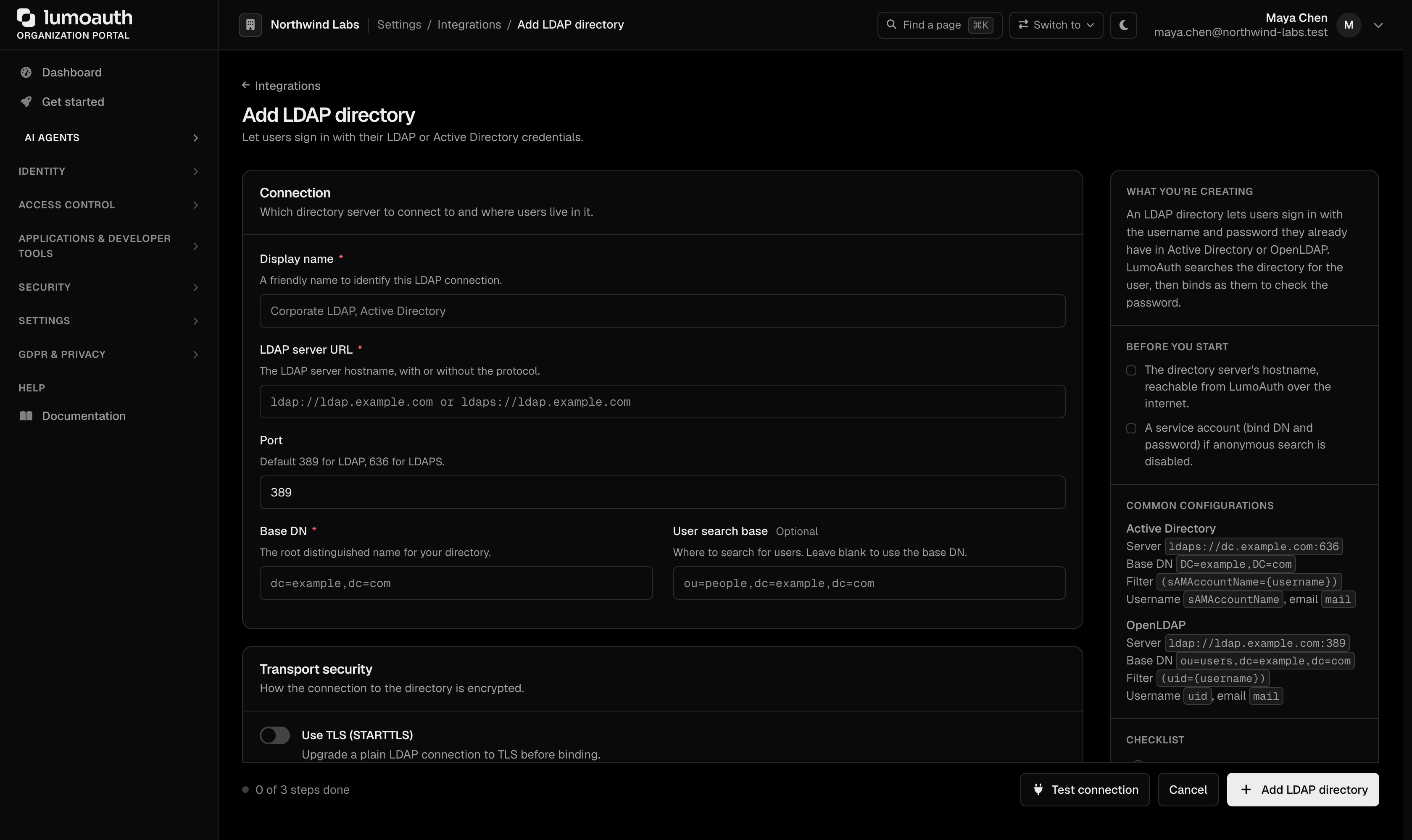
**Required Settings:**
| Setting | Description |
|---------|-------------|
| **Display name** | How the directory is listed in the portal |
| **LDAP server URL** | Hostname or IP of the LDAP server, with or without the protocol. Must resolve to a **public** address: private network address ranges, loopback, link-local and similar targets are refused when you save. |
| **Port** | Connection port (389 for LDAP, 636 for LDAPS) |
| **Base DN** | Base Distinguished Name for user searches |
| **User search base** | Optional sub-tree under the base DN to search |
| **Bind DN** | DN of the service account for LDAP queries |
| **Bind password** | Password for the service account. Stored encrypted at rest and never shown again. Leave the field blank when editing to keep it. When you change the server URL, port, bind DN or either TLS switch, the password must be re-entered, so a stored secret is never sent to a new host or over a weaker transport. |
| **User search filter** | LDAP filter to find users (e.g., `(sAMAccountName={username})`) |
| **Use TLS (STARTTLS)** / **Use SSL (LDAPS)** | STARTTLS or LDAPS. One of them is required. A connection with both switched off is refused on save, on **Test connection** and at sign-in, unless **Allow unencrypted transport** is explicitly ticked. That switch is off by default, and its use is recorded in the audit log. The server certificate is always verified; there is no "skip verification" option. |
### Connection rules
These rules are applied on every save and on every sign-in; they cannot be switched off.
| Rule | Why |
|------|-----|
| The host must be a public, resolvable hostname or IP | Prevents LumoAuth from being pointed at internal infrastructure (SSRF). Directories behind a firewall need a public endpoint or a tunnel with a public address. |
| TLS certificates are verified (`LDAP_OPT_X_TLS_DEMAND`) | A man-in-the-middle on the directory link would see every user's password. Use a certificate from a CA in the LumoAuth host's trust store. |
| Plain `ldap://` without STARTTLS or LDAPS is refused unless **Allow unencrypted transport** is ticked | Without TLS the bind password and every user's password cross the network in clear text. The opt-out exists for directories reached over a private tunnel that is encrypted elsewhere. |
| Empty passwords are refused before any bind | The standard for LDAP authentication defines "DN + empty password" as an *unauthenticated* bind, which Active Directory and some OpenLDAP setups answer with success. LumoAuth never performs it. |
| The portal **Test connection** button reports generic errors | *Could not connect to the LDAP server.* or *Could not start TLS with the LDAP server (certificate verification is required).* The exact reason is in the application log, not in the browser. |
**Info: Standard**
**LDAP authentication.** The standard for LDAP authentication defines the *unauthenticated* bind: a DN with an empty password succeeds without proving anything. Any login form that forwards a user's password to LDAP must reject an empty password before calling bind. See the [standards reference](https://docs.lumoauth.dev/reference/standards).
### Attribute Mapping
The form's attribute fields name the LDAP attribute to read for each profile field:
| Field | Typical LDAP attribute |
|---|---|
| **Username attribute** | `sAMAccountName` or `uid` |
| **Email attribute** | `mail` |
| **Name attribute** | `displayName` |
| **Given name attribute** | `givenName` |
| **Surname attribute** | `sn` |
Group membership and phone numbers are not read from the directory.
### JIT Provisioning from LDAP
When JIT (Just-In-Time) provisioning is enabled:
1. User attempts to log in with LDAP credentials.
2. LumoAuth authenticates against the LDAP server.
3. If the user does not exist in LumoAuth, an account is automatically created.
4. The user profile is populated from LDAP attributes.
### How LDAP users are matched
An LDAP account is linked to its directory entry by **(directory connection, DN)**. An email change in the directory therefore does not create a second account, and the directory's `mail` attribute (which users can often edit themselves) cannot move a user into someone else's account.
When no account is linked to the DN yet, LumoAuth may adopt the account with the same email only if nothing else owns it. The sign-in is refused (it fails like a wrong password) and audited as `ldap.account_link_refused` with a `reason` when the account:
| `reason` | The account… |
|----------|--------------|
| `bound_to_different_dn` | is already linked to another DN |
| `bound_to_different_directory` | is linked to another LDAP connection |
| `federated_account` | is linked to a social provider |
| `different_auth_source` | comes from another sign-in source (SAML, SCIM, …) |
| `local_password` | has its own local password |
| `platform_admin` | is a LumoAuth operator account, which can never be linked to a directory entry |
The same rule applies with JIT provisioning off: the user can only sign in to the account linked to their directory entry. To let a refused user in, link the account to the directory entry explicitly. Open the user in **Users → Federated identities → Link LDAP identity**, pick the directory and enter the DN. Leave the DN empty to look the entry up by the user's email, then username. The same is available as `POST /orgs/{orgId}/api/v1/admin/users/{userId}/identities` with `{"type": "ldap", "ldap_config_id": 1, "dn": "..."}` and `lumo users identities link --ldap-config 1 --dn "..."`. The user's local password keeps working unless you also choose **Directory sign-in only** (`ldap_only` / `--ldap-only`).
### Relinking federated identities
A federated link determines which external identity signs in as an account, so an administrator changing one could hand the account to someone else. LumoAuth therefore treats link, unlink and relink like a credential change:
- You need the `users.edit` permission (`admin:users:write` for API keys), and you cannot change the links of an account that holds permissions that you do not have.
- Signed-in administrators must have passed MFA (multi-factor authentication) in the last 10 minutes (the same step-up as issuing a temporary access code).
- The user's sessions and tokens are revoked and the user receives an email with a "This wasn't me" link.
- Every change is audited: `identity.link.created`, `identity.link.removed`, `identity.link.bulk_relinked`.
An account signs in through one federated source at a time. Linking SAML is refused while the account is linked to LDAP or a social provider, and linking LDAP is refused while it is linked to SAML. Unlink the other source first (**Unlink** in the portal, `DELETE /users/{userId}/identities/{type}`, or `lumo users identities unlink --type saml|ldap|social`). Unlinking LDAP also turns off **Directory sign-in only**; the user then needs a password reset to sign in with a local password.
---
## JIT User Provisioning
Regardless of the SSO protocol, LumoAuth supports JIT provisioning.
### How It Works
When a user authenticates via an external IdP for the first time:
1. LumoAuth receives the user's identity information (email, name, etc.).
2. If no LumoAuth account exists for that user, one is created.
3. The user profile is populated from the IdP's assertion or claims.
4. For social-login providers, the provider's default roles are assigned.
5. The external identity is linked to the LumoAuth account.
### Configuration
JIT provisioning settings per IdP connection:
| Setting | Description |
|---------|-------------|
| **Just-in-time provisioning** | Create accounts automatically on first SSO login |
| **Attribute mappings** (LDAP) | Map directory attributes to the user's LumoAuth profile (the LDAP form's **Provisioning** section has only **Just-in-time provisioning**). SAML attributes are mapped automatically, see [SAML SP](https://docs.lumoauth.dev/saml/sp#attribute-mapping) |
| **Update user attributes on sign-in** (SAML, OIDC) | Sync user profile on every login (not just the first) |
On the SAML and OIDC forms these switches are in the **User provisioning** section:
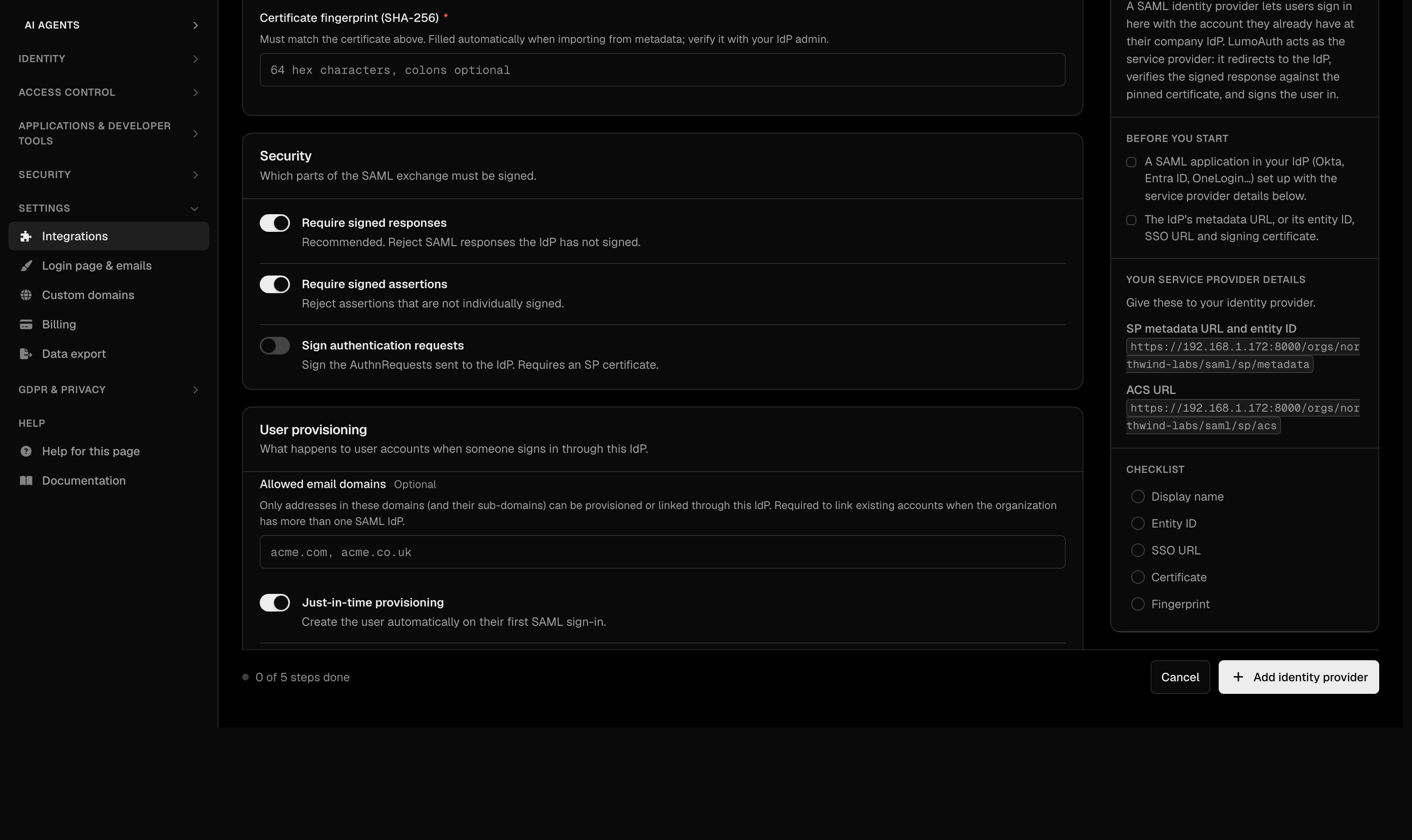
### Roles for provisioned users
Provisioned users start with **no roles** unless the connection defines default roles, and default roles can never make someone an administrator:
- **Social login providers** have a *Default roles* field. System roles and roles that grant administrator authority are refused when you save, and you must hold every permission in the roles that you pick. See [Social Login](https://docs.lumoauth.dev/user-guide/authentication/social-login#default-roles).
- **SAML IdPs** have no default-roles field in the portal today. If a stored configuration carries one, any privileged role in it is skipped at sign-in and an audit event `saml_default_role_skipped` is written.
- **OIDC IdPs and LDAP** assign no roles on provisioning.
Grant roles afterwards in the portal, through [groups](https://docs.lumoauth.dev/user-guide/access-control/groups), or let your IdP manage job-function roles through [SCIM groups](https://docs.lumoauth.dev/user-guide/integrations/scim). The single rule behind all of this is described in [No privilege gain](https://docs.lumoauth.dev/user-guide/access-control/roles-permissions#no-privilege-gain).
---
## Single Logout
LumoAuth supports single logout flows:
- **SAML SLO** — when a user logs out of LumoAuth, the SAML logout request is sent to the IdP. Inbound logout messages from the IdP must be signed.
- **OIDC Logout** — front-channel and back-channel logout supported.
- **Session Termination** — all LumoAuth sessions are invalidated.
---
## Common SSO Configurations
### Okta
1. In Okta Admin → **Applications → Create App Integration → SAML 2.0**.
2. Set **SSO URL** to: `https://your-domain.com/orgs/{orgId}/saml/sp/acs`.
3. Set **Audience URI** to: `https://your-domain.com/orgs/{orgId}/saml/sp/metadata`.
4. Configure attribute statements (email, firstName, lastName).
5. Download the IdP metadata and import into LumoAuth.
### Azure AD
1. In Azure Portal → **Enterprise Applications → Create New**.
2. Set up SAML SSO configuration.
3. Set **Reply URL** to: `https://your-domain.com/orgs/{orgId}/saml/sp/acs`.
4. Set **Identifier** to: `https://your-domain.com/orgs/{orgId}/saml/sp/metadata`.
5. Download the Federation Metadata XML and import into LumoAuth.
### Google Workspace
1. In Google Admin → **Security → SSO with third-party IdP**.
2. Or use OIDC: configure LumoAuth as an OIDC RP with Google's issuer URL.
---
## Related Guides
- [Authentication Overview](https://docs.lumoauth.dev/user-guide/authentication/overview) — all authentication methods
- [Social Login](https://docs.lumoauth.dev/user-guide/authentication/social-login) — OAuth-based social identity providers
- [SAML Applications](https://docs.lumoauth.dev/user-guide/applications/saml) — configure SAML SP applications
- [SCIM Provisioning](https://docs.lumoauth.dev/user-guide/integrations/scim) — automated user provisioning from IdPs
## Standards used on this page
| Plain name | Standard |
|---|---|
| SAML 2.0 | OASIS SAML 2.0 |
| OpenID Connect (OIDC) | OpenID Connect Core 1.0 |
| LDAP authentication | RFC 4513 |
| Private network address ranges | RFC 1918 |
See the [standards reference](https://docs.lumoauth.dev/reference/standards) for what each one covers and how LumoAuth uses it.
---
# Device Authorization Flow
Source: https://docs.lumoauth.dev/user-guide/authentication/device-flow
The Device Authorization Flow is the OAuth flow for devices that cannot run a browser or accept typed credentials — CLI tools, smart TVs, game consoles, IoT devices, and kiosks. The device shows a short user code and a…
The Device Authorization Flow is the OAuth flow for devices that cannot run a browser or accept typed credentials — CLI tools, smart TVs, game consoles, IoT devices, and kiosks. The device shows a short user code and a verification URL; the user opens that URL on a second device (phone or laptop), logs in, and types the code. The device polls the token endpoint until the user finishes, then receives tokens.
This is the standard OAuth 2.0 device authorization flow used by CLIs, smart TVs, and other input-constrained devices. The device shows a short `user_code`; the user types it on a second device to authorize.
---
## How It Works
1. **Device requests authorization** — calls the device authorization endpoint.
2. **User code displayed** — the device shows a code and a URL to the user.
3. **User opens URL on another device** — typically phone or laptop.
4. **User enters the code and authenticates** — standard login flow on the second device.
5. **Device polls for tokens** — periodically checks if the user has completed authentication.
6. **Tokens issued** — once the user authorizes, the device receives access and refresh tokens.
```mermaid
sequenceDiagram
participant D as Device (CLI/TV)
participant AS as Auth Server
participant U as User's Phone
D->>AS: 1. POST /device_authorization
AS-->>D: device_code + user_code
Note over D: 2. Display: "Go to URL,
enter code: ABCD-1234"
U->>AS: 3. Opens URL, enters code, logs in
D->>AS: 4. Poll POST /token
AS-->>D: access_token + refresh_token
```
---
## Endpoints
All endpoints of the device flow are organization-specific:
| Endpoint | URL | Purpose |
|----------|-----|---------|
| **Device Authorization** | `/orgs/{orgId}/api/v1/oauth/device_authorization` | Request device + user codes |
| **Device Verification** | `/orgs/{orgId}/api/v1/oauth/device` | User-facing page to enter the code |
| **Token** | `/orgs/{orgId}/api/v1/oauth/token` | Poll for tokens (`grant_type=device_code`) |
---
## Step-by-Step Guide
### 1. Request Device Authorization
The device calls the authorization endpoint:
```bash
curl -X POST https://your-domain.com/orgs/{orgId}/api/v1/oauth/device_authorization \
-d client_id=YOUR_CLIENT_ID \
-d scope="openid profile email"
```
Response:
```json
{
"device_code": "GmRh...device_code",
"user_code": "ABCD-1234",
"verification_uri": "https://your-domain.com/orgs/{orgId}/api/v1/oauth/device",
"verification_uri_complete": "https://your-domain.com/orgs/{orgId}/api/v1/oauth/device?user_code=ABCD-1234",
"expires_in": 600,
"interval": 5
}
```
### 2. Display the Code to the User
The device displays:
```
To sign in, visit: https://your-domain.com/orgs/acme-corp/api/v1/oauth/device
Enter code: ABCD-1234
```
Or display a QR code pointing to `verification_uri_complete` for a smoother mobile experience.
### 3. User Authenticates on Their Device
The user:
1. Opens the verification URL, which shows the **Link your device** page.
2. Enters the **Device code** (if not in the URL) and submits the form.
3. Logs in with their credentials (or social login).
4. Approves the device on the **Authorize Device** page.
The code-entry form is CSRF-protected; a code posted from another site is refused and the form is shown again.
### 4. Device Polls for Tokens
The device polls the token endpoint at the specified interval:
```bash
curl -X POST https://your-domain.com/orgs/{orgId}/api/v1/oauth/token \
-d grant_type=urn:ietf:params:oauth:grant-type:device_code \
-d device_code=GmRh...device_code \
-d client_id=YOUR_CLIENT_ID
```
**While waiting:**
```json
{
"error": "authorization_pending",
"error_description": "The user has not yet completed authorization"
}
```
**After user authorizes:**
```json
{
"access_token": "eyJ...",
"token_type": "Bearer",
"expires_in": 3600,
"refresh_token": "def...",
"id_token": "eyJ..."
}
```
---
## Use Cases
| Device | Example |
|--------|---------|
| **CLI Tools** | `lumo login` command that displays a code |
| **Smart TVs** | Streaming apps that display a code on screen |
| **IoT Devices** | Connected devices without a full browser |
| **Kiosks** | Public terminals with limited input capabilities |
| **Game Consoles** | Authenticate with a code shown on the TV |
---
## Configuration
### Create a Device Flow Application
1. Go to **Applications** (`/orgs/{orgId}/portal/applications`) and click **New application**.
2. Keep **OpenID Connect** as the protocol and choose **Single-page or mobile app**, which creates a **public client** (no client secret for devices).
3. On the application's **Configuration** tab, configure **Allowed scopes**.
4. The client's grant types must include `urn:ietf:params:oauth:grant-type:device_code`; otherwise the device authorization endpoint answers `unauthorized_client`. The **Grant types** list on the Configuration tab does not offer the device grant, so it cannot be switched on from the portal.
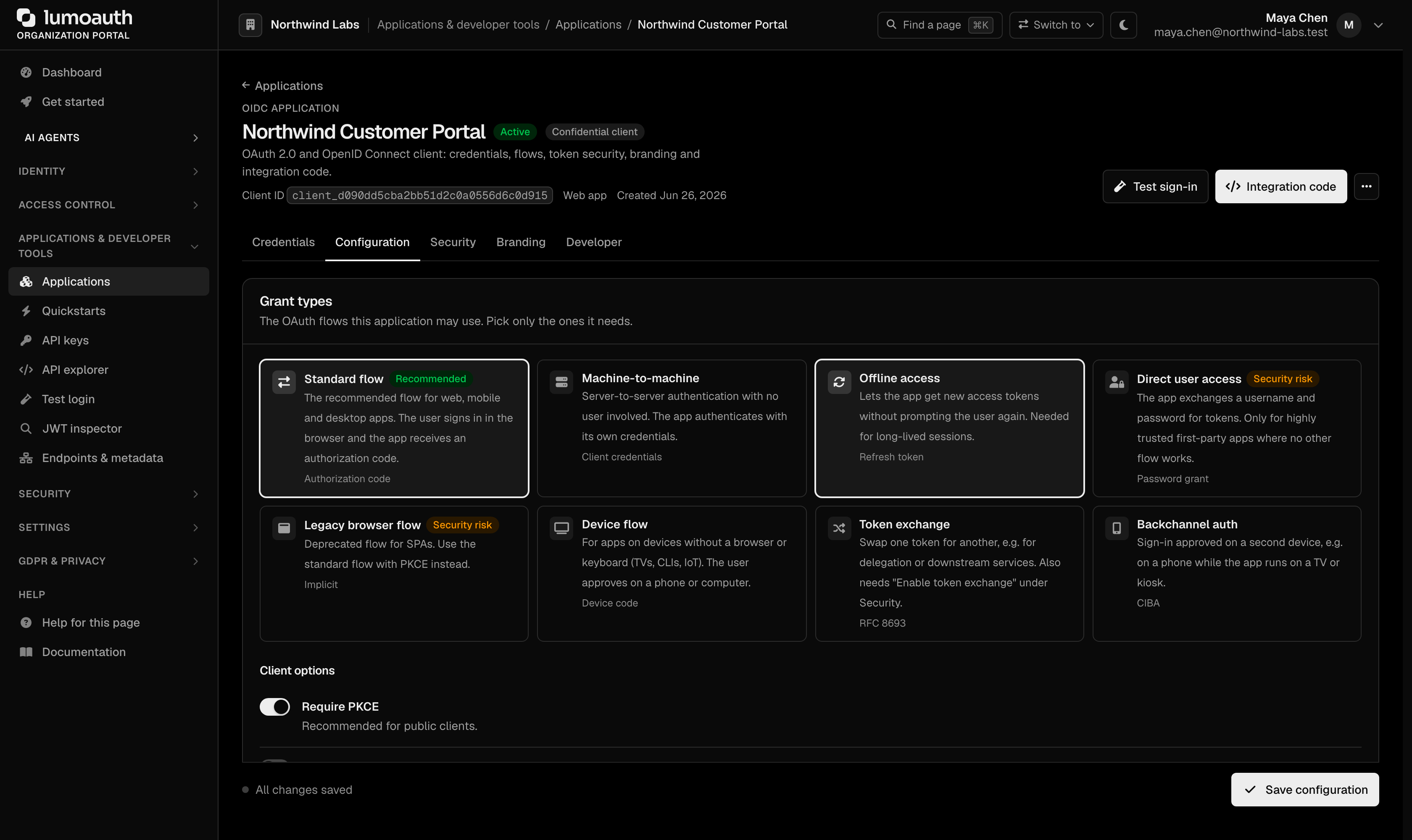
### Device Code Defaults
These values are fixed by the server (they cannot be changed per application) and are returned in the device authorization response:
| Value | Description | Default |
|---------|-------------|---------|
| **Code Expiration** (`expires_in`) | How long the device/user code is valid | 10 minutes (600 s) |
| **Polling Interval** (`interval`) | Minimum seconds between token polls | 5 seconds |
| **User Code Format** | Format of the code shown to users | for example `XXXX-XXXX` |
---
## Related Guides
- [Authentication Overview](https://docs.lumoauth.dev/user-guide/authentication/overview) — all authentication methods
- [Device Authorization Grant (API reference)](https://docs.lumoauth.dev/oauth/device) — endpoint details and error codes
- [OAuth 2.0 & OIDC](https://docs.lumoauth.dev/user-guide/applications/oauth2-oidc) — token management and OAuth flows
## Standards used on this page
| Plain name | Standard |
|---|---|
| Device authorization (sign in on another device) | RFC 8628 |
See the [standards reference](https://docs.lumoauth.dev/reference/standards) for what each one covers and how LumoAuth uses it.
---
# Access Control
Source: https://docs.lumoauth.dev/user-guide/access-control/overview
LumoAuth supports three authorization models, each suited to a different class of access problem. This overview compares them so you can pick — or combine — the right one for your organization. If you are unsure, read…
LumoAuth supports three authorization models, each suited to a different class of access problem. This overview compares them so you can pick — or combine — the right one for your organization. If you are unsure, read [Choosing a model](https://docs.lumoauth.dev/user-guide/access-control/choosing-a-model) first: start with roles.
A quick recap of each model:
- **RBAC (Role-Based Access Control).** Users are assigned roles; roles hold named permissions. The simplest model — use when access is primarily a function of job title.
- **ABAC (Attribute-Based Access Control).** Policies evaluate attributes of the subject (user), resource, action, and environment (time, IP, device). Use when decisions depend on dynamic context.
- **Zanzibar / ReBAC (Relationship-Based Access Control).** Access is stored as relation tuples like `document:readme#editor@user:alice` ("alice is an editor of document readme"). The check engine searches the relation graph. Use when access is driven by hierarchy and sharing — folders, teams, ownership.
---
## Authorization Models
| Model | Best For | Complexity |
|-------|----------|------------|
| **[RBAC](https://docs.lumoauth.dev/user-guide/access-control/roles-permissions)** | Simple role-based access | Low |
| **[Groups](https://docs.lumoauth.dev/user-guide/access-control/groups)** | Organizing users by team/department | Low |
| **[ABAC](https://docs.lumoauth.dev/user-guide/access-control/abac)** | Context-aware, attribute-based decisions (Fine-grained authorization add-on) | Medium |
| **[Zanzibar](https://docs.lumoauth.dev/user-guide/access-control/zanzibar)** | Relationship-based access for hierarchical resources (Fine-grained authorization add-on) | High |
| **[AI Policy Authoring](https://docs.lumoauth.dev/user-guide/access-control/ai-policy-authoring)** | Generate policies from natural language | Low (input), High (output) |
---
## How They Work Together
```mermaid
flowchart TD
Req["User Request"]
Req --> RBAC["RBAC\nRole check"]
Req --> ABAC["ABAC\nAttribute evaluation"]
Req --> Zanzibar["Zanzibar\nRelationship check"]
RBAC --> Decision["Access decision\n(a deny rule always wins)"]
ABAC --> Decision
Zanzibar --> Decision
```
The portal's **How access works** page describes the order in which one decision is made. **Roles and permissions** answer first: does the subject hold the permission directly, through a role, or through a group's role? **Relationships** can also grant it: is the subject connected to this specific object? **Attribute rules** are evaluated last: an *allow* rule can grant what the others did not, and a *deny* rule overrides everything above.
You can run one model or layer them:
- **RBAC only** — assign users to roles like `admin`, `editor`, `viewer`.
- **RBAC + Groups** — assign roles to groups; users inherit permissions via group membership.
- **RBAC + ABAC** — the role controls the capability, ABAC adds conditions (for example, "editors can only edit during business hours").
- **Zanzibar** — model relationships directly (for example, "a user can edit a document if they own it or if it is shared with their team").
---
## Quick Comparison
| Feature | RBAC | Groups | ABAC | Zanzibar |
|---------|------|--------|------|----------|
| Role-based decisions | ✅ | ✅ (via groups) | ❌ | ❌ |
| Attribute conditions | ❌ | ❌ | ✅ | ❌ |
| Relationship-based | ❌ | ❌ | ❌ | ✅ |
| Hierarchical | ❌ | ✅ | ❌ | ✅ |
| Context-aware | ❌ | ❌ | ✅ | ❌ |
| Scales to many objects | ❌ | ❌ | ❌ | ✅ |
---
## Permission Testing
**Test access** evaluates access decisions without affecting production data.
**URL:** `/orgs/{orgId}/portal/permissions/tester`
The tester lets you:
- Select a user (defaults to you) and a permission, or pick one of the **Quick presets**.
- Optionally add context as JSON.
- See whether the request would be allowed or denied, and through which role, group or direct grant.
- Compare the outcome with what you expected before you rely on a role or policy.
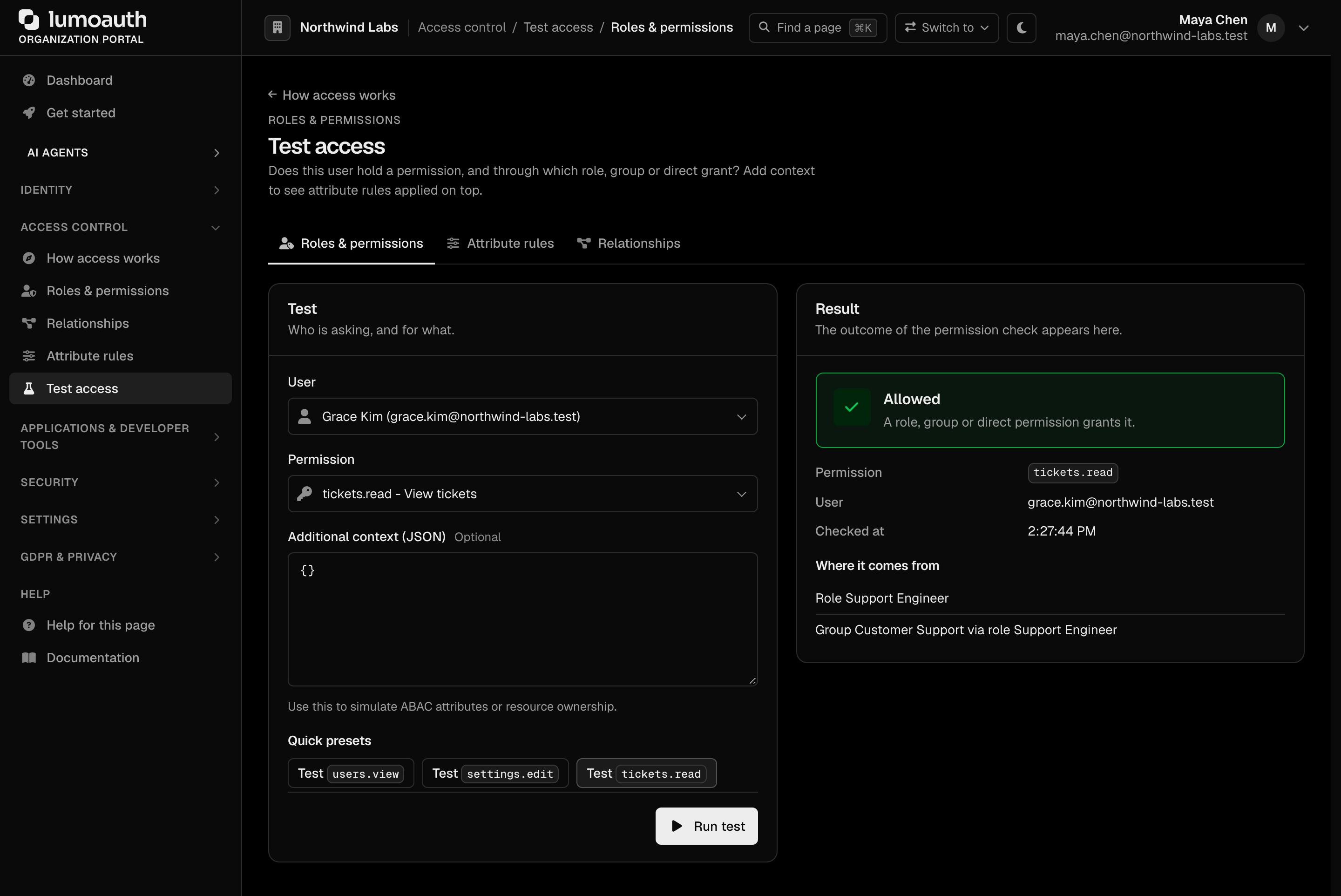
**Note**
There is one tester per model, linked by the tabs at the top of each. **Roles & permissions** (`/orgs/{orgId}/portal/permissions/tester`) covers permission checks for RBAC. **Attribute rules** (`/orgs/{orgId}/portal/abac/tester`) evaluates ABAC policies against a resource type, an action, and user and resource attributes. **Relationships** (`/orgs/{orgId}/portal/zanzibar/tester`) runs a Zanzibar check.
---
## Portal Locations
The access control features are all located directly under `/orgs/{orgId}/portal/`. In the sidebar, the **Access control** group holds **How access works**, **Roles & permissions**, **Relationships**, **Attribute rules** and **Test access**. **Users** is under **Identity**, and **Groups** (like **Invitations**) is a tab on the Users page.
The **How access works** page (`/orgs/{orgId}/portal/access`) is the starting point. It shows one card per model with live counts (roles and custom permissions, active attribute rules, object types and relationships). It also has a **Test an access decision** button and a **Help me choose** link to [Choosing a model](https://docs.lumoauth.dev/user-guide/access-control/choosing-a-model). Models that need the Fine-grained authorization add-on carry an **Add-on** tag when the organization does not have it.
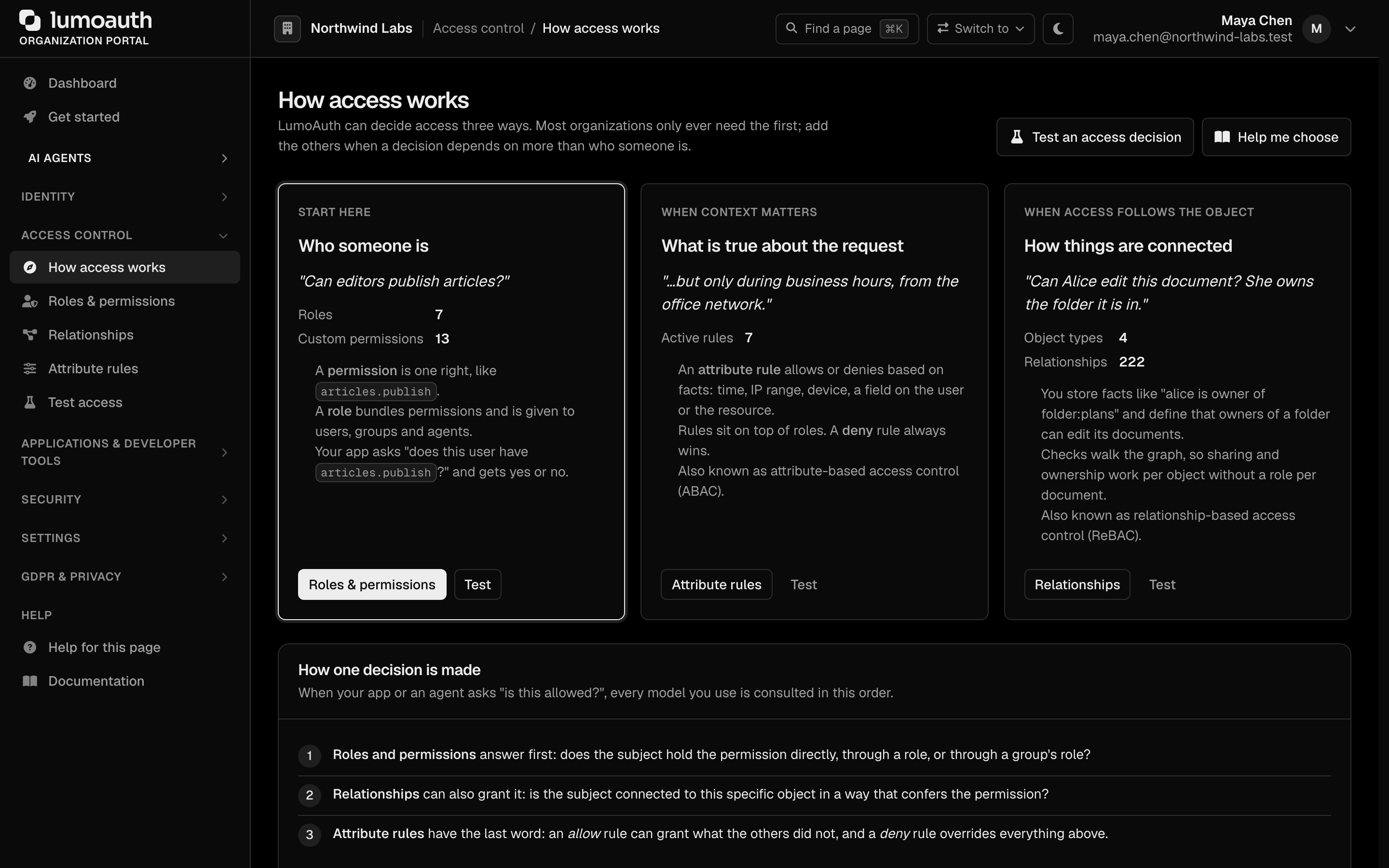
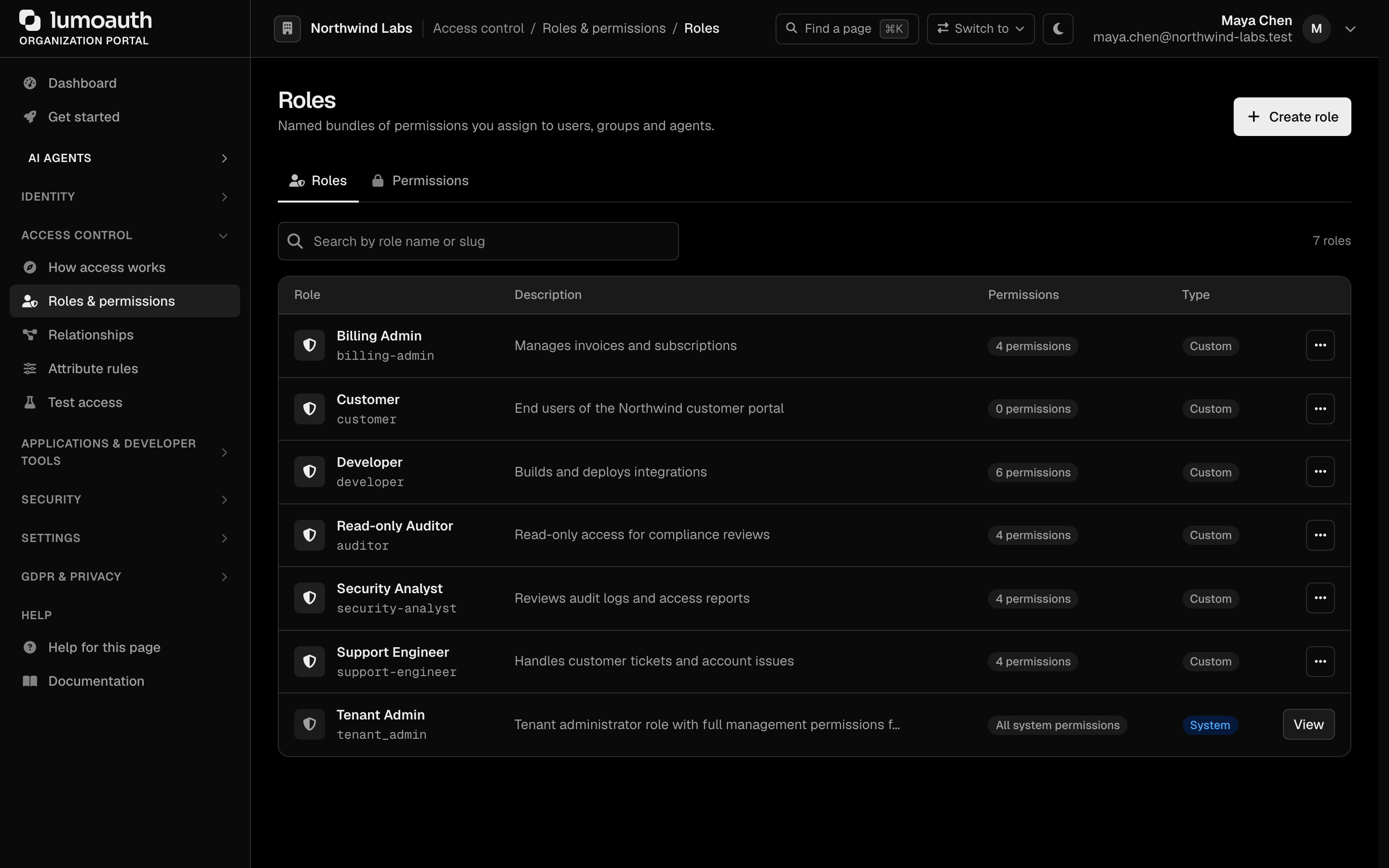
```mermaid
graph TD
Root["/orgs/{orgId}/portal/"]
Root --> O["access — How access works"]
Root --> U["users — User management with role assignments"]
Root --> R["roles — RBAC role definitions"]
Root --> G["groups — Group management (a tab of Users)"]
Root --> P["permissions — Permission definitions (a tab of Roles & permissions)"]
Root --> Z["zanzibar/ — Zanzibar namespaces and relation tuples"]
Root --> AB["abac/ — ABAC policies and attributes"]
Root --> PA["policies/author — AI-assisted policy creation"]
Root --> PT["permissions/tester — Test RBAC permission checks"]
```
| Feature | URL |
|---------|-----|
| How access works | `/orgs/{orgId}/portal/access` |
| Users | `/orgs/{orgId}/portal/users` |
| Roles & permissions (Roles tab) | `/orgs/{orgId}/portal/roles` |
| Users → Groups tab | `/orgs/{orgId}/portal/groups` |
| Roles & permissions (Permissions tab) | `/orgs/{orgId}/portal/permissions` |
| Relationships (ReBAC) | `/orgs/{orgId}/portal/zanzibar/` |
| Attribute rules (ABAC) | `/orgs/{orgId}/portal/abac/` |
| AI Policy Author | `/orgs/{orgId}/portal/policies/author` |
| Test access (permissions) | `/orgs/{orgId}/portal/permissions/tester` |
---
## In This Section
| Guide | Description |
|-------|-------------|
| [Roles & Permissions](https://docs.lumoauth.dev/user-guide/access-control/roles-permissions) | Define roles, assign permissions, manage RBAC |
| [Groups](https://docs.lumoauth.dev/user-guide/access-control/groups) | Organize users and assign roles to groups |
| [ABAC](https://docs.lumoauth.dev/user-guide/access-control/abac) | Policies for attribute-based access control |
| [Zanzibar](https://docs.lumoauth.dev/user-guide/access-control/zanzibar) | Relationship-based access control |
| [AI Policy Authoring](https://docs.lumoauth.dev/user-guide/access-control/ai-policy-authoring) | Generate policies from natural language |
---
# Choosing an Authorization Model
Source: https://docs.lumoauth.dev/user-guide/access-control/choosing-a-model
A short decision guide for RBAC, ABAC and Zanzibar/ReBAC. Start with roles and add the others only when roles stop being enough.
**Start with roles (RBAC, role-based access control).** Most organizations never need anything else. Add attribute policies or relationships only when you can name a rule that roles cannot express.
## Decision guide
Ask these questions in order and stop at the first "yes".
| Question | Use |
|---|---|
| Is access mostly a function of someone's job or team ("admins can manage billing")? | [**Roles and permissions (RBAC)**](https://docs.lumoauth.dev/user-guide/access-control/roles-permissions), with [groups](https://docs.lumoauth.dev/user-guide/access-control/groups) if you manage many users |
| Does the decision depend on context, like time of day, IP range, device, or a field on the user or resource ("editors can publish only during business hours")? | [**Attribute rules**](https://docs.lumoauth.dev/user-guide/access-control/abac) on top of roles |
| Is access driven by who owns or shares a specific object ("Alice can edit this document because she is in the team that it was shared with")? | [**Relationships (ReBAC, relationship-based access control / Zanzibar)**](https://docs.lumoauth.dev/user-guide/access-control/zanzibar) |
## Signs you have outgrown roles
- You are creating one role per customer, project or document.
- Role names have started to encode conditions, like `editor-eu-weekdays`.
- You need "can this user open this one object" answers for millions of objects.
## How they combine
All three models sit behind the same `POST /api/v1/authz/check` call, so you can adopt them one at a time without changing your application code. ABAC (attribute-based access control) and ReBAC are part of the Fine-grained authorization add-on; RBAC is included on every plan.
## In the portal
Under **Access control**:
- **Roles & permissions** is RBAC; begin on its **Roles** tab.
- **Attribute rules** (ABAC) and **Relationships** (ReBAC) are advanced and restricted by plan.
Use **Test access** (**Access control → Test access**) to check a decision before you rely on it.

See the [overview](https://docs.lumoauth.dev/user-guide/access-control/overview#permission-testing) for where to find each tester.
---
# Roles & Permissions (RBAC)
Source: https://docs.lumoauth.dev/user-guide/access-control/roles-permissions
Role-based access control (RBAC) is the classical authorization model: what you may do follows from the roles that you hold. A permission names a single action on a resource (for example reports.view). A role is a named…
Role-based access control (RBAC) is the classical authorization model: what you may do follows from the roles that you hold. A **permission** names a single action on a resource (for example `reports.view`). A **role** is a named set of permissions. Users are assigned roles, and a user's effective permissions are the union of permissions from every role that they hold, directly or through a group.
Use RBAC when access is mostly a function of job title and the set of permissions is small enough to list — "admins can manage users, editors can edit content". When decisions depend on per-resource ownership, context, or relationships, combine RBAC with [ABAC (attribute-based access control)](https://docs.lumoauth.dev/user-guide/access-control/abac) or [Zanzibar](https://docs.lumoauth.dev/user-guide/access-control/zanzibar).
---
## Concepts
### Permissions
A permission represents a specific action on a resource.
| Example Permission | Description |
|-------------------|-------------|
| `reports.view` | View reports |
| `reports.edit` | Create and edit reports |
| `reports.delete` | Delete reports |
| `invoices.manage` | Full control over invoices |
| `tickets.view` | View support tickets |
| `tickets.assign` | Assign tickets to people |
Custom permission slugs use lowercase letters, digits, dots, hyphens and underscores (`reports.view`); a colon is rejected. The built-in catalogue that guards the portal and Admin API uses the same `resource.action` shape (`users.create`, `roles.edit`, `settings.manage`, `jit.approve`, and so on). Its namespaces are reserved (see [Reserved permission slugs](#reserved-permission-slugs)), so pick resource names from your own application. Both kinds are stored in the same table and can be attached to roles.
### Roles
A role is a named collection of permissions.
| Role | Permissions |
|------|------------|
| `viewer` | `reports.view`, `tickets.view` |
| `editor` | `reports.view`, `reports.edit`, `invoices.view` |
| `admin` | All permissions |
| `auditor` | `tickets.view`, `reports.view` |
### Role Assignment
Users can hold one or more roles. Effective permissions are the union across all assigned roles.
```mermaid
graph TD
U["User: alice@acme.com"]
U --> E["Role: editor"]
U --> A["Role: auditor"]
E --> E1["reports.view"]
E --> E2["reports.edit"]
E --> E3["invoices.view"]
A --> A1["tickets.view"]
A --> A2["reports.view (duplicate — counted once)"]
E1 & E2 & E3 & A1 --> EFF["Effective: reports.view, reports.edit,
invoices.view, tickets.view"]
style EFF fill:#e8f5e9,stroke:#4caf50
```
---
## Managing Permissions
### Create a Permission
1. In the sidebar, under **Access control**, open **Roles & permissions** and switch to the **Permissions** tab (`/orgs/{orgId}/portal/permissions`). It has two sub-tabs, **Custom permissions** (the ones that you define) and **System permissions** (the built-in catalogue). Each has a count and a search box that matches slug, name or description. Permissions are grouped by resource (for example **Tickets** or **Invoices**); click a group to list its permissions, each with its slug, display name and a row menu.
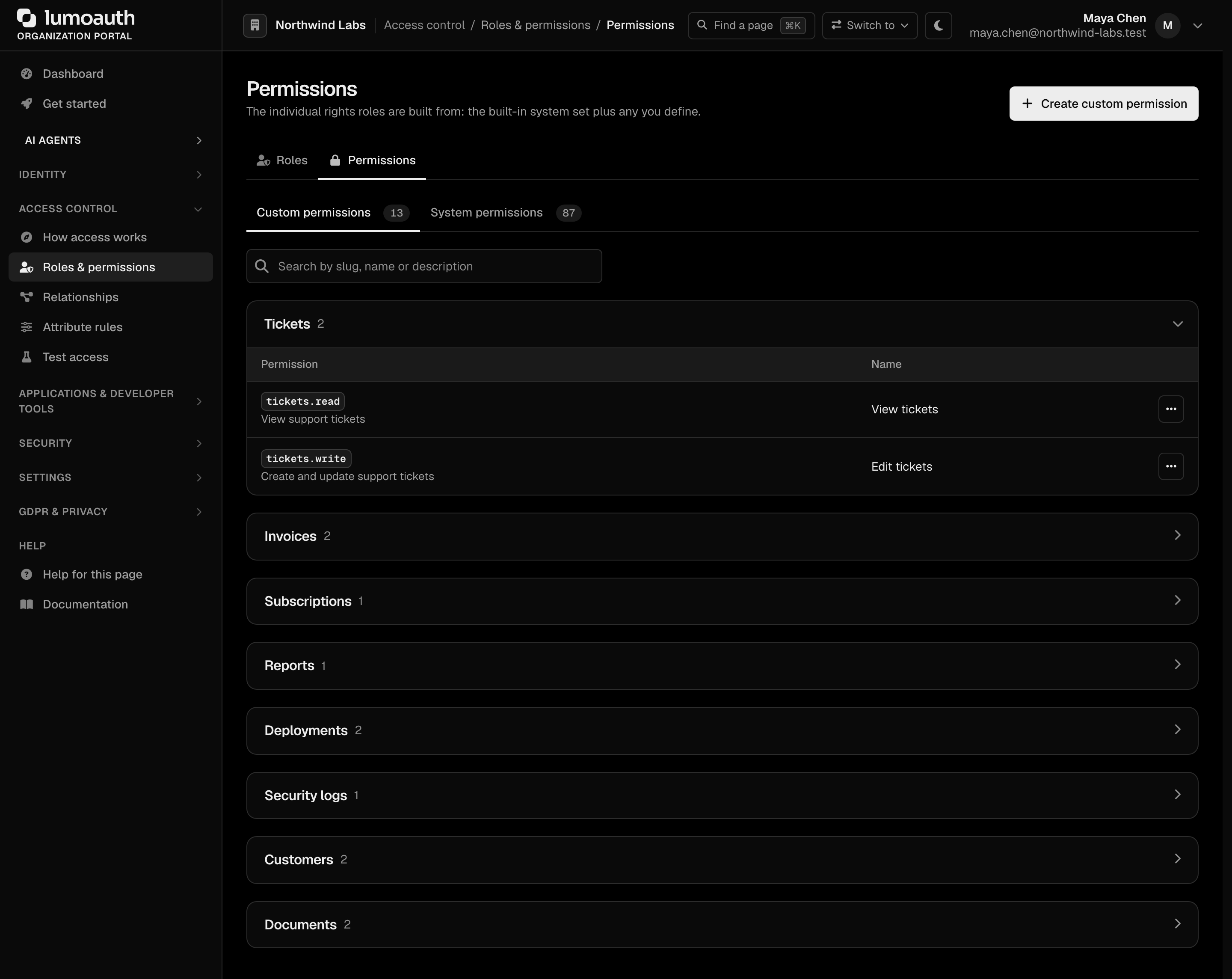
2. Click **Create custom permission**.
3. Fill in:
| Field | Description | Example |
|-------|-------------|---------|
| **Resource** | The kind of thing being protected | `report` |
| **Action** | What may be done to it | `view` |
| **Slug** | Derived from the resource and action as `resource.action`; this is the string that your code checks, and it cannot be changed later | `report.view` |
| **Display name** | Required. Human-readable name shown in the role editor and the permission matrix | `View reports` |
| **Description** | Optional. What this permission grants | `Open and read reports` |
4. Click **Create Permission**. A new permission is held by nobody until you add it to a role.
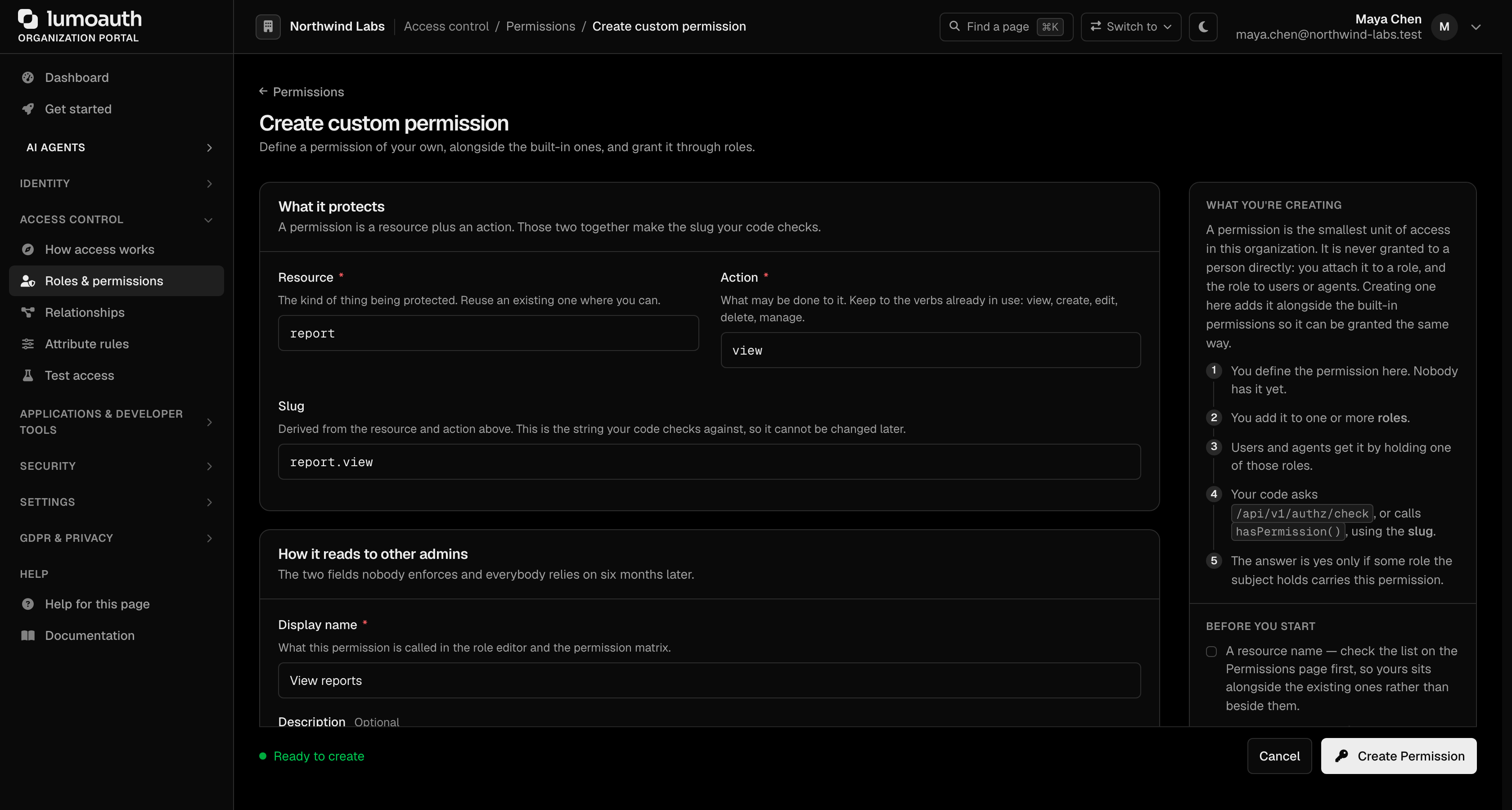
### Via API
```bash
curl -X POST https://your-domain.com/orgs/{orgId}/api/v1/admin/permissions \
-H "Authorization: Bearer {admin_token}" \
-H "Content-Type: application/json" \
-d '{
"name": "View reports",
"slug": "reports.view",
"description": "View reports and their details"
}'
```
---
## Managing Roles
### Create a Role
1. In the sidebar, under **Access control**, open **Roles & permissions** (`/orgs/{orgId}/portal/roles`). The **Roles** tab lists every role with its description, number of permissions and type (**Custom** or **System**), and has a search box for the name or slug. The row menu (**...**) edits or deletes a custom role; system roles only have **View**.

2. Click **Create role**. When an AI provider is configured, **Draft with AI** next to it opens [AI policy authoring](https://docs.lumoauth.dev/user-guide/access-control/ai-policy-authoring).
3. Fill in:
| Field | Description | Example |
|-------|-------------|---------|
| **Role name** | Display name. The slug is derived from it and shown under the field | `Editor` (slug `editor`) |
| **Description** | Role purpose | `Can view and edit users and applications` |
4. Under **Permissions**, set an access level (**None**, **View**, **Edit** or **Full**) per area, or open an area to tick individual permissions. The **Start from** presets (**Read-only**, **Editor**, **Administrator**) fill in a starting set.
5. Click **Create role**. The **Role summary** beside the form lists the selected areas and their levels as you go, and a role name that is already taken is rejected.
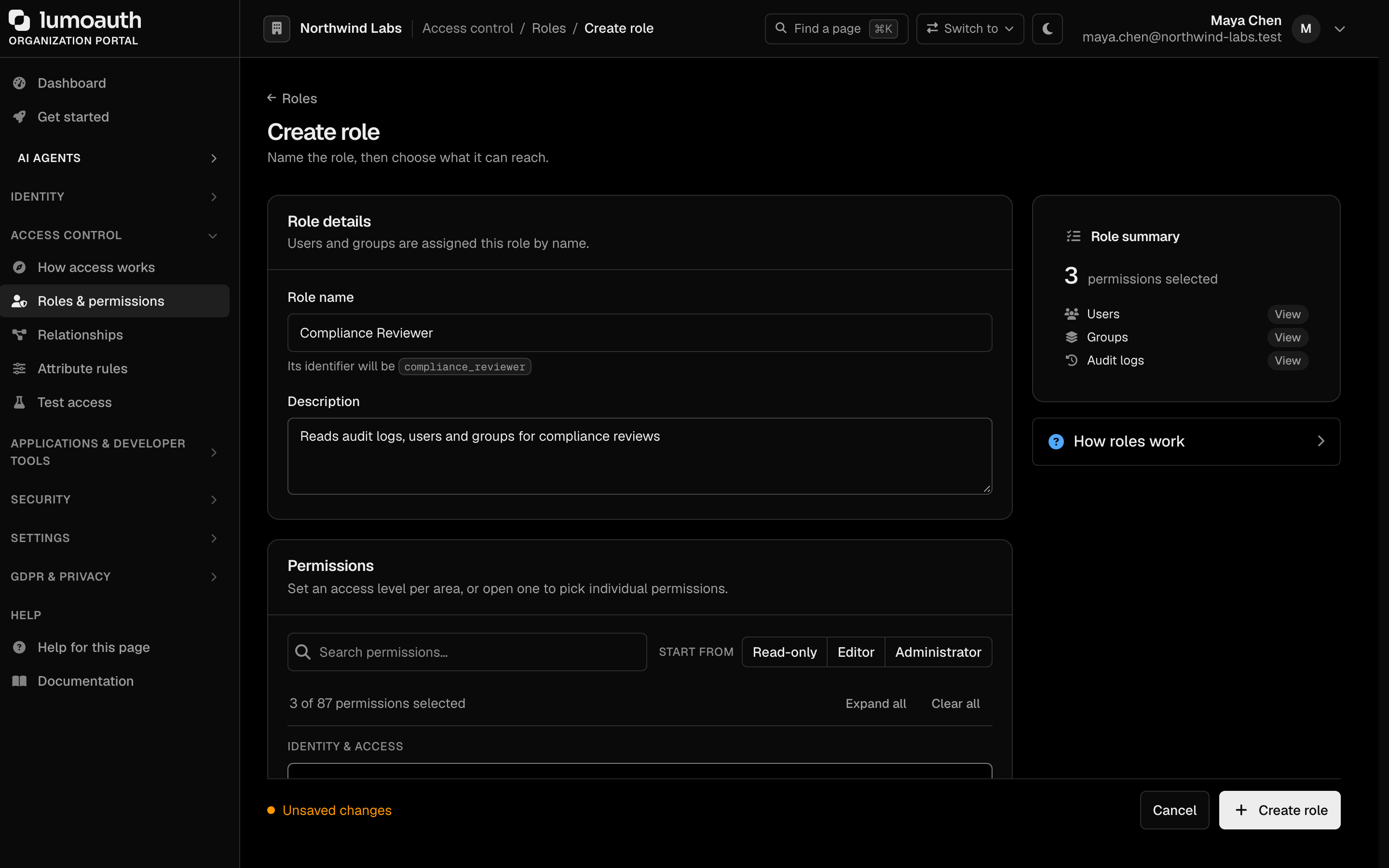
To change a role later, open it from the Roles list, adjust its permissions and click **Save changes**. System roles can only be viewed.
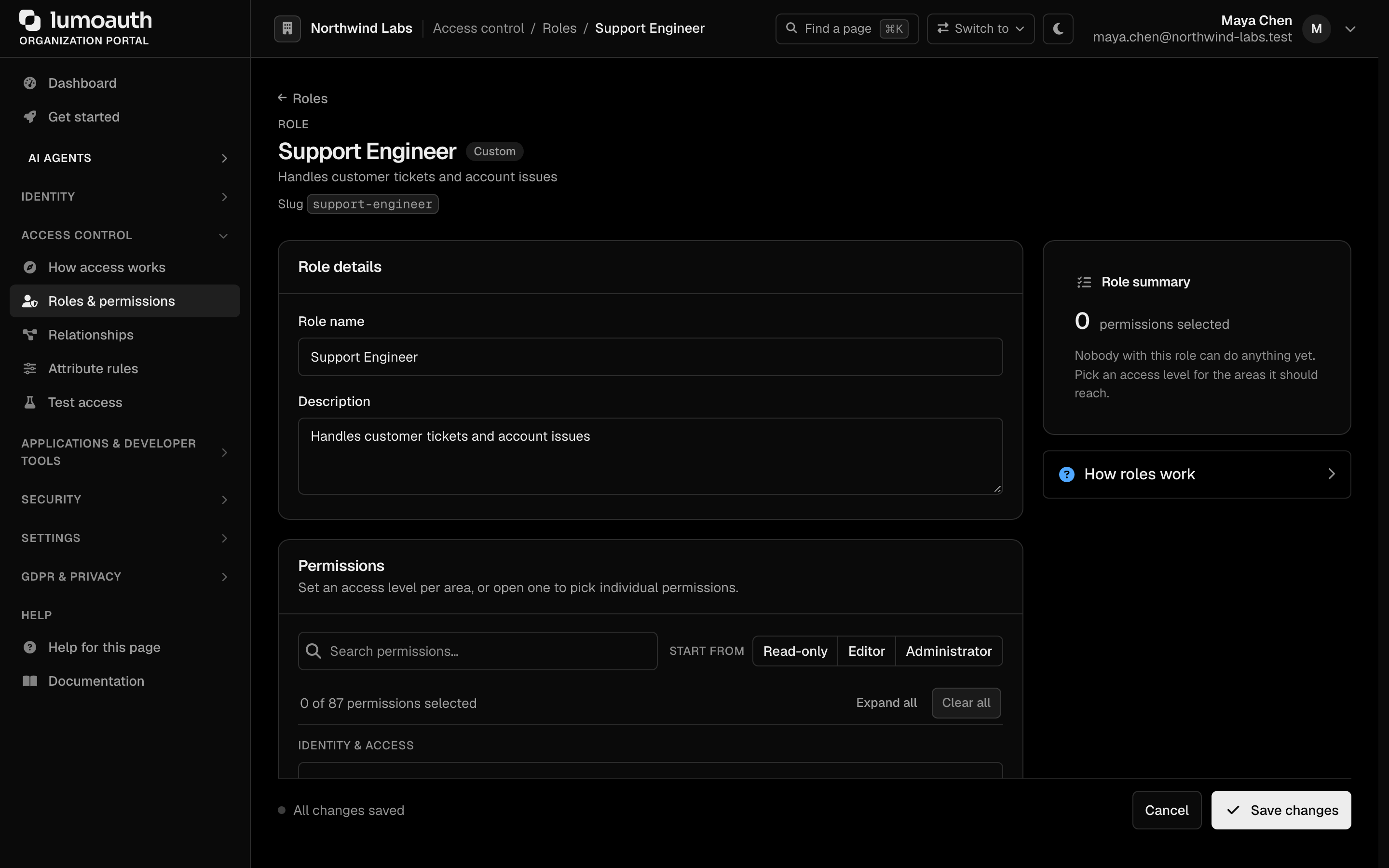
### Via API
```bash
# Create a role
curl -X POST https://your-domain.com/orgs/{orgId}/api/v1/admin/roles \
-H "Authorization: Bearer {admin_token}" \
-H "Content-Type: application/json" \
-d '{
"name": "Editor",
"slug": "editor",
"description": "Can view and edit reports and invoices"
}'
# Set a role's permissions (PUT replaces the full set; values are permission slugs)
curl -X PUT https://your-domain.com/orgs/{orgId}/api/v1/admin/roles/{roleId}/permissions \
-H "Authorization: Bearer {admin_token}" \
-H "Content-Type: application/json" \
-d '{
"permissions": ["reports.view", "reports.edit", "invoices.view"]
}'
```
**Tip**
Use `PUT .../permissions` to replace the role's full permission set with slug values. To add one or more permissions without removing existing ones, `POST .../permissions` instead with permission **IDs**: `{"permissionId": 12}` or `{"permissionIds": [12, 13]}`.
---
## Assigning Roles to Users
### Via Portal
1. Go to **Users** (`/orgs/{orgId}/portal/users`).
2. Click the user's name to open the user.
3. Open the **Roles** tab.
4. Tick or untick roles (the search box filters them), then click **Save changes**. The **Effective access** panel beside the list shows how many permissions the user ends up with, split into direct grants and permissions from roles.
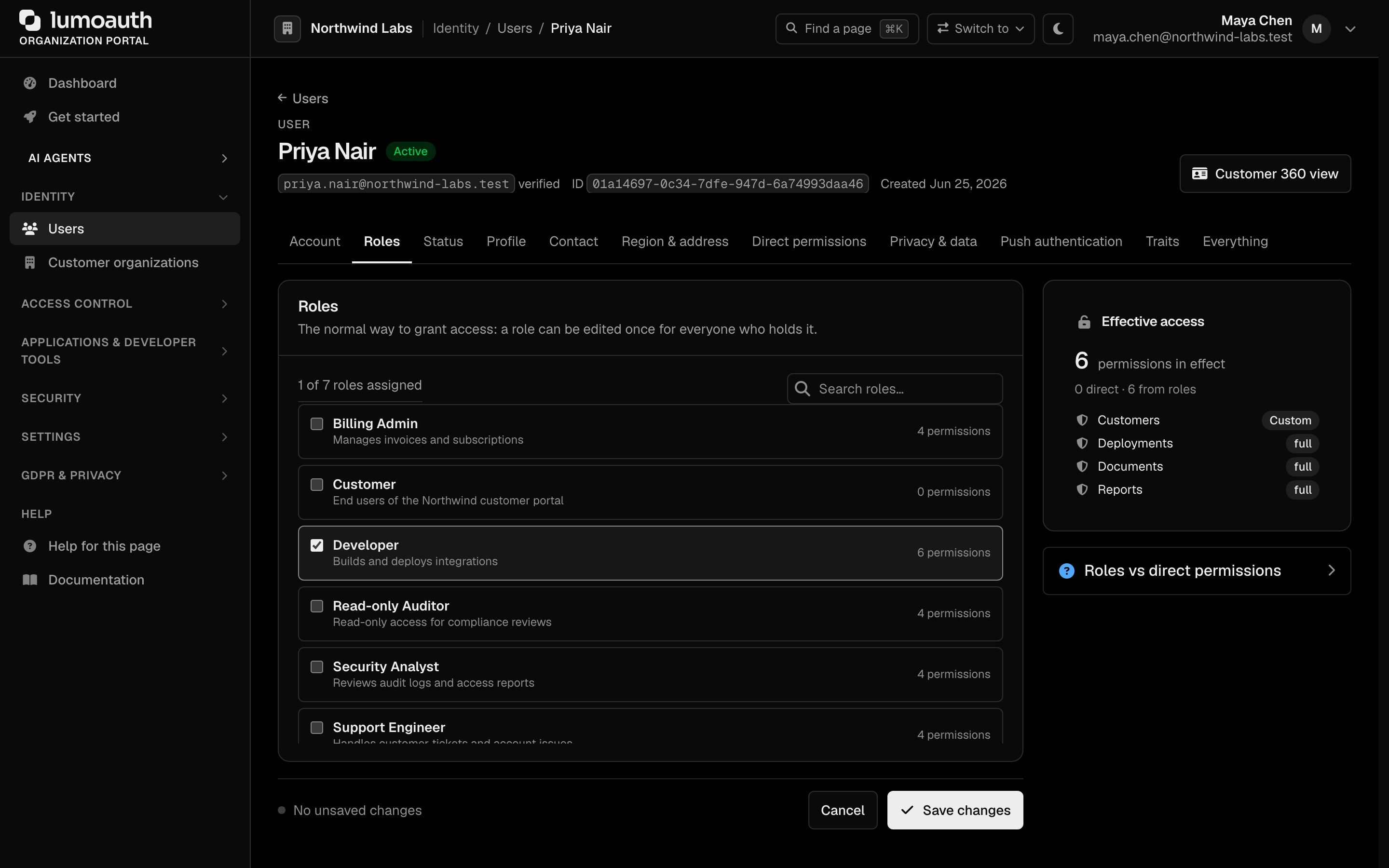
### Via API
```bash
# Set a user's roles (PUT replaces the full set; values are role slugs)
curl -X PUT https://your-domain.com/orgs/{orgId}/api/v1/admin/users/{userId}/roles \
-H "Authorization: Bearer {admin_token}" \
-H "Content-Type: application/json" \
-d '{
"roles": ["editor", "auditor"]
}'
# Add a single role without removing existing ones
curl -X POST https://your-domain.com/orgs/{orgId}/api/v1/admin/users/{userId}/roles \
-H "Authorization: Bearer {admin_token}" \
-H "Content-Type: application/json" \
-d '{"roleSlug": "editor"}'
# List a user's roles
curl https://your-domain.com/orgs/{orgId}/api/v1/admin/users/{userId}/roles \
-H "Authorization: Bearer {admin_token}"
```
---
## Roles in Tokens
When a user authenticates, their roles can be included as claims in the access token. The access token is a JWT (JSON Web Token: a signed JSON payload that the client presents on each request).
Roles are **opt-in per application**. The `roles` claim appears in the access token and the UserInfo response. It is sent only when **User roles** is ticked and saved under the application's **Security → JWT claims** (JWT access tokens). A client that never enabled it gets no role names. That includes dynamically registered clients and clients identified by a metadata document (CIMD). See [Claims and roles](https://docs.lumoauth.dev/oauth/clients#claims-and-roles).
```json
{
"sub": "user-uuid",
"organization": "acme-corp",
"roles": ["editor", "auditor"],
"iat": 1706400000,
"exp": 1706403600
}
```
The token carries role names only, never the expanded permission list. Your application can verify the token signature and map role names to its own checks, or ask LumoAuth for a permission decision at request time (below).
---
## Checking Permissions
### In Your Application
Verify the access token and read its `roles` claim (when the application has **User roles** enabled), then decide locally which roles may do what.
```javascript
// Node.js example
const token = jwt.verify(accessToken, publicKey);
if ((token.roles || []).includes('editor')) {
// Allow report edit
} else {
// Deny access
}
```
### Via the Permission Check API
To decide on individual permissions rather than role names, ask LumoAuth at request time. These endpoints evaluate against the **caller's own** access token (send it as the Bearer token), so they need no admin privileges.
```bash
# Check a single permission for the current user
curl -X POST https://your-domain.com/api/v1/permissions/check \
-H "Authorization: Bearer {access_token}" \
-H "Content-Type: application/json" \
-d '{"permission": "reports.edit"}'
# -> {"allowed": true, "permission": "reports.edit", "context": {}}
# Check several at once
curl -X POST https://your-domain.com/api/v1/permissions/check-bulk \
-H "Authorization: Bearer {access_token}" \
-H "Content-Type: application/json" \
-d '{"permissions": ["reports.view", "reports.edit", "reports.delete"]}'
# List the current user's effective permissions and roles
curl https://your-domain.com/api/v1/permissions/user \
-H "Authorization: Bearer {access_token}"
```
### Via Permission Tester
Use **Test access** at `/orgs/{orgId}/portal/permissions/tester` (**Access control → Test access**, *Roles & permissions* tab) to check whether a user holds a permission. Pick a **User** (it starts on you) and a **Permission**, optionally add context as JSON, and click **Run test**. The **Quick presets** run common checks in one click. The result shows whether access is granted and, under **Where it comes from**, which role, group or direct grant provides it.

---
## How the admin permissions work
The organization portal and the Admin API are governed by the built-in `resource.action`
catalogue. There is no single "admin" switch:
- **Getting into the portal.** Anyone who holds at least one admin-plane system permission
can open the portal; that is any catalogue permission except the platform-only `tenants.*`.
Holding `jit.approve` alone, for example, is enough to reach the approval inbox.
- **Every page checks its own permission.** Opening **Users** needs `users.view`, saving a
user needs `users.edit`, and so on. A page that you cannot use answers `403`, and the sidebar
hides the entries that you hold no permission for.
- **Every Admin API endpoint declares its permission.** The per-endpoint list is under
[Required permissions](https://docs.lumoauth.dev/api-reference/authentication#permission-per-endpoint). API keys
are additionally limited to what their **creator** holds.
- **`settings.manage` is not "full admin".** It covers authentication and security policy
(sign-in, MFA (multi-factor authentication) and session settings, the organization profile over the API, audit-log
retention). It also covers API keys, custom domains, directory (LDAP) and HR connections, log shippers,
alerting and the other integrations. It does not grant users, roles, clients, webhooks,
agents or anything else; give those permissions explicitly.
Permissions added in the 2026-09-25 release, seeded for every organization and granted to
the built-in Tenant Admin role:
| Slug | Grants |
|------|--------|
| `abac.view` | View attribute definitions and policies for ABAC |
| `abac.manage` | Create, edit and delete ABAC attributes and policies, and set the values of user and resource attributes |
| `gdpr.manage` | Data subject requests, consent, retention, breaches, and exports of other users' personal data |
| `gdpr.dpo` | Duties of the Data Protection Officer: DPIAs, breach sign-off, supervisory-authority reporting |
| `billing.manage` | View and change the subscription plan, add-ons and payment details |
| `jit.approve` | Approve or deny AI-agent just-in-time requests (now seeded for every organization) |
| `authz.check` | Ask authorization questions about other users and agents (now seeded for every organization) |
### Protecting stronger accounts
An administrator can only take account-changing actions on users who hold no more than
they do. The following actions all require that you hold **every** permission that the target
user holds: setting a password, changing the e-mail, activating or deactivating, blocking,
deleting, removing an authenticator and issuing a temporary access code. The same rule applies in the portal, the Admin API and to API keys
(checked against the key's creator).
### Reserved permission slugs
Custom permissions cannot take a system slug (`users.view`, `settings.manage`, …), any slug
inside a system namespace (for example `users.impersonate` or `billing.refund`), or a `tenants.`
slug. They also cannot take one of the retired slugs that the platform once checked (`agents.manage`, `users.manage`,
`zanzibar.manage`, `webhooks.test`, `gdpr.export_other`, `abac.policies.*`,
`abac.attributes.*`). This applies to the portal, the Admin API and
[AI policy authoring](https://docs.lumoauth.dev/user-guide/access-control/ai-policy-authoring), which also only attaches permissions that the author
already holds.
---
## No privilege gain
One rule applies everywhere that a role can be assigned: **nobody can grant more than they hold, and no automated path can create an administrator.** The rule is enforced in the same way whether the assignment is made by a person or by an integration, so there is no hidden bypass to check for.
| Where roles are assigned | What is enforced |
|--------------------------|------------------|
| User editor and `PUT/POST .../users/{userId}/roles` | The acting administrator must hold every permission in the role. Only administrators who already hold a system role can assign it. |
| Role editor and `.../roles/{roleId}/permissions` | An administrator cannot attach a permission that they do not hold themselves. |
| Groups | Adding a role to a group, or a user to a group, is checked against the acting administrator in the same way. |
| SCIM (automatic user provisioning) `/Groups` membership | An IdP can add users to job-function roles, never to a system role or a role that confers administrator authority. Rejected with `403 mutability`. See [SCIM Groups](https://docs.lumoauth.dev/scim/groups#protected-roles). |
| Social-login default roles | A provider's default roles cannot be system roles or roles that confer administrator authority, and the administrator who saves them must hold every permission in them. See [Social Login](https://docs.lumoauth.dev/user-guide/authentication/social-login#default-roles). |
| SAML JIT provisioning | Any privileged role found in an IdP's stored default-role list is skipped at sign-in and an audit event is written. |
A role **confers administrator authority** when it holds any permission that changes who can do what in the organization:
| Family | Permissions |
|--------|-------------|
| Organization settings | `settings.create`, `settings.edit`, `settings.delete`, `settings.manage` |
| Users, roles, groups | `users.create`, `users.edit`, `users.delete`, `roles.create`, `roles.edit`, `roles.delete`, `roles.assign-permissions`, `groups.create`, `groups.edit`, `groups.delete` |
| Customer organizations | `organizations.members.manage`, `organizations.invitations.manage` |
| Identity providers and provisioning | `idps.create`, `idps.edit`, `idps.delete`, `scim.create`, `scim.edit`, `scim.delete`, `scim.manage` |
| Signing keys | `signing_keys.create`, `signing_keys.edit`, `signing_keys.rotate`, `signing_keys.revoke`, `signing_keys.delete` |
| OAuth clients | `clients.create`, `clients.edit`, `clients.delete`, `clients.rotate-secret` |
| AI agents, policies, approvals | `agents.create`, `agents.edit`, `agents.delete`, `policies.create`, `policies.edit`, `policies.delete`, `jit.approve` |
| Fine-grained authorization | `zanzibar.create`, `zanzibar.edit`, `zanzibar.delete`, `abac.manage` |
| Privacy and billing | `gdpr.manage`, `gdpr.dpo`, `billing.manage` |
Read-only permissions (`*.view`, `audit.*`, `analytics.*`, `webhooks.*`, `branding.*`, `abac.view`) and the custom permissions of your own application never make a role administrative, so automated paths can assign them freely.
Why this matters: without the rule, an administrator who can only edit identity providers (`idps.edit`) could register a social provider whose default role is *Tenant Admin*. They could then sign in through it with a fresh account and become an administrator. With the rule applied everywhere, the only way to become an administrator is to be made one by someone who already is.
---
## Best Practices
| Practice | Description |
|----------|-------------|
| Principle of least privilege | Assign the minimum permissions needed |
| Assign permissions to roles, not users | Keeps user management simple |
| Consistent naming | Follow the `resource.action` convention |
| Avoid catch-all roles | Prefer focused roles over a single catch-all admin role |
| Audit role assignments | Review periodically who holds what |
| Keep administrators out of automated paths | Never put a role that confers administrator authority in an IdP-managed group or a social-login default; the platform rejects it anyway |
---
## Related
- [Groups](https://docs.lumoauth.dev/user-guide/access-control/groups) — assign roles to groups for bulk management.
- [Attribute rules (ABAC)](https://docs.lumoauth.dev/user-guide/access-control/abac) — add attribute and context conditions to access decisions.
- [Relationships (ReBAC)](https://docs.lumoauth.dev/user-guide/access-control/zanzibar) — relationship-based access for hierarchical resources.
- [Access Control Overview](https://docs.lumoauth.dev/user-guide/access-control/overview) — compare all authorization models.
## Standards used on this page
| Plain name | Standard |
|---|---|
| JSON Web Token (JWT) | RFC 7519 |
See the [standards reference](https://docs.lumoauth.dev/reference/standards) for what each one covers and how LumoAuth uses it.
---
# Groups
Source: https://docs.lumoauth.dev/user-guide/access-control/groups
Groups let you collect users — by team, department, project, or any criterion — and assign roles to the group rather than to each member. Every member inherits the roles that the group holds, so adding or removing a…
Groups let you collect users — by team, department, project, or any criterion — and assign roles to the group rather than to each member. Every member inherits the roles that the group holds, so adding or removing a user from the group changes their effective permissions without touching individual role assignments.
Use groups when many users share the same access needs. Groups are a layer on top of [RBAC (role-based access control)](https://docs.lumoauth.dev/user-guide/access-control/roles-permissions) — they do not replace roles.
---
## How Groups Work
```mermaid
graph TD
G["Group: Engineering"]
G --> R["Role: editor"]
G --> M["Members"]
M --> A["alice@acme.com → inherits editor role"]
M --> B["bob@acme.com → inherits editor role"]
M --> C["carol@acme.com → inherits editor role"]
```
Assign a role to a group and every member receives the role's permissions. Remove a user from the group and they lose those permissions (unless the same role is also assigned directly to them).
---
## Managing Groups
### Create a Group
1. In the sidebar, under **Identity**, open **Users**, then the **Groups** tab (`/orgs/{orgId}/portal/groups`; the other tabs are **Users** and **Invitations**). The list shows each group's name and slug, description, number of users and roles, and type, with a search box for the name or slug. The row menu (**...**) edits or deletes a group; system groups have no row menu and cannot be deleted.
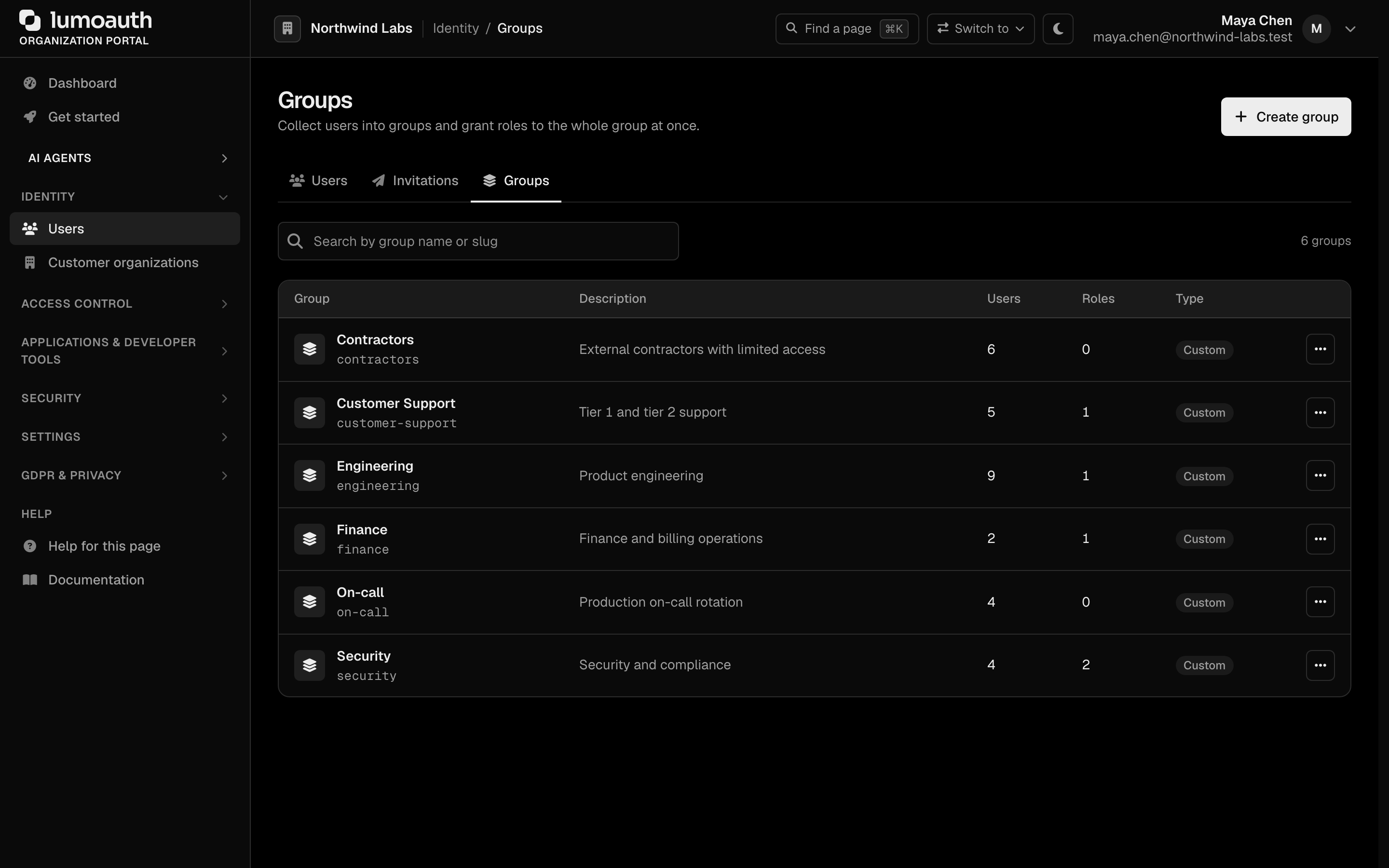
2. Click **Create group**.
3. Fill in:
| Field | Description | Example |
|-------|-------------|---------|
| **Group name** | Display name. The slug is derived from it | `Data Platform` (slug `data_platform`) |
| **Description** | Optional. Group purpose | `Data engineers who run the analytics pipelines` |
| **Roles** | Optional. Roles that every member inherits; a filter box narrows the list when there are more than six roles | `Developer` |
| **Members** | Optional. Users to add now; you can add more later | |
4. Click **Create group**. The checklist beside the form shows which parts are filled in; only the group name is required.
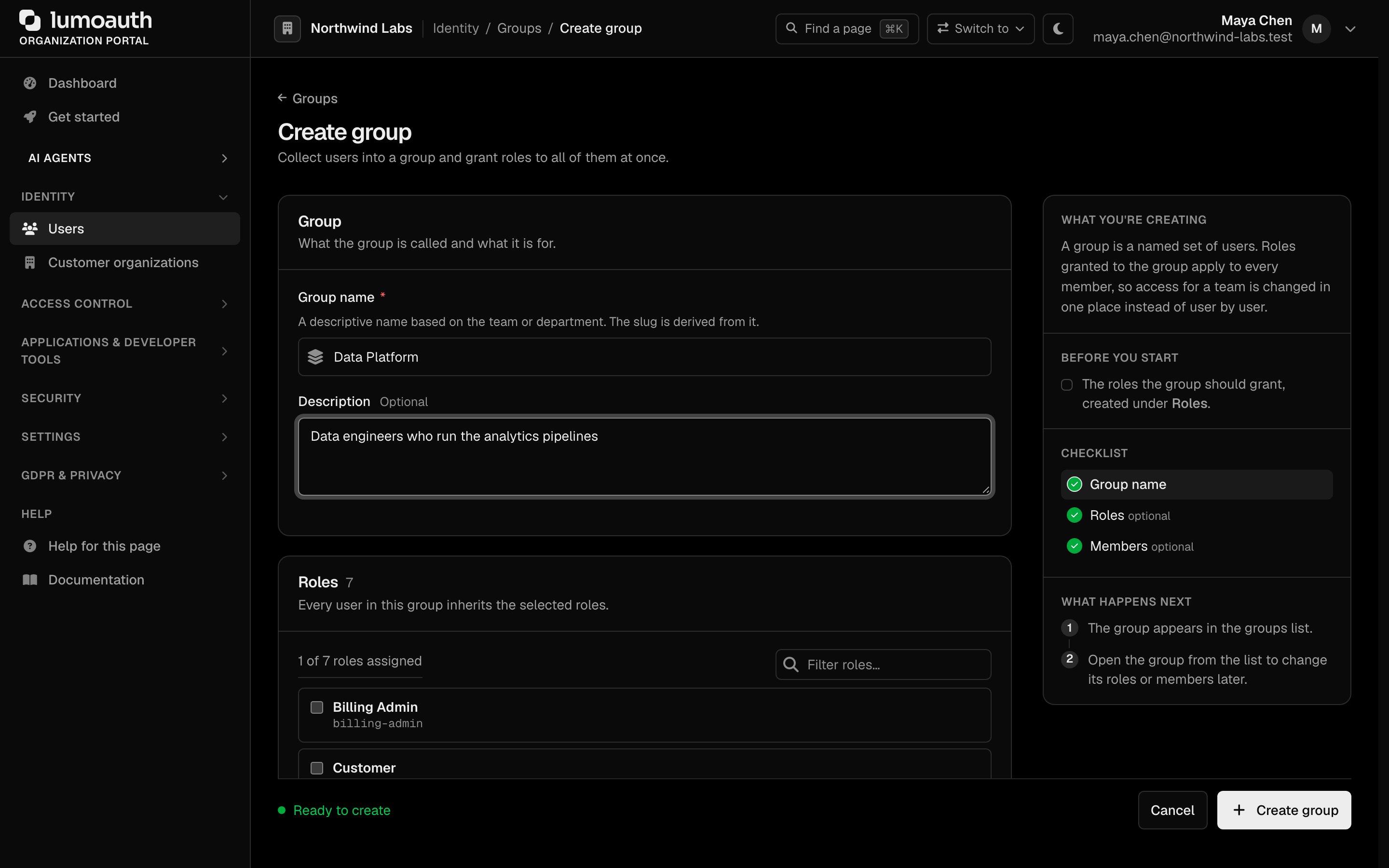
### Add Members
1. On the **Groups** page, click the group's name to open it.
2. Scroll to the **Members** section.
3. Tick the users to add, or untick them to remove them. With more than six users, a filter box searches name and email. Then click **Save changes**. The **Members** count shows how many users the group has.
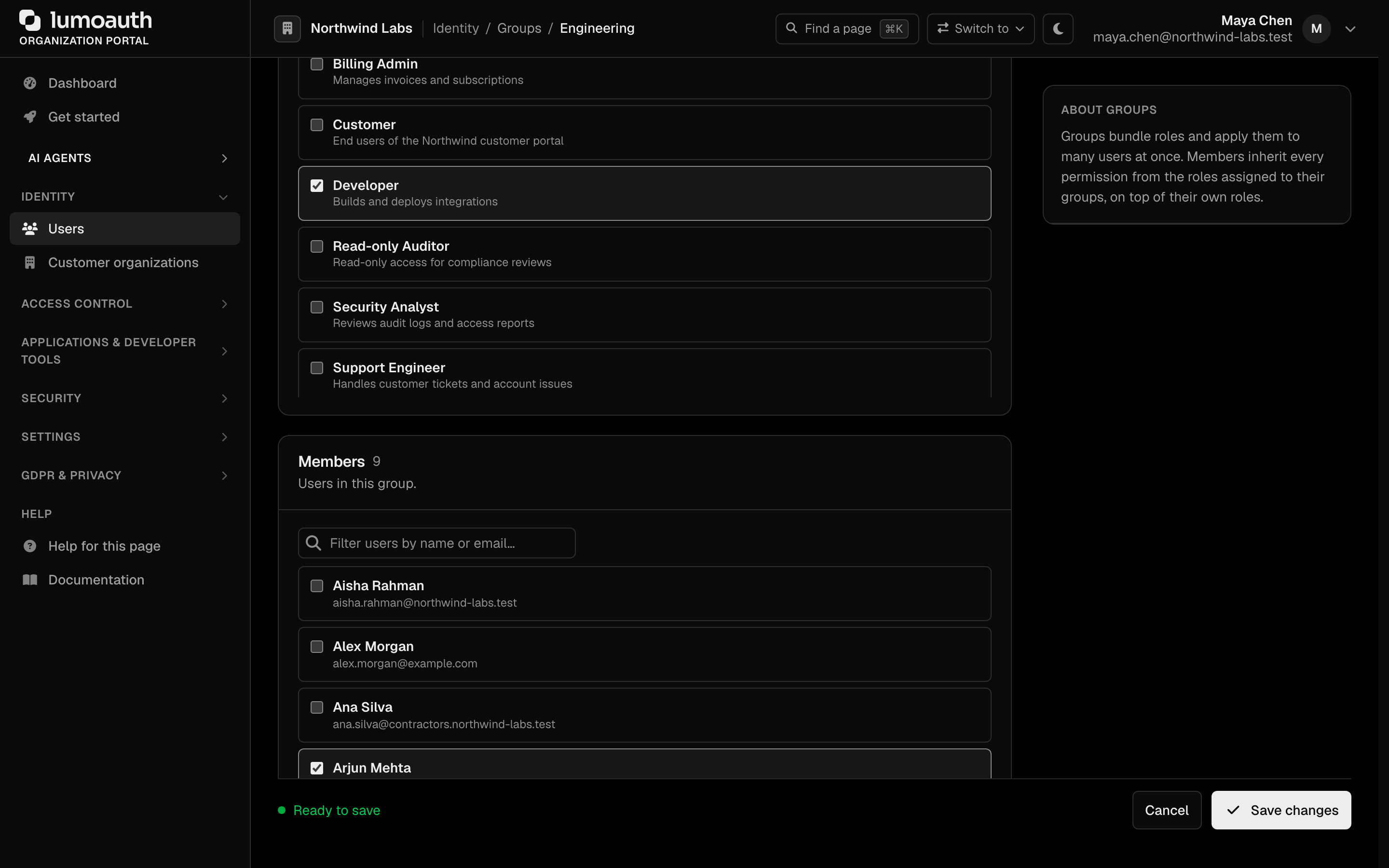
### Assign Roles to a Group
1. On the **Groups** page, click the group's name to open it.
2. Scroll to the **Roles** section.
3. Tick the roles that every group member should inherit, then click **Save changes**. In the screenshot, for example, **Engineering** holds **Developer** and **Security** holds **Security Analyst** and **Read-only Auditor**.
---
## API Examples
```bash
# Create a group
curl -X POST https://your-domain.com/orgs/{orgId}/api/v1/admin/groups \
-H "Authorization: Bearer {admin_token}" \
-H "Content-Type: application/json" \
-d '{
"name": "Engineering",
"slug": "engineering",
"description": "Engineering team"
}'
# Add a user to a group (one user, or several via "userIds": [...])
curl -X POST https://your-domain.com/orgs/{orgId}/api/v1/admin/groups/{groupId}/members \
-H "Authorization: Bearer {admin_token}" \
-H "Content-Type: application/json" \
-d '{"userId": "user-uuid"}'
# Assign a role to a group
curl -X POST https://your-domain.com/orgs/{orgId}/api/v1/admin/groups/{groupId}/roles \
-H "Authorization: Bearer {admin_token}" \
-H "Content-Type: application/json" \
-d '{"roleId": "role-uuid"}'
```
---
## Permission Resolution
A user's effective permissions come from two sources:
1. **Directly assigned roles** — roles attached to the user.
2. **Group-inherited roles** — roles attached to the groups that the user belongs to.
```mermaid
graph TD
U["User: alice@acme.com"]
U --> DR["Direct Role: auditor"]
U --> GE["Group: Engineering"]
DR --> P1["audit-logs:read, users:read"]
GE --> RE["Role: editor"]
RE --> P2["users:read, users:write, applications:read"]
P1 & P2 --> EFF["Effective: audit-logs:read, users:read,
users:write, applications:read"]
style EFF fill:#e8f5e9,stroke:#4caf50
```
---
## Use Cases
| Scenario | Groups Setup |
|----------|-------------|
| Team-based access | One group per team (Engineering, Marketing, Sales) |
| Project-based access | One group per project with project-specific roles |
| Department hierarchy | Groups for departments, sub-groups for teams |
| Temporary elevated access | Add user to the group, remove when no longer needed |
| Onboarding | Add a new hire to their team's group — they inherit all required roles |
---
## Related
- [Roles & Permissions](https://docs.lumoauth.dev/user-guide/access-control/roles-permissions) — define roles and permissions.
- [ABAC (attribute-based access control)](https://docs.lumoauth.dev/user-guide/access-control/abac) — reference group membership from policy conditions.
- [Access Control Overview](https://docs.lumoauth.dev/user-guide/access-control/overview) — compare all authorization models.
---
# Attribute-Based Access Control (ABAC)
Source: https://docs.lumoauth.dev/user-guide/access-control/abac
ABAC evaluates attributes against declarative policies. The attributes belong to the subject (the user), the resource, the action, and the environment (time, IP, device). Unlike RBAC — which answers "does the user have…
ABAC evaluates **attributes** against declarative policies. The attributes belong to the subject (the user), the resource, the action, and the environment (time, IP, device). Unlike RBAC — which answers "does the user have role X?" — ABAC answers "do the facts about this request satisfy policy Y?". That lets you express rules like "engineering users can write to internal documents during business hours from trusted IPs" without hard-coding role combinations.
Use ABAC when decisions depend on dynamic context. It pairs well with RBAC: role membership controls the capability, and ABAC narrows it down with conditions.
**Note: Fine-grained authorization add-on**
ABAC is part of the **Fine-grained authorization** add-on ($99/month, available on Pro and Business, together with Zanzibar ReBAC, relationship-based access control). Buy it under **Billing → Add-ons**; on Developer, upgrade to Pro first. Without it (and with billing enforced) the ABAC pages show an upgrade notice, allow policies grant nothing, and new attributes and policies can't be created or edited. Deny policies that you already have **stay enforced** until you disable or delete them. See [ABAC plan behaviour](https://docs.lumoauth.dev/authorization/abac).
---
## How ABAC Works
An ABAC policy evaluates four attribute categories:
| Category | Examples |
|----------|---------|
| **Subject** (who) | User role, department, clearance level, group membership |
| **Resource** (what) | Document classification, owner, creation date |
| **Action** (how) | Read, write, delete, approve |
| **Environment** (context) | Time of day, IP address, device type, location |
### Example Policy
> "Allow users in the `engineering` group to `write` to `internal` documents during business hours (9 AM – 6 PM) from trusted IP ranges."
```
Subject: user.groups contains "engineering"
Resource: resource.classification equals "internal"
Action: write
Environment: environment.hour gte 9 AND environment.hour lt 18 AND environment.ip matches "^203\.0\.113\."
Decision: ALLOW
```
---
## Managing ABAC Policies
### Create a Policy
1. In the sidebar, under **Access control**, open **Attribute rules** (`/orgs/{orgId}/portal/abac/`).
The page shows four counters (**Attribute definitions**, **Policies**, **Active policies** and **Resource attributes**), the five most recently created policies, and the **New attribute**, **Policy tester** and **Create policy** buttons. **Manage policies** opens the full policy list.

The policy list (`/orgs/{orgId}/portal/abac/policies`) shows each policy's name and slug, its resource type and action, its effect (**Allow** or **Deny**), priority and status. The row menu (**...**) edits, deactivates or deletes a policy. Deactivating keeps the policy but stops evaluating it.
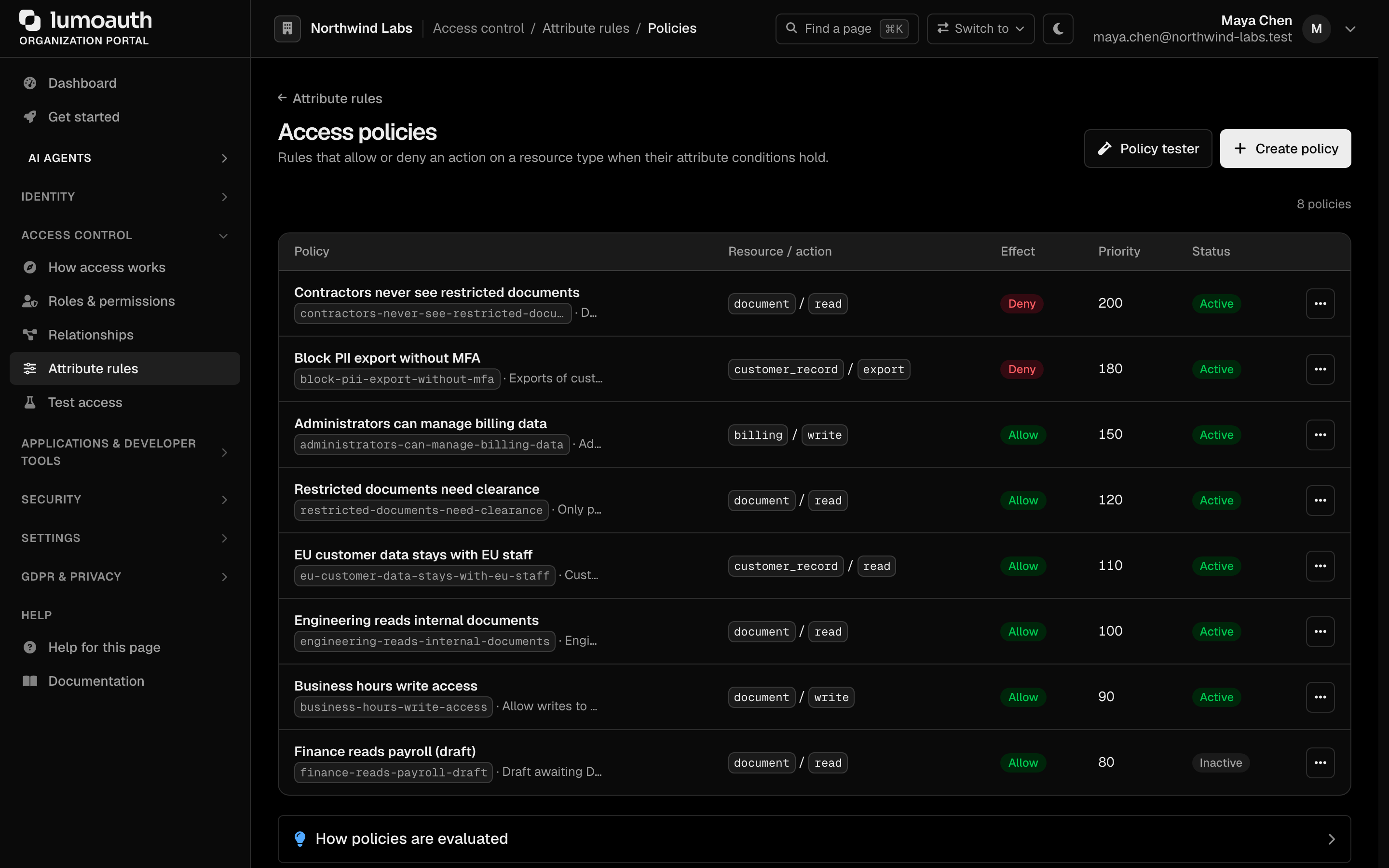
2. Click **Create policy**.
3. Define the policy:
| Field | Description |
|-------|-------------|
| **Policy name** | Human-readable policy name |
| **Description** | Optional. What this policy controls |
| **Resource type** | The kind of resource that the policy targets, exactly as your application sends it (`*` for every type) |
| **Action** | The action being controlled (`*` for every action) |
| **Effect** | **Allow** or **Deny** |
| **Priority** | Evaluation order, 0-1000 (higher priority evaluated first) |
| **Active** | Only active policies are evaluated |
| **When it applies** | The conditions. Each row compares an attribute of the user, the resource or the environment with a value; rows are combined with **AND** or **OR**. With no conditions the policy matches every request for that resource type and action |
4. Click **Create policy**, or **Save & test** to save it and open it in the policy tester.
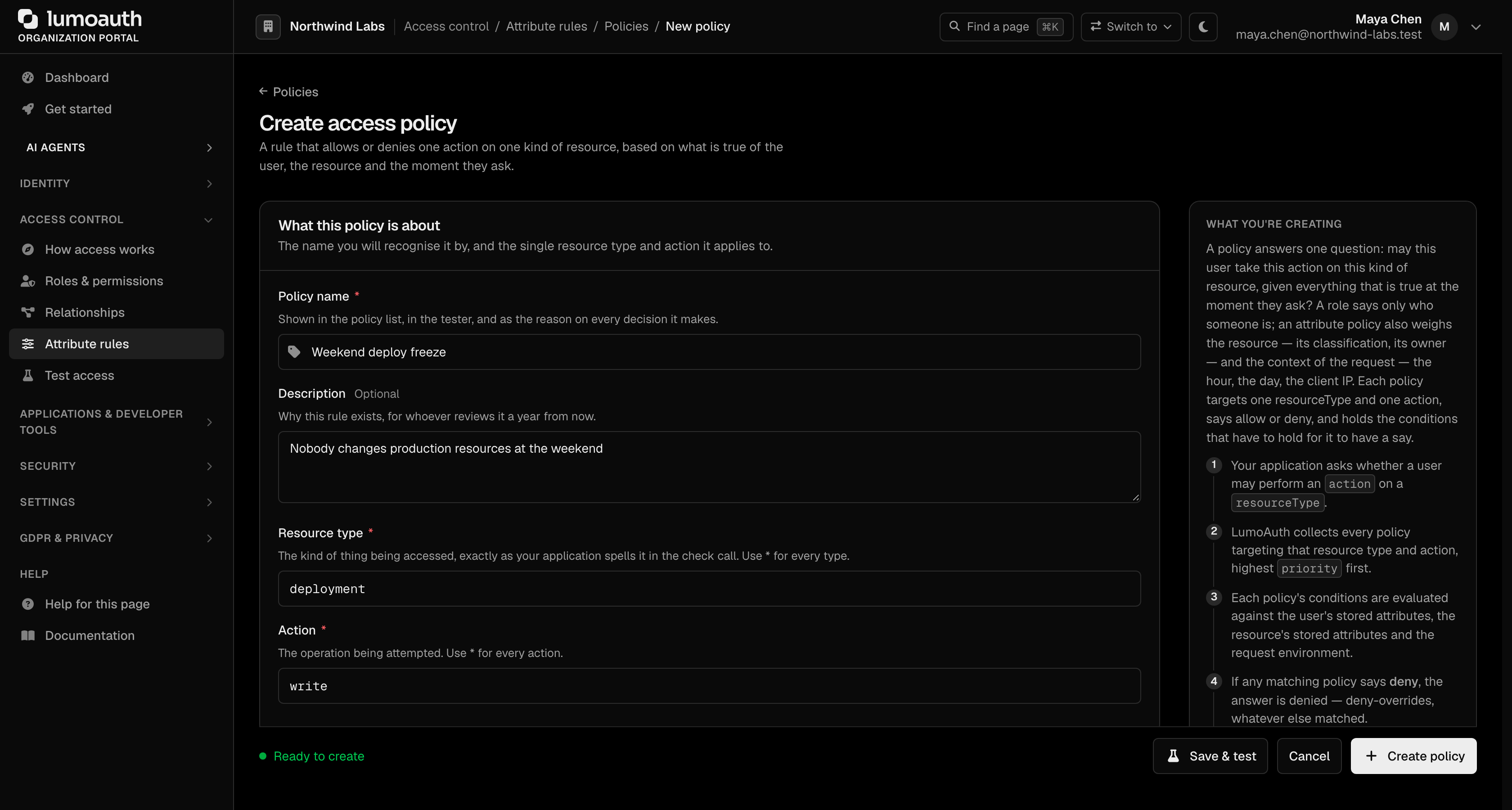
Add conditions with **Add condition**, or load a worked example under **Start from an example**. If a condition needs an attribute that is not defined yet, **New attribute** adds one without leaving the form.
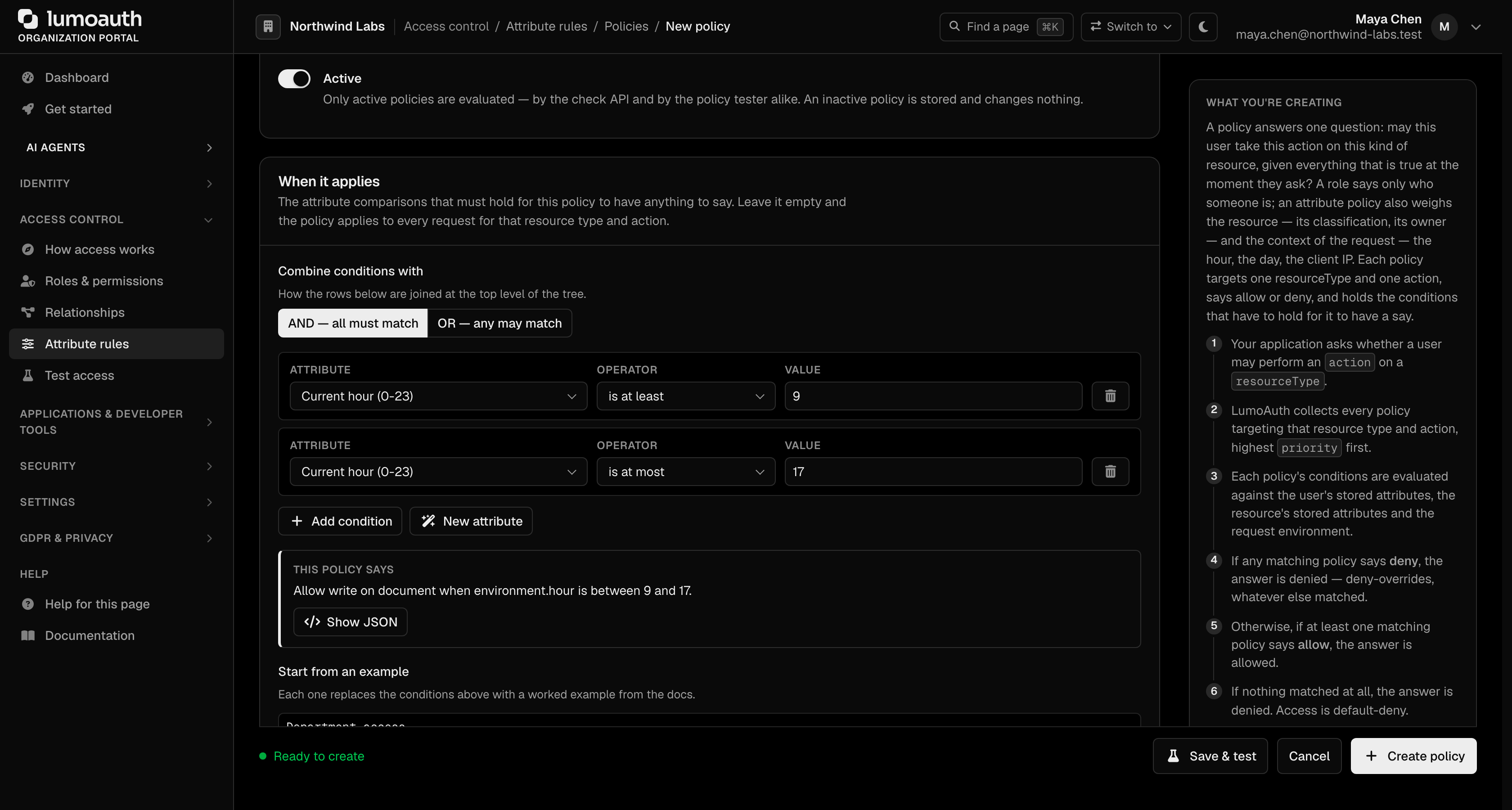
### Define Attributes
Conditions read **attributes**. Under **Attribute rules**, **New attribute** (`/orgs/{orgId}/portal/abac/attributes/create`) defines one; finish with **Create attribute**. The **Attribute definitions** page (`/orgs/{orgId}/portal/abac/attributes`) lists them, with **All**, **User**, **Resource** and **Environment** tabs, and the row menu edits or deletes one.
| Field | Description |
|-------|-------------|
| **Name** | Display name; the attribute's slug (for example `department`) is derived from it and is what conditions refer to |
| **Description** | Optional. What the attribute represents |
| **Applies to** | **User**, **Resource** or **Environment** |
| **Data type** | `string`, `number`, `boolean`, `array`, `date` or `datetime` |
| **Required** | Whether a value must always be present |
| **Default value** and **Validation rules** | Optional. Fallback value and validation rules in JSON |
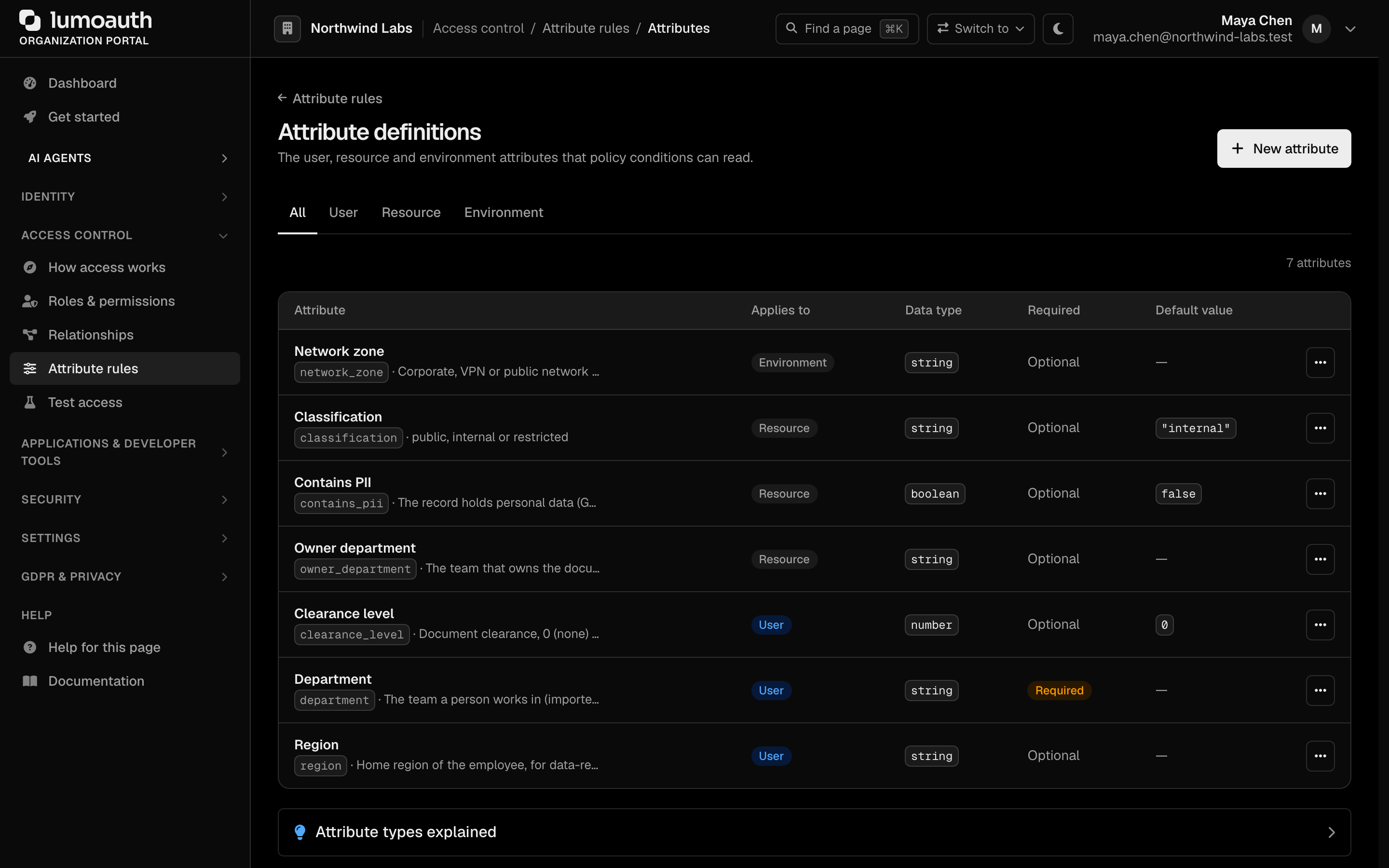
Values of user attributes are stored as user traits; values of resource attributes are set through the [ABAC API](https://docs.lumoauth.dev/authorization/abac).
### Policy Evaluation
LumoAuth combines policies using the **deny-overrides** algorithm:
1. Collect every policy whose `action` and `resourceType` match the request.
2. Evaluate each matching policy's conditions against the request attributes.
3. If any policy with `decision: DENY` matches, the final decision is **Deny**.
4. Otherwise, if at least one policy with `decision: ALLOW` matches, the final decision is **Allow**.
5. If no policy matches, the default is **Deny** (closed-world assumption).
Priority controls the order in which policies are considered, which is especially useful for ensuring that restrictive deny policies are evaluated before broader allows.
---
## Subject Attributes
Built-in user attributes available to conditions (the policy form lists them next to the condition builder):
| Attribute | Description | Example |
|-----------|-------------|---------|
| `user.id`, `user.email`, `user.username`, `user.name` | Identity fields | `alice@acme.com` |
| `user.givenName`, `user.familyName`, `user.locale`, `user.zoneinfo` | Profile fields | `"Alice"` |
| `user.roles` | Assigned role slugs | `["editor", "auditor"]` |
| `user.groups` | Group slugs | `["engineering"]` |
| `user.permissions` | Effective permission slugs | `["reports.view"]` |
| `user.emailVerified` | Email verification status | `true` |
| `user.mfaEnabled` | Whether MFA (multi-factor authentication) is active | `true` |
| `user.isActive`, `user.blocked` | Account status | `true` |
| `user.tenantId`, `user.orgId` | Organization identifiers | |
| `user.trait_` | A user trait set by an administrator, an import or a policy (for example `user.trait_plan`) | `"enterprise"` |
| `user.self_` | A trait that the user typed in themselves on a progressive-profiling form. Self-asserted values never appear as `user.trait_` or as a custom attribute, so a policy only relies on them when it names `self_` explicitly | `"finance"` |
| `user.` | Any attribute that you define, such as `user.department` | `"engineering"` |
---
## Environment Attributes
Contextual attributes evaluated at request time, under the `environment` prefix:
| Attribute | Description | Example |
|-----------|-------------|---------|
| `environment.currentTime` | Current time (`H:i:s`) | `14:30:00` |
| `environment.currentDate`, `environment.currentDateTime` | Current date / date-time | `2026-01-15` |
| `environment.hour` | Current hour (0–23) | `14` |
| `environment.dayOfWeek` | Day of the week (1 = Monday … 7 = Sunday) | `1` |
| `environment.isWeekend` | Saturday or Sunday | `false` |
| `environment.ip`, `environment.userAgent`, `environment.requestMethod`, `environment.requestPath` | Request details, when the check supplies them | `203.0.113.7` |
The caller passes anything else that you need (a country, a risk score, a device flag) in the `environment` object of the check request. It is matched against an environment attribute that you define. An integration with [device posture](https://docs.lumoauth.dev/integrations/device-posture) adds a `device` namespace automatically.
---
## Example Policies
Each condition is one row in **When it applies**: an attribute, an operator and a value, joined by AND or OR. The operators are **equals**, **not_equals**, **in**, **not_in**, **contains**, **not_contains**, **gt**, **lt**, **gte**, **lte**, **matches** (regular expression), **exists** and **not_exists**. A policy has one **Action**; use `*` for every action, or create one policy per action.
### Require MFA for Sensitive Actions
```
Name: Require MFA for deletions
Action: delete
Condition: user.mfaEnabled equals false
Effect: Deny
```
### Geographic Restriction
Define an environment attribute `country` and send it in the `environment` object of each check.
```
Name: Allow access only from US
Action: *
Condition: environment.country not_equals "US"
Effect: Deny
```
### Business Hours Only
This is the form's own **Business hours** example under **Start from an example**.
```
Name: Allow write access during business hours
Action: write
Condition: environment.hour gte 9
AND environment.hour lte 17
AND environment.isWeekend equals false
Effect: Allow
```
### Block High-Risk Sessions
Define an environment attribute `riskScore` and pass the score from your application.
```
Name: Block high-risk sessions
Action: *
Condition: environment.riskScore gte 80
Effect: Deny
```
---
## Combining ABAC with RBAC
ABAC complements RBAC. A common pattern:
1. **RBAC** determines *what* a user can do based on their roles.
2. **ABAC** determines *when* and *where* they can do it based on context.
Example: the `editor` role grants `documents.edit`, and an attribute rule limits the `edit` action on `document` resources to business hours.
---
## Testing Policies
The *Attribute rules* mode of **Test access** at `/orgs/{orgId}/portal/abac/tester` (**Access control → Test access → Attribute rules**) evaluates the user that you pick. Any attribute that you type overrides the stored value for that check, so you can ask "what if":
1. Optionally pick a policy under **Start from a policy** to pre-fill its resource type and action.
2. Specify the resource type, the action and, optionally, a resource ID.
3. Add simulated **User attributes** and **Resource attributes**. Built-in user attributes (id, email, roles) come from the selected user's account; anything that you add under **User attributes** overrides them for this check.
4. Click **Run test**.
5. Review the decision and which active policies matched, and use it to debug policy conflicts.
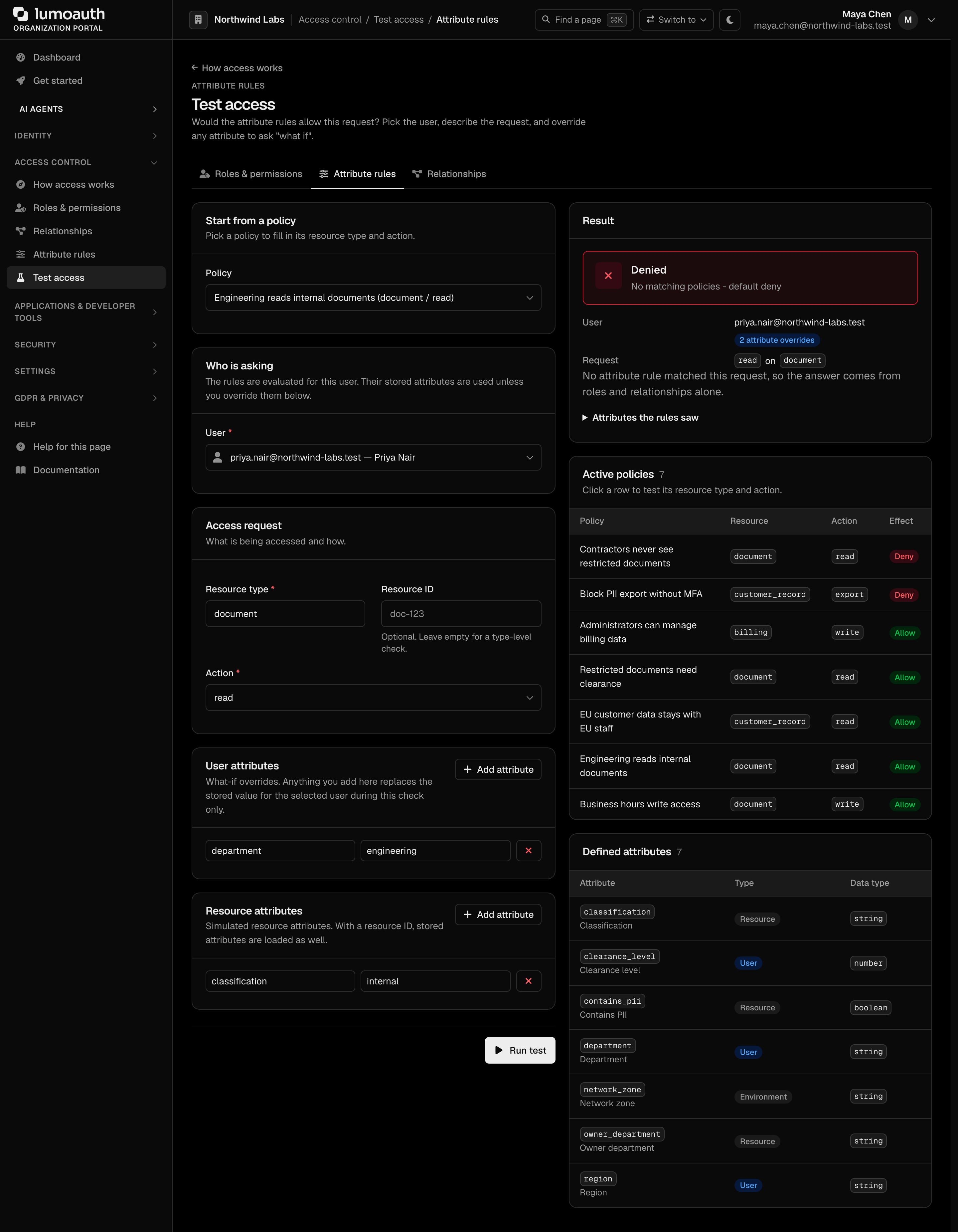
### Via the ABAC Check API
Evaluate a policy decision from code. The check runs against the **caller's own** access token, so send it as the Bearer token (no admin role needed):
```bash
curl -X POST https://your-domain.com/orgs/{orgId}/api/v1/abac/check \
-H "Authorization: Bearer {access_token}" \
-H "Content-Type: application/json" \
-d '{
"resourceType": "financial-report",
"action": "read",
"resourceId": "report-123"
}'
# -> { "allowed": false, "reason": "...", "matchedPolicies": [...] }
```
| Field | Required | Description |
|-------|----------|-------------|
| `resourceType` | yes | The resource type that the policy targets |
| `action` | yes | The action being attempted (`read`, `write`, …) |
| `resourceId` | no | Specific resource instance, for per-resource attributes |
| `environment` | no | Extra context object; the server also adds `ip`, `userAgent`, `requestMethod` |
Related endpoints: `POST /orgs/{orgId}/api/v1/abac/check-bulk` (up to 100 checks at once) and `GET /orgs/{orgId}/api/v1/abac/my-attributes` (the caller's resolved attributes).
---
## Related
- [Roles & Permissions](https://docs.lumoauth.dev/user-guide/access-control/roles-permissions) — base RBAC model.
- [Relationships (ReBAC)](https://docs.lumoauth.dev/user-guide/access-control/zanzibar) — relationship-based access.
- [AI Policy Authoring](https://docs.lumoauth.dev/user-guide/access-control/ai-policy-authoring) — generate roles and relationship policies from plain English (attribute rules are written by hand).
- [Adaptive MFA](https://docs.lumoauth.dev/user-guide/authentication/adaptive-mfa) — risk scores as ABAC attributes.
---
# Zanzibar (Relationship-Based Authorization)
Source: https://docs.lumoauth.dev/user-guide/access-control/zanzibar
Zanzibar is the relationship-based authorization model described in Google's 2019 paper. Instead of assigning roles globally, Zanzibar stores relation tuples of the form object#relation@subject — for example…
Zanzibar is the relationship-based authorization model described in Google's 2019 paper. Instead of assigning roles globally, Zanzibar stores **relation tuples** of the form `object#relation@subject` — for example `document:readme#editor@user:alice` ("alice is an editor of document readme"). An authorization check asks "is there a path in the relation graph from this subject to this object under this relation, given the schema's rewrite rules?".
Use Zanzibar when access is driven by hierarchy and relationships: folders containing files, teams owning projects, organizations containing workspaces. Inheritance and sharing are natural in Zanzibar and awkward to express in RBAC (role-based access control). Examples are "editors of a folder can edit its documents" and "all members of this team can view this document".
**Note: Fine-grained authorization add-on**
Relationship-based access control (feature `zanzibar`) is part of the **Fine-grained authorization** add-on — $99/month, available on the Pro and Business plans, together with ABAC (attribute-based access control). No plan includes it; buy it under **Billing → Add-ons** (see the [pricing matrix](https://docs.lumoauth.dev/pricing-matrix)). When billing is enforced (`BILLING_ENFORCEMENT=enforce`, the production default) and the organization doesn't have the add-on:
- every check denies (`allowed: false`), including MCP per-tool grants;
- the portal shows an upgrade notice on the Relationships pages, and creating or editing a namespace or creating a tuple redirects to the upgrade page;
- AI policy authoring rejects a policy that contains relations with `403` and `{"error": "feature_not_in_plan", "feature": "zanzibar", "upgrade": …}`.
The RBAC → Zanzibar **Sync from roles** keeps working. Under `BILLING_ENFORCEMENT=log` checks are allowed and logged as `billing.would_deny`; an install with neither Stripe nor a license is not restricted.
---
## What is Zanzibar?
Zanzibar stores relationships between subjects and objects. Each relationship is a single tuple. A check searches the graph formed by those tuples, following the schema's userset rewrites.
| Traditional RBAC | Zanzibar |
|-------------------|----------|
| "Alice is an **editor**" (globally) | "Alice is an **editor** of **Document X**" |
| "Bob is a **viewer**" (globally) | "Bob is a **member** of **Team A**, and Team A has **view** access on **Project Y**" |
This answers fine-grained, per-object questions:
- *"Can Alice edit this specific document?"*
- *"Can Bob view this project because his team has access?"*
- *"Who can access this file?"*
---
## Core Concepts
### Relation Tuples
A **relation tuple** is the fundamental unit of Zanzibar. It describes a relationship between a subject and an object:
```
object#relation@subject
```
| Component | Description | Example |
|-----------|-------------|---------|
| **Object** | The resource (namespace:id) | `document:readme` |
| **Relation** | The type of relationship | `editor` |
| **Subject** | A user or a userset | `user:alice` or `group:eng#member` |
Example tuples:
```
document:readme#editor@user:alice # Alice is editor of readme
document:readme#viewer@group:engineering # Engineering group can view readme
folder:docs#owner@user:bob # Bob owns the docs folder
team:backend#member@user:carol # Carol is a member of backend team
```
A subject can be a concrete identity (`user:alice`) or a **userset** — a reference to every entity holding a given relation on another object, written `object#relation`. For example `group:engineering#member` means "every user who is a `member` of `group:engineering`". Userset subjects let you grant access to whole groups in a single tuple.
### Namespace Definitions
A **namespace** defines the valid relations for a type of object and how each one is computed. The schema is a JSON object with a single `relations` key. The **Create namespace** form builds it for you, and its **Document sharing** example produces this:
```json
{
"relations": {
"parent": { "_this": { "relation": "parent" } },
"owner": { "_this": { "relation": "owner" } },
"editor": {
"union": [
{ "computed_userset": { "relation": "owner" } },
{ "_this": { "relation": "editor" } }
]
},
"viewer": {
"union": [
{ "computed_userset": { "relation": "editor" } },
{ "_this": { "relation": "viewer" } },
{ "tuple_to_userset": {
"tupleset": { "relation": "parent" },
"computed_userset": { "relation": "viewer" } } }
]
}
}
}
```
This declares:
- `parent`, `owner`, `editor` and `viewer` are valid relations for documents. `_this` means "the subjects stored directly in tuples for this relation".
- `editor` = every owner (`computed_userset`) OR anyone stored as an editor.
- `viewer` = every editor OR anyone stored as a viewer OR (`tuple_to_userset`) every viewer of the document's `parent` object, so a folder's viewers can see its documents.
- Each relation is one of `_this`, `computed_userset`, `tuple_to_userset`, `union` or `intersection`; any other key is rejected when the namespace is saved.
### Check
The core operation is **Check** — "does subject S have relation R on object O?" The engine searches the graph, following rewrite rules, and returns a yes/no. Run it from the portal Tester or via the [Check API](#via-api).
**Note**
The original Zanzibar paper also describes an **Expand** operation ("the full tree of subjects holding a relation on an object"). LumoAuth exposes Check and Expand (`POST /orgs/{orgId}/api/v1/zanzibar/expand` with `object` and `relation`, returning a `tree`). The portal tester shows the same tree under **Where it comes from**. There is no list-objects operation.
### Permission Inheritance
Relations compose through the graph. Given:
```
folder:docs#owner@user:bob
folder:docs#parent@folder:root
document:readme#parent@folder:docs
```
and a schema rule "folder owners can view all documents in the folder", Bob can view `document:readme` — the check follows the `parent` edges up the tree.
---
## Managing Zanzibar
### Portal
In the sidebar, under **Access control**, open **Relationships** (`/orgs/{orgId}/portal/zanzibar/`). The page has four tabs:
- **Overview** — counts of namespaces and stored tuples, and the engine status.
- **Namespaces** — define object types and their relations (`/zanzibar/namespaces`). The list shows each namespace with its relations and when it was last updated; the row menu (**...**) edits or deletes it.
- **Tuples** — create and manage relationships; **Sync from roles** generates tuples from your roles and permissions (`/zanzibar/tuples`).
- **Tester** — run a Check ("does subject S have relation R on object O?") against the relation graph (`/zanzibar/tester`).
The header carries **Relationship check** (opens the Tester) and **Create namespace**.
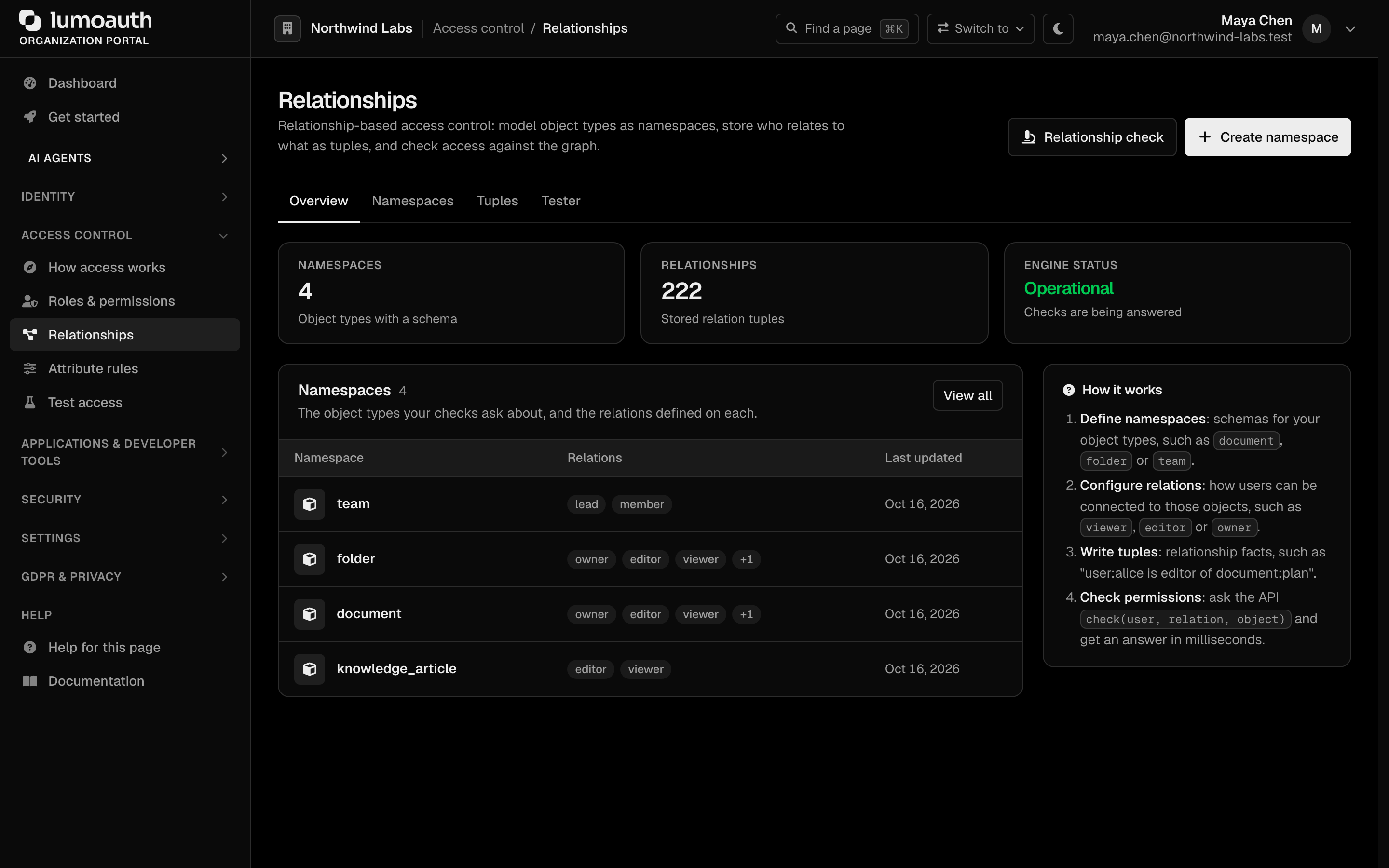
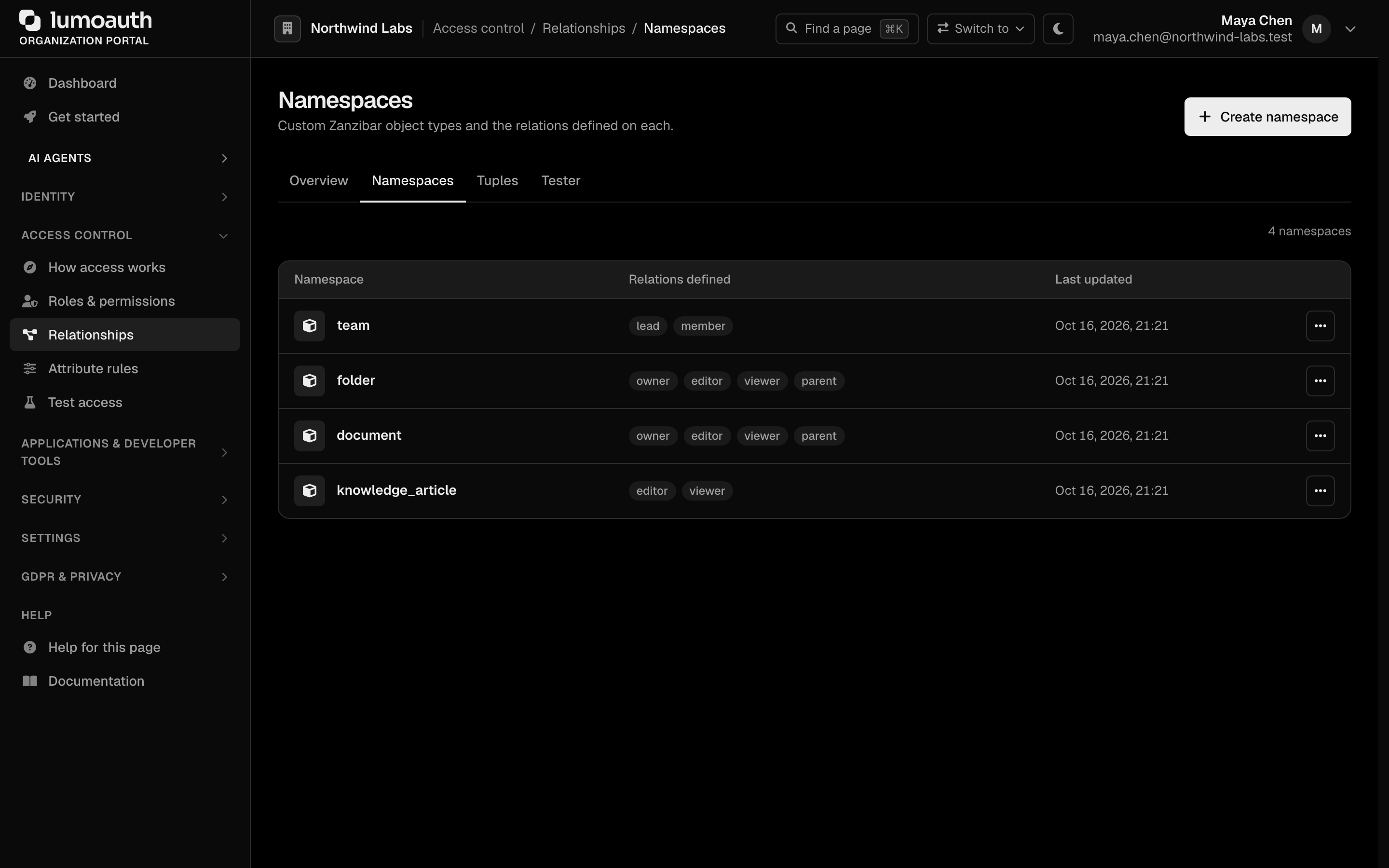
### Creating Relation Tuples
A tuple needs a namespace with the relation that you want to grant, so create the namespace first (**Create namespace**).
1. Go to `/orgs/{orgId}/portal/zanzibar/tuples` (the **Tuples** tab).
2. Click **Add relationship**.
3. Enter:
- **Object namespace** and **Object ID** — the resource (e.g., `document` and `readme`).
- **Relation** — one of the relations defined on that namespace (e.g., `editor`).
- **User namespace** and **User ID** — the subject (e.g., `user` and `alice`).
- **User relation** — optional; set it to make the subject a userset (e.g., `group`, `engineering` and `member` for `group:engineering#member`).
4. Click **Add tuple**. The tuple appears in the Tuples list, where **Revoke relationship** removes it again. Wildcards (`*`) are not accepted in the Object ID.
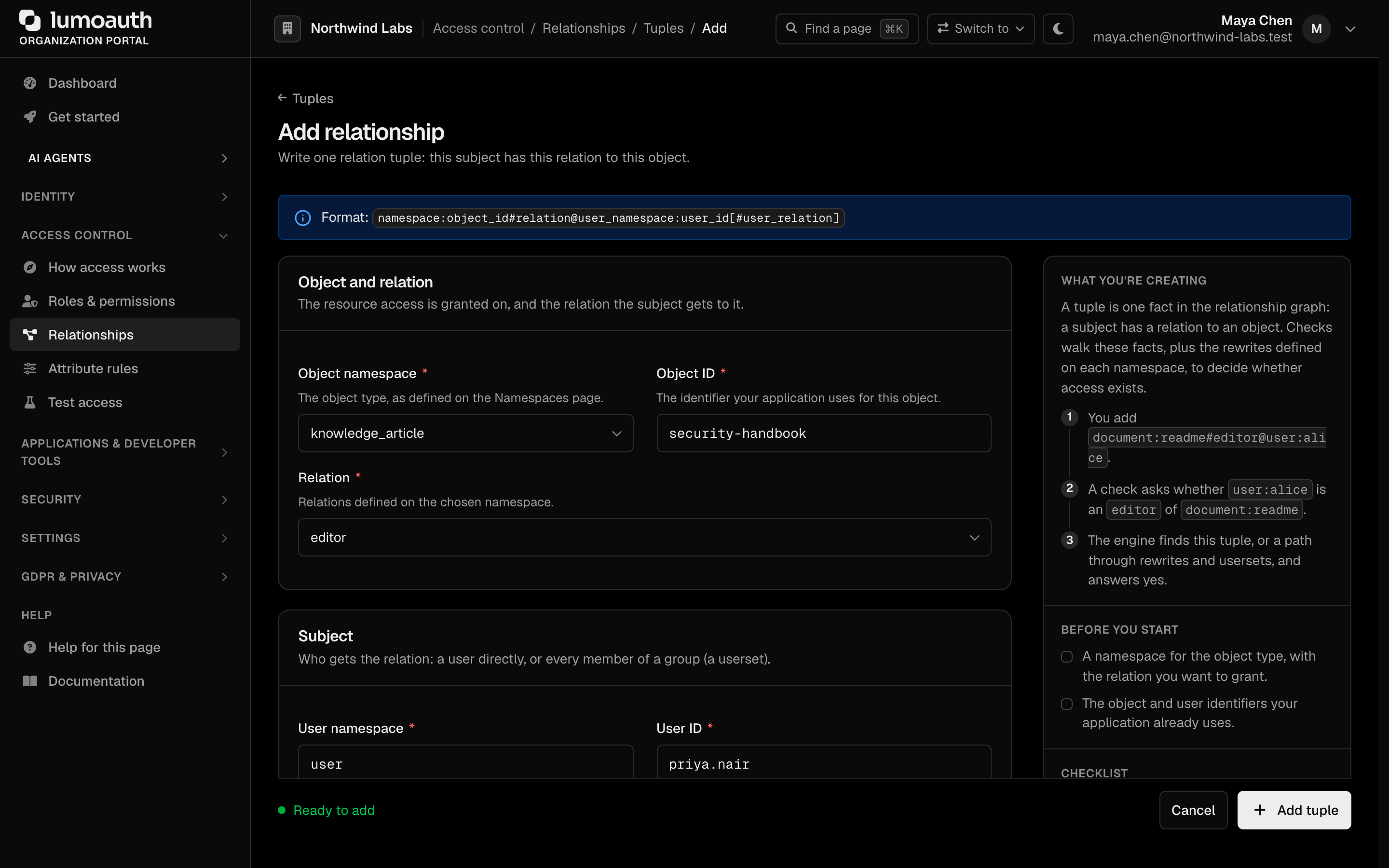
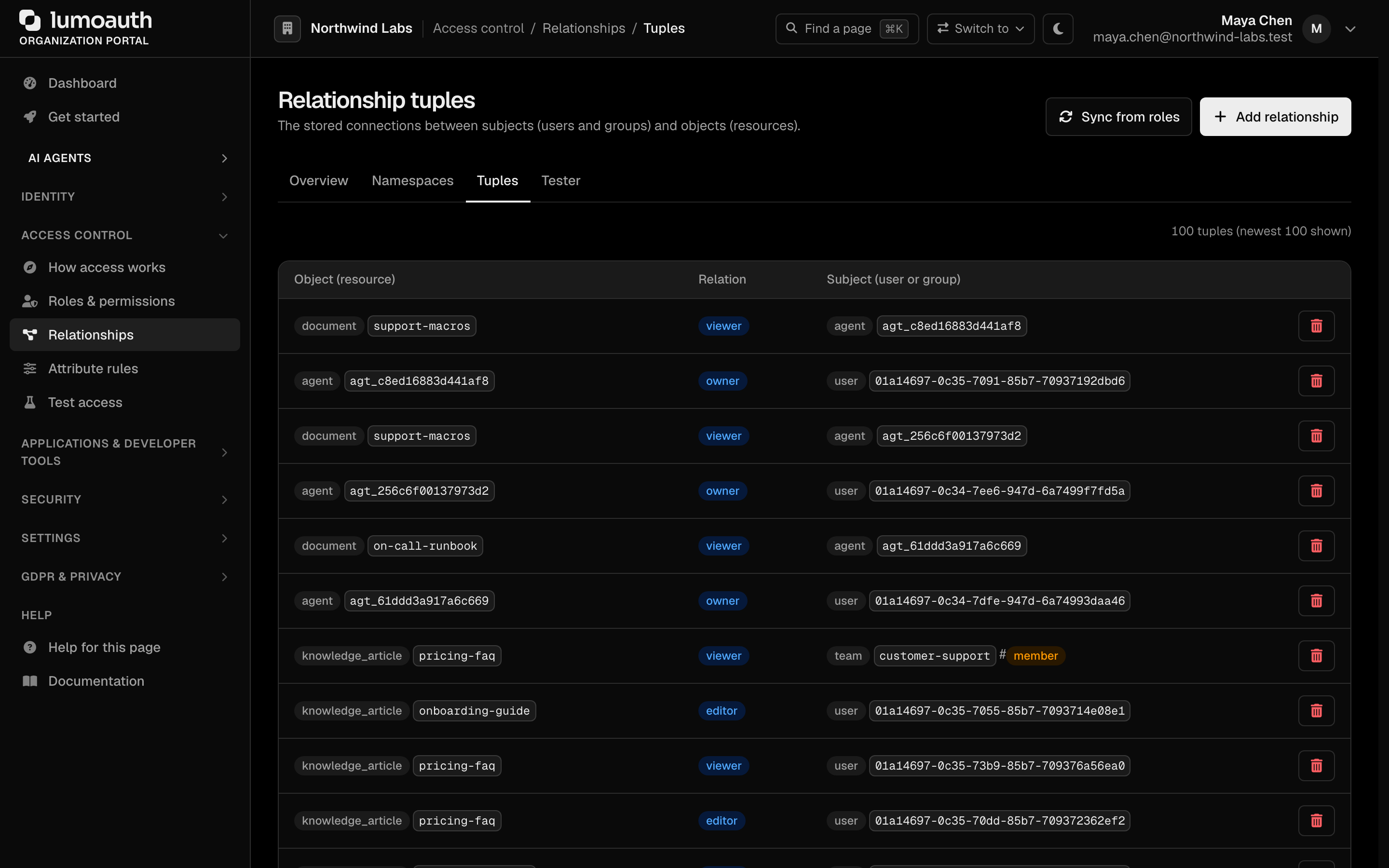
To verify the result, open the **Tester** tab, pick an object, a relation and a user from your stored tuples, and click **Check permission**. **Quick tests** fills the form from your tuples for you: **Test as me** and **Random test**.
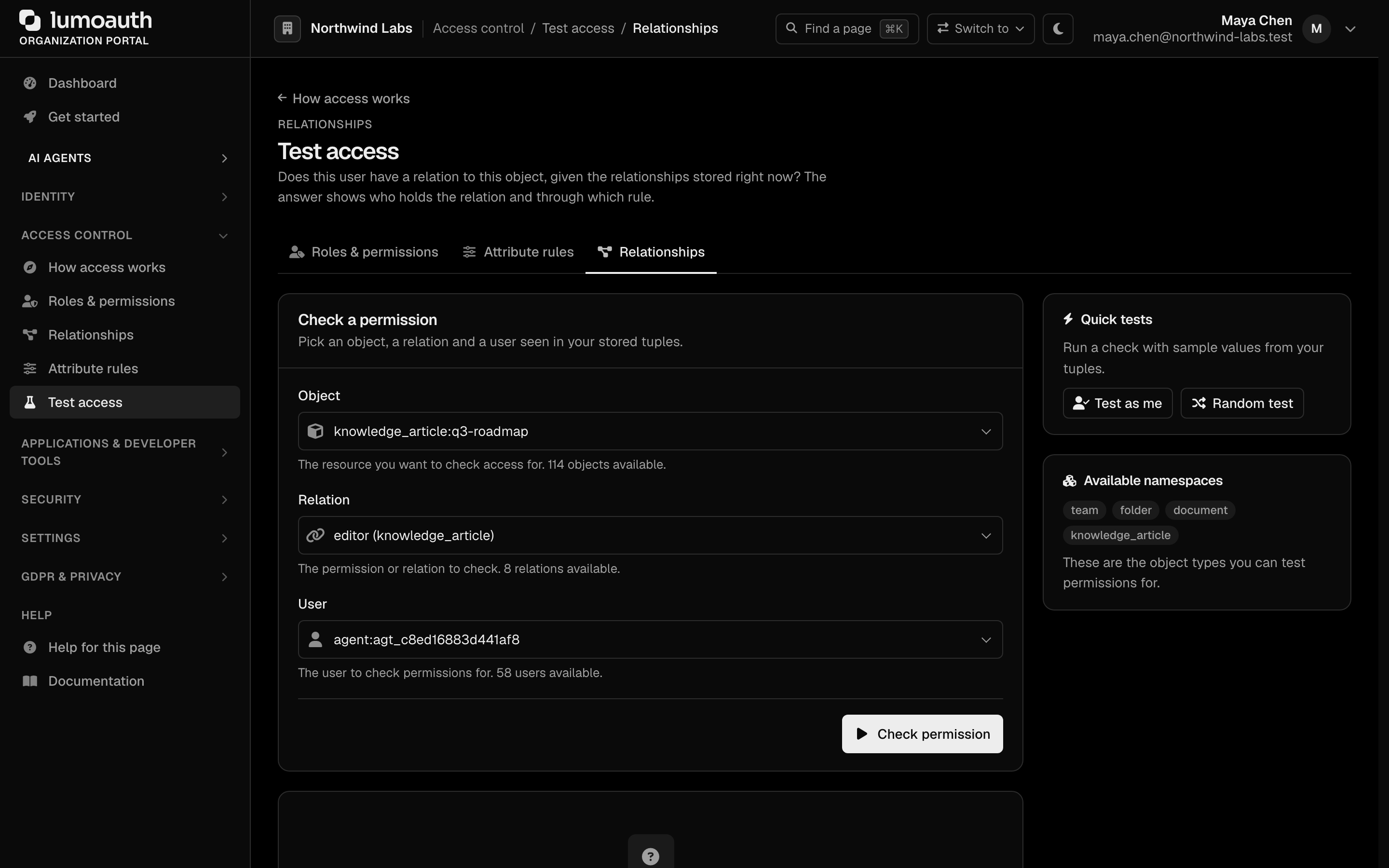
### Via API
Tuples (writes) are managed through the portal — create them at `/orgs/{orgId}/portal/zanzibar/tuples/create` or generate them from your roles with the **Sync from roles** action. There is no public REST endpoint for tuple writes or list-objects.
The REST API exposes **Check** and **Expand**. The `relation` field takes any relation defined on the namespace. The engine resolves relations computed from others (`editor` above, which includes every owner).
A caller may always check **itself**. Checking any other subject (another user, an agent or a userset) needs the `authz.check` permission or the `authz:check` API-key scope. Otherwise the API answers `403` with `"code": "insufficient_permissions"`.
```bash
# Check a relation (tenant-scoped)
curl -X POST https://your-domain.com/orgs/{orgId}/api/v1/zanzibar/check \
-H "Authorization: Bearer {access_token}" \
-H "Content-Type: application/json" \
-d '{
"object": "document:readme",
"relation": "editor",
"user": "user:alice"
}'
# Response: {"allowed": true, ...}
# Expand: who holds a relation on an object, as a tree
curl -X POST https://your-domain.com/orgs/{orgId}/api/v1/zanzibar/expand \
-H "Authorization: Bearer {access_token}" \
-H "Content-Type: application/json" \
-d '{"object": "document:readme", "relation": "viewer"}'
# Response: {"tree": {"type": "union", "object": "document:readme", "relation": "viewer", "children": [...], "subjects": [...]}}
```
There is also a global authorization route, `POST /api/v1/authz/zanzibar/check`, with the same `object` and `relation` fields but using **`subject`** instead of `user`:
```bash
curl -X POST https://your-domain.com/api/v1/authz/zanzibar/check \
-H "Authorization: Bearer {access_token}" \
-H "Content-Type: application/json" \
-d '{
"object": "document:readme",
"relation": "editor",
"subject": "user:alice"
}'
```
**Caution: Canonical route + field names**
The **canonical** Zanzibar check route is the organization-scoped
`POST /orgs/{orgId}/api/v1/zanzibar/check` (used throughout this page). The other
two are variants: `POST /api/v1/zanzibar/check` is a **deprecated** alias without
a tenant in the path, and `POST /api/v1/authz/zanzibar/check` is the unscoped variant that the
JavaScript/TypeScript SDKs use. Prefer the canonical route.
Note the field name: `/orgs/{orgId}/api/v1/zanzibar/check` and
`/api/v1/zanzibar/check` use **`user`**, while `/api/v1/authz/zanzibar/check`
uses **`subject`**. All three use `relation` (not `permission`). The wrong field
name returns `400`: `/api/v1/authz/zanzibar/check` answers with `"code": "MISSING_FIELDS"`, the other two with an `error` message listing the missing fields.
---
## Examples
### Google Drive-Style Sharing
```
# Bob owns a folder
folder:shared-docs#owner@user:bob
# Alice can edit files in the folder
folder:shared-docs#editor@user:alice
# The engineering group can view
folder:shared-docs#viewer@group:engineering
# A document is in the folder
document:design-doc#parent@folder:shared-docs
```
### Organization Hierarchy
```
# Carol is a member of the backend team
team:backend#member@user:carol
# Backend team belongs to the engineering organization
org:engineering#team@team:backend
# Engineering org has access to the production environment
environment:production#accessor@org:engineering#member
# Carol can access production through: team → org → environment
```
### Multi-Organization SaaS
```
# Acme Corp's workspace
workspace:acme#admin@user:alice
workspace:acme#member@user:bob
# Project within the workspace
project:api-v2#parent@workspace:acme
project:api-v2#lead@user:bob
# Bob is project lead AND workspace member
# Alice is workspace admin, so she can access all projects
```
---
## Zanzibar vs RBAC
| Aspect | RBAC | Zanzibar |
|--------|------|----------|
| Granularity | Role-level | Object-level |
| Scale | Hundreds of roles | Large relation graphs |
| Questions answered | "What can this user do?" | "Can this user do X to object Y?" |
| Maintenance | Manage roles and assignments | Manage relation tuples |
| Best for | Application-wide permissions | Per-resource permissions |
---
## Common mistakes
- **Every check returns `allowed: false` although the tuple exists.** The organization doesn't have the Fine-grained authorization add-on and billing is enforced. Add it under **Billing → Add-ons** (on Developer, upgrade to Pro first); the Relationships pages show the notice.
- **The Tuples and Namespaces pages show "Upgrade to enable" instead of "Add relationship" / "Create namespace".** Same cause: new namespaces and tuples can't be added without the add-on, and opening the create pages by URL redirects to Billing with the add-on preselected.
## Best Practices
| Practice | Description |
|----------|-------------|
| Design namespaces carefully | Model domain objects and their natural relationships |
| Use inheritance over duplication | Prefer `parent` relations to copying tuples |
| Grant to groups, not individuals | Use userset subjects for team access |
| Test on the **Tester** tab | Verify expected decisions at `/orgs/{orgId}/portal/zanzibar/tester` (**Test access → Relationships**) before rolling out |
| Start small | Begin with a few relations, extend as you learn the domain |
---
## Related
- [Roles & Permissions](https://docs.lumoauth.dev/user-guide/access-control/roles-permissions) — application-wide RBAC.
- [Attribute rules (ABAC)](https://docs.lumoauth.dev/user-guide/access-control/abac) — attribute and context conditions.
- [AI Policy Authoring](https://docs.lumoauth.dev/user-guide/access-control/ai-policy-authoring) — generate relationship namespaces from plain English.
- [Access Control Overview](https://docs.lumoauth.dev/user-guide/access-control/overview) — compare all authorization models.
---
# AI Policy Authoring
Source: https://docs.lumoauth.dev/user-guide/access-control/ai-policy-authoring
The AI Policy Author turns a natural-language description of an access rule into a concrete policy definition. The definition is either roles and permissions (RBAC, role-based access control), or relationship…
The AI Policy Author turns a natural-language description of an access rule into a concrete policy definition. The definition is either roles and permissions (RBAC, role-based access control), or relationship namespaces, relations and tuples (ReBAC, relationship-based access control, which LumoAuth calls **Relationships**). The generated output is shown for review before you apply it, so the AI is a drafting aid, not an automatic approver.
**Note**
The AI Policy Author generates **roles and permissions** and **relationships** only. It does not generate attribute rules (ABAC) — author those by hand under [Attribute rules](https://docs.lumoauth.dev/user-guide/access-control/abac).
Use this when you want to go from "here is what should be allowed" in plain English to a working policy quickly. The more specific your description, the better the draft.
---
## Prerequisites
- An AI provider configured on the platform.
- Access to `/orgs/{orgId}/portal/policies/author`.
When no AI provider is configured, the page shows an **AI features disabled** notice instead of the authoring form.
---
## How It Works
1. **Describe your policy** in natural language.
2. The **AI generates** the corresponding RBAC roles/permissions and/or Zanzibar relations and tuples, returned as a JSON object.
3. **Review** the draft. It cannot be edited in place: change the description and click **Analyze and preview** again.
4. **Apply** to create the roles, permissions, and relationship namespaces/tuples in your organization.
**URL:** `/orgs/{orgId}/portal/policies/author`. When AI is enabled, two buttons open it: **Draft with AI** on the **Roles & permissions** page and **AI policy authoring** on the **Relationships** page. Both need the `policies.view` permission.
---
## Examples
### RBAC Generation
**Input:**
> "Create roles for a project management app. Project managers should be able to create, edit, and delete projects and assign team members. Team members can view projects and update tasks. Viewers can only see project details."
**Generated Output** (a JSON object — abbreviated here):
```json
{
"policy_name": "Project Management Access",
"roles": [
{ "name": "Project Manager", "slug": "project_manager", "description": "Manages projects and team members" },
{ "name": "Team Member", "slug": "team_member", "description": "Works on projects and tasks" },
{ "name": "Viewer", "slug": "viewer", "description": "Read-only access to projects" }
],
"permissions": [
{ "name": "Create Project", "slug": "projects.create", "resource": "projects", "action": "create", "description": "Create new projects" },
{ "name": "Edit Project", "slug": "projects.edit", "resource": "projects", "action": "edit", "description": "Edit projects" },
{ "name": "View Project", "slug": "projects.read", "resource": "projects", "action": "read", "description": "View project details" }
],
"role_permissions": [
{ "role_slug": "project_manager", "permission_slug": "projects.create" },
{ "role_slug": "project_manager", "permission_slug": "projects.edit" },
{ "role_slug": "team_member", "permission_slug": "projects.read" },
{ "role_slug": "viewer", "permission_slug": "projects.read" }
]
}
```
The full object also carries `zanzibar_relations`, `zanzibar_tuples`, and `exclusions` keys (empty for a pure-RBAC case).
Applying a policy with non-empty `zanzibar_relations` needs the `zanzibar` feature (Fine-grained authorization add-on, Pro and Business). Without it, and with billing enforced, **Apply** is rejected with `403` and `{"error": "feature_not_in_plan", "feature": "zanzibar", …}` and nothing is created; pure-RBAC policies still apply.
### Zanzibar Generation
**Input:**
> "Design a document sharing system. Documents belong to folders. Folders belong to workspaces. Workspace admins can do everything. Folder editors can edit documents in their folder. Document viewers can only read."
**Generated Output** (the `zanzibar_relations` / `zanzibar_tuples` portion of the JSON object — abbreviated):
```json
{
"policy_name": "Document Sharing",
"zanzibar_relations": [
{
"namespace": "folder",
"relation": "editor",
"description": "Folder editors can edit documents in the folder",
"definition": {
"union": [
{ "_this": { "relation": "editor" } },
{ "tuple_to_userset": {
"tupleset": { "relation": "parent" },
"computed_userset": { "relation": "editor" } } }
]
}
},
{
"namespace": "document",
"relation": "viewer",
"description": "Document viewers can read the document",
"definition": { "_this": { "relation": "viewer" } }
}
],
"zanzibar_tuples": [
{
"description": "Seed: editor of the design folder",
"namespace": "folder",
"object_id": "placeholder_id",
"relation": "editor",
"user_namespace": "user",
"user_id": "placeholder_user"
}
]
}
```
---
## Using the Policy Author
### Step 1: Write a Description
Type the rule into **Policy description** (or pick one under **Start from an example**), then click **Analyze and preview**. Be specific about:
- **Who** should have access (roles, groups, user attributes).
- **What** they should access (resources, actions).
- **When/Where** access is allowed (conditions, constraints).
### Step 2: Review the Draft
The generator returns a JSON policy that combines RBAC (roles, permissions, role-permission mappings, exclusions) and Zanzibar (relations and seed tuples), as the description warrants. The naming is consistent, and the set of permissions is complete for the case that you described.
### Step 3: Adjust if Needed
The preview tables (**Roles**, **Permissions**, **Assignments**, **Fine-grained relations**, **Exclusions**) are read-only. To change the draft, click **Reset**, refine the description and run **Analyze and preview** again.
### Step 4: Apply
Click **Apply policy** and confirm to create the roles, permissions, role-permission mappings, and relationship namespaces/tuples in your organization.
---
## Tips for Better Results
| Tip | Example |
|-----|---------|
| Be specific about actions | "can create, edit, and delete" instead of "can manage" |
| Name your actors | "Project managers should..." instead of "some users should..." |
| Mention edge cases | "External contractors can view but not download" |
| Describe relationships and hierarchy | "editors of a folder can edit its documents" (generates Zanzibar relations) |
| State exclusions explicitly | "everyone except contractors" (generates exclusions) |
| Reference existing resources | "for the documents and folders in our file system" |
---
## Related
- [Roles & Permissions](https://docs.lumoauth.dev/user-guide/access-control/roles-permissions) — RBAC basics.
- [ABAC](https://docs.lumoauth.dev/user-guide/access-control/abac) — attribute-based policies.
- [Zanzibar](https://docs.lumoauth.dev/user-guide/access-control/zanzibar) — relationship-based access.
- [Access Control Overview](https://docs.lumoauth.dev/user-guide/access-control/overview) — compare all models.
---
# Multi-Tenancy
Source: https://docs.lumoauth.dev/user-guide/multi-tenancy/overview
LumoAuth is a multi-organization identity platform. Every resource is scoped to an organization: users, applications, roles and configurations. Data is therefore fully isolated between organizations, while they share a…
LumoAuth is a multi-organization identity platform. Every resource is scoped to an organization: users, applications, roles and configurations. Data is therefore fully isolated between organizations, while they share a single deployment.
---
## What is Multi-Tenancy?
An **organization** in LumoAuth represents an isolated identity domain. Each organization has its own:
- Users and user profiles
- OAuth applications and API clients
- Roles, permissions, and access policies
- Sign-in settings (MFA, social login, SSO)
- Branding and custom domains
- Audit logs and compliance data
Organizations are completely isolated from each other. A user in one organization cannot access resources in another organization.
---
## URL Structure
Every organization is accessed through its unique slug in the URL:
```
https://your-domain.com/orgs/{orgId}/...
```
| Path | Purpose |
|------|---------|
| `/orgs/{orgId}/portal/` | Organization admin portal dashboard |
| `/orgs/{orgId}/portal/applications` | Manage OAuth applications |
| `/orgs/{orgId}/portal/users` | Users (tabs: **Users**, **Invitations**, **Groups**) |
| `/orgs/{orgId}/portal/roles` | Roles & permissions |
| `/orgs/{orgId}/portal/settings/authentication` | Sign-in settings (social login, SAML and OIDC identity providers are sections of **Settings → Integrations**) |
| `/orgs/{orgId}/api/v1/` | Organization API endpoints |
| `/orgs/{orgId}/api/v1/oauth/authorize` | OAuth authorization endpoint |
| `/orgs/{orgId}/api/v1/oauth/token` | Token endpoint |
| `/orgs/{orgId}/api/v1/.well-known/openid-configuration` | OIDC discovery document (the JSON file that lists your endpoints and keys) |
See the [Organization Portal](https://docs.lumoauth.dev/user-guide/multi-tenancy/tenant-portal) guide for the full list of portal pages and their URLs.
With [custom domains](https://docs.lumoauth.dev/user-guide/multi-tenancy/custom-domains), you can map `auth.yourdomain.com` to your organization, removing the `/orgs/{orgId}` prefix entirely.
---
## Use Cases
| Scenario | How Multi-Tenancy Helps |
|----------|------------------------|
| **SaaS Platform** | Each customer gets their own organization with separate users and settings |
| **Enterprise Departments** | Each department maintains independent identity configurations |
| **Environments** | Separate organizations for dev, staging, and production |
| **White-Label Products** | Each brand operates under its own custom domain |
---
## Organization Isolation
LumoAuth enforces organization isolation at every layer:
| Layer | Isolation Mechanism |
|-------|-------------------|
| **Data** | All database queries are scoped to the current organization |
| **Authentication** | Login sessions are organization-specific |
| **API** | All API requests require organization context |
| **Configuration** | Auth settings, MFA policies, social providers are per-organization |
| **Audit Logs** | Logs are organization-scoped and cannot be accessed cross-organization |
| **Tokens** | Access tokens include organization claims and are validated per-organization |
---
## In This Section
| Guide | Description |
|-------|-------------|
| [Organization Setup](https://docs.lumoauth.dev/user-guide/multi-tenancy/tenant-setup) | Create, configure, and manage organizations |
| [Organization Portal](https://docs.lumoauth.dev/user-guide/multi-tenancy/tenant-portal) | Navigate the organization admin portal |
| [Custom Domains](https://docs.lumoauth.dev/user-guide/multi-tenancy/custom-domains) | Map your own domain to an organization |
---
# Organization Setup
Source: https://docs.lumoauth.dev/user-guide/multi-tenancy/tenant-setup
This guide covers configuring and managing your organization in LumoAuth.
This guide covers configuring and managing your organization in LumoAuth.
---
## Getting Your Organization
When you sign up for LumoAuth, you create an organization during onboarding. Your organization is immediately available at:
```
https://app.lumoauth.dev/orgs/{your-organization-slug}/portal/
```
Your organization ID is a URL-safe identifier (e.g., `acme-corp`) that you chose during signup.
---
## Organization Configuration
Configure your organization settings through the organization portal at `/orgs/{orgId}/portal/`.
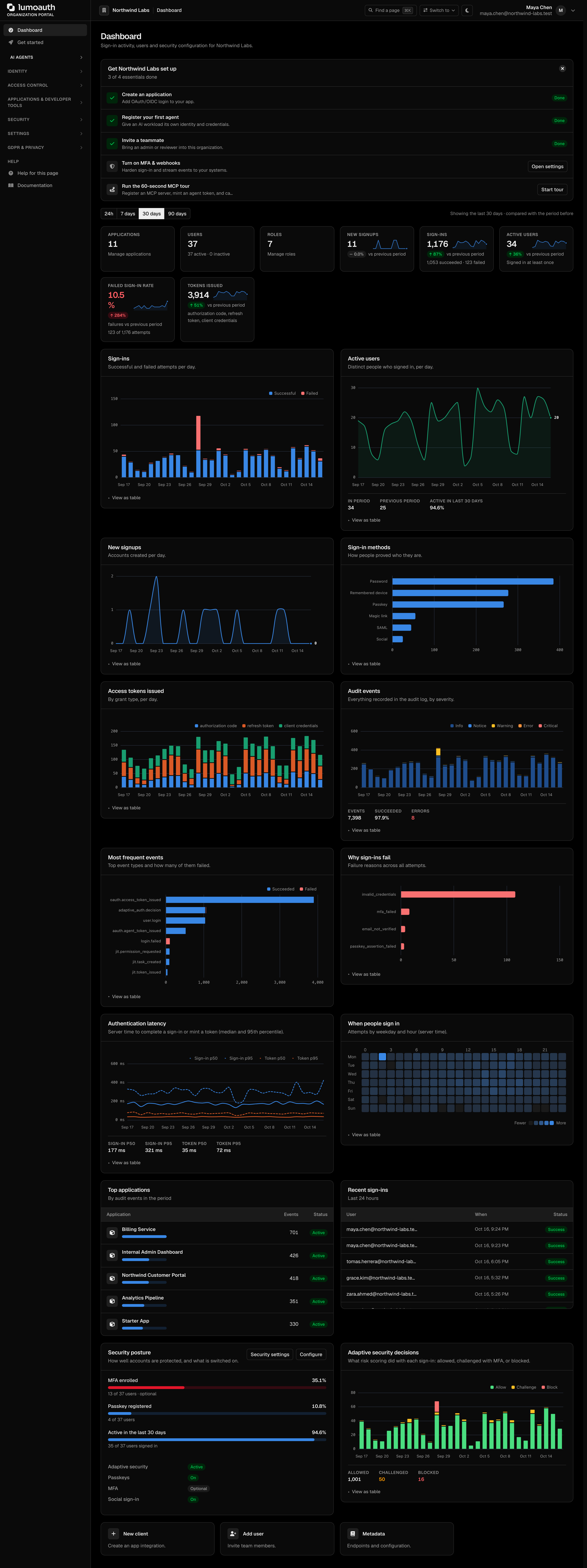
### Sign-in settings
Navigate to **Security → Sign-in settings** (`/orgs/{orgId}/portal/settings/authentication`) to configure:
| Setting | Description |
|---------|-------------|
| **Identity methods** | **Passkeys & biometrics** (including the FIDO Metadata Service check of authenticators) and **Require push authentication** |
| **Login flow** | Email-first login, magic link login |
| **Password standards** | Template or custom rules: minimum length and complexity requirements |
| **Auth lifecycle** | Session timeout, breached-password checks, password rotation |
| **Platform security** | OAuth security and developer-facing protocol features |
| **Progressive profiling** | Ask for profile details gradually across several sign-ins instead of all at registration |
| **MFA policy** | Off, optional, risk-based or required MFA; allowed factors, minimum strength, grace period and trusted devices (see [MFA](https://docs.lumoauth.dev/user-guide/authentication/mfa#configuring-the-mfa-policy)) |
| **Admin API keys** | Scoped keys for programmatic access to the Admin API (managed under **Applications & developer tools → API keys**) |
Self-registration is switched on or off with **Enable self registration** under **Settings → Login page & emails → Login page**, not on this page.
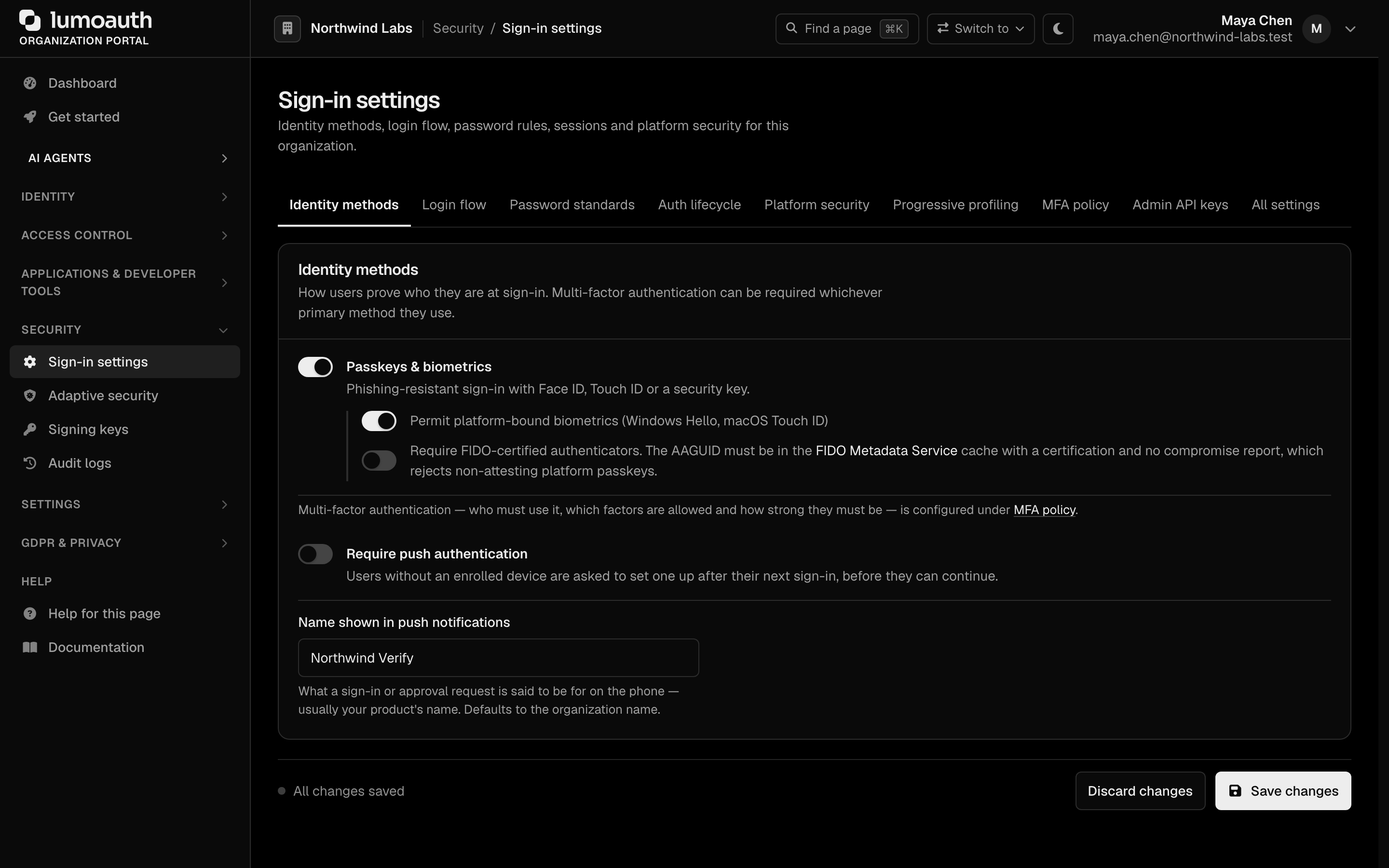
### Identity Providers
Configure external identity providers for your organization:
| Provider Type | Configuration Path |
|--------------|-------------------|
| [Social Login](https://docs.lumoauth.dev/user-guide/authentication/social-login) | **Social login** section of `/orgs/{orgId}/portal/integrations` (**Add provider**) |
| [SAML 2.0 IdP](https://docs.lumoauth.dev/user-guide/authentication/enterprise-sso) | **Enterprise SSO (SAML)** section of `/orgs/{orgId}/portal/integrations`, or `/orgs/{orgId}/portal/saml-idps` |
| [OIDC Federation](https://docs.lumoauth.dev/user-guide/authentication/enterprise-sso) | **Enterprise SSO (OIDC)** section of `/orgs/{orgId}/portal/integrations`, or `/orgs/{orgId}/portal/oidc-idps` |
| [LDAP / Active Directory](https://docs.lumoauth.dev/user-guide/authentication/enterprise-sso) | **Directory sync (LDAP/AD)** section of `/orgs/{orgId}/portal/integrations` |
All of these are under **Settings → Integrations**.
### Adaptive Authentication
Configure risk-based authentication under **Security → Adaptive security** (`/orgs/{orgId}/portal/settings/adaptive-auth`):
- The adaptive security engine on/off switch
- Risk score thresholds
- Detection signals such as impossible travel, new country and IP reputation
- Network guard (Tor and datacenter/VPN blocking)
- Trusted IP ranges
See [Adaptive MFA](https://docs.lumoauth.dev/user-guide/authentication/adaptive-mfa) for details.
---
## Organization Roles
Every organization starts with one system role, **Tenant Admin**, which holds every admin permission and cannot be deleted. Any other administrator role is one that you create under **Access control → Roles & permissions** (**Create role**). Set an access level per area, or pick **Read-only**, **Editor** or **Administrator** under **Start from** and adjust. Typical roles teams create:
| Role | Description | Typical Permissions |
|------|-------------|-------------------|
| **Tenant Admin** (system role) | Full control over the organization | All organization operations |
| A user manager | Manage users and assignments | Create/edit/delete users, assign roles |
| An application manager | Manage OAuth and SAML applications | Create/edit/delete applications |
| An auditor | Read-only access to logs | View audit logs, view users |
See [How the admin permissions work](https://docs.lumoauth.dev/user-guide/access-control/roles-permissions#how-the-admin-permissions-work).
### Assigning Organization Admins
1. Go to **Identity → Users** (`/orgs/{orgId}/portal/users`)
2. Open a user and switch to the **Roles** tab
3. Tick the organization admin role (the system role named **Tenant Admin**) and click **Save changes**
---
## Organization Settings via API
You can also manage organization settings from code, using the Admin API:
```bash
# Update organization authentication settings.
# Note: /api/v1/admin/settings is read-only (GET). Update each settings
# group at its own sub-resource, e.g. .../settings/authentication.
curl -X PATCH https://app.lumoauth.dev/orgs/acme-corp/api/v1/admin/settings/authentication \
-H "Authorization: Bearer {access_token}" \
-H "Content-Type: application/json" \
-d '{
"session_timeout": 1209600,
"social_login_enabled": true
}'
```
The Admin settings API is split into per-group sub-resources, each supporting `GET` (read) and `PATCH`/`PUT` (update):
| Group | Path |
|-------|------|
| Authentication | `/orgs/{orgId}/api/v1/admin/settings/authentication` |
| Security | `/orgs/{orgId}/api/v1/admin/settings/security` |
| Email | `/orgs/{orgId}/api/v1/admin/settings/email` |
| General | `/orgs/{orgId}/api/v1/admin/settings/general` |
`GET /orgs/{orgId}/api/v1/admin/settings` returns all groups in one aggregate response.
The MFA policy has its own endpoint, `GET`/`PUT /orgs/{orgId}/api/v1/admin/policies/mfa` — see the [MFA API](https://docs.lumoauth.dev/api-reference/mfa#mfa-policy).
See the [Admin API](https://docs.lumoauth.dev/admin) documentation for the full list of available endpoints.
---
## Organization Data Model
Each organization owns the following resources:
```mermaid
graph TD
Organization
Organization --> Users
Users --> Profiles
Users --> MFA["MFA Methods"]
Users --> Passkeys["Passkey Credentials"]
Users --> Social["Social Accounts"]
Organization --> Apps["Applications (OAuth Clients)"]
Apps --> AT["Access Tokens"]
Apps --> RT["Refresh Tokens"]
Apps --> AC["Authorization Codes"]
Organization --> AC2["Access Control"]
AC2 --> Roles
AC2 --> Permissions
AC2 --> Groups
AC2 --> ABAC["ABAC Policies"]
AC2 --> Zanzibar["Zanzibar Relations"]
Organization --> IdP["Identity Providers"]
IdP --> Social2["Social Login Providers"]
IdP --> SAML["SAML IdP Configs"]
IdP --> OIDC["OIDC IdP Configs"]
IdP --> LDAP["LDAP Configs"]
Organization --> Config["Configuration"]
Config --> AuthSettings["Auth Settings"]
Config --> EmailTemplates["Email Templates"]
Config --> SigningKeys["Signing Keys"]
Config --> Domains["Custom Domains"]
Config --> Webhooks
Organization --> Compliance
Compliance --> AuditLogs["Audit Logs"]
Compliance --> GDPR["GDPR Requests"]
```
---
## Related Guides
- [Organization Portal](https://docs.lumoauth.dev/user-guide/multi-tenancy/tenant-portal) - Navigate the admin portal
- [Custom Domains](https://docs.lumoauth.dev/user-guide/multi-tenancy/custom-domains) - Map your domain to an organization
- [Your first 15 minutes in the portal](https://docs.lumoauth.dev/user-guide/getting-started/first-tenant) - Step-by-step walkthrough of organization configuration
---
# Organization Admin Portal
Source: https://docs.lumoauth.dev/user-guide/multi-tenancy/tenant-portal
The organization admin portal is the primary interface for managing an organization's identity configuration, users, applications, and security settings.
The organization admin portal is the primary interface for managing an organization's identity configuration, users, applications, and security settings.
**URL:** `/orgs/{orgId}/portal/`
---
## Portal Dashboard
The portal root, `/orgs/{orgId}/portal/`, **is** the dashboard. It provides an at-a-glance view of:
- A **Get *your organization* set up** checklist (create an application, register your first agent, invite a teammate, turn on MFA and webhooks). You can dismiss it, and when you chose **An AI agent** on [Get started](#home) the agent step comes first. A new organization also gets a **Your Starter App is ready** card with the client ID, issuer and links to the quickstart and a test sign-in
- A time-range switch (**24h**, **7 days**, **30 days**, **90 days**) that drives every tile and chart, each compared with the period before
- Tiles for **Applications**, **Users**, **Roles**, **New signups**, **Sign-ins**, **Active users**, **Failed sign-in rate** and **Tokens issued**
- Charts for **Sign-ins**, **Active users**, **New signups**, **Sign-in methods**, **Access tokens issued**, **Audit events**, **Most frequent events**, **Why sign-ins fail**, **Authentication latency**, **When people sign in** (a weekday-by-hour heatmap) and **Adaptive security decisions**
- Lists for **Top applications** and **Recent sign-ins** (last 24 hours), plus a **Security posture** card (MFA and passkey coverage, recently active users)
- Quick actions: **New client**, **Add user** and **Metadata**
See [Analytics](https://docs.lumoauth.dev/user-guide/compliance/analytics) for what each panel counts.

---
## Portal Sections
The left sidebar groups everything into the sections below, in this order. Entries that you have no permission for are hidden.

### Home
The two entries at the top of the sidebar, above the first group heading.
| Entry | URL | What it is |
|-------|-----|------------|
| **Dashboard** | `/orgs/{orgId}/portal/` | At-a-glance health, setup checklist, recent activity |
| **Get started** | `/orgs/{orgId}/portal/onboarding` | Guided setup. Answer **What are you building?** (**An app people sign in to**, **An AI agent** or **Both**) once per organization. The page and the dashboard checklist then lead with that path. The page offers **Secure an AI agent** (**Start building**) and **Add sign-in to an app** (**Open quickstarts**). It also has the **AI agent + MCP in 60 seconds** tour and **Your organization credentials** (organization slug, auth server URL and OIDC discovery URL) |
### AI Agents
| Entry | URL | Description |
|-------|-----|-------------|
| **Agents** | `/orgs/{orgId}/portal/agents` | Register agents (**Register agent**) and see what they are allowed to do. Tabs: **Agents**, **AAuth credentials**, **AAuth resources** (with the issuer's discovery endpoints) and **Connections** (`/portal/connections`, third-party services that agents call on a user's behalf). The list has an **All** / **Needs attention** filter and an **Access rules** shortcut. An AAuth credential is how an agent proves its identity: its old `/portal/aauth/agents/{id}` URL opens the agent, and its keys are edited as **AAuth credentials** there |
| **Approvals** | `/orgs/{orgId}/portal/approvals` | Everything waiting on a human: permission requests (decided in place), user consents and action approvals, behind a type filter. `/portal/jit-approvals` serves the same page |
| **MCP servers** | `/orgs/{orgId}/portal/mcp-servers` | Register and protect MCP servers (**Register MCP server**) |
| **Agent rules** | `/orgs/{orgId}/portal/agents/policies` | Tabs: **Access rules** (conditional access when an agent authenticates), **Auto-approve rules** (`/portal/agents/rules/auto-approve`) and **Cross-app access** (`/portal/delegation`, which applications and identity providers may obtain tokens for other applications on a user's behalf) |
| **Agent activity** | `/orgs/{orgId}/portal/caep-dashboard` | Tabs: **Activity** (fleet activity and CAEP) and **Security signals** (`/portal/agent-guard/security-signals`). See [Agent activity](#agent-activity) below |
If you may manage identity providers but not agents, the group shows a single **Agent rules** entry instead, which opens the **Cross-app access** tab (`/orgs/{orgId}/portal/delegation`).
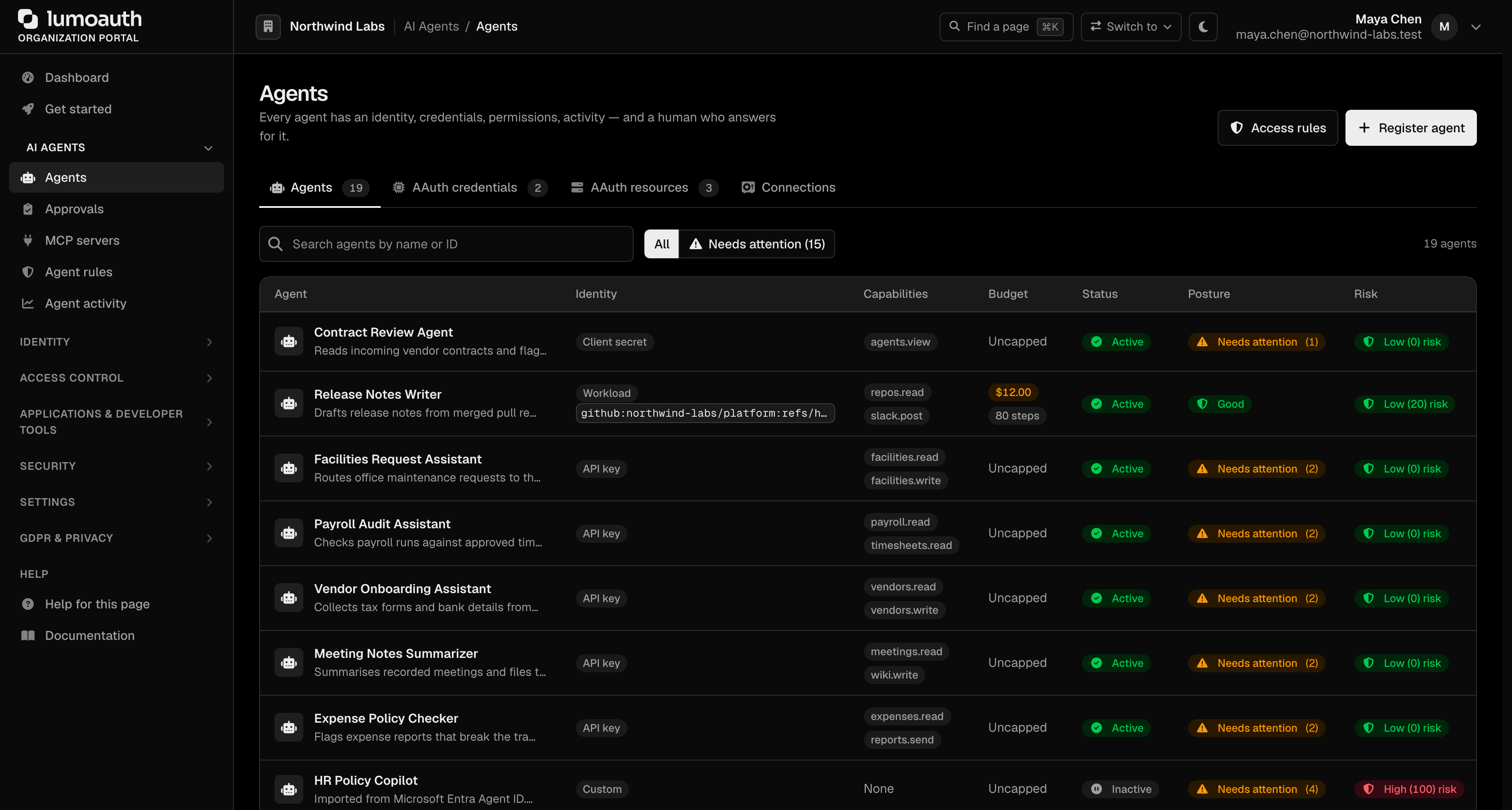
See [AI Agents](https://docs.lumoauth.dev/user-guide/ai-agents/overview).
#### Agent activity
**Agent activity** (`/orgs/{orgId}/portal/caep-dashboard`) is the fleet view for your agents. A **24h** / **7 days** / **30 days** switch drives the tiles (**Agent tasks**, **JIT requests**, **Pending approval**, **CAEP flagged**, **Approval rate**, **Time to decision**, **Average task risk**) and the **Agent tasks** and **JIT permission requests** charts. The **Security signals** tab manages the continuous access evaluation streams that notify receivers when an agent's access changes.
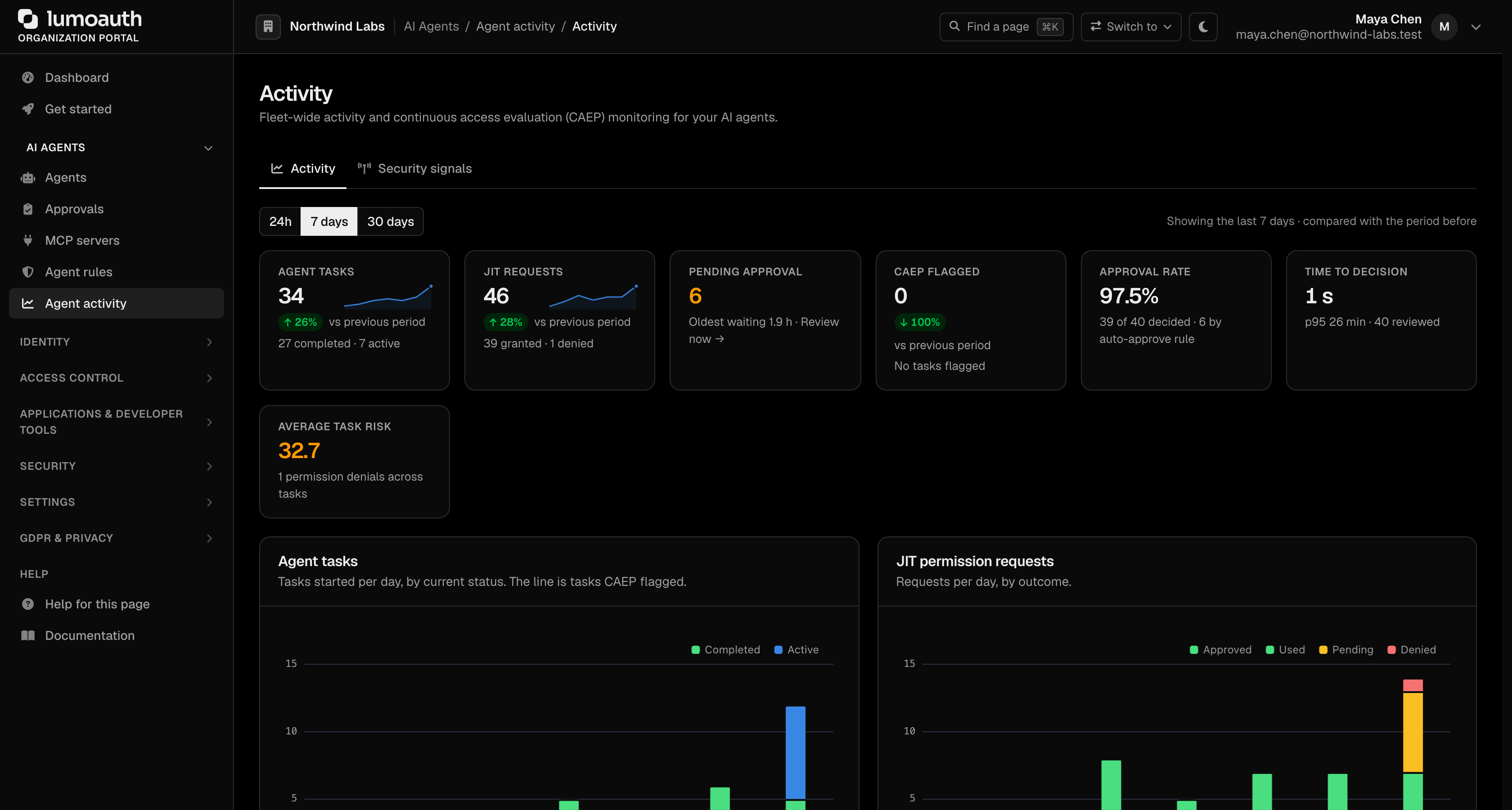
### Identity
| Entry | URL | Description |
|-------|-----|-------------|
| **Users** | `/orgs/{orgId}/portal/users` | Invite users (**Invite users**), create users with a password (**Create user**), view profiles, assign roles. Tabs: **Users**, **Invitations** and **Groups** (`/portal/groups`, organize users into groups; not a sidebar entry of its own) |
| **Customer organizations** | `/orgs/{orgId}/portal/organizations` | Customer organizations within your organization, with their own members and invitations |
See [User Management](https://docs.lumoauth.dev/user-guide/user-management/overview).
### Access control
| Entry | URL | Description |
|-------|-----|-------------|
| **How access works** | `/orgs/{orgId}/portal/access` | Landing page: the three models, what each answers, what you have set up, and the order in which one decision is evaluated |
| **Roles & permissions** | `/orgs/{orgId}/portal/roles` | Tabs: **Roles** (create and manage RBAC roles — start here) and **Permissions** (`/portal/permissions`, the catalog that roles are built from). **Draft with AI** opens AI policy authoring when AI is enabled |
| **Relationships** | `/orgs/{orgId}/portal/zanzibar/` | Fine-grained relationship-based access (add-on) |
| **Attribute rules** | `/orgs/{orgId}/portal/abac/` | Attribute-based access control policies (add-on) |
| **Test access** | `/orgs/{orgId}/portal/permissions/tester` | One tester, three modes: roles & permissions, attribute rules (`/portal/abac/tester`, with what-if attribute overrides) and relationships (`/portal/zanzibar/tester`, with the expansion of who holds the relation) |
See [Access Control](https://docs.lumoauth.dev/user-guide/access-control/overview) for how to choose between the three models.
### Applications & developer tools
| Entry | URL | Description |
|-------|-----|-------------|
| **Applications** | `/orgs/{orgId}/portal/applications` | OAuth 2.0 / OIDC and SAML applications. Click **New application** |
| **Quickstarts** | `/orgs/{orgId}/portal/onboarding/quickstart` | Copy-paste integration snippets pre-filled with your organization values. Each framework tab lists only clients of the kind that its snippets need (public PKCE for browser apps, confidential for server apps, machine-to-machine for scripts). It can create one that returns to the tab, and it ends with **Check it worked** — the first sign-in through the selected client |
| **API keys** | `/orgs/{orgId}/portal/settings/api-keys` | Keys for the Admin API. Click **Create API key** |
| **API explorer** | `/orgs/{orgId}/portal/developer/api-explorer` | Try API calls from the browser |
| **Test login** | `/orgs/{orgId}/portal/developer/test-login` | Run a real sign-in against your organization |
| **JWT inspector** | `/orgs/{orgId}/portal/developer/jwt-inspector` | Decode and check tokens |
| **Endpoints & metadata** | `/orgs/{orgId}/portal/metadata` | Issuer, discovery document, JWKS and other endpoint URLs |
The **Applications** page has two tabs: **Yours** (the applications that you created) and **Provided by LumoAuth** (first-party clients such as the LumoAuth CLI, managed for you). Search by name or identifier.
See [Applications](https://docs.lumoauth.dev/user-guide/applications/overview).
#### Developer tools
**API explorer** loads the organization's OpenAPI 3 spec in an interactive explorer (with a **Raw spec (JSON)** link). Choose **Authorize**, paste a Bearer access token, then expand an endpoint to try it. Open **How to use the explorer** for a short guide.
**Test login** runs the complete hosted sign-in flow without leaving the portal. It uses a dedicated test client that LumoAuth provisions for the organization (its client ID, scopes, authorize endpoint and callback are shown). **Start test login** opens the sign-in in a popup, exchanges the code with PKCE and shows the **Token response**, the **Decoded ID token claims** and the `/userinfo` response (or an **Error**).
**JWT inspector** decodes an access token, ID token or any JWT in your browser (the token is never sent to LumoAuth). **Decode** reads the header and claims, **Verify against JWKS** checks the signature against the organization's published keys, and **Introspect (opaque)** asks the introspection endpoint about non-JWT tokens.
**Endpoints & metadata** lists every URL that your integrations need, one tab per protocol. The tabs are **OAuth 2.0 & OIDC** (issuer, authorization, token, UserInfo, logout, revocation, introspection, PAR, JWKS and the discovery document), **SAML identity provider**, **SAML service provider**, **AAuth** and **MCP**. Each has a copy button.
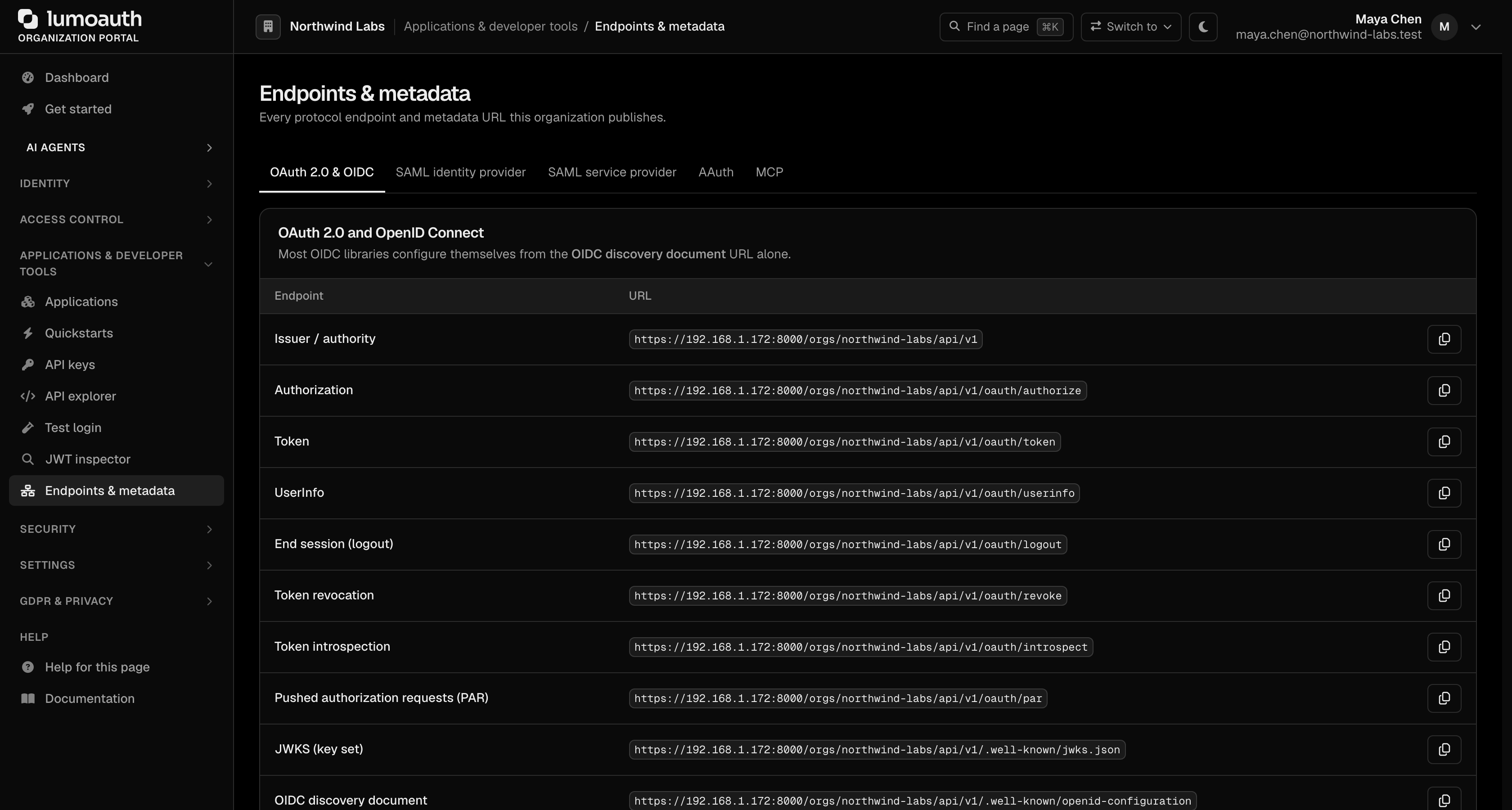
### Security
| Entry | URL | Description |
|-------|-----|-------------|
| **Sign-in settings** | `/orgs/{orgId}/portal/settings/authentication` | Identity methods, login flow, password standards, session timeout, MFA policy |
| **Adaptive security** | `/orgs/{orgId}/portal/settings/adaptive-auth` | Risk-based authentication settings |
| **Signing keys** | `/orgs/{orgId}/portal/signing-keys` | Manage JWT signing keys (RSA/EC) |
| **Audit logs** | `/orgs/{orgId}/portal/audit-logs` | View all authentication and admin events |

### Settings
| Entry | URL | Description |
|-------|-----|-------------|
| **Integrations** | `/orgs/{orgId}/portal/integrations` | One hub for social login (**Add provider**), enterprise SSO (SAML and OIDC), LDAP, SCIM, webhooks, log export, alerting and more |
| **Login page & emails → Login page** | `/orgs/{orgId}/portal/settings/login-page` | Branding, layout and self-registration for the sign-in, registration and consent pages |
| **Login page & emails → Email templates** | `/orgs/{orgId}/portal/settings/email-templates` | Customize verification, reset, invite emails |
| **Custom domains** | `/orgs/{orgId}/portal/custom-domains` | Map your domain to this organization |
| **Billing** | `/orgs/{orgId}/portal/billing` | Plan, usage and add-ons |
| **Data export** | `/orgs/{orgId}/portal/data-export` | Export organization data |

Webhooks are managed under **Settings → Integrations → Webhooks** (add one at `/orgs/{orgId}/portal/integrations/webhooks/create`). From there you can send a test event and open a webhook's delivery history. They are also available through the Admin API at `/orgs/{orgId}/api/v1/admin/webhooks`.
### GDPR & privacy
| Entry | URL | Description |
|-------|-----|-------------|
| **Privacy overview** | `/orgs/{orgId}/portal/gdpr` | Entry point to breach incidents, privacy policies, processing activities and GDPR settings |
| **Subject requests** | `/orgs/{orgId}/portal/gdpr/dsr` | Data subject access and deletion requests |
| **Consent records** | `/orgs/{orgId}/portal/gdpr/consent-records` | Who consented to what, and when |
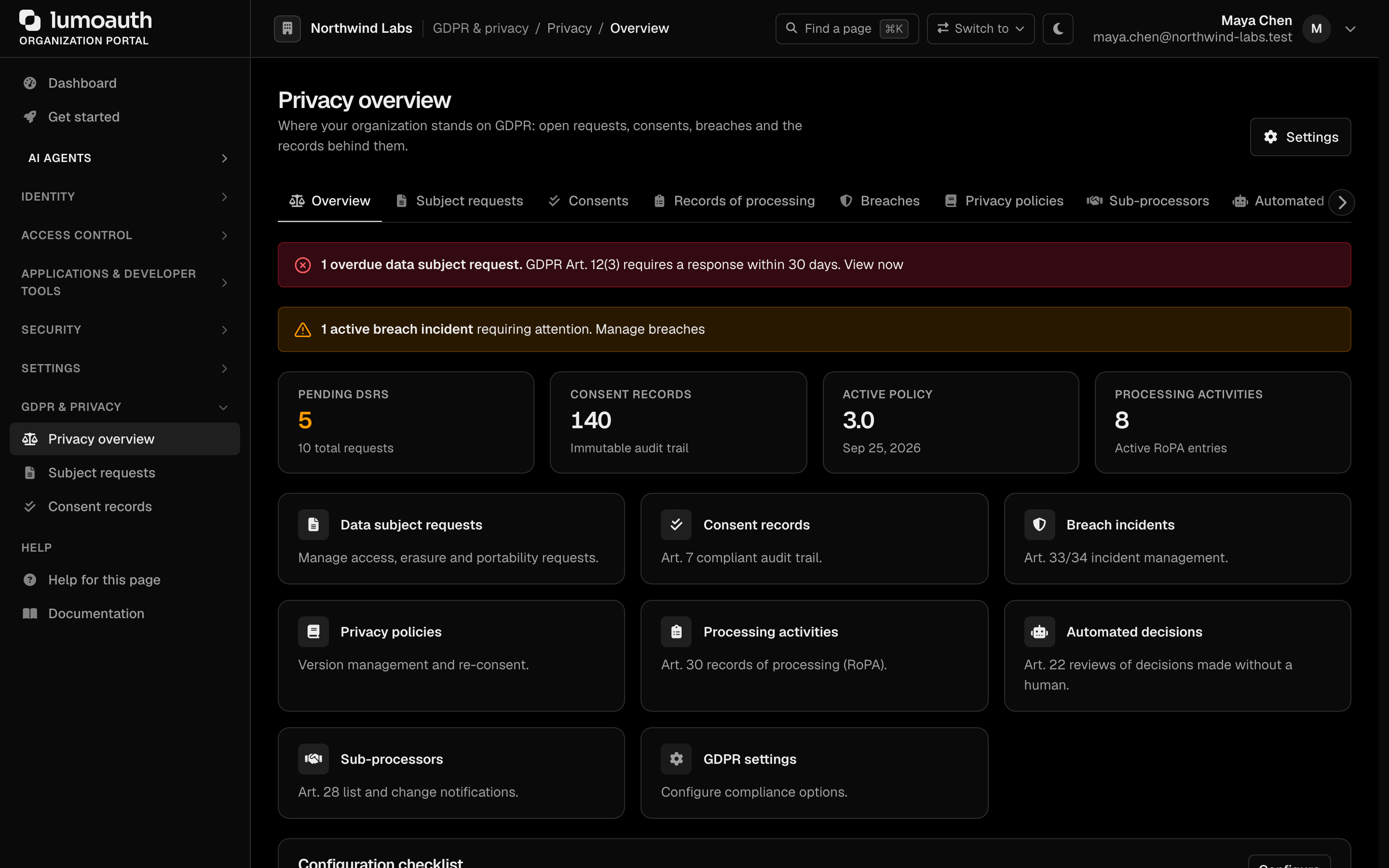
### Help
**Help for this page** opens the guide for the page that you are on, in a new tab (see the [portal page → guide map](https://docs.lumoauth.dev/user-guide/portal-map); the entry is hidden on pages without a guide). **Documentation** opens the home page of this documentation site.
---
## Portal Navigation
```mermaid
graph TD
Home["Home: Dashboard, Get started"]
Agents["AI Agents"]
Agents --> AgentCore["Agents (Agents, AAuth credentials, AAuth resources, Connections)"]
Agents --> Approvals["Approvals"]
Agents --> MCP["MCP servers"]
Agents --> Rules["Agent rules: Access rules, Auto-approve rules, Cross-app access"]
Agents --> Activity["Agent activity: Activity, Security signals"]
Identity["Identity"]
Identity --> Users["Users"]
Identity --> Groups["Users › Invitations, Groups (tabs)"]
Identity --> B2B["Customer organizations"]
Access["Access control"]
Access --> How["How access works"]
Access --> Roles["Roles & permissions: Roles, Permissions"]
Access --> ReBAC["Relationships"]
Access --> ABAC["Attribute rules"]
Access --> Tester["Test access"]
Dev["Applications & developer tools"]
Dev --> Apps["Applications"]
Dev --> Quick["Quickstarts"]
Dev --> Keys["API keys"]
Dev --> Tools["API explorer, Test login, JWT inspector, Endpoints & metadata"]
Sec["Security"]
Sec --> AuthSettings["Sign-in settings"]
Sec --> Adaptive["Adaptive security"]
Sec --> SigningKeys["Signing keys"]
Sec --> AuditLogs["Audit logs"]
Settings["Settings"]
Settings --> Integrations["Integrations"]
Settings --> LoginPage["Login page"]
Settings --> Email["Email templates"]
Settings --> Domains["Custom domains"]
Settings --> Billing["Billing, Data export"]
GDPR["GDPR & privacy"]
GDPR --> GdprPages["Privacy overview (tabs: Subject requests, Consents, Records of processing, Breaches, Policies, Sub-processors, Automated decisions, Settings)"]
Help["Help: Help for this page, Documentation"]
```
---
## Portal Access
### Who Can Access the Portal?
Users with the organization admin role (the system role named **Tenant Admin** in the portal) can access the full portal. Anyone else who holds at
least one admin-plane system permission (for example only `users.view`, or only `jit.approve`)
can open the portal too, but sees only what they may use:
- the sidebar hides every entry that the user holds no permission for;
- each page and action checks its own permission (`users.view` to list users, `users.edit` to
save one, `billing.manage` for billing, `gdpr.manage` for privacy requests, and so on) and
answers `403` otherwise;
- `settings.manage` covers authentication and security settings, API keys, custom domains and
integrations, not the whole portal.
See [How the admin permissions work](https://docs.lumoauth.dev/user-guide/access-control/roles-permissions#how-the-admin-permissions-work).
### Logging In
Organization admins log in through the standard login page at `/orgs/{orgId}/login` and are redirected to the portal after authentication.
---
## Related Guides
- [Organization Setup](https://docs.lumoauth.dev/user-guide/multi-tenancy/tenant-setup) - Create and configure organizations
- [Custom Domains](https://docs.lumoauth.dev/user-guide/multi-tenancy/custom-domains) - Use your own domain
- [Access Control Overview](https://docs.lumoauth.dev/user-guide/access-control/overview) - Manage roles and permissions
---
# Custom Domains
Source: https://docs.lumoauth.dev/user-guide/multi-tenancy/custom-domains
Custom domains let you serve an organization's authentication pages under your own domain instead of the default /orgs/{orgId}/ path. Users then see https://auth.acme.com/login rather than the default URL.
Custom domains let you serve an organization's authentication pages under your own domain instead of the default `/orgs/{orgId}/` path. Users then see `https://auth.acme.com/login` rather than the default URL.
---
## How It Works
| Without Custom Domain | With Custom Domain |
|-----------------------|-------------------|
| `https://lumoauth.example.com/orgs/acme-corp/login` | `https://auth.acme.com/login` |
| `https://lumoauth.example.com/orgs/acme-corp/api/v1/oauth/authorize` | `https://auth.acme.com/api/v1/oauth/authorize` |
| `https://lumoauth.example.com/orgs/acme-corp/api/v1/.well-known/openid-configuration` | `https://auth.acme.com/api/v1/.well-known/openid-configuration` |
When a custom domain is configured, the `/orgs/{orgId}` prefix is no longer needed. LumoAuth automatically maps requests to the correct organization based on the domain.
On the custom domain the issuer is the bare domain, `https://auth.acme.com`. Standard clients therefore look for the discovery documents at the root of the domain, and LumoAuth serves them there: `https://auth.acme.com/.well-known/openid-configuration` and `https://auth.acme.com/.well-known/oauth-authorization-server`.
---
## Setting Up a Custom Domain
### 1. Add the Domain in LumoAuth
1. Go to **Settings → Custom domains** (`/orgs/{orgId}/portal/custom-domains`)
2. Click **Add domain**
3. Enter your **Domain name** (e.g., `auth.acme.com`), with no `http://` and no trailing slash
4. Pick a **Verification method**: **TXT record (recommended)**, which does not affect how the domain resolves, or **CNAME record**
5. Click **Add domain**
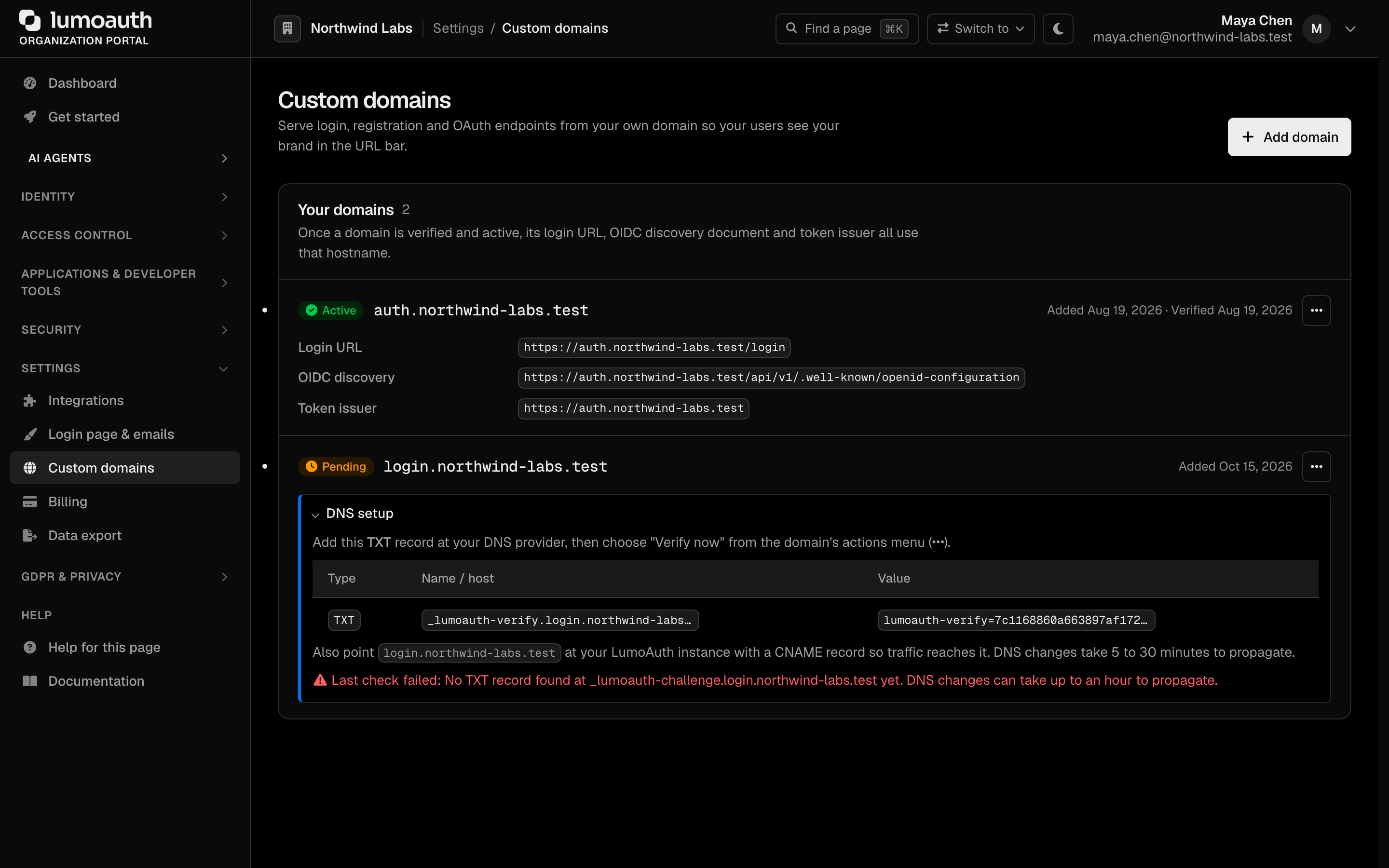

Custom domains are a paid-plan feature; see the [pricing matrix](https://docs.lumoauth.dev/pricing-matrix).
### 2. Configure DNS
Open **DNS setup** on the new domain's card and add the TXT or CNAME verification record that it shows at your DNS provider. Then add a CNAME record pointing your domain to your LumoAuth instance so traffic reaches it:
```
auth.acme.com CNAME lumoauth.example.com
```
Or for an apex domain, use an A record pointing to the IP address of your LumoAuth server.
### 3. TLS Certificate
LumoAuth handles TLS certificates for custom domains. After DNS propagation, the certificate is provisioned automatically.
### 4. Verify the Domain
Once DNS is configured, choose **Verify now** from the domain's actions menu on the Custom domains page. LumoAuth confirms the verification record and activates the custom domain.
---
## OIDC Discovery with Custom Domains
When a custom domain is active, the OIDC discovery document updates automatically:
**Before:**
```json
{
"issuer": "https://lumoauth.example.com/orgs/acme-corp/api/v1",
"authorization_endpoint": "https://lumoauth.example.com/orgs/acme-corp/api/v1/oauth/authorize",
"token_endpoint": "https://lumoauth.example.com/orgs/acme-corp/api/v1/oauth/token"
}
```
**After:**
```json
{
"issuer": "https://auth.acme.com",
"authorization_endpoint": "https://auth.acme.com/api/v1/oauth/authorize",
"token_endpoint": "https://auth.acme.com/api/v1/oauth/token",
"jwks_uri": "https://auth.acme.com/api/v1/.well-known/jwks.json"
}
```
The endpoints keep their `/api/v1/...` paths; only the `/orgs/{orgId}` prefix disappears. The `issuer` is the **bare domain** with no path.
### Issuer and token validation
Every token minted for a request that arrived on the custom domain carries `"iss": "https://auth.acme.com"`; every token minted on the organization path carries `"iss": "https://lumoauth.example.com/orgs/acme-corp/api/v1"`. The `iss` parameter on authorization responses and the `iss` in introspection responses follow the same rule. In short: **the issuer is whatever the discovery document of the entry point that you use says.**
1. Pick one entry point per application (the custom domain, once verified).
2. Fetch its discovery document at startup and pass `issuer` and `jwks_uri` to your OIDC library.
3. Never mix entry points inside one application. A code obtained on `auth.acme.com` and redeemed on the `/orgs/acme-corp/` path yields a token whose `iss` your app will reject. That rejection is the correct outcome under the issuer identifier check.
Tokens minted before 16 September 2026 carried `https://lumoauth.example.com/orgs/acme-corp` (no `/api/v1`). LumoAuth's own verifiers accept that legacy value until those tokens expire; new tokens never carry it.
**Info: Standard**
The issuer identifier in the response and [OpenID Connect Core 3.1.3.7](https://openid.net/specs/openid-connect-core-1_0.html#IDTokenValidation) require the client to compare `iss` with the discovery `issuer` byte-for-byte. To comply after enabling a custom domain, update your application's configured issuer to the bare domain (or, better, read it from discovery). See the [integrator checklist](https://docs.lumoauth.dev/oauth/security).
---
## Multiple Custom Domains
An organization can have multiple custom domains, but only one is designated as the **primary domain**. For requests that arrive on a verified domain, the issuer is that domain. The primary domain is the issuer that LumoAuth uses when it mints a token outside of a request (background jobs, CLI commands). For that reason, keep your applications on the primary domain.
| Use Case | Primary Domain | Additional Domain |
|----------|---------------|-------------------|
| Login portal | `auth.acme.com` | - |
| Partner portal | `auth.acme.com` | `login.partner.acme.com` |
---
## Managing Custom Domains
Navigate to `/orgs/{orgId}/portal/custom-domains`:
- **Add domain** - Register a new custom domain
- **Verify now** - Confirm DNS configuration
- **Set primary** - Designate the primary domain for token issuance
- **Enable** / **Disable** - Turn a domain on or off without removing it
- **Remove** - Delete a custom domain's mapping
All except **Add domain** are in each domain's actions menu.
Custom domains are managed only through the portal — there is no public REST API for them. The portal actions map to the following endpoints (all require an authenticated organization-admin session, not a Bearer token):
| Action | Method & Path |
|--------|---------------|
| List domains | `GET /orgs/{orgId}/portal/custom-domains` |
| Add a domain | `POST /orgs/{orgId}/portal/custom-domains/add` |
| View DNS instructions | `GET /orgs/{orgId}/portal/custom-domains/{domainId}/dns-instructions` |
| Verify a domain | `POST /orgs/{orgId}/portal/custom-domains/{domainId}/verify` |
| Set primary domain | `POST /orgs/{orgId}/portal/custom-domains/{domainId}/set-primary` |
| Enable / disable a domain | `POST /orgs/{orgId}/portal/custom-domains/{domainId}/toggle` |
| Remove a domain | `POST /orgs/{orgId}/portal/custom-domains/{domainId}/delete` |
---
## Troubleshooting
| Issue | Solution |
|-------|----------|
| Domain verification fails | Confirm the TXT or CNAME verification record is correctly set and propagated (`dig auth.acme.com CNAME`) |
| TLS certificate not provisioned | Wait for DNS propagation (up to 48 hours), then re-verify |
| OIDC discovery returns old URLs | Clear any caches; the discovery endpoint updates immediately on the server |
| Token validation fails after domain change | Update your applications to the new issuer, which is the bare domain (`https://auth.acme.com`), or read it from discovery |
| `iss` mismatch reported by your OIDC library | Your app started the flow on one entry point and validates against another. Use one entry point per application. |
---
## Related Guides
- [Organization Setup](https://docs.lumoauth.dev/user-guide/multi-tenancy/tenant-setup) - Create and configure organizations
- [Organization Portal](https://docs.lumoauth.dev/user-guide/multi-tenancy/tenant-portal) - Navigate the admin portal
- [Applications](https://docs.lumoauth.dev/user-guide/applications/overview) - Update application URLs after domain changes
- [Integrator checklist](https://docs.lumoauth.dev/oauth/security) - Issuer validation and redirect URI rules
## Standards used on this page
| Plain name | Standard |
|---|---|
| Issuer identifier in the response | RFC 9207 |
| OpenID Connect (OIDC) | OpenID Connect Core 1.0 |
See the [standards reference](https://docs.lumoauth.dev/reference/standards) for what each one covers and how LumoAuth uses it.
---
# Login Page & Branding
Source: https://docs.lumoauth.dev/user-guide/multi-tenancy/branding
Customize the login page for each organization — logo, brand colors, background, layout, custom CSS, custom HTML, and AI-generated themes. Branding is set per organization, and each OAuth application can override it.
Customize the login page for each organization — logo, brand colors, background, layout, custom CSS, custom HTML, and AI-generated themes. Branding is set per organization, and each OAuth application can override it.
---
## Accessing Login Page Settings
Go to **Settings → Login page & emails → Login page** (`/orgs/{orgId}/portal/settings/login-page`) in your organization portal. The page is one form split into sections (**General**, **Layout**, **Background**, **Branding & content**, **Style variants**, **Footer & links**, **Other pages**, **Advanced**) with a **Live preview** beside it.
Under **General**, turn on **Enable custom login page**. While it is off, the default LumoAuth styling is used and none of the settings below (including custom CSS and layouts) are applied to any page. **Enable self registration** controls whether the "Create one" link is shown, whether or not the custom page is on. **Theme preference** picks automatic, light or dark; choosing light or dark fixes the theme for every visitor and removes the theme toggle from your sign-in pages. Click **Save changes** to apply, and use **Open login page** at the top to see the result on the real page.
The settings apply to the whole sign-in journey of your organization: sign-in, password reset, email verification and MFA. Registration and the OAuth consent and device pages follow their own switches under **Other pages**.
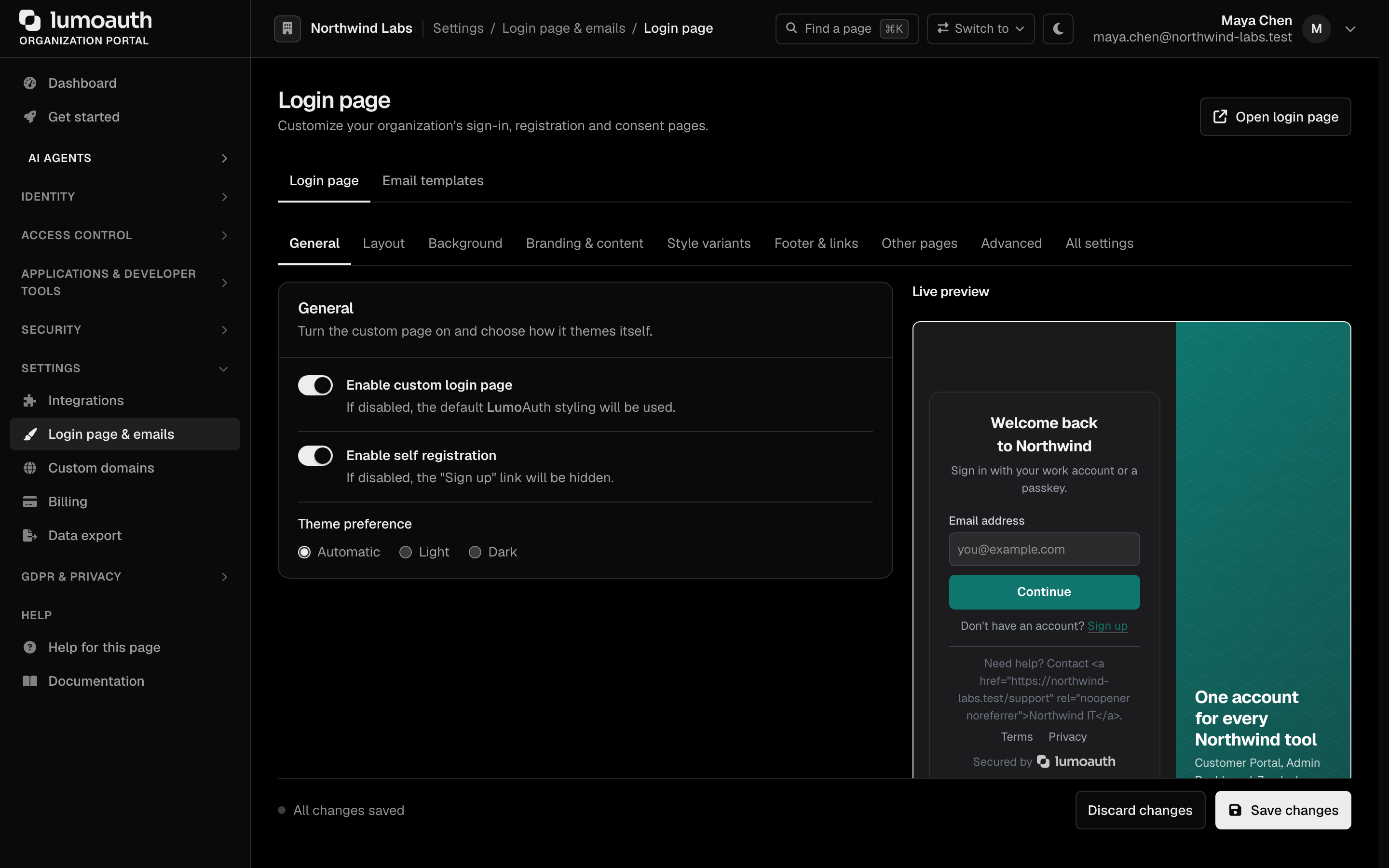
---
## Basic Branding
### Logo
In **Branding & content**, enter the `https://` address of your logo in **Logo URL** to display it at the top of the login page. Recommended format: PNG or SVG, transparent background, minimum 200px wide. **Favicon URL** sets the icon shown in the browser tab for your sign-in pages.
Image and link fields accept `https://` (or `http://`) addresses only; a small inline `data:` PNG, JPEG, GIF or WebP also works for images. Anything else is refused when you save and the page tells you which field was not stored.
### Welcome Text
Set **Welcome title** to replace the default "Welcome back" heading shown above the login form — for example, *"Welcome to Acme Corp"*. Set **Welcome subtitle** to replace the line beneath it. **Button text** changes the label of the sign-in button. The title and button text are plain text; the subtitle and footer text keep bold, italics and links and drop any other HTML.
**Show organization name** controls the name next to the mark at the top of the page. **Show org name in subtitle** adds "to continue to *your organization*" under the title when you have not set a subtitle of your own.
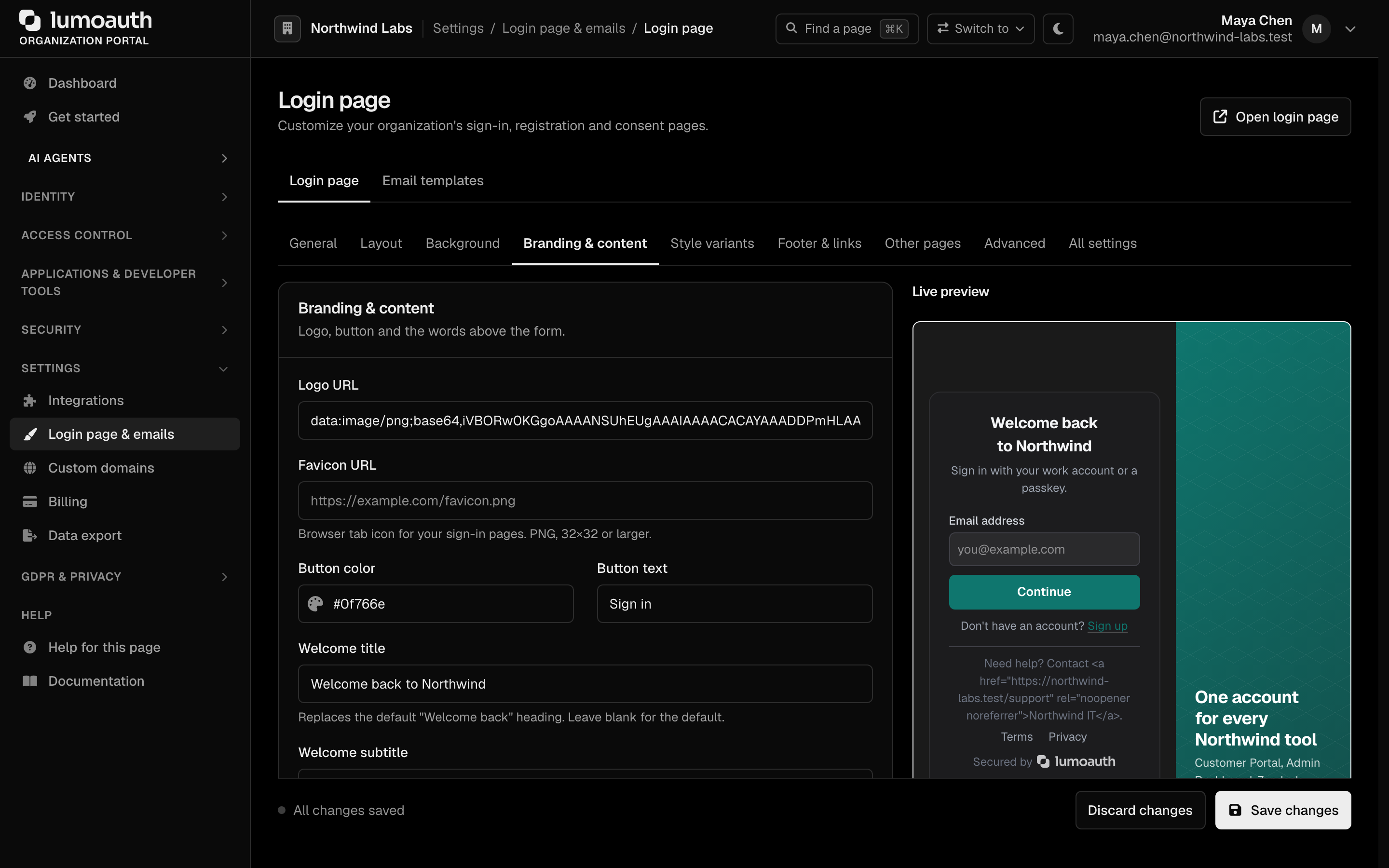
### Footer Text
In **Footer & links**, add a **Custom footer text** message, such as contact information or a support link, and optionally a **Terms of service URL** and **Privacy policy URL**.
---
## Colors & Background
| Setting | Description |
|---------|-------------|
| **Button color** (Branding & content) | Used for the sign-in button, links and focus rings. The button label switches between white and near-black automatically so it stays readable on your colour. |
| **Background type** (Background) | Choose between **Solid color**, **Gradient**, **Image**, or **Pattern only** |
| **Show geometric pattern overlay** (Background) | Adds a subtle pattern on top of the background, in the **Pattern style** that you pick |
For a gradient background, pick one of the preset swatches or enter a `linear-gradient()`, `radial-gradient()` or `conic-gradient()` value. For an image background, **Overlay opacity** darkens the image so text stays readable. Text placed directly on your background (the header, the footer, the line under the form) follows the background's lightness, not the visitor's theme. A solid background left at the default white keeps the standard light and dark grounds.
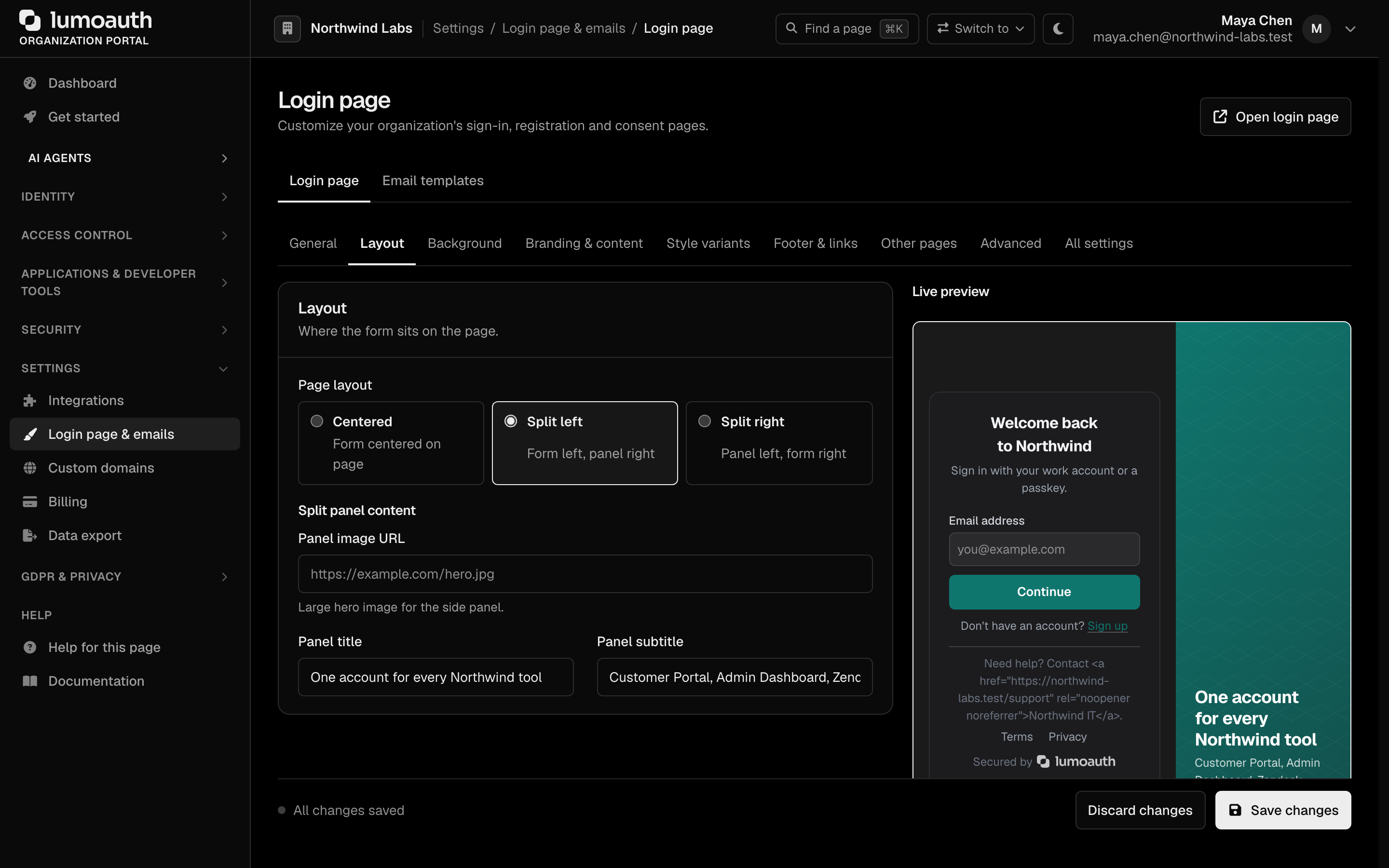
---
## Layout Options
Under **Layout**, pick a **Page layout** to control how the login form is positioned on the page: **Centered**, **Split left** (form left, panel right) or **Split right** (panel left, form right). In the split layouts the panel shows your background, or the **Panel image**, with the **Panel title** and **Panel subtitle** over it. On phones the panel is hidden and the form takes the full width. **Style variants** sets the shape of inputs (rounded, square, pill), buttons (filled, outline, pill) and the form card (card, flat, glass).
---
## Per-Application Branding
You can configure separate branding for individual OAuth applications:
1. Go to `/orgs/{orgId}/portal/applications/oidc/{clientId}`
2. Open the **Branding** tab
3. In the **Login page** section, turn on **Enable custom login page** and override the organization-level logo, background and button colours, button text and custom CSS for this specific application. Everything that the application does not set (layout, background type, footer and so on) comes from the organization's settings.
4. Click **Save login page**
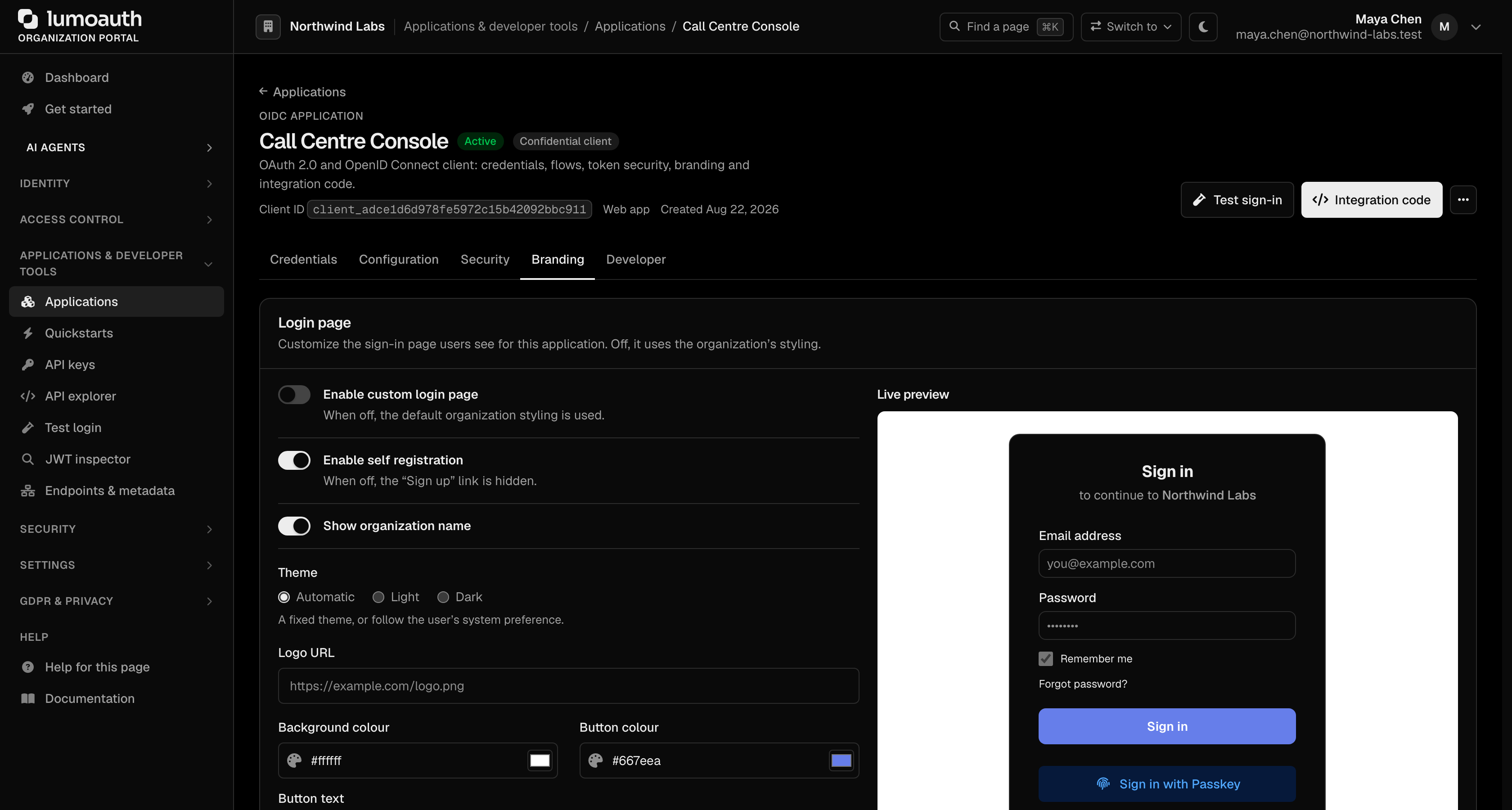
This is useful if you serve multiple products under one organization but want each to have its own branded login experience.
---
## AI Theme Generation
LumoAuth can automatically generate a matching color scheme and visual style by analyzing your website.
1. Go to `/orgs/{orgId}/portal/settings/login-page`
2. Click **Generate theme with AI** at the top of the page (the button is shown only when an AI provider is configured)
3. Enter your website URL and click **Generate**
4. LumoAuth analyzes your site's colors, fonts, and style, then suggests a matching theme for the login page
5. Preview the result and apply it or adjust individual settings
**Note**
AI theme generation requires a configured AI provider and a plan that includes it (Pro or higher). The feature uses your website's publicly accessible home page — no login or access is needed.
---
## Custom CSS
Add your own stylesheet in the **Custom CSS** tab of the **Advanced customization** section and click **Save changes**. It is loaded after the settings above, on your organization's sign-in pages only, so a plain class selector is enough to override them:
```css
/* A rounder card with a brand-coloured border */
.lumo-card {
border-radius: 20px;
border: 2px solid #16a34a;
}
.lumo-auth-title { font-size: 2rem; }
.lumo-button-primary { letter-spacing: 0.02em; }
@media (max-width: 480px) {
.lumo-auth-footer { font-size: 11px; }
}
```
Applying custom CSS requires the Pro plan or higher; on other plans the section shows an upgrade notice and the stylesheet is not served.
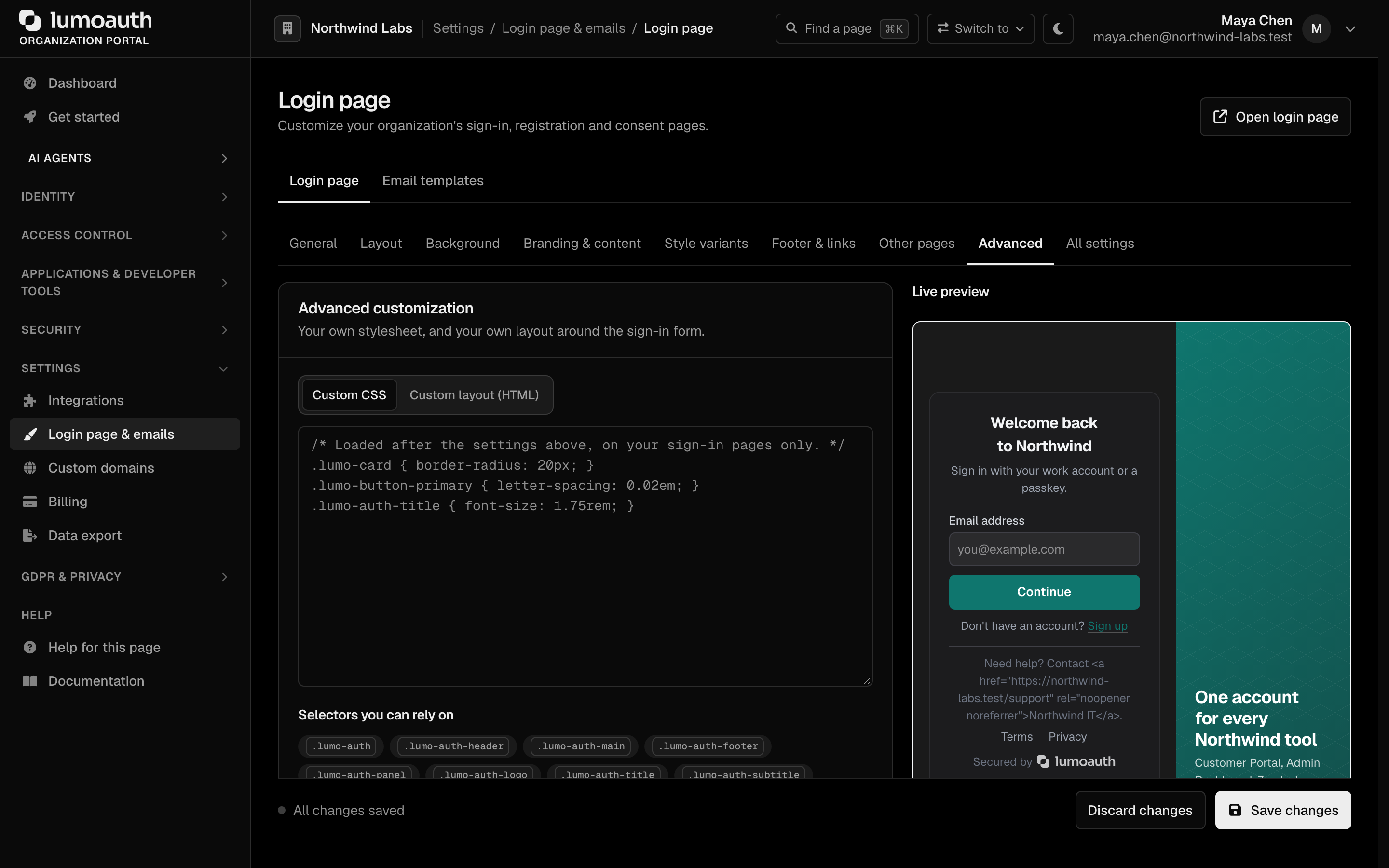
### Selectors you can rely on
| Selector | Element |
|----------|---------|
| `.lumo-auth` | The page. Carries `data-auth-layout`, `data-auth-input`, `data-auth-button` and `data-auth-card` with your chosen variants. |
| `.lumo-auth-header`, `.lumo-auth-main`, `.lumo-auth-footer` | Top bar, the area around the form, and the footer |
| `.lumo-auth-panel`, `.lumo-auth-panel-title`, `.lumo-auth-panel-subtitle` | The side panel of the split layouts |
| `.lumo-auth-logo`, `.lumo-auth-title`, `.lumo-auth-subtitle`, `.lumo-auth-signup` | Logo, heading, the line under it, and the "Create one" line |
| `.lumo-card` | The form card |
| `.lumo-input` | Text fields |
| `.lumo-button`, `.lumo-button-primary`, `.lumo-button-secondary` | Buttons |
Other class names on the page are implementation details and can change between releases.
### What the CSS filter allows
Your stylesheet is served from the origin shared by every organization, so LumoAuth does not try to detect dangerous CSS: it parses the stylesheet and rebuilds it from the parts that it recognises. Anything else is dropped. The same filter runs on the portal form, the Admin API and AI-generated themes, and again every time the stylesheet is served.
| Kept | Details |
|------|---------|
| Style rules | Class, element and attribute selectors, combinators, the common pseudo-classes and pseudo-elements (`:hover`, `:focus-visible`, `:not()`, `:is()`, `:has()`, `:nth-child()`, `::before`, …) and nesting |
| `@media`, `@supports`, `@container`, `@layer`, `@keyframes` | With their nested rules |
| Declarations | Standard and custom (`--name`) properties; colour, gradient, transform, filter, shape, timing and math functions; `var()`, `calc()`, `attr()`, `env()` |
| Inline images | `url()` with a `data:` PNG, JPEG, GIF or WebP only |
| Dropped | Reason |
|---------|--------|
| `@import`, `@font-face`, `@namespace` and every other at-rule | Loads from another site or changes how the page is parsed |
| `url()` with any address (`https://`, `//`, relative paths), `image-set()`, `image()`, `src()`, `cross-fade()`, `element()` | A request that the page would make. Attribute selectors plus per-character background images are a known way to read what a user types. |
| `data:` URLs other than raster images | SVG and non-image data URLs can carry script |
| `expression()`, `behavior`, `-moz-binding`, `javascript:` | Script execution in old browsers |
| Functions that are not on the allow-list, and backslash escapes outside quoted strings | An escape such as `\75rl(` could otherwise hide a blocked function |
| HTML (``, `